The Unix and GNU/Linux  Command Line  Nguyen Vu Hung – VINICORP  [email_address] 2010/09/21 Based on “intro_unix_linux” by Michael Opdenacker  from Free Electrons
Best viewed with... This document is best viewed with a recent PDF reader or with  OpenOffice.org  itself! Take advantage of internal or external hyperlinks. So, don’t hesitate to click on them!
Find pages quickly thanks to automatic search
Use thumbnails to navigate in the document in a quick way
Command memento sheet It is a useful companion to this presentation. Examples for the most useful commands are given in just one sheet. Suggestions for use Stick this sheet on your wall, use it as desktop wallpaper, make it a mouse mat, print it on clothing, slice it into bookmarks... Caution Store away from mice!
Training Contents (1) Shells, filesystem and file handling Everything is a file
GNU / Linux filesystem structure
Command line interpreters
Handling files and directories
Displaying, scanning and sorting files
Symbolic and hard link
File access rights
Training contents (2) Standard I/O, redirections, pipes Standard input and output, redirecting to files
Pipes: redirecting standard output to other commands
Standard error
Training Contents (3) Task control Full control on tasks
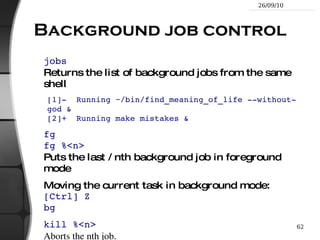
Executing in background, suspending, resuming and aborting
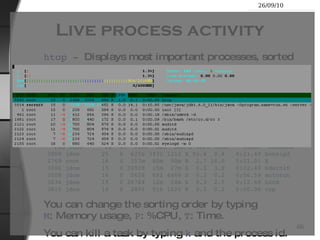
List of active tasks
Killing processes
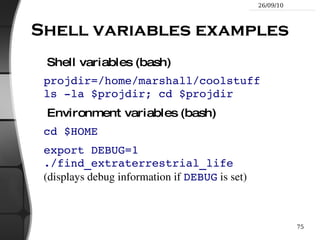
Environment variables
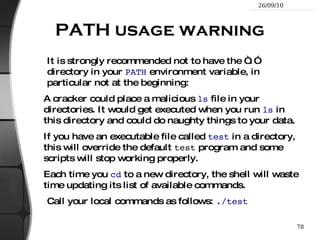
PATH environment variables
Shell aliases, .bashrc file
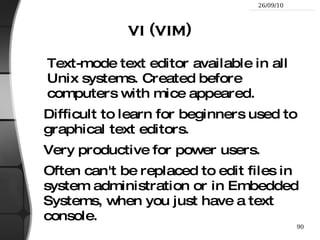
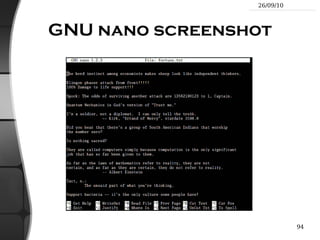
Training contents (4) Miscellaneous Text editors
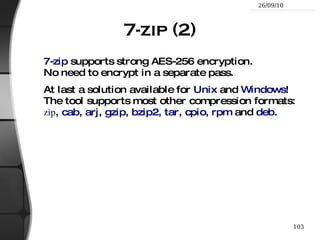
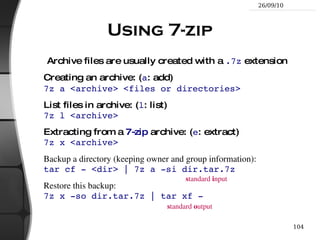
Compressing and archiving
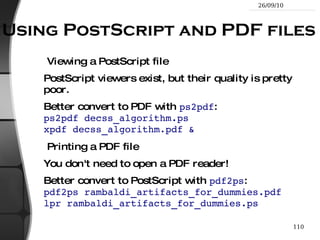
Printing files
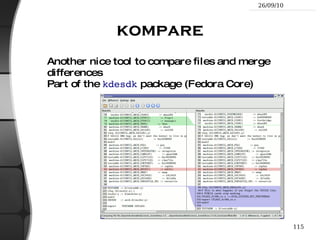
Comparing files and directories
Looking for files
Getting information about users
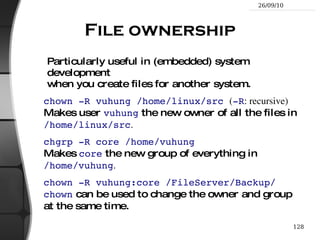
Training contents (5) System administration basics File ownership
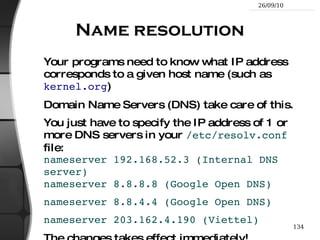
Setting up networking
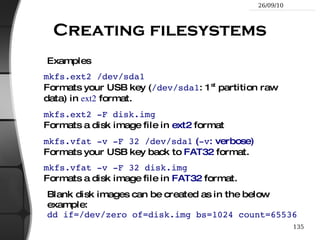
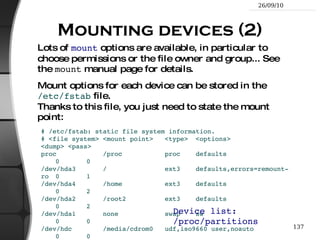
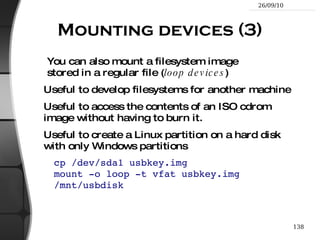
Filesystems: creating and mounting Going further Getting help, accessing manual pages
Searching the Internet for resources
Training contents (6) Basic LAMP Administration Linux
Apache
MySQL
PHP Going further LAMP on Ubuntu
LAMP on CentOS (Redhat)
GNU/Linux and Free Software This presentation included an introduction to Free Software and Open Source: operating systems, applications, key projects and rules for success.
Philosophy of the GNU Project Definition (free to run, study, distribute, change && copy)
Why Software Should Not Have Owners
Copyleft
Free Documentation
Selling Free Software is OK
The Unix and GNU/Linux command line Unix Filesystem
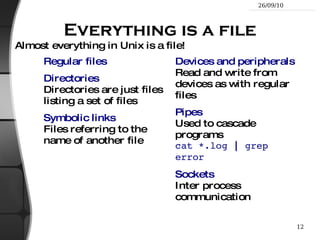
Everything is a file Regular files
Directories Directories are just files listing a set of files
Symbolic links Files referring to the name of another file Devices and peripherals Read and write from devices as with regular files
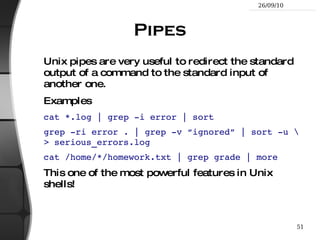
Pipes Used to cascade programs cat *.log  |  grep error
Sockets Inter process communication Almost everything in Unix is a file!
File names File name features since the beginning of Linux Case sensitive
No obvious length limit
Can contain any character (including whitespace, except  / ). File types stored in the file (“magic numbers”). File name extensions not needed and not interpreted. Just used for user convenience.
File name examples: README .bashrc Windows Buglist index.htm index.html index.html.old
File paths A  path  is a sequence of nested directories with a file or directory at the end, separated by the  /  character Relative path:  documents/fun/microsoft_jokes.html Relative to the current directory
Absolute path:  /home/bill/bugs/crash9402031614568
/  :  root directory . Start of absolute paths for all files on the system (even for files on removable devices or network shared).
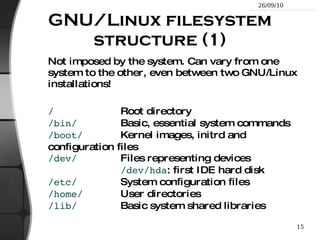
GNU/Linux filesystem structure (1) Not imposed by the system. Can vary from one system to the other, even between two GNU/Linux installations! / Root directory /bin/ Basic, essential system commands /boot/ Kernel images, initrd and configuration files /dev/ Files representing devices /dev/hda : first IDE hard disk /etc/ System configuration files /home/ User directories /lib/ Basic system shared libraries
GNU/Linux filesystem structure (2) /lost+found Corrupt files the system tried to recover /media Mount points for removable media: /media/usbdisk ,  /media/cdrom /mnt/ Mount points for temporarily mounted filesystems /opt/ Specific tools installed by the sysadmin /usr/local/  often used instead /proc/ Access to system information /proc/cpuinfo ,  / proc/version  ... /root/ root user home directory /sbin/ Administrator-only commands /sys/ System and device controls (cpu frequency, device power, etc.)
GNU/Linux filesystem structure (3) /tmp/ Temporary files /usr/ Regular user tools (not essential to the system) /usr/bin/ ,  /usr/lib/ ,  /usr/sbin ... /usr/local/   Specific software installed by the sysadmin (often preferred to  /opt/ ) /var/ Data used by the system or system servers /var/log/ ,  /var/spool/mail  (incoming      mail),  /var/spool/lpd  (print jobs)... The Unix filesystem structure is defined by the Filesystem Hierarchy Standard (FHS): http://www.pathname.com/fhs/
The Unix and GNU/Linux command line Shells and File Handling
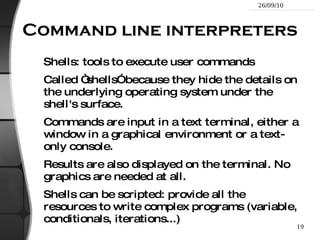
Command line interpreters Shells: tools to execute user commands
Called “shells” because they hide the details on the underlying operating system under the shell's surface.
Commands are input in a text terminal, either a window in a graphical environment or a text-only console.
Results are also displayed on the terminal. No graphics are needed at all.
Shells can be scripted: provide all the resources to write complex programs (variable, conditionals, iterations...)
Well known shells Most famous and popular shells sh : The Bourne shell (obsolete) Traditional, basic shell found on Unix systems, by Steve Bourne.
csh : The C shell (obsolete) Once popular shell with a C-like syntax
tcsh : The TC shell  (still very popular) A C shell compatible implementation with evolved features (command completion, history editing and more...)
bash : The Bourne Again shell (most popular) An improved implementation of sh with lots of added features too.
fish: a great new shell The Friendly Interactive SHell http://www.fishshell.org/ Standard features: history, command and file completion...
Brand new features: command option completion, command completion with short description, syntax highlighting..
Easier to any open files:  open  built-in command.
Much simpler and consistent syntax (not POSIX compliant) Makes it easier to create shell scripts.  Command line beginners can learn much faster! Even experienced users should find this shell very convenient.
ls command ls -a  (all) Lists all the files (including  .*  files)
ls -l  (long) Long listing (type, date, size, owner, permissions)
ls -t  (time) Lists the most recent files first ls -S  (size) Lists the biggest files first
ls -r  (reverse) Reverses the sort order
ls -ltr  (options can be combined) Long listing, most recent files at the end Lists the files in the current directory, in alphanumeric order, except files starting with the “ . ” character.
File name pattern substitutions Better introduced by examples! ls *txt The shell first replaces  *txt  by all the file and directory names ending by  txt  (including  .txt ), except those starting with  . , and then executes the  ls  command line.
ls -d .* Lists all the files and directories starting with  . -d  tells  ls  not to display the contents of directories.
cat ?.log Displays all the files which names start by 1 character and end by  .log
Special directories (1) ./ The current directory. Useful for commands taking a directory argument. Also sometimes useful to run commands in the current directory (see later).
So  ./readme.txt  and  readme.txt  are equivalent. ../ The parent (enclosing) directory. Always belongs to the   .  directory (see  ls -a ). Only reference to the parent directory.
Typical usage: cd ..
Special directories (2) ~/ Not a special directory indeed. Shells just substitute it by the home directory of the current user.
Cannot be used in most programs, as it is not a real directory. ~sydney/ Similarly, substituted by shells by the home directory of the  sydney  user.
The cd and pwd commands cd <dir> Changes the current directory to  <dir> .
cd - Gets back to the previous current directory.
pwd Displays the current directory (&quot;working directory&quot;).
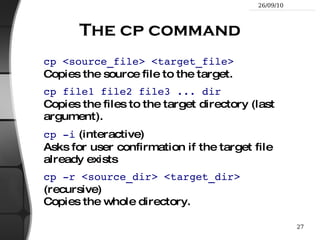
The cp command cp <source_file> <target_file> Copies the source file to the target.
cp file1 file2 file3 ... dir Copies the files to the target directory (last argument).
cp -i  (interactive) Asks for user confirmation if the target file already exists
cp -r <source_dir> <target_dir>   (recursive) Copies the whole directory.
Smart directory copy with rsync rsync  (remote sync) has been designed to keep in sync directories on 2 machines with a low bandwidth connection. Only copies files that have changed. Files with the same size are compared by checksums.
Only transfers the blocks that differ within a file!
Can compress the transferred blocks
Preserves symbolic links and file permissions: also very useful for copies on the same machine.
Can work through ssh (secure remote shell). Very useful to update the contents of a website, for example.
rsync examples (1) rsync -a /home/vuhung/work /home/backup/work -a : archive mode. Equivalent to  -rlptgoD ... easy way to tell you want recursion and want to preserve almost everything. rsync -Pav --delete /home/vuhung/work/ /home/backup/work/ -P :  --partial  (keep partially transferred files) and  --progress  (show progress during transfer) --delete : delete files in the target which don't exist in the source. Caution : directory names should end with  /  .  Otherwise, you get a backup/work /  directory at the destination.
rsync examples (2) Copying to a remote machine rsync -Pav /home/vuhung/work/001.svn/ \ vuhung@192.168.52.123:/home/work/002.ipad/ User  vuhung  will be prompted for a password. Copying from a remote machine through ssh rsync -Pav -e ssh vuhung@192.168.52.123:/home/vuhung/work/ \ tmp/work/ User  vuhung  will be prompted for his ssh key password.
mv and rm commands mv <old_name> <new_name>   (move) Renames the given file or directory.
mv -i   (interactive) If the new file already exits, asks for user confirm
rm file1 file2 file3  ... (remove) Removes the given files.
rm -i  (interactive) Always ask for user confirm.
rm -r dir1 dir2 dir3  (recursive) Removes the given directories with all their contents.
Creating and removing directories mkdir dir1 dir2 dir3  ...  (make dir) Creates directories with the given names.
rmdir dir1 dir2 dir3  ...  (remove dir) Removes the given directories Safe: only works when directories and empty. Alternative:  rm -r  (doesn't need empty directories).
Displaying file contents Several ways of displaying the contents of files. cat file1 file2 file3 ...   (concatenate) Concatenates and outputs the contents of the given files.
more file1 file2 file3 ... After each page, asks the user to hit a key to continue. Can also jump to the first occurrence of a keyword ( /  command).
less file1 file2 file3 ... Does more than  more  with less. Doesn't read the whole file before starting. Supports backward movement in the file ( ?  command).
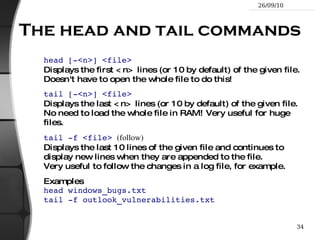
The head and tail commands head [-<n>] <file> Displays the first <n> lines (or 10 by default) of the given file. Doesn't have to open the whole file to do this!
tail [-<n>] <file> Displays the last <n> lines (or 10 by default) of the given file. No need to load the whole file in RAM! Very useful for huge files.
tail -f <file>   (follow) Displays the last 10 lines of the given file and continues to display new lines when they are appended to the file. Very useful to follow the changes in a log file, for example.
Examples head windows_bugs.txt tail -f outlook_vulnerabilities.txt
The grep command grep <pattern> <files> Scans the given files and displays the lines which match the given pattern.
grep error *.log Displays all the lines containing  error  in the  *. log  files
grep -i error *.log Same, but case insensitive
grep -ri error . Same, but recursively in all the files in  .  and its subdirectories
grep -v info *.log Outputs all the lines in the files except those containing  info .
The sort command sort <file> Sorts the lines in the given file in character order and outputs them.
sort -r <file> Same, but in reverse order.
sort -ru <file> u : unique. Same, but just outputs identical lines once.
More possibilities described later!
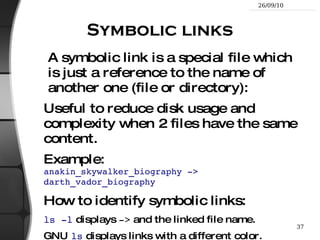
Symbolic links A symbolic link is a special file which is just a reference to the name of another one (file or directory): Useful to reduce disk usage and complexity when 2 files have the same content.
Example: anakin_skywalker_biography -> darth_vador_biography
How to identify symbolic links: ls -l  displays  ->  and the linked file name.
GNU  ls  displays links with a different color.
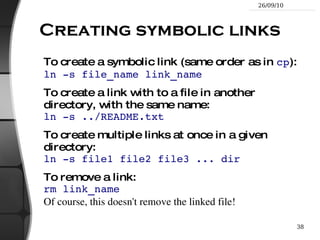
Creating symbolic links To create a symbolic link (same order as in  cp ): ln -s file_name link_name
To create a link with to a file in another directory, with the same name: ln -s ../README.txt
To create multiple links at once in a given directory: ln -s file1 file2 file3 ... dir
To remove a link: rm link_name Of course, this doesn't remove the linked file!
Hard links The default behavior for  ln  is to create  hard links
A  hard link  to a file is a regular file with exactly the same physical contents
While they still save space, hard links can't be distinguished from the original files.
If you remove the original file, there is no impact on the hard link contents.
The contents are removed when there are no more files (hard links) to them.
Files names and inodes Makes hard and symbolic (soft) links easier to understand!
File access rights 3 types of access rights Read access ( r )
Write access ( w )
Execute rights ( x ) 3 types of access levels User ( u ): for the owner of the file
Group ( g ): each file also has a “group” attribute, corresponding to a given list of users
Others ( o ): for all other users Use  ls -l  to check file access rights
Access right constraints x  without  r  is legal but is useless You have to be able to read a file to execute it.
Both  r  and  x  permissions needed for directories: x  to enter,  r  to list its contents.
You can't rename, remove, copy files in a directory if you don't have  w  access to this directory.
If you have  w  access to a directory, you CAN remove a file even if you don't have write access to this file (remember that a directory is just a file describing a list of files). This even lets you modify (remove + recreate) a file even without  w  access to it.
Access rights examples -rw-r--r-- Readable and writable for file owner, only readable for others
-rw-r----- Readable and writable for file owner, only readable for users belonging to the file group.
drwx------ Directory only accessible by its owner
-------r-x File executable by others but neither by your friends nor by yourself. Nice protections for a trap...
chmod: changing permissions chmod <permissions> <files> 2 formats for permissions:
Octal format (abc):  a,b,c = r*4+w*2+x  ( r ,  w ,  x : booleans) Example:  chmod 644 <file> ( rw  for  u ,  r  for  g  and  o )
Or symbolic format. Easy to understand by examples: chmod go+r : add read permissions to group and others. chmod u-w : remove write permissions from user. chmod a-x : ( a : all) remove execute permission from all.
More chmod (1) chmod -R a+rX folder/ Makes  folder  and everything in it available to everyone! R : apply changes recursively
X :  x , but only for directories and files already executable Very useful to open recursive access to directories, without adding execution rights to all files.
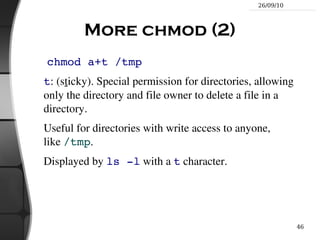
More chmod (2) chmod a+t /tmp t : (s t icky). Special permission for directories, allowing only the directory and file owner to delete a file in a directory.
Useful for directories with write access to anyone, like  /tmp .
Displayed by  ls -l  with a  t  character.
The Unix and GNU / Linux command line Standard I/O, Redirections, Pipes

Nguyễn Vũ Hưng: Basic Linux Power Tools

  • 1.
    The Unix andGNU/Linux Command Line Nguyen Vu Hung – VINICORP [email_address] 2010/09/21 Based on “intro_unix_linux” by Michael Opdenacker from Free Electrons
  • 2.
    Best viewed with...This document is best viewed with a recent PDF reader or with OpenOffice.org itself! Take advantage of internal or external hyperlinks. So, don’t hesitate to click on them!
  • 3.
    Find pages quicklythanks to automatic search
  • 4.
    Use thumbnails tonavigate in the document in a quick way
  • 5.
    Command memento sheetIt is a useful companion to this presentation. Examples for the most useful commands are given in just one sheet. Suggestions for use Stick this sheet on your wall, use it as desktop wallpaper, make it a mouse mat, print it on clothing, slice it into bookmarks... Caution Store away from mice!
  • 6.
    Training Contents (1)Shells, filesystem and file handling Everything is a file
  • 7.
    GNU / Linuxfilesystem structure
  • 8.
  • 9.
    Handling files anddirectories
  • 10.
  • 11.
  • 12.
  • 13.
    Training contents (2)Standard I/O, redirections, pipes Standard input and output, redirecting to files
  • 14.
    Pipes: redirecting standardoutput to other commands
  • 15.
  • 16.
    Training Contents (3)Task control Full control on tasks
  • 17.
    Executing in background,suspending, resuming and aborting
  • 18.
  • 19.
  • 20.
  • 21.
  • 22.
  • 23.
    Training contents (4)Miscellaneous Text editors
  • 24.
  • 25.
  • 26.
  • 27.
  • 28.
  • 29.
    Training contents (5)System administration basics File ownership
  • 30.
  • 31.
    Filesystems: creating andmounting Going further Getting help, accessing manual pages
  • 32.
  • 33.
    Training contents (6)Basic LAMP Administration Linux
  • 34.
  • 35.
  • 36.
    PHP Going furtherLAMP on Ubuntu
  • 37.
  • 38.
    GNU/Linux and FreeSoftware This presentation included an introduction to Free Software and Open Source: operating systems, applications, key projects and rules for success.
  • 39.
    Philosophy of theGNU Project Definition (free to run, study, distribute, change && copy)
  • 40.
    Why Software ShouldNot Have Owners
  • 41.
  • 42.
  • 43.
  • 44.
    The Unix andGNU/Linux command line Unix Filesystem
  • 45.
    Everything is afile Regular files
  • 46.
    Directories Directories arejust files listing a set of files
  • 47.
    Symbolic links Filesreferring to the name of another file Devices and peripherals Read and write from devices as with regular files
  • 48.
    Pipes Used tocascade programs cat *.log | grep error
  • 49.
    Sockets Inter processcommunication Almost everything in Unix is a file!
  • 50.
    File names Filename features since the beginning of Linux Case sensitive
  • 51.
  • 52.
    Can contain anycharacter (including whitespace, except / ). File types stored in the file (“magic numbers”). File name extensions not needed and not interpreted. Just used for user convenience.
  • 53.
    File name examples:README .bashrc Windows Buglist index.htm index.html index.html.old
  • 54.
    File paths A path is a sequence of nested directories with a file or directory at the end, separated by the / character Relative path: documents/fun/microsoft_jokes.html Relative to the current directory
  • 55.
    Absolute path: /home/bill/bugs/crash9402031614568
  • 56.
    / : root directory . Start of absolute paths for all files on the system (even for files on removable devices or network shared).
  • 57.
    GNU/Linux filesystem structure(1) Not imposed by the system. Can vary from one system to the other, even between two GNU/Linux installations! / Root directory /bin/ Basic, essential system commands /boot/ Kernel images, initrd and configuration files /dev/ Files representing devices /dev/hda : first IDE hard disk /etc/ System configuration files /home/ User directories /lib/ Basic system shared libraries
  • 58.
    GNU/Linux filesystem structure(2) /lost+found Corrupt files the system tried to recover /media Mount points for removable media: /media/usbdisk , /media/cdrom /mnt/ Mount points for temporarily mounted filesystems /opt/ Specific tools installed by the sysadmin /usr/local/ often used instead /proc/ Access to system information /proc/cpuinfo , / proc/version ... /root/ root user home directory /sbin/ Administrator-only commands /sys/ System and device controls (cpu frequency, device power, etc.)
  • 59.
    GNU/Linux filesystem structure(3) /tmp/ Temporary files /usr/ Regular user tools (not essential to the system) /usr/bin/ , /usr/lib/ , /usr/sbin ... /usr/local/ Specific software installed by the sysadmin (often preferred to /opt/ ) /var/ Data used by the system or system servers /var/log/ , /var/spool/mail (incoming mail), /var/spool/lpd (print jobs)... The Unix filesystem structure is defined by the Filesystem Hierarchy Standard (FHS): http://www.pathname.com/fhs/
  • 60.
    The Unix andGNU/Linux command line Shells and File Handling
  • 61.
    Command line interpretersShells: tools to execute user commands
  • 62.
    Called “shells” becausethey hide the details on the underlying operating system under the shell's surface.
  • 63.
    Commands are inputin a text terminal, either a window in a graphical environment or a text-only console.
  • 64.
    Results are alsodisplayed on the terminal. No graphics are needed at all.
  • 65.
    Shells can bescripted: provide all the resources to write complex programs (variable, conditionals, iterations...)
  • 66.
    Well known shellsMost famous and popular shells sh : The Bourne shell (obsolete) Traditional, basic shell found on Unix systems, by Steve Bourne.
  • 67.
    csh : TheC shell (obsolete) Once popular shell with a C-like syntax
  • 68.
    tcsh : TheTC shell (still very popular) A C shell compatible implementation with evolved features (command completion, history editing and more...)
  • 69.
    bash : TheBourne Again shell (most popular) An improved implementation of sh with lots of added features too.
  • 70.
    fish: a greatnew shell The Friendly Interactive SHell http://www.fishshell.org/ Standard features: history, command and file completion...
  • 71.
    Brand new features:command option completion, command completion with short description, syntax highlighting..
  • 72.
    Easier to anyopen files: open built-in command.
  • 73.
    Much simpler andconsistent syntax (not POSIX compliant) Makes it easier to create shell scripts. Command line beginners can learn much faster! Even experienced users should find this shell very convenient.
  • 74.
    ls command ls-a (all) Lists all the files (including .* files)
  • 75.
    ls -l (long) Long listing (type, date, size, owner, permissions)
  • 76.
    ls -t (time) Lists the most recent files first ls -S (size) Lists the biggest files first
  • 77.
    ls -r (reverse) Reverses the sort order
  • 78.
    ls -ltr (options can be combined) Long listing, most recent files at the end Lists the files in the current directory, in alphanumeric order, except files starting with the “ . ” character.
  • 79.
    File name patternsubstitutions Better introduced by examples! ls *txt The shell first replaces *txt by all the file and directory names ending by txt (including .txt ), except those starting with . , and then executes the ls command line.
  • 80.
    ls -d .*Lists all the files and directories starting with . -d tells ls not to display the contents of directories.
  • 81.
    cat ?.log Displaysall the files which names start by 1 character and end by .log
  • 82.
    Special directories (1)./ The current directory. Useful for commands taking a directory argument. Also sometimes useful to run commands in the current directory (see later).
  • 83.
    So ./readme.txt and readme.txt are equivalent. ../ The parent (enclosing) directory. Always belongs to the . directory (see ls -a ). Only reference to the parent directory.
  • 84.
  • 85.
    Special directories (2)~/ Not a special directory indeed. Shells just substitute it by the home directory of the current user.
  • 86.
    Cannot be usedin most programs, as it is not a real directory. ~sydney/ Similarly, substituted by shells by the home directory of the sydney user.
  • 87.
    The cd andpwd commands cd <dir> Changes the current directory to <dir> .
  • 88.
    cd - Getsback to the previous current directory.
  • 89.
    pwd Displays thecurrent directory (&quot;working directory&quot;).
  • 90.
    The cp commandcp <source_file> <target_file> Copies the source file to the target.
  • 91.
    cp file1 file2file3 ... dir Copies the files to the target directory (last argument).
  • 92.
    cp -i (interactive) Asks for user confirmation if the target file already exists
  • 93.
    cp -r <source_dir><target_dir> (recursive) Copies the whole directory.
  • 94.
    Smart directory copywith rsync rsync (remote sync) has been designed to keep in sync directories on 2 machines with a low bandwidth connection. Only copies files that have changed. Files with the same size are compared by checksums.
  • 95.
    Only transfers theblocks that differ within a file!
  • 96.
    Can compress thetransferred blocks
  • 97.
    Preserves symbolic linksand file permissions: also very useful for copies on the same machine.
  • 98.
    Can work throughssh (secure remote shell). Very useful to update the contents of a website, for example.
  • 99.
    rsync examples (1)rsync -a /home/vuhung/work /home/backup/work -a : archive mode. Equivalent to -rlptgoD ... easy way to tell you want recursion and want to preserve almost everything. rsync -Pav --delete /home/vuhung/work/ /home/backup/work/ -P : --partial (keep partially transferred files) and --progress (show progress during transfer) --delete : delete files in the target which don't exist in the source. Caution : directory names should end with / . Otherwise, you get a backup/work / directory at the destination.
  • 100.
    rsync examples (2)Copying to a remote machine rsync -Pav /home/vuhung/work/001.svn/ \ vuhung@192.168.52.123:/home/work/002.ipad/ User vuhung will be prompted for a password. Copying from a remote machine through ssh rsync -Pav -e ssh vuhung@192.168.52.123:/home/vuhung/work/ \ tmp/work/ User vuhung will be prompted for his ssh key password.
  • 101.
    mv and rmcommands mv <old_name> <new_name> (move) Renames the given file or directory.
  • 102.
    mv -i (interactive) If the new file already exits, asks for user confirm
  • 103.
    rm file1 file2file3 ... (remove) Removes the given files.
  • 104.
    rm -i (interactive) Always ask for user confirm.
  • 105.
    rm -r dir1dir2 dir3 (recursive) Removes the given directories with all their contents.
  • 106.
    Creating and removingdirectories mkdir dir1 dir2 dir3 ... (make dir) Creates directories with the given names.
  • 107.
    rmdir dir1 dir2dir3 ... (remove dir) Removes the given directories Safe: only works when directories and empty. Alternative: rm -r (doesn't need empty directories).
  • 108.
    Displaying file contentsSeveral ways of displaying the contents of files. cat file1 file2 file3 ... (concatenate) Concatenates and outputs the contents of the given files.
  • 109.
    more file1 file2file3 ... After each page, asks the user to hit a key to continue. Can also jump to the first occurrence of a keyword ( / command).
  • 110.
    less file1 file2file3 ... Does more than more with less. Doesn't read the whole file before starting. Supports backward movement in the file ( ? command).
  • 111.
    The head andtail commands head [-<n>] <file> Displays the first <n> lines (or 10 by default) of the given file. Doesn't have to open the whole file to do this!
  • 112.
    tail [-<n>] <file>Displays the last <n> lines (or 10 by default) of the given file. No need to load the whole file in RAM! Very useful for huge files.
  • 113.
    tail -f <file> (follow) Displays the last 10 lines of the given file and continues to display new lines when they are appended to the file. Very useful to follow the changes in a log file, for example.
  • 114.
    Examples head windows_bugs.txttail -f outlook_vulnerabilities.txt
  • 115.
    The grep commandgrep <pattern> <files> Scans the given files and displays the lines which match the given pattern.
  • 116.
    grep error *.logDisplays all the lines containing error in the *. log files
  • 117.
    grep -i error*.log Same, but case insensitive
  • 118.
    grep -ri error. Same, but recursively in all the files in . and its subdirectories
  • 119.
    grep -v info*.log Outputs all the lines in the files except those containing info .
  • 120.
    The sort commandsort <file> Sorts the lines in the given file in character order and outputs them.
  • 121.
    sort -r <file>Same, but in reverse order.
  • 122.
    sort -ru <file>u : unique. Same, but just outputs identical lines once.
  • 123.
  • 124.
    Symbolic links Asymbolic link is a special file which is just a reference to the name of another one (file or directory): Useful to reduce disk usage and complexity when 2 files have the same content.
  • 125.
  • 126.
    How to identifysymbolic links: ls -l displays -> and the linked file name.
  • 127.
    GNU ls displays links with a different color.
  • 128.
    Creating symbolic linksTo create a symbolic link (same order as in cp ): ln -s file_name link_name
  • 129.
    To create alink with to a file in another directory, with the same name: ln -s ../README.txt
  • 130.
    To create multiplelinks at once in a given directory: ln -s file1 file2 file3 ... dir
  • 131.
    To remove alink: rm link_name Of course, this doesn't remove the linked file!
  • 132.
    Hard links Thedefault behavior for ln is to create hard links
  • 133.
    A hardlink to a file is a regular file with exactly the same physical contents
  • 134.
    While they stillsave space, hard links can't be distinguished from the original files.
  • 135.
    If you removethe original file, there is no impact on the hard link contents.
  • 136.
    The contents areremoved when there are no more files (hard links) to them.
  • 137.
    Files names andinodes Makes hard and symbolic (soft) links easier to understand!
  • 138.
    File access rights3 types of access rights Read access ( r )
  • 139.
  • 140.
    Execute rights (x ) 3 types of access levels User ( u ): for the owner of the file
  • 141.
    Group ( g): each file also has a “group” attribute, corresponding to a given list of users
  • 142.
    Others ( o): for all other users Use ls -l to check file access rights
  • 143.
    Access right constraintsx without r is legal but is useless You have to be able to read a file to execute it.
  • 144.
    Both r and x permissions needed for directories: x to enter, r to list its contents.
  • 145.
    You can't rename,remove, copy files in a directory if you don't have w access to this directory.
  • 146.
    If you have w access to a directory, you CAN remove a file even if you don't have write access to this file (remember that a directory is just a file describing a list of files). This even lets you modify (remove + recreate) a file even without w access to it.
  • 147.
    Access rights examples-rw-r--r-- Readable and writable for file owner, only readable for others
  • 148.
    -rw-r----- Readable andwritable for file owner, only readable for users belonging to the file group.
  • 149.
    drwx------ Directory onlyaccessible by its owner
  • 150.
    -------r-x File executableby others but neither by your friends nor by yourself. Nice protections for a trap...
  • 151.
    chmod: changing permissionschmod <permissions> <files> 2 formats for permissions:
  • 152.
    Octal format (abc): a,b,c = r*4+w*2+x ( r , w , x : booleans) Example: chmod 644 <file> ( rw for u , r for g and o )
  • 153.
    Or symbolic format.Easy to understand by examples: chmod go+r : add read permissions to group and others. chmod u-w : remove write permissions from user. chmod a-x : ( a : all) remove execute permission from all.
  • 154.
    More chmod (1)chmod -R a+rX folder/ Makes folder and everything in it available to everyone! R : apply changes recursively
  • 155.
    X : x , but only for directories and files already executable Very useful to open recursive access to directories, without adding execution rights to all files.
  • 156.
    More chmod (2)chmod a+t /tmp t : (s t icky). Special permission for directories, allowing only the directory and file owner to delete a file in a directory.
  • 157.
    Useful for directorieswith write access to anyone, like /tmp .
  • 158.
    Displayed by ls -l with a t character.
  • 159.
    The Unix andGNU / Linux command line Standard I/O, Redirections, Pipes

Editor's Notes

  • #99 No longer mentioned here [un]compress &lt;file&gt; Traditional Unix compression utility. Creates .Z files. Obsolete. Only kept for compatibility. Poor performance.