Chapter (2)
Managing Files From The Command Line
Dr. Hnin Lai Nyo
Lecturer
Faculty of Computer Science
Lecture Contents
 Lecture 1: The Linux File System Hierarchy
 Lecture 2: Locating Files by Name
 Lecture 3: Managing Files Using Command-Line Tools
 Lecture 4: Matching File Names Using Path Name Expansion
FACULTY OF COMPUTER SCIENCE, UNIVERSITY OF COMPUTER STUDIES
Lecture Objectives
 Identify the purpose for important directories on a Linux system.
 Specify files using obsolute and relative pathe names.
 Create, copy, move and reove files and directories using command-line utilities.
 Match one or more file names using shell expansion as arguments to shell commands.
FACULTY OF COMPUTER SCIENCE, UNIVERSITY OF COMPUTER STUDIES
Lecture 1: The Linux File System Hierarchy
FACULTY OF COMPUTER SCIENCE, UNIVERSITY OF COMPUTER STUDIES
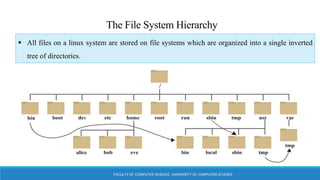
 The File System Hierarchy
The File System Hierarchy
FACULTY OF COMPUTER SCIENCE, UNIVERSITY OF COMPUTER STUDIES
 All files on a linux system are stored on file systems which are organized into a single inverted
tree of directories.
FACULTY OF COMPUTER SCIENCE, UNIVERSITY OF COMPUTER STUDIES
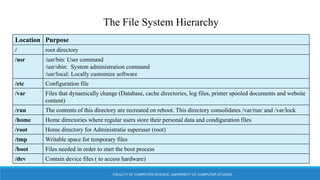
The File System Hierarchy
Location Purpose
/ root directory
/usr /usr/bin: User command
/usr/sbin: System administration command
/usr/local: Locally customize software
/etc Configuration file
/var Files that dynamically change (Database, cache directories, log files, printer spooled documents and website
content)
/run The contents of this directory are recreated on reboot. This directory consolidates /var/run/ and /var/lock
/home Home directories where regular users store their personal data and condiguration files
/root Home directory for Administratie superuser (root)
/tmp Writable space for temporary files
/boot Files needed in order to start the boot process
/dev Contain device files ( to access hardware)
FACULTY OF COMPUTER SCIENCE, UNIVERSITY OF COMPUTER STUDIES
Quiz
/ , /etc, /home, /root, /run, /tmp, /usr, /usr/bin, /usr/sbin, /var
Directory purpos e Location
This directory cntain static, persistent system configruation data.
This is the system’s root directory.
User home directories are located under this directory.
This is the root account’s home directory.
This directory contains dynamic configuration data, such as FTP and websites.
Regular user commands and utilities are located here.
System administration binaries, for root use, are here.
Temporary files are stored here.
Contains dynamic, non-persistent application runtime data.
Caontains installed software programs and libraries.
Lecture Contents
 Lecture 1: The Linux File System Hierarchy
 Lecture 2: Locating Files by Name
 Lecture 3: Managing Files Using Command-Line Tools
 Lecture 4: Matching File Names Using Path Name Expansion
FACULTY OF COMPUTER SCIENCE, UNIVERSITY OF COMPUTER STUDIES
Lecture 2: Locating Files by Name
FACULTY OF COMPUTER SCIENCE, UNIVERSITY OF COMPUTER STUDIES
 Absolute Paths and Relative Paths
 Navigating Paths
FACULTY OF COMPUTER SCIENCE, UNIVERSITY OF COMPUTER STUDIES
Absolute Paths and Relatie Paths
 An absolute path is a fully qualified name, beginning at the root (/) directory and specifying
each subdirectory traversed to reach and uniquely represent a single file.
[root@desktop~]# less /var/log/messages
 A relative path identifies a unique file, specifying only the path necessary to reach the file
from the working directory.
[root@desktop~]# cd /var
[root@desktop var~]# less log/messages
FACULTY OF COMPUTER SCIENCE, UNIVERSITY OF COMPUTER STUDIES
Navigating Paths
 pwd command : display the full path name of the current location.
 [student@desktop~]$ pwd /home/student
 cd command : changes directories.
 [student@desktop~]$ cd Videos/
 [student@desktop Video~]$ pwd /home/student/Videos
 [student@desktop Video~]$ cd /home/student/Documents
 [student@desktop Documents~]$ pwd /home/student/Documents
 [student@desktop Documents~]$ cd
 [student@desktop~]$ pwd /home/student
FACULTY OF COMPUTER SCIENCE, UNIVERSITY OF COMPUTER STUDIES
Navigating Paths
 touch command : updates a file’s timestamp to the current date and time without otherwise
modifying it.
 [student@desktop~]$ touch Videos/blockbuster1.ogg
 [student@desktop~]$ touch Documents/thesis.odf
 ls command : multiple options for displaying attributes on files. The most common and useful are:
 -l : long listing format
 -a : all files, including hidden files
 -R : recursisve, to include the contents of all subdirectories
 [student@desktop~]$ ls -l
Drwxr-xr-x. 2 student student 6 Dec 27 19:33 Desktop
FACULTY OF COMPUTER SCIENCE, UNIVERSITY OF COMPUTER STUDIES
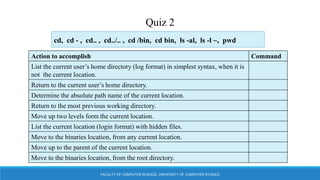
Quiz 2
cd, cd - , cd.. , cd../.. , cd /bin, cd bin, ls -al, ls -l ~, pwd
Action to accomplish Command
List the current user’s home directory (log format) in simplest syntax, when it is
not the current location.
Return to the current user’s home directory.
Determine the absolute path name of the current location.
Return to the most previous working directory.
Move up two levels form the current location.
List the current location (login format) with hidden files.
Move to the binaries location, from any current location.
Move up to the parent of the current location.
Move to the binaries location, from the root directory.
Lecture Contents
 Lecture 1: The Linux File System Hierarchy
 Lecture 2: Locating Files by Name
 Lecture 3: Managing Files Using Command-Line Tools
 Lecture 4: Matching File Names Using Path Name Expansion
FACULTY OF COMPUTER SCIENCE, UNIVERSITY OF COMPUTER STUDIES
Lecture 3: Managing Files Using Command-Line Tools
FACULTY OF COMPUTER SCIENCE, UNIVERSITY OF COMPUTER STUDIES
 Command-line File Management
FACULTY OF COMPUTER SCIENCE, UNIVERSITY OF COMPUTER STUDIES
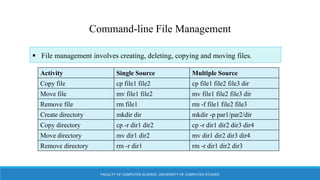
Command-line File Management
 File management involves creating, deleting, copying and moving files.
Activity Single Source Multiple Source
Copy file cp file1 file2 cp file1 file2 file3 dir
Move file mv file1 file2 mv file1 file2 file3 dir
Remove file rm file1 rm -f file1 file2 file3
Create directory mkdir dir mkdir -p par1/par2/dir
Copy directory cp -r dir1 dir2 cp -r dir1 dir2 dir3 dir4
Move directory mv dir1 dir2 mv dir1 dir2 dir3 dir4
Remove directory rm -r dir1 rm -r dir1 dir2 dir3
FACULTY OF COMPUTER SCIENCE, UNIVERSITY OF COMPUTER STUDIES
Command-line File Management
 The mkdir command creates one or more directories or subdirectories, generating
errors if the file name already exists or when attempting to create a directory in a
parent directory that doesn’t exist.
[student@desktop~]$ mkdir Video/Watched
mkdir: cannot create directory ‘Video/Watched’: No such file or directory
 The -p parent option creates missing parent directories for the requested destination.
[student@desktop~]$ mkdir -p Video/watched
FACULTY OF COMPUTER SCIENCE, UNIVERSITY OF COMPUTER STUDIES
Command-line File Management
 The cp command copies one or more files to become new, independent file.
[student@desktop~]$ cd Videos
[student@desktop Videos~]$ cp blockbuster1.ogg blockbuster3.ogg
 Copy multiple files to the destination directory.
[student@desktop~]$ cp file[1-11] mydir
[student@desktop~]$ ls mydir
file1 file2 file3 file4 file5 file6 file7 file8 file9 file10 file11
FACULTY OF COMPUTER SCIENCE, UNIVERSITY OF COMPUTER STUDIES
Command-line File Management
 The mv commands renames files in the same directory, or relocates files to a new directory.
[student@desktop~]$ mv thesis_chapter1.odf Thesis/Chapter1
 Default syntax for rm deletes files, but not directories.
 Deleting a directory, and potentially many subdirectories and files below it, requires the -r
recursive option.
[student@desktop Documents~]$ rm thesis_chapter2_reviewed.odf
[student@desktop~]$ rm Thesis/Chapter1
rm:cannot remove ‘Thesis/Chapter1’: Is a directory
[student@desktop~]$ rm -r Thesis/Chapter1
FACULTY OF COMPUTER SCIENCE, UNIVERSITY OF COMPUTER STUDIES
Command-line File Management
 The rmdir command deletes directories only if empty.
[student@desktop Documents~]$ pwd
/home/student/Documents
[student@desktop Documents~]$ rmdir ProjectY
[student@desktop Documents~]$ rmdir ProjectX
rmdir: failed to remove ‘ProjectX’: Directory not empty
[student@desktop Documents~]$ rm -r ProjectX
FACULTY OF COMPUTER SCIENCE, UNIVERSITY OF COMPUTER STUDIES
Practice Lab
 In this lab, you will practice efficient techniques for creating and organizing files using
directories, file copies, and links.
1. Log into your student account and begin in your home directory.
 In your home directory,
 Create six files with names of the form songX.mp3.
 Create six files with names of the form snapX.jpg.
 Create six files with names of the form filmX.avi.
 In each set, replace X with the numbers 1 through 6.
2. From your home directory, move the song files into your Music subdirectory, the snapshot
files into your Pictures subdirectory, and the movie files into your Videos subdirectory.
FACULTY OF COMPUTER SCIENCE, UNIVERSITY OF COMPUTER STUDIES
Practice Lab
3. In your home directory, create three subdirectories for organizing your files into projects. Call
these directories friends, family, and work. Create all three with one command.
4. You will collect some of the new files into the project directories for family and friends. For
each project, first change to the project directory, then copy the source filels into this
directory. Your are making copies, since you will keep the orignals after giving these projects
to family and friends.
 Copy files (all types) containing number 1 and 2 to the friends folder.
 Copy files (all types) containing number 3 and 4 to the family folder.
 When collecting files from multiple locations into one location, change to the directory
that will contain the destination files.
FACULTY OF COMPUTER SCIENCE, UNIVERSITY OF COMPUTER STUDIES
Practice Lab
5. For your work project, you will create additional copies.
6. Change to your home directory. Attempt to delete both the family and friends
projects with a single rmdir command.
7. Use another command that will succeed in deleting both the family and friends
folders.
8. Delete all the files in the work project, but do not delete the work directory.
9. Finally, form your home directory, use the rmdir command to delete the work
directory. The command should succeed now that it is empty.
Lecture Contents
 Lecture 1: The Linux File System Hierarchy
 Lecture 2: Locating Files by Name
 Lecture 3: Managing Files Using Command-Line Tools
 Lecture 4: Matching File Names Using Path Name Expansion
FACULTY OF COMPUTER SCIENCE, UNIVERSITY OF COMPUTER STUDIES
Lecture 4: Matching File Names Using Path Name Expansion
FACULTY OF COMPUTER SCIENCE, UNIVERSITY OF COMPUTER STUDIES
 File Globbing: Path Name Expansion
FACULTY OF COMPUTER SCIENCE, UNIVERSITY OF COMPUTER STUDIES
File Globbing: Path Name Expansion
Pattern Matches
* Any string of 0 or more characters.
? Any single character.
~ The current user’s home directory
~username User username’s home directory
~+ The current working directory
~- The previous working directory
[abc...] Any one character in the enclosed class
[!abc...] Any one character not in the enclosed class
[^abc...] Any one character not in the enclosed class
FACULTY OF COMPUTER SCIENCE, UNIVERSITY OF COMPUTER STUDIES
File Globbing: Path Name Expansion
Pattern Matches
[[:alpha:]] Any alphabetic character
[[:lower:]] Any lower-case character
[[:upper:]] Any upper-case character
[[:alnum:]] Any alphabetic character or digit
[[:punct:]] Any printable character no a space or alphanumeric
[[:digit:]] Any digit, 0-9
[[:space:]] Any one whitespace character; may include tabs, newline, or
carriage returns, and form feeds as well as space
FACULTY OF COMPUTER SCIENCE, UNIVERSITY OF COMPUTER STUDIES
File Globbing: Path Name Expansion
[student@desktop~]$ mkdir glob; cd glob
[student@desktop glob~]$ touch alfa bravo charlie delta echo able baker cast dog easy
[student@desktop glob~]$ ls able alfa baker bravo cast charlie delta dog easy echo
[student@desktop glob~]$ ls a* able alfa
[student@desktop glob~]$ ls *a* able alfa baker bravo cast charlie delta easy
[student@desktop glob~]$ ls [ac]* able alfa cast charlie
[student@desktop glob~]$ ls ???? able alfa cast easy echo
[student@desktop glob~]$ ls ????? baker bravo delta
FACULTY OF COMPUTER SCIENCE, UNIVERSITY OF COMPUTER STUDIES
File Globbing: Path Name Expansion
Tilde Expansion
 The tilde character (~), when followed by a slash delimiter, matches the current user’s
home directory.
[student@desktop glob~]$ ~/glob
able alfa baer bravo cast charlie delta dog easy echo
[student@desktop glob~]$ echo ~/glob
/home/student/glob
FACULTY OF COMPUTER SCIENCE, UNIVERSITY OF COMPUTER STUDIES
File Globbing: Path Name Expansion
Brace expansion
 Brace expansion is used to generate discretionary strings of characters.
[student@desktop glob~]$ echo {Sunday, Monday, Tuesday, Wednesday}.log
Sunday.log Monday.log Tuesday.log Wednesday.log
[student@desktop glob~]$ echo file{1..3}.txt file1.txt file2.txt file3.txt
[student@desktop glob~]$ echo file{a..c}.txt filea.txt fileb.txt filec.txt
[student@desktop glob~]$ echo file{a,b}{1,2}.txt
filea1.txt filea2.txt fileb1.txt fileb2.txt
[student@desktop glob~]$ echo file{a{1,2},b,c}.txt filea1.txt filea2.txt fileb.txt filec.txt
FACULTY OF COMPUTER SCIENCE, UNIVERSITY OF COMPUTER STUDIES
File Globbing: Path Name Expansion
Command Substitution
 Command substitution allows the output of a command to replace the command itself.
 It occurs when a command is enclosed with a beginning dollar sign and parenthesis.
[student@desktop glob~]$ echo Today is ‘date +%A’ . Today is Wednesday.
[student@desktop glob~]$ echo The time is $(date +%M) minutes past $(date +%1%p).
The time is 26 minutes past 11AM.
[student@desktop glob~]$ host=$(hostname); echo $host
desktop.example.com
[student@desktop glob~]$ echo “*****hostname is ${host} *****”
“*****hostname is desktop.example.com *****
FACULTY OF COMPUTER SCIENCE, UNIVERSITY OF COMPUTER STUDIES
File Globbing: Path Name Expansion
[student@desktop glob~]$ echo “Will variable $host evaluate to $(hostname)?”
Will variable desktop evaluate to desktop?
[student@desktop glob~]$ echo ‘Will variable $host evaluate to $(hostname)?’
Will variable $host evaluate to $(hostname)?
FACULTY OF COMPUTER SCIENCE, UNIVERSITY OF COMPUTER STUDIES
Quiz 3
*[[:digit:]]* , *b, *b*, ???*, [!b]*, [[:upper:]]*, b*
Requested match to find Patterns
Only filenames beginning with “b”
Only filenames ending in “b”
Only filenames containing a “b”.
Only filenames where first character is not “b”
Only filenames at least 3 characters in length.
Only filenames that contain a number
Only filenames that begin with an upper-case letter
FACULTY OF COMPUTER SCIENCE, UNIVERSITY OF COMPUTER STUDIES
Summary
In this lecture, you learned about
 The Linux File System Hierarchy
 Identify the purpose for top-level directories in the Linux hierarchy.
 Locating Files by Name
 Interpret and appropriately use full and partial path file names syntax.
 Managing File Using Command-Line Tools
 Work from the command line to create, move, and delete files and directories.
 Matching File Names Using Path Name Expansion
 Learn how to specify multiple files using many wildcard techniques.
References
FACULTY OF COMPUTER SCIENCE, UNIVERSITY OF COMPUTER STUDIES
1. Red Hat System Administration I Student Workbook RH124-RHEL 7-en-1-20140606
MAN-RH124SKE-R2

Linux_Ch2 Lecture (1).pdf

  • 1.
    Chapter (2) Managing FilesFrom The Command Line Dr. Hnin Lai Nyo Lecturer Faculty of Computer Science
  • 2.
    Lecture Contents  Lecture1: The Linux File System Hierarchy  Lecture 2: Locating Files by Name  Lecture 3: Managing Files Using Command-Line Tools  Lecture 4: Matching File Names Using Path Name Expansion FACULTY OF COMPUTER SCIENCE, UNIVERSITY OF COMPUTER STUDIES
  • 3.
    Lecture Objectives  Identifythe purpose for important directories on a Linux system.  Specify files using obsolute and relative pathe names.  Create, copy, move and reove files and directories using command-line utilities.  Match one or more file names using shell expansion as arguments to shell commands. FACULTY OF COMPUTER SCIENCE, UNIVERSITY OF COMPUTER STUDIES
  • 4.
    Lecture 1: TheLinux File System Hierarchy FACULTY OF COMPUTER SCIENCE, UNIVERSITY OF COMPUTER STUDIES  The File System Hierarchy
  • 5.
    The File SystemHierarchy FACULTY OF COMPUTER SCIENCE, UNIVERSITY OF COMPUTER STUDIES  All files on a linux system are stored on file systems which are organized into a single inverted tree of directories.
  • 6.
    FACULTY OF COMPUTERSCIENCE, UNIVERSITY OF COMPUTER STUDIES The File System Hierarchy Location Purpose / root directory /usr /usr/bin: User command /usr/sbin: System administration command /usr/local: Locally customize software /etc Configuration file /var Files that dynamically change (Database, cache directories, log files, printer spooled documents and website content) /run The contents of this directory are recreated on reboot. This directory consolidates /var/run/ and /var/lock /home Home directories where regular users store their personal data and condiguration files /root Home directory for Administratie superuser (root) /tmp Writable space for temporary files /boot Files needed in order to start the boot process /dev Contain device files ( to access hardware)
  • 7.
    FACULTY OF COMPUTERSCIENCE, UNIVERSITY OF COMPUTER STUDIES Quiz / , /etc, /home, /root, /run, /tmp, /usr, /usr/bin, /usr/sbin, /var Directory purpos e Location This directory cntain static, persistent system configruation data. This is the system’s root directory. User home directories are located under this directory. This is the root account’s home directory. This directory contains dynamic configuration data, such as FTP and websites. Regular user commands and utilities are located here. System administration binaries, for root use, are here. Temporary files are stored here. Contains dynamic, non-persistent application runtime data. Caontains installed software programs and libraries.
  • 8.
    Lecture Contents  Lecture1: The Linux File System Hierarchy  Lecture 2: Locating Files by Name  Lecture 3: Managing Files Using Command-Line Tools  Lecture 4: Matching File Names Using Path Name Expansion FACULTY OF COMPUTER SCIENCE, UNIVERSITY OF COMPUTER STUDIES
  • 9.
    Lecture 2: LocatingFiles by Name FACULTY OF COMPUTER SCIENCE, UNIVERSITY OF COMPUTER STUDIES  Absolute Paths and Relative Paths  Navigating Paths
  • 10.
    FACULTY OF COMPUTERSCIENCE, UNIVERSITY OF COMPUTER STUDIES Absolute Paths and Relatie Paths  An absolute path is a fully qualified name, beginning at the root (/) directory and specifying each subdirectory traversed to reach and uniquely represent a single file. [root@desktop~]# less /var/log/messages  A relative path identifies a unique file, specifying only the path necessary to reach the file from the working directory. [root@desktop~]# cd /var [root@desktop var~]# less log/messages
  • 11.
    FACULTY OF COMPUTERSCIENCE, UNIVERSITY OF COMPUTER STUDIES Navigating Paths  pwd command : display the full path name of the current location.  [student@desktop~]$ pwd /home/student  cd command : changes directories.  [student@desktop~]$ cd Videos/  [student@desktop Video~]$ pwd /home/student/Videos  [student@desktop Video~]$ cd /home/student/Documents  [student@desktop Documents~]$ pwd /home/student/Documents  [student@desktop Documents~]$ cd  [student@desktop~]$ pwd /home/student
  • 12.
    FACULTY OF COMPUTERSCIENCE, UNIVERSITY OF COMPUTER STUDIES Navigating Paths  touch command : updates a file’s timestamp to the current date and time without otherwise modifying it.  [student@desktop~]$ touch Videos/blockbuster1.ogg  [student@desktop~]$ touch Documents/thesis.odf  ls command : multiple options for displaying attributes on files. The most common and useful are:  -l : long listing format  -a : all files, including hidden files  -R : recursisve, to include the contents of all subdirectories  [student@desktop~]$ ls -l Drwxr-xr-x. 2 student student 6 Dec 27 19:33 Desktop
  • 13.
    FACULTY OF COMPUTERSCIENCE, UNIVERSITY OF COMPUTER STUDIES Quiz 2 cd, cd - , cd.. , cd../.. , cd /bin, cd bin, ls -al, ls -l ~, pwd Action to accomplish Command List the current user’s home directory (log format) in simplest syntax, when it is not the current location. Return to the current user’s home directory. Determine the absolute path name of the current location. Return to the most previous working directory. Move up two levels form the current location. List the current location (login format) with hidden files. Move to the binaries location, from any current location. Move up to the parent of the current location. Move to the binaries location, from the root directory.
  • 14.
    Lecture Contents  Lecture1: The Linux File System Hierarchy  Lecture 2: Locating Files by Name  Lecture 3: Managing Files Using Command-Line Tools  Lecture 4: Matching File Names Using Path Name Expansion FACULTY OF COMPUTER SCIENCE, UNIVERSITY OF COMPUTER STUDIES
  • 15.
    Lecture 3: ManagingFiles Using Command-Line Tools FACULTY OF COMPUTER SCIENCE, UNIVERSITY OF COMPUTER STUDIES  Command-line File Management
  • 16.
    FACULTY OF COMPUTERSCIENCE, UNIVERSITY OF COMPUTER STUDIES Command-line File Management  File management involves creating, deleting, copying and moving files. Activity Single Source Multiple Source Copy file cp file1 file2 cp file1 file2 file3 dir Move file mv file1 file2 mv file1 file2 file3 dir Remove file rm file1 rm -f file1 file2 file3 Create directory mkdir dir mkdir -p par1/par2/dir Copy directory cp -r dir1 dir2 cp -r dir1 dir2 dir3 dir4 Move directory mv dir1 dir2 mv dir1 dir2 dir3 dir4 Remove directory rm -r dir1 rm -r dir1 dir2 dir3
  • 17.
    FACULTY OF COMPUTERSCIENCE, UNIVERSITY OF COMPUTER STUDIES Command-line File Management  The mkdir command creates one or more directories or subdirectories, generating errors if the file name already exists or when attempting to create a directory in a parent directory that doesn’t exist. [student@desktop~]$ mkdir Video/Watched mkdir: cannot create directory ‘Video/Watched’: No such file or directory  The -p parent option creates missing parent directories for the requested destination. [student@desktop~]$ mkdir -p Video/watched
  • 18.
    FACULTY OF COMPUTERSCIENCE, UNIVERSITY OF COMPUTER STUDIES Command-line File Management  The cp command copies one or more files to become new, independent file. [student@desktop~]$ cd Videos [student@desktop Videos~]$ cp blockbuster1.ogg blockbuster3.ogg  Copy multiple files to the destination directory. [student@desktop~]$ cp file[1-11] mydir [student@desktop~]$ ls mydir file1 file2 file3 file4 file5 file6 file7 file8 file9 file10 file11
  • 19.
    FACULTY OF COMPUTERSCIENCE, UNIVERSITY OF COMPUTER STUDIES Command-line File Management  The mv commands renames files in the same directory, or relocates files to a new directory. [student@desktop~]$ mv thesis_chapter1.odf Thesis/Chapter1  Default syntax for rm deletes files, but not directories.  Deleting a directory, and potentially many subdirectories and files below it, requires the -r recursive option. [student@desktop Documents~]$ rm thesis_chapter2_reviewed.odf [student@desktop~]$ rm Thesis/Chapter1 rm:cannot remove ‘Thesis/Chapter1’: Is a directory [student@desktop~]$ rm -r Thesis/Chapter1
  • 20.
    FACULTY OF COMPUTERSCIENCE, UNIVERSITY OF COMPUTER STUDIES Command-line File Management  The rmdir command deletes directories only if empty. [student@desktop Documents~]$ pwd /home/student/Documents [student@desktop Documents~]$ rmdir ProjectY [student@desktop Documents~]$ rmdir ProjectX rmdir: failed to remove ‘ProjectX’: Directory not empty [student@desktop Documents~]$ rm -r ProjectX
  • 21.
    FACULTY OF COMPUTERSCIENCE, UNIVERSITY OF COMPUTER STUDIES Practice Lab  In this lab, you will practice efficient techniques for creating and organizing files using directories, file copies, and links. 1. Log into your student account and begin in your home directory.  In your home directory,  Create six files with names of the form songX.mp3.  Create six files with names of the form snapX.jpg.  Create six files with names of the form filmX.avi.  In each set, replace X with the numbers 1 through 6. 2. From your home directory, move the song files into your Music subdirectory, the snapshot files into your Pictures subdirectory, and the movie files into your Videos subdirectory.
  • 22.
    FACULTY OF COMPUTERSCIENCE, UNIVERSITY OF COMPUTER STUDIES Practice Lab 3. In your home directory, create three subdirectories for organizing your files into projects. Call these directories friends, family, and work. Create all three with one command. 4. You will collect some of the new files into the project directories for family and friends. For each project, first change to the project directory, then copy the source filels into this directory. Your are making copies, since you will keep the orignals after giving these projects to family and friends.  Copy files (all types) containing number 1 and 2 to the friends folder.  Copy files (all types) containing number 3 and 4 to the family folder.  When collecting files from multiple locations into one location, change to the directory that will contain the destination files.
  • 23.
    FACULTY OF COMPUTERSCIENCE, UNIVERSITY OF COMPUTER STUDIES Practice Lab 5. For your work project, you will create additional copies. 6. Change to your home directory. Attempt to delete both the family and friends projects with a single rmdir command. 7. Use another command that will succeed in deleting both the family and friends folders. 8. Delete all the files in the work project, but do not delete the work directory. 9. Finally, form your home directory, use the rmdir command to delete the work directory. The command should succeed now that it is empty.
  • 24.
    Lecture Contents  Lecture1: The Linux File System Hierarchy  Lecture 2: Locating Files by Name  Lecture 3: Managing Files Using Command-Line Tools  Lecture 4: Matching File Names Using Path Name Expansion FACULTY OF COMPUTER SCIENCE, UNIVERSITY OF COMPUTER STUDIES
  • 25.
    Lecture 4: MatchingFile Names Using Path Name Expansion FACULTY OF COMPUTER SCIENCE, UNIVERSITY OF COMPUTER STUDIES  File Globbing: Path Name Expansion
  • 26.
    FACULTY OF COMPUTERSCIENCE, UNIVERSITY OF COMPUTER STUDIES File Globbing: Path Name Expansion Pattern Matches * Any string of 0 or more characters. ? Any single character. ~ The current user’s home directory ~username User username’s home directory ~+ The current working directory ~- The previous working directory [abc...] Any one character in the enclosed class [!abc...] Any one character not in the enclosed class [^abc...] Any one character not in the enclosed class
  • 27.
    FACULTY OF COMPUTERSCIENCE, UNIVERSITY OF COMPUTER STUDIES File Globbing: Path Name Expansion Pattern Matches [[:alpha:]] Any alphabetic character [[:lower:]] Any lower-case character [[:upper:]] Any upper-case character [[:alnum:]] Any alphabetic character or digit [[:punct:]] Any printable character no a space or alphanumeric [[:digit:]] Any digit, 0-9 [[:space:]] Any one whitespace character; may include tabs, newline, or carriage returns, and form feeds as well as space
  • 28.
    FACULTY OF COMPUTERSCIENCE, UNIVERSITY OF COMPUTER STUDIES File Globbing: Path Name Expansion [student@desktop~]$ mkdir glob; cd glob [student@desktop glob~]$ touch alfa bravo charlie delta echo able baker cast dog easy [student@desktop glob~]$ ls able alfa baker bravo cast charlie delta dog easy echo [student@desktop glob~]$ ls a* able alfa [student@desktop glob~]$ ls *a* able alfa baker bravo cast charlie delta easy [student@desktop glob~]$ ls [ac]* able alfa cast charlie [student@desktop glob~]$ ls ???? able alfa cast easy echo [student@desktop glob~]$ ls ????? baker bravo delta
  • 29.
    FACULTY OF COMPUTERSCIENCE, UNIVERSITY OF COMPUTER STUDIES File Globbing: Path Name Expansion Tilde Expansion  The tilde character (~), when followed by a slash delimiter, matches the current user’s home directory. [student@desktop glob~]$ ~/glob able alfa baer bravo cast charlie delta dog easy echo [student@desktop glob~]$ echo ~/glob /home/student/glob
  • 30.
    FACULTY OF COMPUTERSCIENCE, UNIVERSITY OF COMPUTER STUDIES File Globbing: Path Name Expansion Brace expansion  Brace expansion is used to generate discretionary strings of characters. [student@desktop glob~]$ echo {Sunday, Monday, Tuesday, Wednesday}.log Sunday.log Monday.log Tuesday.log Wednesday.log [student@desktop glob~]$ echo file{1..3}.txt file1.txt file2.txt file3.txt [student@desktop glob~]$ echo file{a..c}.txt filea.txt fileb.txt filec.txt [student@desktop glob~]$ echo file{a,b}{1,2}.txt filea1.txt filea2.txt fileb1.txt fileb2.txt [student@desktop glob~]$ echo file{a{1,2},b,c}.txt filea1.txt filea2.txt fileb.txt filec.txt
  • 31.
    FACULTY OF COMPUTERSCIENCE, UNIVERSITY OF COMPUTER STUDIES File Globbing: Path Name Expansion Command Substitution  Command substitution allows the output of a command to replace the command itself.  It occurs when a command is enclosed with a beginning dollar sign and parenthesis. [student@desktop glob~]$ echo Today is ‘date +%A’ . Today is Wednesday. [student@desktop glob~]$ echo The time is $(date +%M) minutes past $(date +%1%p). The time is 26 minutes past 11AM. [student@desktop glob~]$ host=$(hostname); echo $host desktop.example.com [student@desktop glob~]$ echo “*****hostname is ${host} *****” “*****hostname is desktop.example.com *****
  • 32.
    FACULTY OF COMPUTERSCIENCE, UNIVERSITY OF COMPUTER STUDIES File Globbing: Path Name Expansion [student@desktop glob~]$ echo “Will variable $host evaluate to $(hostname)?” Will variable desktop evaluate to desktop? [student@desktop glob~]$ echo ‘Will variable $host evaluate to $(hostname)?’ Will variable $host evaluate to $(hostname)?
  • 33.
    FACULTY OF COMPUTERSCIENCE, UNIVERSITY OF COMPUTER STUDIES Quiz 3 *[[:digit:]]* , *b, *b*, ???*, [!b]*, [[:upper:]]*, b* Requested match to find Patterns Only filenames beginning with “b” Only filenames ending in “b” Only filenames containing a “b”. Only filenames where first character is not “b” Only filenames at least 3 characters in length. Only filenames that contain a number Only filenames that begin with an upper-case letter
  • 34.
    FACULTY OF COMPUTERSCIENCE, UNIVERSITY OF COMPUTER STUDIES Summary In this lecture, you learned about  The Linux File System Hierarchy  Identify the purpose for top-level directories in the Linux hierarchy.  Locating Files by Name  Interpret and appropriately use full and partial path file names syntax.  Managing File Using Command-Line Tools  Work from the command line to create, move, and delete files and directories.  Matching File Names Using Path Name Expansion  Learn how to specify multiple files using many wildcard techniques.
  • 35.
    References FACULTY OF COMPUTERSCIENCE, UNIVERSITY OF COMPUTER STUDIES 1. Red Hat System Administration I Student Workbook RH124-RHEL 7-en-1-20140606 MAN-RH124SKE-R2