Windows Basic
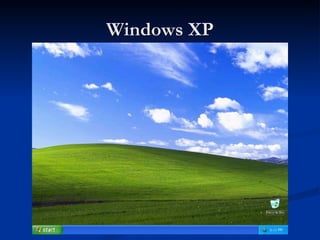
Windows XP
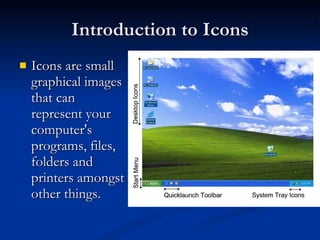
Introduction to Icons Icons are small graphical images that can represent your computer's programs, files, folders and printers amongst other things.
Renaming Icons Right click Rename
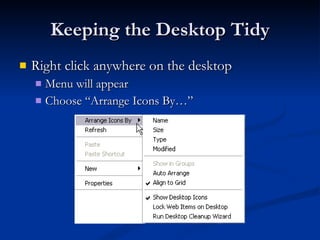
Keeping the Desktop Tidy Right click anywhere on the desktop Menu will appear Choose ā€œArrange Icons Byā€¦ā€
Start Menu
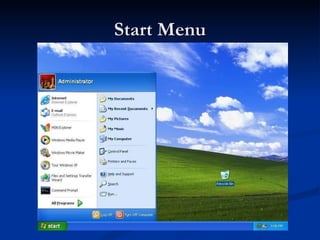
Start Menu Log off  - Log off the current user. Turn Off Computer  - shutdown, restart and standby. Run  - Used to manually start executable files (programs). Search  - Search your PC for pictures, music, documents, files and folders. Help and Support  - Opens the built-in Windows help including various help topics, windows updates and also allows you to request remote assistance from a friend/colleague via the internet or network.
Start Menu Control Panel  - The control panel is used to configure various Windows XP settings. My Computer  - Gives you access to your computer's disk drives and files.  My Music  - Links to a folder created by Windows XP which is used (by default) to store any music files on your hard drive.
Start Menu My Pictures  - Links to a folder (again created by Windows XP) used (by default) to store any pictures/images on your hard drive. My Documents  - Gives access to a folder created by Windows XP which is used (by default) to store any documents on your hard drive. Outlook Express  - Opens the Outlook Express mail program.
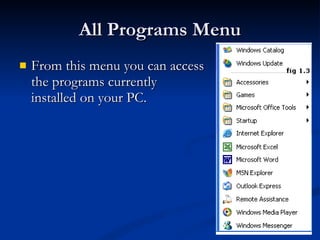
All Programs Menu From this menu you can access the programs currently installed on your PC.
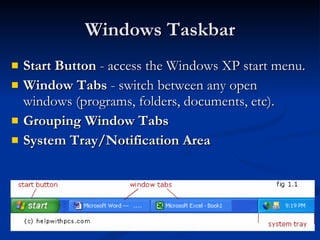
Windows Taskbar Start Button  - access the Windows XP start menu. Window Tabs  - switch between any open windows (programs, folders, documents, etc). Grouping Window Tabs   System Tray/Notification Area
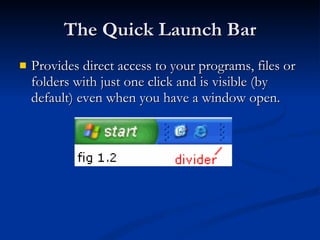
The Quick Launch Bar Provides direct access to your programs, files or folders with just one click and is visible (by default) even when you have a window open.
The Quick Launch Bar Show Desktop Icon , this icon is used to minimise all open windows to show the windows xp desktop, clicking again will restore the windows to their previous state  Internet Explorer Icon , this icon will open Microsoft's Internet Explorer browser.
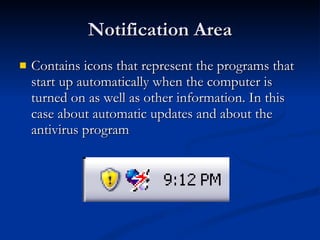
Notification Area Contains icons that represent the programs that start up automatically when the computer is turned on as well as other information. In this case about automatic updates and about the antivirus program
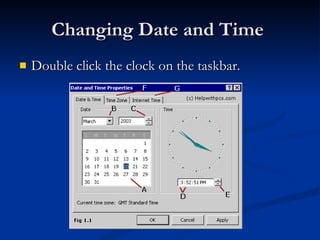
Changing Date and Time  Double click the clock on the taskbar.
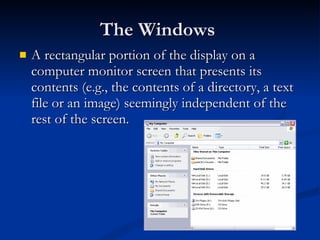
The Windows  A rectangular portion of the display on a computer monitor screen that presents its contents (e.g., the contents of a directory, a text file or an image) seemingly independent of the rest of the screen.
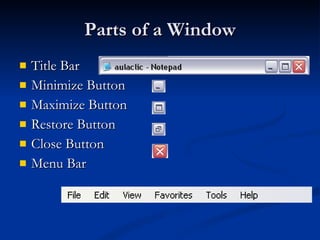
Parts of a Window Title Bar Minimize Button Maximize Button Restore Button Close Button Menu Bar
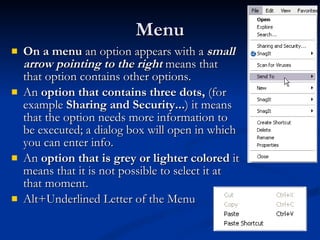
Menu On a menu  an option appears with a  small arrow pointing to the right  means that that option contains other options.  An  option that contains three dots,  (for example  Sharing and Security... ) it means that the option needs more information to be executed; a dialog box will open in which you can enter info. An  option that is grey or lighter colored  it means that it is not possible to select it at that moment. Alt+Underlined Letter of the Menu
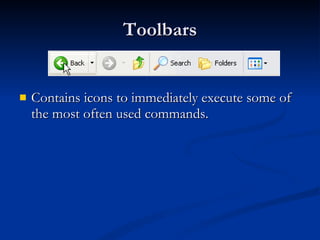
Toolbars Contains icons to immediately execute some of the most often used commands.
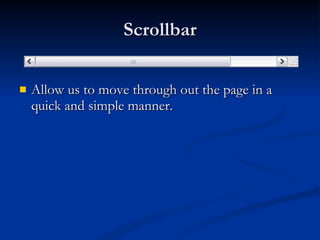
Scrollbar Allow us to move through out the page in a quick and simple manner.
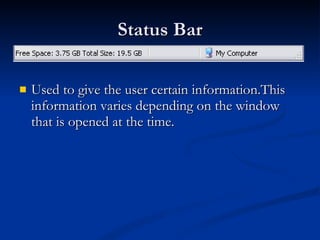
Status Bar Used to give the user certain information.This information varies depending on the window that is opened at the time.
Closing A Window With the mouse, click the  button Through the menu .  File     Close  or  Exit .  Close  closes the active window, whereas  Exit  closes the entire application.  Keyboard: ALT + F4
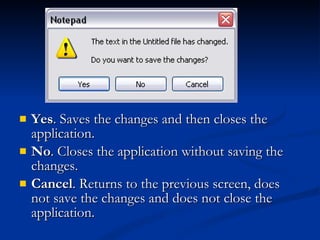
Yes . Saves the changes and then closes the application. No . Closes the application without saving the changes. Cancel . Returns to the previous screen, does not save the changes and does not close the application.
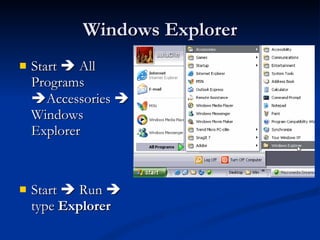
Windows Explorer Start    All Programs   Accessories    Windows Explorer Start    Run    type  Explorer
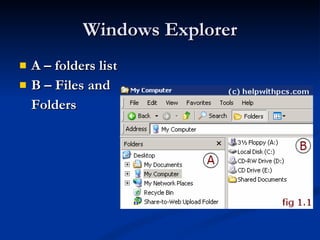
Windows Explorer A – folders list B – Files and  Folders
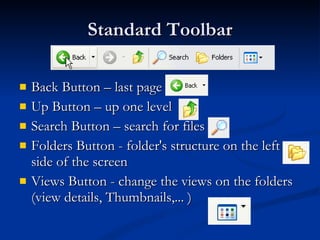
Standard Toolbar Back Button – last page Up Button – up one level Search Button – search for files Folders Button - folder's structure on the left side of the screen Views Button - change the views on the folders (view details, Thumbnails,... )
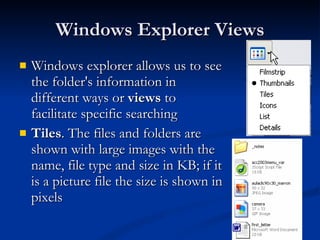
Windows Explorer Views Windows explorer allows us to see the folder's information in different ways or  views  to facilitate specific searching  Tiles . The files and folders are shown with large images with the name, file type and size in KB; if it is a picture file the size is shown in pixels
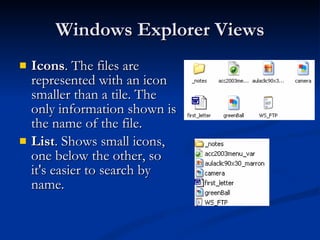
Windows Explorer Views Icons . The files are represented with an icon smaller than a tile. The only information shown is the name of the file.  List . Shows small icons, one below the other, so it's easier to search by name.
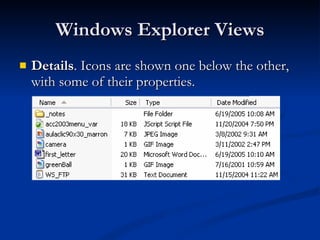
Windows Explorer Views Details . Icons are shown one below the other, with some of their properties.
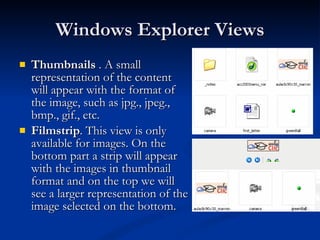
Windows Explorer Views Thumbnails  . A small representation of the content will appear with the format of the image, such as jpg., jpeg., bmp., gif., etc. Filmstrip . This view is only available for images. On the bottom part a strip will appear with the images in thumbnail format and on the top we will see a larger representation of the image selected on the bottom.
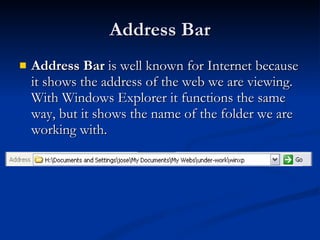
Address Bar Address Bar  is well known for Internet because it shows the address of the web we are viewing. With Windows Explorer it functions the same way, but it shows the name of the folder we are working with.
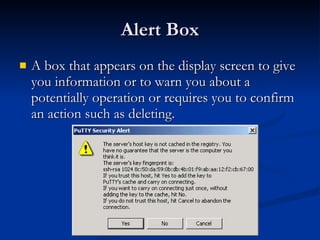
Alert Box A box that appears on the display screen to give you information or to warn you about a potentially operation or requires you to confirm an action such as deleting.
Dialog Box A box on your screen that lets you communicate with your computer. Enter information, set options or give commands to your computer.
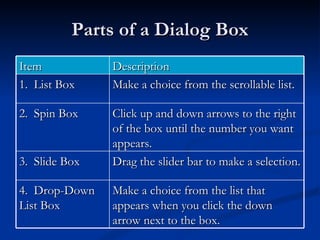
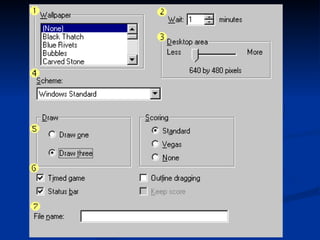
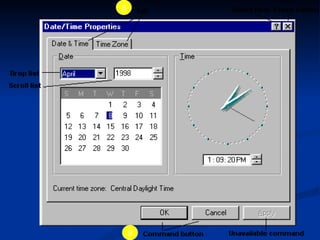
Parts of a Dialog Box Item Description 1.  List Box Make a choice from the scrollable list.  2.  Spin Box Click up and down arrows to the right of the box until the number you want appears. 3.  Slide Box Drag the slider bar to make a selection. 4.  Drop-Down List Box Make a choice from the list that appears when you click the down arrow next to the box.
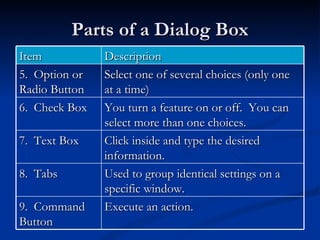
Parts of a Dialog Box Item Description 5.  Option or Radio Button Select one of several choices (only one at a time) 6.  Check Box You turn a feature on or off.  You can select more than one choices. 7.  Text Box Click inside and type the desired information. 8.  Tabs Used to group identical settings on a specific window. 9.  Command Button Execute an action.
Ā 
8 9
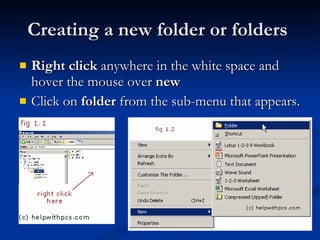
Creating a new folder or folders  Right click  anywhere in the white space and hover the mouse over  new   Click on  folder  from the sub-menu that appears.
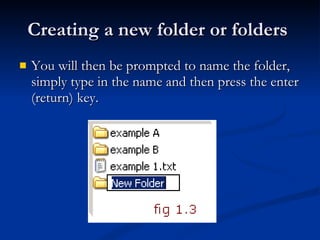
Creating a new folder or folders  You will then be prompted to name the folder, simply type in the name and then press the enter (return) key.
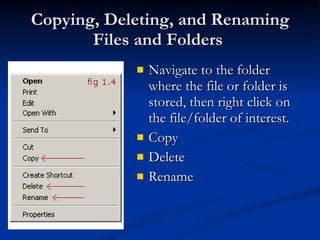
Copying, Deleting, and Renaming Files and Folders  Navigate to the folder where the file or folder is stored, then right click on the file/folder of interest. Copy Delete Rename
Shortcut Keys Ctrl + C - Copy Ctrl + X - Cut Ctrl + V - Paste Drag and Drop
Selecting Files  To select consecutive elements - Click on the first element and then click on the last element  while keeping Shift key pressed . To select several elements that are not consecutive - Select the first element and continue to select the desired elements while  keeping the Ctrl key pressed .
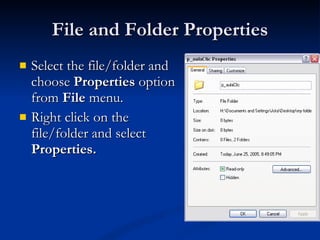
File and Folder Properties Select the file/folder and choose  Properties  option from  File  menu. Right click on the file/folder and select  Properties.
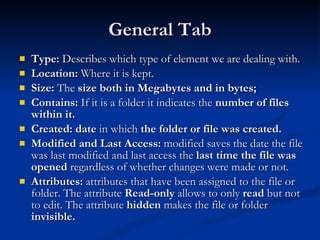
General Tab Type:  Describes which type of element we are dealing with.  Location:  Where it is kept. Size:  The  size both in Megabytes and in bytes;   Contains:  If it is a folder it indicates the  number of files within it. Created:   date  in which  the folder or file was created. Modified and Last Access:  modified saves the date the file was last modified and last access the  last time the file was opened  regardless of whether changes were made or not. Attributes:  attributes that have been assigned to the file or folder. The attribute  Read-only  allows to only  read  but not to edit. The attribute  hidden  makes the file or folder  invisible.
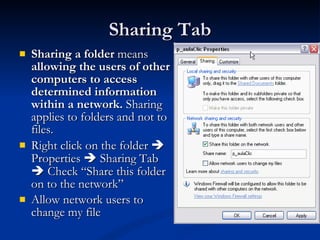
Sharing Tab Sharing a folder  means  allowing   the users of other computers to access determined information within a network.  Sharing applies to folders and not to files. Right click on the folder    Properties    Sharing Tab    Check ā€œShare this folder on to the networkā€ Allow network users to change my file
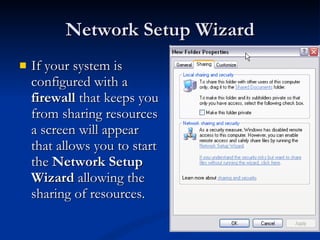
Network Setup Wizard If your system is configured with a  firewall  that keeps you from sharing resources a screen will appear that allows you to start the  Network Setup Wizard  allowing the sharing of resources.
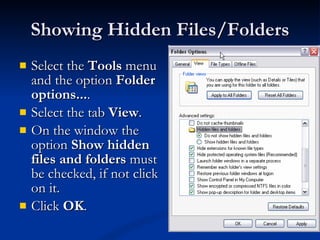
Showing Hidden Files/Folders Select the  Tools  menu and the option  Folder options... . Select the tab  View . On the window the option  Show hidden files and folders  must be checked, if not click on it. Click  OK .
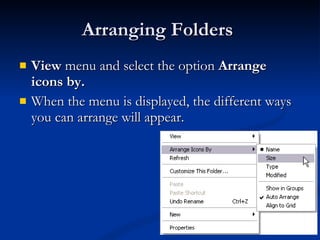
Arranging Folders  View  menu and select the option  Arrange icons by.   When the menu is displayed, the different ways you can arrange will appear.
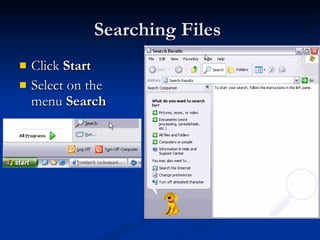
Searching Files  Click  Start Select on the menu  Search
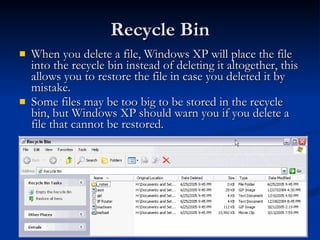
Recycle Bin When you delete a file, Windows XP will place the file into the recycle bin instead of deleting it altogether, this allows you to restore the file in case you deleted it by mistake.  Some files may be too big to be stored in the recycle bin, but Windows XP should warn you if you delete a file that cannot be restored.
Restoring Files Click on the  elements to be restored. Once selected, a dialog box will appear on the green arrow on the left that will say  Restore this item  or  Restore the selected items.   The selected files will return to where they were located before deletion.
Deleting Files or Folders from Recycle Bin Select the  Elements to be deleted. .  Right click and select  Delete . The selected files will disappear and cannot be restored. If a window appears asking if you are sure that you want to delete the selected file or folder click  Yes  if you are sure you want it deleted
Emptying the Recycle Bin Clicking on the icon located on the left labeled  Empty the Recycle Bin.  A window will appear asking  Confirm you want to delete these X elements?  where  X  is the number of elements currently in the Recycle Bin . Click  Yes  to empty it. You can also empty the Recycle Bin from the  File  menu and select  Empty the Recycle Bin .
Configuring the Screen Click with the right mouse button somewhere that has no icons on the desktop and select the option  Properties  from the shortcut menu that is displayed. The  Display properties  window will appear where we can change the configuration parameters.
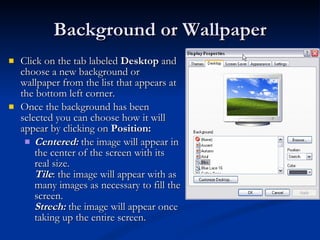
Background or Wallpaper Click on the tab labeled  Desktop  and choose a new background or wallpaper from the list that appears at the bottom left corner. Once the background has been selected you can choose how it will appear by clicking on  Position: Centered:  the image will appear in the center of the screen with its real size. Tile : the image will appear with as many images as necessary to fill the screen. Strech:  the image will appear once taking up the entire screen.
Load an image from another location Click on  Browse...  and look for the image you want as long as the format is compatible. For example  .bmp ,  .jpg ,  .gif . Once the image and type of view have been selected Click  OK .
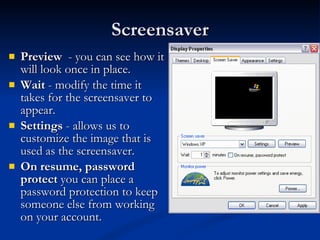
Screensaver Preview   - you can see how it will look once in place. Wait  - modify the time it takes for the screensaver to appear. Settings  - allows us to customize the image that is used as the screensaver.  On resume, password protect  you can place a password protection to keep someone else from working on your account.
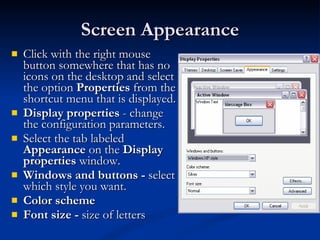
Screen Appearance Click with the right mouse button somewhere that has no icons on the desktop and select the option  Properties  from the shortcut menu that is displayed.  Display properties  - change the configuration parameters. Select the tab labeled  Appearance  on the  Display properties  window. Windows and buttons -  select which style you want. Color scheme Font size -  size of letters
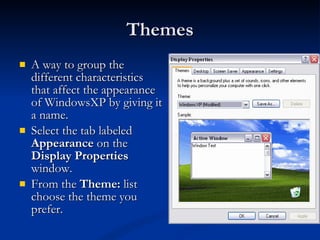
Themes A way to group the different characteristics that affect the appearance of WindowsXP by giving it a name.  Select the tab labeled  Appearance  on the  Display Properties  window. From the  Theme:  list choose the theme you prefer.
Resolution and Colors Colors  with which our monitor will work with. Color quality   Screen resolution
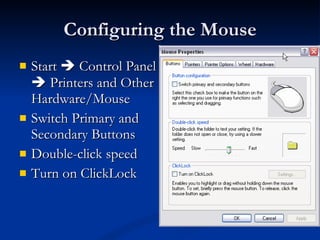
Configuring the Mouse Start    Control Panel    Printers and Other Hardware/Mouse Switch Primary and Secondary Buttons Double-click speed Turn on ClickLock
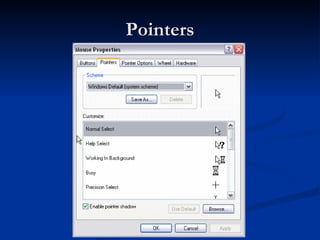
Pointers
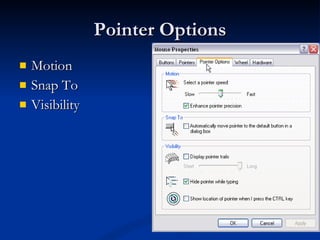
Pointer Options Motion Snap To Visibility
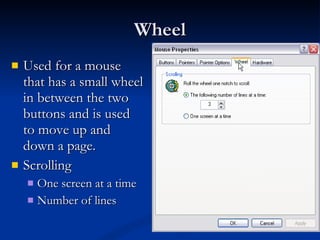
Wheel Used for a mouse that has a small wheel in between the two buttons and is used to move up and down a page.  Scrolling One screen at a time Number of lines
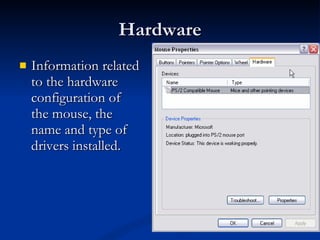
Hardware Information related to the hardware configuration of the mouse, the name and type of drivers installed.
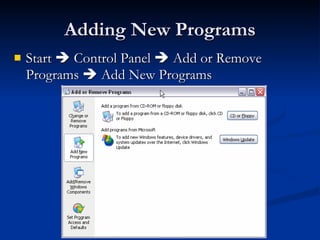
Adding New Programs Start    Control Panel    Add or Remove Programs    Add New Programs
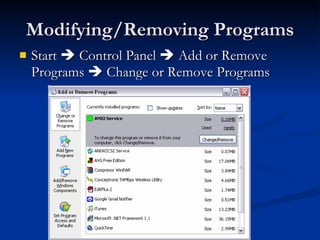
Modifying/Removing Programs Start    Control Panel    Add or Remove Programs    Change or Remove Programs
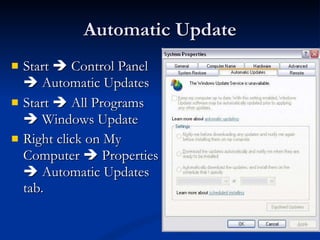
Automatic Update Start    Control Panel    Automatic Updates Start    All Programs    Windows Update Right click on My Computer    Properties    Automatic Updates tab.
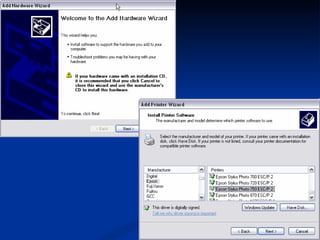
Adding New Hardware Plug and Play technology A term used to describe an accessory device that works immediately when connected to a computer, without the need for installation procedures, reconfiguration, or restarting the computer.  Online to search for driver updates through Windows Update.  OS recognizes the new hardware element OS does not recognize the new hardware Find the driver (CD or diskette) Online search
Ā 
System Tools Designed to optimize the behavior of the computer.
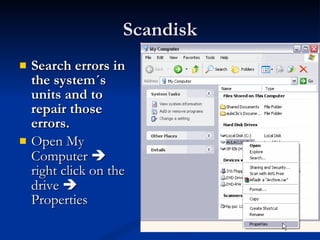
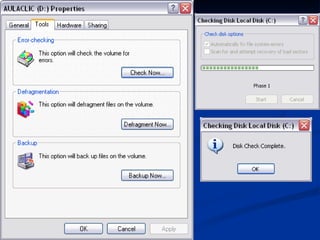
Scandisk Search errors in the system“s units and to repair those errors.   Open My Computer    right click on the drive    Properties
Ā 
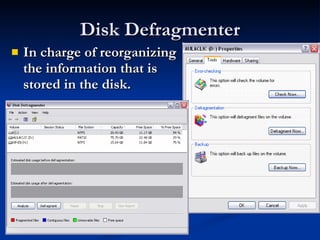
Disk Defragmenter In charge of reorganizing the information that is stored in the disk.
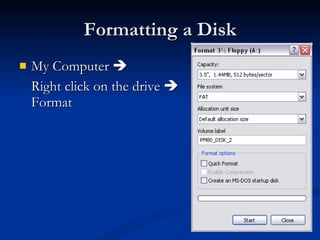
Formatting a Disk My Computer     Right click on the drive    Format
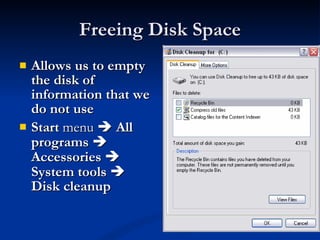
Freeing Disk Space Allows us to empty the disk of information that we do not use   Start  menu     All programs     Accessories      System tools    Disk cleanup
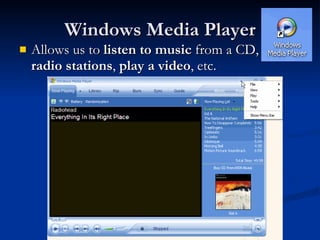
Windows Media Player Allows us to  listen to music  from a CD,  tune   radio stations ,  play a video , etc.
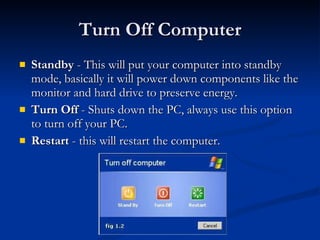
Turn Off Computer Standby  - This will put your computer into standby mode, basically it will power down components like the monitor and hard drive to preserve energy. Turn Off  - Shuts down the PC, always use this option to turn off your PC. Restart  - this will restart the computer.

Windows Basic

  • 1.
  • 2.
  • 3.
    Introduction to IconsIcons are small graphical images that can represent your computer's programs, files, folders and printers amongst other things.
  • 4.
  • 5.
    Keeping the DesktopTidy Right click anywhere on the desktop Menu will appear Choose ā€œArrange Icons Byā€¦ā€
  • 6.
  • 7.
    Start Menu Logoff - Log off the current user. Turn Off Computer - shutdown, restart and standby. Run - Used to manually start executable files (programs). Search - Search your PC for pictures, music, documents, files and folders. Help and Support - Opens the built-in Windows help including various help topics, windows updates and also allows you to request remote assistance from a friend/colleague via the internet or network.
  • 8.
    Start Menu ControlPanel - The control panel is used to configure various Windows XP settings. My Computer - Gives you access to your computer's disk drives and files. My Music - Links to a folder created by Windows XP which is used (by default) to store any music files on your hard drive.
  • 9.
    Start Menu MyPictures - Links to a folder (again created by Windows XP) used (by default) to store any pictures/images on your hard drive. My Documents - Gives access to a folder created by Windows XP which is used (by default) to store any documents on your hard drive. Outlook Express - Opens the Outlook Express mail program.
  • 10.
    All Programs MenuFrom this menu you can access the programs currently installed on your PC.
  • 11.
    Windows Taskbar StartButton - access the Windows XP start menu. Window Tabs - switch between any open windows (programs, folders, documents, etc). Grouping Window Tabs System Tray/Notification Area
  • 12.
    The Quick LaunchBar Provides direct access to your programs, files or folders with just one click and is visible (by default) even when you have a window open.
  • 13.
    The Quick LaunchBar Show Desktop Icon , this icon is used to minimise all open windows to show the windows xp desktop, clicking again will restore the windows to their previous state Internet Explorer Icon , this icon will open Microsoft's Internet Explorer browser.
  • 14.
    Notification Area Containsicons that represent the programs that start up automatically when the computer is turned on as well as other information. In this case about automatic updates and about the antivirus program
  • 15.
    Changing Date andTime Double click the clock on the taskbar.
  • 16.
    The Windows A rectangular portion of the display on a computer monitor screen that presents its contents (e.g., the contents of a directory, a text file or an image) seemingly independent of the rest of the screen.
  • 17.
    Parts of aWindow Title Bar Minimize Button Maximize Button Restore Button Close Button Menu Bar
  • 18.
    Menu On amenu an option appears with a small arrow pointing to the right means that that option contains other options. An option that contains three dots, (for example Sharing and Security... ) it means that the option needs more information to be executed; a dialog box will open in which you can enter info. An option that is grey or lighter colored it means that it is not possible to select it at that moment. Alt+Underlined Letter of the Menu
  • 19.
    Toolbars Contains iconsto immediately execute some of the most often used commands.
  • 20.
    Scrollbar Allow usto move through out the page in a quick and simple manner.
  • 21.
    Status Bar Usedto give the user certain information.This information varies depending on the window that is opened at the time.
  • 22.
    Closing A WindowWith the mouse, click the button Through the menu . File  Close or Exit . Close closes the active window, whereas Exit closes the entire application. Keyboard: ALT + F4
  • 23.
    Yes . Savesthe changes and then closes the application. No . Closes the application without saving the changes. Cancel . Returns to the previous screen, does not save the changes and does not close the application.
  • 24.
    Windows Explorer Start  All Programs  Accessories  Windows Explorer Start  Run  type Explorer
  • 25.
    Windows Explorer A– folders list B – Files and Folders
  • 26.
    Standard Toolbar BackButton – last page Up Button – up one level Search Button – search for files Folders Button - folder's structure on the left side of the screen Views Button - change the views on the folders (view details, Thumbnails,... )
  • 27.
    Windows Explorer ViewsWindows explorer allows us to see the folder's information in different ways or views to facilitate specific searching Tiles . The files and folders are shown with large images with the name, file type and size in KB; if it is a picture file the size is shown in pixels
  • 28.
    Windows Explorer ViewsIcons . The files are represented with an icon smaller than a tile. The only information shown is the name of the file. List . Shows small icons, one below the other, so it's easier to search by name.
  • 29.
    Windows Explorer ViewsDetails . Icons are shown one below the other, with some of their properties.
  • 30.
    Windows Explorer ViewsThumbnails . A small representation of the content will appear with the format of the image, such as jpg., jpeg., bmp., gif., etc. Filmstrip . This view is only available for images. On the bottom part a strip will appear with the images in thumbnail format and on the top we will see a larger representation of the image selected on the bottom.
  • 31.
    Address Bar AddressBar is well known for Internet because it shows the address of the web we are viewing. With Windows Explorer it functions the same way, but it shows the name of the folder we are working with.
  • 32.
    Alert Box Abox that appears on the display screen to give you information or to warn you about a potentially operation or requires you to confirm an action such as deleting.
  • 33.
    Dialog Box Abox on your screen that lets you communicate with your computer. Enter information, set options or give commands to your computer.
  • 34.
    Parts of aDialog Box Item Description 1. List Box Make a choice from the scrollable list. 2. Spin Box Click up and down arrows to the right of the box until the number you want appears. 3. Slide Box Drag the slider bar to make a selection. 4. Drop-Down List Box Make a choice from the list that appears when you click the down arrow next to the box.
  • 35.
    Parts of aDialog Box Item Description 5. Option or Radio Button Select one of several choices (only one at a time) 6. Check Box You turn a feature on or off. You can select more than one choices. 7. Text Box Click inside and type the desired information. 8. Tabs Used to group identical settings on a specific window. 9. Command Button Execute an action.
  • 36.
  • 37.
  • 38.
    Creating a newfolder or folders Right click anywhere in the white space and hover the mouse over new Click on folder from the sub-menu that appears.
  • 39.
    Creating a newfolder or folders You will then be prompted to name the folder, simply type in the name and then press the enter (return) key.
  • 40.
    Copying, Deleting, andRenaming Files and Folders Navigate to the folder where the file or folder is stored, then right click on the file/folder of interest. Copy Delete Rename
  • 41.
    Shortcut Keys Ctrl+ C - Copy Ctrl + X - Cut Ctrl + V - Paste Drag and Drop
  • 42.
    Selecting Files To select consecutive elements - Click on the first element and then click on the last element while keeping Shift key pressed . To select several elements that are not consecutive - Select the first element and continue to select the desired elements while keeping the Ctrl key pressed .
  • 43.
    File and FolderProperties Select the file/folder and choose Properties option from File menu. Right click on the file/folder and select Properties.
  • 44.
    General Tab Type: Describes which type of element we are dealing with. Location: Where it is kept. Size: The size both in Megabytes and in bytes; Contains: If it is a folder it indicates the number of files within it. Created: date in which the folder or file was created. Modified and Last Access: modified saves the date the file was last modified and last access the last time the file was opened regardless of whether changes were made or not. Attributes: attributes that have been assigned to the file or folder. The attribute Read-only allows to only read but not to edit. The attribute hidden makes the file or folder invisible.
  • 45.
    Sharing Tab Sharinga folder means allowing the users of other computers to access determined information within a network. Sharing applies to folders and not to files. Right click on the folder  Properties  Sharing Tab  Check ā€œShare this folder on to the networkā€ Allow network users to change my file
  • 46.
    Network Setup WizardIf your system is configured with a firewall that keeps you from sharing resources a screen will appear that allows you to start the Network Setup Wizard allowing the sharing of resources.
  • 47.
    Showing Hidden Files/FoldersSelect the Tools menu and the option Folder options... . Select the tab View . On the window the option Show hidden files and folders must be checked, if not click on it. Click OK .
  • 48.
    Arranging Folders View menu and select the option Arrange icons by. When the menu is displayed, the different ways you can arrange will appear.
  • 49.
    Searching Files Click Start Select on the menu Search
  • 50.
    Recycle Bin Whenyou delete a file, Windows XP will place the file into the recycle bin instead of deleting it altogether, this allows you to restore the file in case you deleted it by mistake. Some files may be too big to be stored in the recycle bin, but Windows XP should warn you if you delete a file that cannot be restored.
  • 51.
    Restoring Files Clickon the elements to be restored. Once selected, a dialog box will appear on the green arrow on the left that will say Restore this item or Restore the selected items. The selected files will return to where they were located before deletion.
  • 52.
    Deleting Files orFolders from Recycle Bin Select the Elements to be deleted. . Right click and select Delete . The selected files will disappear and cannot be restored. If a window appears asking if you are sure that you want to delete the selected file or folder click Yes if you are sure you want it deleted
  • 53.
    Emptying the RecycleBin Clicking on the icon located on the left labeled Empty the Recycle Bin. A window will appear asking Confirm you want to delete these X elements? where X is the number of elements currently in the Recycle Bin . Click Yes to empty it. You can also empty the Recycle Bin from the File menu and select Empty the Recycle Bin .
  • 54.
    Configuring the ScreenClick with the right mouse button somewhere that has no icons on the desktop and select the option Properties from the shortcut menu that is displayed. The Display properties window will appear where we can change the configuration parameters.
  • 55.
    Background or WallpaperClick on the tab labeled Desktop and choose a new background or wallpaper from the list that appears at the bottom left corner. Once the background has been selected you can choose how it will appear by clicking on Position: Centered: the image will appear in the center of the screen with its real size. Tile : the image will appear with as many images as necessary to fill the screen. Strech: the image will appear once taking up the entire screen.
  • 56.
    Load an imagefrom another location Click on Browse... and look for the image you want as long as the format is compatible. For example .bmp , .jpg , .gif . Once the image and type of view have been selected Click OK .
  • 57.
    Screensaver Preview - you can see how it will look once in place. Wait - modify the time it takes for the screensaver to appear. Settings - allows us to customize the image that is used as the screensaver. On resume, password protect you can place a password protection to keep someone else from working on your account.
  • 58.
    Screen Appearance Clickwith the right mouse button somewhere that has no icons on the desktop and select the option Properties from the shortcut menu that is displayed. Display properties - change the configuration parameters. Select the tab labeled Appearance on the Display properties window. Windows and buttons - select which style you want. Color scheme Font size - size of letters
  • 59.
    Themes A wayto group the different characteristics that affect the appearance of WindowsXP by giving it a name. Select the tab labeled Appearance on the Display Properties window. From the Theme: list choose the theme you prefer.
  • 60.
    Resolution and ColorsColors with which our monitor will work with. Color quality Screen resolution
  • 61.
    Configuring the MouseStart  Control Panel  Printers and Other Hardware/Mouse Switch Primary and Secondary Buttons Double-click speed Turn on ClickLock
  • 62.
  • 63.
    Pointer Options MotionSnap To Visibility
  • 64.
    Wheel Used fora mouse that has a small wheel in between the two buttons and is used to move up and down a page. Scrolling One screen at a time Number of lines
  • 65.
    Hardware Information relatedto the hardware configuration of the mouse, the name and type of drivers installed.
  • 66.
    Adding New ProgramsStart  Control Panel  Add or Remove Programs  Add New Programs
  • 67.
    Modifying/Removing Programs Start  Control Panel  Add or Remove Programs  Change or Remove Programs
  • 68.
    Automatic Update Start  Control Panel  Automatic Updates Start  All Programs  Windows Update Right click on My Computer  Properties  Automatic Updates tab.
  • 69.
    Adding New HardwarePlug and Play technology A term used to describe an accessory device that works immediately when connected to a computer, without the need for installation procedures, reconfiguration, or restarting the computer. Online to search for driver updates through Windows Update. OS recognizes the new hardware element OS does not recognize the new hardware Find the driver (CD or diskette) Online search
  • 70.
  • 71.
    System Tools Designedto optimize the behavior of the computer.
  • 72.
    Scandisk Search errorsin the system“s units and to repair those errors. Open My Computer  right click on the drive  Properties
  • 73.
  • 74.
    Disk Defragmenter Incharge of reorganizing the information that is stored in the disk.
  • 75.
    Formatting a DiskMy Computer  Right click on the drive  Format
  • 76.
    Freeing Disk SpaceAllows us to empty the disk of information that we do not use Start menu  All programs  Accessories  System tools  Disk cleanup
  • 77.
    Windows Media PlayerAllows us to listen to music from a CD, tune radio stations , play a video , etc.
  • 78.
    Turn Off ComputerStandby - This will put your computer into standby mode, basically it will power down components like the monitor and hard drive to preserve energy. Turn Off - Shuts down the PC, always use this option to turn off your PC. Restart - this will restart the computer.