Intro to GMLGame Maker Language
GMLInterpreted programming language that you can use to substantially enhance the games you create using Game MakerSupplementExtendReplace ActionsInterpreted Programming LanguageScripts are interpreted and compiled just before they are executed
Game Maker Scripts MenuImport ScriptsExport ScriptsShow Built-In Variables – Global/local variablesShow Built-In Functions – Game Maker’s functionsShow Extension functions – through extension pkgsShow Constants Show Resource Names – resources defined in your appSearch in Scripts – matching stringsCheck Resource Names – look for resource name conflictsCheck All Scripts – syntax check
Game Maker Scripts EditorAccessed through the Script Properties WindowCreate scripts by typing the windowAuto color-codedAssists in writing codeSmart tabs automatically indent statements
SyntaxScripts are made up of one ore more GML code statements embedded within an opening bracket and closing bracket {  }All code statements should end with a semi-colon ;
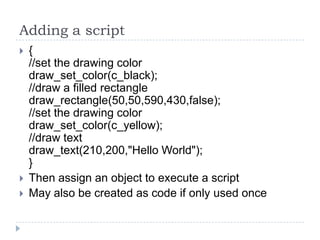
Adding a script{//set the drawing colordraw_set_color(c_black);//draw a filled rectangledraw_rectangle(50,50,590,430,false);//set the drawing colordraw_set_color(c_yellow);//draw textdraw_text(210,200,"Hello World");}Then assign an object to execute a scriptMay also be created as code if only used once
Executing GML Code to RoomsCan execute code when rooms are createdOpen a room and click on its settings tabButton at the bottom of the tab labeled Creation CodeCode for the room will be executed once (and  only once) when the room is created
GML ScriptingData typesInteger – any whole number positive or negative, as well as 0Real – Numbers that include decimal pointsString – Set of characters embedded within single or double quotations
VariablesVariable – pointer to a location in memory where data is storedVariable names must begin with a letterLetters, numbers, underscoresNo blanksNo game maker language key words or names of defined resourcesTo assign a value to a variable, use the “=“Name = “Tracy”;
Special VariablesX – coordinate for a given objecty – “ “DirectionSpeedHspeedVspeedSolidSprite_heightSprite_width
ConstantsA constant is a value whose value is known at design time and does not change during the execution of the gameColors, for example (c_black, c_blue, c_green)Click on “show constants” on the scripts menuConstants cannot be “accidentally” changed, are self-documenting, and typically require less memory
ArraysAn array is an indexed list of data that is stored and managed as a collection, preserving the value of the variable and its relationship with other variablesOne dimensional and two dimensionalArrayname[indices]Ex:  {names[0]=“Captain Jack”;names[1]=“Mad Hatter”;names[2]=“Willy Wonka”;}
Setting up a LoopSet up a loopFor(i=0; I<3; i=i+1) {draw_text(x,y,names[i]);     y = y+20}Executes the script three timesCan be used to list each item in an array
The IF statementThe if statement is used to evaluate an expression and then initate an action if that expression evaluates as true.If (expression){    statements;}Example (if statement as part of a guessing game:if(secretnumber=real(userGuess)) show_message(“You Guessed It”);If statements can be nested

Intro to gml

  • 1.
    Intro to GMLGameMaker Language
  • 2.
    GMLInterpreted programming languagethat you can use to substantially enhance the games you create using Game MakerSupplementExtendReplace ActionsInterpreted Programming LanguageScripts are interpreted and compiled just before they are executed
  • 3.
    Game Maker ScriptsMenuImport ScriptsExport ScriptsShow Built-In Variables – Global/local variablesShow Built-In Functions – Game Maker’s functionsShow Extension functions – through extension pkgsShow Constants Show Resource Names – resources defined in your appSearch in Scripts – matching stringsCheck Resource Names – look for resource name conflictsCheck All Scripts – syntax check
  • 4.
    Game Maker ScriptsEditorAccessed through the Script Properties WindowCreate scripts by typing the windowAuto color-codedAssists in writing codeSmart tabs automatically indent statements
  • 5.
    SyntaxScripts are madeup of one ore more GML code statements embedded within an opening bracket and closing bracket { }All code statements should end with a semi-colon ;
  • 6.
    Adding a script{//setthe drawing colordraw_set_color(c_black);//draw a filled rectangledraw_rectangle(50,50,590,430,false);//set the drawing colordraw_set_color(c_yellow);//draw textdraw_text(210,200,"Hello World");}Then assign an object to execute a scriptMay also be created as code if only used once
  • 7.
    Executing GML Codeto RoomsCan execute code when rooms are createdOpen a room and click on its settings tabButton at the bottom of the tab labeled Creation CodeCode for the room will be executed once (and only once) when the room is created
  • 8.
    GML ScriptingData typesInteger– any whole number positive or negative, as well as 0Real – Numbers that include decimal pointsString – Set of characters embedded within single or double quotations
  • 9.
    VariablesVariable – pointerto a location in memory where data is storedVariable names must begin with a letterLetters, numbers, underscoresNo blanksNo game maker language key words or names of defined resourcesTo assign a value to a variable, use the “=“Name = “Tracy”;
  • 10.
    Special VariablesX –coordinate for a given objecty – “ “DirectionSpeedHspeedVspeedSolidSprite_heightSprite_width
  • 11.
    ConstantsA constant isa value whose value is known at design time and does not change during the execution of the gameColors, for example (c_black, c_blue, c_green)Click on “show constants” on the scripts menuConstants cannot be “accidentally” changed, are self-documenting, and typically require less memory
  • 12.
    ArraysAn array isan indexed list of data that is stored and managed as a collection, preserving the value of the variable and its relationship with other variablesOne dimensional and two dimensionalArrayname[indices]Ex: {names[0]=“Captain Jack”;names[1]=“Mad Hatter”;names[2]=“Willy Wonka”;}
  • 13.
    Setting up aLoopSet up a loopFor(i=0; I<3; i=i+1) {draw_text(x,y,names[i]); y = y+20}Executes the script three timesCan be used to list each item in an array
  • 14.
    The IF statementTheif statement is used to evaluate an expression and then initate an action if that expression evaluates as true.If (expression){ statements;}Example (if statement as part of a guessing game:if(secretnumber=real(userGuess)) show_message(“You Guessed It”);If statements can be nested