Creating a Presentation
    using Impress
OpenOffice Impress

 Essentials of creating presentations with
  OpenOffice.org Impress
   • Provides set of tools to script, organize, and display a
     presentation
   • Consists of slides, each of which contains objects such as
     titles, items in a bulleted list, graphics, and charts
 Good graphic design makes slides visually
  compelling and presentations easy to understand
   • Avoid clutter and unnecessary graphical elements


                                                                  2
OpenOffice Impress (continued)


 Slides can be:
  • Presented with a computer and projection device
  • Printed on transparent sheets for use with an
    overhead projector
  • Printed on paper for handouts
  • Converted to Web pages for display on the
    Internet


                                                      3
OpenOffice Impress


 How to use the different views included with
  Impress


 Formatting techniques


 How to add animation and other visual effects


                                                 4
OpenOffice Impress (continued)


 How to finalize presentations
  • Print notes for yourself
  • Create handouts for your audience
  • Save presentations as Web pages
  • Use an overhead projector in absence of
    computer projection device


                                              5
What’s in the Impress window?


 Several work areas, called panes
  • Slides Pane (left pane)
  • Current slide (middle pane)
  • Tasks Pane (right pane)


                                        6
What’s in the Impress window?
(continued)


                                7
How do I create a presentation?


 Select a presentation background
  • Collection of professionally selected slide color
    schemes, fonts, graphic accents, and background
    colors
 Use a template to select presentation
  type, style, and title for each slide
 Save frequently


                                                        8
How do I create a presentation?
(continued)


                              9
How do I create a presentation?
           (continued)

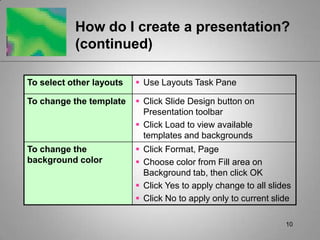
To select other layouts    Use Layouts Task Pane

To change the template     Click Slide Design button on
                            Presentation toolbar
                           Click Load to view available
                            templates and backgrounds
To change the              Click Format, Page
background color           Choose color from Fill area on
                            Background tab, then click OK
                           Click Yes to apply change to all slides
                           Click No to apply only to current slide

                                                                 10
How do I add a slide?


 Click Slide button to display Tasks Pane
   • Gives you a choice of slide layouts
   • Includes thumbnail sketches of each slide type
 Each design template has its own Title Slide
  layout (or use Title Only layout or Blank Slide
  for first slide)
 Resize placeholders by using object’s sizing
  handles
                                                      11
How do I add a slide? (continued)


                              12
How do I add a bulleted list?


 Use one of the title and text layouts
   • Title, Text
   • Title, Text, Object


                                          13
How do I add a bulleted list?
(continued)


                                14
How do I add a bulleted list?
         (continued)


To remove        Use Bullets On/Off button, or
bullets          Press Backspace key
To create a    Select list, click Format on menu bar
numbered list  Click Bullets and Numbering
               Select a style from Numbering tab,
                then click OK
To create      Use Demote button on Text
sub-bullets     Formatting toolbar

                                                    15
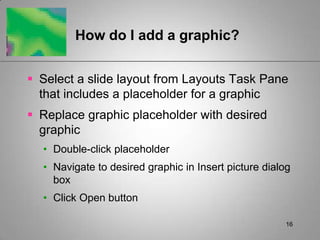
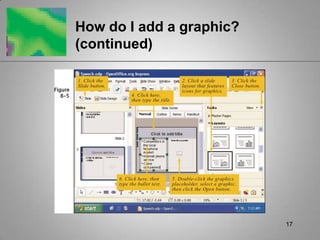
How do I add a graphic?


 Select a slide layout from Layouts Task Pane
  that includes a placeholder for a graphic
 Replace graphic placeholder with desired
  graphic
  • Double-click placeholder
  • Navigate to desired graphic in Insert picture dialog
    box
  • Click Open button

                                                       16
How do I add a graphic?
(continued)


                          17
How do I add a graphic?
         (continued)


To delete a graphic      Press Delete key
To insert a graphic      Click Insert on menu bar,
into any slide layout     point to Picture
                         Click From File
                         Select graphic, click Open
                         Use sizing handles to position
                          and size graphic


                                                      18
How do I add a chart?


 Several slide layouts contain chart
  placeholders
  • Bar chart
  • Line chart
  • Pie chart
 Chart placeholder includes sample
  data, which you change to reflect your data


                                                19
How do I add a chart? (continued)


                              20
How do I add a chart? (continued)


To change sample    Click each cell containing
data                 sample data and replace it with
                     your own labels or numbers

To delete sample    Select cells, press Delete key
data


                                                       21
How do I add a chart? (continued)


To move data       Select cells, right-click to display
                    shortcut menu
                   Click Cut, then right-click cell
                    where you want to move data
                   Click Paste from shortcut menu
To insert a row    Click cell where you want to insert
or column          Click Insert Row button/Insert
                    Column button on toolbar

                                                           22
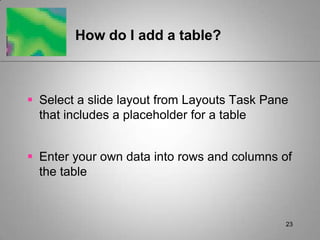
How do I add a table?


 Select a slide layout from Layouts Task Pane
  that includes a placeholder for a table


 Enter your own data into rows and columns of
  the table


                                             23
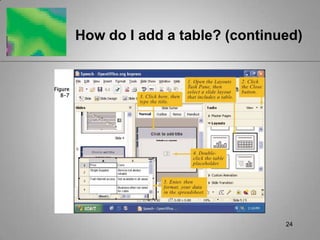
How do I add a table? (continued)


                              24
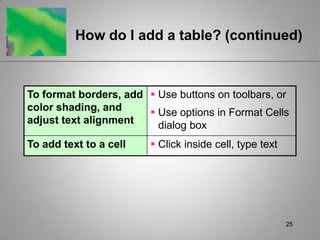
How do I add a table? (continued)


To format borders, add  Use buttons on toolbars, or
color shading, and      Use options in Format Cells
adjust text alignment    dialog box
To add text to a cell    Click inside cell, type text


                                                         25
How do I add a table? (continued)


To add a graphic to a    Click the cell, click Insert on Standard
cell                      menu bar
                         Point to Picture, then click From File
                         With Insert Picture dialog box open,
                          navigate to desired graphic, click Open
To adjust height or      Position pointer over column or row
width of cells            header so that the shape changes
                         Drag the dividing line to correct position


                                                                     26
How do I view a slide show?


 Move to first slide, then switch to Slide Show
  view


                                                   27
How do I view a slide show?
(continued)


                              28
How do I view a slide show?
         (continued)

To display next slide or    Press left mouse button
next bullet                 Press N key
                            Press right-arrow key
To display previous         Press right mouse button
slide or previous bullet    Press P key
                            Press left-arrow key
To cancel slide show        Press Esc key


                                                    29
How do I use the Normal and
         Outline view tabs?

 Normal view
  • To build the basic structure of the presentation
 Outline view
  • To work effectively on content
      Use Demote button to indent a bullet
      Use Promote button to return a bullet to its previous level

 Slides Pane
  • To add visual effects to one slide at a time
                                                                30
How do I use the Normal and
Outline view tabs? (continued)


                                 31
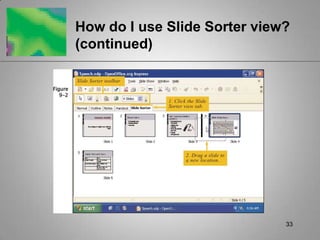
How do I use Slide Sorter view?


 To view miniaturized versions of all slides in a
  presentation


 Makes it easy to rearrange slides as needed


                                                 32
How do I use Slide Sorter view?
(continued)


                              33
How do I use Slide Sorter view?
           (continued)

To move a slide      Use drag-and-drop method
To delete a slide    Click slide to select, click Edit, then Delete
                      Slide
To duplicate a       Use Copy and Paste buttons, or
slide                Right-click slide and use shortcut menu’s
                      Copy and Paste options
To hide a slide      Use Show/Hide button on Slide Sorter
                      toolbar, or
                     Right-click slide, then click Hide Slide on
                      shortcut menu

                                                                    34
How do I add transitions?


 Transitions
   • Effects that specifies how a slide replaces the
     previous slide
   • Include fades, wipes, sound, and other effects
   • Indicated by an Animation icon, which is visible in
     Slides Pane (Normal view) or in Slide Sorter view
 Can make a presentation more interesting,
  but overuse can be irritating and distracting

                                                       35
How do I add transitions?
(continued)


                            36
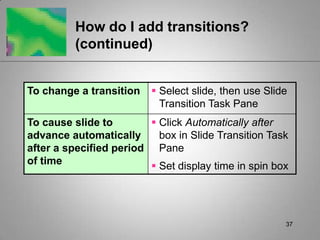
How do I add transitions?
         (continued)


To change a transition    Select slide, then use Slide
                           Transition Task Pane
To cause slide to        Click Automatically after
advance automatically     box in Slide Transition Task
after a specified period Pane
of time                  Set display time in spin box


                                                      37
How do I format text on a slide?


 When selecting font sizes, consider the
  number of people in the audience


 Consider lighting in the room
  • Bright light: use dark font on light background
  • Dark room: use dark background with light font
    colors


                                                      38
How do I format text on a slide?
(continued)


                               39
How do I format text on a slide?
            (continued)

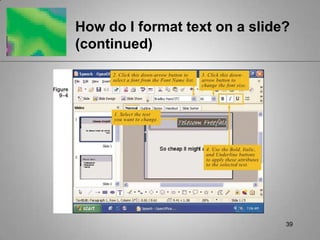
To choose font options  Click Format, then Character to
                         display Character dialog box
                        Select desired font, font style, color,
                         and effect, then click OK to apply
To use slide master to     Click View, point to Master, then click
change font attributes      Slide Master
for all slides in the      Select text styles to modify, change
presentation at the         font attributes using Character dialog
same time                   box
                           Close slide master with Close Master
                            View

                                                                   40
How do I add animation effects to
        a bulleted list?

 Animation effects
  • Draw attention to bullets as they appear
  • Can be accompanied by sound effects (use
    sparingly)
  • Can be applied to any slide element (text,
    graphics, charts, tables)
  • Use After animation option to indicate whether
    object should change color or disappear after
    animation
                                                     41
How do I add animation effects to
       a bulleted list? (continued)


 Use Custom Animation Task Pane


                                     42
How do I add animation effects to
a bulleted list? (continued)


                              43
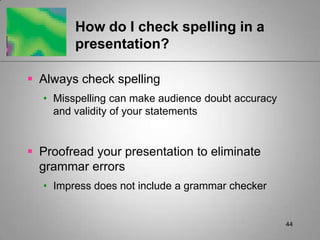
How do I check spelling in a
        presentation?

 Always check spelling
  • Misspelling can make audience doubt accuracy
    and validity of your statements


 Proofread your presentation to eliminate
  grammar errors
  • Impress does not include a grammar checker


                                                   44
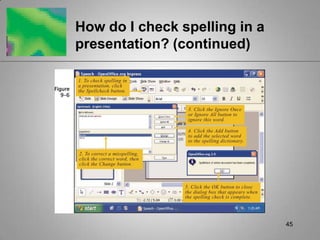
How do I check spelling in a
presentation? (continued)


                               45
How do I check spelling in a
           presentation? (continued)

To manually initiate a      Use Spellcheck button
spelling check of entire
presentation

To automatically            Click Tools menu, Autocorrect
correct common typing       In AutoCorrect dialog box, select
errors as you work           options useful to you (automatically
                             capitalizing first word in sentence and
                             names of days, changing two capital
                             letters at beginning of a word to a
                             single capital letter)


                                                                  46
How do I add and print speaker
        notes?

 Speaker notes
  • Remind you what to say about each slide
  • Contain printed versions of each slide
  • Allow you to maintain better eye contact and
    rapport with audience (you don’t have to look at
    projected slides)


                                                       47
How do I add and print speaker
notes? (continued)


                                 48
How do I add and print speaker
         notes? (continued)

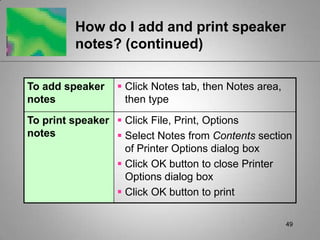
To add speaker    Click Notes tab, then Notes area,
notes              then type
To print speaker  Click File, Print, Options
notes             Select Notes from Contents section
                   of Printer Options dialog box
                  Click OK button to close Printer
                   Options dialog box
                  Click OK button to print

                                                       49
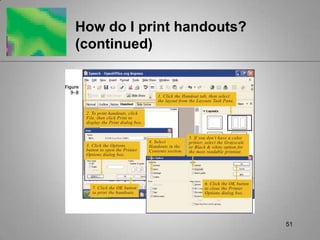
How do I print handouts?


 Use Handout tab to select print layout
  • Number of slides per page (2–6)
  • Black and white or color
  • Text-only version
      Select Outline
      Does not print graphics


                                           50
How do I print handouts?
(continued)


                           51
How do I save a presentation as
         Web pages?

 Click File, then Export
 Select drive and folder to hold Web
  version, enter file name, then click Export
  button
 Some slide features–transitions and
  animation effects–cannot be duplicated


                                                52
How do I save a presentation as
Web pages? (continued)


                              53
Can I show my presentation with
         an overhead projector?

 If printer allows it, load transparency film in
  printer, click File, Print
 Otherwise, print on regular paper and use a
  copy machine to create transparencies
 Transitions, animations, and sound effects
  will be lost


                                                    54
Can I show my presentation with an
overhead projector? (continued)


                                 55
Summary


 Creating a presentation
 Adding a slide
 Adding bulleted lists, graphics, charts, and
  tables
 Viewing a slide show


                                                 56
Summary (continued)


 Using Normal and Outline view tabs
 Using Slide Sorter view
 Adding transitions
 Formatting text on a slide
 Adding animation effects to a bulleted list


                                                57
Summary (continued)


 Checking spelling in a presentation
 Adding and printing speaker notes
 Printing handouts
 Saving a presentation as Web pages
 Showing a presentation with an overhead
  projector


                                            58

Impress

  • 1.
  • 2.
    OpenOffice Impress  Essentialsof creating presentations with OpenOffice.org Impress • Provides set of tools to script, organize, and display a presentation • Consists of slides, each of which contains objects such as titles, items in a bulleted list, graphics, and charts  Good graphic design makes slides visually compelling and presentations easy to understand • Avoid clutter and unnecessary graphical elements 2
  • 3.
    OpenOffice Impress (continued) Slides can be: • Presented with a computer and projection device • Printed on transparent sheets for use with an overhead projector • Printed on paper for handouts • Converted to Web pages for display on the Internet 3
  • 4.
    OpenOffice Impress  Howto use the different views included with Impress  Formatting techniques  How to add animation and other visual effects 4
  • 5.
    OpenOffice Impress (continued) How to finalize presentations • Print notes for yourself • Create handouts for your audience • Save presentations as Web pages • Use an overhead projector in absence of computer projection device 5
  • 6.
    What’s in theImpress window?  Several work areas, called panes • Slides Pane (left pane) • Current slide (middle pane) • Tasks Pane (right pane) 6
  • 7.
    What’s in theImpress window? (continued) 7
  • 8.
    How do Icreate a presentation?  Select a presentation background • Collection of professionally selected slide color schemes, fonts, graphic accents, and background colors  Use a template to select presentation type, style, and title for each slide  Save frequently 8
  • 9.
    How do Icreate a presentation? (continued) 9
  • 10.
    How do Icreate a presentation? (continued) To select other layouts  Use Layouts Task Pane To change the template  Click Slide Design button on Presentation toolbar  Click Load to view available templates and backgrounds To change the  Click Format, Page background color  Choose color from Fill area on Background tab, then click OK  Click Yes to apply change to all slides  Click No to apply only to current slide 10
  • 11.
    How do Iadd a slide?  Click Slide button to display Tasks Pane • Gives you a choice of slide layouts • Includes thumbnail sketches of each slide type  Each design template has its own Title Slide layout (or use Title Only layout or Blank Slide for first slide)  Resize placeholders by using object’s sizing handles 11
  • 12.
    How do Iadd a slide? (continued) 12
  • 13.
    How do Iadd a bulleted list?  Use one of the title and text layouts • Title, Text • Title, Text, Object 13
  • 14.
    How do Iadd a bulleted list? (continued) 14
  • 15.
    How do Iadd a bulleted list? (continued) To remove  Use Bullets On/Off button, or bullets  Press Backspace key To create a  Select list, click Format on menu bar numbered list  Click Bullets and Numbering  Select a style from Numbering tab, then click OK To create  Use Demote button on Text sub-bullets Formatting toolbar 15
  • 16.
    How do Iadd a graphic?  Select a slide layout from Layouts Task Pane that includes a placeholder for a graphic  Replace graphic placeholder with desired graphic • Double-click placeholder • Navigate to desired graphic in Insert picture dialog box • Click Open button 16
  • 17.
    How do Iadd a graphic? (continued) 17
  • 18.
    How do Iadd a graphic? (continued) To delete a graphic  Press Delete key To insert a graphic  Click Insert on menu bar, into any slide layout point to Picture  Click From File  Select graphic, click Open  Use sizing handles to position and size graphic 18
  • 19.
    How do Iadd a chart?  Several slide layouts contain chart placeholders • Bar chart • Line chart • Pie chart  Chart placeholder includes sample data, which you change to reflect your data 19
  • 20.
    How do Iadd a chart? (continued) 20
  • 21.
    How do Iadd a chart? (continued) To change sample  Click each cell containing data sample data and replace it with your own labels or numbers To delete sample  Select cells, press Delete key data 21
  • 22.
    How do Iadd a chart? (continued) To move data  Select cells, right-click to display shortcut menu  Click Cut, then right-click cell where you want to move data  Click Paste from shortcut menu To insert a row  Click cell where you want to insert or column  Click Insert Row button/Insert Column button on toolbar 22
  • 23.
    How do Iadd a table?  Select a slide layout from Layouts Task Pane that includes a placeholder for a table  Enter your own data into rows and columns of the table 23
  • 24.
    How do Iadd a table? (continued) 24
  • 25.
    How do Iadd a table? (continued) To format borders, add  Use buttons on toolbars, or color shading, and  Use options in Format Cells adjust text alignment dialog box To add text to a cell  Click inside cell, type text 25
  • 26.
    How do Iadd a table? (continued) To add a graphic to a  Click the cell, click Insert on Standard cell menu bar  Point to Picture, then click From File  With Insert Picture dialog box open, navigate to desired graphic, click Open To adjust height or  Position pointer over column or row width of cells header so that the shape changes  Drag the dividing line to correct position 26
  • 27.
    How do Iview a slide show?  Move to first slide, then switch to Slide Show view 27
  • 28.
    How do Iview a slide show? (continued) 28
  • 29.
    How do Iview a slide show? (continued) To display next slide or  Press left mouse button next bullet  Press N key  Press right-arrow key To display previous  Press right mouse button slide or previous bullet  Press P key  Press left-arrow key To cancel slide show  Press Esc key 29
  • 30.
    How do Iuse the Normal and Outline view tabs?  Normal view • To build the basic structure of the presentation  Outline view • To work effectively on content  Use Demote button to indent a bullet  Use Promote button to return a bullet to its previous level  Slides Pane • To add visual effects to one slide at a time 30
  • 31.
    How do Iuse the Normal and Outline view tabs? (continued) 31
  • 32.
    How do Iuse Slide Sorter view?  To view miniaturized versions of all slides in a presentation  Makes it easy to rearrange slides as needed 32
  • 33.
    How do Iuse Slide Sorter view? (continued) 33
  • 34.
    How do Iuse Slide Sorter view? (continued) To move a slide  Use drag-and-drop method To delete a slide  Click slide to select, click Edit, then Delete Slide To duplicate a  Use Copy and Paste buttons, or slide  Right-click slide and use shortcut menu’s Copy and Paste options To hide a slide  Use Show/Hide button on Slide Sorter toolbar, or  Right-click slide, then click Hide Slide on shortcut menu 34
  • 35.
    How do Iadd transitions?  Transitions • Effects that specifies how a slide replaces the previous slide • Include fades, wipes, sound, and other effects • Indicated by an Animation icon, which is visible in Slides Pane (Normal view) or in Slide Sorter view  Can make a presentation more interesting, but overuse can be irritating and distracting 35
  • 36.
    How do Iadd transitions? (continued) 36
  • 37.
    How do Iadd transitions? (continued) To change a transition  Select slide, then use Slide Transition Task Pane To cause slide to  Click Automatically after advance automatically box in Slide Transition Task after a specified period Pane of time  Set display time in spin box 37
  • 38.
    How do Iformat text on a slide?  When selecting font sizes, consider the number of people in the audience  Consider lighting in the room • Bright light: use dark font on light background • Dark room: use dark background with light font colors 38
  • 39.
    How do Iformat text on a slide? (continued) 39
  • 40.
    How do Iformat text on a slide? (continued) To choose font options  Click Format, then Character to display Character dialog box  Select desired font, font style, color, and effect, then click OK to apply To use slide master to  Click View, point to Master, then click change font attributes Slide Master for all slides in the  Select text styles to modify, change presentation at the font attributes using Character dialog same time box  Close slide master with Close Master View 40
  • 41.
    How do Iadd animation effects to a bulleted list?  Animation effects • Draw attention to bullets as they appear • Can be accompanied by sound effects (use sparingly) • Can be applied to any slide element (text, graphics, charts, tables) • Use After animation option to indicate whether object should change color or disappear after animation 41
  • 42.
    How do Iadd animation effects to a bulleted list? (continued)  Use Custom Animation Task Pane 42
  • 43.
    How do Iadd animation effects to a bulleted list? (continued) 43
  • 44.
    How do Icheck spelling in a presentation?  Always check spelling • Misspelling can make audience doubt accuracy and validity of your statements  Proofread your presentation to eliminate grammar errors • Impress does not include a grammar checker 44
  • 45.
    How do Icheck spelling in a presentation? (continued) 45
  • 46.
    How do Icheck spelling in a presentation? (continued) To manually initiate a  Use Spellcheck button spelling check of entire presentation To automatically  Click Tools menu, Autocorrect correct common typing  In AutoCorrect dialog box, select errors as you work options useful to you (automatically capitalizing first word in sentence and names of days, changing two capital letters at beginning of a word to a single capital letter) 46
  • 47.
    How do Iadd and print speaker notes?  Speaker notes • Remind you what to say about each slide • Contain printed versions of each slide • Allow you to maintain better eye contact and rapport with audience (you don’t have to look at projected slides) 47
  • 48.
    How do Iadd and print speaker notes? (continued) 48
  • 49.
    How do Iadd and print speaker notes? (continued) To add speaker  Click Notes tab, then Notes area, notes then type To print speaker  Click File, Print, Options notes  Select Notes from Contents section of Printer Options dialog box  Click OK button to close Printer Options dialog box  Click OK button to print 49
  • 50.
    How do Iprint handouts?  Use Handout tab to select print layout • Number of slides per page (2–6) • Black and white or color • Text-only version  Select Outline  Does not print graphics 50
  • 51.
    How do Iprint handouts? (continued) 51
  • 52.
    How do Isave a presentation as Web pages?  Click File, then Export  Select drive and folder to hold Web version, enter file name, then click Export button  Some slide features–transitions and animation effects–cannot be duplicated 52
  • 53.
    How do Isave a presentation as Web pages? (continued) 53
  • 54.
    Can I showmy presentation with an overhead projector?  If printer allows it, load transparency film in printer, click File, Print  Otherwise, print on regular paper and use a copy machine to create transparencies  Transitions, animations, and sound effects will be lost 54
  • 55.
    Can I showmy presentation with an overhead projector? (continued) 55
  • 56.
    Summary  Creating apresentation  Adding a slide  Adding bulleted lists, graphics, charts, and tables  Viewing a slide show 56
  • 57.
    Summary (continued)  UsingNormal and Outline view tabs  Using Slide Sorter view  Adding transitions  Formatting text on a slide  Adding animation effects to a bulleted list 57
  • 58.
    Summary (continued)  Checkingspelling in a presentation  Adding and printing speaker notes  Printing handouts  Saving a presentation as Web pages  Showing a presentation with an overhead projector 58