
Excel


Tips
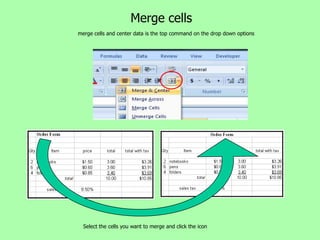
Merge cells
merge cells and center data is the top command on the drop down options


  Select the cells you want to merge and click the icon
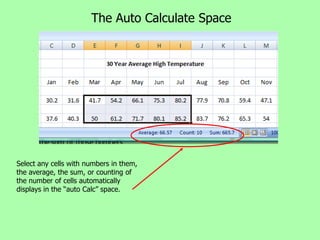
The Auto Calculate Space


Select any cells with numbers in them,
the average, the sum, or counting of
the number of cells automatically
displays in the “auto Calc” space.
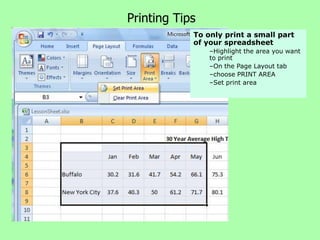
Printing Tips
            To only print a small part
            of your spreadsheet
                –Highlight the area you want
                to print
                –On the Page Layout tab
                –choose PRINT AREA
                –Set print area
Page Set Up Tips
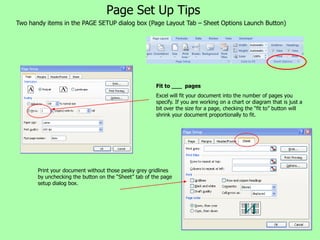
Two handy items in the PAGE SETUP dialog box (Page Layout Tab – Sheet Options Launch Button)


                                                       Fit to ___ pages
                                                       Excel will fit your document into the number of pages you
                                                       specify. If you are working on a chart or diagram that is just a
                                                       bit over the size for a page, checking the “fit to” button will
                                                       shrink your document proportionally to fit.


       Print your document without those pesky grey gridlines
       by unchecking the button on the “Sheet” tab of the page
       setup dialog box.

04 Excel Tips

  • 1.
  • 2.
    Merge cells merge cellsand center data is the top command on the drop down options Select the cells you want to merge and click the icon
  • 3.
    The Auto CalculateSpace Select any cells with numbers in them, the average, the sum, or counting of the number of cells automatically displays in the “auto Calc” space.
  • 4.
    Printing Tips To only print a small part of your spreadsheet –Highlight the area you want to print –On the Page Layout tab –choose PRINT AREA –Set print area
  • 5.
    Page Set UpTips Two handy items in the PAGE SETUP dialog box (Page Layout Tab – Sheet Options Launch Button) Fit to ___ pages Excel will fit your document into the number of pages you specify. If you are working on a chart or diagram that is just a bit over the size for a page, checking the “fit to” button will shrink your document proportionally to fit. Print your document without those pesky grey gridlines by unchecking the button on the “Sheet” tab of the page setup dialog box.