Please Access Today’s Presentation Navigate to  www.edec.org/esa Click on “Resources” Select “Summer Symposium Presentation” Download presentation to Desktop
A Vision of K-12 Students Today…… http://www.teachertube.com/view_video.php?viewkey=d1296214afd7cc367045&page=3&viewtype=&category
Using Technology with Classroom Instruction  That Works Focusing on Cooperative Learning and Similarities & Differences Summer Symposium, June 5 , 2008 ESA, Region 2
Big Ideas Technology does not drive the instruction, it SUPPORTS instruction Technology often is the great “Differentiator”  Technology can help you reach the higher order thinking skills…analyze, create, evaluate If it doesn’t serve a purpose – dump it
Objectives Today Understand the connection between Bloom’s Taxonomy/Marzano’s Instructional Strategies and how technology can be integrated effectively Explore examples of readily available technologies that support specific strategies Learn how to plan for technology in the classroom based on standards
Bloom’s Taxonomy Remember Understand Apply Analyze Evaluate Create
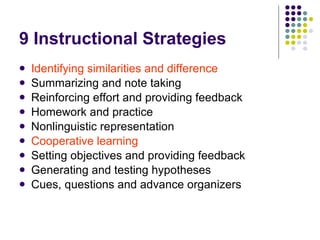
9 Instructional Strategies Identifying similarities and difference Summarizing and note taking Reinforcing effort and providing feedback Homework and practice Nonlinguistic representation Cooperative learning   Setting objectives and providing feedback Generating and testing hypotheses Cues, questions and advance organizers
Standards Content standards  State technology standards National technology standards
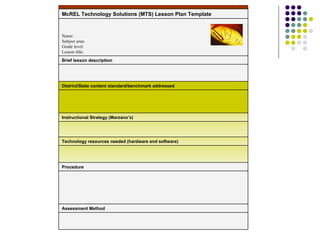
Assessment Method Procedure Technology resources needed (hardware and software) Instructional Strategy (Marzano’s)  District/State content standard/benchmark addressed Brief lesson description Name: Subject area: Grade level: Lesson title: McREL Technology Solutions (MTS) Lesson Plan Template
Organizational Tools: What is Social Bookmarking? Portaportal  –  http://my.portaportal.com   Guest login: citwtech
Cooperative Learning Focuses on having students interact with each other in groups in ways that enhance their learning
Group Design Components Positive interdependence (sink or swim together) Face-to-face, supportive interactions Individual and group accountability Interpersonal and small group skills Group processing
Technology can: Play a unique and vital role in cooperative learning Facilitates group collaborations Provides structure for group tasks Allows group members to communicate even if they are not working face-to-face. Allows school to serve students anytime, anywhere and facilitate their growth as lifelong learners.
Multimedia Can facilitate cooperative learning… By requiring students to assume many different roles and responsibilities Require detail in the planning process Projects can be graded in two dimensions: Rubric for a cooperative project Roles in the group project can be assessed separately http://www.uwstout.edu/soe/profdev/elemteamworkrubric.html
Collaborative Organizing Shared calendars  Shared bookmarking Shared documents Shared notes  Course management  Web-Enables Multiplayer Simulation Games
Web Resources Web-enabled collaborative learning  Using cooperative learning as a way to learn to cooperate. Blogs and wikis and electronic classrooms  www.hotchalk.com
Web Resources WebQuests are inquiry-oriented activities that allow students in a class from multiple locations to collaborate. A well designed webquest is practical, engaging, and elicits student thinking.  The Westing Game Webquest  www.nycsd.k12.pa.us/tchr/webquests/westing/westing_game.htm
Website Creation Building a website can be a very enriching collaborative experience for students Students can build a multi-page Web site based on research and solving a problem together.
Communication Software Blogs and wikis and electronic classrooms   Teachers can pair instant messaging and Voice over IP (VolP) to facilitate powerful collaboration at any time of the day and from any geographical location. ( Yahoo messenger ) Podcasts ( http:// www.epnweb.org / ) Text messaging and email
Collaborative Learning Activity Navigate to the ESA 2 Blogspot  http://citwtechnology.blogspot.com/   How will you integrate one of these tools into you classroom? Take a quick break when you’ve finished.  Reconvene at  11:20am
Using Technology with Classroom Instruction that Works Similarities and Differences
Identifying Similarities & Differences Helps students restructure their understanding of the content Students make new connections, experience fresh insights, and correct misconceptions Leads to deeper understanding
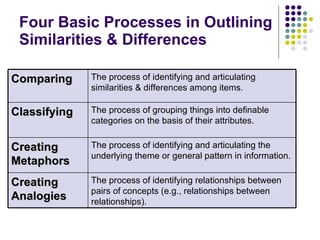
Four Basic Processes in Outlining  Similarities & Differences  The process of identifying relationships between pairs of concepts (e.g., relationships between relationships). Creating Analogies The process of identifying and articulating the underlying theme or general pattern in information. Creating Metaphors The process of grouping things into definable categories on the basis of their attributes. Classifying The process of identifying and articulating similarities & differences among items. Comparing
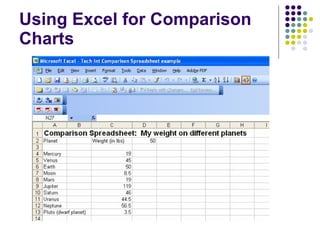
Identifying Similarities & Differences Graphic Organizers (Kidspiration, Inspiration, or Word) Spreadsheet Software (Excel – create comparison charts) Data Collection Tools (probes to collect data, then organize the data in Word or a spreadsheet to analyze and compare)
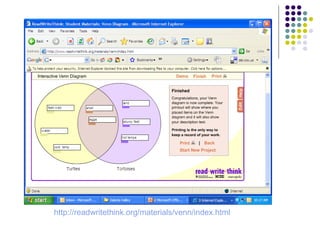
http://readwritethink.org/materials/venn/index.html
Identifying Similarities & Differences Graphic Organizers (Kidspiration, Inpsiration,  bubbl.us , gliffy.com, xtimeline.com, Word) Spreadsheet Software (Excel – create comparison charts) Data Collection Tools (probes to collect data, then organize the data in Word or a spreadsheet to analyze and compare)
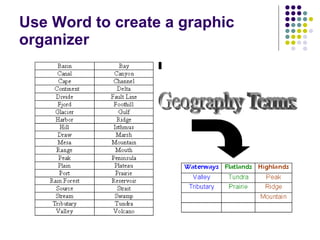
Use Word to create a graphic organizer
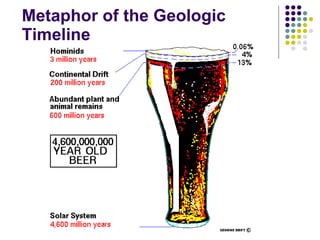
Metaphor of the Geologic Timeline
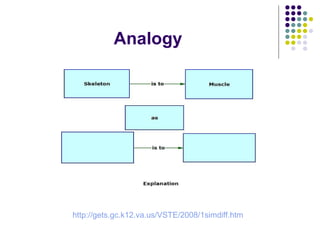
Analogy http://gets.gc.k12.va.us/VSTE/2008/1simdiff.htm
Using Excel for Comparison Charts
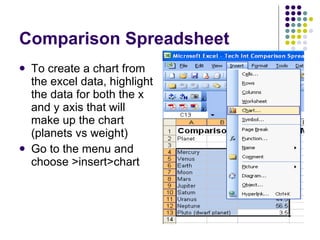
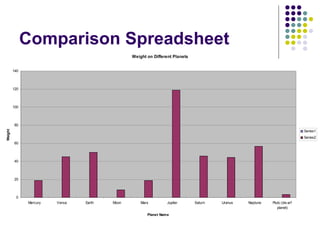
Comparison Spreadsheet  To create a chart from the excel data, highlight the data for both the x and y axis that will make up the chart (planets vs weight) Go to the menu and choose >insert>chart
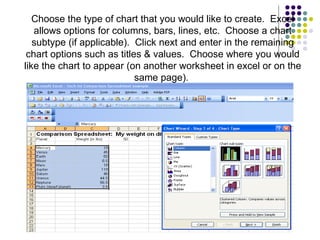
Choose the type of chart that you would like to create.  Excel allows options for columns, bars, lines, etc.  Choose a chart subtype (if applicable).  Click next and enter in the remaining chart options such as titles & values.  Choose where you would like the chart to appear (on another worksheet in excel or on the same page).
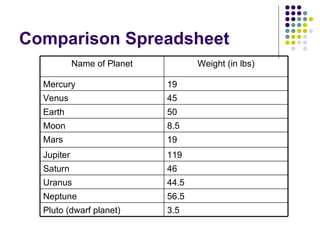
Comparison Spreadsheet  3.5 Pluto (dwarf planet) 56.5 Neptune 44.5 Uranus 46 Saturn 119 Jupiter 19 Mars 8.5 Moon 50 Earth 45 Venus 19 Mercury Weight (in lbs) Name of Planet
Comparison Spreadsheet
Activity:  Technology Planning Template Find the Technology Planning Template used at the beginning of today’s session Work individually to plan a technology infused session for your classroom
THANK YOU FOR YOUR TIME Travel safely.
Bibliography Kulik, J.A., Kulick, C.C. (1988).  Timing of feedback and verbal learning.  Review of Educational Research, 58,  79-97 . Pilter, Howared, Elizabeth R. Hubbell, Matt Kuhn and Kim Malenoski. “Nine categories of instructional strategies graphic,”  Using Technology With Classroom Instruction That Works,  2007, p.8. ² Pilter, Howared, Elizabeth R. Hubbell, Matt Kuhn and Kim Malenoski. “Matrix of the Four Planning Questions graphic,”  Using Technology With Classroom Instruction That Works,  2007, p.13. ³ Pilter, Howared, Elizabeth R. Hubbell, Matt Kuhn and Kim Malenoski. “Technology Solutions Lesson Plan Template,”  Using Technology With Classroom Instruction That Works,  2007, p.221. 4   Marzano,Robert J., Debra J. Pickering, and Jane E. Pollock. ( 2001).  A Handbook for Classroom Instruction That Works: Research-Based Strategies for Increasing Student Achievement.  Retrieved December 27, 2007 from  www.hobart.k12.in.us/peggy/digital/class/study.pdf
Contact Information Education Service Agency Pat Bruinsma  Pat Hubert Barb Hansen  Lori Stoltenburg Marge Hauser  Vickie Venhuizen Melissa Goodwin  Cate Sommervold East Dakota Cooperative (605) 367-7680 [email_address] www.edec.org/esa

Summer Symposium Pres

  • 1.
    Please Access Today’sPresentation Navigate to www.edec.org/esa Click on “Resources” Select “Summer Symposium Presentation” Download presentation to Desktop
  • 2.
    A Vision ofK-12 Students Today…… http://www.teachertube.com/view_video.php?viewkey=d1296214afd7cc367045&page=3&viewtype=&category
  • 3.
    Using Technology withClassroom Instruction That Works Focusing on Cooperative Learning and Similarities & Differences Summer Symposium, June 5 , 2008 ESA, Region 2
  • 4.
    Big Ideas Technologydoes not drive the instruction, it SUPPORTS instruction Technology often is the great “Differentiator” Technology can help you reach the higher order thinking skills…analyze, create, evaluate If it doesn’t serve a purpose – dump it
  • 5.
    Objectives Today Understandthe connection between Bloom’s Taxonomy/Marzano’s Instructional Strategies and how technology can be integrated effectively Explore examples of readily available technologies that support specific strategies Learn how to plan for technology in the classroom based on standards
  • 6.
    Bloom’s Taxonomy RememberUnderstand Apply Analyze Evaluate Create
  • 7.
    9 Instructional StrategiesIdentifying similarities and difference Summarizing and note taking Reinforcing effort and providing feedback Homework and practice Nonlinguistic representation Cooperative learning Setting objectives and providing feedback Generating and testing hypotheses Cues, questions and advance organizers
  • 8.
    Standards Content standards State technology standards National technology standards
  • 9.
    Assessment Method ProcedureTechnology resources needed (hardware and software) Instructional Strategy (Marzano’s) District/State content standard/benchmark addressed Brief lesson description Name: Subject area: Grade level: Lesson title: McREL Technology Solutions (MTS) Lesson Plan Template
  • 10.
    Organizational Tools: Whatis Social Bookmarking? Portaportal – http://my.portaportal.com Guest login: citwtech
  • 11.
    Cooperative Learning Focuseson having students interact with each other in groups in ways that enhance their learning
  • 12.
    Group Design ComponentsPositive interdependence (sink or swim together) Face-to-face, supportive interactions Individual and group accountability Interpersonal and small group skills Group processing
  • 13.
    Technology can: Playa unique and vital role in cooperative learning Facilitates group collaborations Provides structure for group tasks Allows group members to communicate even if they are not working face-to-face. Allows school to serve students anytime, anywhere and facilitate their growth as lifelong learners.
  • 14.
    Multimedia Can facilitatecooperative learning… By requiring students to assume many different roles and responsibilities Require detail in the planning process Projects can be graded in two dimensions: Rubric for a cooperative project Roles in the group project can be assessed separately http://www.uwstout.edu/soe/profdev/elemteamworkrubric.html
  • 15.
    Collaborative Organizing Sharedcalendars Shared bookmarking Shared documents Shared notes Course management Web-Enables Multiplayer Simulation Games
  • 16.
    Web Resources Web-enabledcollaborative learning Using cooperative learning as a way to learn to cooperate. Blogs and wikis and electronic classrooms www.hotchalk.com
  • 17.
    Web Resources WebQuestsare inquiry-oriented activities that allow students in a class from multiple locations to collaborate. A well designed webquest is practical, engaging, and elicits student thinking. The Westing Game Webquest www.nycsd.k12.pa.us/tchr/webquests/westing/westing_game.htm
  • 18.
    Website Creation Buildinga website can be a very enriching collaborative experience for students Students can build a multi-page Web site based on research and solving a problem together.
  • 19.
    Communication Software Blogsand wikis and electronic classrooms Teachers can pair instant messaging and Voice over IP (VolP) to facilitate powerful collaboration at any time of the day and from any geographical location. ( Yahoo messenger ) Podcasts ( http:// www.epnweb.org / ) Text messaging and email
  • 20.
    Collaborative Learning ActivityNavigate to the ESA 2 Blogspot http://citwtechnology.blogspot.com/ How will you integrate one of these tools into you classroom? Take a quick break when you’ve finished. Reconvene at 11:20am
  • 21.
    Using Technology withClassroom Instruction that Works Similarities and Differences
  • 22.
    Identifying Similarities &Differences Helps students restructure their understanding of the content Students make new connections, experience fresh insights, and correct misconceptions Leads to deeper understanding
  • 23.
    Four Basic Processesin Outlining Similarities & Differences The process of identifying relationships between pairs of concepts (e.g., relationships between relationships). Creating Analogies The process of identifying and articulating the underlying theme or general pattern in information. Creating Metaphors The process of grouping things into definable categories on the basis of their attributes. Classifying The process of identifying and articulating similarities & differences among items. Comparing
  • 24.
    Identifying Similarities &Differences Graphic Organizers (Kidspiration, Inspiration, or Word) Spreadsheet Software (Excel – create comparison charts) Data Collection Tools (probes to collect data, then organize the data in Word or a spreadsheet to analyze and compare)
  • 25.
  • 26.
    Identifying Similarities &Differences Graphic Organizers (Kidspiration, Inpsiration, bubbl.us , gliffy.com, xtimeline.com, Word) Spreadsheet Software (Excel – create comparison charts) Data Collection Tools (probes to collect data, then organize the data in Word or a spreadsheet to analyze and compare)
  • 27.
    Use Word tocreate a graphic organizer
  • 28.
    Metaphor of theGeologic Timeline
  • 29.
  • 30.
    Using Excel forComparison Charts
  • 31.
    Comparison Spreadsheet To create a chart from the excel data, highlight the data for both the x and y axis that will make up the chart (planets vs weight) Go to the menu and choose >insert>chart
  • 32.
    Choose the typeof chart that you would like to create. Excel allows options for columns, bars, lines, etc. Choose a chart subtype (if applicable). Click next and enter in the remaining chart options such as titles & values. Choose where you would like the chart to appear (on another worksheet in excel or on the same page).
  • 33.
    Comparison Spreadsheet 3.5 Pluto (dwarf planet) 56.5 Neptune 44.5 Uranus 46 Saturn 119 Jupiter 19 Mars 8.5 Moon 50 Earth 45 Venus 19 Mercury Weight (in lbs) Name of Planet
  • 34.
  • 35.
    Activity: TechnologyPlanning Template Find the Technology Planning Template used at the beginning of today’s session Work individually to plan a technology infused session for your classroom
  • 36.
    THANK YOU FORYOUR TIME Travel safely.
  • 37.
    Bibliography Kulik, J.A.,Kulick, C.C. (1988). Timing of feedback and verbal learning. Review of Educational Research, 58, 79-97 . Pilter, Howared, Elizabeth R. Hubbell, Matt Kuhn and Kim Malenoski. “Nine categories of instructional strategies graphic,” Using Technology With Classroom Instruction That Works, 2007, p.8. ² Pilter, Howared, Elizabeth R. Hubbell, Matt Kuhn and Kim Malenoski. “Matrix of the Four Planning Questions graphic,” Using Technology With Classroom Instruction That Works, 2007, p.13. ³ Pilter, Howared, Elizabeth R. Hubbell, Matt Kuhn and Kim Malenoski. “Technology Solutions Lesson Plan Template,” Using Technology With Classroom Instruction That Works, 2007, p.221. 4 Marzano,Robert J., Debra J. Pickering, and Jane E. Pollock. ( 2001). A Handbook for Classroom Instruction That Works: Research-Based Strategies for Increasing Student Achievement. Retrieved December 27, 2007 from www.hobart.k12.in.us/peggy/digital/class/study.pdf
  • 38.
    Contact Information EducationService Agency Pat Bruinsma Pat Hubert Barb Hansen Lori Stoltenburg Marge Hauser Vickie Venhuizen Melissa Goodwin Cate Sommervold East Dakota Cooperative (605) 367-7680 [email_address] www.edec.org/esa

Editor's Notes

  • #3 4 minutes + discussion
  • #10 Use appropriate content standards Try to connect technology standards Be cognizant of technology available to you and students Consider your assessment methods
  • #11 Social bookmarking is a method for Internet users to store, organize, search, and manage bookmarks of web pages on the Internet with the help of metadata . Delicious
  • #13 Down size create links in portaportal
  • #16 Shared calendars – allow students to work from various locales within the school and still organize the activities within the group. Shared bookmarking – quick easy way to share links that are useful with colleagues and peers. Shared Documents and Notes- allows students to work on documents from different locations. EX. Google Docs…. Course management – blogs and wikis are a way teachers can create an online learning community for their students in a web-enabled course management system (CMS) programs. Web-Enables Multiplayer Simulation Games – allows individuals to interact with other individuals simultaneously through a computer game interface. The individuals interacting together for a common purpose in learning, it allows the players to cope with complex authentic situations that are close to reality.
  • #17 Navigate to Portaportal and Open up Cooperative Learning Folder Then find folder of Collaborative sites: IMMEX PBWIKI Google Docs Hot Chalk WebCT/Desire to Learn Take 5 minutes to look through the Collaborative Resources in the Portaportal Which one if any has any possibility of being utilized in your classroom?
  • #18 This is an example of a real webquest that could take 2 days up to a week. Allows for differentiation as students can access from home and work independently.
  • #20 Instant messaging with Melissa Hot Chalk collaborative tool
  • #22 Start podcast about similarities and differences at 3:05
  • #24 Review slide.
  • #25 Two main types of graphic organizers for comparisons: Venn diagrams and comparison matrices Three main types of classification organizers: word and picture sorts, classifying with a column format and classifying with a web format Inspiration metaphor template and clip art There are many online interactive analogy games
  • #27 Two main types of graphic organizers for comparisons: Venn diagrams and comparison matrices Three main types of classification organizers: word and picture sorts, classifying with a column format and classifying with a web format Inspiration metaphor template and clip art There are many online interactive analogy games
  • #29 Metaphors give us an idea of what something that is hard to “see” looks like. Example: sheet over an overhead projector The method used to determine a metaphor value true-to-scale will be similar for all metaphors. Units in the metaphor model can be in time, distance, volume, mass, etc. depending upon what type of metaphor you choose towork with. The general equation used to generate numbers in your metaphor which will be true to scale is: For example, suppose your metaphor uses distance as its "guiding light." Remember, the use of time, volume, or mass in a metaphor would be just dandy. Since we are using a distance metaphor as an example here, a football field with a length of 100 yds will do just fine. To find where on the football field, let's say, the "first oxygen" yard mark would be, you would set up the ratio shown below: X=? The "first oxygen" location on the football field would be (X) yards away from the goal line of your choice! The rest is up to you.
  • #31 Copy