Lecture no : 10
Introduction to Computer/ Computer
Education
Mr. Muhammad Moazzam
MPhil Public Health
BSc BioMedical
University of the Lahore
Storage Devices
Storage Devices
• A storage device is used in the computers to
store the data.
• Another way to define, A storage device is
any hardware capable of holding information
either temporarily or permanently.
• Providesone of the corefunctions of the
modern computer.
Why is storage needed in a
computer?
• Without a storage device, a computer cannot
save or remember any settings or information and
would be considered a dumb terminal
• Although a computer can run with no storage
device, it would only be able to view information,
unless it was connected to another computer that
had storage capabilities
• Even a task, such as browsing the Internet,
requires information to be stored on your
computer
A computer only understands
the numbers 0 or 1, or whether
a switch is on or off.
We call those 1s and 0s ‘bits’ –
binary digits.
A byte (made up of 8 bits) is
enough computer memory to store
a single character of data (e.g. the
letter F).
The computer uses a code to understand what each bit
pattern means.
Using the ASCII code, for instance, the letter F is 70 and has
a bit pattern of 01000110.
Bits and bytes
ASCII for Capital
Letters
65 A 78 N
66 B 79 O
67 C 80 P
68 D 81 Q
69 E 82 R
70 F 83 S
71 G 84 T
72 H 85 U
73 I 86 V
74 J 87 W
75 K 88 X
76 L 89 Y
77 M 90 Z
American Standard Code for
Information Interchange is a
code which represents English
characters as numbers. Each
letter is assigned a number. For
example, A = 65.
Most computers use ASCII
codes. This makes it possible to
transfer data from one computer
to another by changing the ASCII
code into a binary pattern.
ASCII
All computer data is stored in binary form.
This not only includes text, but images, sounds and movies
as well.
The more complex the data, the more memory is used to
store it.
Binary patterns
This does not take up as
much memory…
…as this.
The amount of data stored is measured in kilobytes (KB).
Confusingly, 1KB is actually 1,024 bytes (210), not 1,000 as
you might expect, but most people think in multiples of
1,000.
1 bytes= 8bits
1megabyte (MB) =1,024 KB (220)
1 gigabyte (GB) =1,024 MB (230)
1 terabyte (TB) = 1,024GB (240).
Data storage
CSCA0101 Computing Basics
Storage Devices
Types of Storage
There are two type of storage:
• Primary Storage
• Secondary Storage
9
CSCA0101 Computing Basics
1
0
Storage Devices
Primary Storage
• Also known as main memory.
• Primary storage is a storage location that holds memory
for short periods of times while the computer is on.
• The CPU continuously reads instructions stored
there and executes them as required.
• Example:
– RAM
– ROM
Computers store temporary data in the RAM (Random Access Memory).
These could be operating instructions, loose bits of data or content from
programs that are running.
The contents of RAM are constantly rewritten as the data is
processed.
When the computer is switched off,
all the data is cleared from the
RAM.
This type of memory is called
volatile because it only stores the
data whilst the computer is
switched on.
RAM sticks are found on the motherboard.
Random Access Memory (RAM)
CSCA0101 Computing Basics
Storage Devices
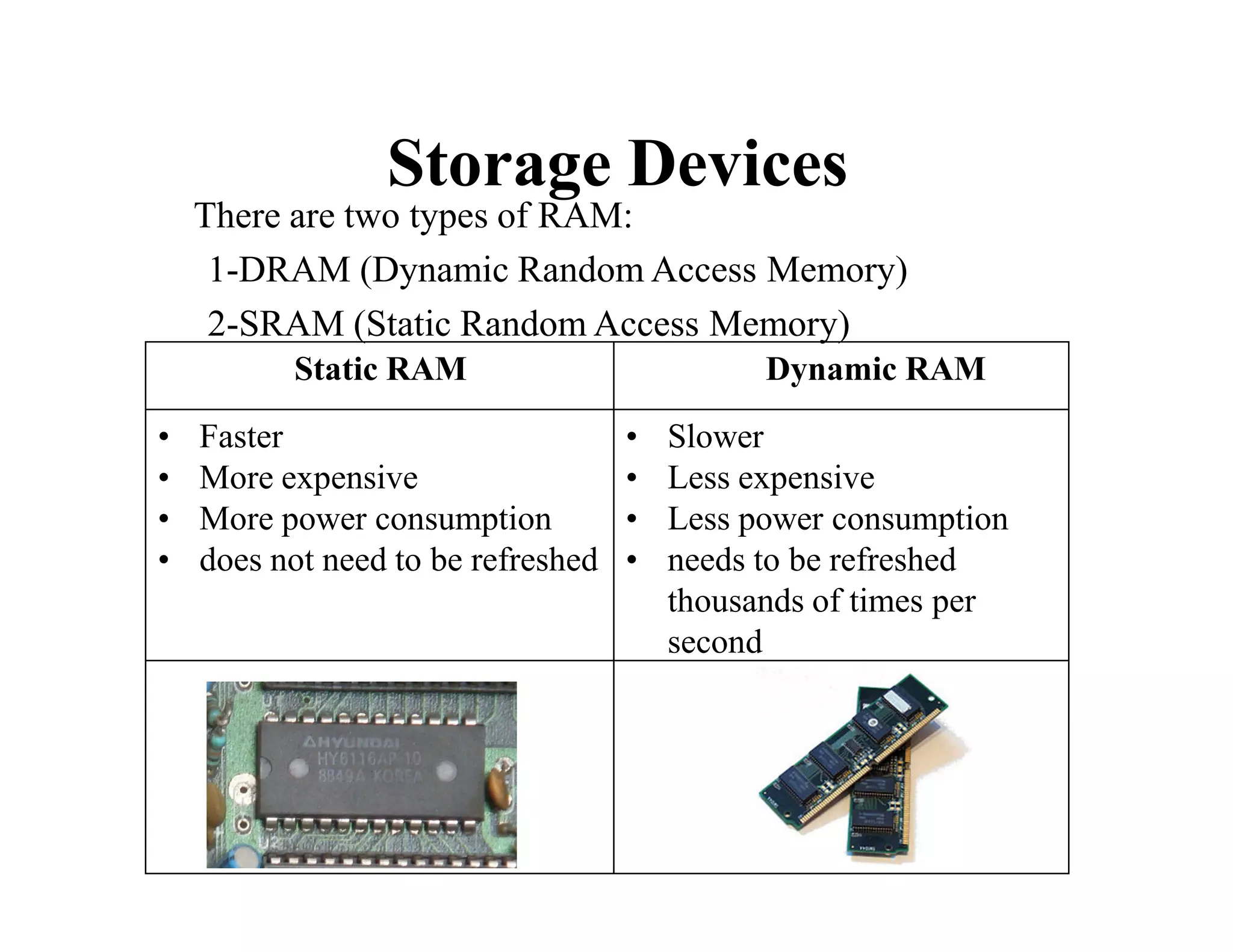
There are two types of RAM:
1-DRAM (Dynamic Random Access Memory)
2-SRAM (Static Random Access Memory)
Static RAM Dynamic RAM
• Faster
• More expensive
• More power consumption
• does not need to be refreshed
• Slower
• Less expensive
• Less power consumption
• needs to be refreshed
thousands of times per
second
When a computer is first switched on, it needs to load up the BIOS
(Basic Input/output System) and basic instructions for the
hardware.
These are stored in ROM (Read Only Memory).
Read Only Memory (ROM) is
both a non-volatile and
permanent form of primary
storage.
Data stored in ROM remains there
even when the computer is
switched off.
ROM can be found on the
motherboard.
Read Only Memory (ROM)
How memory works?
• The main memory is connected to the CPU through data
bus.
• When CPU wants to read data from the memory it first
place request on the control bus, and also place the
address of the bytes or word needed on the address bus.
• The memory unit reads the command and the address and
puts the required data on the data bus.
• The CPU then read this data from the data bus.
• This is similar for writing data.
Memory works
CSCA0101 Computing Basics
17
Storage Devices
Secondary Storage
• Secondary storage is a storage medium that holds
information until it is deleted or overwritten regardless if
the computer has power
• It is not directly accessible by the CPU.
• Computer usually uses its input/output channels to access
secondary storage and transfers the desired data using
intermediate area in primary storage.
• Example:
– Hard disk
CSCA0101 Computing Basics
18
Storage Devices
Secondary Storage
Hard Disk
• The hard disk drive is the main, and usually largest, data
storage device in a computer.
• It can store anywhere from 160 gigabytes to 2
terabytes.
• Hard disk speed is the speed at which content can
be read and written on a hard disk.
• A hard disk unit comes with a set rotation speed
varying from 4500 to 7200 rpm.
• Disk access time is measured in milliseconds.
CSCA0101 Computing Basics
Storage Devices
Secondary Storage
Hard Disk
19
Types of Hard Disk
There are two types of Hard Disk
• Internal Hard disk
• External Hard disk
CSCA0101 Computing Basics
21
Storage Devices
Secondary Storage
Hard Disk
Internal Hard disk External Hard disk
Portability No Yes
Price Less expensive More expensive
Speed Fast Slow
Size Big Small
CSCA0101 Computing Basics
Storage Devices
Secondary Storage
Hard Disk
Internal Hard disk
22
External Hard disk
CSCA0101 Computing Basics
Storage Devices
Magnetic Tape
• A magnetically coated
plastic on which data
strip of
can be
encoded.
• Tapes for computers are similar to
tapes used to store music.
• Tape is much less expensive than
other storage mediums but commonly
a much slower solution that is
commonly used for backup.
23
CSCA0101 Computing Basics
24
Storage Devices
Floppy Disk
• A soft magnetic disk.
• Floppy disks are portable.
• Floppy disks are slower to access than hard disks and
have less storage capacity, but they are much less
expensive.
• Can store data up to 1.44MB.
• Two common sizes: 5 ¼” and 3 ½”.
CSCA0101 Computing Basics
Storage Devices
Floppy Disk
5 ¼ inch Floppy Disk
25
3 ½ inch Floppy Disk
Storage Devices
• Floppy Disk
Magnetic card
• A magnetic card is a card that contains either
a magnetic strip or a magnetic object in the
card, encoded with digital data.
• A magnetic card may contain information
about an individual, such as available credit on
a credit card or pass codes for entering secure
buildings. It's usually the size of a business
card or credit card.
Magnetic card
• The picture is an example of a magnetic card
being swiped through a magnetic card reader.
CSCA0101 Computing Basics
29
Storage Devices
Optical Disc
• Optical disc is any storage media that holds content in
digital format and is read using a laser assembly is
considered optical media.
• The most common types of optical media are
– Compact Disc (CD)
– Digital Versatile Disc (DVD)
Storage Devices
Flash Memory
• Flash Memory has replaced most magnetic and
optical media as it becomes cheaper because it
is the more efficient and reliable solution.
Flash drive
• Alternatively referred to as a USB flash
drive, data stick, pen drive, memory
unit, keychain drive and thumb drive, a jump
drive is a portable storage device.
• It is often the size of a human thumb (hence the
name), and connects to a computer via
a USB port. Flash drives are an easy way
to store and transfer information between
computers and range in sizes from 2 GB to 1 TB.
Flash drive
CSCA0101 Computing Basics
34
Storage Devices
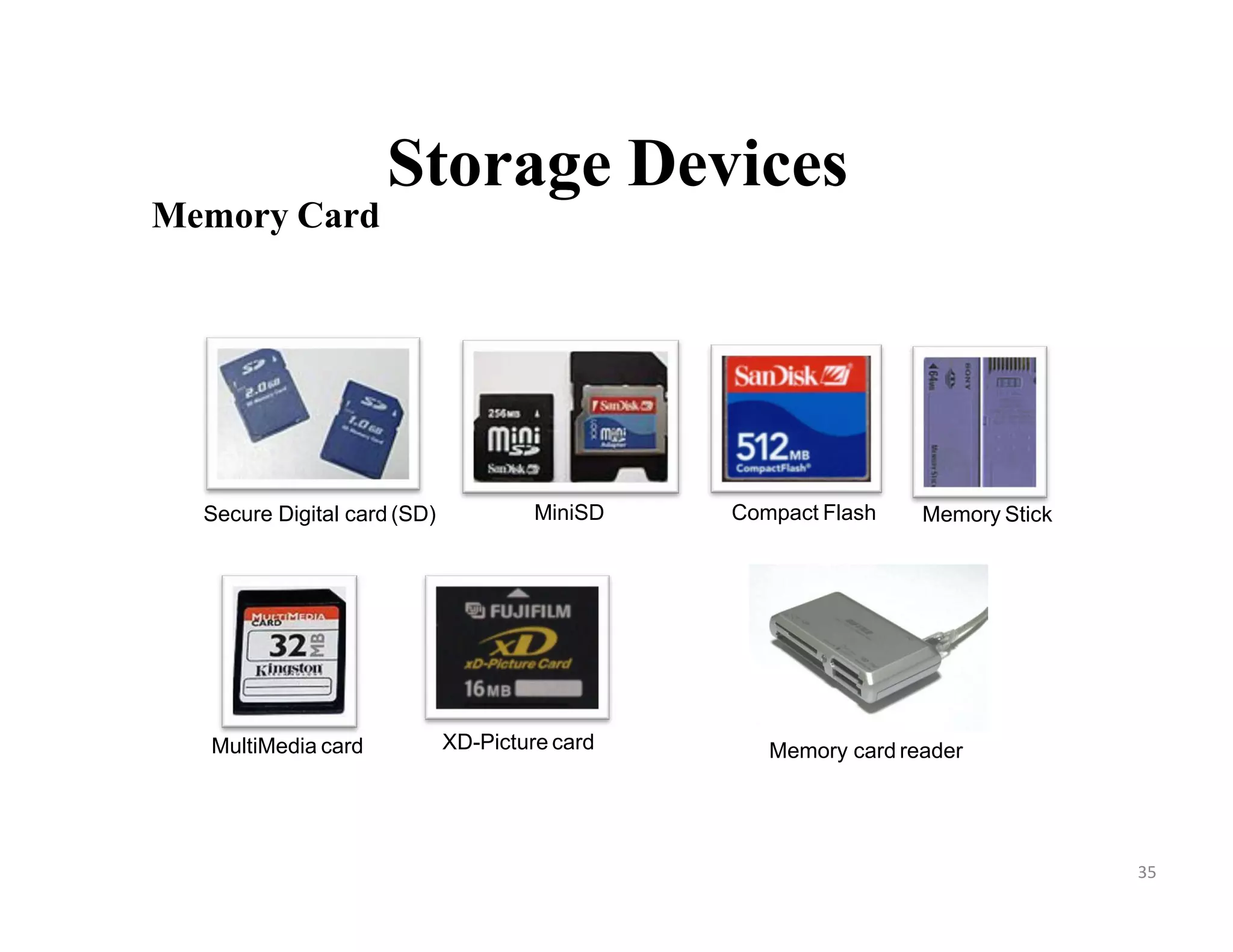
Memory Card
• An electronic flash memory storage disk commonly
used in consumer electronic devices such as digital
cameras, MP3 players, mobile phones, and other
small portable devices.
• Memory cards are usually read by connecting the
device containing the card to your computer, or by
using a USB card reader.
CSCA0101 Computing Basics
Storage Devices
Memory Card
Secure Digital card (SD) MiniSD Compact Flash Memory Stick
MultiMedia card XD-Picture card Memory card reader
35
Online and cloud
Storing data online and in cloud storage is
becoming popular as people need to access their
data from more than one device.
• Cloud storage
• Network media
Cloud computing
• Cloud computing is a term used to describe
services provided over a network by a
collection of remote servers.
• This abstract "cloud" of computers provides
massive, distributed storage and processing
power, which can be accessed by any Internet-
connected device running a web browser.
How do you access cloud
computing?
• Cloud computing is accessed through
an application (e.g., Dropbox app) on your
computer, smartphone, or tablet or
a website that accesses the cloud through
your browser
Network Media
• Network media is any audio, video, images or
text, used on a computer network, like
the Internet
Why so many different storage
devices?
• As computers advance, the technologies used to
store data do too, right along with higher
requirements for storage space. Because people
need more and more space, want it faster, cheaper,
and want to take it with them, new technologies
have to be invented.
• When new storage devices are designed, as
people upgrade to those new devices, the older
devices are no longer needed and stop being used
Why so many different storage
devices?
• For example, when punch cards were first used in
early computers, the magnetic media used for
floppy disks was not available.
• After floppy diskettes were released, they were
replaced by CD-ROM drives, which were
replaced by DVD drives, which have been
replaced by flash drives.
• The first hard disk drive from IBM cost $50,000,
was only 5 MB, big, and cumbersome.
Why so many different storage
devices?
• Today, we have smartphones that have
hundreds of times the capacity at a much
smaller price that we can carry in our pocket.
• Each advancement of storage devices gives a
computer the ability to store more data, as well
as save and access data faster
Storage Devices

Storage Devices

  • 1.
    Lecture no :10 Introduction to Computer/ Computer Education Mr. Muhammad Moazzam MPhil Public Health BSc BioMedical University of the Lahore
  • 2.
  • 3.
    Storage Devices • Astorage device is used in the computers to store the data. • Another way to define, A storage device is any hardware capable of holding information either temporarily or permanently. • Providesone of the corefunctions of the modern computer.
  • 4.
    Why is storageneeded in a computer? • Without a storage device, a computer cannot save or remember any settings or information and would be considered a dumb terminal • Although a computer can run with no storage device, it would only be able to view information, unless it was connected to another computer that had storage capabilities • Even a task, such as browsing the Internet, requires information to be stored on your computer
  • 5.
    A computer onlyunderstands the numbers 0 or 1, or whether a switch is on or off. We call those 1s and 0s ‘bits’ – binary digits. A byte (made up of 8 bits) is enough computer memory to store a single character of data (e.g. the letter F). The computer uses a code to understand what each bit pattern means. Using the ASCII code, for instance, the letter F is 70 and has a bit pattern of 01000110. Bits and bytes
  • 6.
    ASCII for Capital Letters 65A 78 N 66 B 79 O 67 C 80 P 68 D 81 Q 69 E 82 R 70 F 83 S 71 G 84 T 72 H 85 U 73 I 86 V 74 J 87 W 75 K 88 X 76 L 89 Y 77 M 90 Z American Standard Code for Information Interchange is a code which represents English characters as numbers. Each letter is assigned a number. For example, A = 65. Most computers use ASCII codes. This makes it possible to transfer data from one computer to another by changing the ASCII code into a binary pattern. ASCII
  • 7.
    All computer datais stored in binary form. This not only includes text, but images, sounds and movies as well. The more complex the data, the more memory is used to store it. Binary patterns This does not take up as much memory… …as this.
  • 8.
    The amount ofdata stored is measured in kilobytes (KB). Confusingly, 1KB is actually 1,024 bytes (210), not 1,000 as you might expect, but most people think in multiples of 1,000. 1 bytes= 8bits 1megabyte (MB) =1,024 KB (220) 1 gigabyte (GB) =1,024 MB (230) 1 terabyte (TB) = 1,024GB (240). Data storage
  • 9.
    CSCA0101 Computing Basics StorageDevices Types of Storage There are two type of storage: • Primary Storage • Secondary Storage 9
  • 10.
    CSCA0101 Computing Basics 1 0 StorageDevices Primary Storage • Also known as main memory. • Primary storage is a storage location that holds memory for short periods of times while the computer is on. • The CPU continuously reads instructions stored there and executes them as required. • Example: – RAM – ROM
  • 11.
    Computers store temporarydata in the RAM (Random Access Memory). These could be operating instructions, loose bits of data or content from programs that are running. The contents of RAM are constantly rewritten as the data is processed. When the computer is switched off, all the data is cleared from the RAM. This type of memory is called volatile because it only stores the data whilst the computer is switched on. RAM sticks are found on the motherboard. Random Access Memory (RAM)
  • 12.
    CSCA0101 Computing Basics StorageDevices There are two types of RAM: 1-DRAM (Dynamic Random Access Memory) 2-SRAM (Static Random Access Memory) Static RAM Dynamic RAM • Faster • More expensive • More power consumption • does not need to be refreshed • Slower • Less expensive • Less power consumption • needs to be refreshed thousands of times per second
  • 13.
    When a computeris first switched on, it needs to load up the BIOS (Basic Input/output System) and basic instructions for the hardware. These are stored in ROM (Read Only Memory). Read Only Memory (ROM) is both a non-volatile and permanent form of primary storage. Data stored in ROM remains there even when the computer is switched off. ROM can be found on the motherboard. Read Only Memory (ROM)
  • 15.
    How memory works? •The main memory is connected to the CPU through data bus. • When CPU wants to read data from the memory it first place request on the control bus, and also place the address of the bytes or word needed on the address bus. • The memory unit reads the command and the address and puts the required data on the data bus. • The CPU then read this data from the data bus. • This is similar for writing data.
  • 16.
  • 17.
    CSCA0101 Computing Basics 17 StorageDevices Secondary Storage • Secondary storage is a storage medium that holds information until it is deleted or overwritten regardless if the computer has power • It is not directly accessible by the CPU. • Computer usually uses its input/output channels to access secondary storage and transfers the desired data using intermediate area in primary storage. • Example: – Hard disk
  • 18.
    CSCA0101 Computing Basics 18 StorageDevices Secondary Storage Hard Disk • The hard disk drive is the main, and usually largest, data storage device in a computer. • It can store anywhere from 160 gigabytes to 2 terabytes. • Hard disk speed is the speed at which content can be read and written on a hard disk. • A hard disk unit comes with a set rotation speed varying from 4500 to 7200 rpm. • Disk access time is measured in milliseconds.
  • 19.
    CSCA0101 Computing Basics StorageDevices Secondary Storage Hard Disk 19
  • 20.
    Types of HardDisk There are two types of Hard Disk • Internal Hard disk • External Hard disk
  • 21.
    CSCA0101 Computing Basics 21 StorageDevices Secondary Storage Hard Disk Internal Hard disk External Hard disk Portability No Yes Price Less expensive More expensive Speed Fast Slow Size Big Small
  • 22.
    CSCA0101 Computing Basics StorageDevices Secondary Storage Hard Disk Internal Hard disk 22 External Hard disk
  • 23.
    CSCA0101 Computing Basics StorageDevices Magnetic Tape • A magnetically coated plastic on which data strip of can be encoded. • Tapes for computers are similar to tapes used to store music. • Tape is much less expensive than other storage mediums but commonly a much slower solution that is commonly used for backup. 23
  • 24.
    CSCA0101 Computing Basics 24 StorageDevices Floppy Disk • A soft magnetic disk. • Floppy disks are portable. • Floppy disks are slower to access than hard disks and have less storage capacity, but they are much less expensive. • Can store data up to 1.44MB. • Two common sizes: 5 ¼” and 3 ½”.
  • 25.
    CSCA0101 Computing Basics StorageDevices Floppy Disk 5 ¼ inch Floppy Disk 25 3 ½ inch Floppy Disk
  • 26.
  • 27.
    Magnetic card • Amagnetic card is a card that contains either a magnetic strip or a magnetic object in the card, encoded with digital data. • A magnetic card may contain information about an individual, such as available credit on a credit card or pass codes for entering secure buildings. It's usually the size of a business card or credit card.
  • 28.
    Magnetic card • Thepicture is an example of a magnetic card being swiped through a magnetic card reader.
  • 29.
    CSCA0101 Computing Basics 29 StorageDevices Optical Disc • Optical disc is any storage media that holds content in digital format and is read using a laser assembly is considered optical media. • The most common types of optical media are – Compact Disc (CD) – Digital Versatile Disc (DVD)
  • 30.
  • 31.
    Flash Memory • FlashMemory has replaced most magnetic and optical media as it becomes cheaper because it is the more efficient and reliable solution.
  • 32.
    Flash drive • Alternativelyreferred to as a USB flash drive, data stick, pen drive, memory unit, keychain drive and thumb drive, a jump drive is a portable storage device. • It is often the size of a human thumb (hence the name), and connects to a computer via a USB port. Flash drives are an easy way to store and transfer information between computers and range in sizes from 2 GB to 1 TB.
  • 33.
  • 34.
    CSCA0101 Computing Basics 34 StorageDevices Memory Card • An electronic flash memory storage disk commonly used in consumer electronic devices such as digital cameras, MP3 players, mobile phones, and other small portable devices. • Memory cards are usually read by connecting the device containing the card to your computer, or by using a USB card reader.
  • 35.
    CSCA0101 Computing Basics StorageDevices Memory Card Secure Digital card (SD) MiniSD Compact Flash Memory Stick MultiMedia card XD-Picture card Memory card reader 35
  • 36.
    Online and cloud Storingdata online and in cloud storage is becoming popular as people need to access their data from more than one device. • Cloud storage • Network media
  • 37.
    Cloud computing • Cloudcomputing is a term used to describe services provided over a network by a collection of remote servers. • This abstract "cloud" of computers provides massive, distributed storage and processing power, which can be accessed by any Internet- connected device running a web browser.
  • 38.
    How do youaccess cloud computing? • Cloud computing is accessed through an application (e.g., Dropbox app) on your computer, smartphone, or tablet or a website that accesses the cloud through your browser
  • 39.
    Network Media • Networkmedia is any audio, video, images or text, used on a computer network, like the Internet
  • 40.
    Why so manydifferent storage devices? • As computers advance, the technologies used to store data do too, right along with higher requirements for storage space. Because people need more and more space, want it faster, cheaper, and want to take it with them, new technologies have to be invented. • When new storage devices are designed, as people upgrade to those new devices, the older devices are no longer needed and stop being used
  • 41.
    Why so manydifferent storage devices? • For example, when punch cards were first used in early computers, the magnetic media used for floppy disks was not available. • After floppy diskettes were released, they were replaced by CD-ROM drives, which were replaced by DVD drives, which have been replaced by flash drives. • The first hard disk drive from IBM cost $50,000, was only 5 MB, big, and cumbersome.
  • 42.
    Why so manydifferent storage devices? • Today, we have smartphones that have hundreds of times the capacity at a much smaller price that we can carry in our pocket. • Each advancement of storage devices gives a computer the ability to store more data, as well as save and access data faster