Teacher’s notes included in the Notes PageFlash activity. These activities are not editable.
Web addresses
Icons key: For more detailed instructions, see the Getting Started presentation
© Boardworks Ltd 20071 of 25
Hardware and Networks
Storage Devices
Teacher’s notes included in the Notes PageFlash activity. These activities are not editable.
Web addresses
Icons key: For more detailed instructions, see the Getting Started presentation
© Boardworks Ltd 20072 of 25
Learning objectives
© Boardworks Ltd 20072 of 25
Understand that computers store binary digits.
Know the difference between bits and bytes.
Know the difference between ROM and RAM.
Understand that there are different types of storage
devices which hold varying amounts of data.
© Boardworks Ltd 20073 of 25
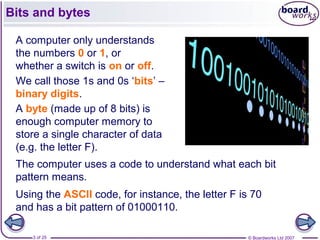
A computer only understands
the numbers 0 or 1, or
whether a switch is on or off.
We call those 1s and 0s ‘bits’ –
binary digits.
A byte (made up of 8 bits) is
enough computer memory to
store a single character of data
(e.g. the letter F).
The computer uses a code to understand what each bit
pattern means.
Using the ASCII code, for instance, the letter F is 70
and has a bit pattern of 01000110.
Bits and bytes
© Boardworks Ltd 20074 of 25
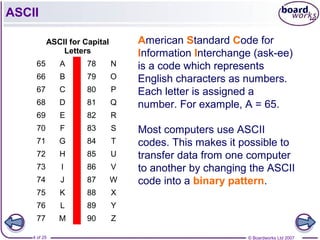
ASCII for Capital
Letters
65 A 78 N
66 B 79 O
67 C 80 P
68 D 81 Q
69 E 82 R
70 F 83 S
71 G 84 T
72 H 85 U
73 I 86 V
74 J 87 W
75 K 88 X
76 L 89 Y
77 M 90 Z
American Standard Code for
Information Interchange (ask-ee)
is a code which represents
English characters as numbers.
Each letter is assigned a
number. For example, A = 65.
Most computers use ASCII
codes. This makes it possible to
transfer data from one computer
to another by changing the ASCII
code into a binary pattern.
ASCII
© Boardworks Ltd 20075 of 25
ASCII
© Boardworks Ltd 20076 of 25
When we write numbers in the decimal system, we write
them in columns. Each column is ten times bigger than the
one before (right to left).
Tens of
millions
millions 10000
0s
10000s 1000
s
100s 10s 1s
1 0 1 0
So 1010 is 1000 plus 10 = 1010.
Tens of
millions
millions 10000
0s
10000s 1000
s
100s 10s 1s
1 1 0 1 0
11010 would be 10000 plus 1000 plus 10 = 11010.
Decimal and binary
© Boardworks Ltd 20077 of 25
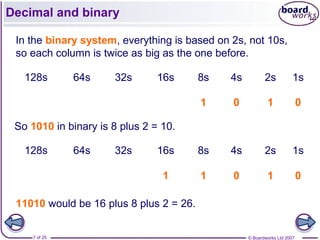
In the binary system, everything is based on 2s, not 10s,
so each column is twice as big as the one before.
128s 64s 32s 16s 8s 4s 2s 1s
1 0 1 0
So 1010 in binary is 8 plus 2 = 10.
128s 64s 32s 16s 8s 4s 2s 1s
1 1 0 1 0
11010 would be 16 plus 8 plus 2 = 26.
Decimal and binary
© Boardworks Ltd 20078 of 25
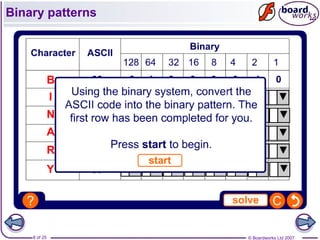
Binary patterns
© Boardworks Ltd 20079 of 25
All computer data is stored in binary form.
This not only includes text, but images, sounds and movies
as well.
The more complex the data, the more memory is used to
store it.
Binary patterns
This does not take up as
much memory… …as this.
© Boardworks Ltd 200710 of 25
The amount of data stored is measured in kilobytes (KB).
Confusingly, 1KB is actually 1,024 bytes (210
), not 1,000
as you might expect, but most people think in multiples of
1,000.
1 megabyte (MB) is 1,000 KB (220
)
1 gigabyte (GB) is 1,000 MB (230
)
1 terabyte (TB) is 1,000 GB (240
).
Data storage
© Boardworks Ltd 200711 of 25
Match the pairs
© Boardworks Ltd 200712 of 25
When a computer is first switched on, it needs to load
up the BIOS (Basic Input/Output System) and basic
instructions for the hardware.
These are stored in ROM (Read Only Memory).
This type of memory is
called non-volatile because
it retains the data.
Data stored in ROM remains
there even when the
computer is switched off.
ROM can be found on the
motherboard.
Read Only Memory (ROM)
© Boardworks Ltd 200713 of 25
Computers store temporary data in the RAM (Random
Access Memory). These could be operating instructions, loose
bits of data or content from programs that are running.
The contents of RAM are constantly rewritten as the data
is processed.
When the computer is
switched off, all the data is
cleared from the RAM.
This type of memory is called
volatile because it only
stores the data whilst the
computer is switched on.
RAM sticks are found on the motherboard.
Random Access Memory (RAM)
© Boardworks Ltd 200714 of 25
RAM and ROM
© Boardworks Ltd 200715 of 25
Computers need backing storage outside the CPU to
store data and programs not currently in use.
There are three main types of storage device:
Those that store data by magnetizing a special
material that coats the surface of a disk.
Those that store data using optical
technology to etch the data onto a plastic-
coated metal disk. Laser beams are then
passed over the surface to read the data.
Flash drives use solid state technology and
store data in a similar way to the BIOS chip.
Types of backing storage
© Boardworks Ltd 200716 of 25
Types of backing storage
The medium is what the data is actually stored on.
Examples of media include floppy disks, CD-ROMs
and zip disks.
Floppy disks hold about
1.44 MB of data.
Zip disks store up to
750 MB of data.
CDs hold around 700
MB of data.
© Boardworks Ltd 200717 of 25
The hard disk of the computer stores the
system information, programs and data
that the computer uses every day.
Computer servers will use RAID systems
with many hard drives to provide huge
capacity and safer storage. The drives
can be mirrored so that data written to
one of them is also written to others, so if
one drive fails, the others just take over.
Removable hard drives plug into the
USB port and can be used for backup or
transfer of data to another computer.
Backing storage – hard drives
© Boardworks Ltd 200718 of 25
Floppy disks used to be used a lot, but they are
unreliable and don’t hold very much data, so they are
rarely used now.
They hold 1.44 MB of data, so are only really useful for
backing up or moving small files that don’t contain
graphics.
They are easily damaged, which means that files stored
on them won’t always load.
As flash memory has become cheaper, many new
computers don’t even have a floppy disk drive.
Backing storage – floppy disk drives
© Boardworks Ltd 200719 of 25
There are two main types of optical storage: CD and
DVD. They look exactly the same, but DVDs hold much
more data than CDs and need different drives to read
them.
CD-ROMs are read only – you can read data
from them but can’t write more data to them.
CD-Rs allow you to write data once, but you
can’t write over it.
CD-RWs allow you to write data and then
record new data over it.
DVD-Rs and RWs follow the same pattern.
You need special software to write to CDs
and DVDs – you cannot simply copy files to
them.
Backing storage – optical
© Boardworks Ltd 200720 of 25
In recent years, flash memory has become much more popular.
It holds a lot of data in a very small space.
It doesn’t need special software to use it.
Most computers will recognize the device
as soon as you plug it in.
Flash memory sticks connect through
USB or FireWire ports.
Many other devices, like digital cameras
and MP3 players, also use flash memory.
Flash memory cards can hold different
types of data so your MP3 player could
hold a data file with your homework on it,
for example.
Backing storage – flash memory
© Boardworks Ltd 200721 of 25
Optical or magnetic
© Boardworks Ltd 200722 of 25
Storage capacity
© Boardworks Ltd 200723 of 25
Fixed storage
© Boardworks Ltd 200724 of 25
Removable storage
© Boardworks Ltd 200725 of 25
Data is stored using binary code (0 and 1).
Computer memory is measured in kilobytes.
Read Only Memory (ROM) is non-volatile because it
cannot be changed.
Random Access Memory (RAM) is volatile because it
only works when the computer is switched on.
There are three types of storage device: those that use
magnetic media, others that use optical media, and those
that use flash memory.
Different types of media have different storage capacities.
Storage devices can also be divided into those that are
fixed and those that are removable.
Summary

Storage devices

  • 1.
    Teacher’s notes includedin the Notes PageFlash activity. These activities are not editable. Web addresses Icons key: For more detailed instructions, see the Getting Started presentation © Boardworks Ltd 20071 of 25 Hardware and Networks Storage Devices
  • 2.
    Teacher’s notes includedin the Notes PageFlash activity. These activities are not editable. Web addresses Icons key: For more detailed instructions, see the Getting Started presentation © Boardworks Ltd 20072 of 25 Learning objectives © Boardworks Ltd 20072 of 25 Understand that computers store binary digits. Know the difference between bits and bytes. Know the difference between ROM and RAM. Understand that there are different types of storage devices which hold varying amounts of data.
  • 3.
    © Boardworks Ltd20073 of 25 A computer only understands the numbers 0 or 1, or whether a switch is on or off. We call those 1s and 0s ‘bits’ – binary digits. A byte (made up of 8 bits) is enough computer memory to store a single character of data (e.g. the letter F). The computer uses a code to understand what each bit pattern means. Using the ASCII code, for instance, the letter F is 70 and has a bit pattern of 01000110. Bits and bytes
  • 4.
    © Boardworks Ltd20074 of 25 ASCII for Capital Letters 65 A 78 N 66 B 79 O 67 C 80 P 68 D 81 Q 69 E 82 R 70 F 83 S 71 G 84 T 72 H 85 U 73 I 86 V 74 J 87 W 75 K 88 X 76 L 89 Y 77 M 90 Z American Standard Code for Information Interchange (ask-ee) is a code which represents English characters as numbers. Each letter is assigned a number. For example, A = 65. Most computers use ASCII codes. This makes it possible to transfer data from one computer to another by changing the ASCII code into a binary pattern. ASCII
  • 5.
    © Boardworks Ltd20075 of 25 ASCII
  • 6.
    © Boardworks Ltd20076 of 25 When we write numbers in the decimal system, we write them in columns. Each column is ten times bigger than the one before (right to left). Tens of millions millions 10000 0s 10000s 1000 s 100s 10s 1s 1 0 1 0 So 1010 is 1000 plus 10 = 1010. Tens of millions millions 10000 0s 10000s 1000 s 100s 10s 1s 1 1 0 1 0 11010 would be 10000 plus 1000 plus 10 = 11010. Decimal and binary
  • 7.
    © Boardworks Ltd20077 of 25 In the binary system, everything is based on 2s, not 10s, so each column is twice as big as the one before. 128s 64s 32s 16s 8s 4s 2s 1s 1 0 1 0 So 1010 in binary is 8 plus 2 = 10. 128s 64s 32s 16s 8s 4s 2s 1s 1 1 0 1 0 11010 would be 16 plus 8 plus 2 = 26. Decimal and binary
  • 8.
    © Boardworks Ltd20078 of 25 Binary patterns
  • 9.
    © Boardworks Ltd20079 of 25 All computer data is stored in binary form. This not only includes text, but images, sounds and movies as well. The more complex the data, the more memory is used to store it. Binary patterns This does not take up as much memory… …as this.
  • 10.
    © Boardworks Ltd200710 of 25 The amount of data stored is measured in kilobytes (KB). Confusingly, 1KB is actually 1,024 bytes (210 ), not 1,000 as you might expect, but most people think in multiples of 1,000. 1 megabyte (MB) is 1,000 KB (220 ) 1 gigabyte (GB) is 1,000 MB (230 ) 1 terabyte (TB) is 1,000 GB (240 ). Data storage
  • 11.
    © Boardworks Ltd200711 of 25 Match the pairs
  • 12.
    © Boardworks Ltd200712 of 25 When a computer is first switched on, it needs to load up the BIOS (Basic Input/Output System) and basic instructions for the hardware. These are stored in ROM (Read Only Memory). This type of memory is called non-volatile because it retains the data. Data stored in ROM remains there even when the computer is switched off. ROM can be found on the motherboard. Read Only Memory (ROM)
  • 13.
    © Boardworks Ltd200713 of 25 Computers store temporary data in the RAM (Random Access Memory). These could be operating instructions, loose bits of data or content from programs that are running. The contents of RAM are constantly rewritten as the data is processed. When the computer is switched off, all the data is cleared from the RAM. This type of memory is called volatile because it only stores the data whilst the computer is switched on. RAM sticks are found on the motherboard. Random Access Memory (RAM)
  • 14.
    © Boardworks Ltd200714 of 25 RAM and ROM
  • 15.
    © Boardworks Ltd200715 of 25 Computers need backing storage outside the CPU to store data and programs not currently in use. There are three main types of storage device: Those that store data by magnetizing a special material that coats the surface of a disk. Those that store data using optical technology to etch the data onto a plastic- coated metal disk. Laser beams are then passed over the surface to read the data. Flash drives use solid state technology and store data in a similar way to the BIOS chip. Types of backing storage
  • 16.
    © Boardworks Ltd200716 of 25 Types of backing storage The medium is what the data is actually stored on. Examples of media include floppy disks, CD-ROMs and zip disks. Floppy disks hold about 1.44 MB of data. Zip disks store up to 750 MB of data. CDs hold around 700 MB of data.
  • 17.
    © Boardworks Ltd200717 of 25 The hard disk of the computer stores the system information, programs and data that the computer uses every day. Computer servers will use RAID systems with many hard drives to provide huge capacity and safer storage. The drives can be mirrored so that data written to one of them is also written to others, so if one drive fails, the others just take over. Removable hard drives plug into the USB port and can be used for backup or transfer of data to another computer. Backing storage – hard drives
  • 18.
    © Boardworks Ltd200718 of 25 Floppy disks used to be used a lot, but they are unreliable and don’t hold very much data, so they are rarely used now. They hold 1.44 MB of data, so are only really useful for backing up or moving small files that don’t contain graphics. They are easily damaged, which means that files stored on them won’t always load. As flash memory has become cheaper, many new computers don’t even have a floppy disk drive. Backing storage – floppy disk drives
  • 19.
    © Boardworks Ltd200719 of 25 There are two main types of optical storage: CD and DVD. They look exactly the same, but DVDs hold much more data than CDs and need different drives to read them. CD-ROMs are read only – you can read data from them but can’t write more data to them. CD-Rs allow you to write data once, but you can’t write over it. CD-RWs allow you to write data and then record new data over it. DVD-Rs and RWs follow the same pattern. You need special software to write to CDs and DVDs – you cannot simply copy files to them. Backing storage – optical
  • 20.
    © Boardworks Ltd200720 of 25 In recent years, flash memory has become much more popular. It holds a lot of data in a very small space. It doesn’t need special software to use it. Most computers will recognize the device as soon as you plug it in. Flash memory sticks connect through USB or FireWire ports. Many other devices, like digital cameras and MP3 players, also use flash memory. Flash memory cards can hold different types of data so your MP3 player could hold a data file with your homework on it, for example. Backing storage – flash memory
  • 21.
    © Boardworks Ltd200721 of 25 Optical or magnetic
  • 22.
    © Boardworks Ltd200722 of 25 Storage capacity
  • 23.
    © Boardworks Ltd200723 of 25 Fixed storage
  • 24.
    © Boardworks Ltd200724 of 25 Removable storage
  • 25.
    © Boardworks Ltd200725 of 25 Data is stored using binary code (0 and 1). Computer memory is measured in kilobytes. Read Only Memory (ROM) is non-volatile because it cannot be changed. Random Access Memory (RAM) is volatile because it only works when the computer is switched on. There are three types of storage device: those that use magnetic media, others that use optical media, and those that use flash memory. Different types of media have different storage capacities. Storage devices can also be divided into those that are fixed and those that are removable. Summary

Editor's Notes

  • #2 Photo credit: ©2007 Jupiter Images Corporation
  • #4 Photo credit: ©2007Jupiterimages Corporation
  • #10 Photo credit: ©2007Jupiterimages Corporation
  • #13 Photo credit: ©2007Jupiterimagescorporation
  • #16 Photo credit: (top and middle) ©2007JupiterImages Corporation
  • #17 Photo credits: ©2007JupiterImages Corporation
  • #19 Photo credit: (left) ©2007Jupiterimagescorporation
  • #20 Photo credit: (top) ©2007JupiterImages Corporation