LECTURE 6
STORAGE AND PROCESSING
DEVICES
The System Unit
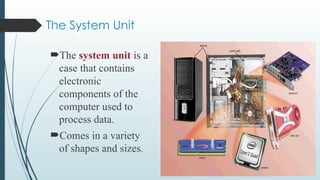
The system unit is a
case that contains
electronic
components of the
computer used to
process data.
Comes in a variety
of shapes and sizes.
Motherboard
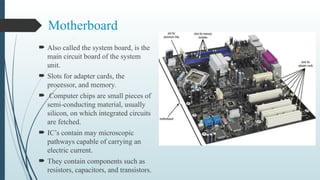
 Also called the system board, is the
main circuit board of the system
unit.
 Slots for adapter cards, the
processor, and memory.
 Computer chips are small pieces of
semi-conducting material, usually
silicon, on which integrated circuits
are fetched.
 IC’s contain may microscopic
pathways capable of carrying an
electric current.
 They contain components such as
resistors, capacitors, and transistors.
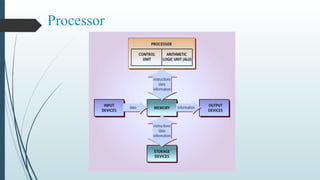
Processor
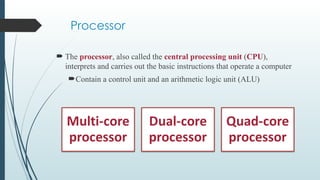
 The processor, also called the central processing unit (CPU),
interprets and carries out the basic instructions that operate a computer
Contain a control unit and an arithmetic logic unit (ALU)
Processor
Processor
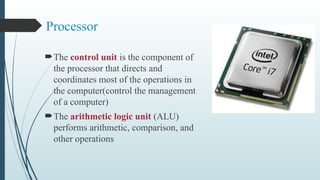
The control unit is the component of
the processor that directs and
coordinates most of the operations in
the computer(control the management
of a computer)
The arithmetic logic unit (ALU)
performs arithmetic, comparison, and
other operations
Processor
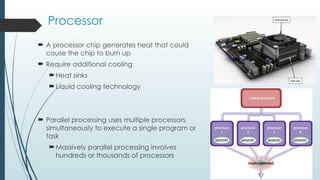
 A processor chip generates heat that could
cause the chip to burn up
 Require additional cooling
Heat sinks
Liquid cooling technology
 Parallel processing uses multiple processors
simultaneously to execute a single program or
task
Massively parallel processing involves
hundreds or thousands of processors
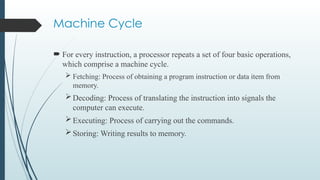
Machine Cycle
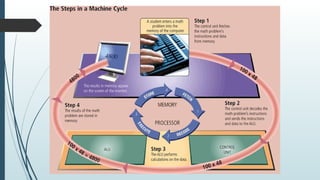
 For every instruction, a processor repeats a set of four basic operations,
which comprise a machine cycle.
 Fetching: Process of obtaining a program instruction or data item from
memory.
Decoding: Process of translating the instruction into signals the
computer can execute.
Executing: Process of carrying out the commands.
Storing: Writing results to memory.
Pipelining
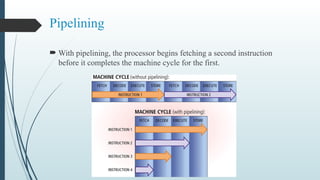
 With pipelining, the processor begins fetching a second instruction
before it completes the machine cycle for the first.
Registers
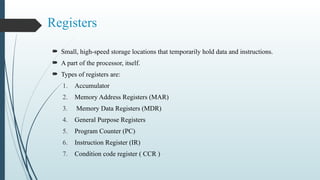
 Small, high-speed storage locations that temporarily hold data and instructions.
 A part of the processor, itself.
 Types of registers are:
1. Accumulator
2. Memory Address Registers (MAR)
3. Memory Data Registers (MDR)
4. General Purpose Registers
5. Program Counter (PC)
6. Instruction Register (IR)
7. Condition code register ( CCR )
Processor
Data Representation
 Most computers are digital, meaning they recognize two discrete
states: on and off.
 This is due to the two states of electrical switches.
 Two digits, 0 and 1, represent off and on respectively, which is the
basis for the binary system.
 Binary that represents characters are defined by patterns called
coding schemes.
Data Representation
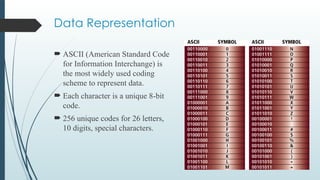
 ASCII (American Standard Code
for Information Interchange) is
the most widely used coding
scheme to represent data.
 Each character is a unique 8-bit
code.
 256 unique codes for 26 letters,
10 digits, special characters.
Data Representation
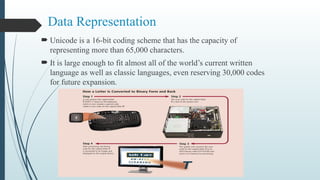
 Unicode is a 16-bit coding scheme that has the capacity of
representing more than 65,000 characters.
 It is large enough to fit almost all of the world’s current written
language as well as classic languages, even reserving 30,000 codes
for future expansion.
Memory
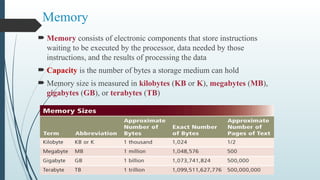
 Memory consists of electronic components that store instructions
waiting to be executed by the processor, data needed by those
instructions, and the results of processing the data
 Capacity is the number of bytes a storage medium can hold
 Memory size is measured in kilobytes (KB or K), megabytes (MB),
gigabytes (GB), or terabytes (TB)
Bytes and Addressable Memory
 A byte is the basic storage unit in memory.
 The instructions and data exist in memory as bytes.
 Each location in memory has an address.
 An address is a location in memory where each byte resides
temporarily.
Memory Access Time
 Access time is the amount of time it takes the processor to read data,
instructions, and information from memory.
 Directly affects how fast the computer processes data.
 Accessing data in memory can be more than 200,000 times faster than
accessing data on a hard disk because of the mechanical motion of the
hard disk.
 Access times can be given in terms of fractional seconds, such as
nanoseconds (one billionth of a second) or in terms of Hz.
 The higher the hertz (MHz, GHz) the faster the access time;
conversely, the lower the nanoseconds, the faster the access time.
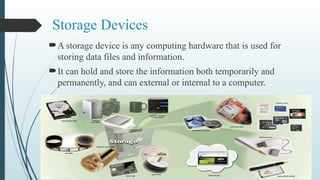
Storage Devices
A storage device is any computing hardware that is used for
storing data files and information.
It can hold and store the information both temporarily and
permanently, and can external or internal to a computer.
Types of Storage Devices
1. Primary Storage Devices:
 Generally smaller in size.
 Temporarily stores data.
 Fastest access data speed.
2. Secondary Storage Devices:
 Large storage capacity.
 Store data permanently.
 They can be both internal and external to the computer.
Primary Storage Devices:
 Primary storage, also known as main storage or memory, is the
area in a computer in which data is stored for quick access by the
computer's processor.
 Typically, Primary storage devices have an instance of all the data
and applications currently in use or being processed.
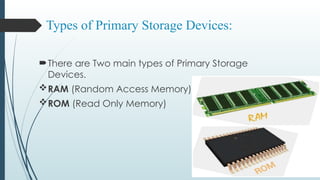
Types of Primary Storage Devices:
There are Two main types of Primary Storage
Devices.
RAM (Random Access Memory)
ROM (Read Only Memory)
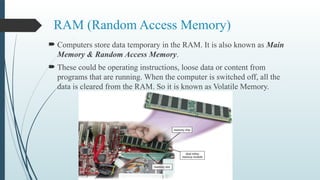
RAM (Random Access Memory)
 Computers store data temporary in the RAM. It is also known as Main
Memory & Random Access Memory.
 These could be operating instructions, loose data or content from
programs that are running. When the computer is switched off, all the
data is cleared from the RAM. So it is known as Volatile Memory.
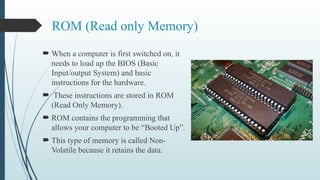
ROM (Read only Memory)
 When a computer is first switched on, it
needs to load up the BIOS (Basic
Input/output System) and basic
instructions for the hardware.
 These instructions are stored in ROM
(Read Only Memory).
 ROM contains the programming that
allows your computer to be “Booted Up”.
 This type of memory is called Non-
Volatile because it retains the data.
Cache
 Pronounced “cash,” helps improve processing times.
 Memory cache stores frequently used instructions and data.
 L1 cache: built directly into processor chip, usually small (8-128 KB).
 L2 cache: slightly slower than L1 with larger capacity (64KB-16MB).
 L3 cache: on the motherboard, often up to 8MB.
 When the processor needs an instruction or data, it searches memory
in this order: L1, L2, L3, then RAM, with a greater delay in
processing for each level of memory it must search.
Assignment
 Differentiate between RAM and ROM?
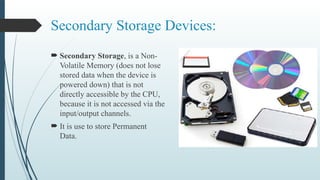
Secondary Storage Devices:
 Secondary Storage, is a Non-
Volatile Memory (does not lose
stored data when the device is
powered down) that is not
directly accessible by the CPU,
because it is not accessed via the
input/output channels.
 It is use to store Permanent
Data.
Types of Secondary Storage Devices:
 There are Three main types of Secondary Storage Devices.
Magnetic Storage Devices
Optical Storage Devices
Solid-State Storage Devices
Magnetic Storage Devices:
 Magnetic storage is the storage of data on a
magnetized medium.
 There are Three main types of Magnetic Storage
Devices.
Hard Disk
Floppy Disk
Magnetic Tape
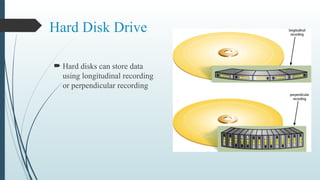
Hard Disk Drive:
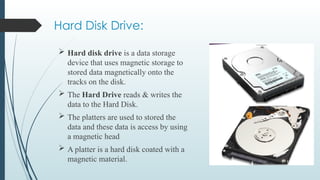
 Hard disk drive is a data storage
device that uses magnetic storage to
stored data magnetically onto the
tracks on the disk.
 The Hard Drive reads & writes the
data to the Hard Disk.
 The platters are used to stored the
data and these data is access by using
a magnetic head
 A platter is a hard disk coated with a
magnetic material.
Hard Disk Drive
 Hard disks can store data
using longitudinal recording
or perpendicular recording
Hard Disk
 Characteristics of a hard disk include:
Hard Disks
 Formatting is the process of dividing the disk into tracks and sectors
so that the operating system can store and locate data and
information on the disk.
Hard Disks
 RAID (redundant array of independent disks) is a group of two or more
integrated hard disks.
 RAID is a way of logically putting multiple disks together into a single array.
The idea then is that these disks working together will have the speed and/or
reliability of a more expensive disk.
 A RAID system consists of two or more drives working in parallel.
Hard Disk Drive:
 Uses
 Stores all types of media
 Stores your data files
 Advantages
 Large storage capacity up to 10 TB.
 Stored items are not lost when the computer is switched off.
 Usually fixed inside the computer and not portable.
 Disadvantages
 Slower than RAM & ROM.
 If the hard disk crashes the computer will not work & you have lost your
work!!!
Hard Disks
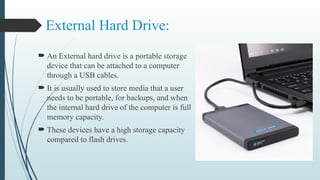
External Hard Drive:
 An External hard drive is a portable storage
device that can be attached to a computer
through a USB cables.
 It is usually used to store media that a user
needs to be portable, for backups, and when
the internal hard drive of the computer is full
memory capacity.
 These devices have a high storage capacity
compared to flash drives.
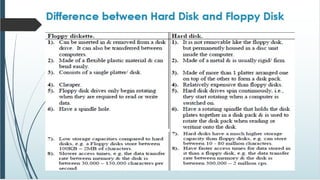
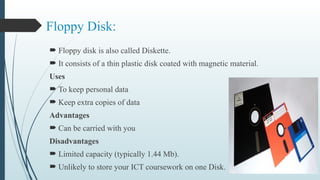
Floppy Disk:
 Floppy disk is also called Diskette.
 It consists of a thin plastic disk coated with magnetic material.
Uses
 To keep personal data
 Keep extra copies of data
Advantages
 Can be carried with you
Disadvantages
 Limited capacity (typically 1.44 Mb).
 Unlikely to store your ICT coursework on one Disk.
Magnetic Tape Storage Devices:
 Magnetic tape is an oldest storage media to store large amount of data
permanently.
 Modern magnetic tape is most commonly packaged in Cassettes.
Advantage:
 It is small in size.
 It is cheap.
 It can store lots of data.
Disadvantage:
 Accessing data is very slow.
Optical Storage Devices:
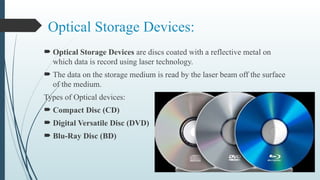
 Optical Storage Devices are discs coated with a reflective metal on
which data is record using laser technology.
 The data on the storage medium is read by the laser beam off the surface
of the medium.
Types of Optical devices:
 Compact Disc (CD)
 Digital Versatile Disc (DVD)
 Blu-Ray Disc (BD)
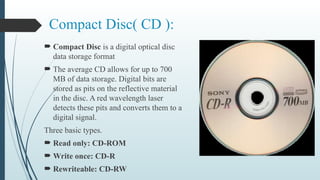
Compact Disc( CD ):
 Compact Disc is a digital optical disc
data storage format
 The average CD allows for up to 700
MB of data storage. Digital bits are
stored as pits on the reflective material
in the disc. A red wavelength laser
detects these pits and converts them to a
digital signal.
Three basic types.
 Read only: CD-ROM
 Write once: CD-R
 Rewriteable: CD-RW
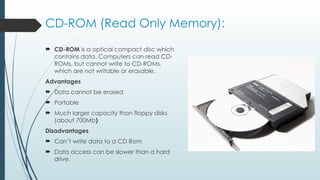
CD-ROM (Read Only Memory):
 CD-ROM is a optical compact disc which
contains data. Computers can read CD-
ROMs, but cannot write to CD-ROMs,
which are not writable or erasable.
Advantages
 Data cannot be erased
 Portable
 Much larger capacity than floppy disks
(about 700Mb)
Disadvantages
 Can’t write data to a CD Rom
 Data access can be slower than a hard
drive.
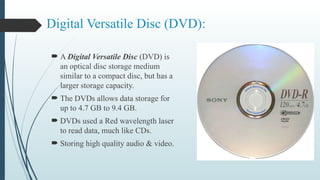
Digital Versatile Disc (DVD):
 A Digital Versatile Disc (DVD) is
an optical disc storage medium
similar to a compact disc, but has a
larger storage capacity.
 The DVDs allows data storage for
up to 4.7 GB to 9.4 GB.
 DVDs used a Red wavelength laser
to read data, much like CDs.
 Storing high quality audio & video.
Types of DVD:
There are Three main types of DVD.
 DVD-ROM: Read Only Memory DVDs can be only read data but
not written or erased.
 DVD-R: Blank Recordable DVD discs can be recorded once using
a DVD recorder and then function as a DVD-ROM.
 DVD-RW: Rewritable DVDs (DVD-RW, DVD+RW) can be
recorded and erased many times.
Solid-State Storage Devices
 Solid-State Storage is a type of nonvolatile
computer storage that store data.
 Electronically instead of magnetically or
optical.
 Solid-State Devices have no moving
mechanical parts.
 SSD operates much faster than other storage
devices, because SSD have no need to move
a head or sensor to find data or convert it
from magnetic or optical form into
electronic form.
Solid-State Storage Devices
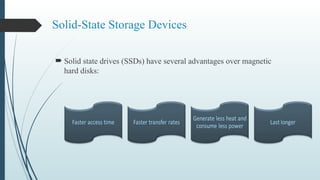
 Solid state drives (SSDs) have several advantages over magnetic
hard disks:
Difference b/w HDD & SSD:
 SSD stores data Electronically on Microchips and contains No moving parts.
 A HDD records data Magnetically on a Storage Platter by moving a
mechanical arm with a read/write head over a spinning platter.
 SSD is faster than HDD.
Flash Memory Storage
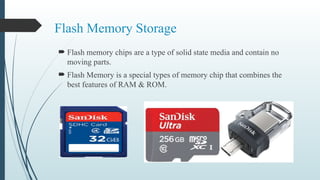
 Flash memory chips are a type of solid state media and contain no
moving parts.
 Flash Memory is a special types of memory chip that combines the
best features of RAM & ROM.
Flash Memory
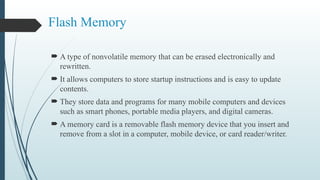
 A type of nonvolatile memory that can be erased electronically and
rewritten.
 It allows computers to store startup instructions and is easy to update
contents.
 They store data and programs for many mobile computers and devices
such as smart phones, portable media players, and digital cameras.
 A memory card is a removable flash memory device that you insert and
remove from a slot in a computer, mobile device, or card reader/writer.
Flash Memory Storage
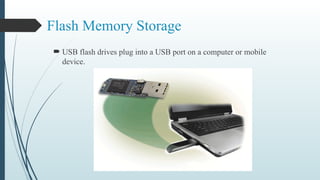
 USB flash drives plug into a USB port on a computer or mobile
device.
USB Storage Device
 A USB flash drive -- also known as a
USB stick, or pen drive -- is a Plug-and-
Play portable storage device that uses
flash memory and used for store &
transferring data.
 It is lightweight enough to attach to a
keychain.
 USB Drives now come in capacities
ranging between up to 8 GB to 2 TB.
 Easy to transfer data from one place to
another.
Other Types of Storage
 A magnetic stripe card
contains a magnetic stripe
that stores information.
 A smart card stores data on a
thin microprocessor
embedded in the card.
Other Types of Storage
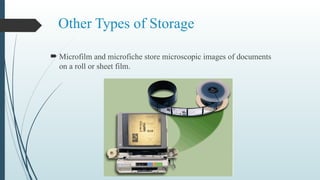
 Microfilm and microfiche store microscopic images of documents
on a roll or sheet film.
Expansion Slots and Adapter Cards
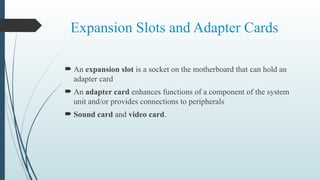
 An expansion slot is a socket on the motherboard that can hold an
adapter card
 An adapter card enhances functions of a component of the system
unit and/or provides connections to peripherals
 Sound card and video card.
Ports and Connectors
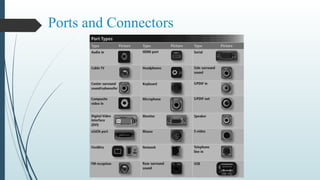
Types of Computer Ports:
 Serial Ports: Serial communication interface through which information transfers
in or out sequentially one bit at a time. These are most commonly used for
connections to modems, mouse and other peripherals.
 Parallel Ports : Parallel communication interface through which multiple bits of
data is sent at once (are most commonly used for printers).
 Small Computer System Interface (SCSI) Ports: It is a hardware bus specification
for connecting peripherals to a computer using a parallel transmission interface.
They can support higher data transmission speeds than serial or parallel ports.
 Universal Serial Bus (USB) Ports: As the name implies, these can be used to
connect many devices including all previously mentioned plus keyboards,
scanners, external hard drives, USB drives (also sometimes called thumb drives
or portable USB drives), cameras, iPhone and many other peripherals and
devices. It is used for short-distance digital data communications.
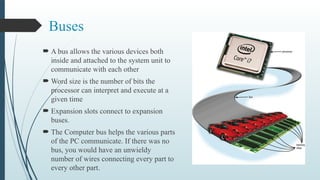
Buses
 A bus allows the various devices both
inside and attached to the system unit to
communicate with each other
 Word size is the number of bits the
processor can interpret and execute at a
given time
 Expansion slots connect to expansion
buses.
 The Computer bus helps the various parts
of the PC communicate. If there was no
bus, you would have an unwieldy
number of wires connecting every part to
every other part.
Types of Buses
 Data Bus: The data bus allows data to travel back and forth between the
microprocessor (CPU) and memory (RAM).
 Address Bus: The address bus carries information about the location of data
in memory.
 Control Bus : The control bus carries the control signals that make sure
everything is flowing smoothly from place to place.
 Expansion Bus: If your computer has expansion slots, there’s an expansion
bus. Messages and information pass between your computer and the add-in
boards you plug in over the expansion bus.
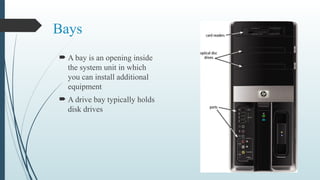
Bays
 A bay is an opening inside
the system unit in which
you can install additional
equipment
 A drive bay typically holds
disk drives
Power Supply
Summary
Storage Devices,
Advantages and
Disadvantages
Computer Ports And
Types of Ports
Computer Buses and
Types of Buses

LECTURE 6 Of Computer Pharm D 3rd Year .

  • 1.
    LECTURE 6 STORAGE ANDPROCESSING DEVICES
  • 2.
    The System Unit Thesystem unit is a case that contains electronic components of the computer used to process data. Comes in a variety of shapes and sizes.
  • 3.
    Motherboard  Also calledthe system board, is the main circuit board of the system unit.  Slots for adapter cards, the processor, and memory.  Computer chips are small pieces of semi-conducting material, usually silicon, on which integrated circuits are fetched.  IC’s contain may microscopic pathways capable of carrying an electric current.  They contain components such as resistors, capacitors, and transistors.
  • 4.
    Processor  The processor,also called the central processing unit (CPU), interprets and carries out the basic instructions that operate a computer Contain a control unit and an arithmetic logic unit (ALU)
  • 5.
  • 6.
    Processor The control unitis the component of the processor that directs and coordinates most of the operations in the computer(control the management of a computer) The arithmetic logic unit (ALU) performs arithmetic, comparison, and other operations
  • 7.
    Processor  A processorchip generates heat that could cause the chip to burn up  Require additional cooling Heat sinks Liquid cooling technology  Parallel processing uses multiple processors simultaneously to execute a single program or task Massively parallel processing involves hundreds or thousands of processors
  • 8.
    Machine Cycle  Forevery instruction, a processor repeats a set of four basic operations, which comprise a machine cycle.  Fetching: Process of obtaining a program instruction or data item from memory. Decoding: Process of translating the instruction into signals the computer can execute. Executing: Process of carrying out the commands. Storing: Writing results to memory.
  • 10.
    Pipelining  With pipelining,the processor begins fetching a second instruction before it completes the machine cycle for the first.
  • 11.
    Registers  Small, high-speedstorage locations that temporarily hold data and instructions.  A part of the processor, itself.  Types of registers are: 1. Accumulator 2. Memory Address Registers (MAR) 3. Memory Data Registers (MDR) 4. General Purpose Registers 5. Program Counter (PC) 6. Instruction Register (IR) 7. Condition code register ( CCR )
  • 12.
  • 13.
    Data Representation  Mostcomputers are digital, meaning they recognize two discrete states: on and off.  This is due to the two states of electrical switches.  Two digits, 0 and 1, represent off and on respectively, which is the basis for the binary system.  Binary that represents characters are defined by patterns called coding schemes.
  • 14.
    Data Representation  ASCII(American Standard Code for Information Interchange) is the most widely used coding scheme to represent data.  Each character is a unique 8-bit code.  256 unique codes for 26 letters, 10 digits, special characters.
  • 15.
    Data Representation  Unicodeis a 16-bit coding scheme that has the capacity of representing more than 65,000 characters.  It is large enough to fit almost all of the world’s current written language as well as classic languages, even reserving 30,000 codes for future expansion.
  • 16.
    Memory  Memory consistsof electronic components that store instructions waiting to be executed by the processor, data needed by those instructions, and the results of processing the data  Capacity is the number of bytes a storage medium can hold  Memory size is measured in kilobytes (KB or K), megabytes (MB), gigabytes (GB), or terabytes (TB)
  • 17.
    Bytes and AddressableMemory  A byte is the basic storage unit in memory.  The instructions and data exist in memory as bytes.  Each location in memory has an address.  An address is a location in memory where each byte resides temporarily.
  • 18.
    Memory Access Time Access time is the amount of time it takes the processor to read data, instructions, and information from memory.  Directly affects how fast the computer processes data.  Accessing data in memory can be more than 200,000 times faster than accessing data on a hard disk because of the mechanical motion of the hard disk.  Access times can be given in terms of fractional seconds, such as nanoseconds (one billionth of a second) or in terms of Hz.  The higher the hertz (MHz, GHz) the faster the access time; conversely, the lower the nanoseconds, the faster the access time.
  • 19.
    Storage Devices A storagedevice is any computing hardware that is used for storing data files and information. It can hold and store the information both temporarily and permanently, and can external or internal to a computer.
  • 20.
    Types of StorageDevices 1. Primary Storage Devices:  Generally smaller in size.  Temporarily stores data.  Fastest access data speed. 2. Secondary Storage Devices:  Large storage capacity.  Store data permanently.  They can be both internal and external to the computer.
  • 21.
    Primary Storage Devices: Primary storage, also known as main storage or memory, is the area in a computer in which data is stored for quick access by the computer's processor.  Typically, Primary storage devices have an instance of all the data and applications currently in use or being processed.
  • 22.
    Types of PrimaryStorage Devices: There are Two main types of Primary Storage Devices. RAM (Random Access Memory) ROM (Read Only Memory)
  • 23.
    RAM (Random AccessMemory)  Computers store data temporary in the RAM. It is also known as Main Memory & Random Access Memory.  These could be operating instructions, loose data or content from programs that are running. When the computer is switched off, all the data is cleared from the RAM. So it is known as Volatile Memory.
  • 24.
    ROM (Read onlyMemory)  When a computer is first switched on, it needs to load up the BIOS (Basic Input/output System) and basic instructions for the hardware.  These instructions are stored in ROM (Read Only Memory).  ROM contains the programming that allows your computer to be “Booted Up”.  This type of memory is called Non- Volatile because it retains the data.
  • 25.
    Cache  Pronounced “cash,”helps improve processing times.  Memory cache stores frequently used instructions and data.  L1 cache: built directly into processor chip, usually small (8-128 KB).  L2 cache: slightly slower than L1 with larger capacity (64KB-16MB).  L3 cache: on the motherboard, often up to 8MB.  When the processor needs an instruction or data, it searches memory in this order: L1, L2, L3, then RAM, with a greater delay in processing for each level of memory it must search.
  • 26.
  • 27.
    Secondary Storage Devices: Secondary Storage, is a Non- Volatile Memory (does not lose stored data when the device is powered down) that is not directly accessible by the CPU, because it is not accessed via the input/output channels.  It is use to store Permanent Data.
  • 28.
    Types of SecondaryStorage Devices:  There are Three main types of Secondary Storage Devices. Magnetic Storage Devices Optical Storage Devices Solid-State Storage Devices
  • 29.
    Magnetic Storage Devices: Magnetic storage is the storage of data on a magnetized medium.  There are Three main types of Magnetic Storage Devices. Hard Disk Floppy Disk Magnetic Tape
  • 30.
    Hard Disk Drive: Hard disk drive is a data storage device that uses magnetic storage to stored data magnetically onto the tracks on the disk.  The Hard Drive reads & writes the data to the Hard Disk.  The platters are used to stored the data and these data is access by using a magnetic head  A platter is a hard disk coated with a magnetic material.
  • 31.
    Hard Disk Drive Hard disks can store data using longitudinal recording or perpendicular recording
  • 32.
    Hard Disk  Characteristicsof a hard disk include:
  • 33.
    Hard Disks  Formattingis the process of dividing the disk into tracks and sectors so that the operating system can store and locate data and information on the disk.
  • 34.
    Hard Disks  RAID(redundant array of independent disks) is a group of two or more integrated hard disks.  RAID is a way of logically putting multiple disks together into a single array. The idea then is that these disks working together will have the speed and/or reliability of a more expensive disk.  A RAID system consists of two or more drives working in parallel.
  • 35.
    Hard Disk Drive: Uses  Stores all types of media  Stores your data files  Advantages  Large storage capacity up to 10 TB.  Stored items are not lost when the computer is switched off.  Usually fixed inside the computer and not portable.  Disadvantages  Slower than RAM & ROM.  If the hard disk crashes the computer will not work & you have lost your work!!!
  • 36.
  • 37.
    External Hard Drive: An External hard drive is a portable storage device that can be attached to a computer through a USB cables.  It is usually used to store media that a user needs to be portable, for backups, and when the internal hard drive of the computer is full memory capacity.  These devices have a high storage capacity compared to flash drives.
  • 38.
    Floppy Disk:  Floppydisk is also called Diskette.  It consists of a thin plastic disk coated with magnetic material. Uses  To keep personal data  Keep extra copies of data Advantages  Can be carried with you Disadvantages  Limited capacity (typically 1.44 Mb).  Unlikely to store your ICT coursework on one Disk.
  • 40.
    Magnetic Tape StorageDevices:  Magnetic tape is an oldest storage media to store large amount of data permanently.  Modern magnetic tape is most commonly packaged in Cassettes. Advantage:  It is small in size.  It is cheap.  It can store lots of data. Disadvantage:  Accessing data is very slow.
  • 41.
    Optical Storage Devices: Optical Storage Devices are discs coated with a reflective metal on which data is record using laser technology.  The data on the storage medium is read by the laser beam off the surface of the medium. Types of Optical devices:  Compact Disc (CD)  Digital Versatile Disc (DVD)  Blu-Ray Disc (BD)
  • 42.
    Compact Disc( CD):  Compact Disc is a digital optical disc data storage format  The average CD allows for up to 700 MB of data storage. Digital bits are stored as pits on the reflective material in the disc. A red wavelength laser detects these pits and converts them to a digital signal. Three basic types.  Read only: CD-ROM  Write once: CD-R  Rewriteable: CD-RW
  • 43.
    CD-ROM (Read OnlyMemory):  CD-ROM is a optical compact disc which contains data. Computers can read CD- ROMs, but cannot write to CD-ROMs, which are not writable or erasable. Advantages  Data cannot be erased  Portable  Much larger capacity than floppy disks (about 700Mb) Disadvantages  Can’t write data to a CD Rom  Data access can be slower than a hard drive.
  • 44.
    Digital Versatile Disc(DVD):  A Digital Versatile Disc (DVD) is an optical disc storage medium similar to a compact disc, but has a larger storage capacity.  The DVDs allows data storage for up to 4.7 GB to 9.4 GB.  DVDs used a Red wavelength laser to read data, much like CDs.  Storing high quality audio & video.
  • 45.
    Types of DVD: Thereare Three main types of DVD.  DVD-ROM: Read Only Memory DVDs can be only read data but not written or erased.  DVD-R: Blank Recordable DVD discs can be recorded once using a DVD recorder and then function as a DVD-ROM.  DVD-RW: Rewritable DVDs (DVD-RW, DVD+RW) can be recorded and erased many times.
  • 46.
    Solid-State Storage Devices Solid-State Storage is a type of nonvolatile computer storage that store data.  Electronically instead of magnetically or optical.  Solid-State Devices have no moving mechanical parts.  SSD operates much faster than other storage devices, because SSD have no need to move a head or sensor to find data or convert it from magnetic or optical form into electronic form.
  • 47.
    Solid-State Storage Devices Solid state drives (SSDs) have several advantages over magnetic hard disks:
  • 48.
    Difference b/w HDD& SSD:  SSD stores data Electronically on Microchips and contains No moving parts.  A HDD records data Magnetically on a Storage Platter by moving a mechanical arm with a read/write head over a spinning platter.  SSD is faster than HDD.
  • 49.
    Flash Memory Storage Flash memory chips are a type of solid state media and contain no moving parts.  Flash Memory is a special types of memory chip that combines the best features of RAM & ROM.
  • 50.
    Flash Memory  Atype of nonvolatile memory that can be erased electronically and rewritten.  It allows computers to store startup instructions and is easy to update contents.  They store data and programs for many mobile computers and devices such as smart phones, portable media players, and digital cameras.  A memory card is a removable flash memory device that you insert and remove from a slot in a computer, mobile device, or card reader/writer.
  • 51.
    Flash Memory Storage USB flash drives plug into a USB port on a computer or mobile device.
  • 52.
    USB Storage Device A USB flash drive -- also known as a USB stick, or pen drive -- is a Plug-and- Play portable storage device that uses flash memory and used for store & transferring data.  It is lightweight enough to attach to a keychain.  USB Drives now come in capacities ranging between up to 8 GB to 2 TB.  Easy to transfer data from one place to another.
  • 53.
    Other Types ofStorage  A magnetic stripe card contains a magnetic stripe that stores information.  A smart card stores data on a thin microprocessor embedded in the card.
  • 54.
    Other Types ofStorage  Microfilm and microfiche store microscopic images of documents on a roll or sheet film.
  • 55.
    Expansion Slots andAdapter Cards  An expansion slot is a socket on the motherboard that can hold an adapter card  An adapter card enhances functions of a component of the system unit and/or provides connections to peripherals  Sound card and video card.
  • 56.
  • 57.
  • 58.
    Types of ComputerPorts:  Serial Ports: Serial communication interface through which information transfers in or out sequentially one bit at a time. These are most commonly used for connections to modems, mouse and other peripherals.  Parallel Ports : Parallel communication interface through which multiple bits of data is sent at once (are most commonly used for printers).  Small Computer System Interface (SCSI) Ports: It is a hardware bus specification for connecting peripherals to a computer using a parallel transmission interface. They can support higher data transmission speeds than serial or parallel ports.  Universal Serial Bus (USB) Ports: As the name implies, these can be used to connect many devices including all previously mentioned plus keyboards, scanners, external hard drives, USB drives (also sometimes called thumb drives or portable USB drives), cameras, iPhone and many other peripherals and devices. It is used for short-distance digital data communications.
  • 59.
    Buses  A busallows the various devices both inside and attached to the system unit to communicate with each other  Word size is the number of bits the processor can interpret and execute at a given time  Expansion slots connect to expansion buses.  The Computer bus helps the various parts of the PC communicate. If there was no bus, you would have an unwieldy number of wires connecting every part to every other part.
  • 60.
    Types of Buses Data Bus: The data bus allows data to travel back and forth between the microprocessor (CPU) and memory (RAM).  Address Bus: The address bus carries information about the location of data in memory.  Control Bus : The control bus carries the control signals that make sure everything is flowing smoothly from place to place.  Expansion Bus: If your computer has expansion slots, there’s an expansion bus. Messages and information pass between your computer and the add-in boards you plug in over the expansion bus.
  • 61.
    Bays  A bayis an opening inside the system unit in which you can install additional equipment  A drive bay typically holds disk drives
  • 62.
  • 63.
    Summary Storage Devices, Advantages and Disadvantages ComputerPorts And Types of Ports Computer Buses and Types of Buses

Editor's Notes

  • #4 A processor core, or simply core, contains the circuitry necessary to execute instructions. The operating system views each processor core as a separate processor. A multi-core processor is a single chip with two or more separate processor cores. Two common multi-core processors are dual-core and quad-core. A dual-core processor is a chip that contains two separate processor cores. Similarly, a quad-core processor is a chip with four separate processor cores.
  • #11 Accumulator: This is the most frequently used register used to store data taken from memory. It is in different numbers in different microprocessors. Memory Address Registers (MAR):  It holds the address of the location to be accessed from memory. MAR and MDR (Memory Data Register) together facilitate the communication of the CPU and the main memory.  Memory Data Registers (MDR):  It contains data to be written into or to be read out from the addressed location.  General Purpose Registers: These are numbered as R0, R1, R2….Rn-1, and used to store temporary data during any ongoing operation.  Program Counter (PC):  Program Counter (PC) is used to keep the track of execution of the program. It contains the memory address of the next instruction to be fetched.  Instruction Register (IR): The IR holds the instruction which is just about to be executed.  Condition code register ( CCR ) : Condition code registers contain different flags that indicate the status of any operation.
  • #14 Bit= Binary Digit(0, 1)
  • #17 Bit stands for Binary Digit. 1 nibble = 4 bits 1 byte= 8 bits
  • #32 Capacity : Hard drive capacity is measured by the amount of data users need to store, which is often much greater than the space applications take up. Platters: A platter is one or more aluminum, glass, or ceramic disk coated in a magnetic media is located within a hard drive to store all your computer's data permanently. When the computer is turned on, these platters begin to rotate at so many RPM (rotations per minute). Disk read/write heads are the small parts of a disk drive which move above the disk platter and transform the platter's magnetic field into electrical current or, vice versa, transform electrical current into magnetic field. The heads have gone through a number of changes over the years. A cylinder is any set of all of tracks of equal diameter in a hard disk drive (HDD). It can be visualized as a single, imaginary, circle that cuts through all of the platters (and both sides of each platter) in the drive. A drive head, while in one position can read or write a circular ring, or band called a track. There can be more than a thousand tracks on a 3.5-inch hard disk. Sections within each track are called sectors. A sector is the smallest physical storage unit on a disk, and is almost always 512 bytes (0.5 kB) in size. Hard drives have been engineered with spin rates as low as 1200 RPM and as high as 15K RPM. But today's most common RPM rates, in both laptop and desktop PCs, are between 5400 and 7200 RPM. A hard disk drive (HDD) uses one ore more rotating disks (platters) and due to the way the data is stored and accessed, such a drive is usually limited to a transfer rate of about 100-200 MB/s. You can stripe multiple drives to achieve faster speeds but in most cases, the bottleneck will be the drive itself.
  • #36 Miniature => small of its kind
  • #60 An expansion slot is used to add an adapter to the motherboard. It has rules that control how many bits can be transferred at a time to the adapter, what signals are sent over the adapter's gold connectors, and how the adapter is configured.