Chapter 3 (Part 1)
Presented by Nuzhat Ibrahim Memon
Creating
Animation Using
Synfig
Animation
Animation is a visual change over time wherein the digital
images are played one after the other to create a moving effect.
Kinematics
Keyframe/Tweening/Cel Animation
Frame by Frame Animation
Morphing
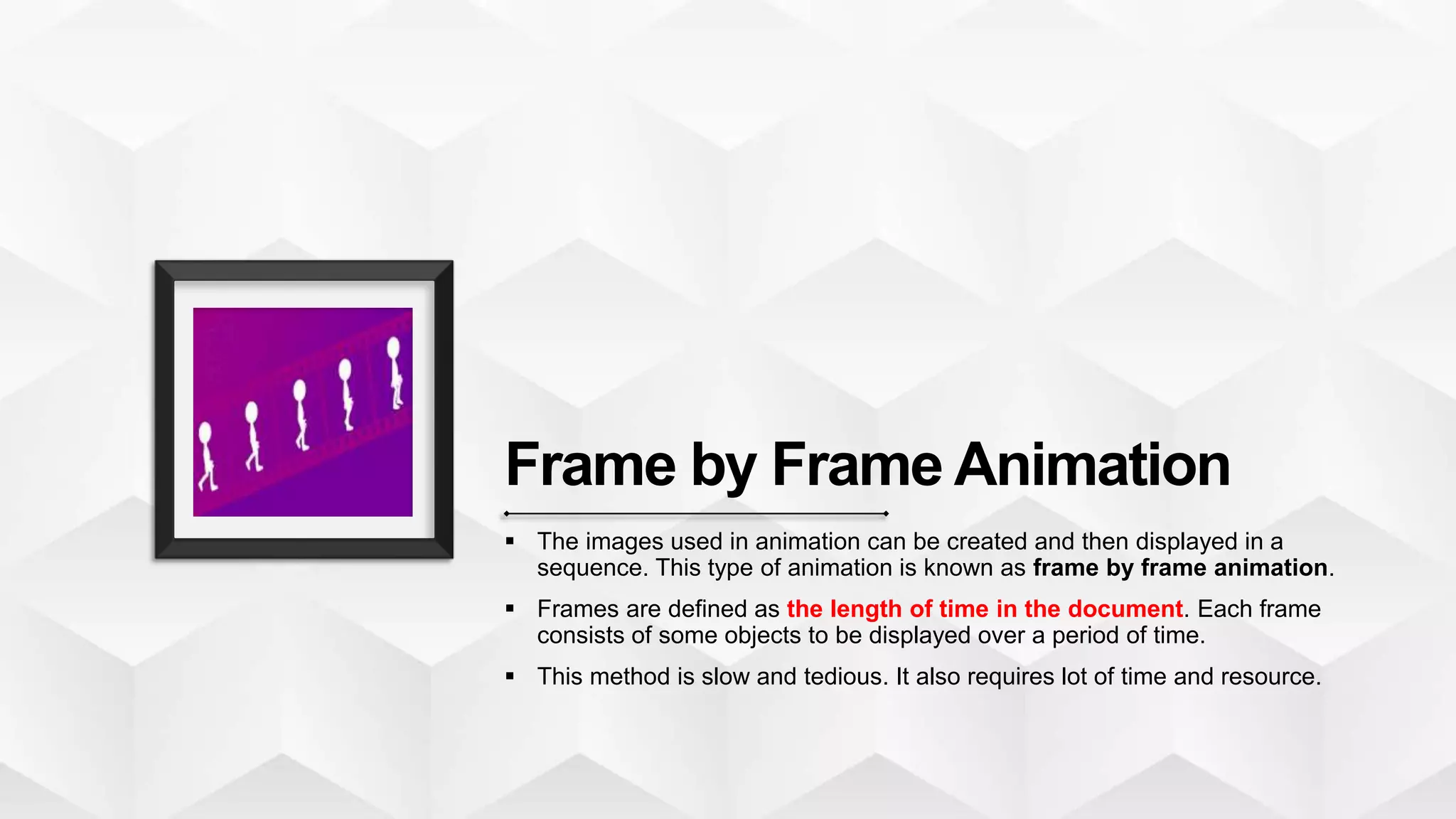
Frame by Frame Animation
 The images used in animation can be created and then displayed in a
sequence. This type of animation is known as frame by frame animation.
 Frames are defined as the length of time in the document. Each frame
consists of some objects to be displayed over a period of time.
 This method is slow and tedious. It also requires lot of time and resource.
Keyframe Animation
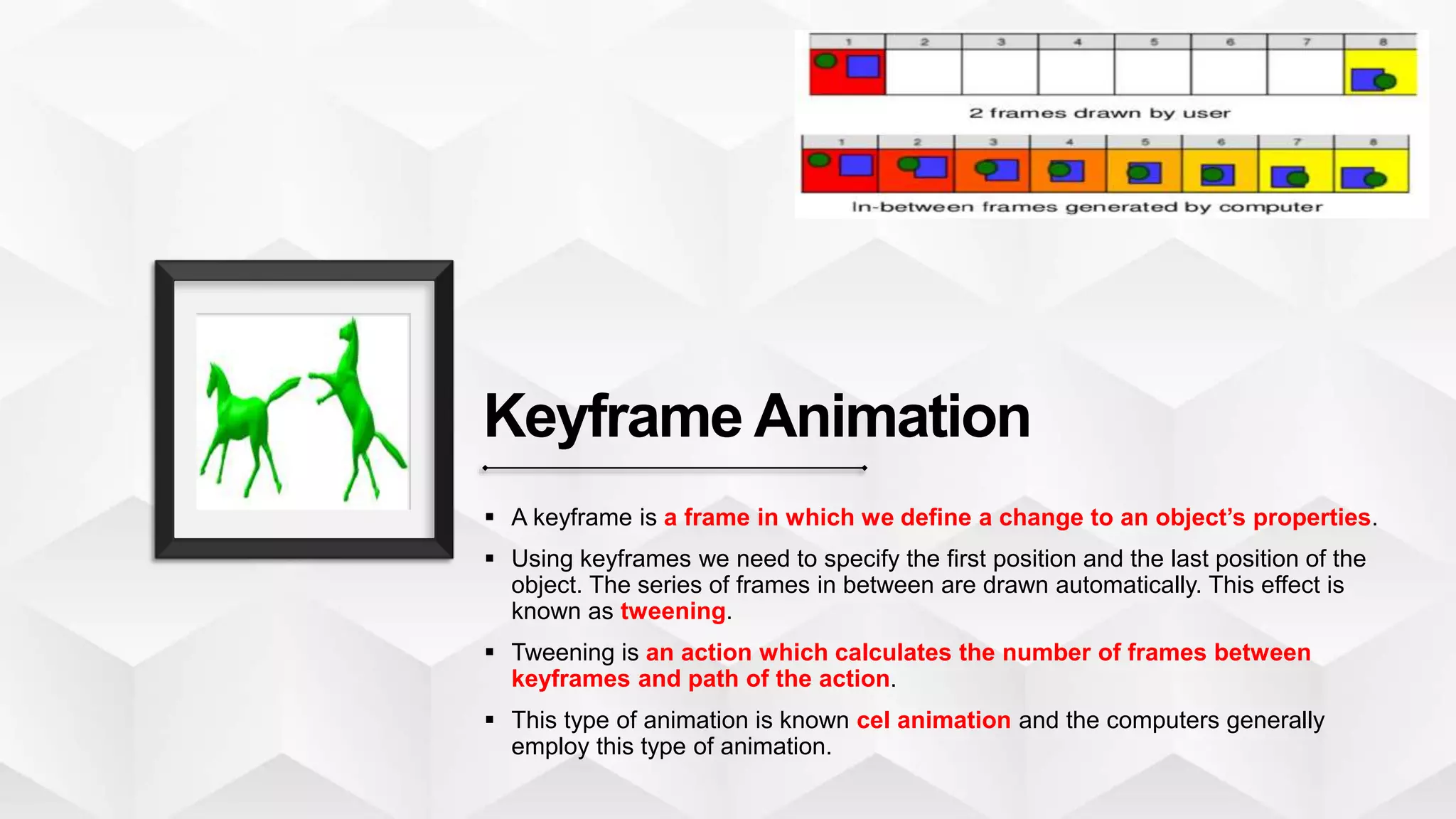
 A keyframe is a frame in which we define a change to an object’s properties.
 Using keyframes we need to specify the first position and the last position of the
object. The series of frames in between are drawn automatically. This effect is
known as tweening.
 Tweening is an action which calculates the number of frames between
keyframes and path of the action.
 This type of animation is known cel animation and the computers generally
employ this type of animation.
Kinematics
It is the study of movement and motion of objects that have
joints such as walking man, running leopard or flying bird.
Morphing
In morphing, the image transforms into another.
Example : Transform of one person’s face into another face.
Creating Animation
Description
Start Synfig  ApplicationGraphicsSynfig
Canvas setup properties
 CaretEditProperties
 By default the End time is 5s.
Timebar
 The orange indicator showing the position in time.
 Various position or point of timebar is shown in the
entry field.
 These values indicate a specific point on the timeline
in terms of seconds (s) and frames (f). Eg 3s 9f
 By default each second is divided into 24 frames.
FPS (Frame Per Second) is set as 24.
Animate Edit Mode
 On the right side of the timebar, a green button will
be visible if you have a non-zero end time.
 Clicking on this button, turn it into red button and the
canvas displays a red outline that indicate animate
editing mode is active and any changes made will
have an effect on the animation in the timebar
Creating Animation
Description
Save File  Caret  File  Save
Rendering
 Rendering means the computer uses
various algorithms to apply the final
effects you have specified on the
objects created.
 Caret  File  Render
 Select target format as “gif” instead of
“Auto”.
 You can see the message “file rendered
successfully” on window status bar located
on the bottom of the window.
Open Animated GIF File  Open animated GIF file in a web browser
or image viewer.
PresentedbyNuzhatIbrahimMemon
Thank
you

Std 11 Computer Chapter 3 Creating Animation using Synfig (part 1)

  • 1.
    Chapter 3 (Part1) Presented by Nuzhat Ibrahim Memon Creating Animation Using Synfig
  • 2.
    Animation Animation is avisual change over time wherein the digital images are played one after the other to create a moving effect.
  • 3.
  • 4.
    Frame by FrameAnimation  The images used in animation can be created and then displayed in a sequence. This type of animation is known as frame by frame animation.  Frames are defined as the length of time in the document. Each frame consists of some objects to be displayed over a period of time.  This method is slow and tedious. It also requires lot of time and resource.
  • 5.
    Keyframe Animation  Akeyframe is a frame in which we define a change to an object’s properties.  Using keyframes we need to specify the first position and the last position of the object. The series of frames in between are drawn automatically. This effect is known as tweening.  Tweening is an action which calculates the number of frames between keyframes and path of the action.  This type of animation is known cel animation and the computers generally employ this type of animation.
  • 6.
    Kinematics It is thestudy of movement and motion of objects that have joints such as walking man, running leopard or flying bird.
  • 7.
    Morphing In morphing, theimage transforms into another. Example : Transform of one person’s face into another face.
  • 8.
    Creating Animation Description Start Synfig ApplicationGraphicsSynfig Canvas setup properties  CaretEditProperties  By default the End time is 5s. Timebar  The orange indicator showing the position in time.  Various position or point of timebar is shown in the entry field.  These values indicate a specific point on the timeline in terms of seconds (s) and frames (f). Eg 3s 9f  By default each second is divided into 24 frames. FPS (Frame Per Second) is set as 24. Animate Edit Mode  On the right side of the timebar, a green button will be visible if you have a non-zero end time.  Clicking on this button, turn it into red button and the canvas displays a red outline that indicate animate editing mode is active and any changes made will have an effect on the animation in the timebar
  • 9.
    Creating Animation Description Save File Caret  File  Save Rendering  Rendering means the computer uses various algorithms to apply the final effects you have specified on the objects created.  Caret  File  Render  Select target format as “gif” instead of “Auto”.  You can see the message “file rendered successfully” on window status bar located on the bottom of the window. Open Animated GIF File  Open animated GIF file in a web browser or image viewer.
  • 10.