Introduction to
Corel Draw
Ms. T. K. Anusuya
Assistant Professor/ Department of CS
Bon Secours College for Women, Thanjavur
Corel Draw
 Objectives
 Understand various Graphics Software
 Use various Graphics tools of Corel Draw
 Use various text tools and docker tools
Introduction
 CorelDraw is a very powerful professional vector graphics package that makes it
easy to create professional artwork from simple logos to intricate technical
illustrations
 It provides tools and effects that make it possible to work effectively to produce
high-quality graphics. Corel Draw supports windows shortcuts
 The image quality of a drawing is a high quality resolution
 Bitmap
 Pixels
Various Graphics Programs
 Corel Draw
 Corel Photo Paint
 Adobe Photoshop
 Adobe Illustrator
 Macromedia
Getting Started with CorelDraw
 CorelDraw is one of the most popular and powerful graphics programs and
produce designs . Designing is the day-to-day demands of working designers.
 Map Design
 Rough Drawing
 Flyer Design
 Certificate Design
 Invitation / Brochure Design
 ID Card
How to Start and open a Corel Draw
 To Start and select coreldraw
 A new window open
 The available templates included the following categories
 Page (Working Area)
 Label
 Booklet
 Side Fold
 Web Browse
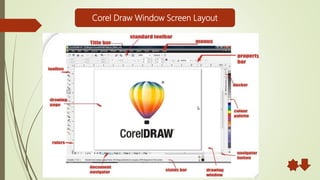
Corel Draw Window Screen Layout
 Menu Bar – Menu Contains pull down options
 Standard Toolbar-It contains shortcut to menus and other commands
 Property Bar –It is context sensitive toolbar that shows commands relating the active tool or object
 Tool Box- - tools for Creating, filling and modifying objects in a drawing
 Drawing Page –Workspace/ Work-area
 Document Navigator – controls for moving between and adding pages.
The Window Screen Layout
 Rulers : Horizontal and vertical borders that are used to determine the size and
position of objects in a drawing.
 Drawing Window – Outside of the drawing window
 Navigator Button – Open a smaller display to help pan around a drawing page
 Status Bar – information about object properties such as type, size, color, fill and
resolution,. It also shows the current mouse position.
 Color Palette-Color swatches
 Docker – available commands and settings relating toa specific tools, effect or task
The Windows Screen Layout
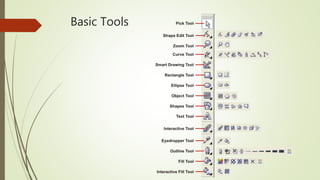
Basic Tools
Drawing Basics
 There are 4 basic tools used to create shapes
 Freehand Tool
 Rectangle Tool
 Ellipse Tool
 Polygon Tool
Coloring Objects
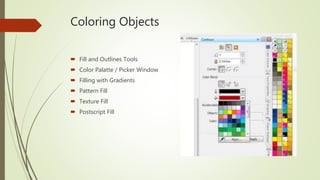
 Fill and Outlines Tools
 Color Palatte / Picker Window
 Filling with Gradients
 Pattern Fill
 Texture Fill
 Postscript Fill
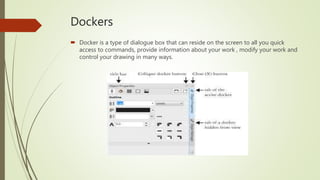
Dockers
 Docker is a type of dialogue box that can reside on the screen to all you quick
access to commands, provide information about your work , modify your work and
control your drawing in many ways.
Working with Text
 Creating Artistic and Paragraph Text
 Editing the font
 Assigning font, style and size
 Coloring Text
 Editing shapes and letters
 Line Spacing
 Paragraph Text Options
 Spell check and Grammar
Working with Graphics
 Importing images
 Tracing with the Drawing Tools
 Blend tool
 Envelope tool
 Drop Shadow Tool
 Transparency Tool
 Mesh Fill / Interactive Fill Tool
Introduction to Corel Draw

Introduction to Corel Draw

  • 1.
    Introduction to Corel Draw Ms.T. K. Anusuya Assistant Professor/ Department of CS Bon Secours College for Women, Thanjavur
  • 2.
    Corel Draw  Objectives Understand various Graphics Software  Use various Graphics tools of Corel Draw  Use various text tools and docker tools
  • 3.
    Introduction  CorelDraw isa very powerful professional vector graphics package that makes it easy to create professional artwork from simple logos to intricate technical illustrations  It provides tools and effects that make it possible to work effectively to produce high-quality graphics. Corel Draw supports windows shortcuts  The image quality of a drawing is a high quality resolution  Bitmap  Pixels
  • 4.
    Various Graphics Programs Corel Draw  Corel Photo Paint  Adobe Photoshop  Adobe Illustrator  Macromedia
  • 5.
    Getting Started withCorelDraw  CorelDraw is one of the most popular and powerful graphics programs and produce designs . Designing is the day-to-day demands of working designers.  Map Design  Rough Drawing  Flyer Design  Certificate Design  Invitation / Brochure Design  ID Card
  • 6.
    How to Startand open a Corel Draw  To Start and select coreldraw  A new window open  The available templates included the following categories  Page (Working Area)  Label  Booklet  Side Fold  Web Browse
  • 7.
    Corel Draw WindowScreen Layout
  • 8.
     Menu Bar– Menu Contains pull down options  Standard Toolbar-It contains shortcut to menus and other commands  Property Bar –It is context sensitive toolbar that shows commands relating the active tool or object  Tool Box- - tools for Creating, filling and modifying objects in a drawing  Drawing Page –Workspace/ Work-area  Document Navigator – controls for moving between and adding pages. The Window Screen Layout
  • 9.
     Rulers :Horizontal and vertical borders that are used to determine the size and position of objects in a drawing.  Drawing Window – Outside of the drawing window  Navigator Button – Open a smaller display to help pan around a drawing page  Status Bar – information about object properties such as type, size, color, fill and resolution,. It also shows the current mouse position.  Color Palette-Color swatches  Docker – available commands and settings relating toa specific tools, effect or task The Windows Screen Layout
  • 10.
  • 11.
    Drawing Basics  Thereare 4 basic tools used to create shapes  Freehand Tool  Rectangle Tool  Ellipse Tool  Polygon Tool
  • 12.
    Coloring Objects  Filland Outlines Tools  Color Palatte / Picker Window  Filling with Gradients  Pattern Fill  Texture Fill  Postscript Fill
  • 13.
    Dockers  Docker isa type of dialogue box that can reside on the screen to all you quick access to commands, provide information about your work , modify your work and control your drawing in many ways.
  • 14.
    Working with Text Creating Artistic and Paragraph Text  Editing the font  Assigning font, style and size  Coloring Text  Editing shapes and letters  Line Spacing  Paragraph Text Options  Spell check and Grammar
  • 15.
    Working with Graphics Importing images  Tracing with the Drawing Tools  Blend tool  Envelope tool  Drop Shadow Tool  Transparency Tool  Mesh Fill / Interactive Fill Tool