Presentation
on
Photoshop
Submitted To:
Mrs. Richa Arora
Submitted By:
Inderpreet Kaur
Priya Trehan
Jatinder Kaur
Amit Sharma
Contents
 Meaning
 Features
 System requirements of Photoshop
 Workspace Elements
 Photoshop Toolbox
Photoshop
• The adobe Photoshop is a graphical user interface
program and graphics editing program developed
and published by Adobe Systems.
Features of Photoshop
 Layer styles
 Interactive image warping
 Enhanced vector output
 Superb vector support
 Vector based masks
 Enhanced slicing capabilities
 Enhanced support for image maps and rollovers
 Enhanced layer management
System Requirement of Photoshop
1. Processor Requirement :
 Intel pentium 4 processor or RAM Athlon processor 2.2 GHZ or
higher.
2. Operating System :
 Microsoft Window XP with service pack3,Window vista, Home
premium, Business Ultimate or Enterprises with service pack1, or
Window 7
3. RAM :
 1GB RAM
4. Hard Disk (HD):
 1GB of available hard disk space for installation
5. Display:
 1024*768 display with qualified hardware accelerated open GL
graphics card, 16-bit color.
Continued
6. DVD-ROM drive
7. Quick time software required for multimedia
features.
8. Broadband internet connection required for online
services
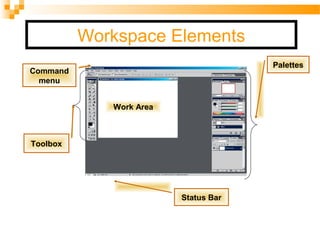
Workspace Elements
Work Area
Toolbox
Palettes
Status Bar
Command
menu
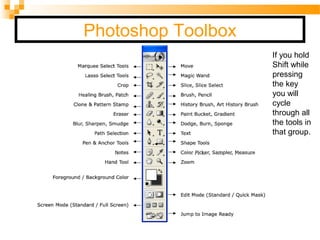
Photoshop Toolbox
If you hold
Shift while
pressing
the key
you will
cycle
through all
the tools in
that group.
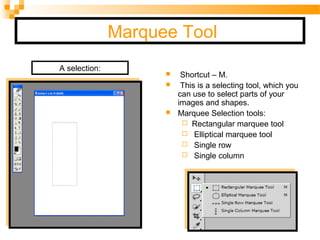
Marquee Tool
 Shortcut – M.
 This is a selecting tool, which you
can use to select parts of your
images and shapes.
 Marquee Selection tools:
 Rectangular marquee tool
 Elliptical marquee tool
 Single row
 Single column
A selection:
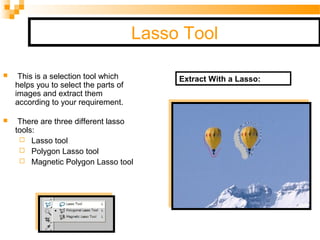
Lasso Tool
 This is a selection tool which
helps you to select the parts of
images and extract them
according to your requirement.
 There are three different lasso
tools:
 Lasso tool
 Polygon Lasso tool
 Magnetic Polygon Lasso tool
Extract With a Lasso:
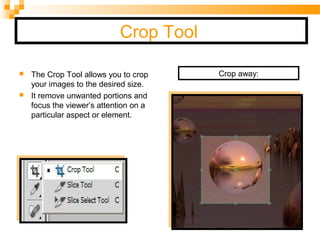
Crop Tool
 The Crop Tool allows you to crop
your images to the desired size.
 It remove unwanted portions and
focus the viewer’s attention on a
particular aspect or element.
Crop away:
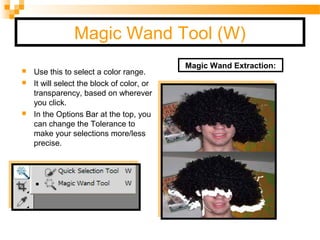
Magic Wand Tool (W)
 Use this to select a color range.
 It will select the block of color, or
transparency, based on wherever
you click.
 In the Options Bar at the top, you
can change the Tolerance to
make your selections more/less
precise.
                                          
                             
Magic Wand Extraction:
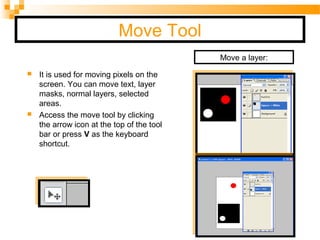
Move Tool
 It is used for moving pixels on the
screen. You can move text, layer
masks, normal layers, selected
areas.
 Access the move tool by clicking
the arrow icon at the top of the tool
bar or press V as the keyboard
shortcut.
Move a layer:
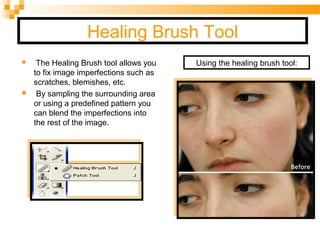
Healing Brush Tool
 The Healing Brush tool allows you
to fix image imperfections such as
scratches, blemishes, etc.
 By sampling the surrounding area
or using a predefined pattern you
can blend the imperfections into
the rest of the image.
Using the healing brush tool:
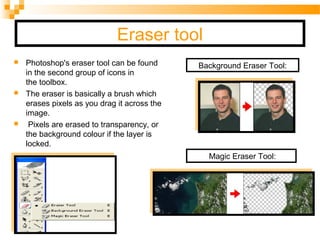
Eraser tool
 Photoshop's eraser tool can be found
in the second group of icons in
the toolbox.
 The eraser is basically a brush which
erases pixels as you drag it across the
image.
 Pixels are erased to transparency, or
the background colour if the layer is
locked.
Background Eraser Tool:
Magic Eraser Tool:
Blur Tool
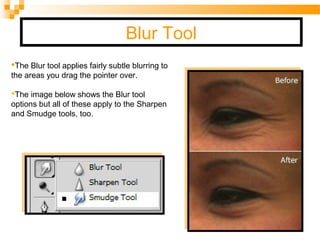
The Blur tool applies fairly subtle blurring to
the areas you drag the pointer over.
The image below shows the Blur tool
options but all of these apply to the Sharpen
and Smudge tools, too.
Slice, Slice Select Tool
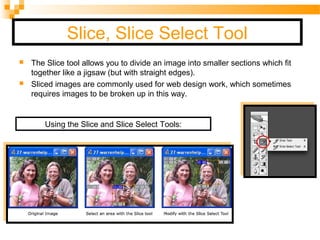
 The Slice tool allows you to divide an image into smaller sections which fit
together like a jigsaw (but with straight edges).
 Sliced images are commonly used for web design work, which sometimes
requires images to be broken up in this way.
Using the Slice and Slice Select Tools:
History Brush Tool
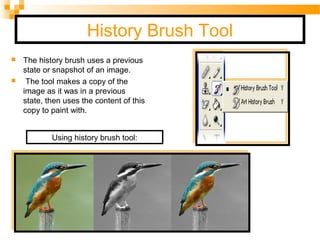
 The history brush uses a previous
state or snapshot of an image.
 The tool makes a copy of the
image as it was in a previous
state, then uses the content of this
copy to paint with.
Using history brush tool:
Clone Stamp Tool

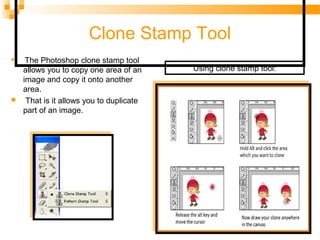
The Photoshop clone stamp tool
allows you to copy one area of an
image and copy it onto another
area.
 That is it allows you to duplicate
part of an image.
Using clone stamp tool:
Eyedropper Tool
 This tool works by changing your foreground color to whatever color you
click on.
 Holding the [Alt] key will change your background color.
The sampled color
appears in the
Foreground color
swatch in the Tools
palette.
Using Eye Dropper Tool:
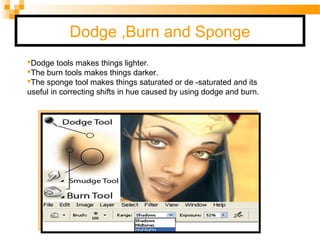
Dodge ,Burn and Sponge
Dodge tools makes things lighter.
The burn tools makes things darker.
The sponge tool makes things saturated or de -saturated and its
useful in correcting shifts in hue caused by using dodge and burn.
Photoshop
Photoshop

Photoshop

  • 1.
    Presentation on Photoshop Submitted To: Mrs. RichaArora Submitted By: Inderpreet Kaur Priya Trehan Jatinder Kaur Amit Sharma
  • 2.
    Contents  Meaning  Features System requirements of Photoshop  Workspace Elements  Photoshop Toolbox
  • 3.
    Photoshop • The adobePhotoshop is a graphical user interface program and graphics editing program developed and published by Adobe Systems.
  • 4.
    Features of Photoshop Layer styles  Interactive image warping  Enhanced vector output  Superb vector support  Vector based masks  Enhanced slicing capabilities  Enhanced support for image maps and rollovers  Enhanced layer management
  • 5.
    System Requirement ofPhotoshop 1. Processor Requirement :  Intel pentium 4 processor or RAM Athlon processor 2.2 GHZ or higher. 2. Operating System :  Microsoft Window XP with service pack3,Window vista, Home premium, Business Ultimate or Enterprises with service pack1, or Window 7 3. RAM :  1GB RAM 4. Hard Disk (HD):  1GB of available hard disk space for installation 5. Display:  1024*768 display with qualified hardware accelerated open GL graphics card, 16-bit color.
  • 6.
    Continued 6. DVD-ROM drive 7.Quick time software required for multimedia features. 8. Broadband internet connection required for online services
  • 7.
  • 8.
    Photoshop Toolbox If youhold Shift while pressing the key you will cycle through all the tools in that group.
  • 9.
    Marquee Tool  Shortcut– M.  This is a selecting tool, which you can use to select parts of your images and shapes.  Marquee Selection tools:  Rectangular marquee tool  Elliptical marquee tool  Single row  Single column A selection:
  • 10.
    Lasso Tool  Thisis a selection tool which helps you to select the parts of images and extract them according to your requirement.  There are three different lasso tools:  Lasso tool  Polygon Lasso tool  Magnetic Polygon Lasso tool Extract With a Lasso:
  • 11.
    Crop Tool  TheCrop Tool allows you to crop your images to the desired size.  It remove unwanted portions and focus the viewer’s attention on a particular aspect or element. Crop away:
  • 12.
    Magic Wand Tool(W)  Use this to select a color range.  It will select the block of color, or transparency, based on wherever you click.  In the Options Bar at the top, you can change the Tolerance to make your selections more/less precise.                                                                          Magic Wand Extraction:
  • 13.
    Move Tool  Itis used for moving pixels on the screen. You can move text, layer masks, normal layers, selected areas.  Access the move tool by clicking the arrow icon at the top of the tool bar or press V as the keyboard shortcut. Move a layer:
  • 14.
    Healing Brush Tool The Healing Brush tool allows you to fix image imperfections such as scratches, blemishes, etc.  By sampling the surrounding area or using a predefined pattern you can blend the imperfections into the rest of the image. Using the healing brush tool:
  • 15.
    Eraser tool  Photoshop'seraser tool can be found in the second group of icons in the toolbox.  The eraser is basically a brush which erases pixels as you drag it across the image.  Pixels are erased to transparency, or the background colour if the layer is locked. Background Eraser Tool: Magic Eraser Tool:
  • 16.
    Blur Tool The Blurtool applies fairly subtle blurring to the areas you drag the pointer over. The image below shows the Blur tool options but all of these apply to the Sharpen and Smudge tools, too.
  • 17.
    Slice, Slice SelectTool  The Slice tool allows you to divide an image into smaller sections which fit together like a jigsaw (but with straight edges).  Sliced images are commonly used for web design work, which sometimes requires images to be broken up in this way. Using the Slice and Slice Select Tools:
  • 18.
    History Brush Tool The history brush uses a previous state or snapshot of an image.  The tool makes a copy of the image as it was in a previous state, then uses the content of this copy to paint with. Using history brush tool:
  • 19.
    Clone Stamp Tool  ThePhotoshop clone stamp tool allows you to copy one area of an image and copy it onto another area.  That is it allows you to duplicate part of an image. Using clone stamp tool:
  • 20.
    Eyedropper Tool  Thistool works by changing your foreground color to whatever color you click on.  Holding the [Alt] key will change your background color. The sampled color appears in the Foreground color swatch in the Tools palette. Using Eye Dropper Tool:
  • 21.
    Dodge ,Burn andSponge Dodge tools makes things lighter. The burn tools makes things darker. The sponge tool makes things saturated or de -saturated and its useful in correcting shifts in hue caused by using dodge and burn.