Technology PowerPointTechnology PowerPoint
Ze Zeon
(Computers in the Curriculum) GE 555-01
Fall 2010
Prof. Lori Schmidt
SMART Board: What is it?
• A touch-sensitive
interactive white board
• Paired with a projector
• Connected to a computer
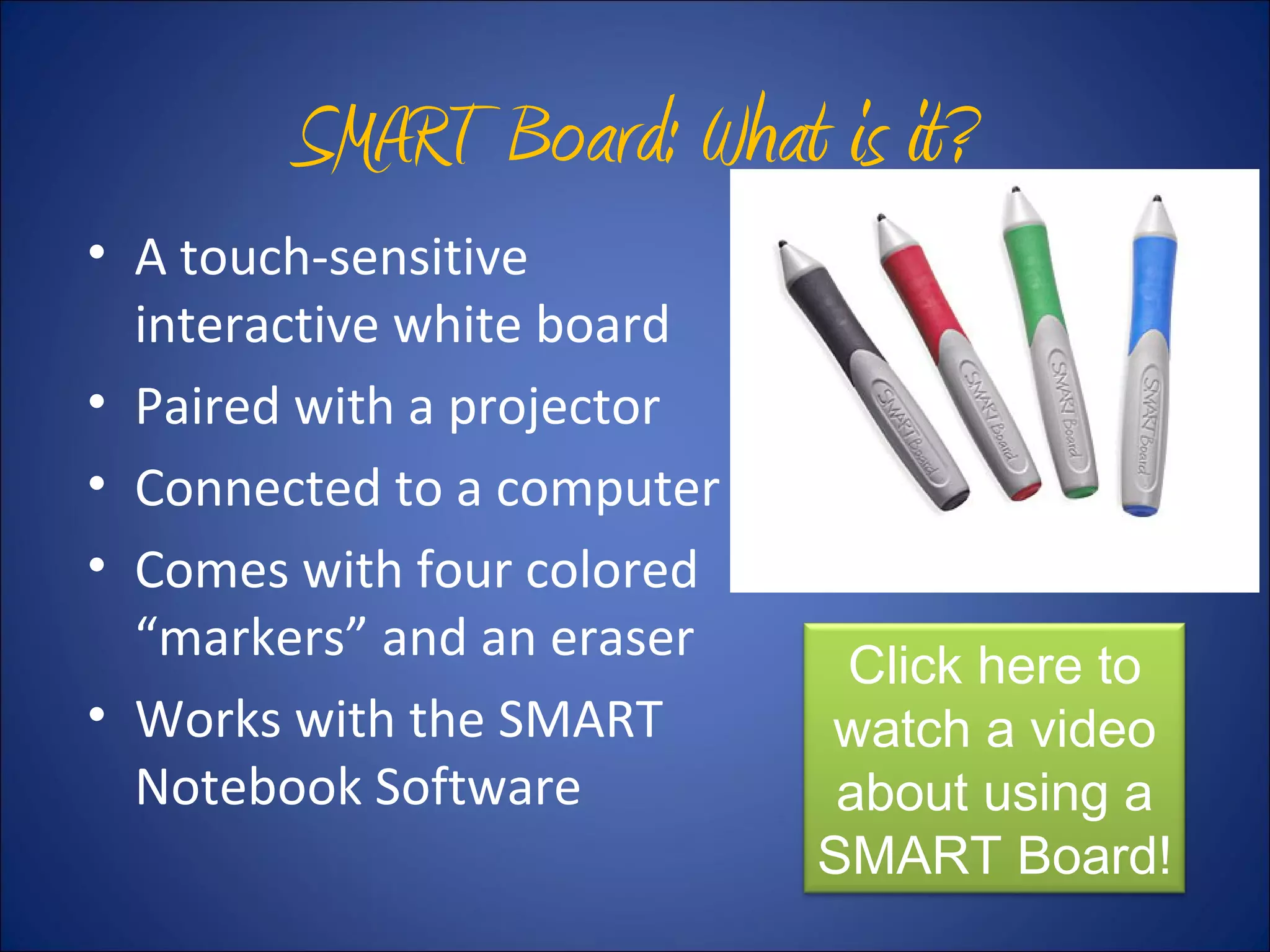
• Comes with four colored
“markers” and an eraser
• Works with the SMART
Notebook Software
Click here to
watch a video
about using a
SMART Board!
SMART Notebook
Software• FREE software for anyone with
SMART Board access
• Similar to PowerPoint but is
interactive
• The teacher choses what is locked
and what is “alive” during the
presentation
• Thousands of built-in images,
activities, backgrounds, and
animations categorized by subject
Click here to
download SMART
Notebook
software!
Teacher Use: BUilT in
appleTs
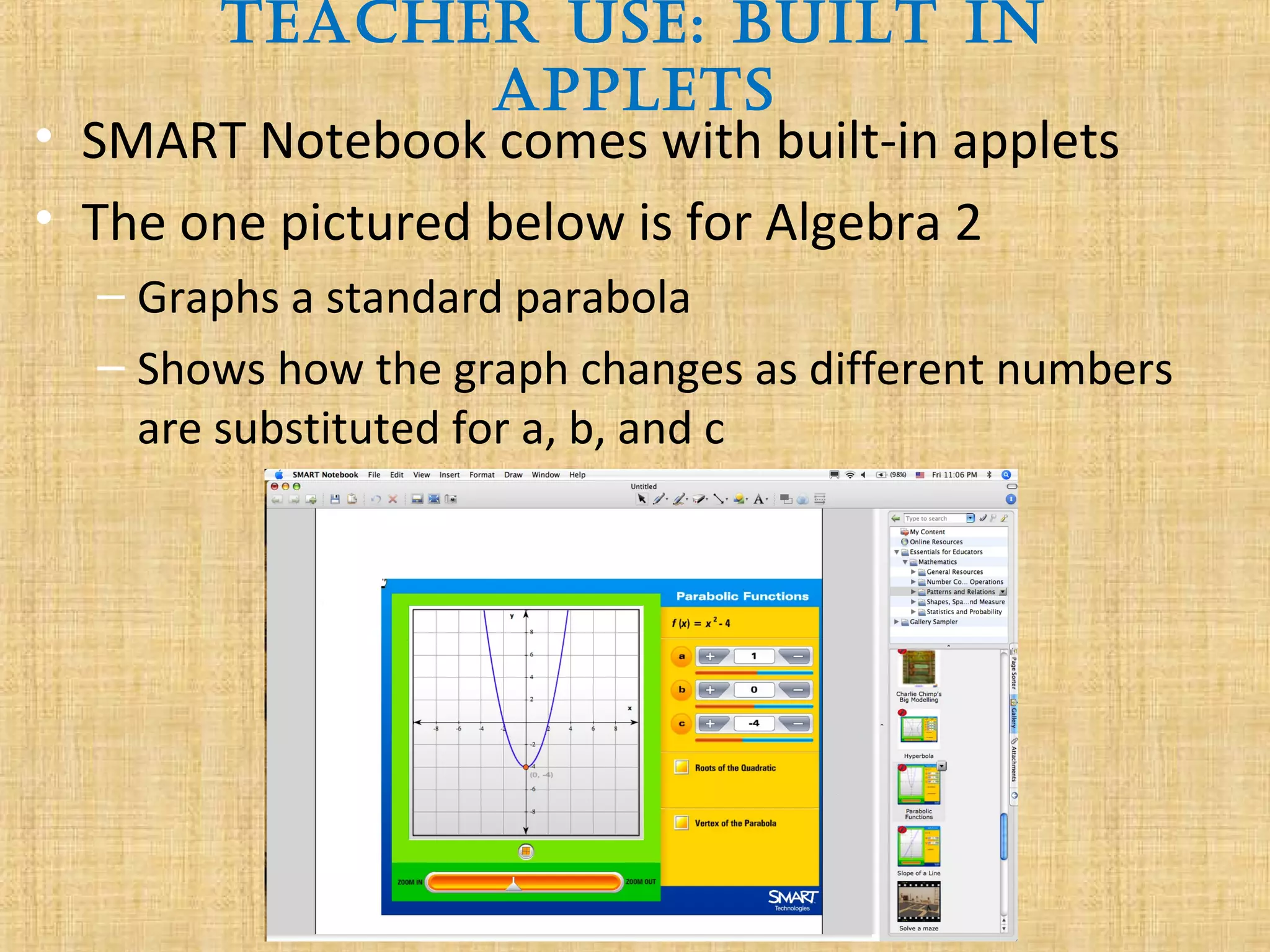
• SMART Notebook comes with built-in applets
• The one pictured below is for Algebra 2
– Graphs a standard parabola
– Shows how the graph changes as different numbers
are substituted for a, b, and c
Teacher Use: Seating Charts
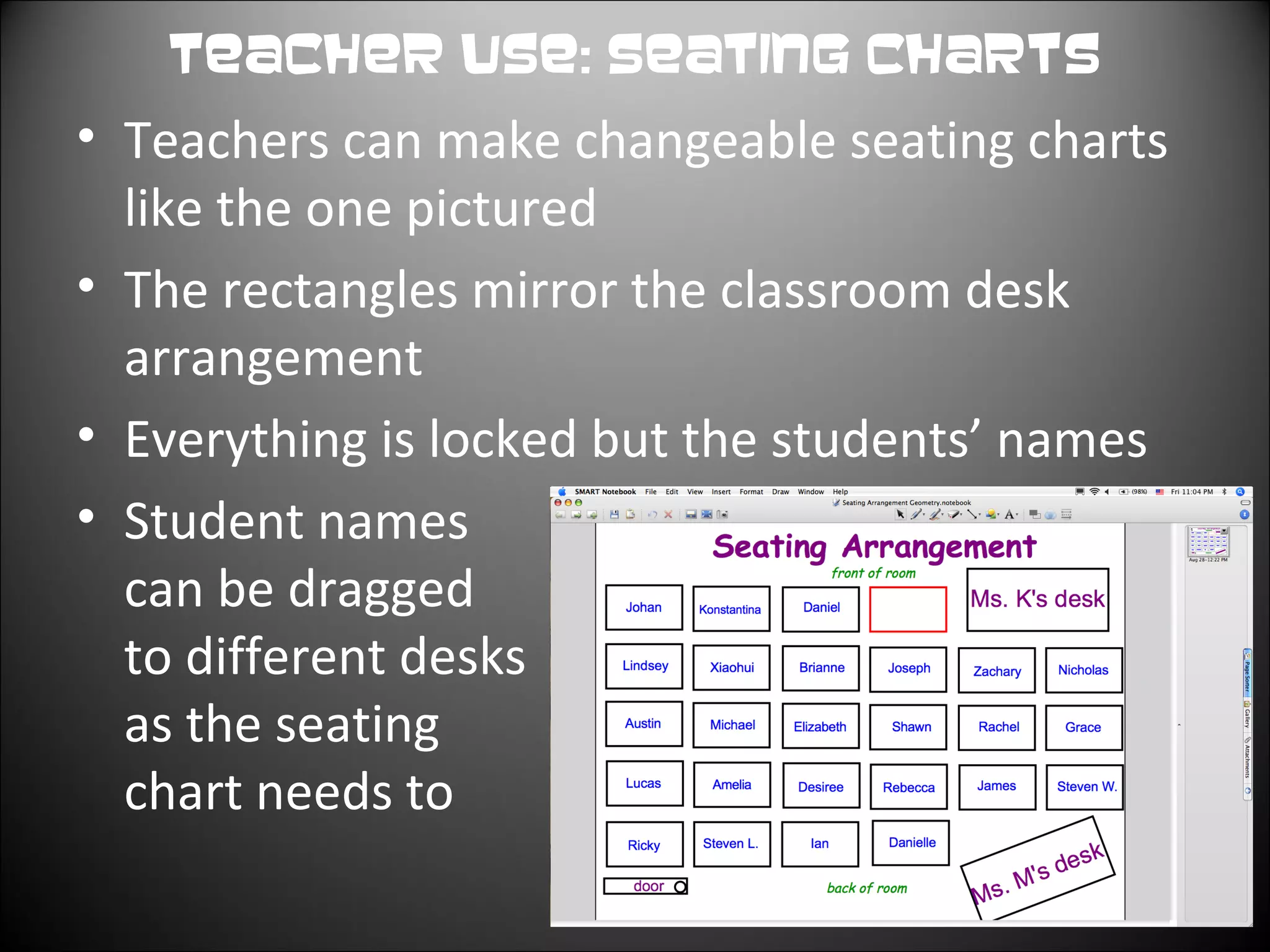
• Teachers can make changeable seating charts
like the one pictured
• The rectangles mirror the classroom desk
arrangement
• Everything is locked but the students’ names
• Student names
can be dragged
to different desks
as the seating
chart needs to change
Teacher Use: Classroom Games
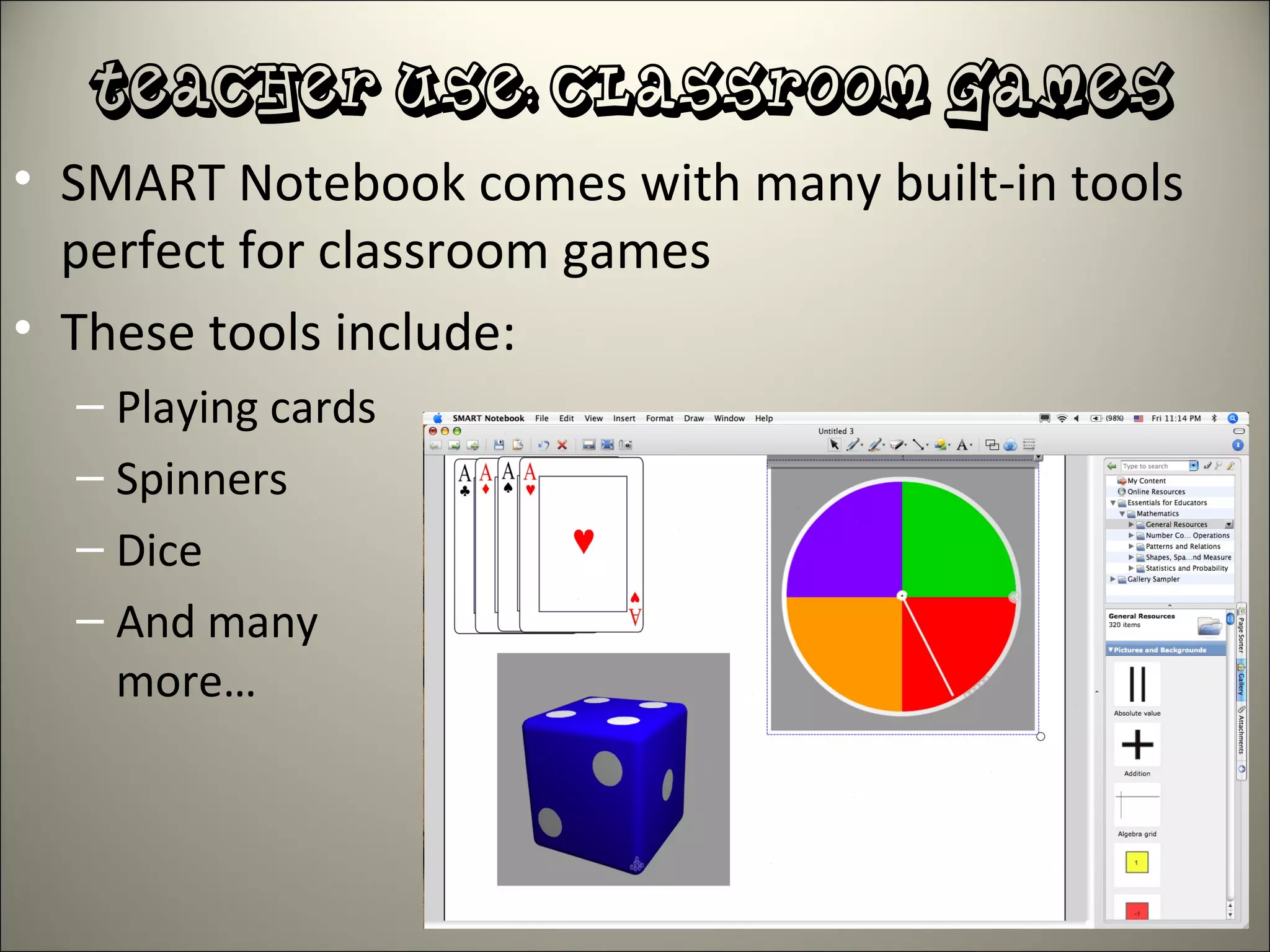
• SMART Notebook comes with many built-in tools
perfect for classroom games
• These tools include:
– Playing cards
– Spinners
– Dice
– And many
more…
Teacher Use:
Making Tests
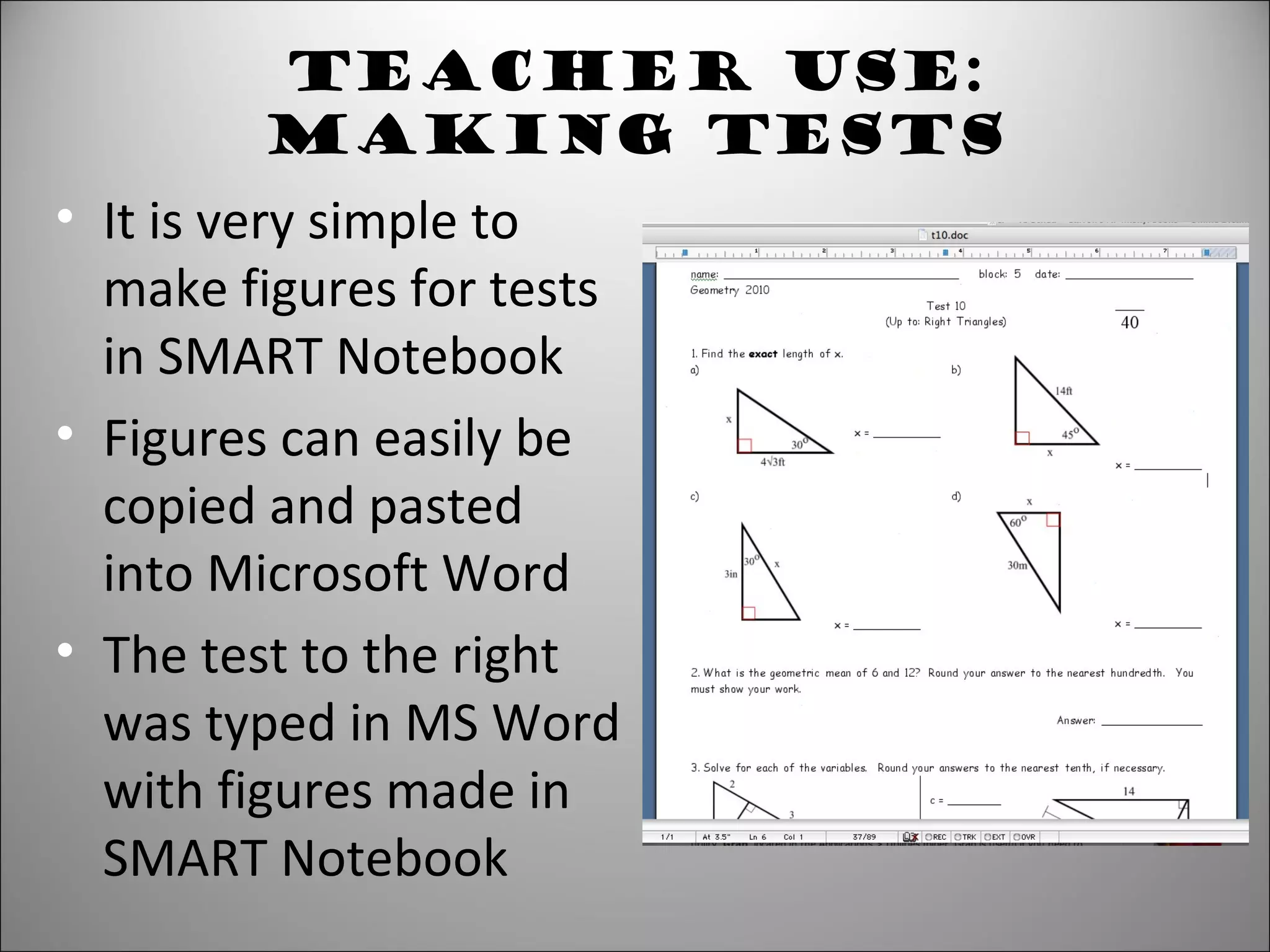
• It is very simple to
make figures for tests
in SMART Notebook
• Figures can easily be
copied and pasted
into Microsoft Word
• The test to the right
was typed in MS Word
with figures made in
SMART Notebook
Teacher Use: Giving Notes
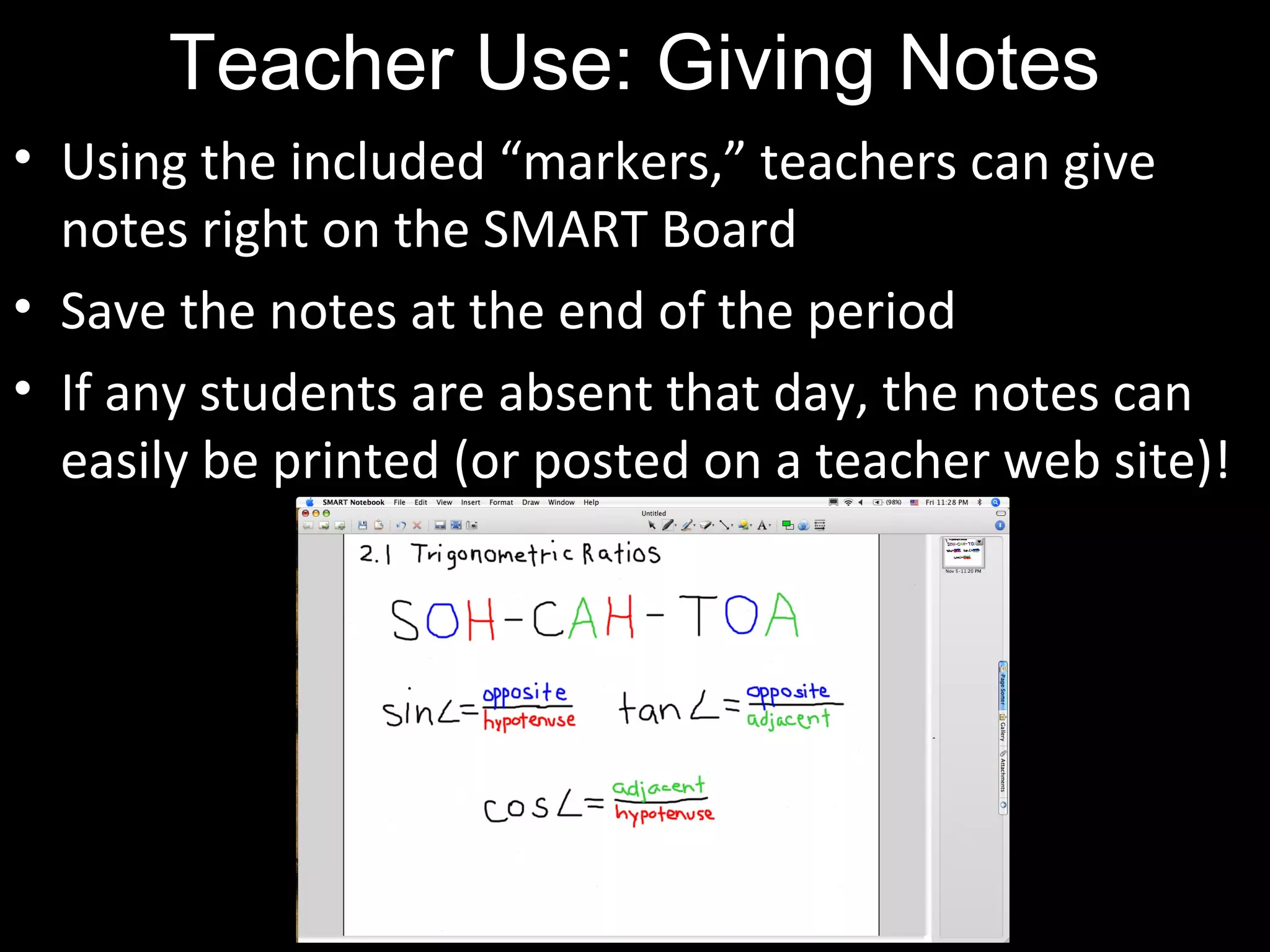
• Using the included “markers,” teachers can give
notes right on the SMART Board
• Save the notes at the end of the period
• If any students are absent that day, the notes can
easily be printed (or posted on a teacher web site)!
St udent Use: Put t ing Problems on t he Board
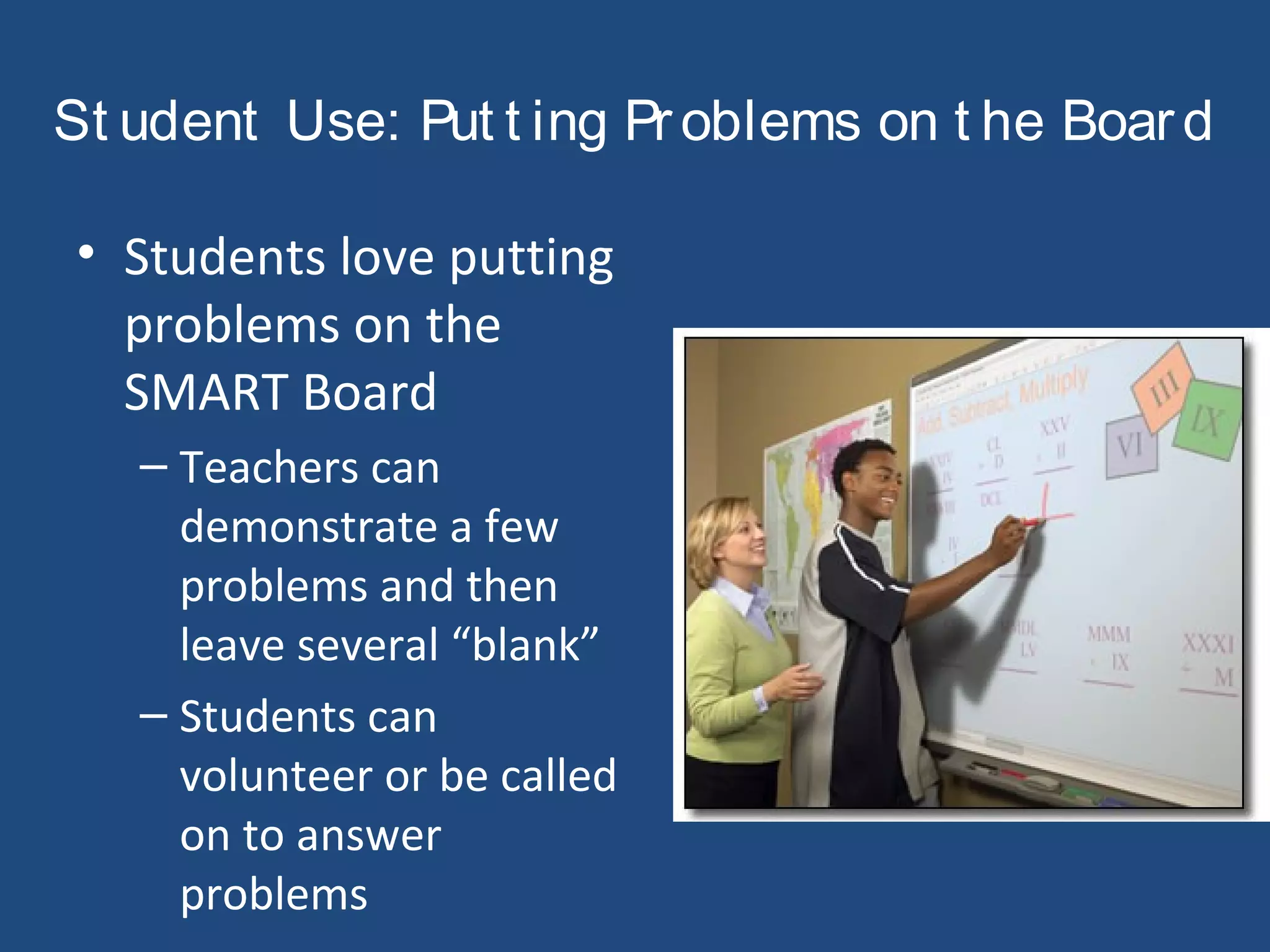
• Students love putting
problems on the
SMART Board
– Teachers can
demonstrate a few
problems and then
leave several “blank”
– Students can
volunteer or be called
on to answer
problems
Student Use: Venn Diagrams (Dragging)
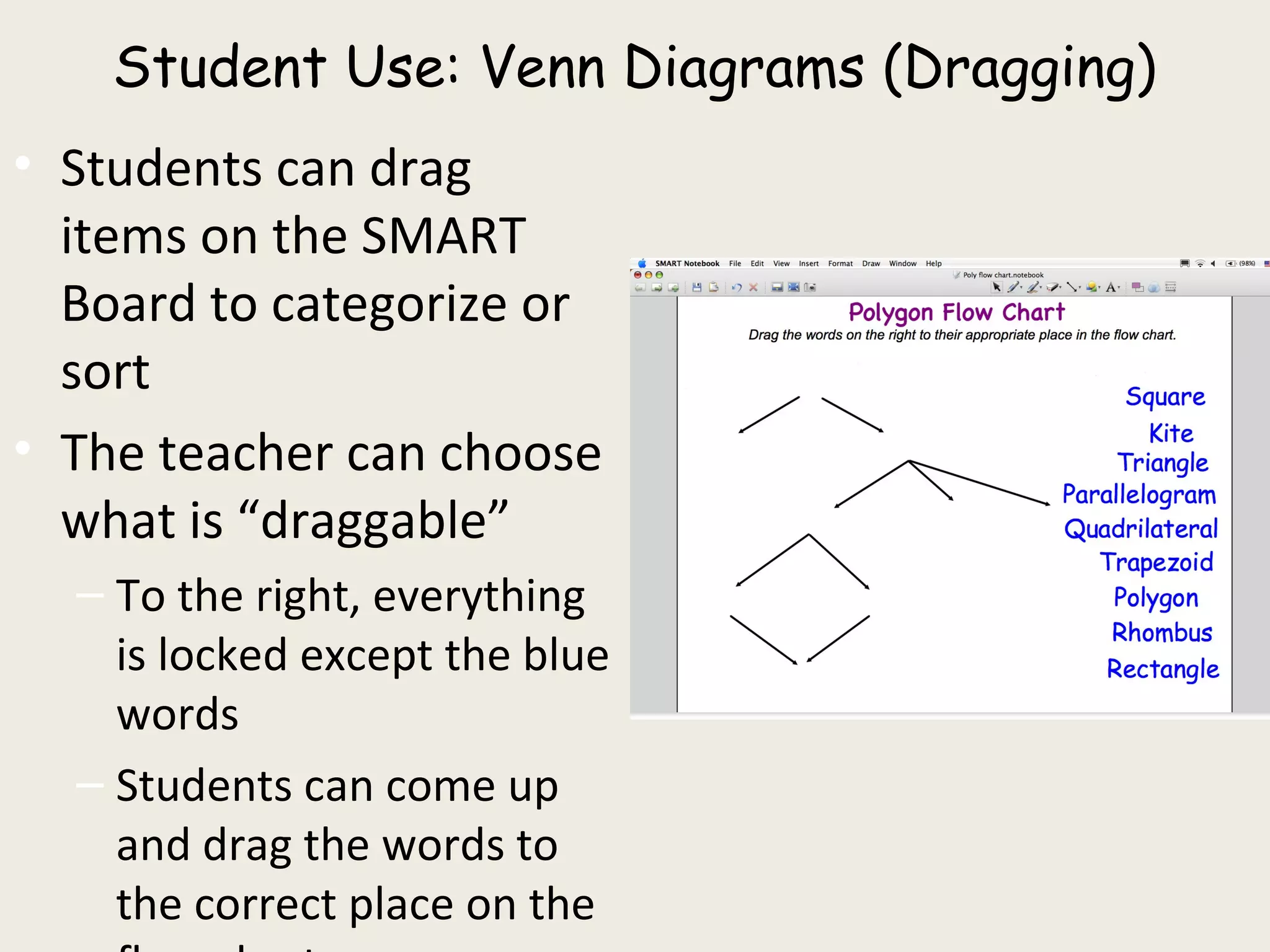
• Students can drag
items on the SMART
Board to categorize or
sort
• The teacher can choose
what is “draggable”
– To the right, everything
is locked except the blue
words
– Students can come up
and drag the words to
the correct place on the
Student Use: TI – SMART View
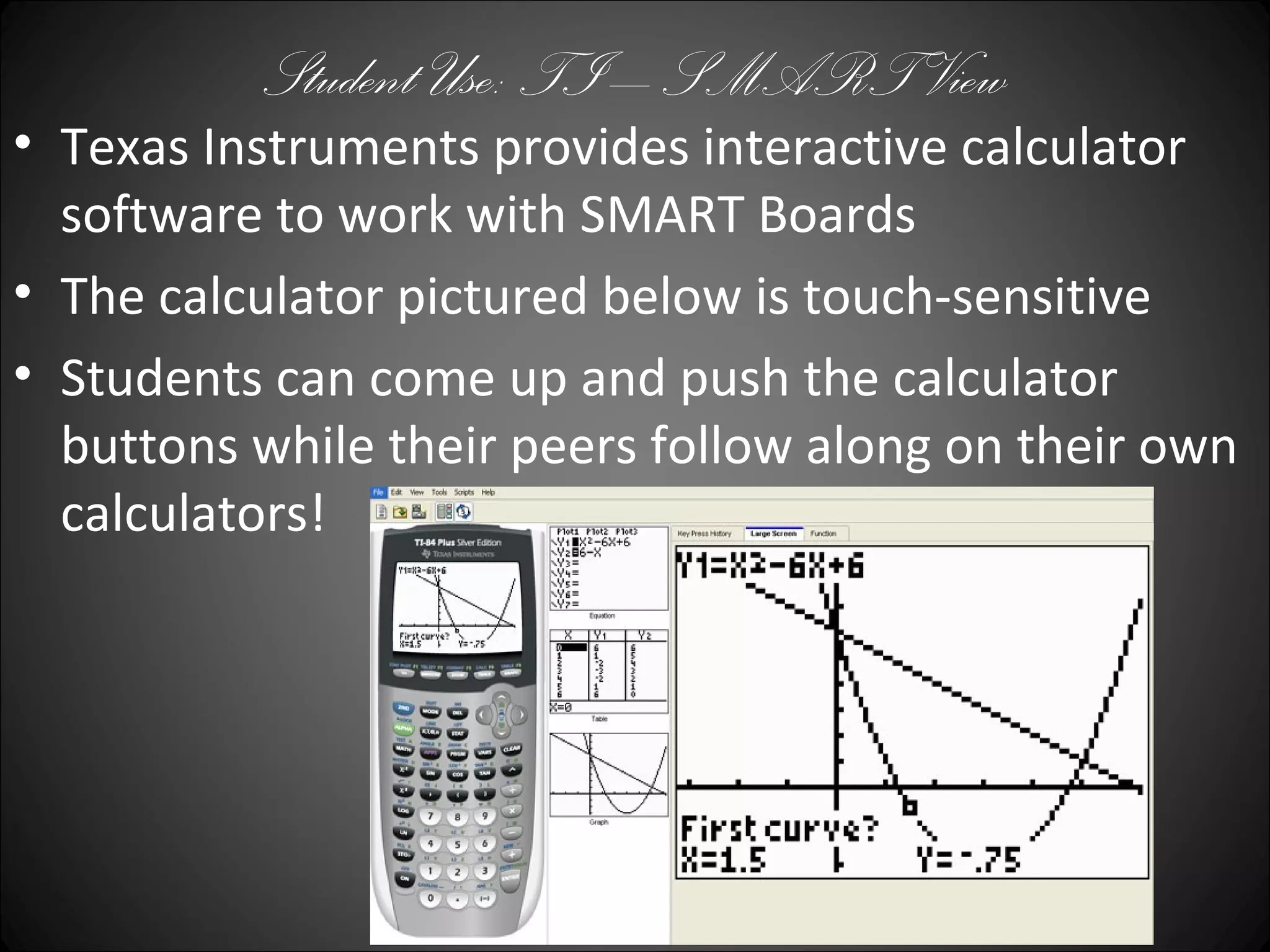
• Texas Instruments provides interactive calculator
software to work with SMART Boards
• The calculator pictured below is touch-sensitive
• Students can come up and push the calculator
buttons while their peers follow along on their own
calculators!
Thank you
• Did you learn anything about SMART Boards
today?
• Any questions? Comments?
• Feel free to leave feedback on my blog.
Ze’s
Blog
Credits
• Google Images
• Microsoft Word
• SMART Board
• SMART Notebook
• Texas Instruments

SMARTboard PowerPoint

  • 1.
    Technology PowerPointTechnology PowerPoint ZeZeon (Computers in the Curriculum) GE 555-01 Fall 2010 Prof. Lori Schmidt
  • 2.
    SMART Board: Whatis it? • A touch-sensitive interactive white board • Paired with a projector • Connected to a computer • Comes with four colored “markers” and an eraser • Works with the SMART Notebook Software Click here to watch a video about using a SMART Board!
  • 3.
    SMART Notebook Software• FREEsoftware for anyone with SMART Board access • Similar to PowerPoint but is interactive • The teacher choses what is locked and what is “alive” during the presentation • Thousands of built-in images, activities, backgrounds, and animations categorized by subject Click here to download SMART Notebook software!
  • 4.
    Teacher Use: BUilTin appleTs • SMART Notebook comes with built-in applets • The one pictured below is for Algebra 2 – Graphs a standard parabola – Shows how the graph changes as different numbers are substituted for a, b, and c
  • 5.
    Teacher Use: SeatingCharts • Teachers can make changeable seating charts like the one pictured • The rectangles mirror the classroom desk arrangement • Everything is locked but the students’ names • Student names can be dragged to different desks as the seating chart needs to change
  • 6.
    Teacher Use: ClassroomGames • SMART Notebook comes with many built-in tools perfect for classroom games • These tools include: – Playing cards – Spinners – Dice – And many more…
  • 7.
    Teacher Use: Making Tests •It is very simple to make figures for tests in SMART Notebook • Figures can easily be copied and pasted into Microsoft Word • The test to the right was typed in MS Word with figures made in SMART Notebook
  • 8.
    Teacher Use: GivingNotes • Using the included “markers,” teachers can give notes right on the SMART Board • Save the notes at the end of the period • If any students are absent that day, the notes can easily be printed (or posted on a teacher web site)!
  • 9.
    St udent Use:Put t ing Problems on t he Board • Students love putting problems on the SMART Board – Teachers can demonstrate a few problems and then leave several “blank” – Students can volunteer or be called on to answer problems
  • 10.
    Student Use: VennDiagrams (Dragging) • Students can drag items on the SMART Board to categorize or sort • The teacher can choose what is “draggable” – To the right, everything is locked except the blue words – Students can come up and drag the words to the correct place on the
  • 11.
    Student Use: TI– SMART View • Texas Instruments provides interactive calculator software to work with SMART Boards • The calculator pictured below is touch-sensitive • Students can come up and push the calculator buttons while their peers follow along on their own calculators!
  • 12.
    Thank you • Didyou learn anything about SMART Boards today? • Any questions? Comments? • Feel free to leave feedback on my blog. Ze’s Blog
  • 13.
    Credits • Google Images •Microsoft Word • SMART Board • SMART Notebook • Texas Instruments