nadine.gilkison@ftcsc.k12.in.us
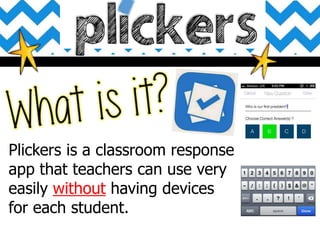
Plickers is a classroom response
app that teachers can use very
easily without having devices
for each student.
• It's fun, easy to use, and free.
• No batteries to lose or replace, no expensive
equipment to buy, no BYOD, and no one left out.
• Automatic feedback with only 1 teacher device
• Operates on both Android and iOS www.plickers.com
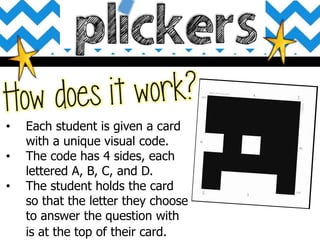
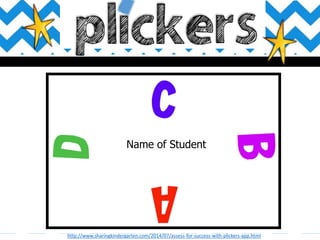
• Each student is given a card
with a unique visual code.
• The code has 4 sides, each
lettered A, B, C, and D.
• The student holds the card
so that the letter they choose
to answer the question with
is at the top of their card.
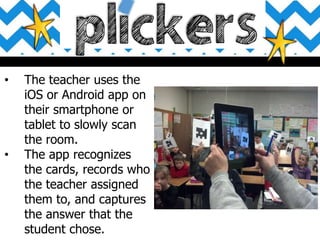
• The teacher uses the
iOS or Android app on
their smartphone or
tablet to slowly scan
the room.
• The app recognizes
the cards, records who
the teacher assigned
them to, and captures
the answer that the
student chose.
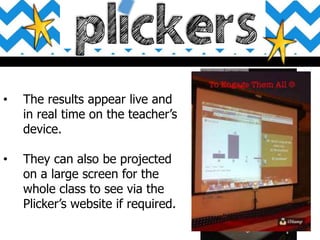
• The results appear live and
in real time on the teacher’s
device.
• They can also be projected
on a large screen for the
whole class to see via the
Plicker’s website if required.
• The letters on the paper clicker are small so fellow classmates
cannot see their selection.
• The app will only record each student’s answer once, so you
need not worry about a second scan skewing your data.
• Must have a wifi connection to project real time data.
• Modify plickers to work for primary/special needs students
http://www.sharingkindergarten.com/2014/07/assess-for-success-with-plickers-app.html
Name of Student
www.plickers.com
Sign Up for an Account
Download the App
www.plickers.com
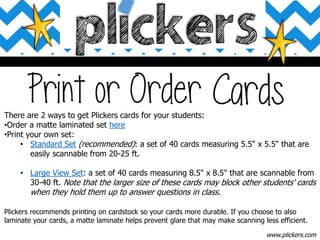
There are 2 ways to get Plickers cards for your students:
•Order a matte laminated set here
•Print your own set:
• Standard Set (recommended): a set of 40 cards measuring 5.5" x 5.5" that are
easily scannable from 20-25 ft.
• Large View Set: a set of 40 cards measuring 8.5" x 8.5" that are scannable from
30-40 ft. Note that the larger size of these cards may block other students' cards
when they hold them up to answer questions in class.
Plickers recommends printing on cardstock so your cards more durable. If you choose to also
laminate your cards, a matte laminate helps prevent glare that may make scanning less efficient.
www.plickers.com
1. Go to Plickers.com
and sign-in with the
same user ID that you
use for the mobile
app.
2. Select
[+ Add a new class]
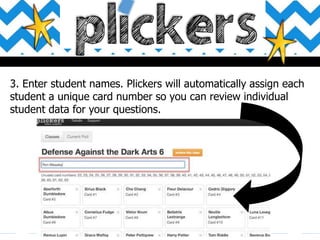
3. Enter student names. Plickers will automatically assign each
student a unique card number so you can review individual
student data for your questions.
www.plickers.com
Click for specific device guides on how to:
www.plickers.com
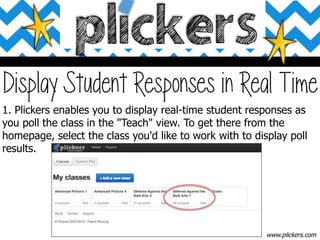
1. Plickers enables you to display real-time student responses as
you poll the class in the "Teach" view. To get there from the
homepage, select the class you'd like to work with to display poll
results.
www.plickers.com
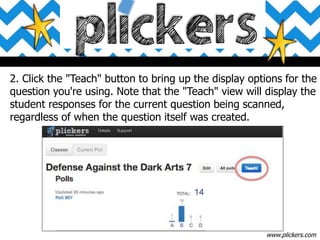
2. Click the "Teach" button to bring up the display options for the
question you're using. Note that the "Teach" view will display the
student responses for the current question being scanned,
regardless of when the question itself was created.
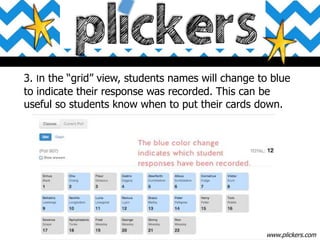
3. In the “grid” view, students names will change to blue
to indicate their response was recorded. This can be
useful so students know when to put their cards down.
www.plickers.com
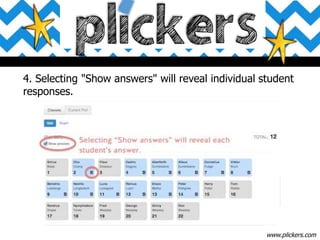
4. Selecting "Show answers" will reveal individual student
responses.
www.plickers.com
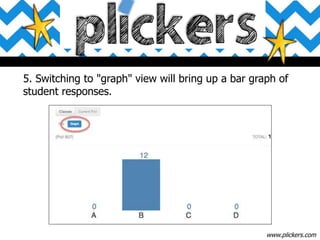
5. Switching to "graph" view will bring up a bar graph of
student responses.
www.plickers.com
Plickers

Plickers

  • 1.
  • 2.
    Plickers is aclassroom response app that teachers can use very easily without having devices for each student.
  • 3.
    • It's fun,easy to use, and free. • No batteries to lose or replace, no expensive equipment to buy, no BYOD, and no one left out. • Automatic feedback with only 1 teacher device • Operates on both Android and iOS www.plickers.com
  • 4.
    • Each studentis given a card with a unique visual code. • The code has 4 sides, each lettered A, B, C, and D. • The student holds the card so that the letter they choose to answer the question with is at the top of their card.
  • 5.
    • The teacheruses the iOS or Android app on their smartphone or tablet to slowly scan the room. • The app recognizes the cards, records who the teacher assigned them to, and captures the answer that the student chose.
  • 6.
    • The resultsappear live and in real time on the teacher’s device. • They can also be projected on a large screen for the whole class to see via the Plicker’s website if required.
  • 8.
    • The letterson the paper clicker are small so fellow classmates cannot see their selection. • The app will only record each student’s answer once, so you need not worry about a second scan skewing your data. • Must have a wifi connection to project real time data. • Modify plickers to work for primary/special needs students
  • 9.
  • 10.
    www.plickers.com Sign Up foran Account Download the App
  • 11.
    www.plickers.com There are 2ways to get Plickers cards for your students: •Order a matte laminated set here •Print your own set: • Standard Set (recommended): a set of 40 cards measuring 5.5" x 5.5" that are easily scannable from 20-25 ft. • Large View Set: a set of 40 cards measuring 8.5" x 8.5" that are scannable from 30-40 ft. Note that the larger size of these cards may block other students' cards when they hold them up to answer questions in class. Plickers recommends printing on cardstock so your cards more durable. If you choose to also laminate your cards, a matte laminate helps prevent glare that may make scanning less efficient.
  • 12.
    www.plickers.com 1. Go toPlickers.com and sign-in with the same user ID that you use for the mobile app. 2. Select [+ Add a new class]
  • 13.
    3. Enter studentnames. Plickers will automatically assign each student a unique card number so you can review individual student data for your questions.
  • 14.
    www.plickers.com Click for specificdevice guides on how to:
  • 15.
    www.plickers.com 1. Plickers enablesyou to display real-time student responses as you poll the class in the "Teach" view. To get there from the homepage, select the class you'd like to work with to display poll results.
  • 16.
    www.plickers.com 2. Click the"Teach" button to bring up the display options for the question you're using. Note that the "Teach" view will display the student responses for the current question being scanned, regardless of when the question itself was created.
  • 17.
    3. In the“grid” view, students names will change to blue to indicate their response was recorded. This can be useful so students know when to put their cards down. www.plickers.com
  • 18.
    4. Selecting "Showanswers" will reveal individual student responses. www.plickers.com
  • 19.
    5. Switching to"graph" view will bring up a bar graph of student responses. www.plickers.com