Universidad Autónoma de Chiriquí
School of English
Humanities Division
Eng. 420
Materials Development
Facilitator
Ms. Marisol Barraza
Students: Joel Ledezma
Victor Madrid
Smart Boards
Introduction
“Technology can become the ‘wings’ that will allow the educational
world to fly farther and faster than ever before–if we will allow it”
- Jenny Arledge
Smart boards are useful tools for teaching because they can engage
students to learn better and promote enthusiasm for learning.
1
Table of contents
 Definitions
 Leading brands
 The interactive whiteboard in a learning environment
 Interactive whiteboards enhance lesson preparation
 Advantages using Smart boards
2
Table of contents
3
 Disadvantages while using Smart boards
 Classroom applications for using interactive whiteboards
 Reaching Out: Learning styles and Special Needs
 Tutorial
 Conclusion
 References
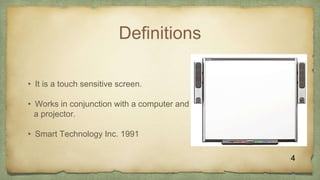
Definitions
• It is a touch sensitive screen.
• Works in conjunction with a computer and
a projector.
• Smart Technology Inc. 1991
4
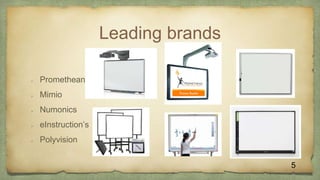
Leading brands
 Promethean
 Mimio
 Numonics
 eInstruction’s
 Polyvision
5
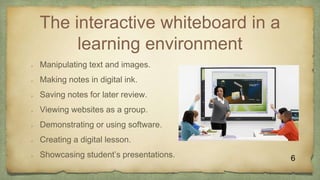
The interactive whiteboard in a
learning environment
 Manipulating text and images.
 Making notes in digital ink.
 Saving notes for later review.
 Viewing websites as a group.
 Demonstrating or using software.
 Creating a digital lesson.
 Showcasing student’s presentations. 6
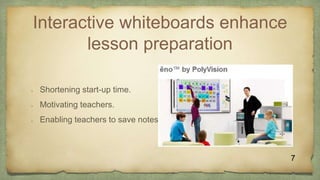
Interactive whiteboards enhance
lesson preparation
 Shortening start-up time.
 Motivating teachers.
 Enabling teachers to save notes.
7
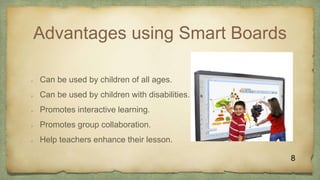
Advantages using Smart Boards
 Can be used by children of all ages.
 Can be used by children with disabilities.
 Promotes interactive learning.
 Promotes group collaboration.
 Help teachers enhance their lesson.
8
Disadvantages using Smart
Boards
 They are very expensive.
 They are used as a substitute for the whiteboard.
 Teachers are not getting training.
 Can distract students.
 Teachers need to have emergency lesson plans.
9
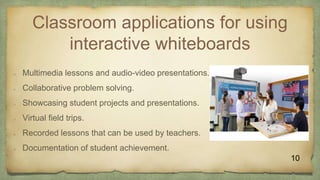
Classroom applications for using
interactive whiteboards
 Multimedia lessons and audio-video presentations.
 Collaborative problem solving.
 Showcasing student projects and presentations.
 Virtual field trips.
 Recorded lessons that can be used by teachers.
 Documentation of student achievement.
10
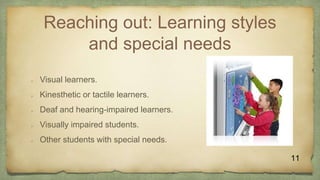
Reaching out: Learning styles
and special needs
 Visual learners.
 Kinesthetic or tactile learners.
 Deaf and hearing-impaired learners.
 Visually impaired students.
 Other students with special needs.
11
Tutorial
12
Things you can do
● Teach as with a traditional chalkboard.
● Write and draw.
● Save your pages as a flipchart file.
● Add pictures, movies and sounds.
● Quickly structure your lesson content.
● Add text.
13
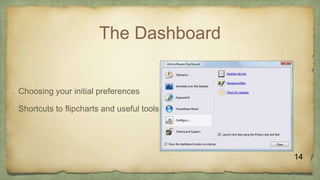
The Dashboard
 Choosing your initial preferences
 Shortcuts to flipcharts and useful tools
14
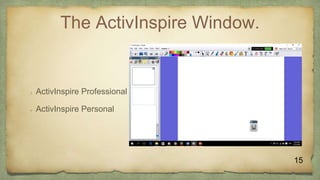
The ActivInspire Window.
 ActivInspire Professional
 ActivInspire Personal
15
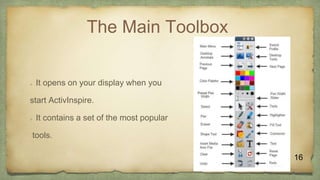
The Main Toolbox
 It opens on your display when you
start ActivInspire.
 It contains a set of the most popular
tools.
16
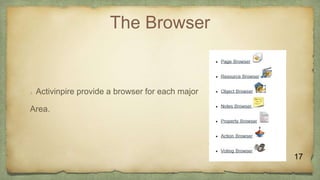
The Browser
 Activinpire provide a browser for each major
Area.
17
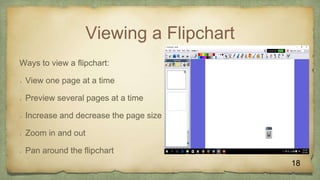
Viewing a Flipchart
Ways to view a flipchart:
 View one page at a time
 Preview several pages at a time
 Increase and decrease the page size
 Zoom in and out
 Pan around the flipchart
18
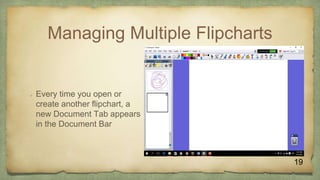
Managing Multiple Flipcharts
 Every time you open or
create another flipchart, a
new Document Tab appears
in the Document Bar
19
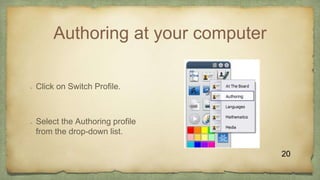
Authoring at your computer
 Click on Switch Profile.
 Select the Authoring profile
from the drop-down list.
20
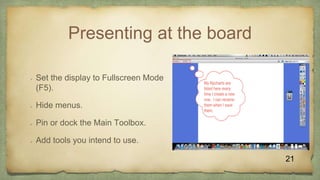
Presenting at the board
 Set the display to Fullscreen Mode
(F5).
 Hide menus.
 Pin or dock the Main Toolbox.
 Add tools you intend to use.
21
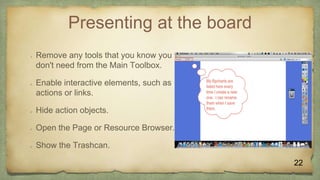
Presenting at the board
 Remove any tools that you know you
don't need from the Main Toolbox.
 Enable interactive elements, such as
actions or links.
 Hide action objects.
 Open the Page or Resource Browser.
 Show the Trashcan.
22
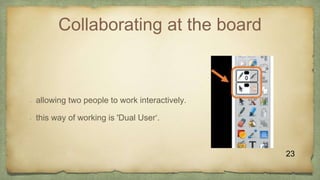
Collaborating at the board
• allowing two people to work interactively.
• this way of working is 'Dual User‘.
23
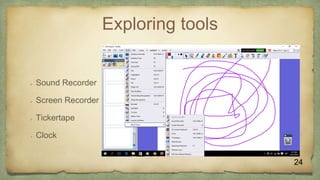
Exploring tools
 Sound Recorder
 Screen Recorder
 Tickertape
 Clock
24
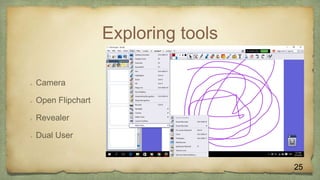
Exploring tools
 Camera
 Open Flipchart
 Revealer
 Dual User
25
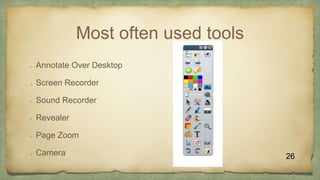
Most often used tools
 Annotate Over Desktop
 Screen Recorder
 Sound Recorder
 Revealer
 Page Zoom
 Camera 26
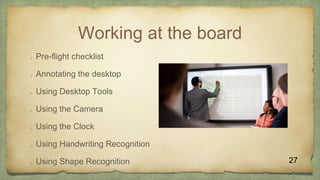
Working at the board
 Pre-flight checklist
 Annotating the desktop
 Using Desktop Tools
 Using the Camera
 Using the Clock
 Using Handwriting Recognition
 Using Shape Recognition 27
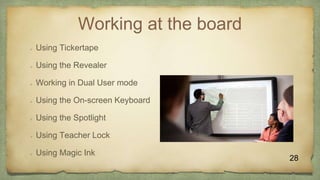
Working at the board
 Using Tickertape
 Using the Revealer
 Working in Dual User mode
 Using the On-screen Keyboard
 Using the Spotlight
 Using Teacher Lock
 Using Magic Ink
28
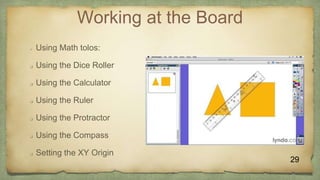
Working at the Board
 Using Math tolos:
 Using the Dice Roller
 Using the Calculator
 Using the Ruler
 Using the Protractor
 Using the Compass
 Setting the XY Origin
29
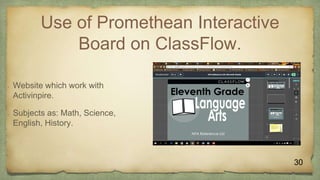
Use of Promethean Interactive
Board on ClassFlow.
 Website which work with
Activinpire.
 Subjects as: Math, Science,
English, History.
30
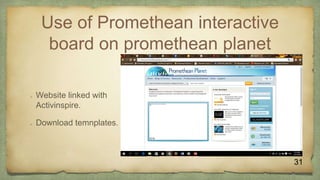
Use of Promethean interactive
board on promethean planet
 Website linked with
Activinspire.
 Download temnplates.
31
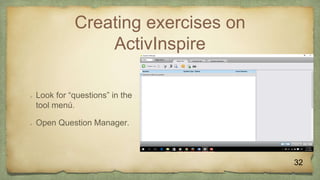
Creating exercises on
ActivInspire
 Look for “questions” in the
tool menú.
 Open Question Manager.
32
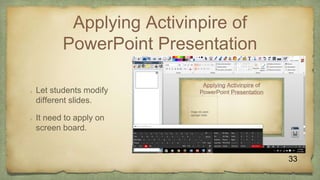
Applying Activinpire of
PowerPoint Presentation
 Let students modify
different slides.
 It need to apply on
screen board.
33
Conclusion
Smart boards have become one of the most attractive teaching
resources of the last decades, giving the student the opportunity to
interact directly with this class resource. Every student in the
classroom can interact with it, no matter what kind of learning they
have. Interactive boards raise the level of student engagement in a
classroom, motivating and promoting enthusiasm for learning.
References
Ball, E. (2011, September 29). SMART Boards in the Classroom: Advantages and Disadvantages.
Retrieved from http://eball-smartboard.blogspot.com/2011/09/smart-boards-in-classroom-
advantages.html
Course: Information Technology. (2011, February 22). Smart boards: Advantages and
Disadvantages. Retrieved from http://jhardin2it.blogspot.com
Hollis, J. (n.d.). SmartBoards in the Classroom – Positives and Negatives. Retrieved from
http://teacherslovesmartboards.com/smartboards-in/#sthash.KDSLtqSs.Aqj2Npp6.dpbs
35
References
NEA Member Benefits. (n.d.). Interactive Whiteboards Enhance Classroom Instruction and
Learning. Retrieved from http://www.neamb.com/professional-resources/benefits-of-interactive-
whiteboards.htm
Promethean Inc. (2016). ClassFlow. Retrieved from https://classflow.com/classflow/
Promethean Planet. (2016). Resources. Retrieved from
http://www.prometheanplanet.com/en/Search/resources/language/english/?Keywords=dual+user
&SortField=relevance
36
References
Promethean World. (n.d.). An Introduction to ActivInspire (Studio). Retrieved from
https://support.prometheanworld.com/files/public/pdfs/Activinspire-user-guide+v1.pdf
SMART Technologies Inc. (2006). Interactive Whiteboards and Learning. Retrieved from
http://downloads01.smarttech.com/media/research/whitepapers/int_whiteboard_research_whitep
aper_update.pdf
SuperTechnologyTips. (2015, September 22). Creating A Test in ActivInspire [Video file]. Retrieved
from https://www.youtube.com/watch?v=CG_r6QA0cHE
37
THANKS
38

Smart boards (1)

  • 1.
    Universidad Autónoma deChiriquí School of English Humanities Division Eng. 420 Materials Development Facilitator Ms. Marisol Barraza Students: Joel Ledezma Victor Madrid
  • 2.
  • 3.
    Introduction “Technology can becomethe ‘wings’ that will allow the educational world to fly farther and faster than ever before–if we will allow it” - Jenny Arledge Smart boards are useful tools for teaching because they can engage students to learn better and promote enthusiasm for learning. 1
  • 4.
    Table of contents Definitions  Leading brands  The interactive whiteboard in a learning environment  Interactive whiteboards enhance lesson preparation  Advantages using Smart boards 2
  • 5.
    Table of contents 3 Disadvantages while using Smart boards  Classroom applications for using interactive whiteboards  Reaching Out: Learning styles and Special Needs  Tutorial  Conclusion  References
  • 6.
    Definitions • It isa touch sensitive screen. • Works in conjunction with a computer and a projector. • Smart Technology Inc. 1991 4
  • 7.
    Leading brands  Promethean Mimio  Numonics  eInstruction’s  Polyvision 5
  • 8.
    The interactive whiteboardin a learning environment  Manipulating text and images.  Making notes in digital ink.  Saving notes for later review.  Viewing websites as a group.  Demonstrating or using software.  Creating a digital lesson.  Showcasing student’s presentations. 6
  • 9.
    Interactive whiteboards enhance lessonpreparation  Shortening start-up time.  Motivating teachers.  Enabling teachers to save notes. 7
  • 10.
    Advantages using SmartBoards  Can be used by children of all ages.  Can be used by children with disabilities.  Promotes interactive learning.  Promotes group collaboration.  Help teachers enhance their lesson. 8
  • 11.
    Disadvantages using Smart Boards They are very expensive.  They are used as a substitute for the whiteboard.  Teachers are not getting training.  Can distract students.  Teachers need to have emergency lesson plans. 9
  • 12.
    Classroom applications forusing interactive whiteboards  Multimedia lessons and audio-video presentations.  Collaborative problem solving.  Showcasing student projects and presentations.  Virtual field trips.  Recorded lessons that can be used by teachers.  Documentation of student achievement. 10
  • 13.
    Reaching out: Learningstyles and special needs  Visual learners.  Kinesthetic or tactile learners.  Deaf and hearing-impaired learners.  Visually impaired students.  Other students with special needs. 11
  • 14.
  • 15.
    Things you cando ● Teach as with a traditional chalkboard. ● Write and draw. ● Save your pages as a flipchart file. ● Add pictures, movies and sounds. ● Quickly structure your lesson content. ● Add text. 13
  • 16.
    The Dashboard  Choosingyour initial preferences  Shortcuts to flipcharts and useful tools 14
  • 17.
    The ActivInspire Window. ActivInspire Professional  ActivInspire Personal 15
  • 18.
    The Main Toolbox It opens on your display when you start ActivInspire.  It contains a set of the most popular tools. 16
  • 19.
    The Browser  Activinpireprovide a browser for each major Area. 17
  • 20.
    Viewing a Flipchart Waysto view a flipchart:  View one page at a time  Preview several pages at a time  Increase and decrease the page size  Zoom in and out  Pan around the flipchart 18
  • 21.
    Managing Multiple Flipcharts Every time you open or create another flipchart, a new Document Tab appears in the Document Bar 19
  • 22.
    Authoring at yourcomputer  Click on Switch Profile.  Select the Authoring profile from the drop-down list. 20
  • 23.
    Presenting at theboard  Set the display to Fullscreen Mode (F5).  Hide menus.  Pin or dock the Main Toolbox.  Add tools you intend to use. 21
  • 24.
    Presenting at theboard  Remove any tools that you know you don't need from the Main Toolbox.  Enable interactive elements, such as actions or links.  Hide action objects.  Open the Page or Resource Browser.  Show the Trashcan. 22
  • 25.
    Collaborating at theboard • allowing two people to work interactively. • this way of working is 'Dual User‘. 23
  • 26.
    Exploring tools  SoundRecorder  Screen Recorder  Tickertape  Clock 24
  • 27.
    Exploring tools  Camera Open Flipchart  Revealer  Dual User 25
  • 28.
    Most often usedtools  Annotate Over Desktop  Screen Recorder  Sound Recorder  Revealer  Page Zoom  Camera 26
  • 29.
    Working at theboard  Pre-flight checklist  Annotating the desktop  Using Desktop Tools  Using the Camera  Using the Clock  Using Handwriting Recognition  Using Shape Recognition 27
  • 30.
    Working at theboard  Using Tickertape  Using the Revealer  Working in Dual User mode  Using the On-screen Keyboard  Using the Spotlight  Using Teacher Lock  Using Magic Ink 28
  • 31.
    Working at theBoard  Using Math tolos:  Using the Dice Roller  Using the Calculator  Using the Ruler  Using the Protractor  Using the Compass  Setting the XY Origin 29
  • 32.
    Use of PrometheanInteractive Board on ClassFlow.  Website which work with Activinpire.  Subjects as: Math, Science, English, History. 30
  • 33.
    Use of Prometheaninteractive board on promethean planet  Website linked with Activinspire.  Download temnplates. 31
  • 34.
    Creating exercises on ActivInspire Look for “questions” in the tool menú.  Open Question Manager. 32
  • 35.
    Applying Activinpire of PowerPointPresentation  Let students modify different slides.  It need to apply on screen board. 33
  • 36.
    Conclusion Smart boards havebecome one of the most attractive teaching resources of the last decades, giving the student the opportunity to interact directly with this class resource. Every student in the classroom can interact with it, no matter what kind of learning they have. Interactive boards raise the level of student engagement in a classroom, motivating and promoting enthusiasm for learning.
  • 37.
    References Ball, E. (2011,September 29). SMART Boards in the Classroom: Advantages and Disadvantages. Retrieved from http://eball-smartboard.blogspot.com/2011/09/smart-boards-in-classroom- advantages.html Course: Information Technology. (2011, February 22). Smart boards: Advantages and Disadvantages. Retrieved from http://jhardin2it.blogspot.com Hollis, J. (n.d.). SmartBoards in the Classroom – Positives and Negatives. Retrieved from http://teacherslovesmartboards.com/smartboards-in/#sthash.KDSLtqSs.Aqj2Npp6.dpbs 35
  • 38.
    References NEA Member Benefits.(n.d.). Interactive Whiteboards Enhance Classroom Instruction and Learning. Retrieved from http://www.neamb.com/professional-resources/benefits-of-interactive- whiteboards.htm Promethean Inc. (2016). ClassFlow. Retrieved from https://classflow.com/classflow/ Promethean Planet. (2016). Resources. Retrieved from http://www.prometheanplanet.com/en/Search/resources/language/english/?Keywords=dual+user &SortField=relevance 36
  • 39.
    References Promethean World. (n.d.).An Introduction to ActivInspire (Studio). Retrieved from https://support.prometheanworld.com/files/public/pdfs/Activinspire-user-guide+v1.pdf SMART Technologies Inc. (2006). Interactive Whiteboards and Learning. Retrieved from http://downloads01.smarttech.com/media/research/whitepapers/int_whiteboard_research_whitep aper_update.pdf SuperTechnologyTips. (2015, September 22). Creating A Test in ActivInspire [Video file]. Retrieved from https://www.youtube.com/watch?v=CG_r6QA0cHE 37
  • 40.