
SMARTBoards and Classroom Interactive Karen Brooks 4/5/11
Must Know SMARTBoard Resources Tequipment in NYS  http://www.teq.com/  - Educator Resource Center -  http://community.teqsmart.org/download.php   SMARTboard Tutorials and How to center -  http://community.teqsmart.org/download.php?list.26   SMART Response Tests and Exams for NYS -  http://community.teqsmart.org/download.php?list.95 Notebook Games -  http://community.teqsmart.org/download.php?list.27   Graphic Organizers -  http://community.teqsmart.org/download.php?list.28 SMART Exchange – Lesson Database -   http://exchange.smarttech.com/#tab=0   Google SMARTBoard Lesson Search Engine http://www.google.com/cse/home?cx=011736901559370873508%3Ah5fojaeqqv0   Downloadable Resources of Interactive Whiteboards -  http://www.schools.bedfordshire.gov.uk/NGFL/IWB/resources.html   Engaging Learners -  http://eduscapes.com/sessions/smartboard/
Finding Material Tequipment – Educator Resource Center –  Software Downloads -  http://www.teq.com/software-downloads/   Districts in NY that use them -  http://www.teq.com/districts-schools/   Resources -  http://www.teq.com/resources/   Educator Center -  http://community.teqsmart.org/news.php   SMART Exchange Lesson Finder -  http://exchange.smarttech.com/curriculum.html#New%20York%20Core%20Curriculum Districts with SMARTboard Pages -  http://smartboardcenter.wikispaces.com/Web+Links SMARTboard Quickstart Guide -  http://blackspaghetti.wikispaces.com/file/view/SmartBoard+Quickstart+guide.pdf Trouble Shooting Connections –  http://blackspaghetti.wikispaces.com/file/view/Troubleshooting+Connections.pdf SMARTBoard YOUTUBE Channel  http://www.youtube.com/watch?v=0hlgGpVpgWo   SMART 2 Minute Tutorials -  http://www.smarttech.com/us/Resources/Training/Training+Search
 
Basic Review Tutorials http://karenbrooksucboces.blogspot.com/2008/01/smartboard-recorder-and-video-player.html   http://karenbrooksucboces.blogspot.com/2008/02/smart-board-overview-notes-for-novice.html http://karenbrooksucboces.blogspot.com/2007/12/smartboard-overview-professional.html
Rules to Remember
 
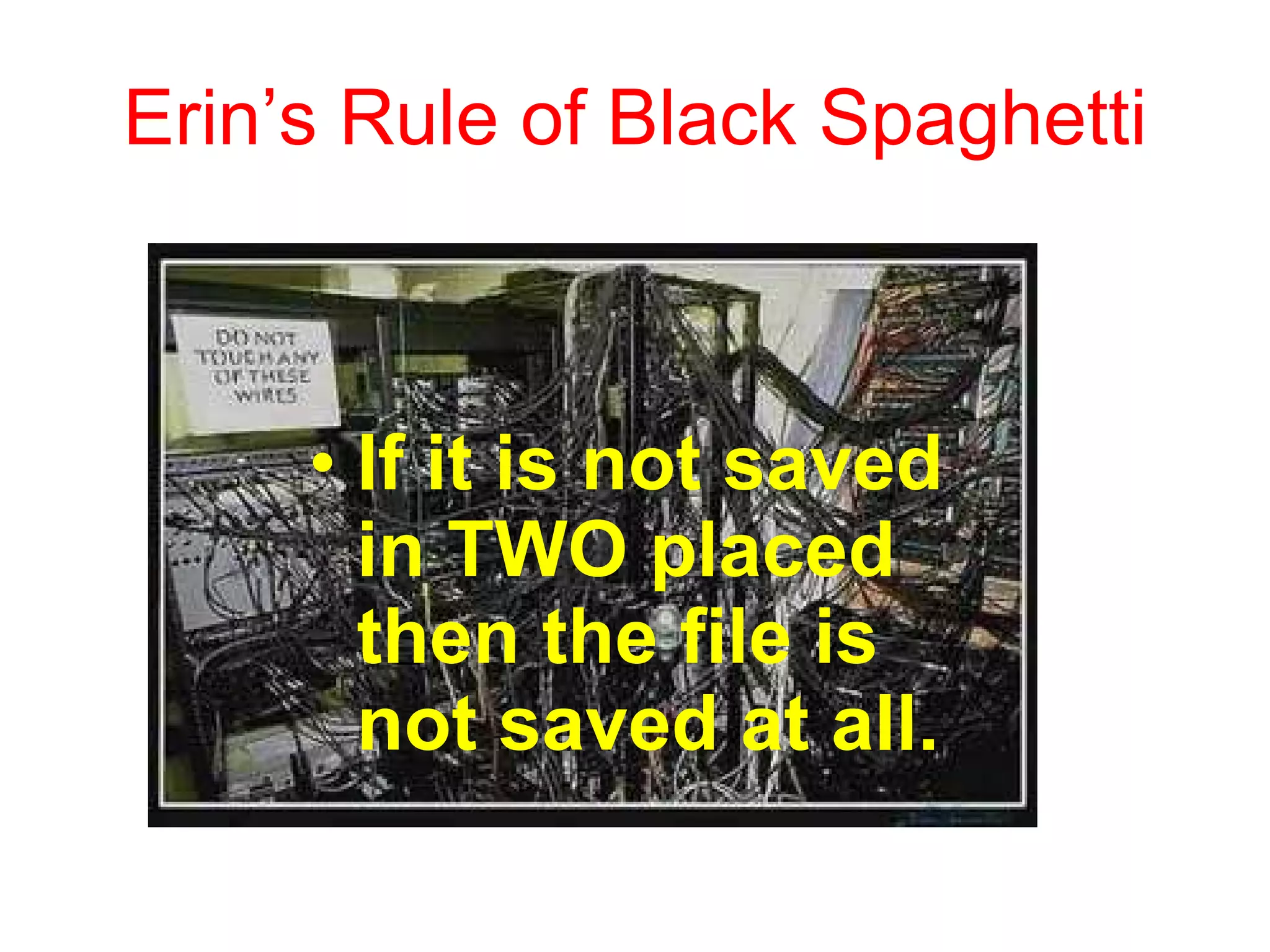
Erin’s Rule of Black Spaghetti If it is not saved in TWO placed then the file is not saved at all.
Online Resources This is the easiest way to begin to use the SMARTBoard and get use to the features it has to offer a classroom.
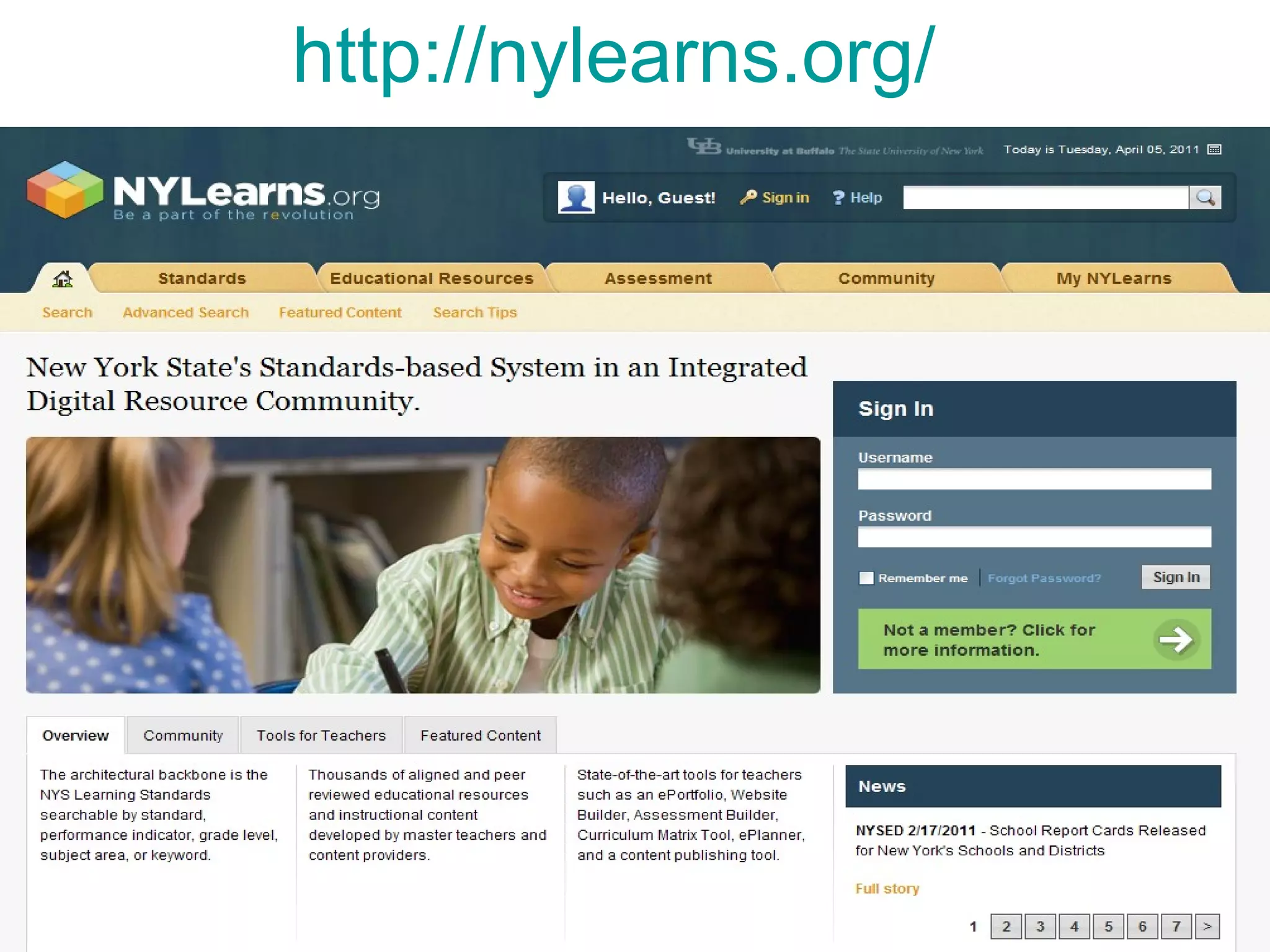
http://nylearns.org/
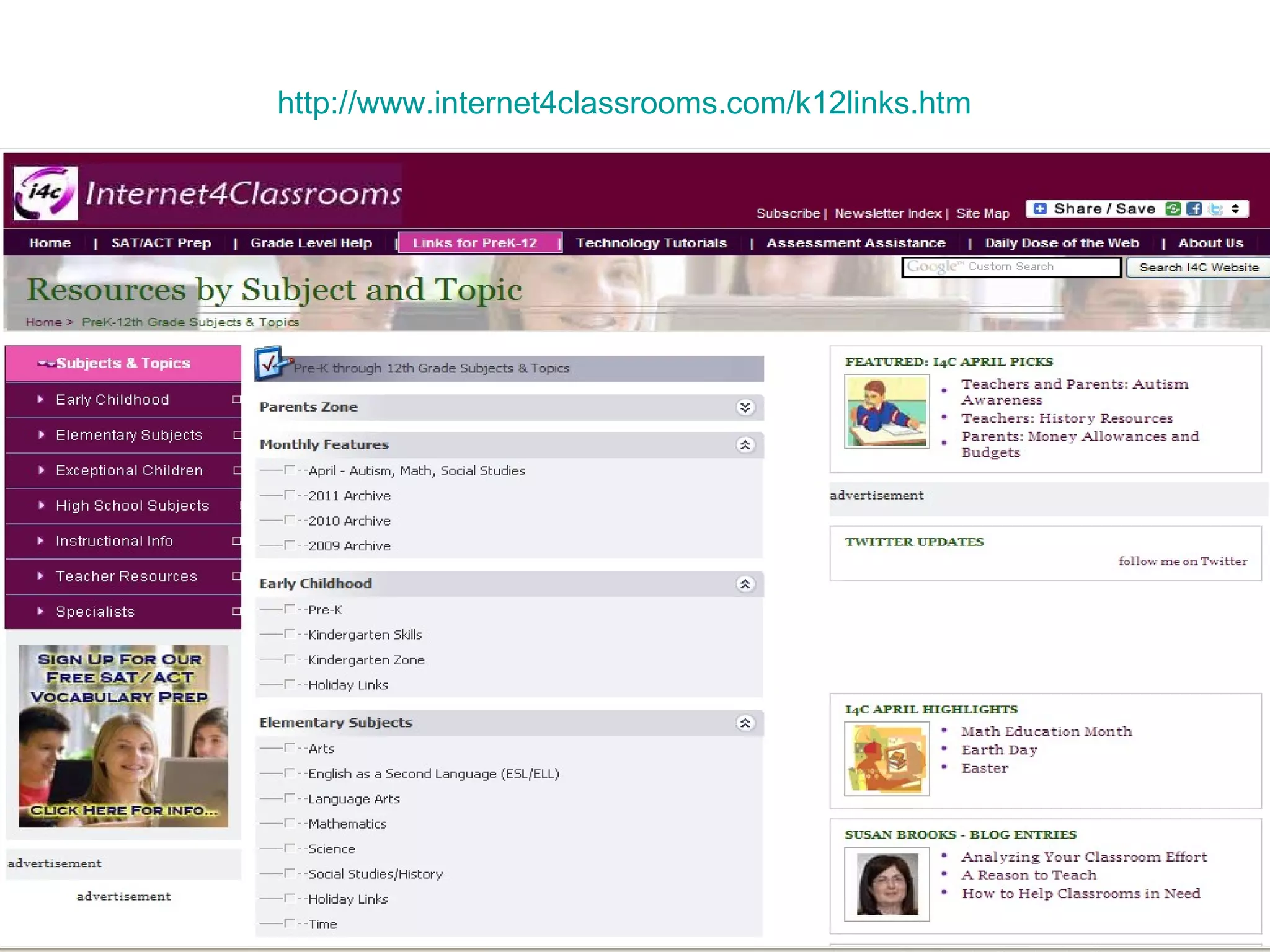
http://www.internet4classrooms.com/k12links.htm
http://www.thinkfinity.org/
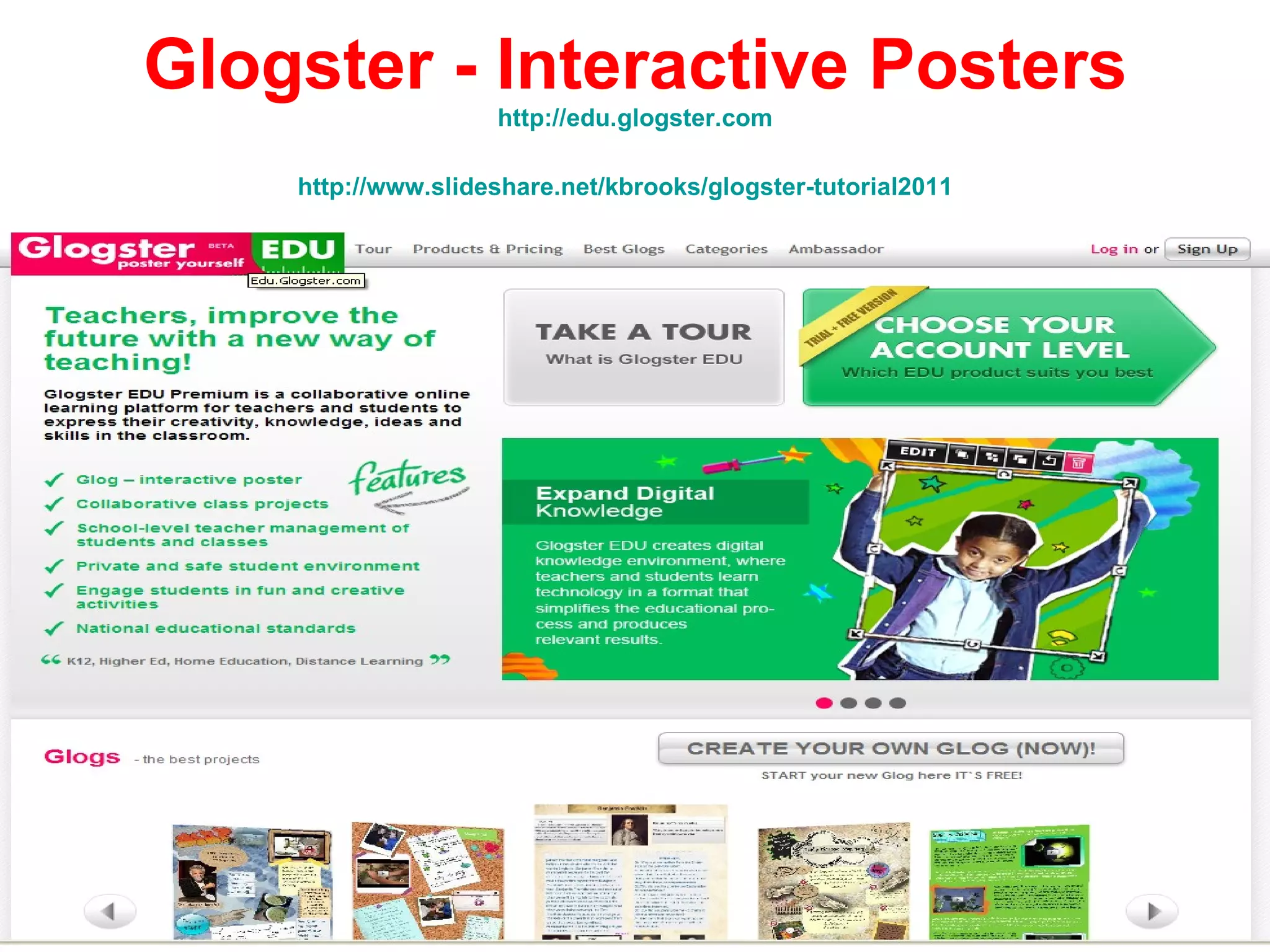
Glogster - Interactive Posters http://edu.glogster.com http://www.slideshare.net/kbrooks/glogster-tutorial2011
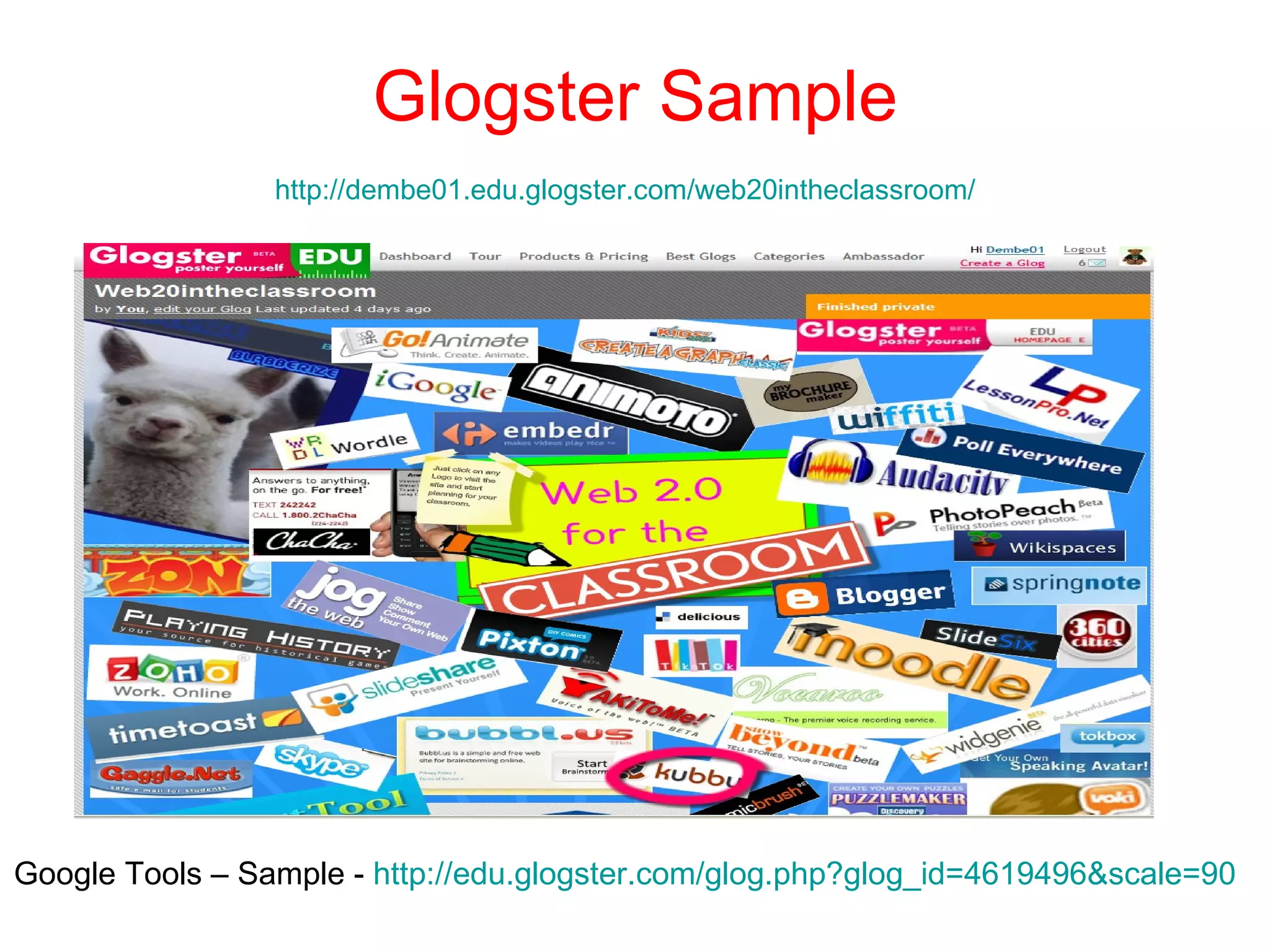
Glogster Sample http://dembe01.edu.glogster.com/web20intheclassroom/   Google Tools – Sample -  http://edu.glogster.com/glog.php?glog_id=4619496&scale=90
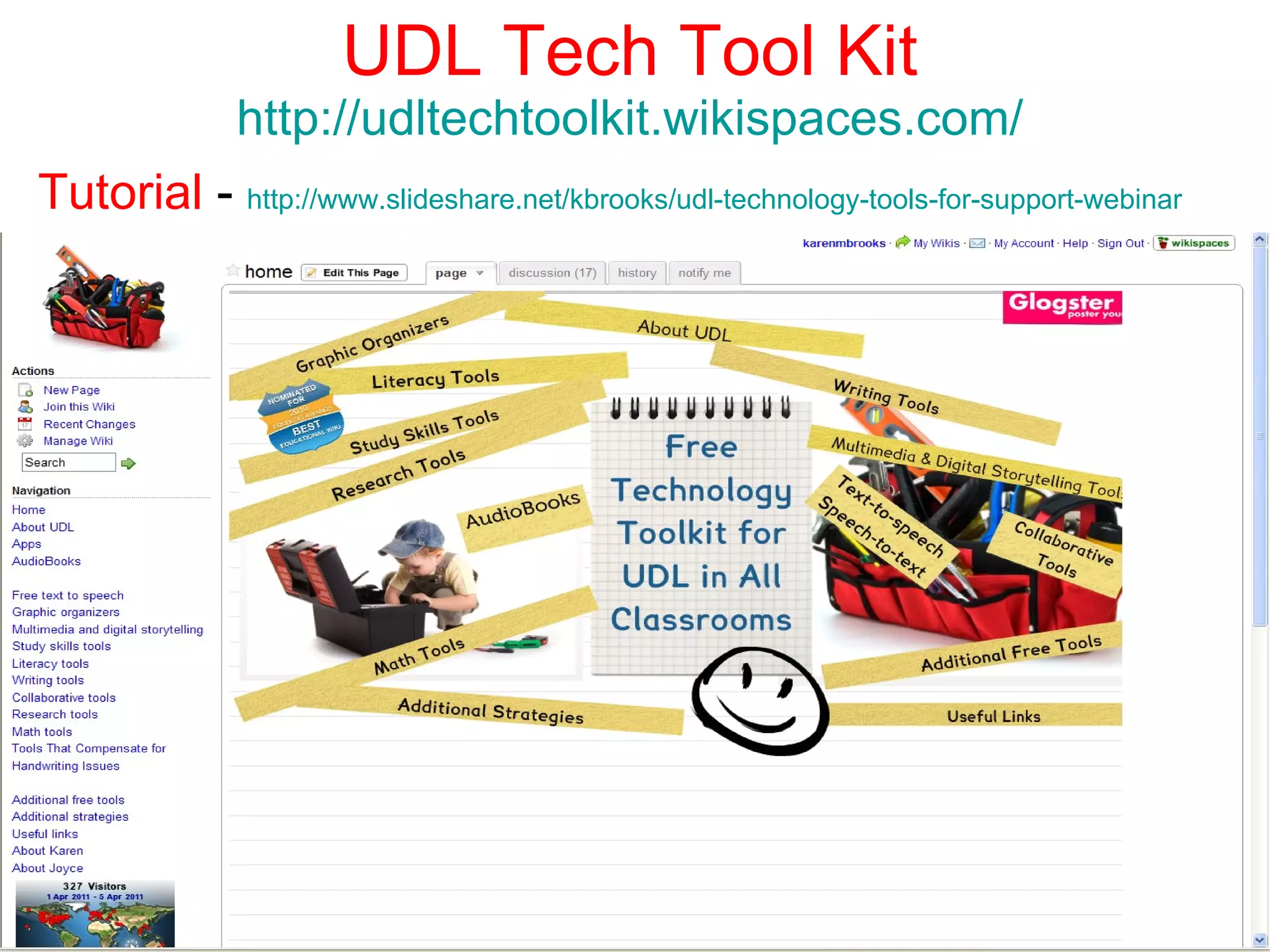
UDL Tech Tool Kit http://udltechtoolkit.wikispaces.com/ Tutorial  -  http://www.slideshare.net/kbrooks/udl-technology-tools-for-support-webinar
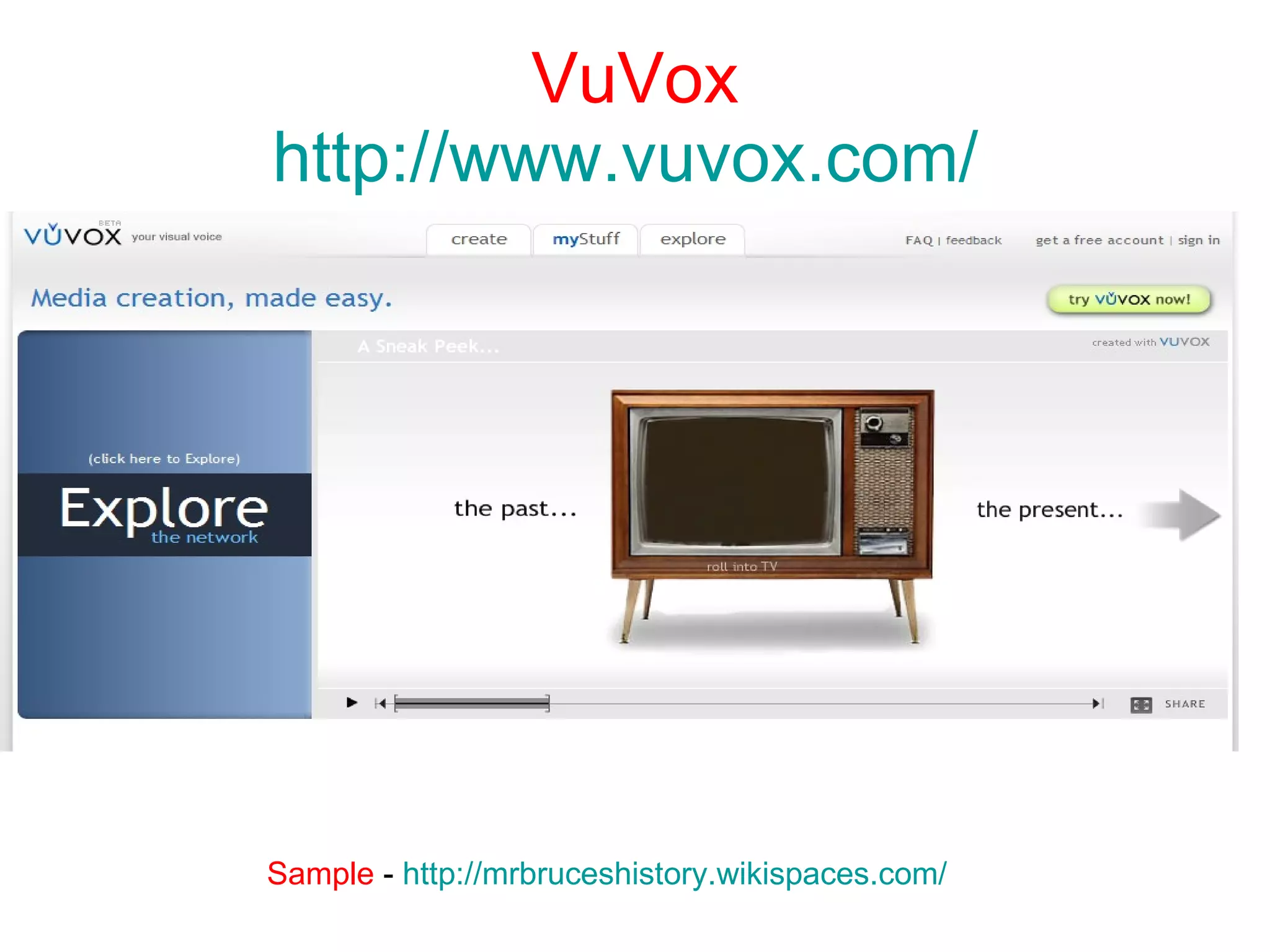
VuVox http://www.vuvox.com/   Sample  -  http://mrbruceshistory.wikispaces.com/
http://www.Vocaroo.com
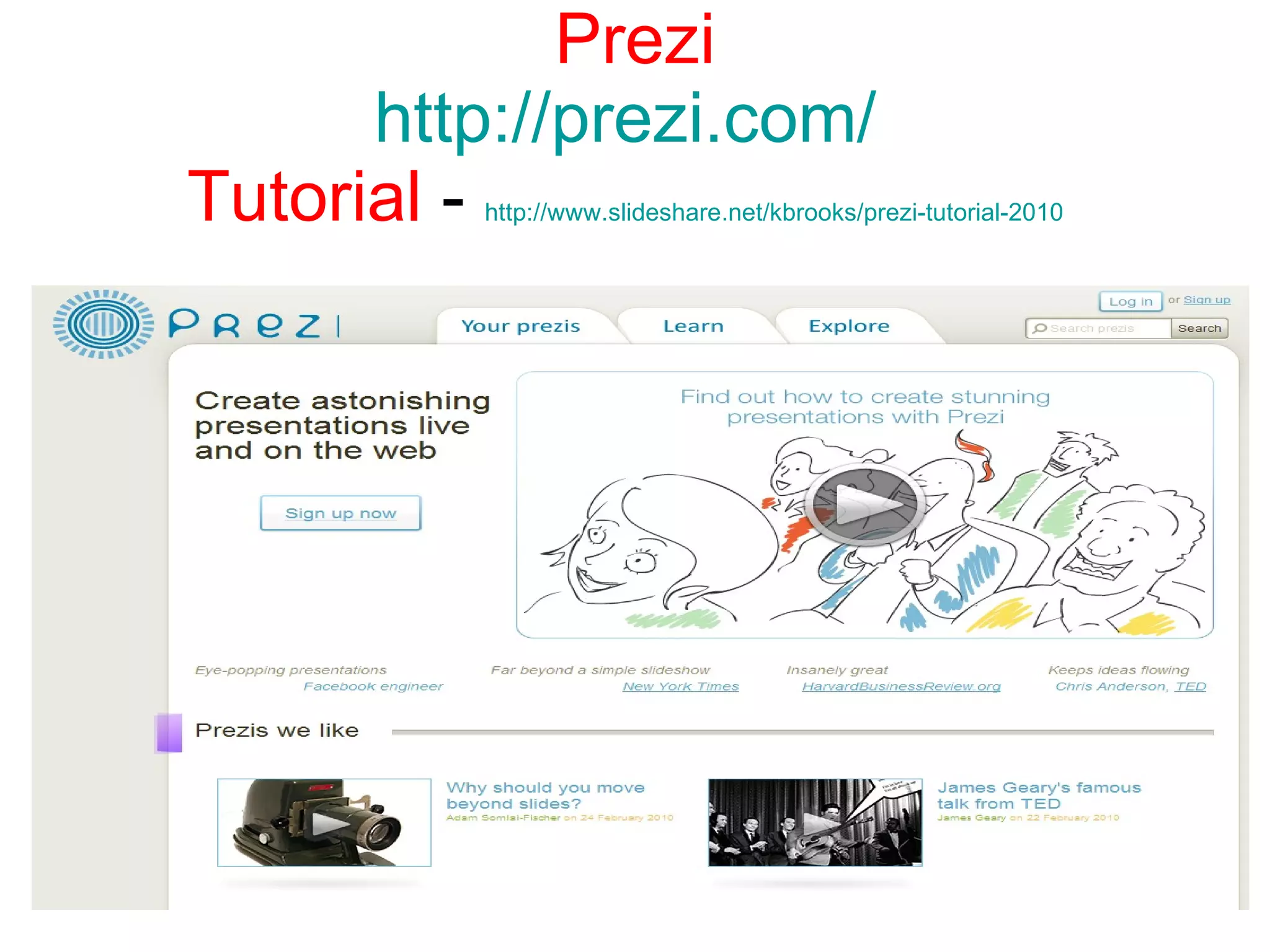
Prezi http://prezi.com/   Tutorial  -  http://www.slideshare.net/kbrooks/prezi-tutorial-2010
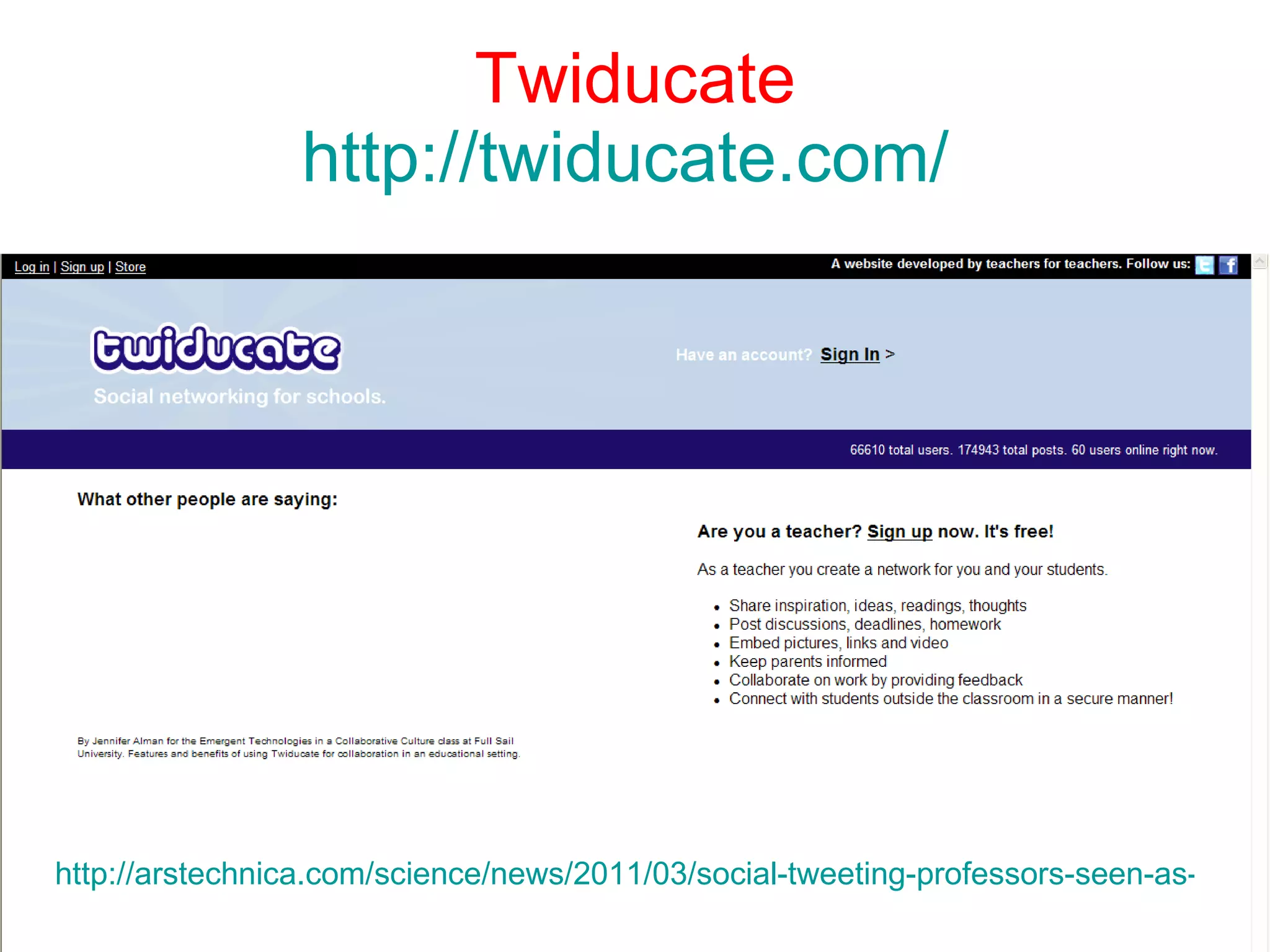
Twiducate http://twiducate.com/   http://arstechnica.com/science/news/2011/03/social-tweeting-professors-seen-as-more-credible-than-scholarly-ones.ars
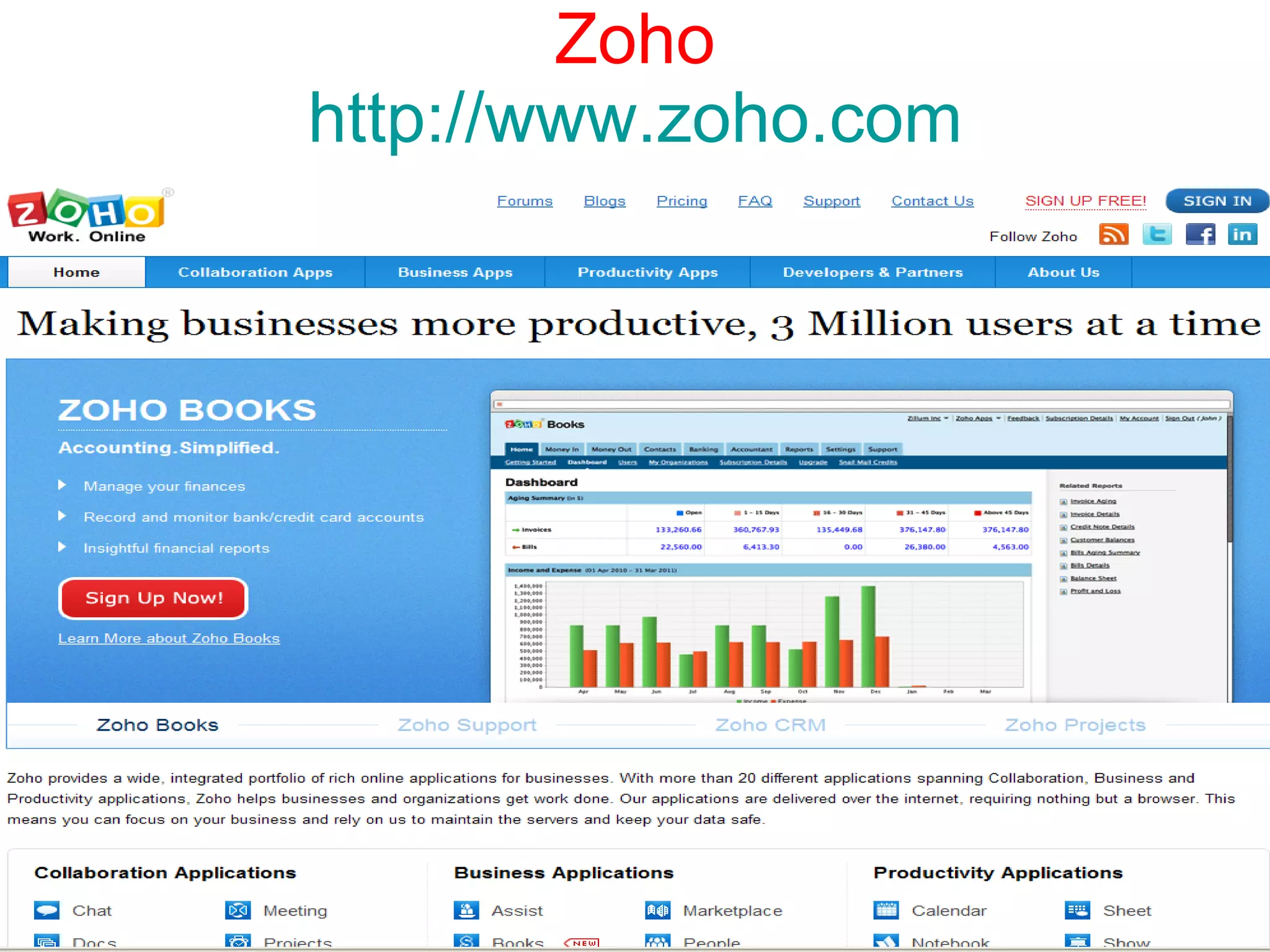
Zoho http://www.zoho.com
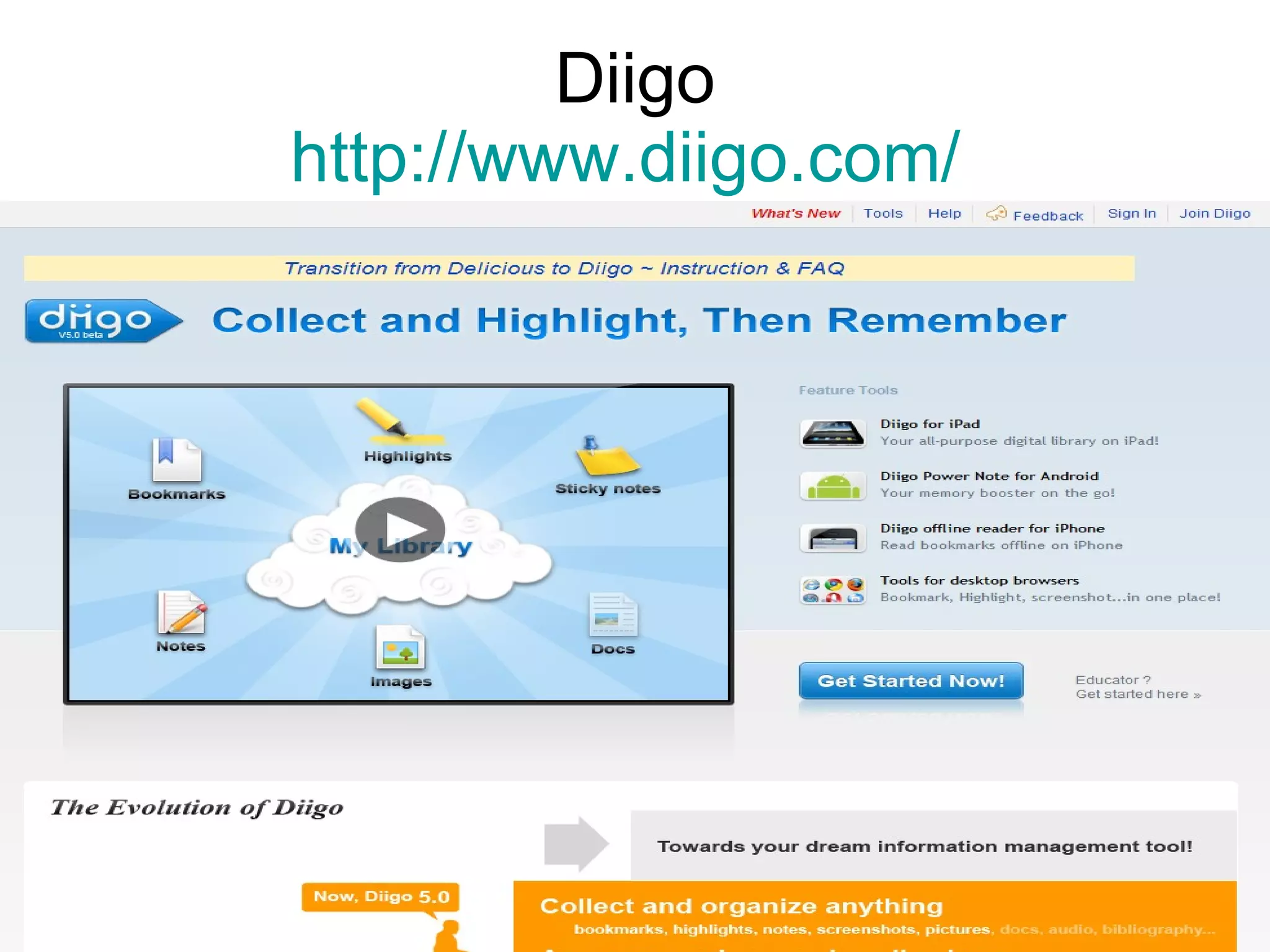
Diigo http://www.diigo.com/
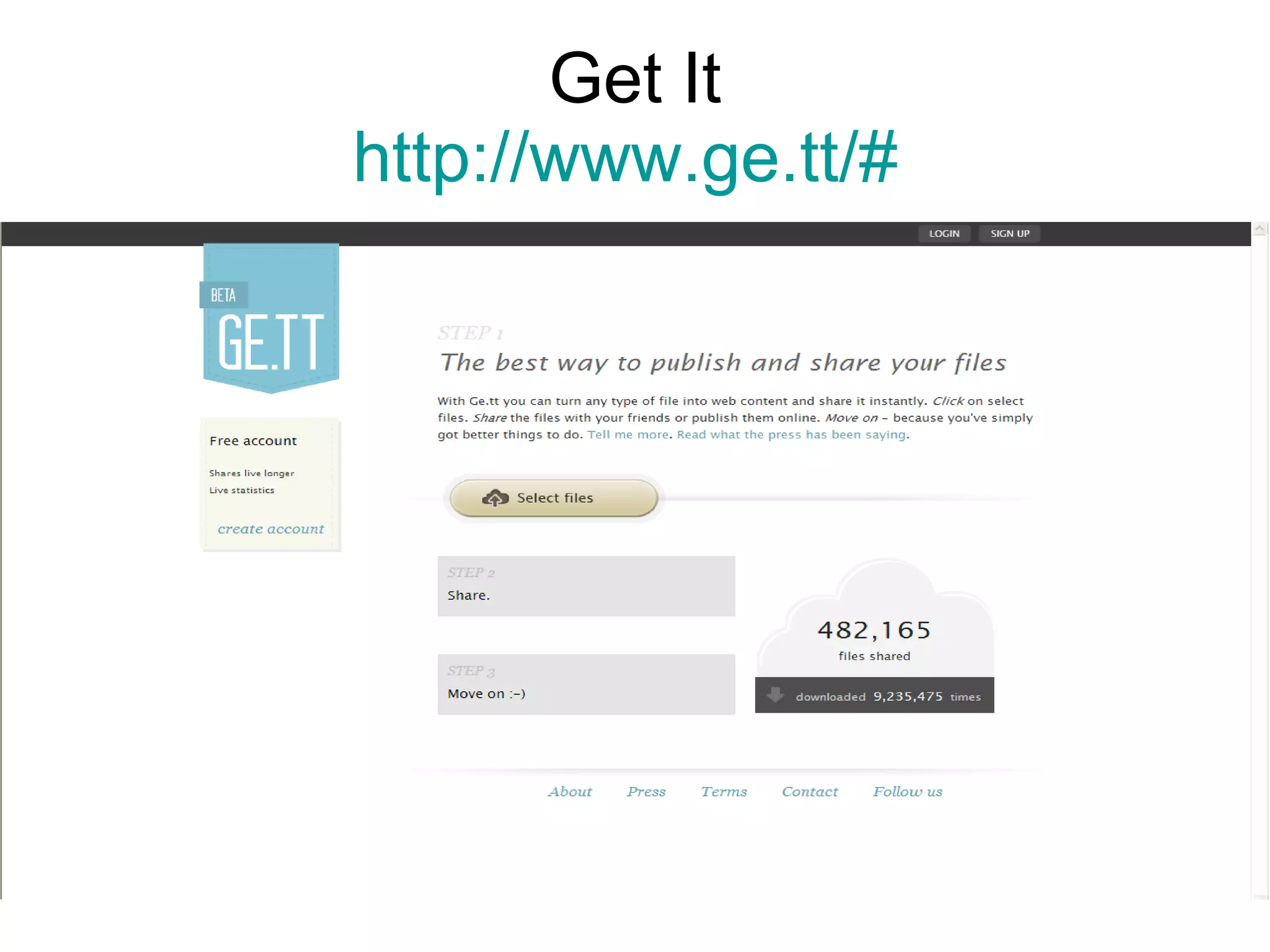
Get It http://www.ge.tt/#
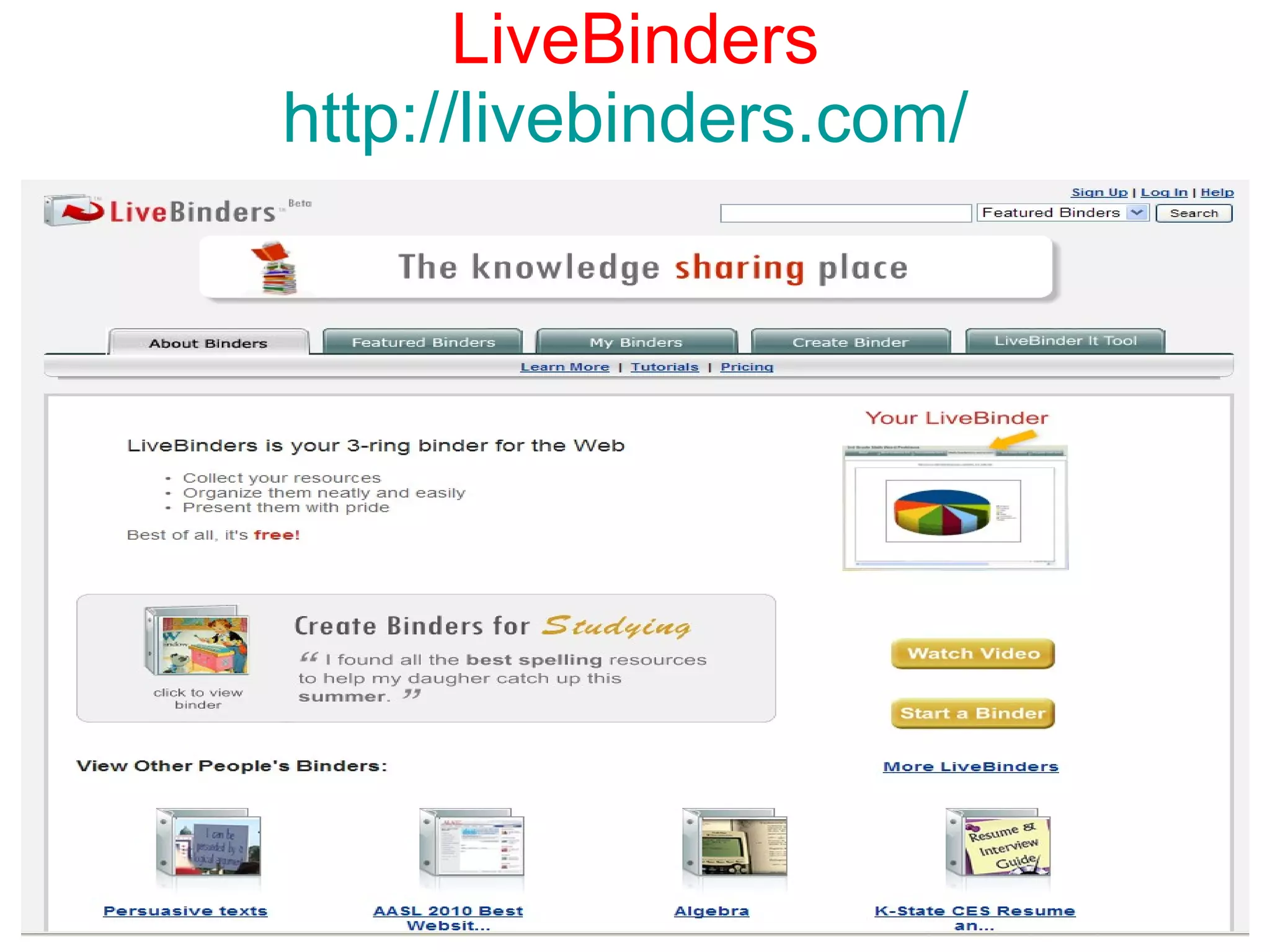
LiveBinders http://livebinders.com/
Worth Checking Into http://www.ujam.com/   http://viewpure.com/ http://www.livingsasquatch.com/   http://www.bookclubit.com/ http://plagiarisma.net/ http://www.crocodoc.com
8 Ways to Use a SMARTBoard in Your Classroom http://www.oacsd.org/SMART%20sites.pdf   Access websites, add notes and save pages with the camera icon on the floating tool bar. Play Power Point jeopardy interactively – download a game template from this site  http://teach.fcps.net/trt10/PowerPoint.htm  or  http://www.teq.com   3.  Have students interact with some of the millions of interactive websites that are out on the web for education  http://www1.center.k12.mo.us/edtech/resources/SBsites.htm   and  http://www.oswego.org/staff/cchamber/techno/games.htm
4. Bring up a blank graphic organizer and fill it in using digital ink or use the drag and drop feature of SMART Notebook. Access templates at  http://www.teq.com  or  http://www1.center.k12.mo.us/edtech/SB/templates.htm   5. Show digital video clips using the SMART Video Player - you can pause and annotate on the video then capture to Notebook. Download FREE digital video clips from Learn360 or even past the URL of a video.  http://www.slideshare.net/kbrooks/where-can-i-find-educational-videos  and  http://techlearning.com/Blogs/37468
6. Use Smart Notebook software to create creative, meaningful, interactive lessons with clear design, colorful graphics and succinct text. Check out these links for good examples of meaningful activities - http://community.teqsmart.org/news.php   and  http://education.smarttech.com/ste/en-US/Ed+Resource/Lesson+activities/Notebook+activities/default.htm
7. When you are ready to make your own eye-catching lesson activities, try the SMART’s Lesson Activity Toolkit – in Notebook software resources. It’s full of customizable tools and templates that you can use to create professional-looking lessons – http://education.smarttech.com/ste/en-US/Ed+Resource/Software+Resources/toolkit/default.htm   8. Create and use “Magic pen” Activities using your Smart Notebook software.
More Must Know Tools SMART Notebook Software 10 Tips and Tricks These videos help you to create interactive lessons that will engage your students.  Please use Microsoft Internet Explorer to view this set of videos. Checker Tool  Click to Reveal  Erase to Reveal   Random Generator   Magic Tunnel  Magnifying Glass   Page Recorder  Pull Tabs   Ink Layer
Thank for Attending Karen Brooks http://www.karenbrooks.wikispaces.com http://www.karenbrooksucboces.blogspot.com http://www.thereadingprofessor.yolasite.com http://www.publishingintheclassroom.yolasite.com http://www.delicious.com/dembe01 http://www.slideshare.net/kbrooks

Smart boards and classroom interactive

  • 1.
    SMARTBoards and ClassroomInteractive Karen Brooks 4/5/11
  • 2.
    Must Know SMARTBoardResources Tequipment in NYS http://www.teq.com/ - Educator Resource Center - http://community.teqsmart.org/download.php SMARTboard Tutorials and How to center - http://community.teqsmart.org/download.php?list.26 SMART Response Tests and Exams for NYS - http://community.teqsmart.org/download.php?list.95 Notebook Games - http://community.teqsmart.org/download.php?list.27 Graphic Organizers - http://community.teqsmart.org/download.php?list.28 SMART Exchange – Lesson Database - http://exchange.smarttech.com/#tab=0 Google SMARTBoard Lesson Search Engine http://www.google.com/cse/home?cx=011736901559370873508%3Ah5fojaeqqv0 Downloadable Resources of Interactive Whiteboards - http://www.schools.bedfordshire.gov.uk/NGFL/IWB/resources.html Engaging Learners - http://eduscapes.com/sessions/smartboard/
  • 3.
    Finding Material Tequipment– Educator Resource Center – Software Downloads - http://www.teq.com/software-downloads/ Districts in NY that use them - http://www.teq.com/districts-schools/ Resources - http://www.teq.com/resources/ Educator Center - http://community.teqsmart.org/news.php SMART Exchange Lesson Finder - http://exchange.smarttech.com/curriculum.html#New%20York%20Core%20Curriculum Districts with SMARTboard Pages - http://smartboardcenter.wikispaces.com/Web+Links SMARTboard Quickstart Guide - http://blackspaghetti.wikispaces.com/file/view/SmartBoard+Quickstart+guide.pdf Trouble Shooting Connections – http://blackspaghetti.wikispaces.com/file/view/Troubleshooting+Connections.pdf SMARTBoard YOUTUBE Channel http://www.youtube.com/watch?v=0hlgGpVpgWo SMART 2 Minute Tutorials - http://www.smarttech.com/us/Resources/Training/Training+Search
  • 4.
  • 5.
    Basic Review Tutorialshttp://karenbrooksucboces.blogspot.com/2008/01/smartboard-recorder-and-video-player.html http://karenbrooksucboces.blogspot.com/2008/02/smart-board-overview-notes-for-novice.html http://karenbrooksucboces.blogspot.com/2007/12/smartboard-overview-professional.html
  • 6.
  • 7.
  • 8.
    Erin’s Rule ofBlack Spaghetti If it is not saved in TWO placed then the file is not saved at all.
  • 9.
    Online Resources Thisis the easiest way to begin to use the SMARTBoard and get use to the features it has to offer a classroom.
  • 10.
  • 11.
  • 12.
  • 13.
    Glogster - InteractivePosters http://edu.glogster.com http://www.slideshare.net/kbrooks/glogster-tutorial2011
  • 14.
    Glogster Sample http://dembe01.edu.glogster.com/web20intheclassroom/ Google Tools – Sample - http://edu.glogster.com/glog.php?glog_id=4619496&scale=90
  • 15.
    UDL Tech ToolKit http://udltechtoolkit.wikispaces.com/ Tutorial - http://www.slideshare.net/kbrooks/udl-technology-tools-for-support-webinar
  • 16.
    VuVox http://www.vuvox.com/ Sample - http://mrbruceshistory.wikispaces.com/
  • 17.
  • 18.
    Prezi http://prezi.com/ Tutorial - http://www.slideshare.net/kbrooks/prezi-tutorial-2010
  • 19.
    Twiducate http://twiducate.com/ http://arstechnica.com/science/news/2011/03/social-tweeting-professors-seen-as-more-credible-than-scholarly-ones.ars
  • 20.
  • 21.
  • 22.
  • 23.
  • 24.
    Worth Checking Intohttp://www.ujam.com/ http://viewpure.com/ http://www.livingsasquatch.com/ http://www.bookclubit.com/ http://plagiarisma.net/ http://www.crocodoc.com
  • 25.
    8 Ways toUse a SMARTBoard in Your Classroom http://www.oacsd.org/SMART%20sites.pdf Access websites, add notes and save pages with the camera icon on the floating tool bar. Play Power Point jeopardy interactively – download a game template from this site http://teach.fcps.net/trt10/PowerPoint.htm or http://www.teq.com 3. Have students interact with some of the millions of interactive websites that are out on the web for education http://www1.center.k12.mo.us/edtech/resources/SBsites.htm and http://www.oswego.org/staff/cchamber/techno/games.htm
  • 26.
    4. Bring upa blank graphic organizer and fill it in using digital ink or use the drag and drop feature of SMART Notebook. Access templates at http://www.teq.com or http://www1.center.k12.mo.us/edtech/SB/templates.htm 5. Show digital video clips using the SMART Video Player - you can pause and annotate on the video then capture to Notebook. Download FREE digital video clips from Learn360 or even past the URL of a video. http://www.slideshare.net/kbrooks/where-can-i-find-educational-videos and http://techlearning.com/Blogs/37468
  • 27.
    6. Use SmartNotebook software to create creative, meaningful, interactive lessons with clear design, colorful graphics and succinct text. Check out these links for good examples of meaningful activities - http://community.teqsmart.org/news.php and http://education.smarttech.com/ste/en-US/Ed+Resource/Lesson+activities/Notebook+activities/default.htm
  • 28.
    7. When youare ready to make your own eye-catching lesson activities, try the SMART’s Lesson Activity Toolkit – in Notebook software resources. It’s full of customizable tools and templates that you can use to create professional-looking lessons – http://education.smarttech.com/ste/en-US/Ed+Resource/Software+Resources/toolkit/default.htm 8. Create and use “Magic pen” Activities using your Smart Notebook software.
  • 29.
    More Must KnowTools SMART Notebook Software 10 Tips and Tricks These videos help you to create interactive lessons that will engage your students.  Please use Microsoft Internet Explorer to view this set of videos. Checker Tool Click to Reveal Erase to Reveal Random Generator Magic Tunnel Magnifying Glass Page Recorder Pull Tabs Ink Layer
  • 30.
    Thank for AttendingKaren Brooks http://www.karenbrooks.wikispaces.com http://www.karenbrooksucboces.blogspot.com http://www.thereadingprofessor.yolasite.com http://www.publishingintheclassroom.yolasite.com http://www.delicious.com/dembe01 http://www.slideshare.net/kbrooks