MICROSOFT OUTLOOK 2010
JUMPSTART
Tammara Edgin
Microsoft Education Account Manager
John Whitaker
Microsoft Education AccountTechnology Strategist
DavidWood
Microsoft Licensing, GP
WHAT IS MICROSOFT
OUTLOOK 2010?
 Premium business and personal e-mail management tools to more than
500 million Microsoft Office users worldwide.With the release of
Outlook 2010, you get a richer set of experiences to meet your
communication needs at work, home, and school.
 From a redesigned look to advanced e-mail organization, search,
communication and social networking features, Outlook 2010 provides
you with a world-class experience to stay productive and in touch with
your personal and business networks.
WHY THE INTERFACE CHANGE?
 Too many command menus
 Too many command buttons
 Too many dialog boxes (I just want to format some text!)
 Too many hidden features
 Get things done quickly without worrying about “how.” Instant Preview
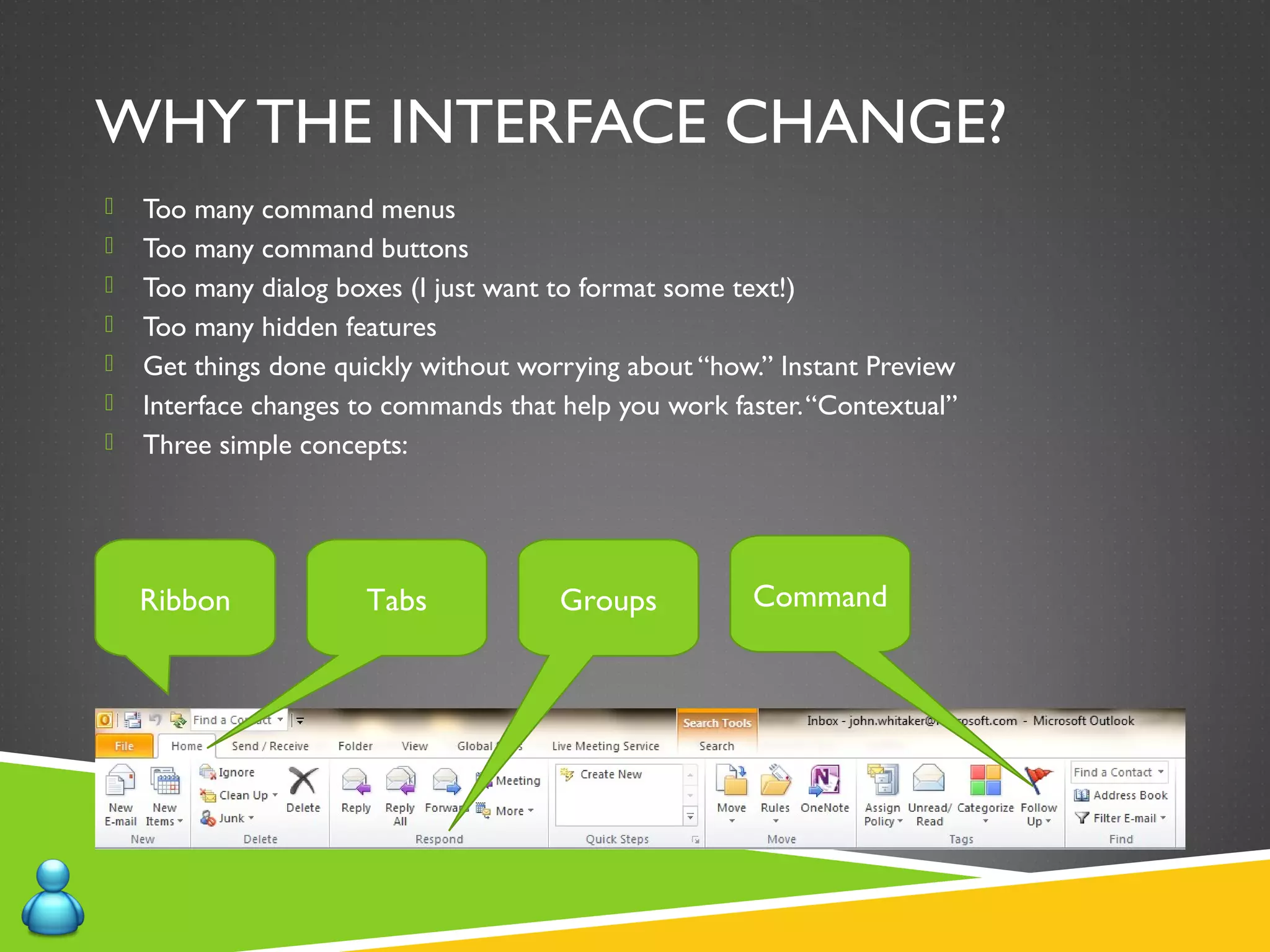
 Interface changes to commands that help you work faster.“Contextual”
 Three simple concepts:
Ribbon Tabs Groups Command
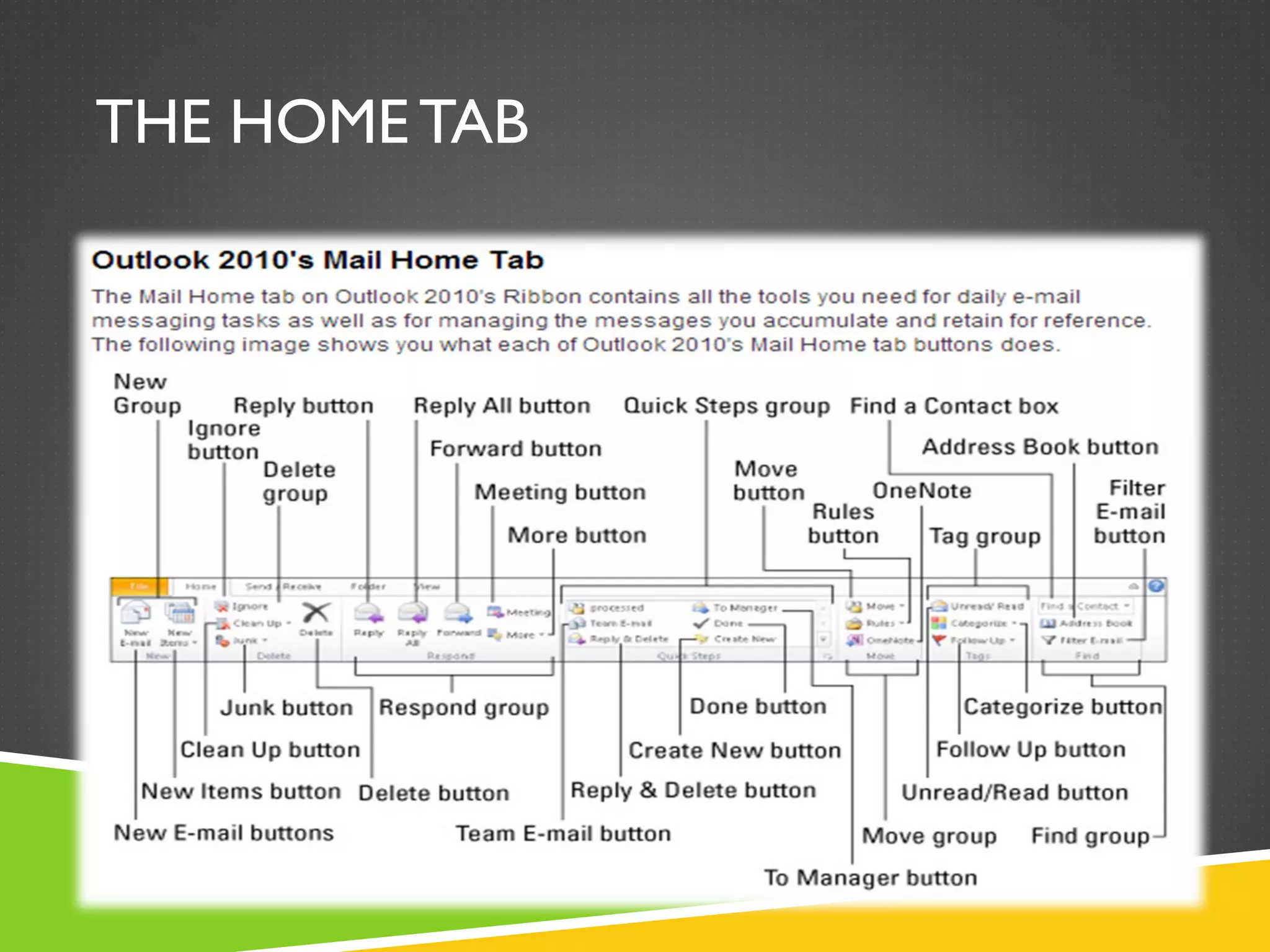
THE HOME TAB
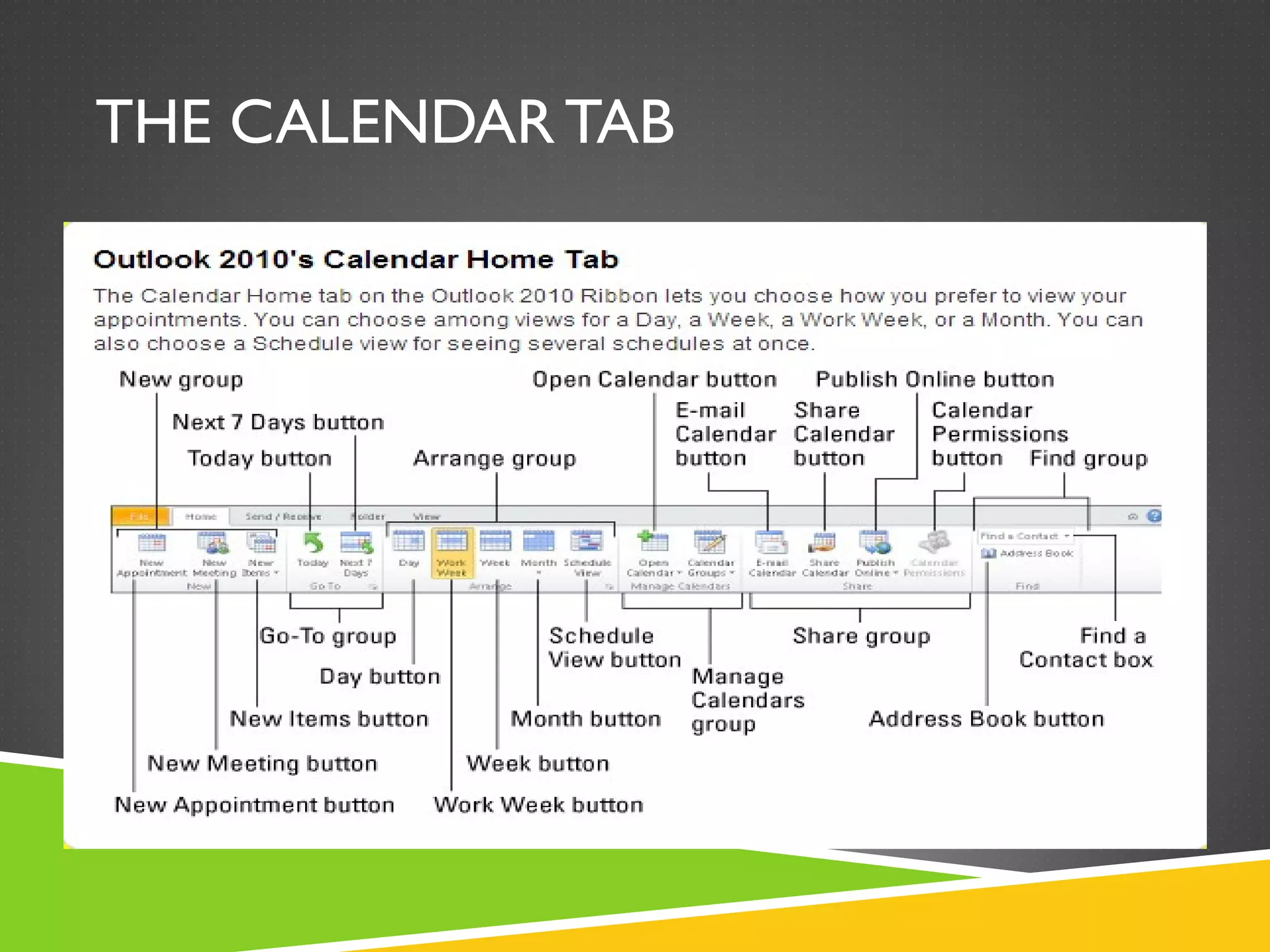
THE CALENDAR TAB
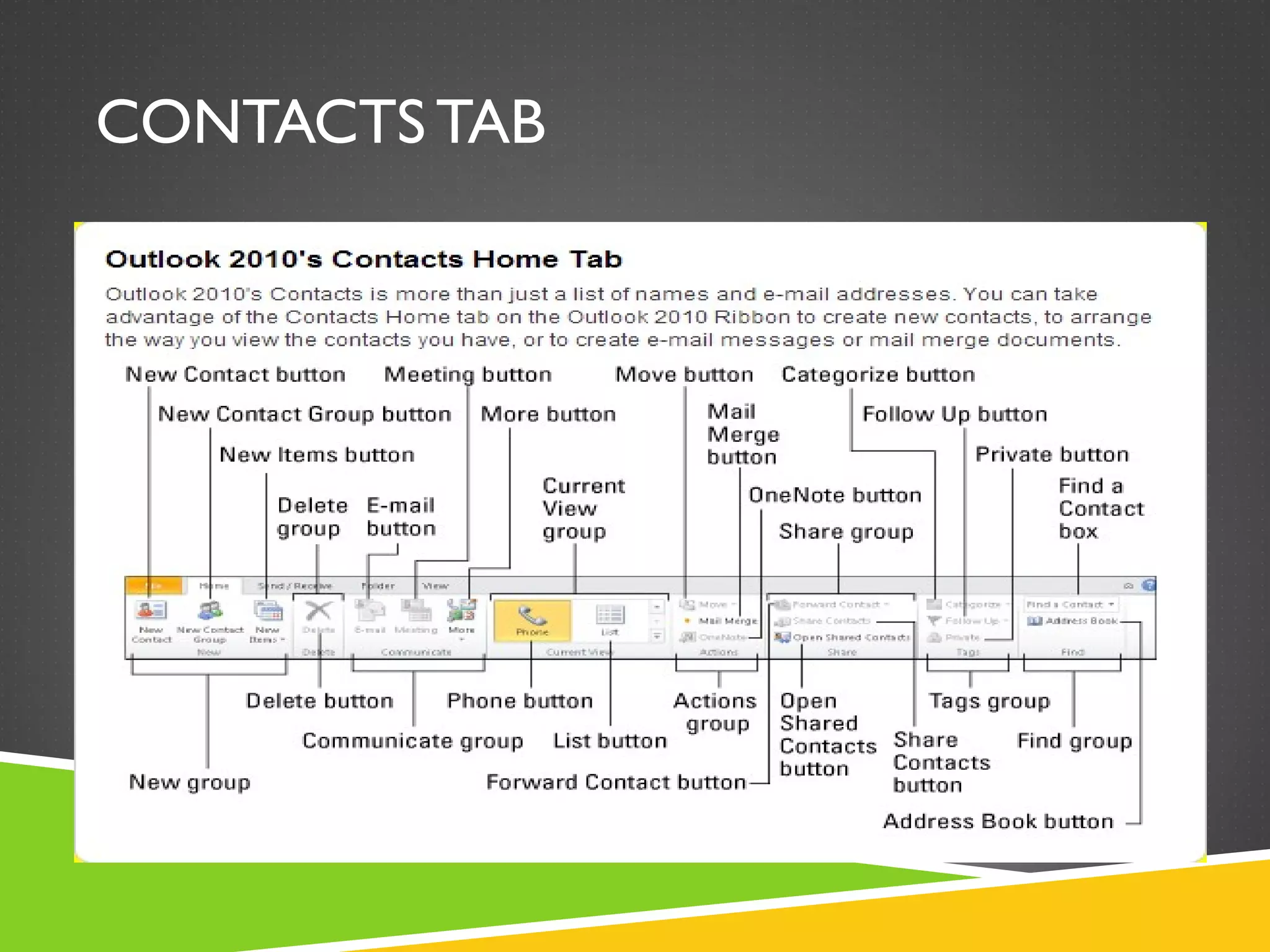
CONTACTS TAB
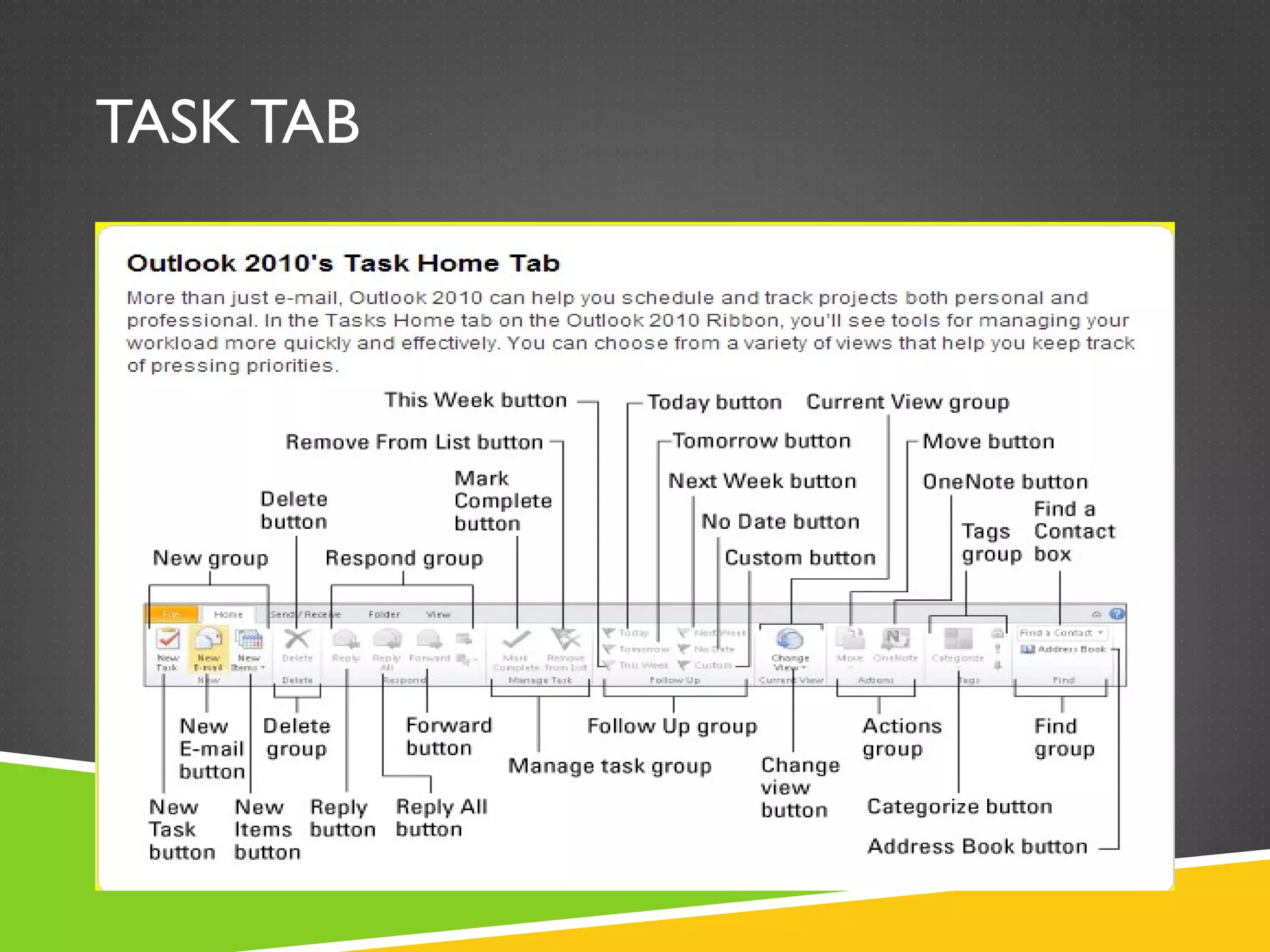
TASK TAB
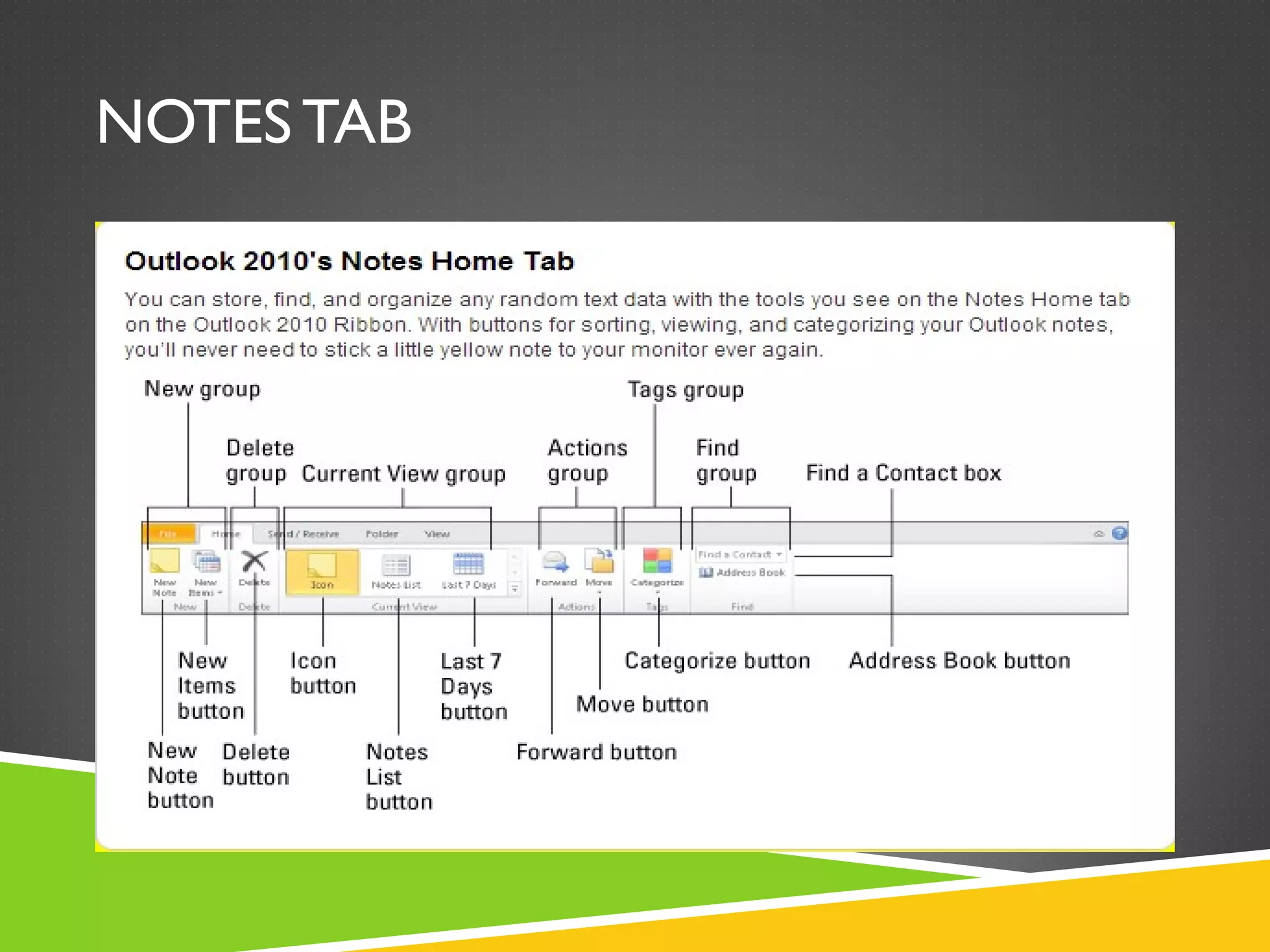
NOTES TAB
MANAGINGYOUR MAILBOX
The Four D’s
When reading your messages decide whether to:
1.Delete it.
2.Do it (respond or file for reference).
3.Delegate it (forward).
4.Defer it (using categories and flags) for a second review in your task list.
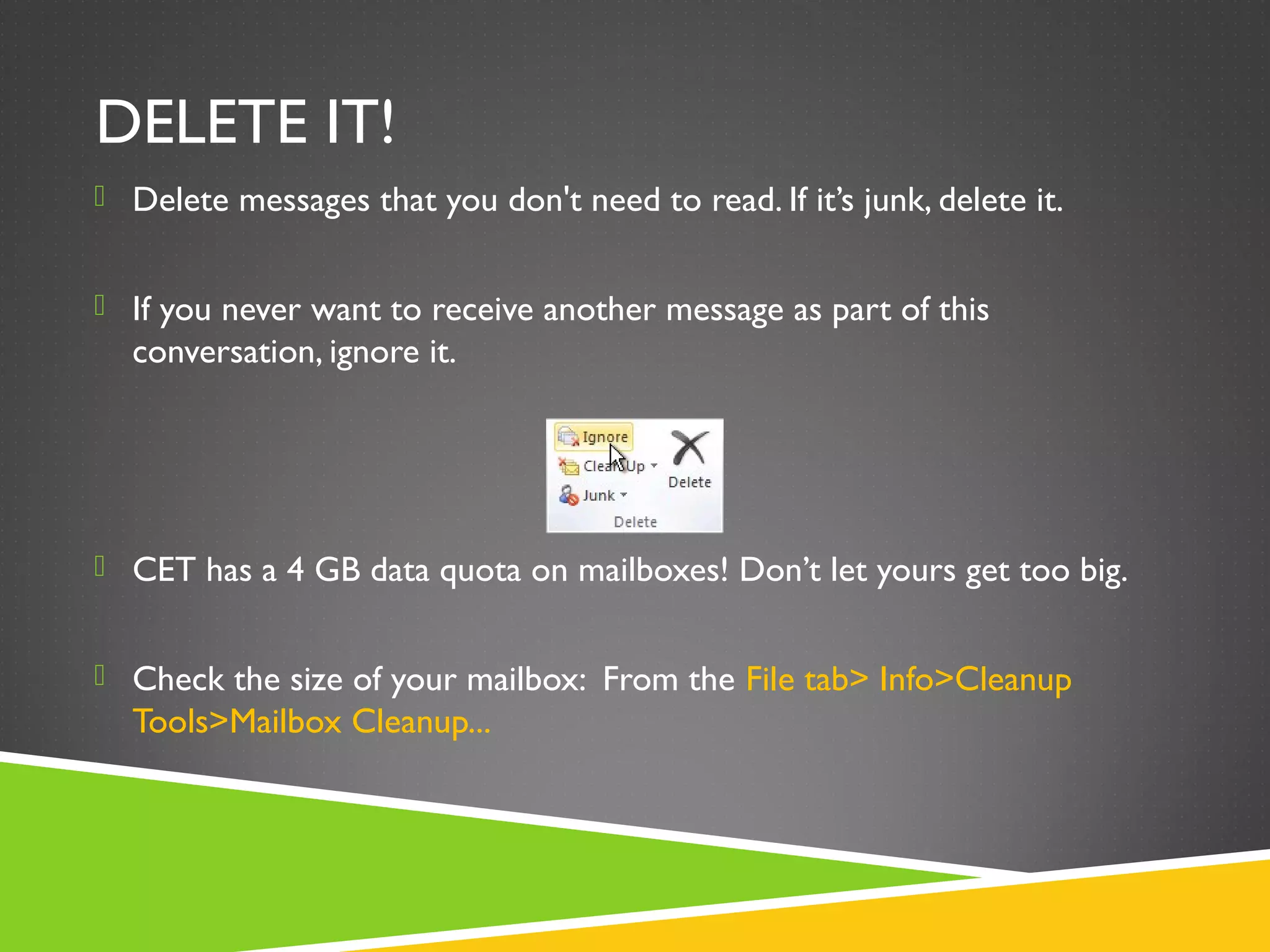
DELETE IT!
 Delete messages that you don't need to read. If it’s junk, delete it.
 If you never want to receive another message as part of this
conversation, ignore it.
 CET has a 4 GB data quota on mailboxes! Don’t let yours get too big.
 Check the size of your mailbox: From the File tab> Info>Cleanup
Tools>Mailbox Cleanup...
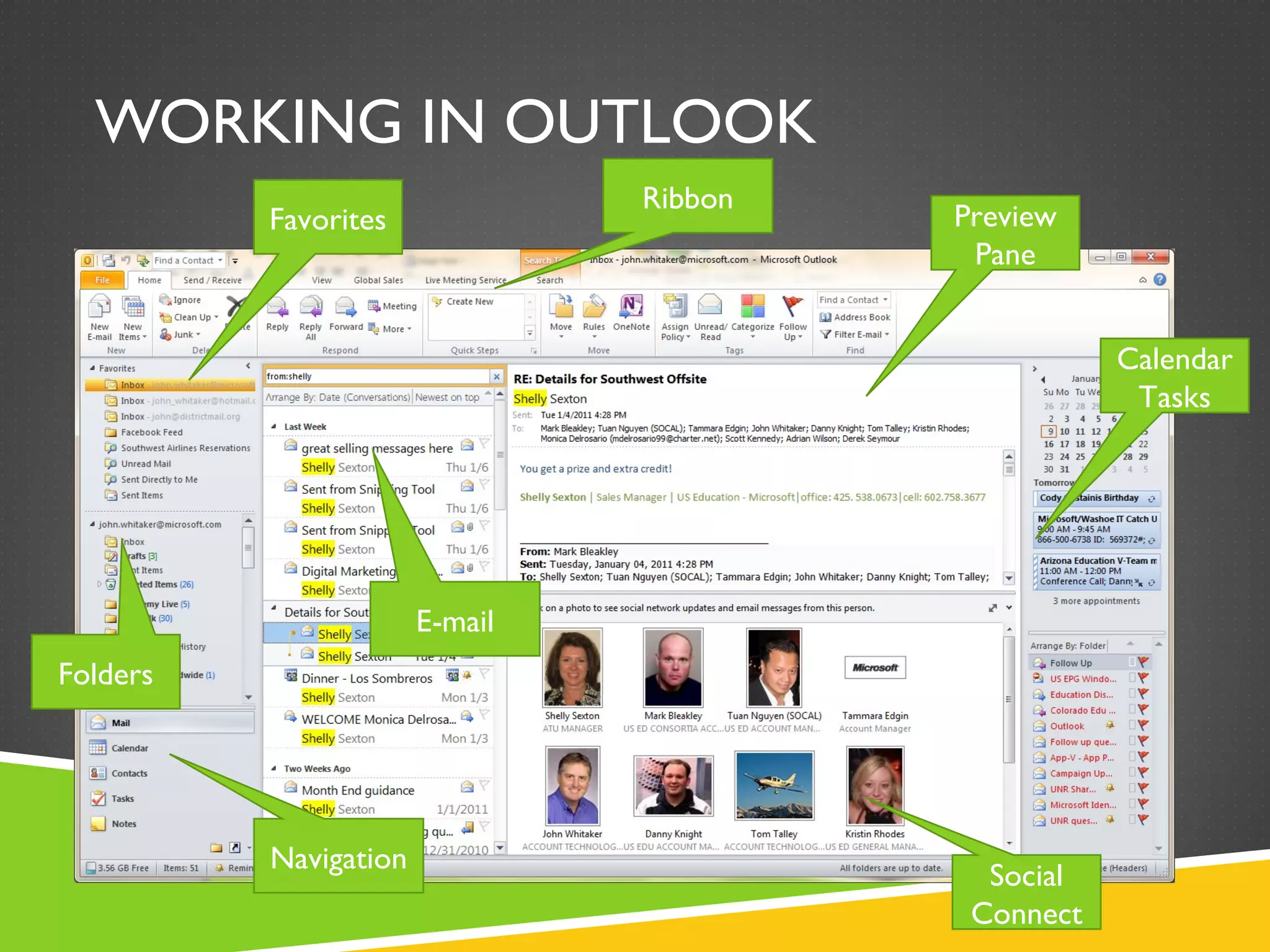
WORKING IN OUTLOOK
Preview
Pane
Social
Connect
Calendar
Tasks
Favorites
Folders
Navigation
E-mail
Ribbon
READ EMAIL
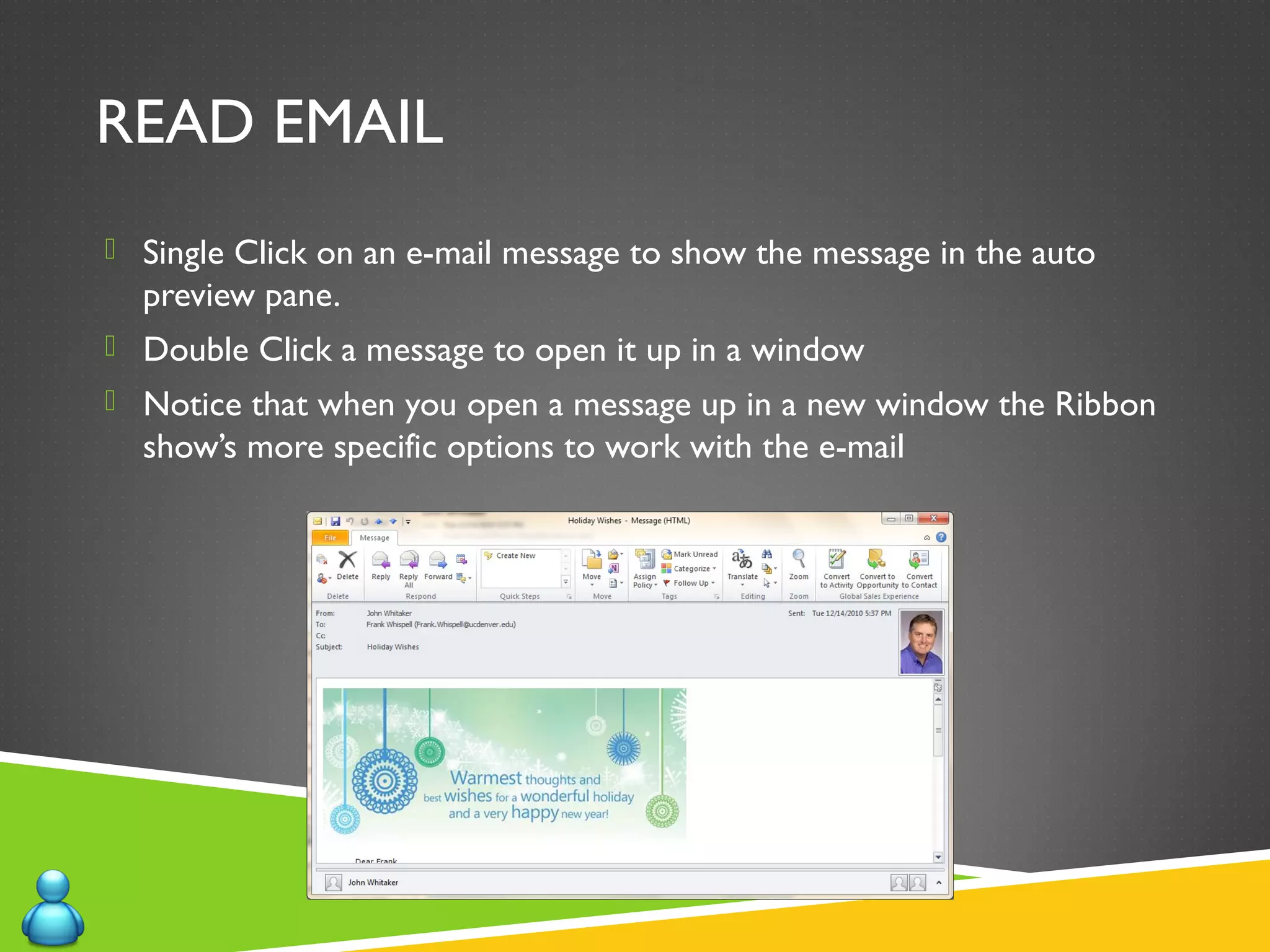
 Single Click on an e-mail message to show the message in the auto
preview pane.
 Double Click a message to open it up in a window
 Notice that when you open a message up in a new window the Ribbon
show’s more specific options to work with the e-mail
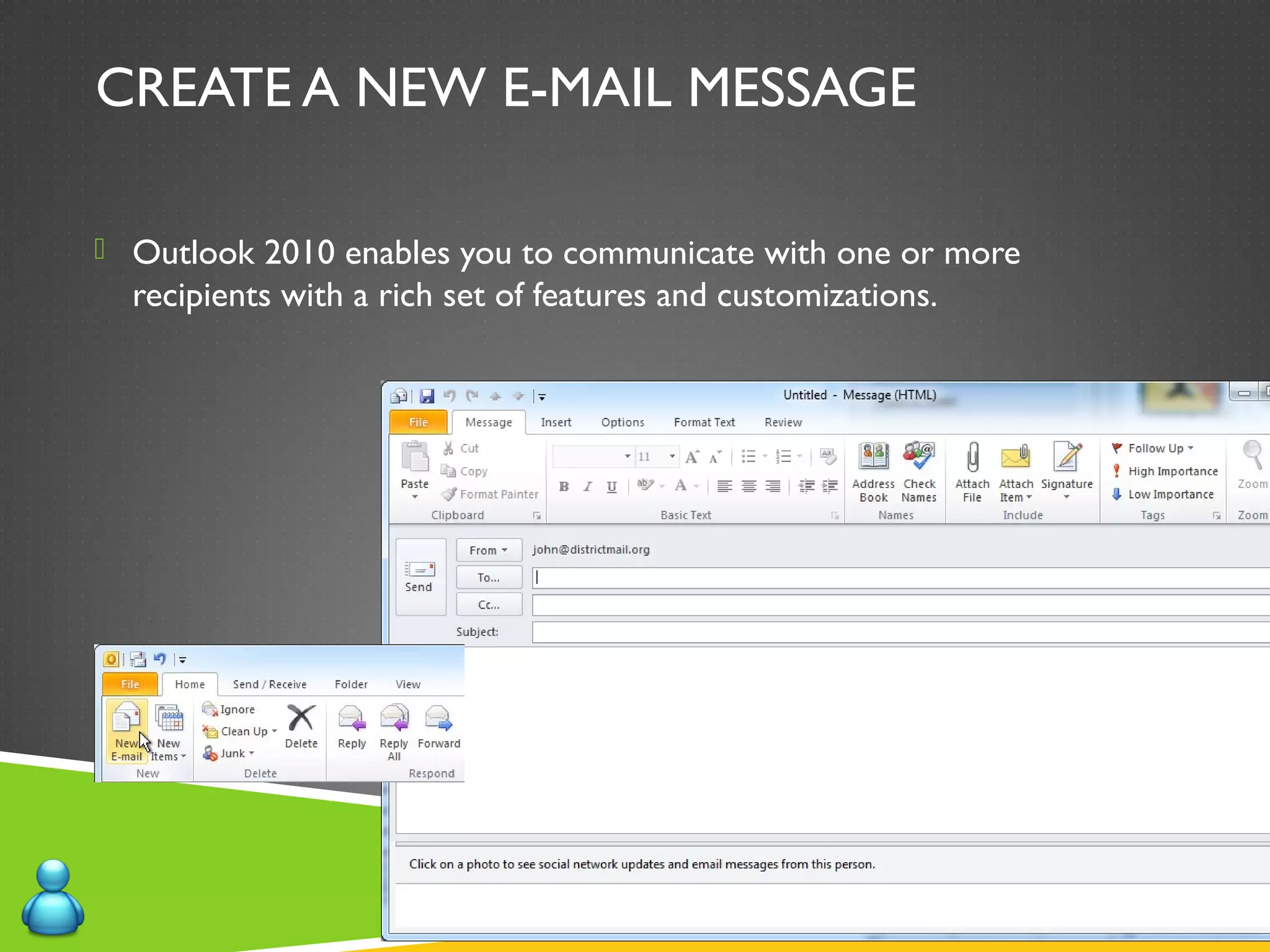
CREATE A NEW E-MAIL MESSAGE
 Outlook 2010 enables you to communicate with one or more
recipients with a rich set of features and customizations.
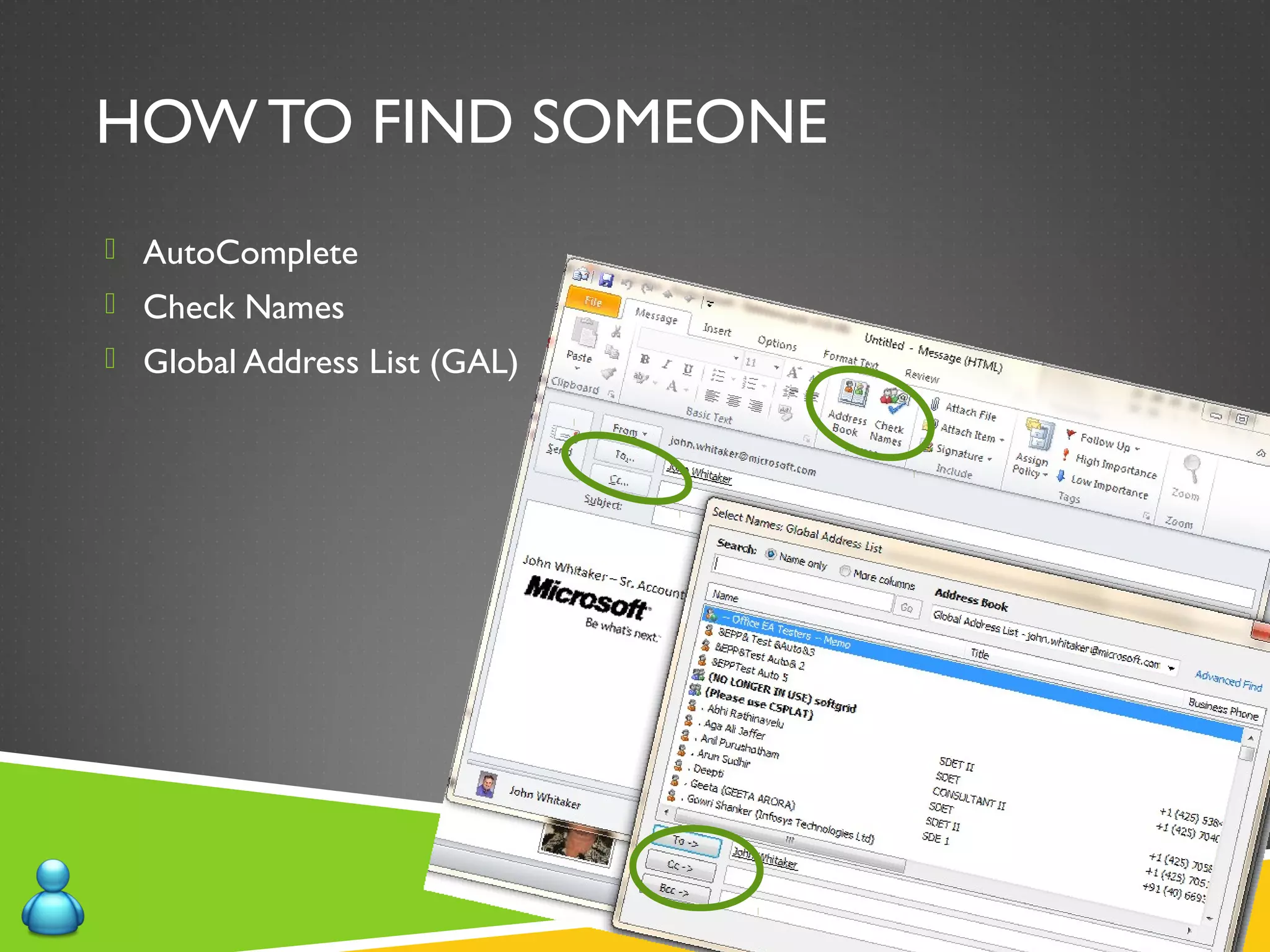
HOW TO FIND SOMEONE
 AutoComplete
 Check Names
 Global Address List (GAL)
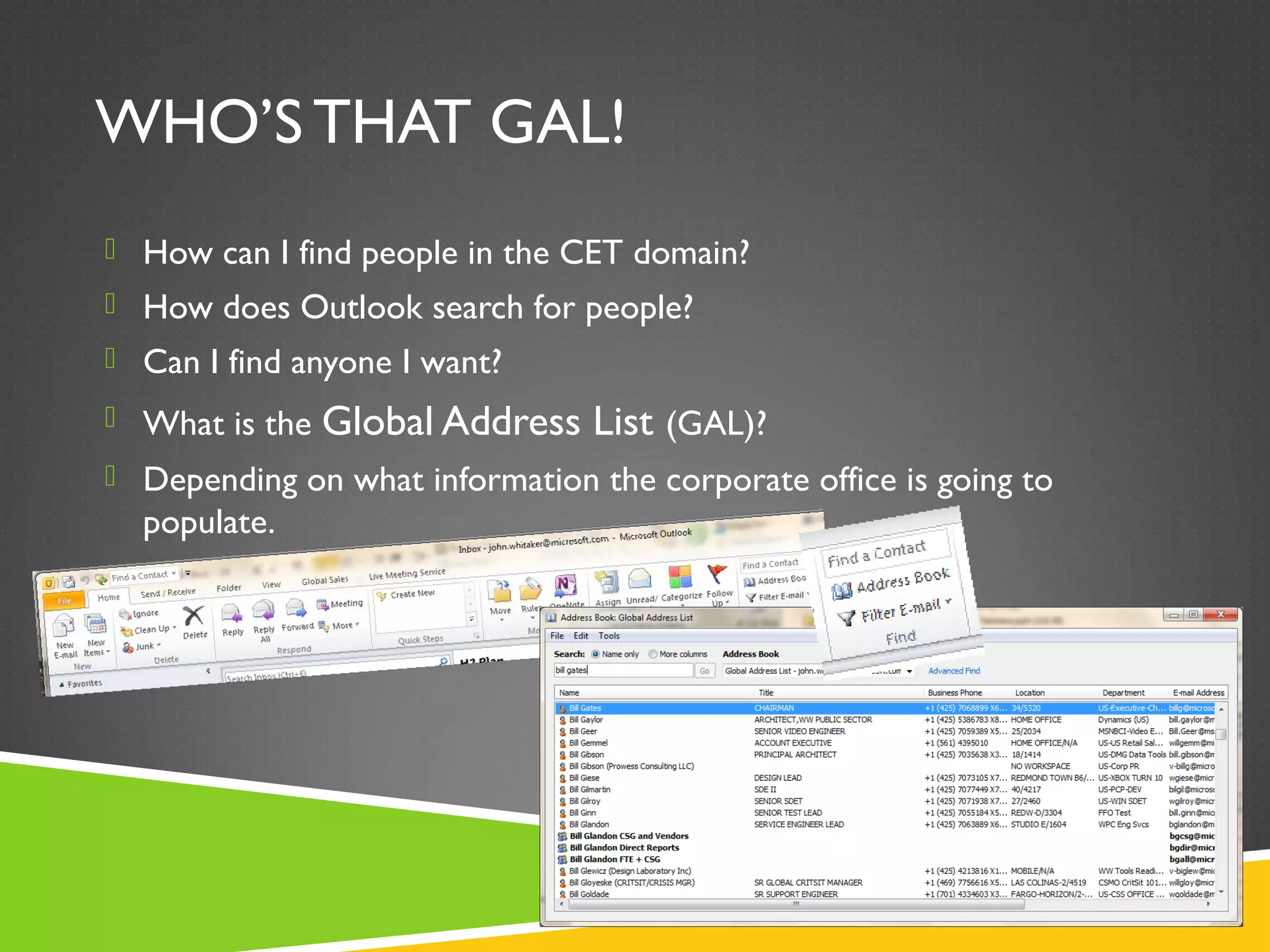
WHO’S THAT GAL!
 How can I find people in the CET domain?
 How does Outlook search for people?
 Can I find anyone I want?
 What is the Global Address List (GAL)?
 Depending on what information the corporate office is going to
populate.
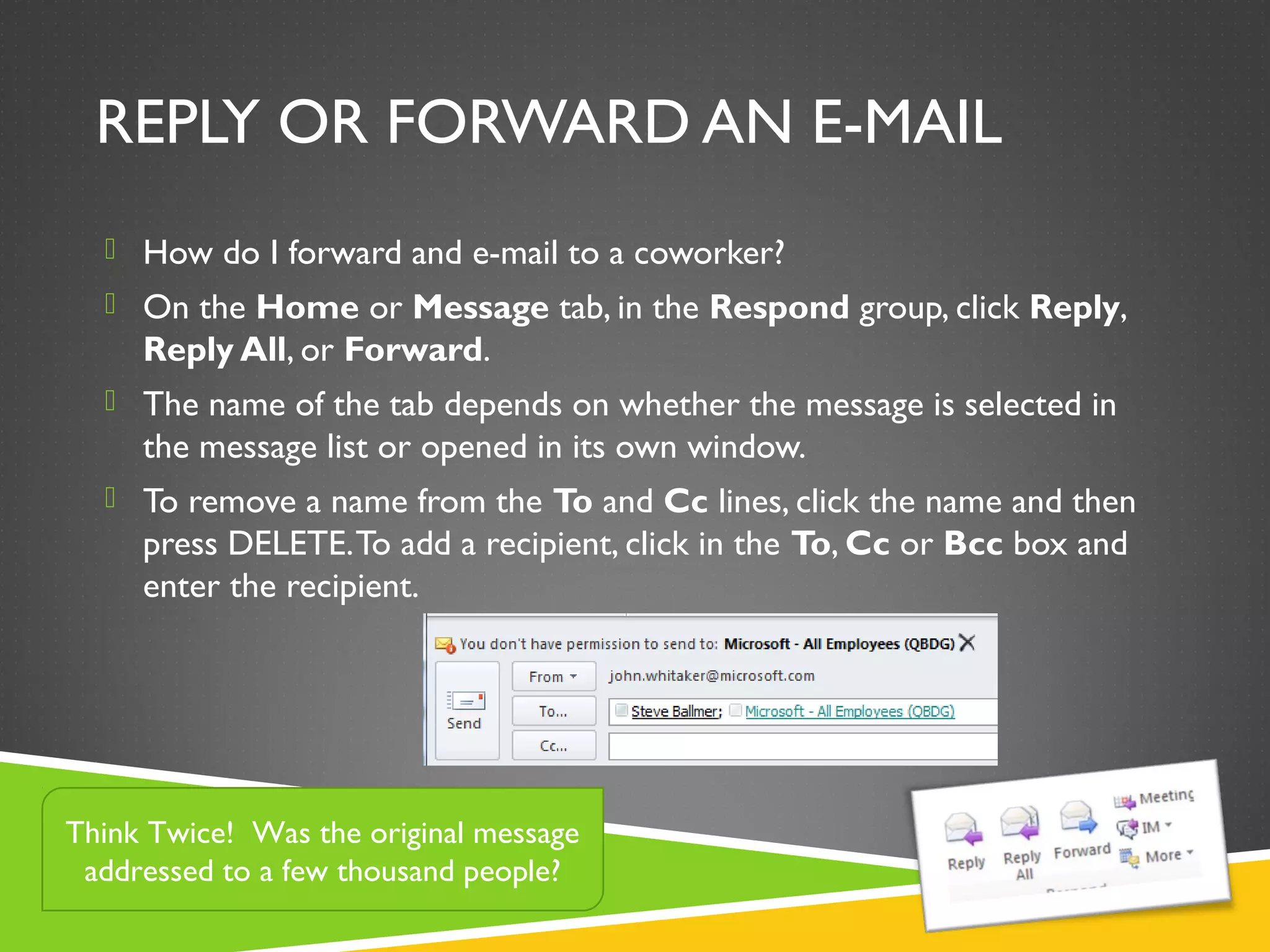
REPLY OR FORWARD AN E-MAIL
 How do I forward and e-mail to a coworker?
 On the Home or Message tab, in the Respond group, click Reply,
Reply All, or Forward.
 The name of the tab depends on whether the message is selected in
the message list or opened in its own window.
 To remove a name from the To and Cc lines, click the name and then
press DELETE.To add a recipient, click in the To, Cc or Bcc box and
enter the recipient.
Think Twice! Was the original message
addressed to a few thousand people?
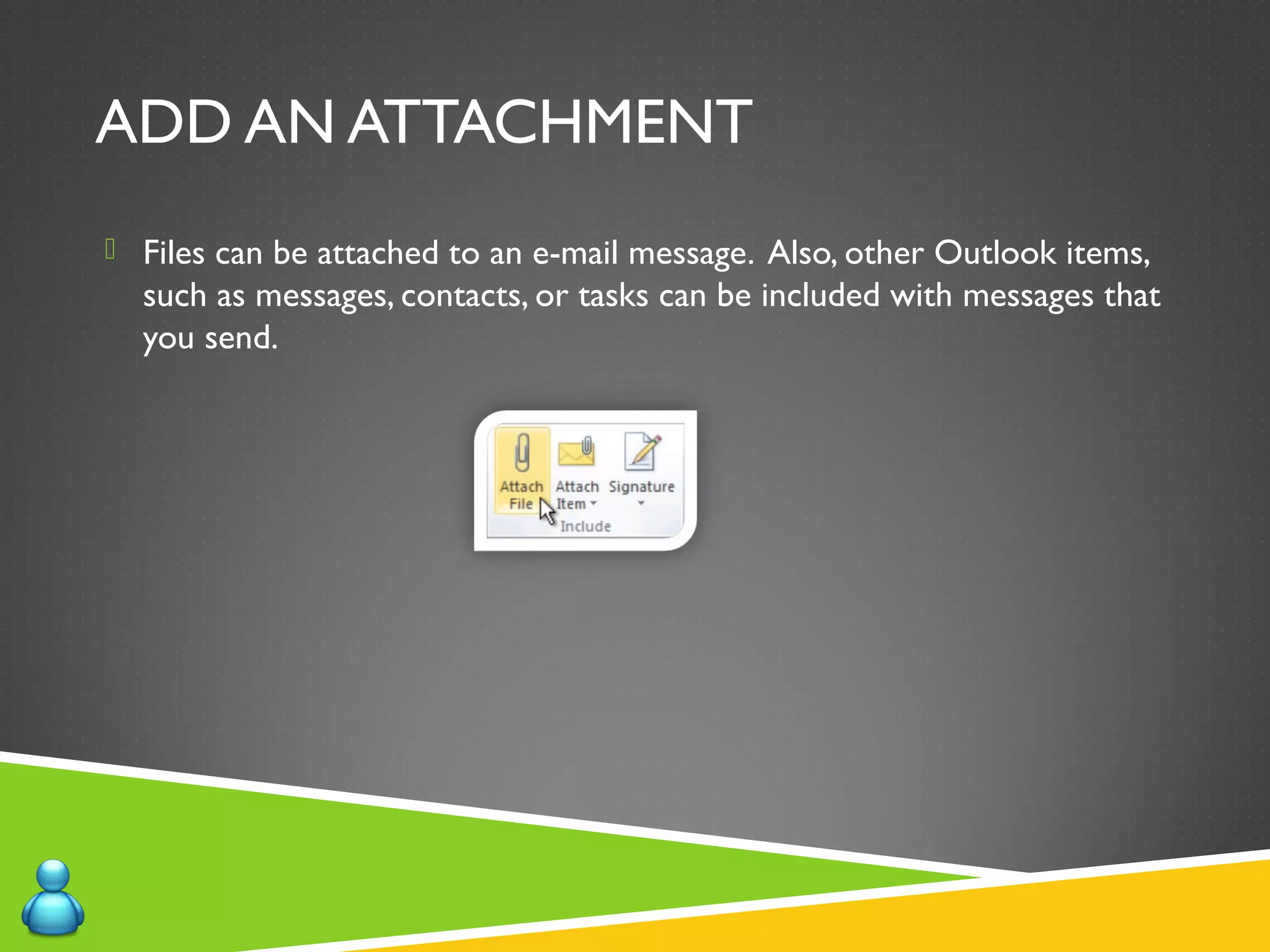
ADD AN ATTACHMENT
 Files can be attached to an e-mail message. Also, other Outlook items,
such as messages, contacts, or tasks can be included with messages that
you send.
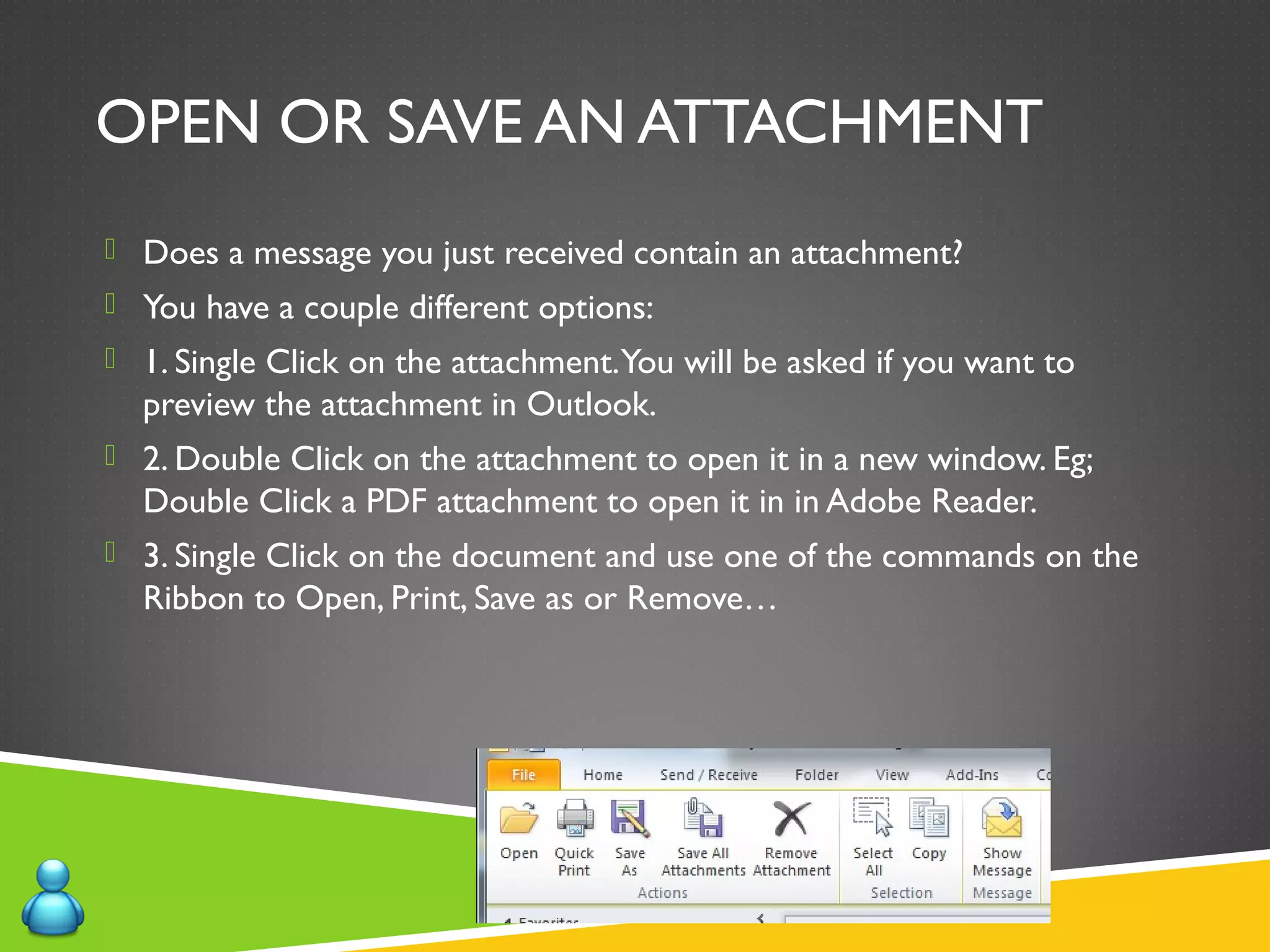
OPEN OR SAVE AN ATTACHMENT
 Does a message you just received contain an attachment?
 You have a couple different options:
 1. Single Click on the attachment.You will be asked if you want to
preview the attachment in Outlook.
 2. Double Click on the attachment to open it in a new window. Eg;
Double Click a PDF attachment to open it in in Adobe Reader.
 3. Single Click on the document and use one of the commands on the
Ribbon to Open, Print, Save as or Remove…
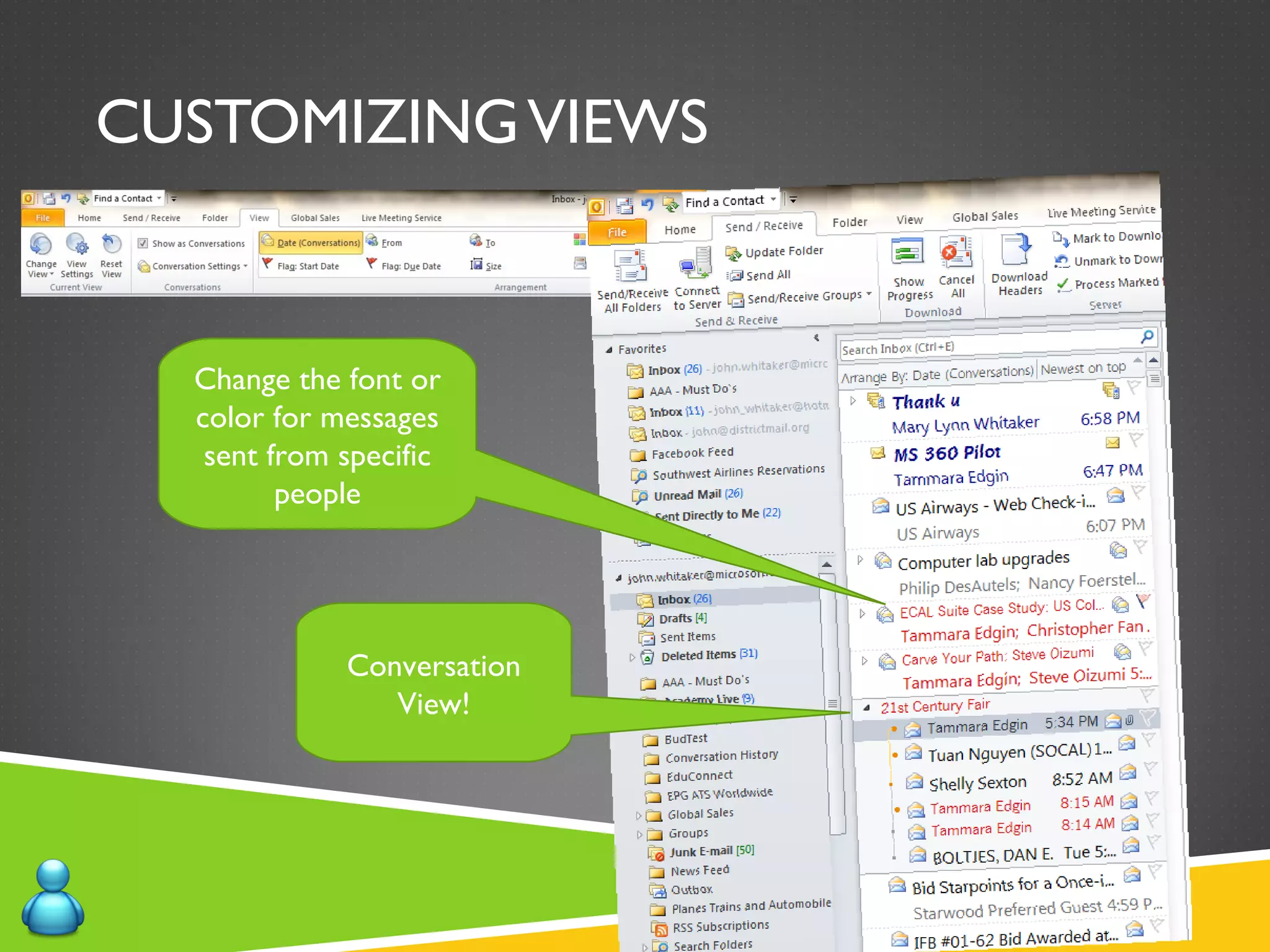
CUSTOMIZINGVIEWS
Change the font or
color for messages
sent from specific
people
Conversation
View!
DEMO
 Read Email
 Create Email
 Find Someone
 Reply to Email
 Forward Email
 Add an attachment to an Email
 Save an attachment from an Email
 DifferentViews in your email (Conversation)
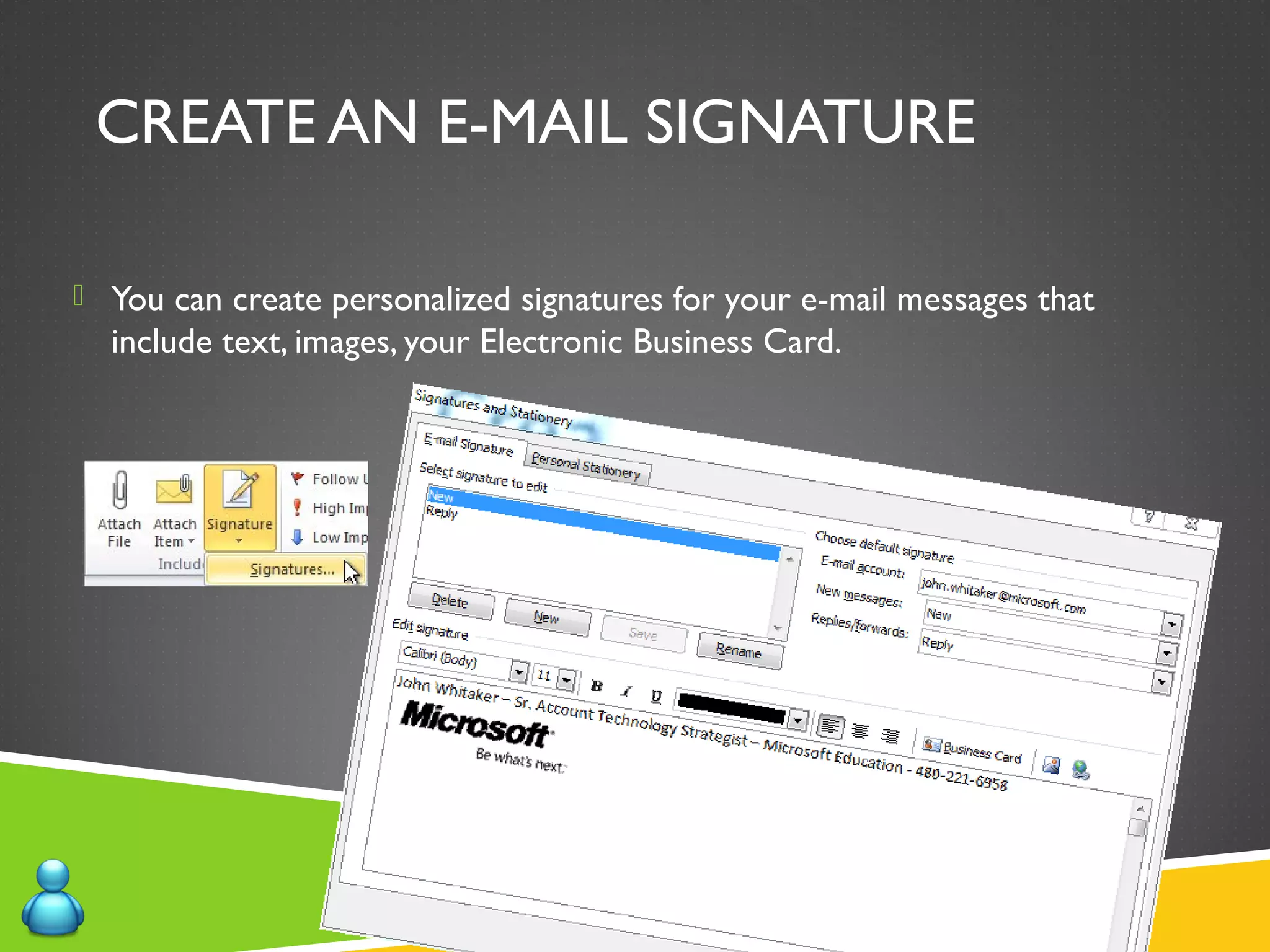
CREATE AN E-MAIL SIGNATURE
 You can create personalized signatures for your e-mail messages that
include text, images, your Electronic Business Card.
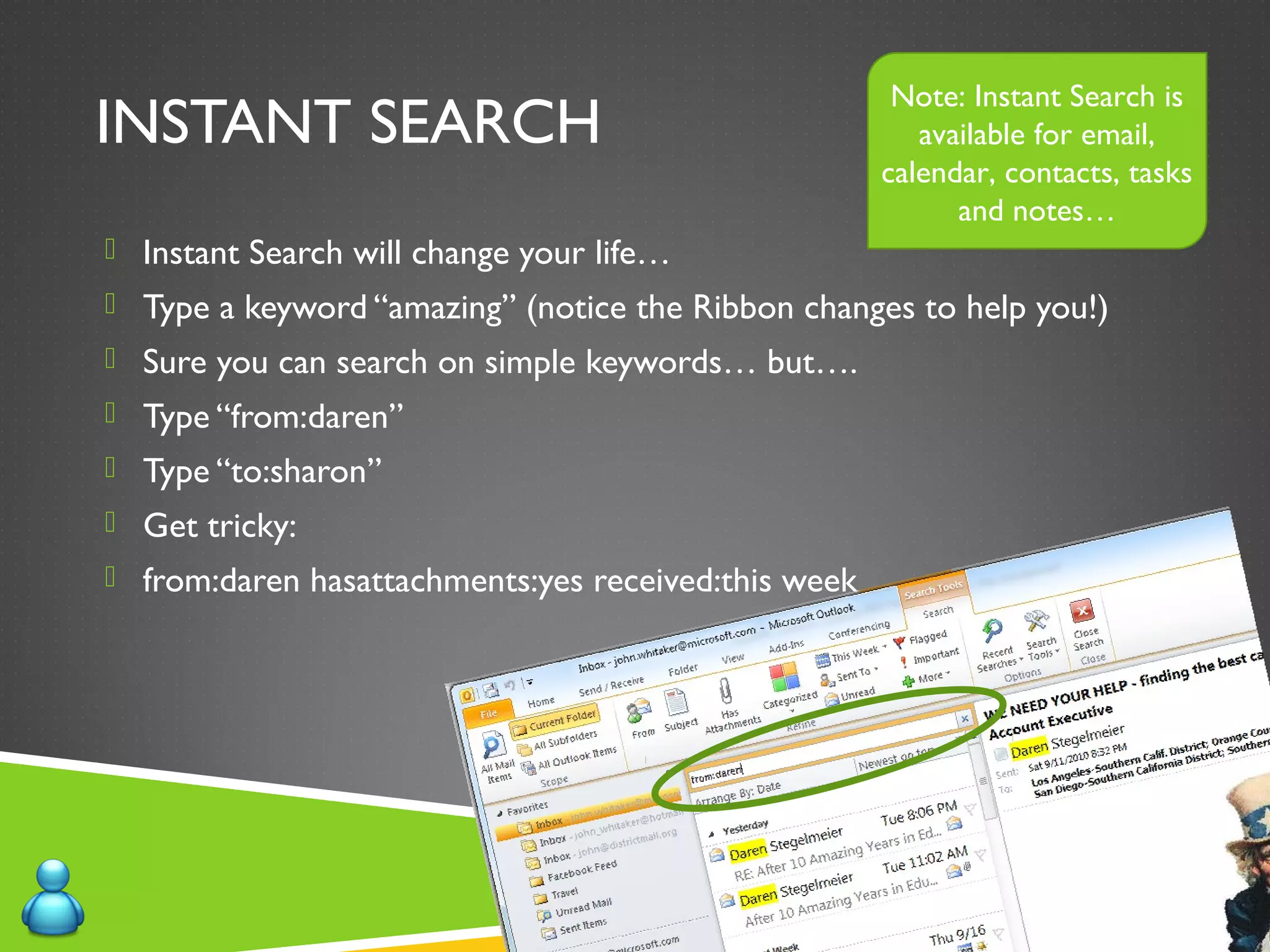
INSTANT SEARCH
 Instant Search will change your life…
 Type a keyword “amazing” (notice the Ribbon changes to help you!)
 Sure you can search on simple keywords… but….
 Type “from:daren”
 Type “to:sharon”
 Get tricky:
 from:daren hasattachments:yes received:this week
Note: Instant Search is
available for email,
calendar, contacts, tasks
and notes…
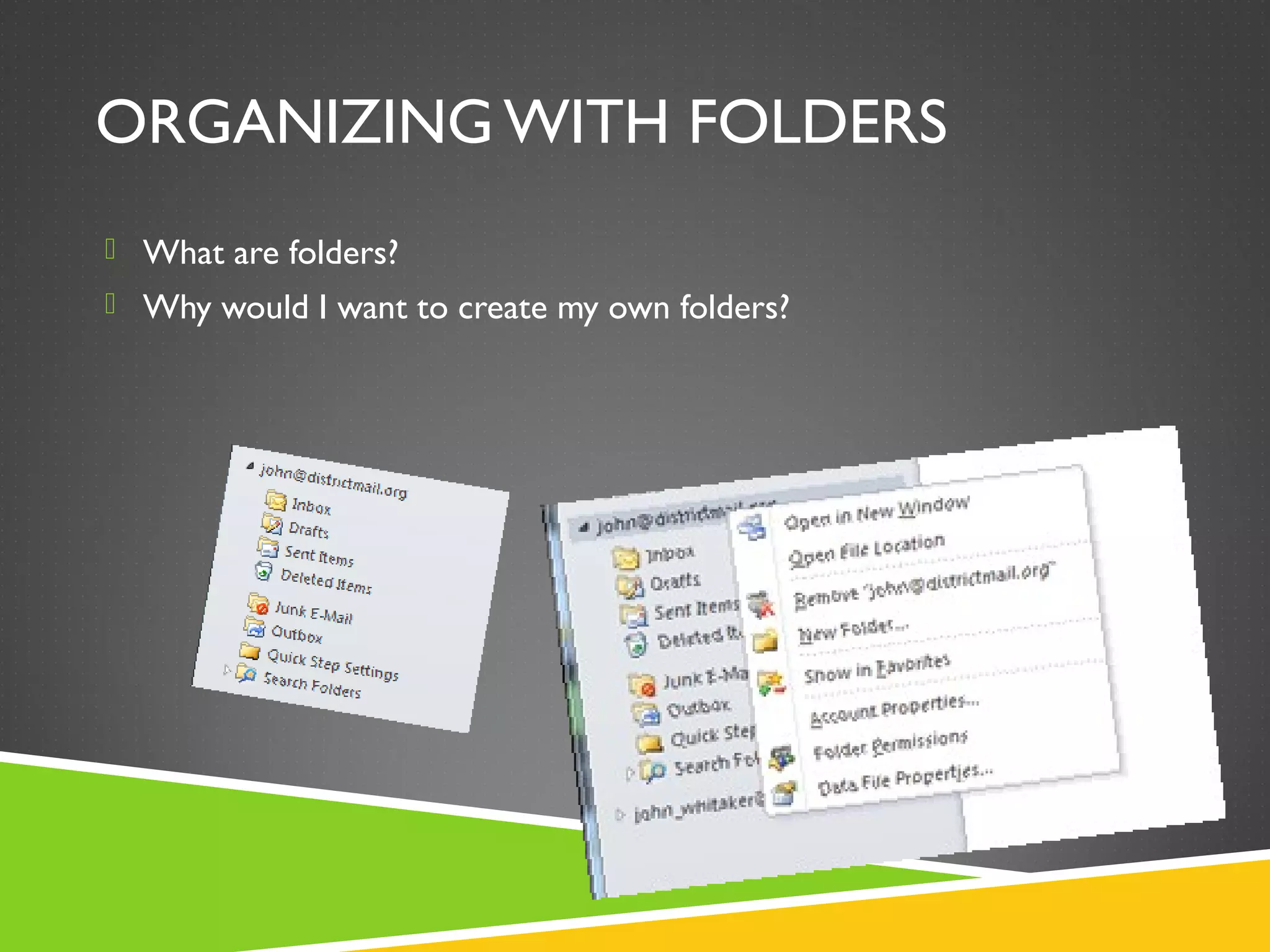
ORGANIZING WITH FOLDERS
 What are folders?
 Why would I want to create my own folders?
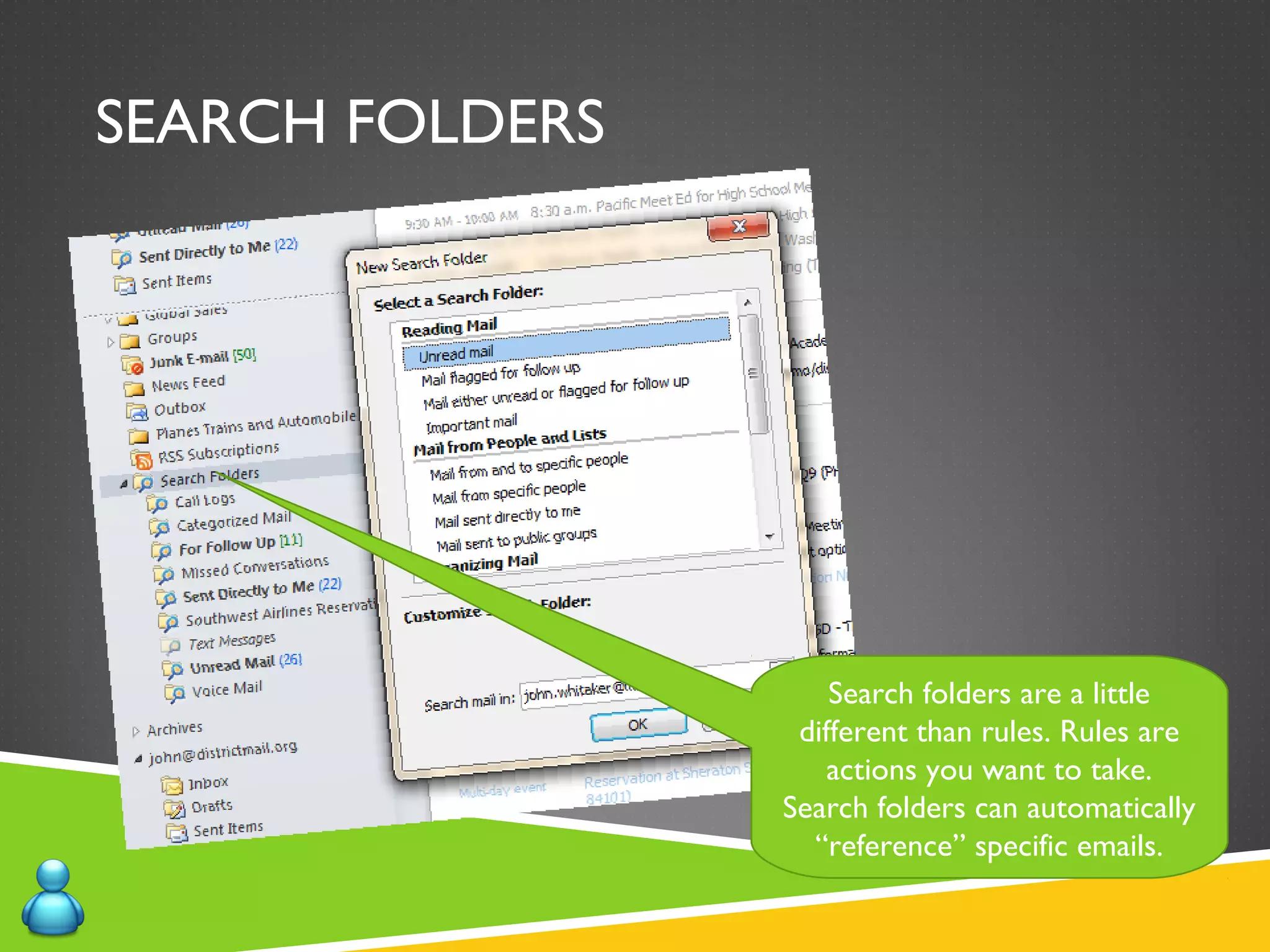
SEARCH FOLDERS
Search folders are a little
different than rules. Rules are
actions you want to take.
Search folders can automatically
“reference” specific emails.
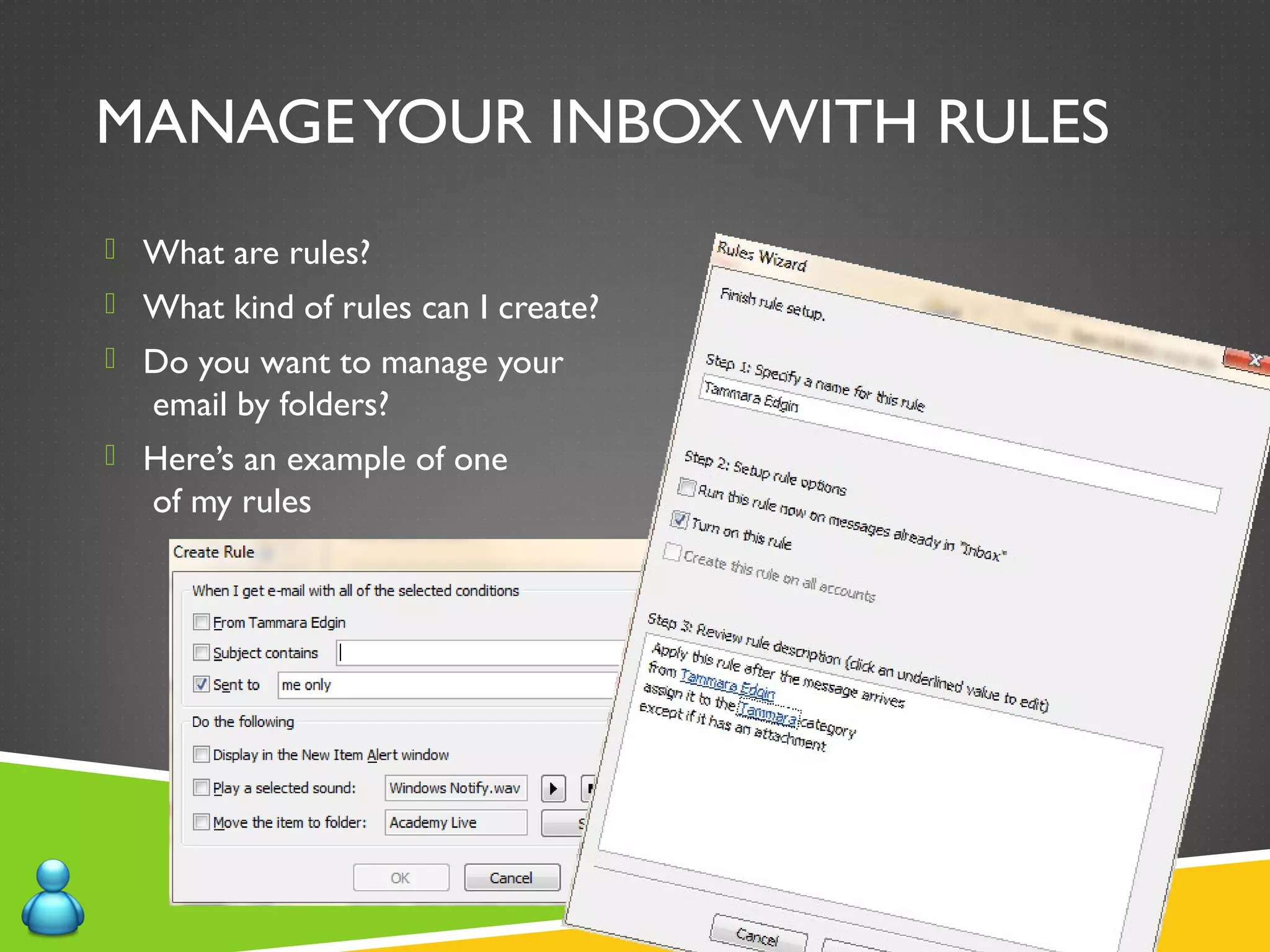
MANAGEYOUR INBOX WITH RULES
 What are rules?
 What kind of rules can I create?
 Do you want to manage your
email by folders?
 Here’s an example of one
of my rules
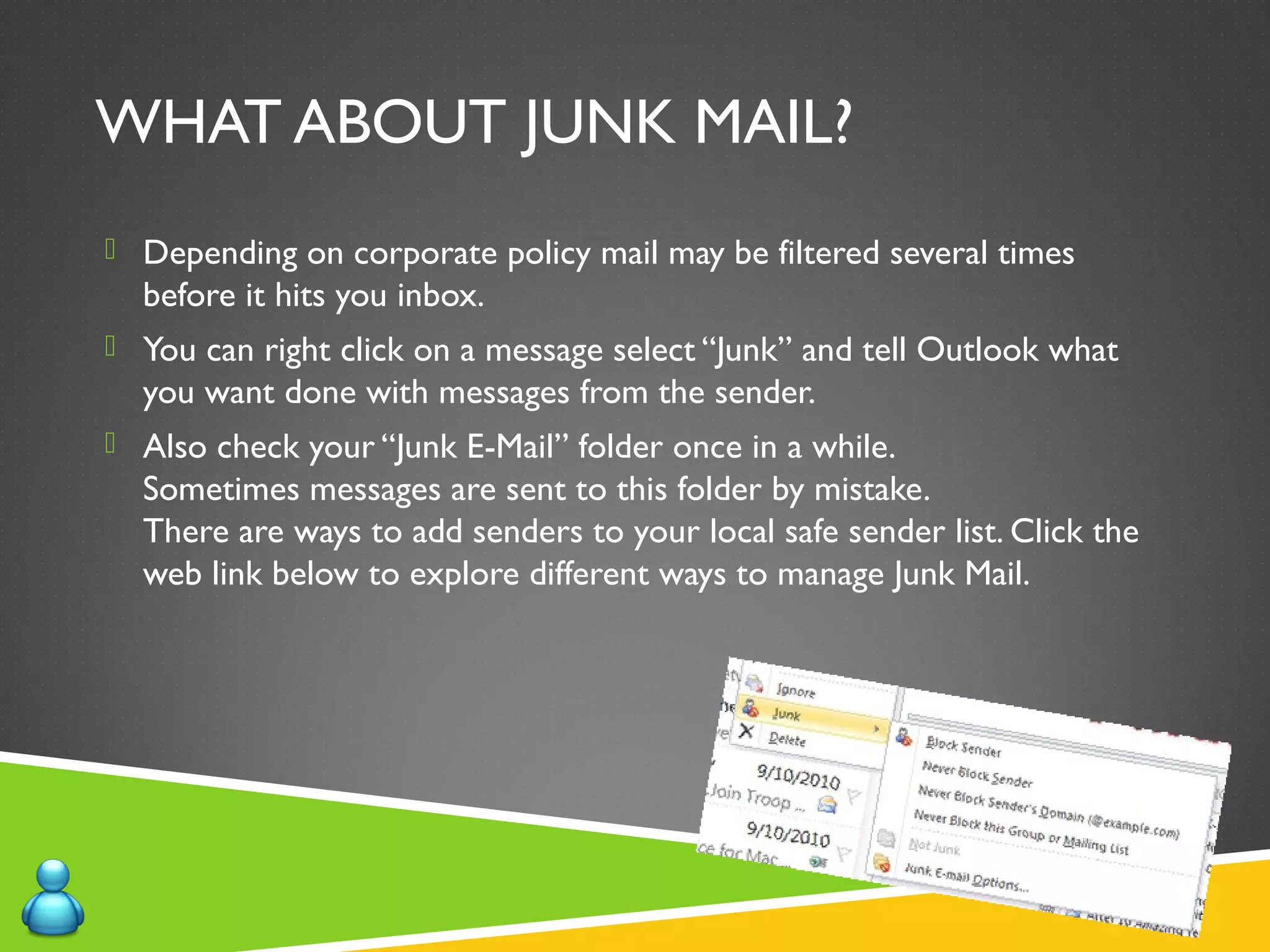
WHAT ABOUT JUNK MAIL?
 Depending on corporate policy mail may be filtered several times
before it hits you inbox.
 You can right click on a message select “Junk” and tell Outlook what
you want done with messages from the sender.
 Also check your “Junk E-Mail” folder once in a while.
Sometimes messages are sent to this folder by mistake.
There are ways to add senders to your local safe sender list. Click the
web link below to explore different ways to manage Junk Mail.
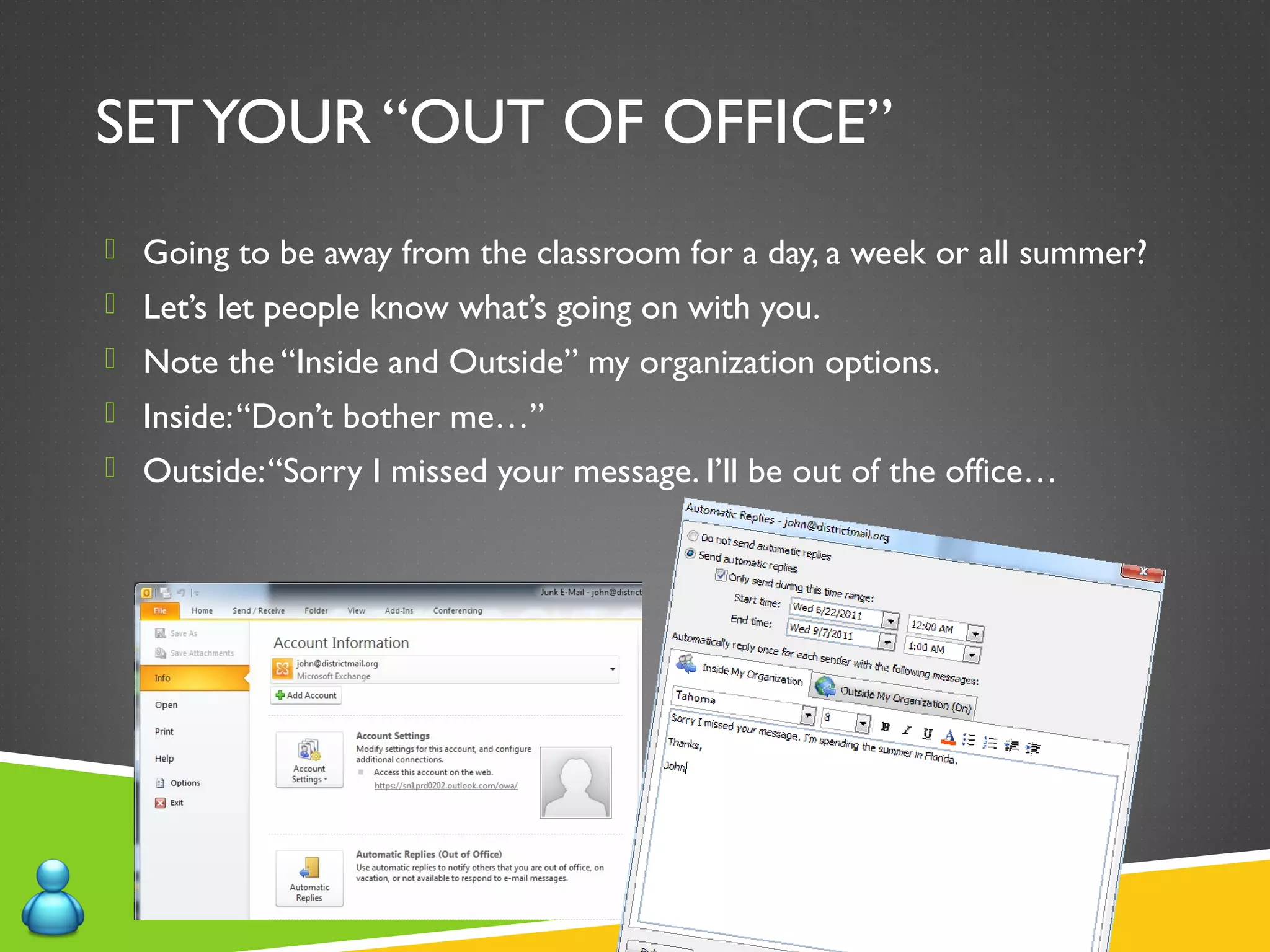
SETYOUR “OUT OF OFFICE”
 Going to be away from the classroom for a day, a week or all summer?
 Let’s let people know what’s going on with you.
 Note the “Inside and Outside” my organization options.
 Inside:“Don’t bother me…”
 Outside:“Sorry I missed your message. I’ll be out of the office…
DEMO - EMAIL
 Create an Email signature
 Find your email (Instant Search)
 Organize with Folders
 Create and manage Rules
 Tame junk email
 Out of Office messages
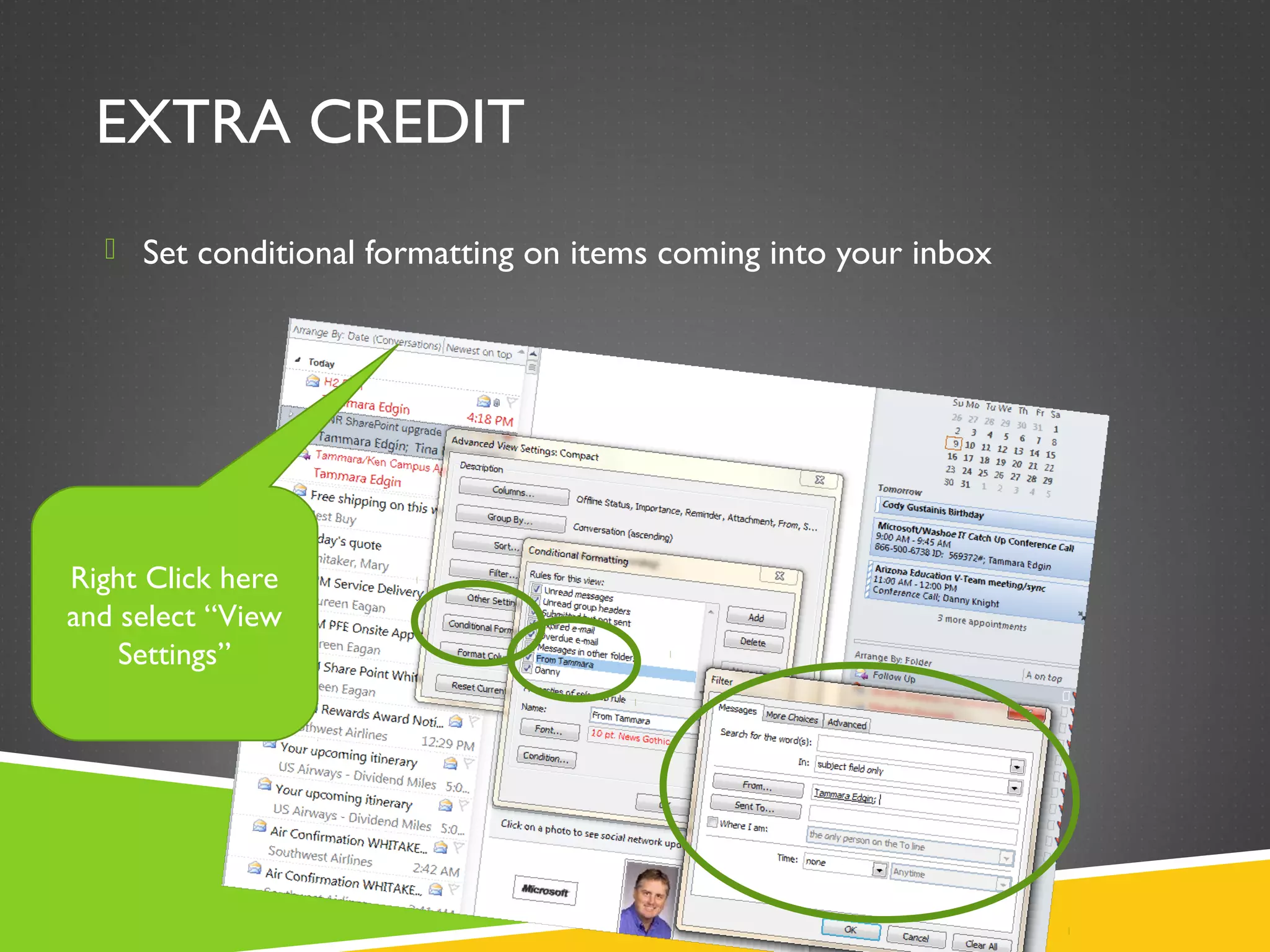
EXTRA CREDIT
 Set conditional formatting on items coming into your inbox
Right Click here
and select “View
Settings”
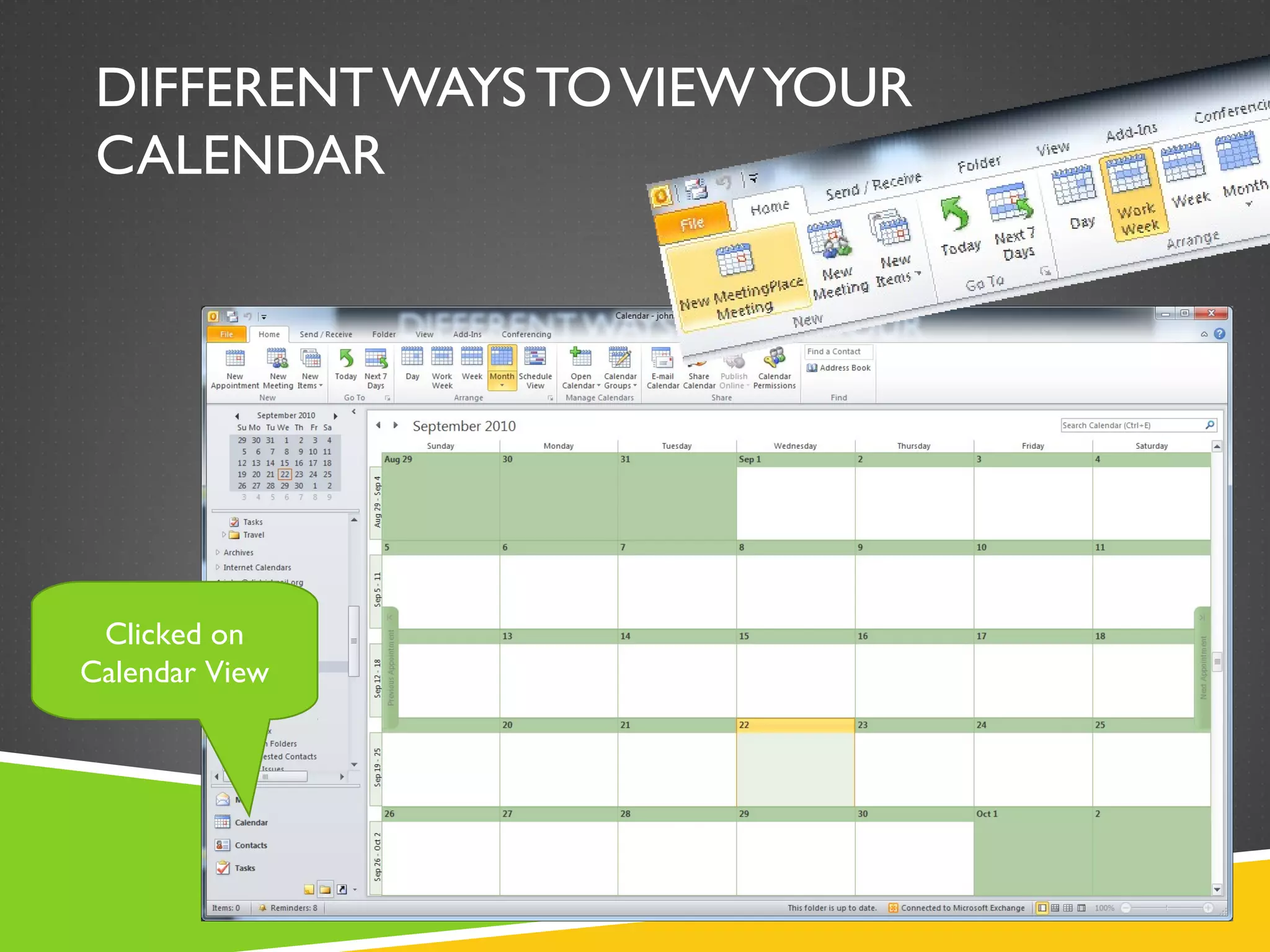
DIFFERENT WAYS TOVIEWYOUR
CALENDAR
Clicked on
Calendar View
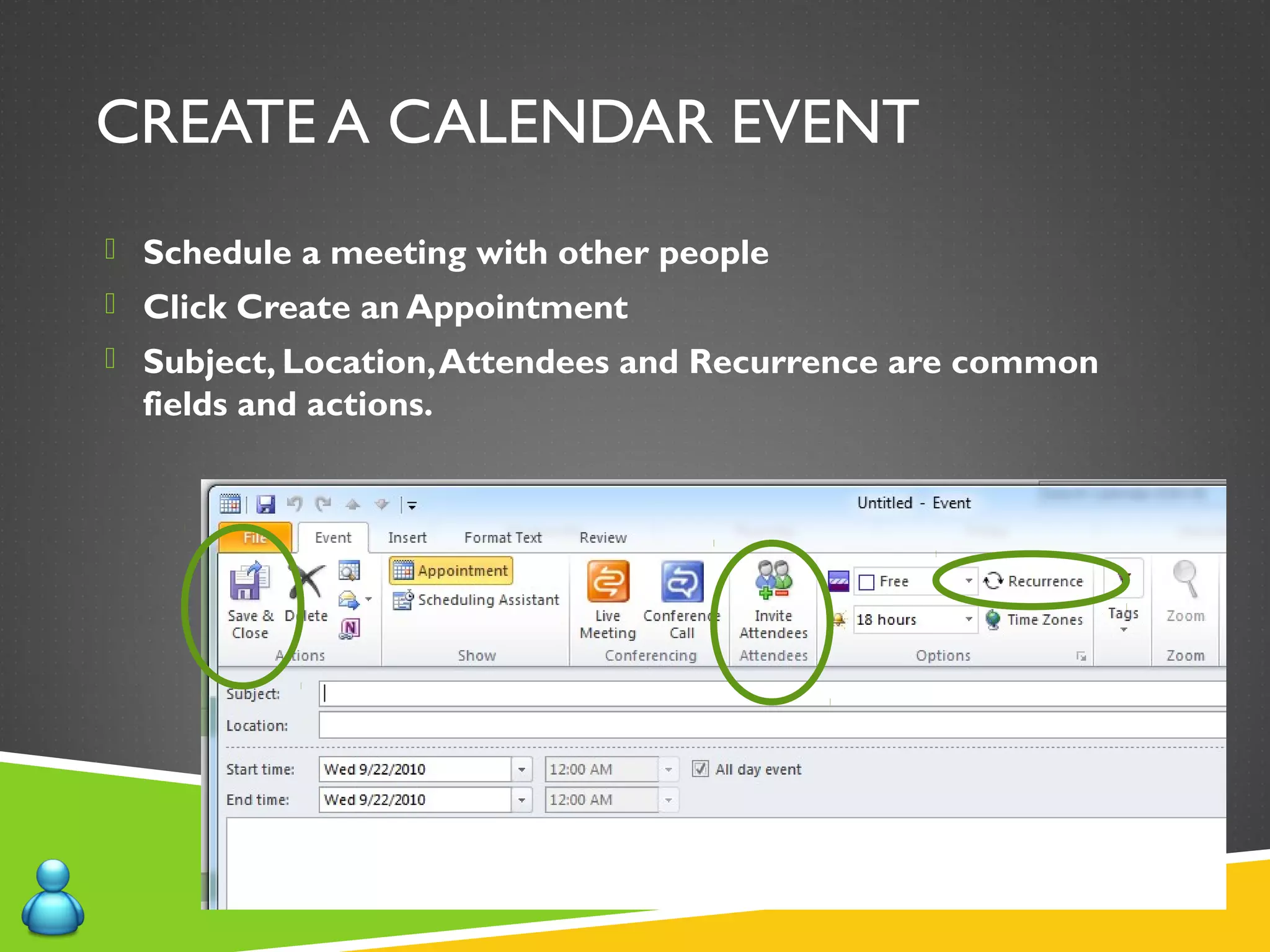
CREATE A CALENDAR EVENT
 Schedule a meeting with other people
 Click Create an Appointment
 Subject, Location,Attendees and Recurrence are common
fields and actions.
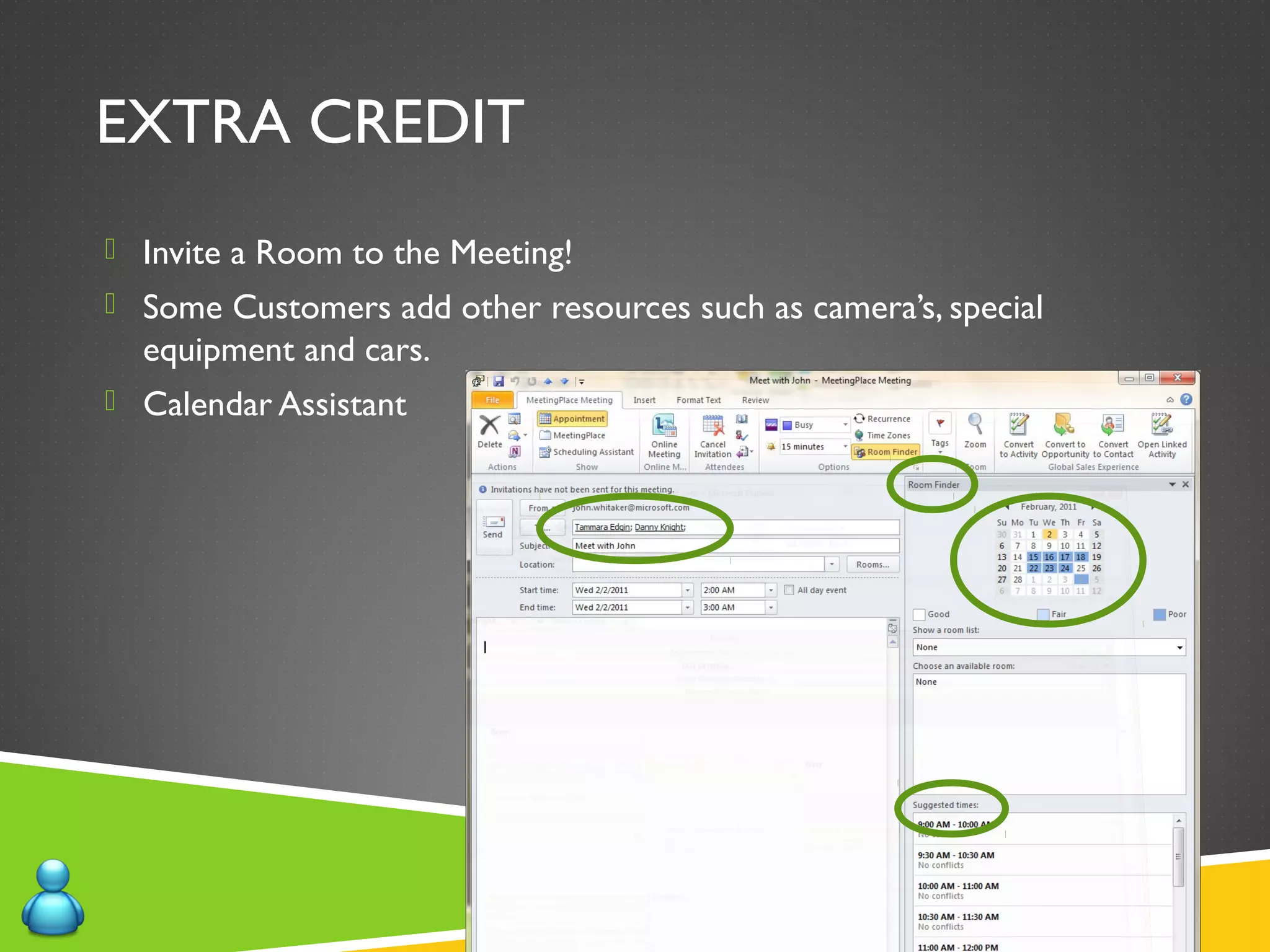
EXTRA CREDIT
 Invite a Room to the Meeting!
 Some Customers add other resources such as camera’s, special
equipment and cars.
 Calendar Assistant
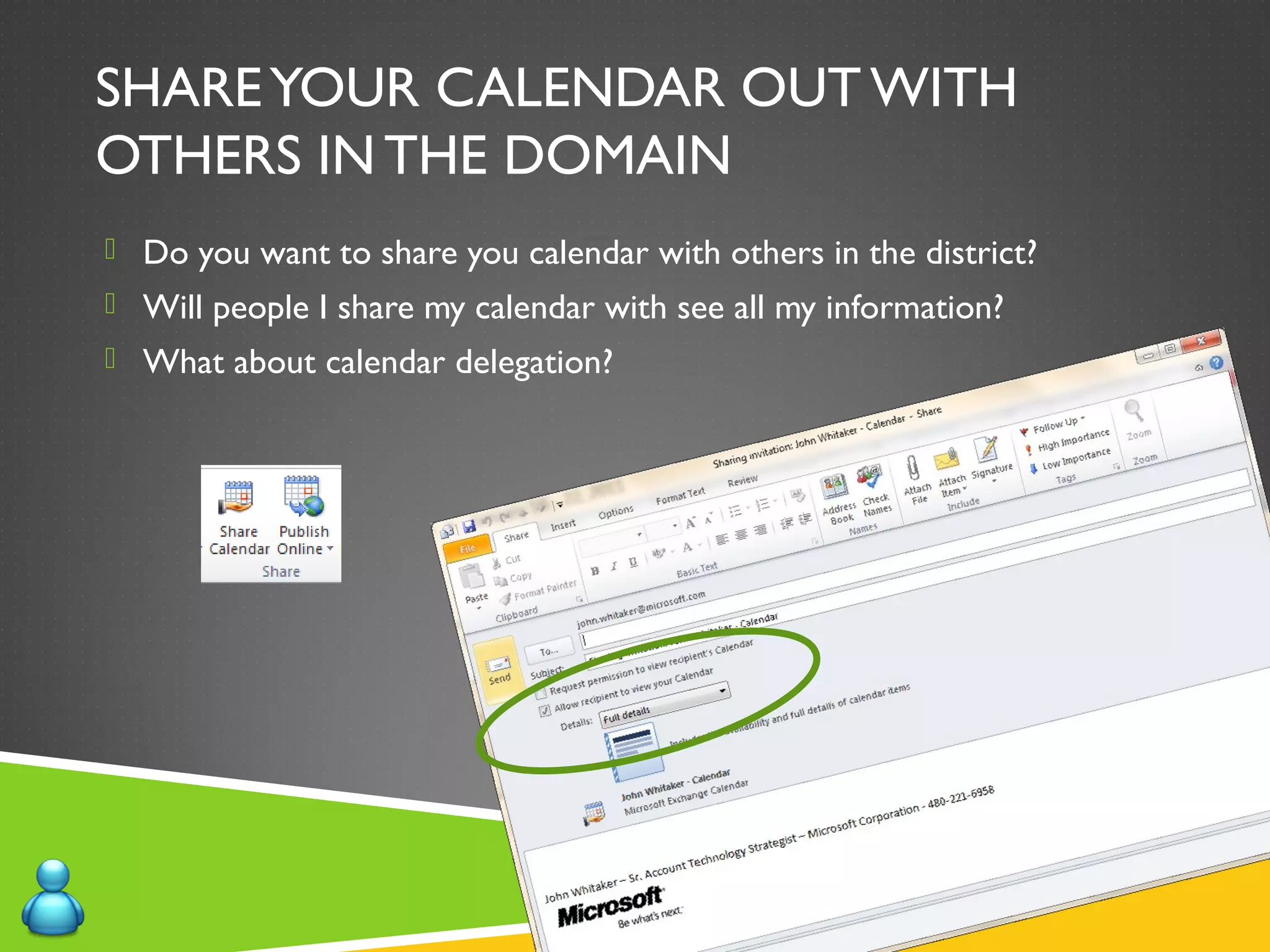
SHAREYOUR CALENDAR OUT WITH
OTHERS IN THE DOMAIN
 Do you want to share you calendar with others in the district?
 Will people I share my calendar with see all my information?
 What about calendar delegation?
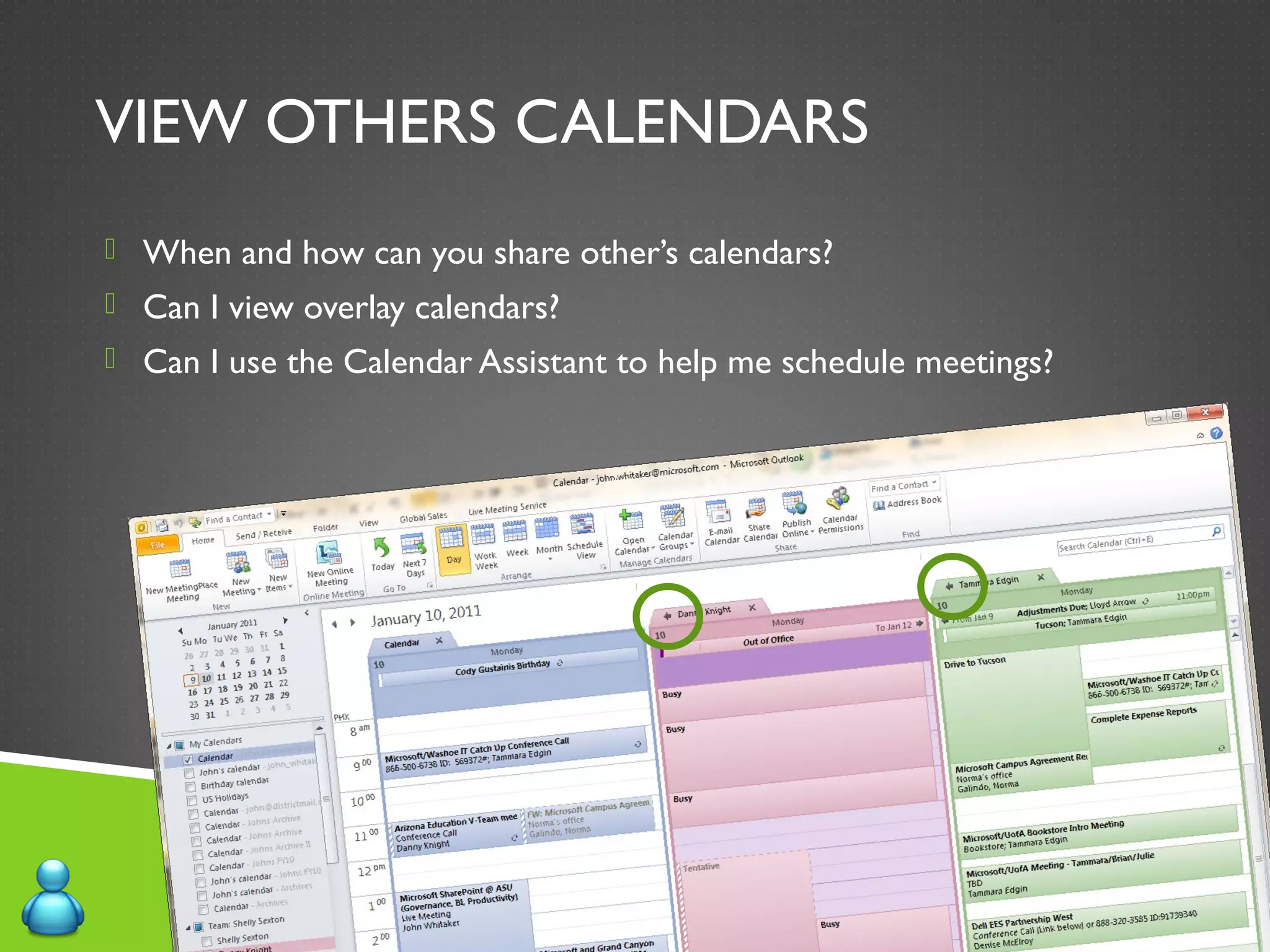
VIEW OTHERS CALENDARS
 When and how can you share other’s calendars?
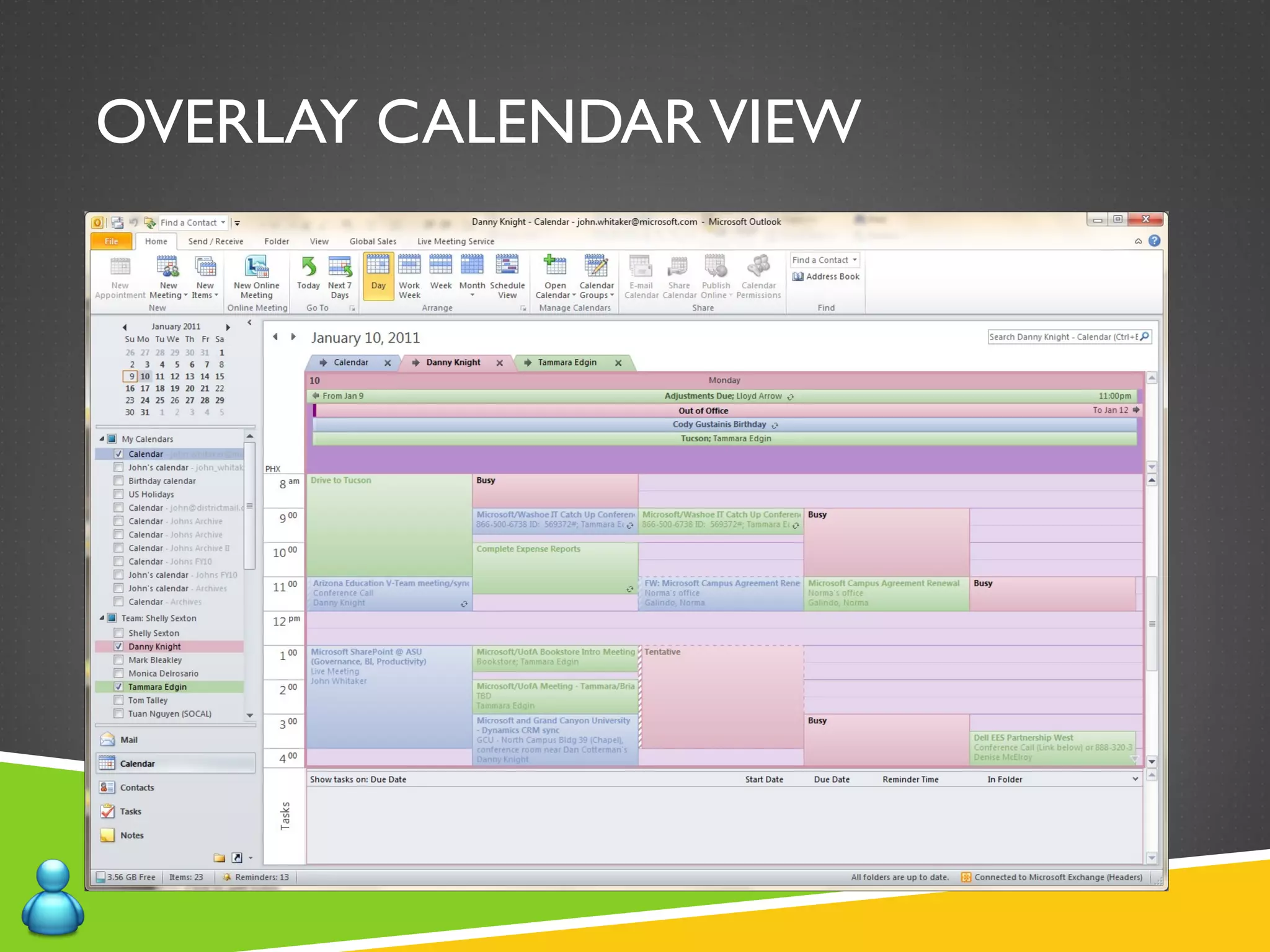
 Can I view overlay calendars?
 Can I use the Calendar Assistant to help me schedule meetings?
OVERLAY CALENDARVIEW
DEMO - CALENDAR
 CalendarViews
 Create a Calendar Event
 View Others Calendars
 ShareYour calendar
 Overlay a Calendar
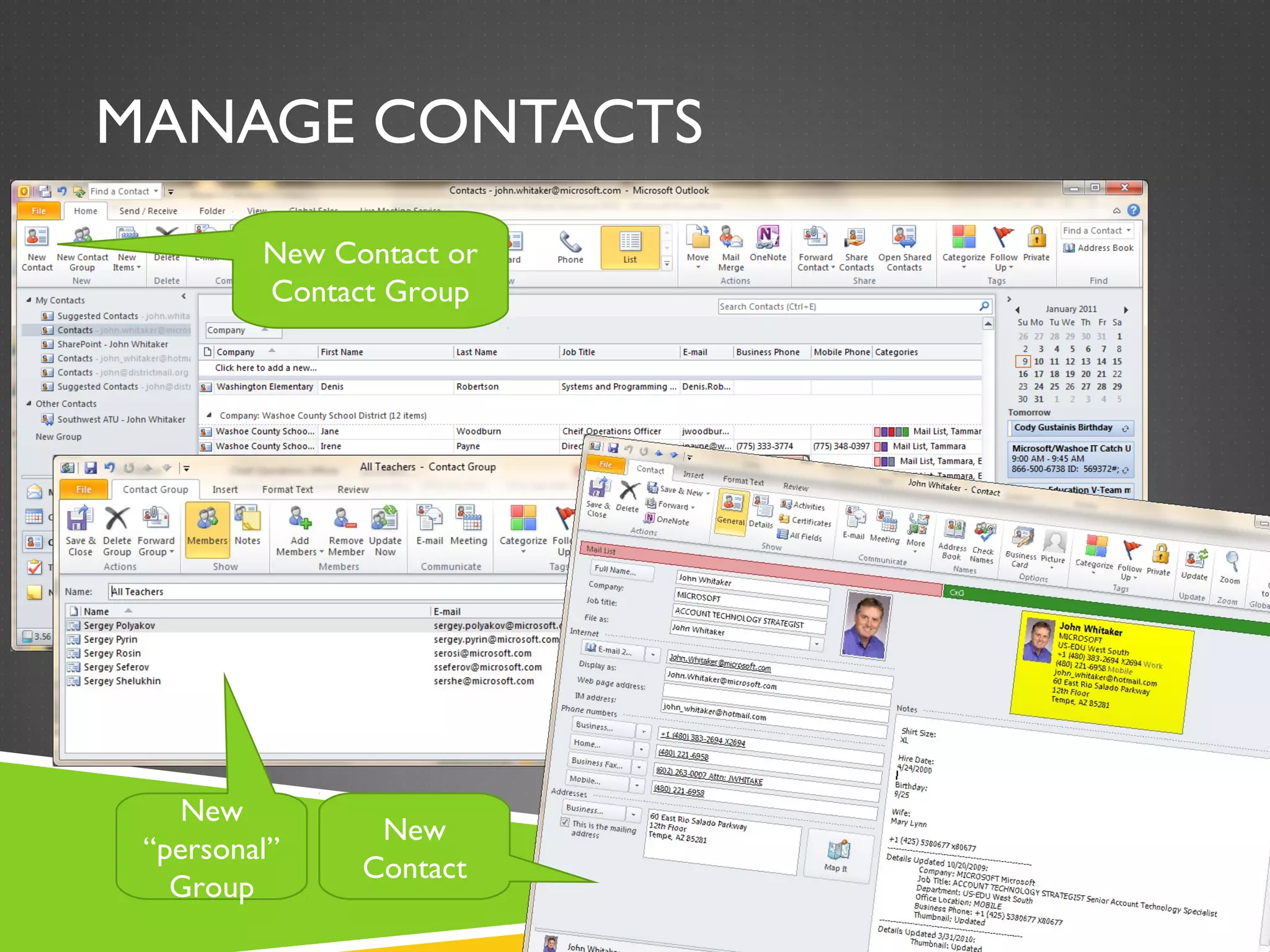
MANAGE CONTACTS
New Contact or
Contact Group
New
“personal”
Group
New
Contact
PRINTING ALLYOUR STUFF
(WITH PERMISSION OF COURSE)
 Print an e-mail message, contact, calendar item, or task
 You can print individual items, such as e-mail messages, contacts, or calendar
items, or larger views, such as calendars, address books, or content lists of
Mail folders.
 The procedure for printing is the same in Mail, Calendar, or any other
folders in Microsoft Outlook — all printing settings and functions are found
in the Backstage view. Click the File tab to open the Backstage view.
 1.Click an item or folder in Outlook that you want to print.
 2.Click the File tab.
 3.Click Print.
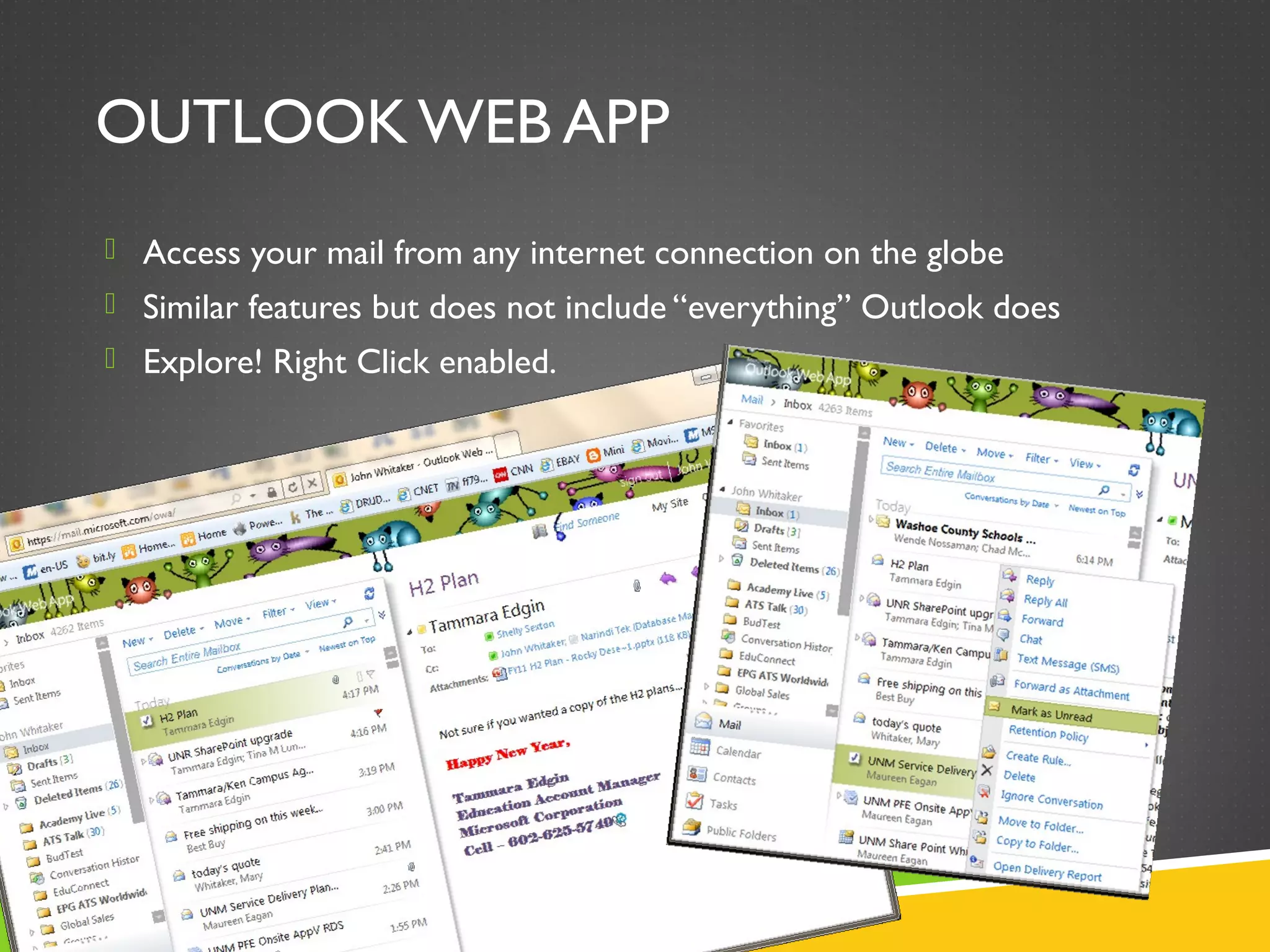
OUTLOOK WEB APP
 Access your mail from any internet connection on the globe
 Similar features but does not include “everything” Outlook does
 Explore! Right Click enabled.
DEMO OUTLOOK WEB APP 2010
 https://exchange.cet2000.org/owa/
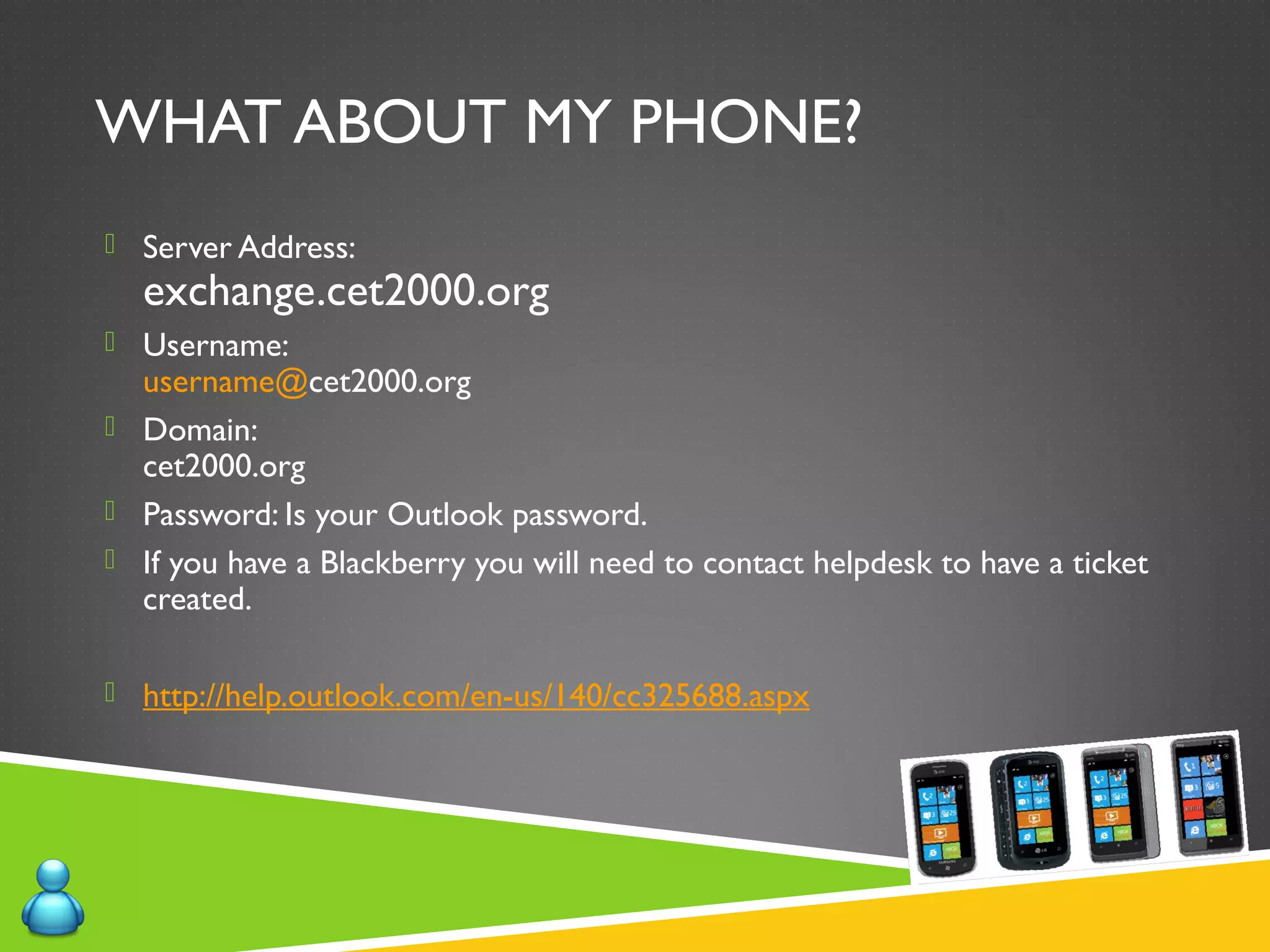
WHAT ABOUT MY PHONE?
 Server Address:
exchange.cet2000.org
 Username:
username@cet2000.org
 Domain:
cet2000.org
 Password: Is your Outlook password.
 If you have a Blackberry you will need to contact helpdesk to have a ticket
created.
 http://help.outlook.com/en-us/140/cc325688.aspx
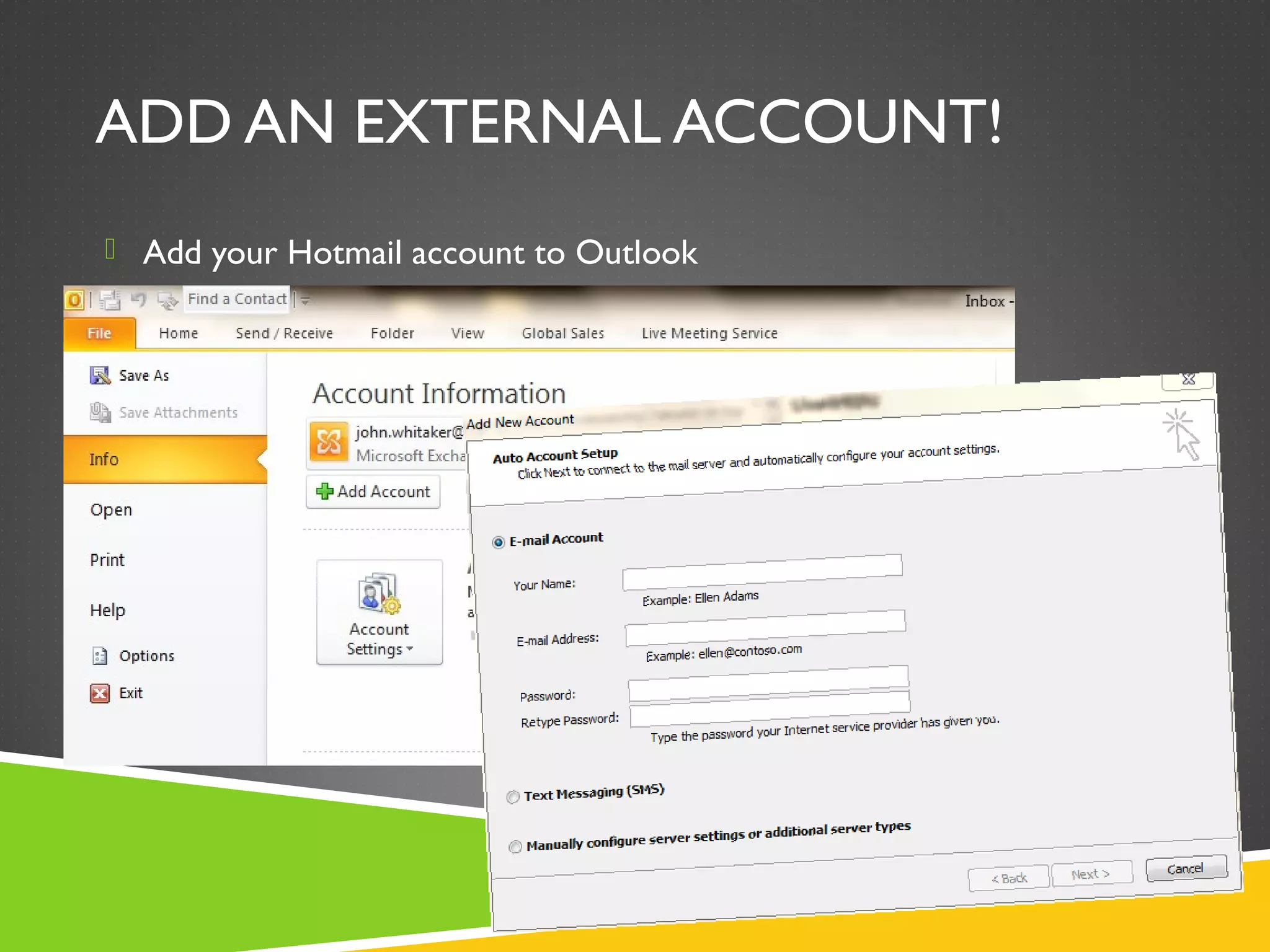
ADD AN EXTERNAL ACCOUNT!
 Add your Hotmail account to Outlook
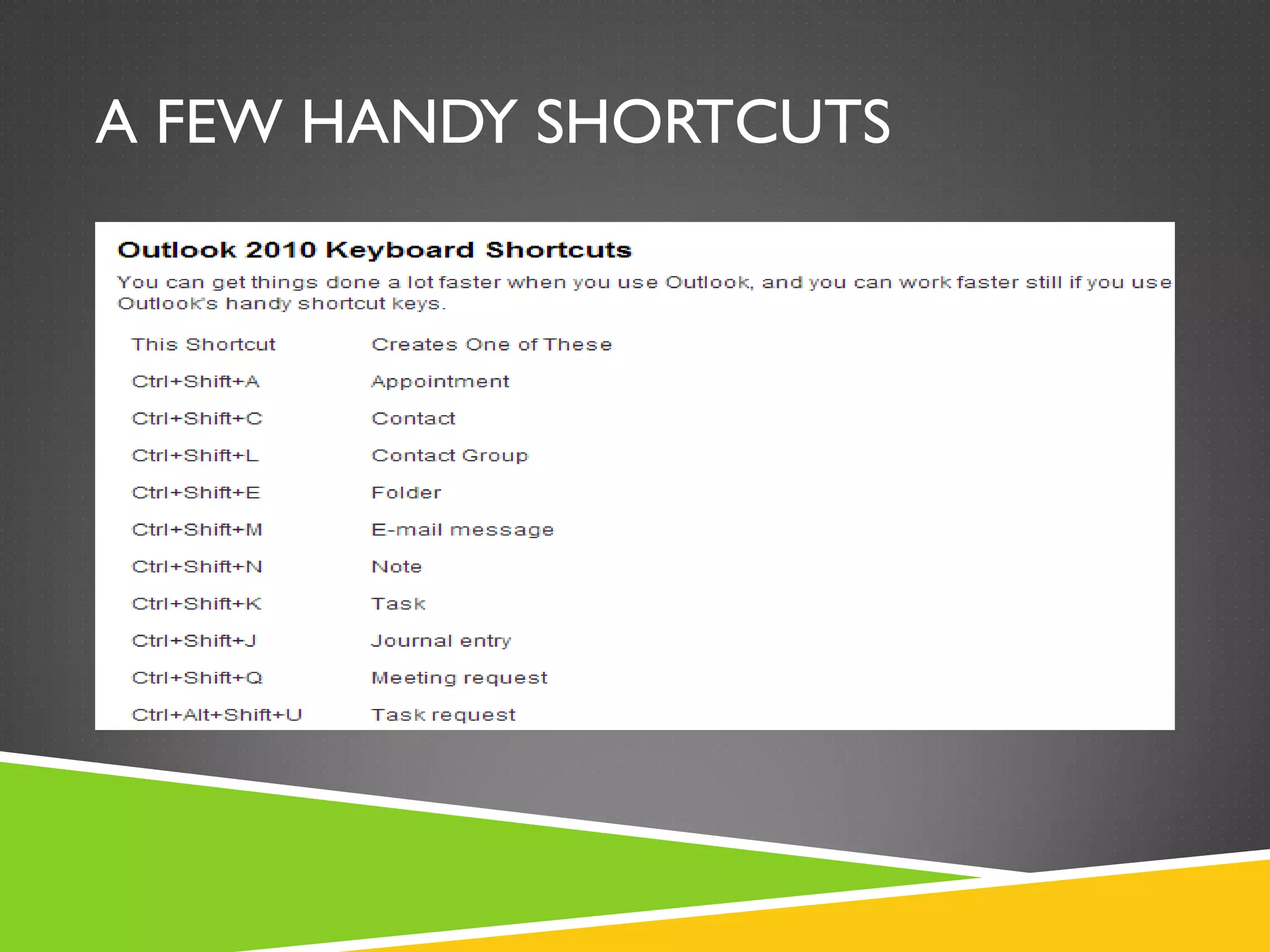
A FEW HANDY SHORTCUTS
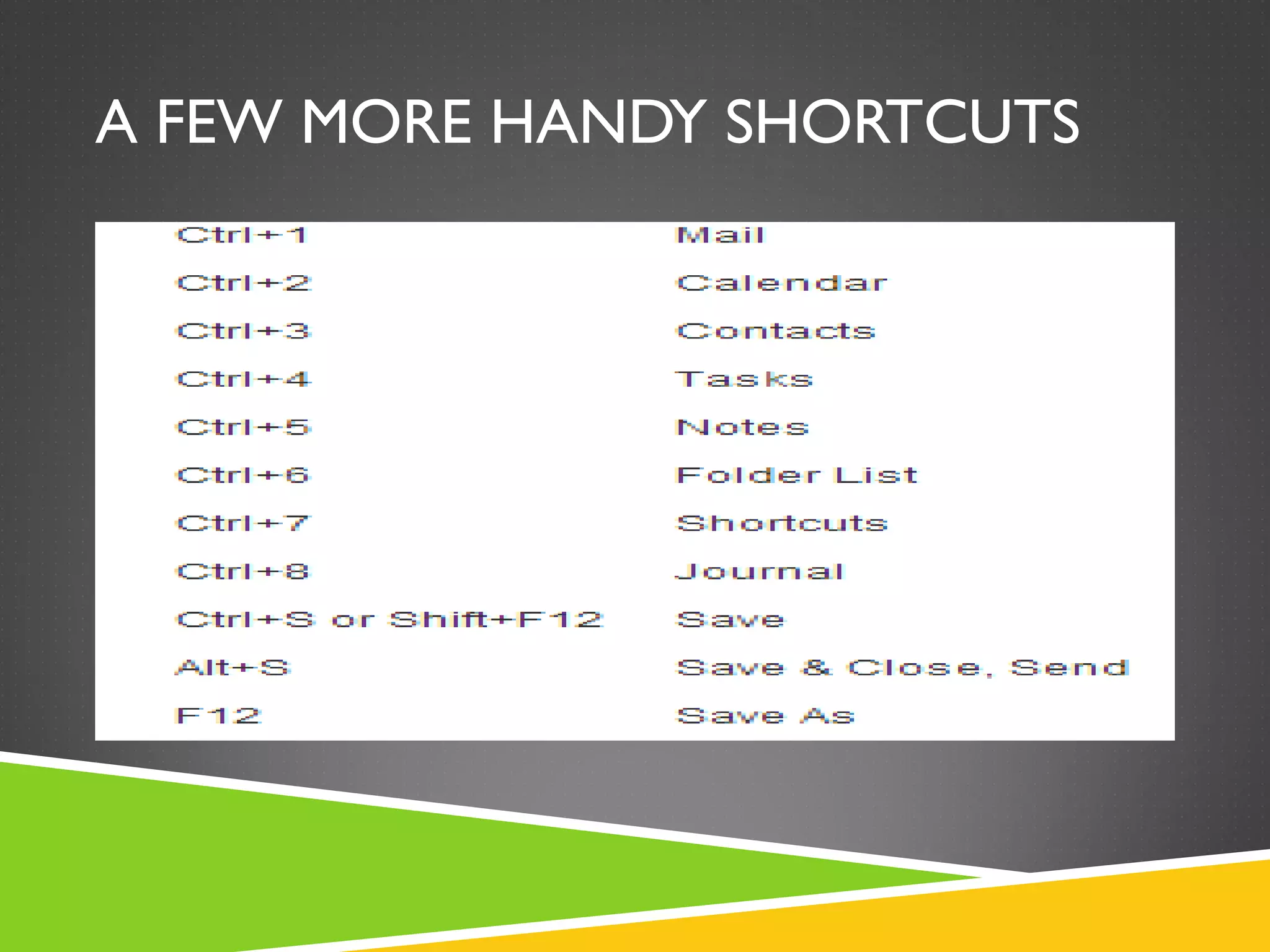
A FEW MORE HANDY SHORTCUTS
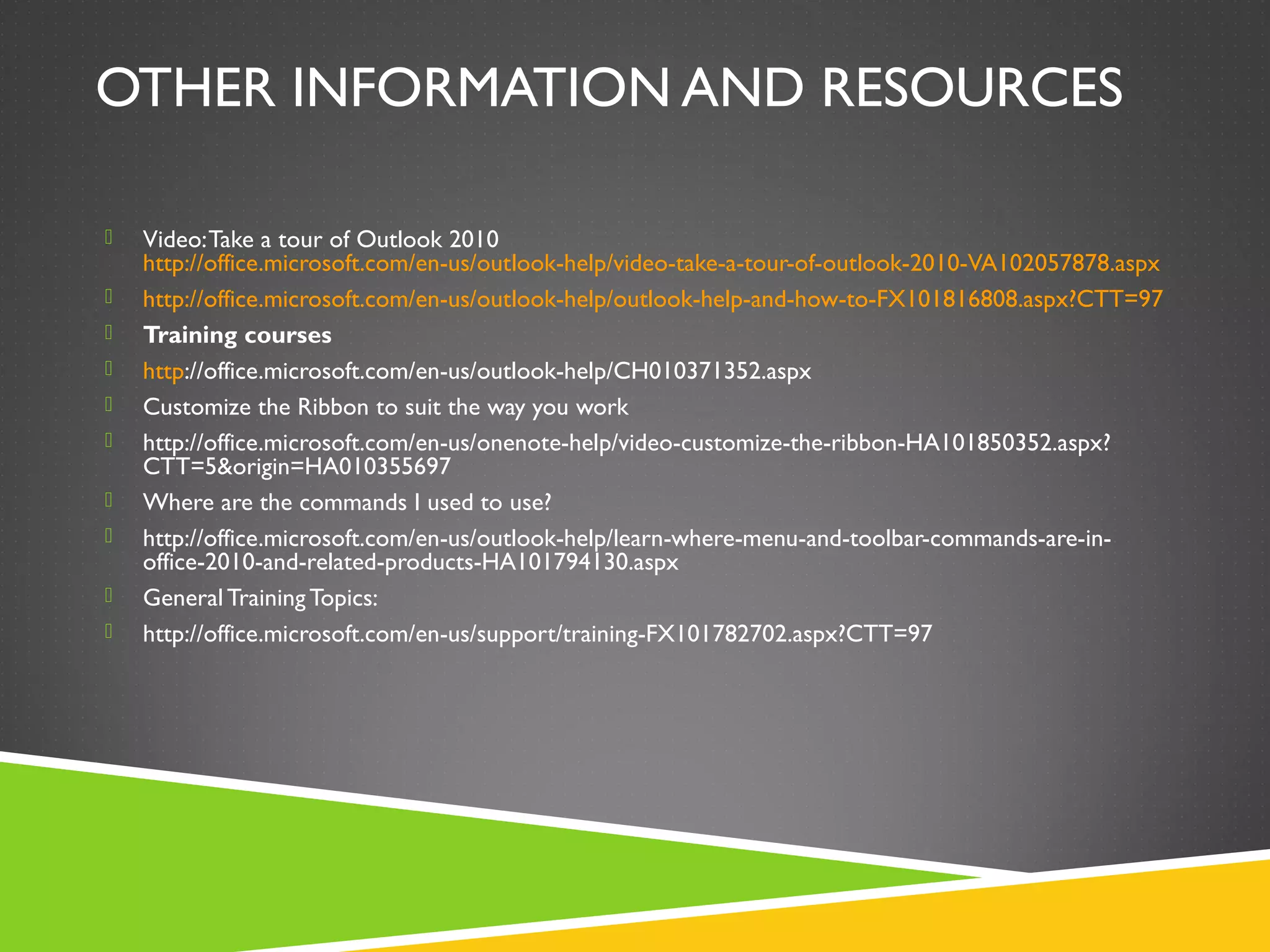
OTHER INFORMATION AND RESOURCES
 Video:Take a tour of Outlook 2010
http://office.microsoft.com/en-us/outlook-help/video-take-a-tour-of-outlook-2010-VA102057878.aspx
 http://office.microsoft.com/en-us/outlook-help/outlook-help-and-how-to-FX101816808.aspx?CTT=97
 Training courses
 http://office.microsoft.com/en-us/outlook-help/CH010371352.aspx
 Customize the Ribbon to suit the way you work
 http://office.microsoft.com/en-us/onenote-help/video-customize-the-ribbon-HA101850352.aspx?
CTT=5&origin=HA010355697
 Where are the commands I used to use?
 http://office.microsoft.com/en-us/outlook-help/learn-where-menu-and-toolbar-commands-are-in-
office-2010-and-related-products-HA101794130.aspx
 General Training Topics:
 http://office.microsoft.com/en-us/support/training-FX101782702.aspx?CTT=97
THANKYOU!
 If you have any questions feel free to ask!
 If I don’t know the answer, I will find out and get
back to you.

Outlook2010 training presentation

  • 1.
    MICROSOFT OUTLOOK 2010 JUMPSTART TammaraEdgin Microsoft Education Account Manager John Whitaker Microsoft Education AccountTechnology Strategist DavidWood Microsoft Licensing, GP
  • 2.
    WHAT IS MICROSOFT OUTLOOK2010?  Premium business and personal e-mail management tools to more than 500 million Microsoft Office users worldwide.With the release of Outlook 2010, you get a richer set of experiences to meet your communication needs at work, home, and school.  From a redesigned look to advanced e-mail organization, search, communication and social networking features, Outlook 2010 provides you with a world-class experience to stay productive and in touch with your personal and business networks.
  • 3.
    WHY THE INTERFACECHANGE?  Too many command menus  Too many command buttons  Too many dialog boxes (I just want to format some text!)  Too many hidden features  Get things done quickly without worrying about “how.” Instant Preview  Interface changes to commands that help you work faster.“Contextual”  Three simple concepts: Ribbon Tabs Groups Command
  • 4.
  • 5.
  • 6.
  • 7.
  • 8.
  • 9.
    MANAGINGYOUR MAILBOX The FourD’s When reading your messages decide whether to: 1.Delete it. 2.Do it (respond or file for reference). 3.Delegate it (forward). 4.Defer it (using categories and flags) for a second review in your task list.
  • 10.
    DELETE IT!  Deletemessages that you don't need to read. If it’s junk, delete it.  If you never want to receive another message as part of this conversation, ignore it.  CET has a 4 GB data quota on mailboxes! Don’t let yours get too big.  Check the size of your mailbox: From the File tab> Info>Cleanup Tools>Mailbox Cleanup...
  • 12.
  • 13.
    READ EMAIL  SingleClick on an e-mail message to show the message in the auto preview pane.  Double Click a message to open it up in a window  Notice that when you open a message up in a new window the Ribbon show’s more specific options to work with the e-mail
  • 14.
    CREATE A NEWE-MAIL MESSAGE  Outlook 2010 enables you to communicate with one or more recipients with a rich set of features and customizations.
  • 15.
    HOW TO FINDSOMEONE  AutoComplete  Check Names  Global Address List (GAL)
  • 16.
    WHO’S THAT GAL! How can I find people in the CET domain?  How does Outlook search for people?  Can I find anyone I want?  What is the Global Address List (GAL)?  Depending on what information the corporate office is going to populate.
  • 17.
    REPLY OR FORWARDAN E-MAIL  How do I forward and e-mail to a coworker?  On the Home or Message tab, in the Respond group, click Reply, Reply All, or Forward.  The name of the tab depends on whether the message is selected in the message list or opened in its own window.  To remove a name from the To and Cc lines, click the name and then press DELETE.To add a recipient, click in the To, Cc or Bcc box and enter the recipient. Think Twice! Was the original message addressed to a few thousand people?
  • 18.
    ADD AN ATTACHMENT Files can be attached to an e-mail message. Also, other Outlook items, such as messages, contacts, or tasks can be included with messages that you send.
  • 19.
    OPEN OR SAVEAN ATTACHMENT  Does a message you just received contain an attachment?  You have a couple different options:  1. Single Click on the attachment.You will be asked if you want to preview the attachment in Outlook.  2. Double Click on the attachment to open it in a new window. Eg; Double Click a PDF attachment to open it in in Adobe Reader.  3. Single Click on the document and use one of the commands on the Ribbon to Open, Print, Save as or Remove…
  • 20.
    CUSTOMIZINGVIEWS Change the fontor color for messages sent from specific people Conversation View!
  • 21.
    DEMO  Read Email Create Email  Find Someone  Reply to Email  Forward Email  Add an attachment to an Email  Save an attachment from an Email  DifferentViews in your email (Conversation)
  • 22.
    CREATE AN E-MAILSIGNATURE  You can create personalized signatures for your e-mail messages that include text, images, your Electronic Business Card.
  • 23.
    INSTANT SEARCH  InstantSearch will change your life…  Type a keyword “amazing” (notice the Ribbon changes to help you!)  Sure you can search on simple keywords… but….  Type “from:daren”  Type “to:sharon”  Get tricky:  from:daren hasattachments:yes received:this week Note: Instant Search is available for email, calendar, contacts, tasks and notes…
  • 24.
    ORGANIZING WITH FOLDERS What are folders?  Why would I want to create my own folders?
  • 25.
    SEARCH FOLDERS Search foldersare a little different than rules. Rules are actions you want to take. Search folders can automatically “reference” specific emails.
  • 26.
    MANAGEYOUR INBOX WITHRULES  What are rules?  What kind of rules can I create?  Do you want to manage your email by folders?  Here’s an example of one of my rules
  • 27.
    WHAT ABOUT JUNKMAIL?  Depending on corporate policy mail may be filtered several times before it hits you inbox.  You can right click on a message select “Junk” and tell Outlook what you want done with messages from the sender.  Also check your “Junk E-Mail” folder once in a while. Sometimes messages are sent to this folder by mistake. There are ways to add senders to your local safe sender list. Click the web link below to explore different ways to manage Junk Mail.
  • 28.
    SETYOUR “OUT OFOFFICE”  Going to be away from the classroom for a day, a week or all summer?  Let’s let people know what’s going on with you.  Note the “Inside and Outside” my organization options.  Inside:“Don’t bother me…”  Outside:“Sorry I missed your message. I’ll be out of the office…
  • 29.
    DEMO - EMAIL Create an Email signature  Find your email (Instant Search)  Organize with Folders  Create and manage Rules  Tame junk email  Out of Office messages
  • 30.
    EXTRA CREDIT  Setconditional formatting on items coming into your inbox Right Click here and select “View Settings”
  • 31.
  • 32.
    CREATE A CALENDAREVENT  Schedule a meeting with other people  Click Create an Appointment  Subject, Location,Attendees and Recurrence are common fields and actions.
  • 33.
    EXTRA CREDIT  Invitea Room to the Meeting!  Some Customers add other resources such as camera’s, special equipment and cars.  Calendar Assistant
  • 34.
    SHAREYOUR CALENDAR OUTWITH OTHERS IN THE DOMAIN  Do you want to share you calendar with others in the district?  Will people I share my calendar with see all my information?  What about calendar delegation?
  • 35.
    VIEW OTHERS CALENDARS When and how can you share other’s calendars?  Can I view overlay calendars?  Can I use the Calendar Assistant to help me schedule meetings?
  • 36.
  • 37.
    DEMO - CALENDAR CalendarViews  Create a Calendar Event  View Others Calendars  ShareYour calendar  Overlay a Calendar
  • 38.
    MANAGE CONTACTS New Contactor Contact Group New “personal” Group New Contact
  • 39.
    PRINTING ALLYOUR STUFF (WITHPERMISSION OF COURSE)  Print an e-mail message, contact, calendar item, or task  You can print individual items, such as e-mail messages, contacts, or calendar items, or larger views, such as calendars, address books, or content lists of Mail folders.  The procedure for printing is the same in Mail, Calendar, or any other folders in Microsoft Outlook — all printing settings and functions are found in the Backstage view. Click the File tab to open the Backstage view.  1.Click an item or folder in Outlook that you want to print.  2.Click the File tab.  3.Click Print.
  • 40.
    OUTLOOK WEB APP Access your mail from any internet connection on the globe  Similar features but does not include “everything” Outlook does  Explore! Right Click enabled.
  • 41.
    DEMO OUTLOOK WEBAPP 2010  https://exchange.cet2000.org/owa/
  • 42.
    WHAT ABOUT MYPHONE?  Server Address: exchange.cet2000.org  Username: username@cet2000.org  Domain: cet2000.org  Password: Is your Outlook password.  If you have a Blackberry you will need to contact helpdesk to have a ticket created.  http://help.outlook.com/en-us/140/cc325688.aspx
  • 43.
    ADD AN EXTERNALACCOUNT!  Add your Hotmail account to Outlook
  • 44.
    A FEW HANDYSHORTCUTS
  • 45.
    A FEW MOREHANDY SHORTCUTS
  • 46.
    OTHER INFORMATION ANDRESOURCES  Video:Take a tour of Outlook 2010 http://office.microsoft.com/en-us/outlook-help/video-take-a-tour-of-outlook-2010-VA102057878.aspx  http://office.microsoft.com/en-us/outlook-help/outlook-help-and-how-to-FX101816808.aspx?CTT=97  Training courses  http://office.microsoft.com/en-us/outlook-help/CH010371352.aspx  Customize the Ribbon to suit the way you work  http://office.microsoft.com/en-us/onenote-help/video-customize-the-ribbon-HA101850352.aspx? CTT=5&origin=HA010355697  Where are the commands I used to use?  http://office.microsoft.com/en-us/outlook-help/learn-where-menu-and-toolbar-commands-are-in- office-2010-and-related-products-HA101794130.aspx  General Training Topics:  http://office.microsoft.com/en-us/support/training-FX101782702.aspx?CTT=97
  • 47.
    THANKYOU!  If youhave any questions feel free to ask!  If I don’t know the answer, I will find out and get back to you.