Outlook 2016 Training
Ali Moukahhal
Trainee (Netways Global)
Microsoft Outlook 2016
 Microsoft Outlook is a personal information manager from Microsoft, available as a
part of the Microsoft Office suite.
 Used mainly as an email application, it also includes a calendar, task manager,
contact manager…
 Let’s see Outlook interface…
2
Content
 Email Basics
 Attachments
 Search
 Calendar
 Contacts
 Rules
 Recall & Replace Messages
 Automatic Replies
3
Email Basics
4
Email Basics in Outlook 2016
 Compose an Email
- Select New Email or Press Ctrl + N
- Type the Subject of the message
- Enter the recipients’ email addresses
or name in the To, Cc or Bcc
- After you finish composing your
message, Select Send
Sometimes the Bcc field is hidden by default
5
Email Basics in Outlook 2016
 Enable Bcc
- Click on Options
- Enable Bcc Field
6
Email Basics in Outlook 2016
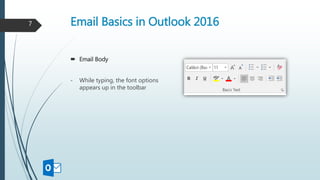
 Email Body
- While typing, the font options
appears up in the toolbar
7
Email Basics in Outlook 2016
 Email Body
- While typing, the font options
appears up in the toolbar
- For further options and features
you need to Click on Format Text
8
9
Email Basics in Outlook 2016
 Insert Hyperlinks
- While composing an email Click on Insert in the toolbar
- Click on Hyperlink
- Name the link
1. Attach a local file
2. Add a website
address
10
11
Email Basics in Outlook 2016
 Personalize default message formatting
- Open Signatures
- Click on Personal Stationery
- Design your preferred
theme or font
12
13
Attachments
14
Attachments in Outlook 2016
 Attach Files
On the Insert tab, Click Attach File and
Select one of the following:
- Recent items
- Browse Web Locations
- Browse this PC
15
16
Attachments in Outlook 2016
 Attach Outlook Item
- Choose Outlook Item
- Select the Folder where
the email is
- Select the email desired
17
18
Attachments in Outlook 2016
 Save Or Display attachment
- We can display or preview an attachment
without downloading it.
- Otherwise, we can download it
anywhere we want.
19
20
Search
21
Search in Outlook 2016
 If you need to find an important message in
your crowded inbox or folder, and you
remember who sent it, or a word or phrase it
contains.
 Use Instant Search to find it quickly instead of
scrolling through pages.
22
Search in Outlook 2016
 Instant Search
- Type the word or person’s name
- Messages that contain the word or name you
specified appear with the search text highlighted
in the results.
23
24
Search in Outlook 2016
 Searching Options
When you click the search box two type of options appear on the ribbon:
- Scope Options
- Refine Options
25
Search in Outlook 2016
 Searching Options (Scope Options)
Scope options help us determine the folder where to find the message
26
Search in Outlook 2016
 Searching Options (Refine Options)
Refine Options help us determine what to search for, these options are used to add a
special script to the search box to limit its search. Options existing:
- From
- Subject
- Has attachment
- Categorized
- This week
- Sent to
- Unread
27
28
Calendar
29
Calendar in Outlook 2016
 In order to organize our daily activities and to remember important tasks and
events we need to use Outlook Calendar.
 We can schedule and track appointments, meetings and events.
 We can also set up Outlook on our mobile device so we can be assured of having
up-to-date schedule information.
30
Calendar in Outlook 2016
 Schedule Appointments (Appointments are blocks of time we schedule for only ourselves)
1. Click Calendar at the bottom
2. Click New Appointment
3. When filling information Subject
and Time are required
31
Calendar in Outlook 2016
 Schedule Appointments (2nd Method)
1. Display the Calendar in the Day
2. Click the time slot at the appointment
start time and drag the cursor to the
desired end time
3. Name the Appointment
4. Click Enter
32
Calendar in Outlook 2016
 Appointment Options
- Availability
- Reminder
- Time Zone
- Categorize
33
34
Calendar in Outlook 2016
 Schedule Meeting
- Same as creating an appointment,
except we invite contacts here
35
Calendar in Outlook 2016
 Schedule Meeting (Scheduling Assistant)
The scheduling Assistant page include the status of each attendee’s time
36
37
Calendar in Outlook 2016
 We can display the Calendar in different ways:
- Day: Displays one day at a time separated into half-hour increments
- Work Week: Displays only the days of work
- Week: Displays all the days of the week
- Month: Displays one month
- Schedule View: Displays a horizontal view of the calendar for the selected time
period. We can add other people’s calendars.
38
39
Contacts
40
Contacts in Outlook 2016
 Contacts are like electronic cards that save a person’s contact information
 A contact can be as basic as a name and email address, or include more
information like a street address, multiple phone numbers and a profile picture.
 Simple access similar to smartphones
41
Contacts in Outlook 2016
 Add a Contact (from a received email)
1. Open the message
2. Right-Click the name and Click Add
to Outlook Contacts
3. Fill contact’s information and Click Save
42
43
Contacts in Outlook 2016
 Add a Contact (from scratch)
1. Click People at the bottom of the screen
2. Click New Contact
44
Contacts in Outlook 2016
 Add a Contact (from scratch)
3. Enter a name and any other
information to include for
the contact
We can save more than one phone
number, email address for someone
or even a photo
45
Contacts in Outlook 2016
 Add a Contact (from scratch)
4. If you want to immediately
Create another contact, Click
Save & New
5. After you’re done entering new
contacts, Click Save & Close
46
47
Contacts in Outlook 2016
 Where and How do we use these Contacts?
While composing a new Email and to determine the recipient we can:
- Click on Address Book. It shows us our contacts
- Click on To Button and it does the same
- Type first letters of a contact and suggestions appear
48
49
Rules
50
Rules in Outlook 2016
 Rules help reduce manually filing or taking the same action when similar messages
arrive.
 Rules are always on and run automatically.
 For example, when a message is received from someone you’ve specified in a rule,
it’s automatically moved to the folder you designate.
51
Rules in Outlook 2016
 Create a Rule
- Click on Manage Rules and Alerts
52
Rules in Outlook 2016
 Create a Rule
- Click on New Rule
53
Rules in Outlook 2016
 Create a Rule
- Select a template
- Click Next
54
Rules in Outlook 2016
 Create a Rule
- Select a Condition
- Edit the Rule Description
55
Rules in Outlook 2016
 Create a Rule
- Select an Action
- Edit the Rule Description
56
Rules in Outlook 2016
 Create a Rule
- Select an Exception (If needed)
- Edit the Rule Description
57
Rules in Outlook 2016
 Create a Rule
- Specify the Name of the rule
- Apply the rule on the
messages in the inbox (if needed)
- The rule is On,
you can turn it off
- Click Finish
58
59
Recall & Replace
Emails
60
Recall and Replace in Outlook 2016
 With message recall, a message that we sent is retrieved from the mailboxes of the
recipients who haven’t yet opened it. We can also substitute a replacement
message.
 If we forgot to include an attachment, we can try to retract the message, and then
we send a replacement message that has the attachment
61
Recall and Replace in Outlook 2016
 Recall or Replace a message
- Choose Sent Items
- Open the message that you want
to recall
- Under the Message tab,
Choose Actions > Recall this message
62
Recall and Replace in Outlook 2016
 Recall or Replace a message
- Choose to Delete the message
- Or replace it (edit the message
and resend it)
63
64
Automatic Replies
65
Automatic Replies in Outlook 2016
 Set an Automatic Reply
- Click File tab
- Click Info tab in the menu
- Click Automatic Replies (Out of Office)
66
Automatic Replies in Outlook 2016
 Set an Automatic Reply
In the Automatic Replies dialog box:
- Select the Send Automatic Replies
check box
- Specify Time & date if desired
- Type the message to send within
the company and outside it.
- Click OK
67
68
Outlook Web App in
Office 365
69
Outlook Web App in Office 365
 The Outlook Web App window gives you access to your messages as well as the
other Outlook tools. (including Outlook 2016)
70
Outlook Web App in Office 365
 Search
In the search bar we have an option to choose where we want to search for the topic
we specify.
71
Outlook Web App in Office 365
 Search
For advanced search settings as on outlook 2016, there is an arrow near the search box
where options appear.
72
Outlook Web App in Office 365
 Mail Options
To access mail options Click on Settings. We can change the default font used for
emails, or we can set a signature and other options same on Outlook 2016.
73
Outlook Web App in Office 365
 Creating a Meeting Request
As on Outlook 2016, we can schedule Meetings with simple steps:
- Click New
- Click Meeting Request
- Enter the recipients emails
- Enter a Subject
- Choose Start & End Time
- Type the Body of the invitation
- Click Send
74
Outlook Web App in Office 365
 Creating a Meeting Request
By Clicking on Scheduling Assistant, it will look up the schedule of each participant and
let you know if the time is free for each person.
75
Outlook Web App in Office 365
 Calendar
The Calendar in Outlook Web App enables you to set, share and modify appointments.
76
Outlook Web App in Office 365
 Calendar (New Appointment)
- Click on New
- Enter desired information
- Click Save & Close
77
Outlook Web App in Office 365
 Contacts
To Create a contact in Outlook Web App Click New and Choose Contact
78
Outlook Web App in Office 365
 Contacts
Enter Information about your new contact
as completely as you want.
79
Outlook Web App in Office 365
 Contacts
You can easily find a contact using Search Box, you have to only type the name of the
contact
80

Outlook 2016 training

  • 1.
    Outlook 2016 Training AliMoukahhal Trainee (Netways Global)
  • 2.
    Microsoft Outlook 2016 Microsoft Outlook is a personal information manager from Microsoft, available as a part of the Microsoft Office suite.  Used mainly as an email application, it also includes a calendar, task manager, contact manager…  Let’s see Outlook interface… 2
  • 3.
    Content  Email Basics Attachments  Search  Calendar  Contacts  Rules  Recall & Replace Messages  Automatic Replies 3
  • 4.
  • 5.
    Email Basics inOutlook 2016  Compose an Email - Select New Email or Press Ctrl + N - Type the Subject of the message - Enter the recipients’ email addresses or name in the To, Cc or Bcc - After you finish composing your message, Select Send Sometimes the Bcc field is hidden by default 5
  • 6.
    Email Basics inOutlook 2016  Enable Bcc - Click on Options - Enable Bcc Field 6
  • 7.
    Email Basics inOutlook 2016  Email Body - While typing, the font options appears up in the toolbar 7
  • 8.
    Email Basics inOutlook 2016  Email Body - While typing, the font options appears up in the toolbar - For further options and features you need to Click on Format Text 8
  • 9.
  • 10.
    Email Basics inOutlook 2016  Insert Hyperlinks - While composing an email Click on Insert in the toolbar - Click on Hyperlink - Name the link 1. Attach a local file 2. Add a website address 10
  • 11.
  • 12.
    Email Basics inOutlook 2016  Personalize default message formatting - Open Signatures - Click on Personal Stationery - Design your preferred theme or font 12
  • 13.
  • 14.
  • 15.
    Attachments in Outlook2016  Attach Files On the Insert tab, Click Attach File and Select one of the following: - Recent items - Browse Web Locations - Browse this PC 15
  • 16.
  • 17.
    Attachments in Outlook2016  Attach Outlook Item - Choose Outlook Item - Select the Folder where the email is - Select the email desired 17
  • 18.
  • 19.
    Attachments in Outlook2016  Save Or Display attachment - We can display or preview an attachment without downloading it. - Otherwise, we can download it anywhere we want. 19
  • 20.
  • 21.
  • 22.
    Search in Outlook2016  If you need to find an important message in your crowded inbox or folder, and you remember who sent it, or a word or phrase it contains.  Use Instant Search to find it quickly instead of scrolling through pages. 22
  • 23.
    Search in Outlook2016  Instant Search - Type the word or person’s name - Messages that contain the word or name you specified appear with the search text highlighted in the results. 23
  • 24.
  • 25.
    Search in Outlook2016  Searching Options When you click the search box two type of options appear on the ribbon: - Scope Options - Refine Options 25
  • 26.
    Search in Outlook2016  Searching Options (Scope Options) Scope options help us determine the folder where to find the message 26
  • 27.
    Search in Outlook2016  Searching Options (Refine Options) Refine Options help us determine what to search for, these options are used to add a special script to the search box to limit its search. Options existing: - From - Subject - Has attachment - Categorized - This week - Sent to - Unread 27
  • 28.
  • 29.
  • 30.
    Calendar in Outlook2016  In order to organize our daily activities and to remember important tasks and events we need to use Outlook Calendar.  We can schedule and track appointments, meetings and events.  We can also set up Outlook on our mobile device so we can be assured of having up-to-date schedule information. 30
  • 31.
    Calendar in Outlook2016  Schedule Appointments (Appointments are blocks of time we schedule for only ourselves) 1. Click Calendar at the bottom 2. Click New Appointment 3. When filling information Subject and Time are required 31
  • 32.
    Calendar in Outlook2016  Schedule Appointments (2nd Method) 1. Display the Calendar in the Day 2. Click the time slot at the appointment start time and drag the cursor to the desired end time 3. Name the Appointment 4. Click Enter 32
  • 33.
    Calendar in Outlook2016  Appointment Options - Availability - Reminder - Time Zone - Categorize 33
  • 34.
  • 35.
    Calendar in Outlook2016  Schedule Meeting - Same as creating an appointment, except we invite contacts here 35
  • 36.
    Calendar in Outlook2016  Schedule Meeting (Scheduling Assistant) The scheduling Assistant page include the status of each attendee’s time 36
  • 37.
  • 38.
    Calendar in Outlook2016  We can display the Calendar in different ways: - Day: Displays one day at a time separated into half-hour increments - Work Week: Displays only the days of work - Week: Displays all the days of the week - Month: Displays one month - Schedule View: Displays a horizontal view of the calendar for the selected time period. We can add other people’s calendars. 38
  • 39.
  • 40.
  • 41.
    Contacts in Outlook2016  Contacts are like electronic cards that save a person’s contact information  A contact can be as basic as a name and email address, or include more information like a street address, multiple phone numbers and a profile picture.  Simple access similar to smartphones 41
  • 42.
    Contacts in Outlook2016  Add a Contact (from a received email) 1. Open the message 2. Right-Click the name and Click Add to Outlook Contacts 3. Fill contact’s information and Click Save 42
  • 43.
  • 44.
    Contacts in Outlook2016  Add a Contact (from scratch) 1. Click People at the bottom of the screen 2. Click New Contact 44
  • 45.
    Contacts in Outlook2016  Add a Contact (from scratch) 3. Enter a name and any other information to include for the contact We can save more than one phone number, email address for someone or even a photo 45
  • 46.
    Contacts in Outlook2016  Add a Contact (from scratch) 4. If you want to immediately Create another contact, Click Save & New 5. After you’re done entering new contacts, Click Save & Close 46
  • 47.
  • 48.
    Contacts in Outlook2016  Where and How do we use these Contacts? While composing a new Email and to determine the recipient we can: - Click on Address Book. It shows us our contacts - Click on To Button and it does the same - Type first letters of a contact and suggestions appear 48
  • 49.
  • 50.
  • 51.
    Rules in Outlook2016  Rules help reduce manually filing or taking the same action when similar messages arrive.  Rules are always on and run automatically.  For example, when a message is received from someone you’ve specified in a rule, it’s automatically moved to the folder you designate. 51
  • 52.
    Rules in Outlook2016  Create a Rule - Click on Manage Rules and Alerts 52
  • 53.
    Rules in Outlook2016  Create a Rule - Click on New Rule 53
  • 54.
    Rules in Outlook2016  Create a Rule - Select a template - Click Next 54
  • 55.
    Rules in Outlook2016  Create a Rule - Select a Condition - Edit the Rule Description 55
  • 56.
    Rules in Outlook2016  Create a Rule - Select an Action - Edit the Rule Description 56
  • 57.
    Rules in Outlook2016  Create a Rule - Select an Exception (If needed) - Edit the Rule Description 57
  • 58.
    Rules in Outlook2016  Create a Rule - Specify the Name of the rule - Apply the rule on the messages in the inbox (if needed) - The rule is On, you can turn it off - Click Finish 58
  • 59.
  • 60.
  • 61.
    Recall and Replacein Outlook 2016  With message recall, a message that we sent is retrieved from the mailboxes of the recipients who haven’t yet opened it. We can also substitute a replacement message.  If we forgot to include an attachment, we can try to retract the message, and then we send a replacement message that has the attachment 61
  • 62.
    Recall and Replacein Outlook 2016  Recall or Replace a message - Choose Sent Items - Open the message that you want to recall - Under the Message tab, Choose Actions > Recall this message 62
  • 63.
    Recall and Replacein Outlook 2016  Recall or Replace a message - Choose to Delete the message - Or replace it (edit the message and resend it) 63
  • 64.
  • 65.
  • 66.
    Automatic Replies inOutlook 2016  Set an Automatic Reply - Click File tab - Click Info tab in the menu - Click Automatic Replies (Out of Office) 66
  • 67.
    Automatic Replies inOutlook 2016  Set an Automatic Reply In the Automatic Replies dialog box: - Select the Send Automatic Replies check box - Specify Time & date if desired - Type the message to send within the company and outside it. - Click OK 67
  • 68.
  • 69.
    Outlook Web Appin Office 365 69
  • 70.
    Outlook Web Appin Office 365  The Outlook Web App window gives you access to your messages as well as the other Outlook tools. (including Outlook 2016) 70
  • 71.
    Outlook Web Appin Office 365  Search In the search bar we have an option to choose where we want to search for the topic we specify. 71
  • 72.
    Outlook Web Appin Office 365  Search For advanced search settings as on outlook 2016, there is an arrow near the search box where options appear. 72
  • 73.
    Outlook Web Appin Office 365  Mail Options To access mail options Click on Settings. We can change the default font used for emails, or we can set a signature and other options same on Outlook 2016. 73
  • 74.
    Outlook Web Appin Office 365  Creating a Meeting Request As on Outlook 2016, we can schedule Meetings with simple steps: - Click New - Click Meeting Request - Enter the recipients emails - Enter a Subject - Choose Start & End Time - Type the Body of the invitation - Click Send 74
  • 75.
    Outlook Web Appin Office 365  Creating a Meeting Request By Clicking on Scheduling Assistant, it will look up the schedule of each participant and let you know if the time is free for each person. 75
  • 76.
    Outlook Web Appin Office 365  Calendar The Calendar in Outlook Web App enables you to set, share and modify appointments. 76
  • 77.
    Outlook Web Appin Office 365  Calendar (New Appointment) - Click on New - Enter desired information - Click Save & Close 77
  • 78.
    Outlook Web Appin Office 365  Contacts To Create a contact in Outlook Web App Click New and Choose Contact 78
  • 79.
    Outlook Web Appin Office 365  Contacts Enter Information about your new contact as completely as you want. 79
  • 80.
    Outlook Web Appin Office 365  Contacts You can easily find a contact using Search Box, you have to only type the name of the contact 80