Maya Dynamics Basics
Lab 1: Introduces Maya Dynamics
Author: Khieu Van Bang
Email: tribang.nd@gmail.com
CONTENTS
 Dynamics overview:
 What we can do with Maya Dynamics ?
 Architecture and Features.
 What will we learn in this topic ?
 Getting started with Particle Tool:
 Started creating Particle with Particle Tool.
 Understanding Particle objects: creating, display attributes, setting render,
render view, ...
1) DYNAMICS OVERVIEW
Introduces Maya Dynamics
1) DYNAMICS OVERVIEW
Introduces Maya Dynamics
1.1) What we can do with Maya Dynamics ?
1.2) Architecture and Features.
1.3) What will we learn in this topic ?
Dynamics overview
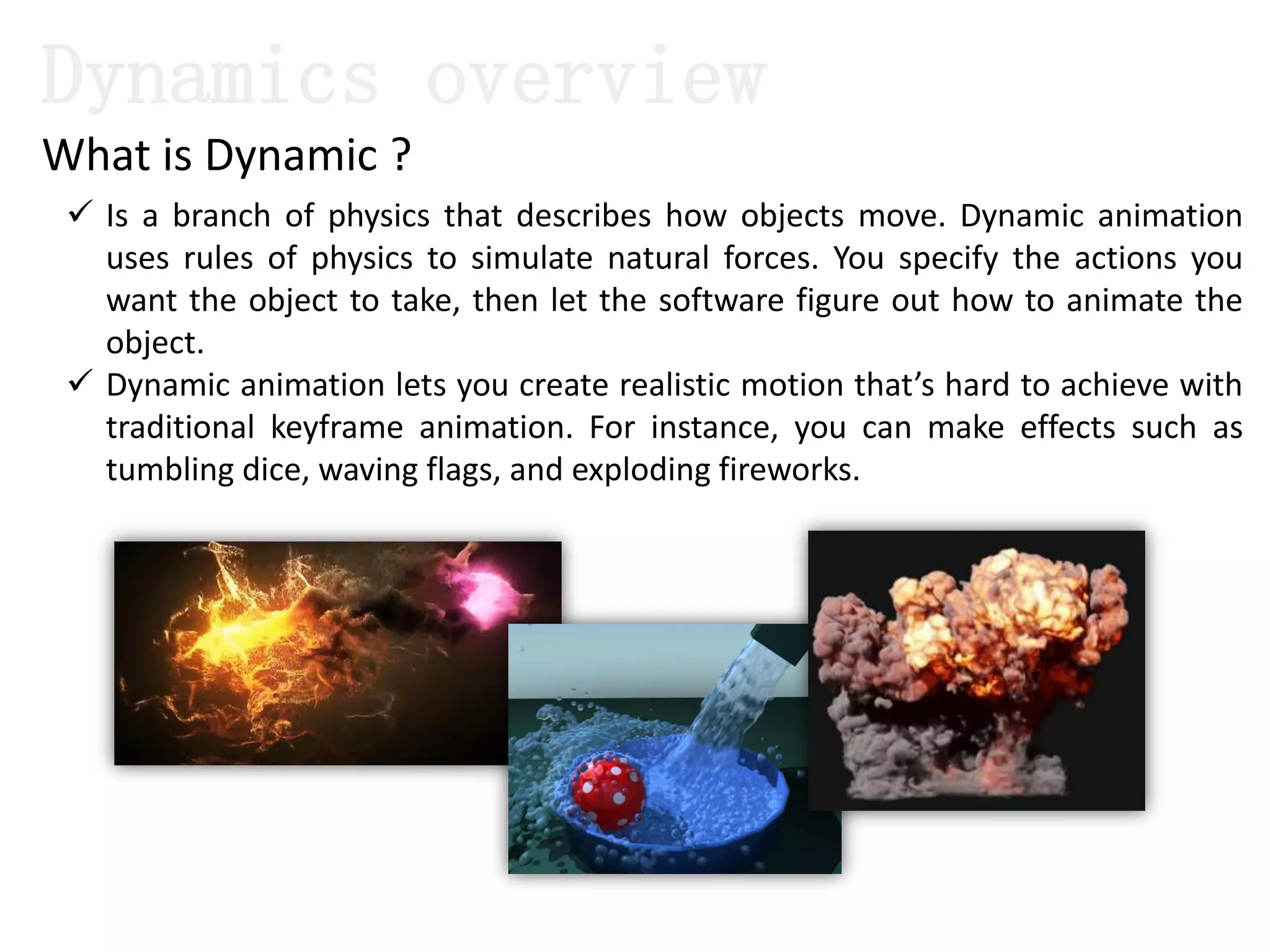
 Is a branch of physics that describes how objects move. Dynamic animation
uses rules of physics to simulate natural forces. You specify the actions you
want the object to take, then let the software figure out how to animate the
object.
 Dynamic animation lets you create realistic motion that’s hard to achieve with
traditional keyframe animation. For instance, you can make effects such as
tumbling dice, waving flags, and exploding fireworks.
What is Dynamic ?
1.1) What we can do with Maya Dynamics ?
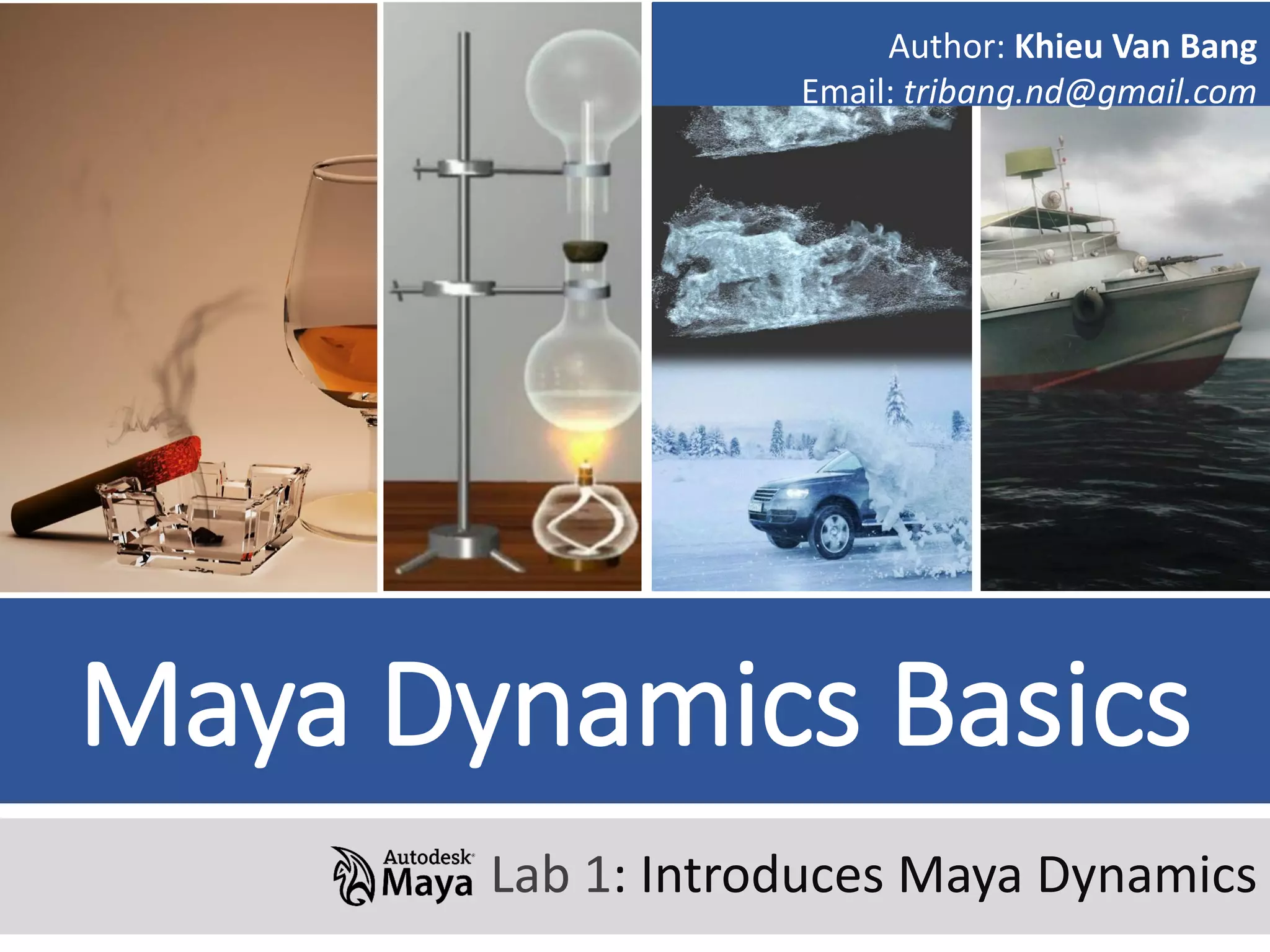
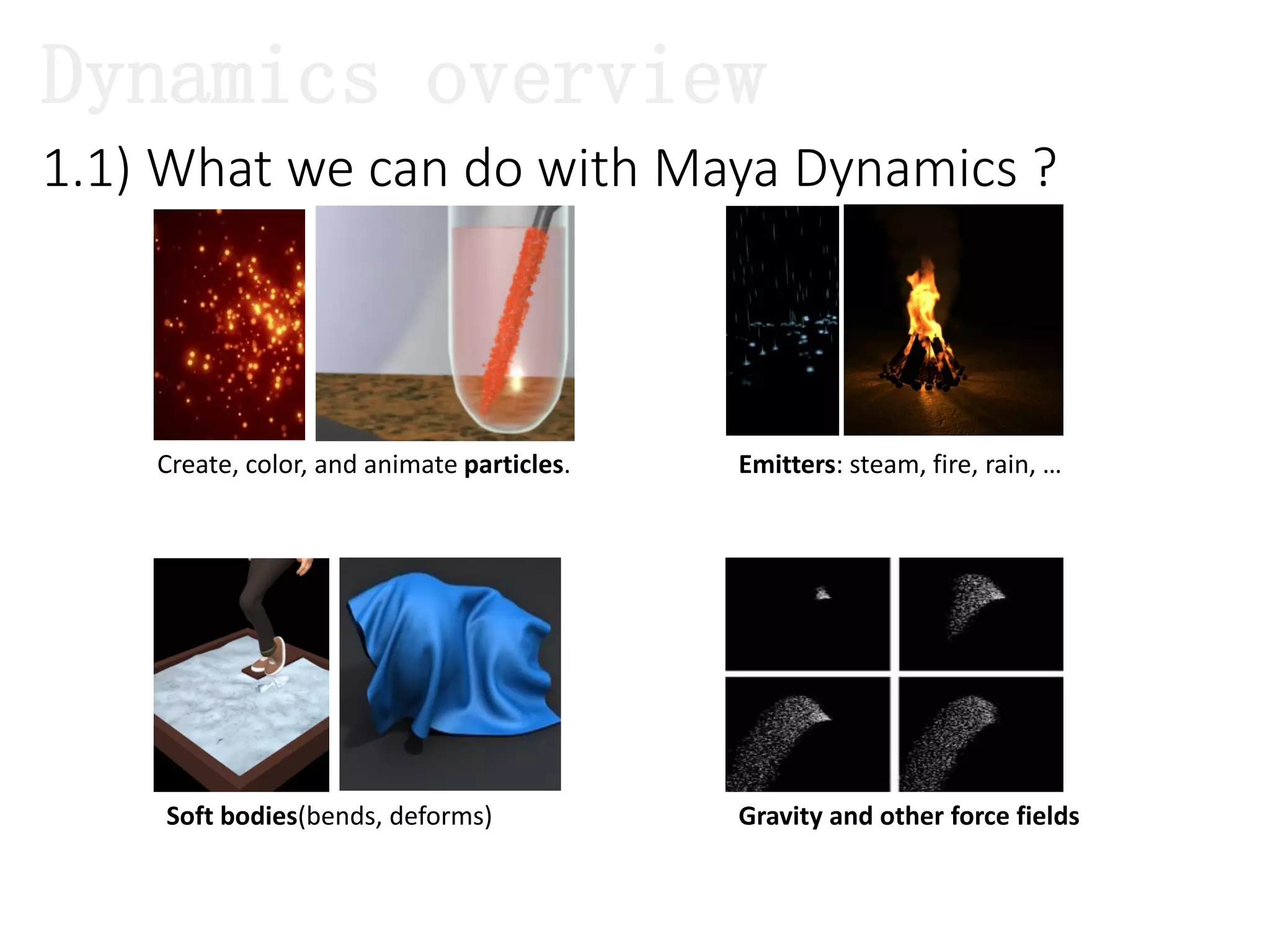
Create, color, and animate particles. Emitters: steam, fire, rain, …
Soft bodies(bends, deforms) Gravity and other force fields
Dynamics overview
1.1) What we can do with Maya Dynamics ?
Dynamics overview
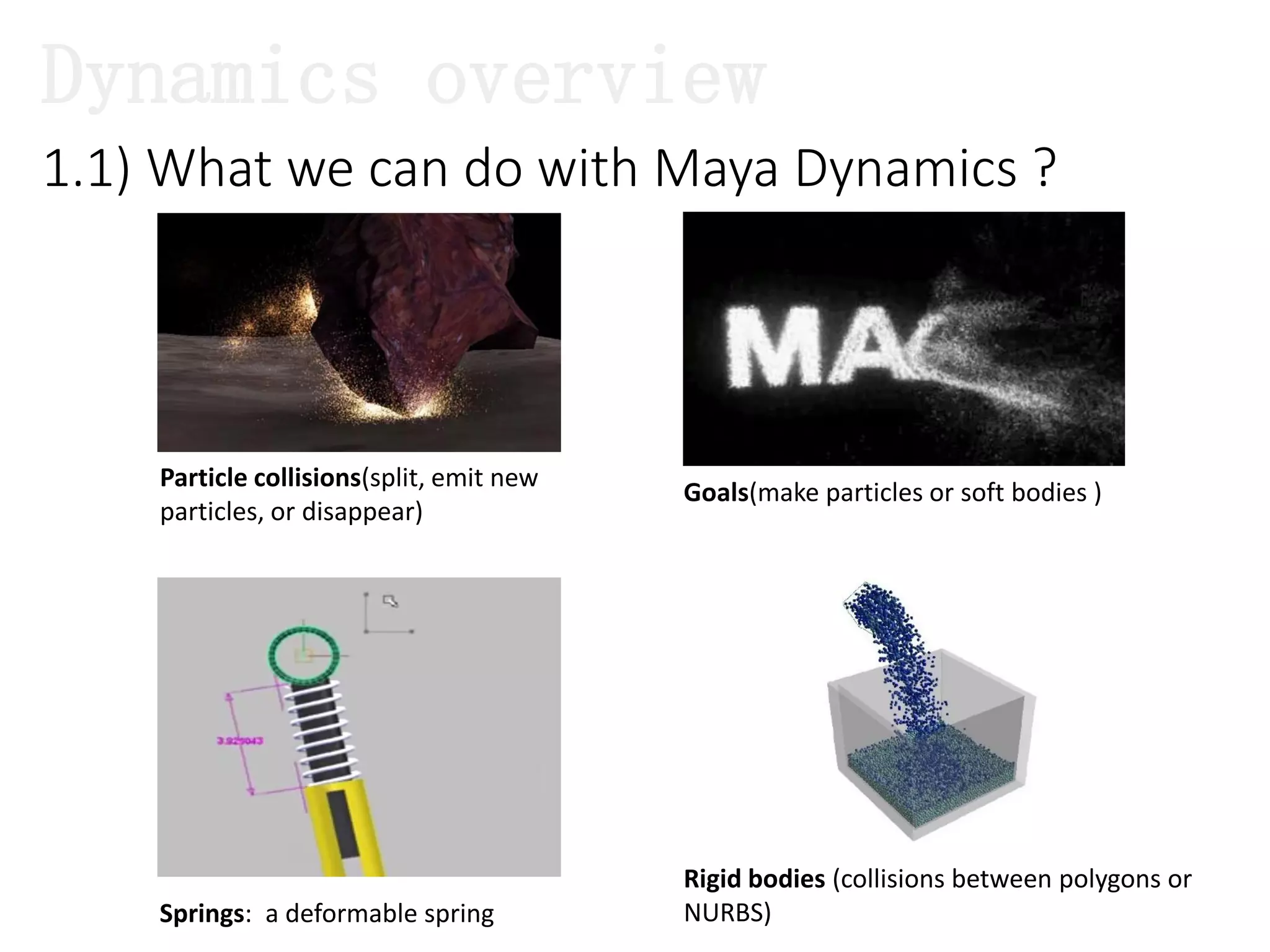
Particle collisions(split, emit new
particles, or disappear)
Goals(make particles or soft bodies )
Springs: a deformable spring
Rigid bodies (collisions between polygons or
NURBS)
1.1) What we can do with Maya Dynamics ?
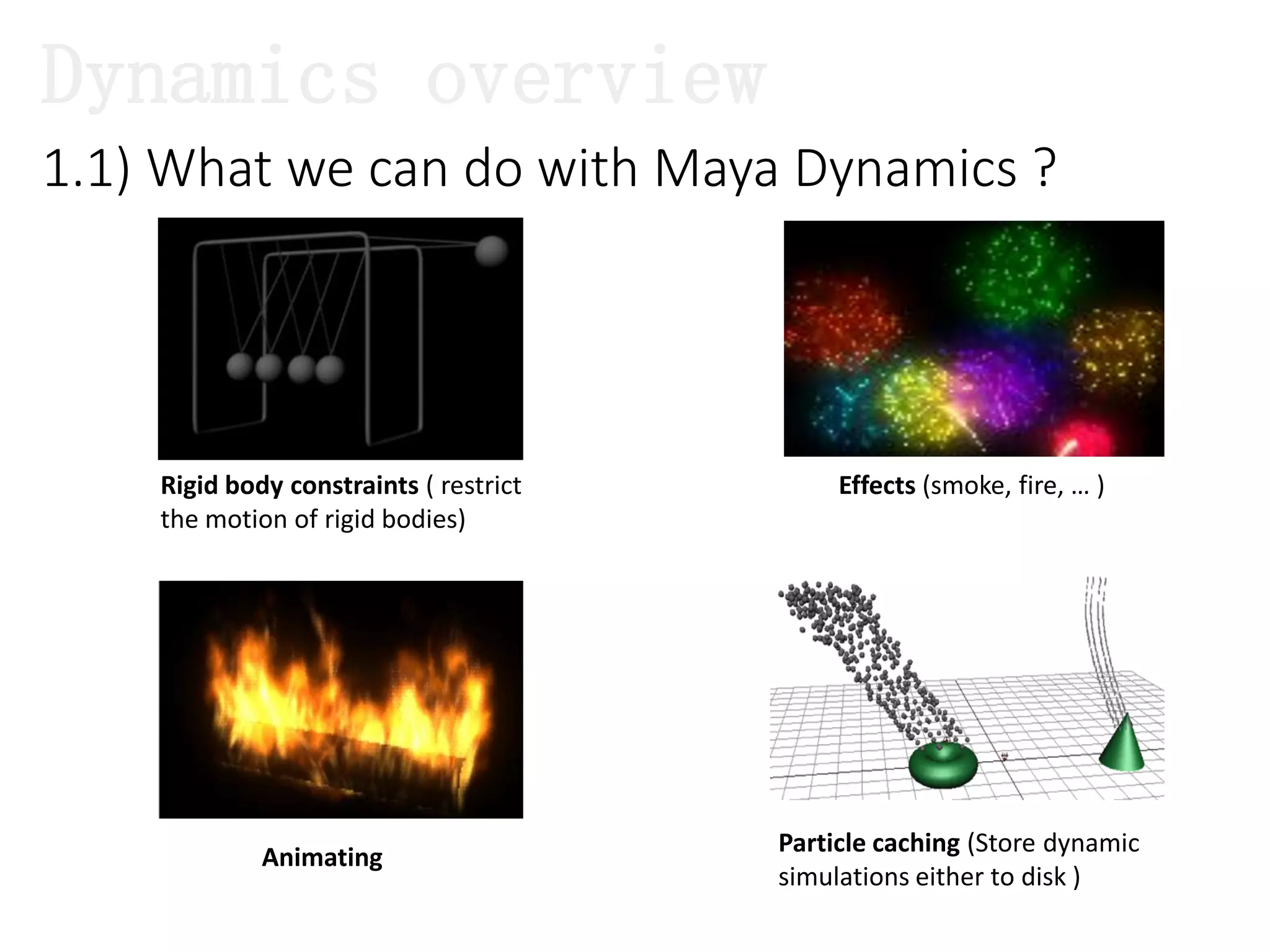
Rigid body constraints ( restrict
the motion of rigid bodies)
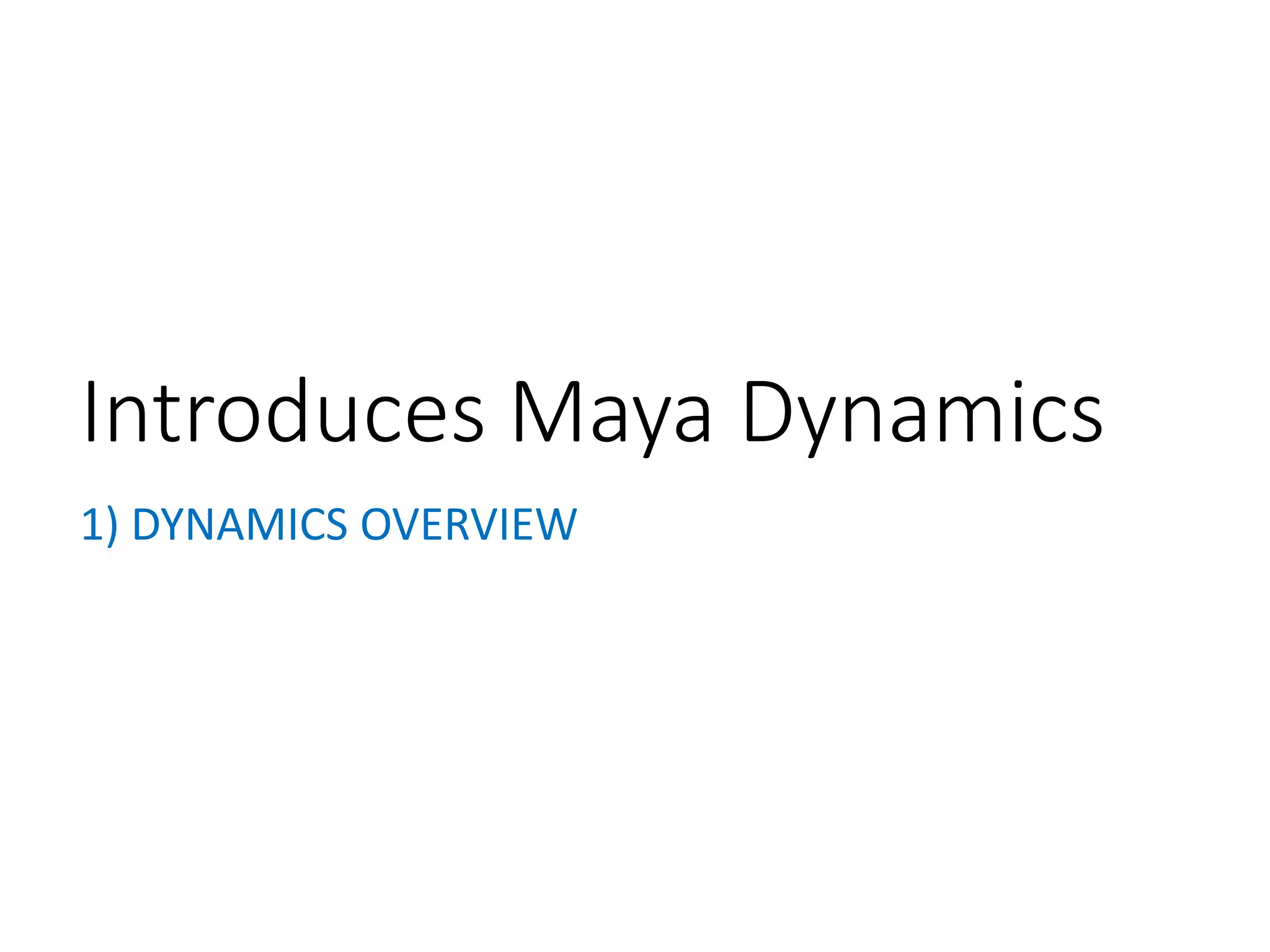
Effects (smoke, fire, … )
Animating
Particle caching (Store dynamic
simulations either to disk )
Dynamics overview
1.1) What we can do with Maya Dynamics ?
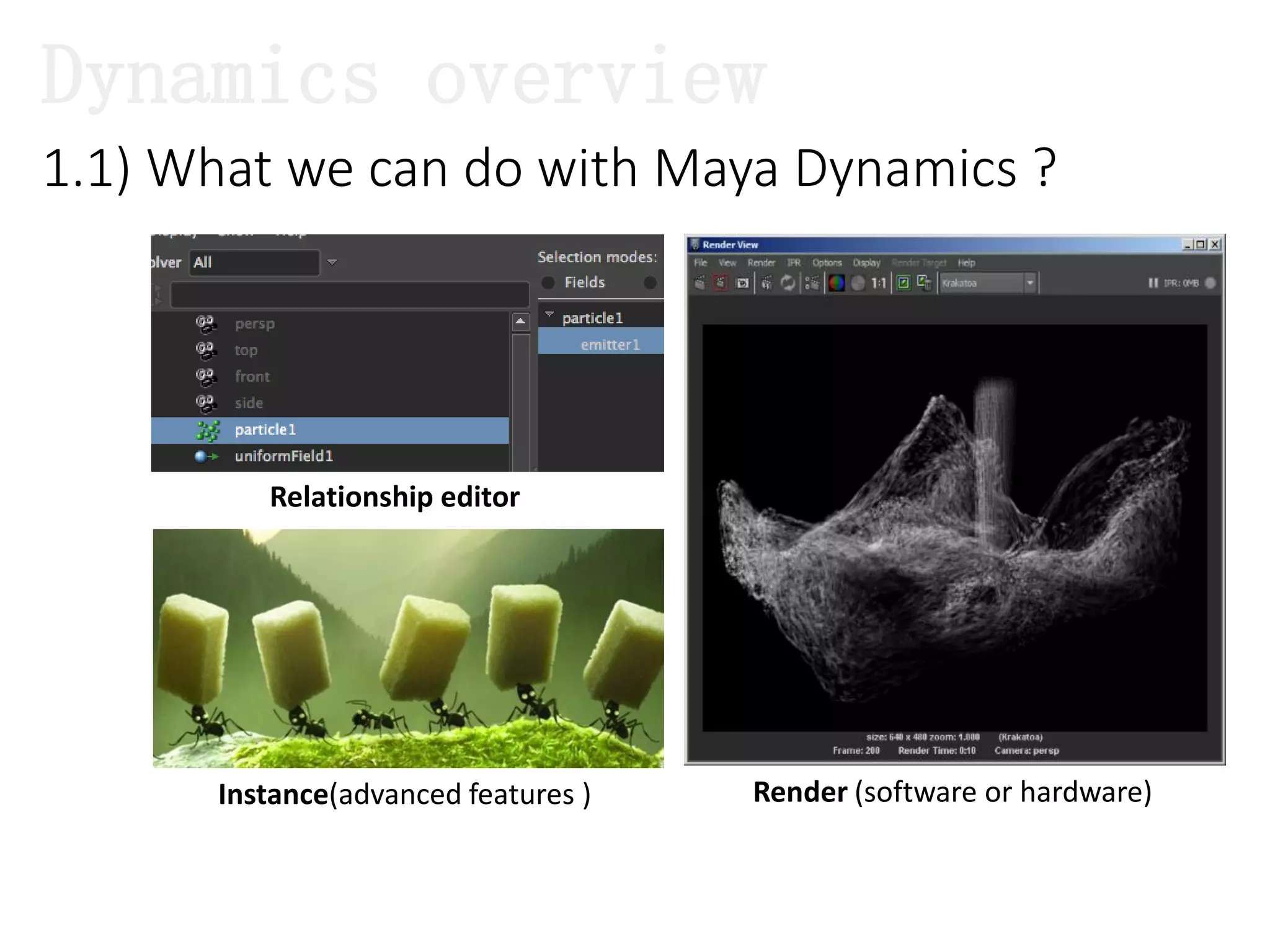
Relationship editor
Render (software or hardware)Instance(advanced features )
Dynamics overview
1) DYNAMICS OVERVIEW
Introduces Maya Dynamics
1.1) What we can do with Maya Dynamics ?
1.2) Architecture and Features.
1.3) What will we learn in this topic ?
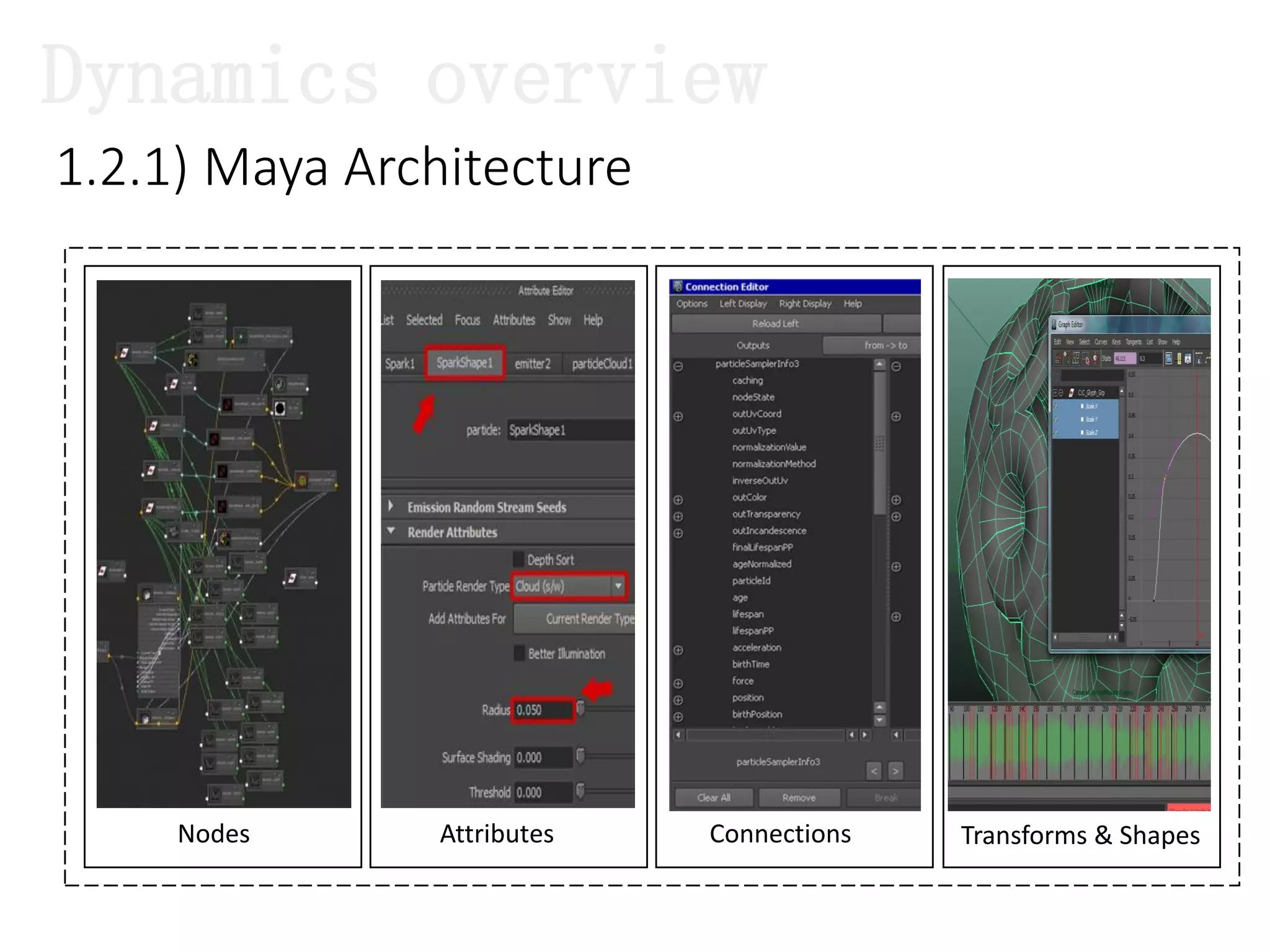
1.2.1) Maya Architecture
Dynamics overview
Nodes Attributes Connections Transforms & Shapes
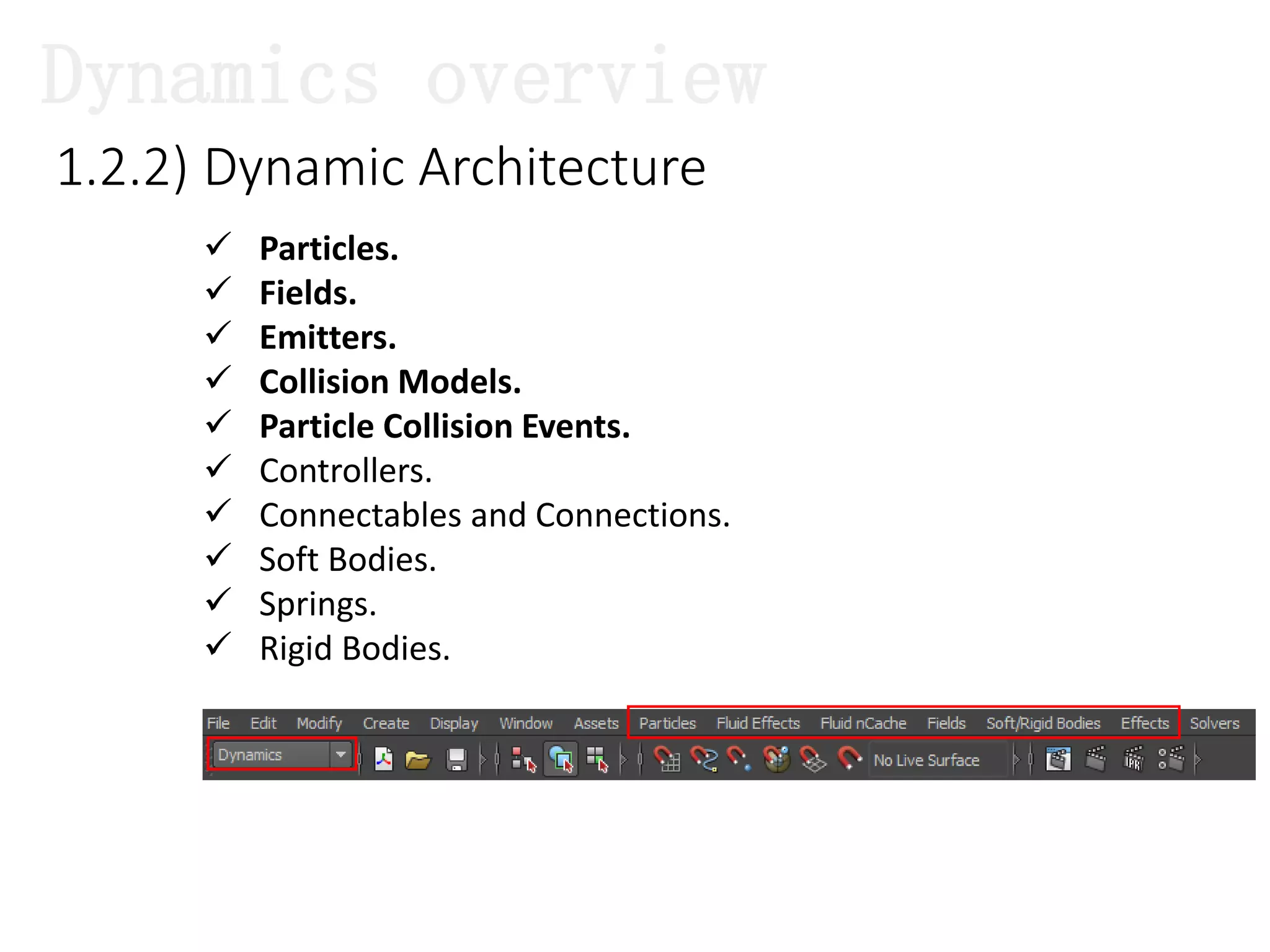
1.2.2) Dynamic Architecture
 Particles.
 Fields.
 Emitters.
 Collision Models.
 Particle Collision Events.
 Controllers.
 Connectables and Connections.
 Soft Bodies.
 Springs.
 Rigid Bodies.
Dynamics overview
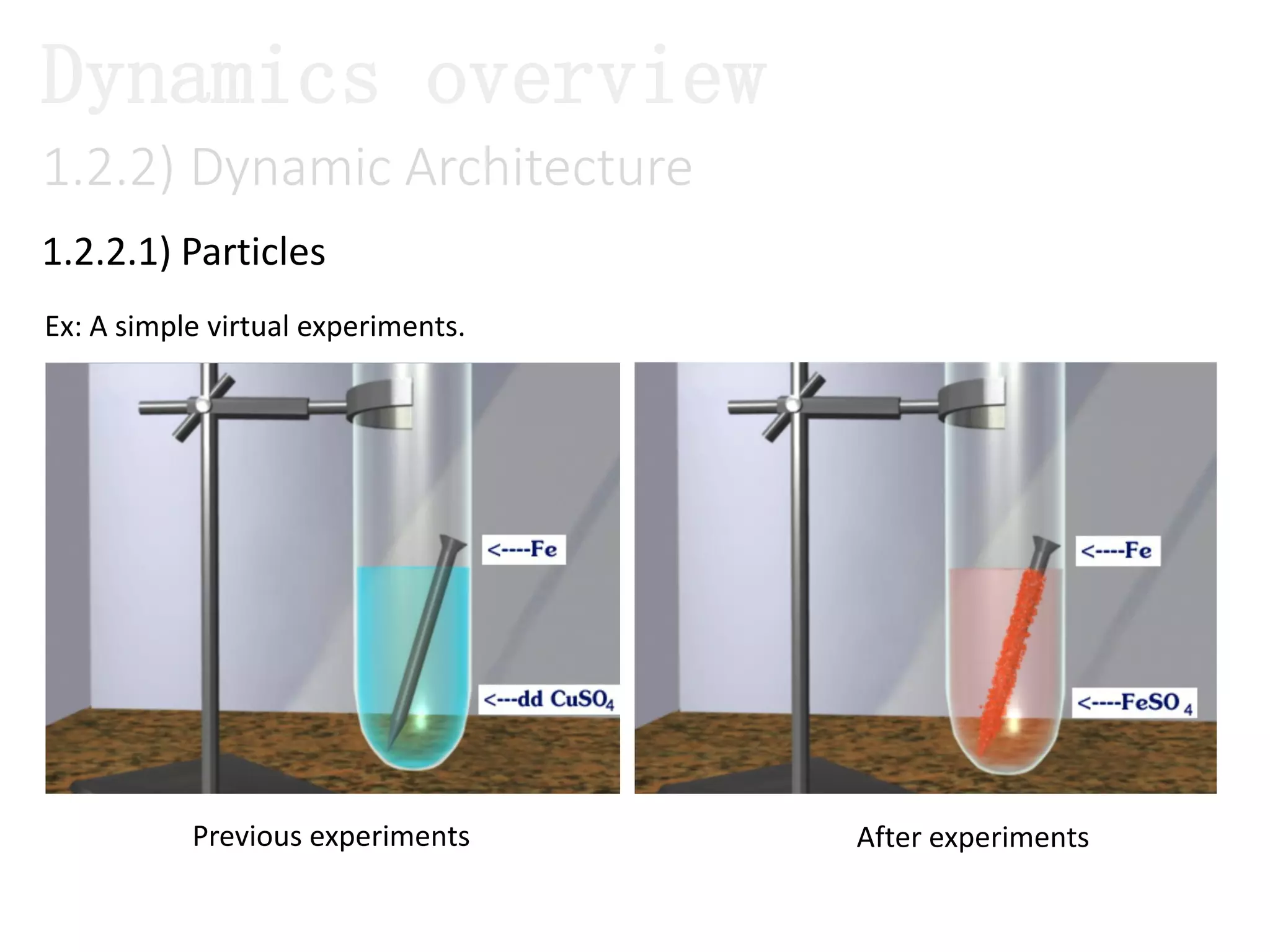
1.2.2.1) Particles
1.2.2) Dynamic Architecture
Dynamics overview
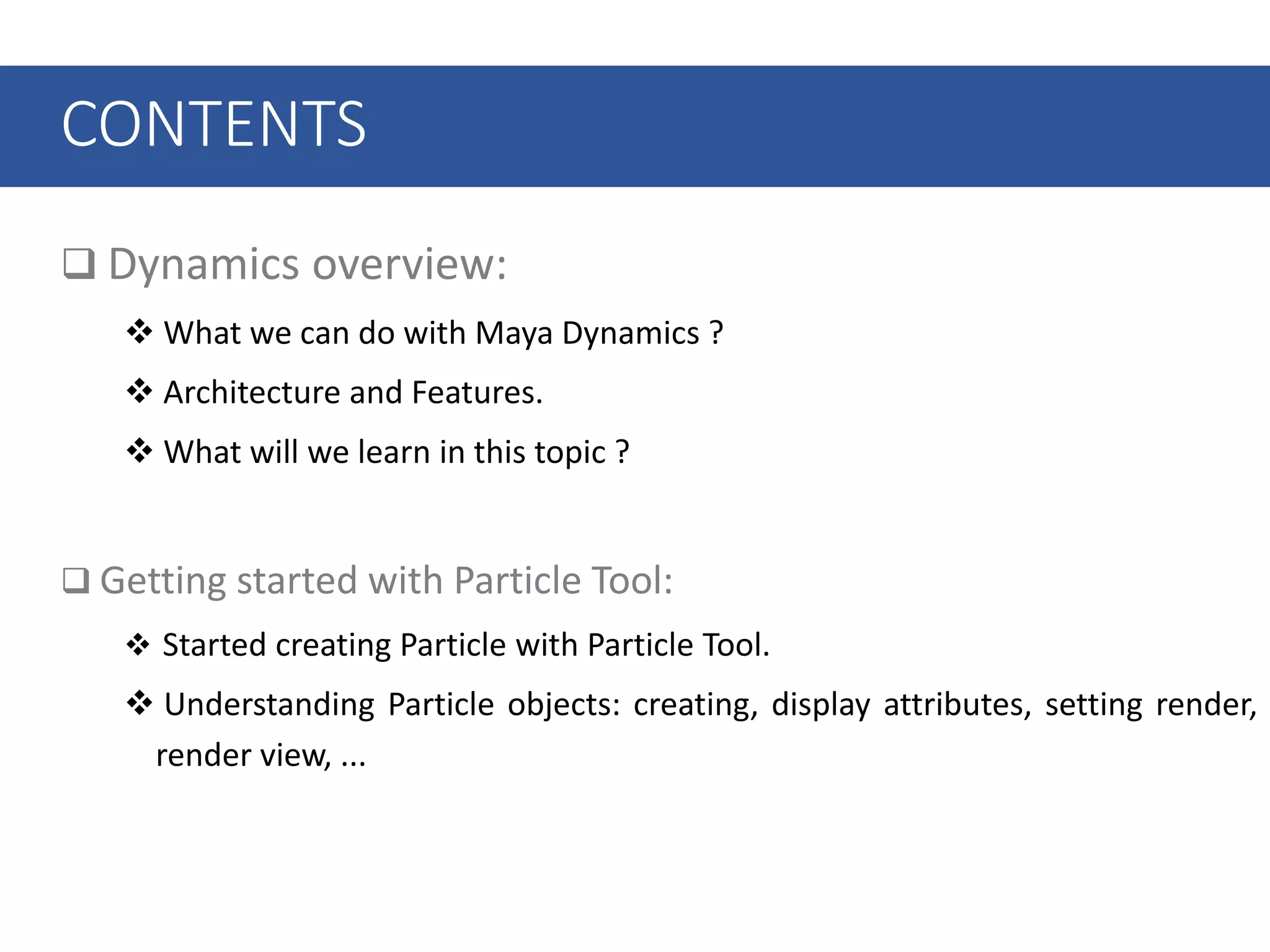
Previous experiments After experiments
Ex: A simple virtual experiments.
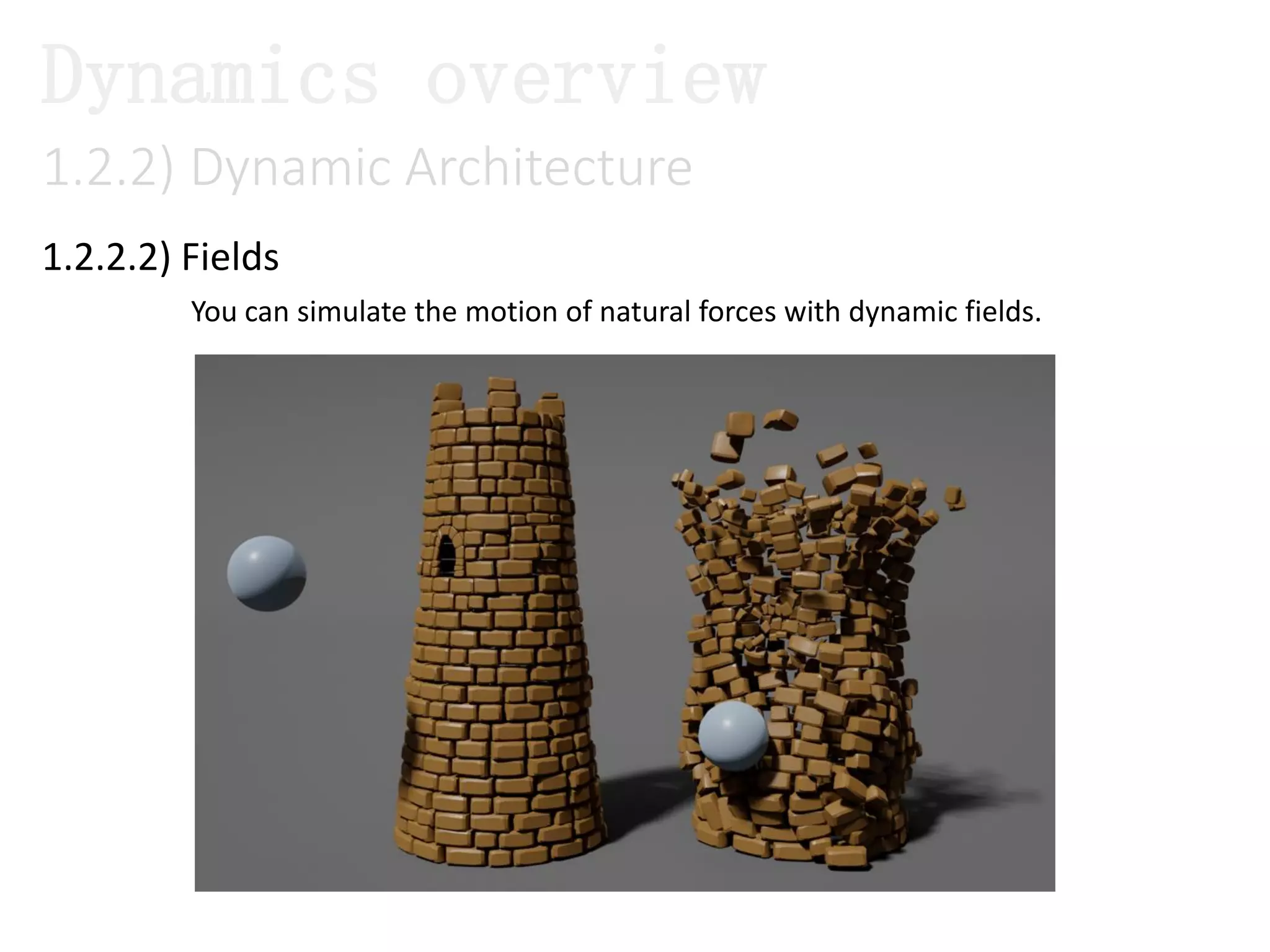
1.2.2.2) Fields
1.2.2) Dynamic Architecture
Dynamics overview
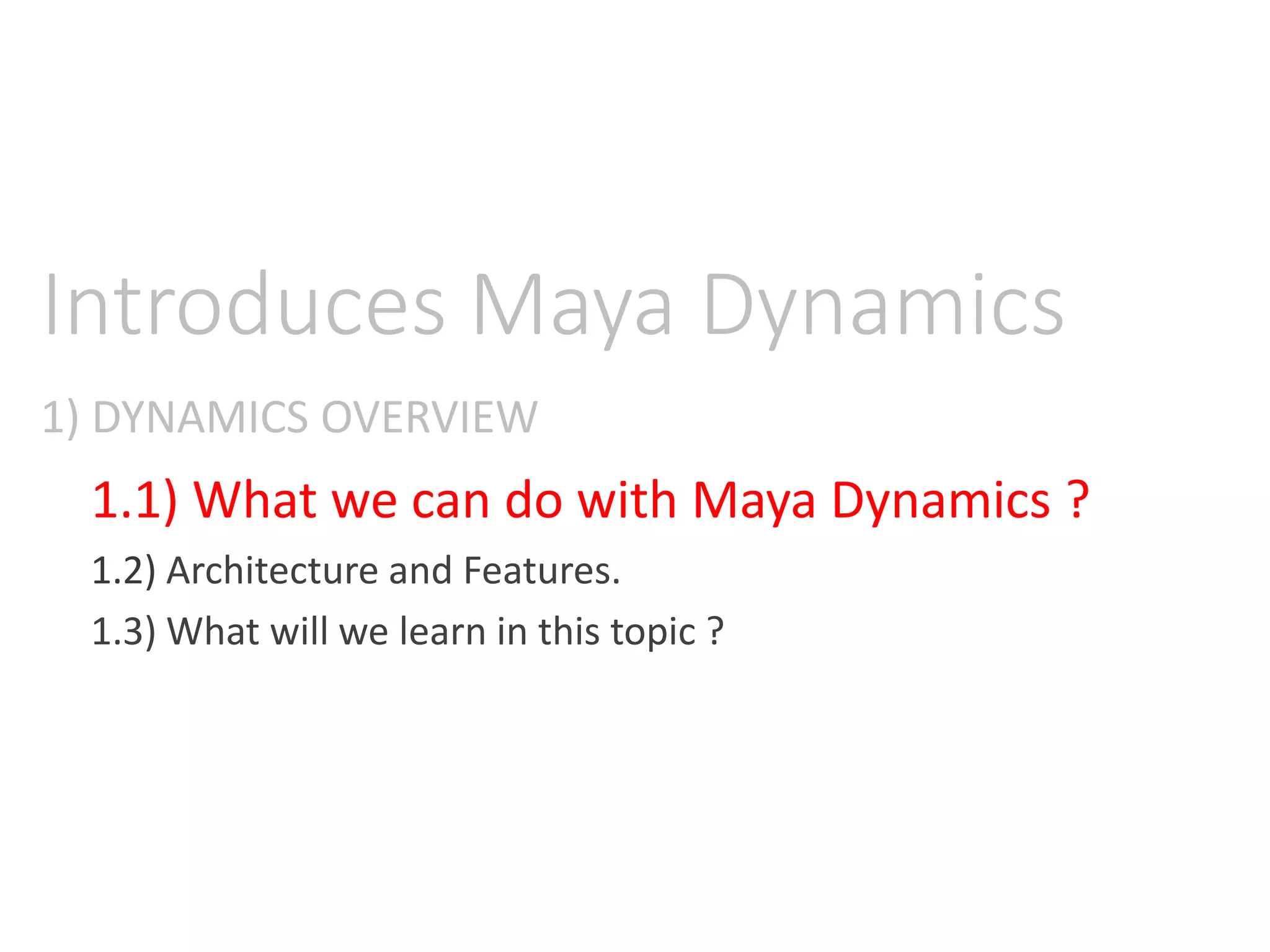
You can simulate the motion of natural forces with dynamic fields.
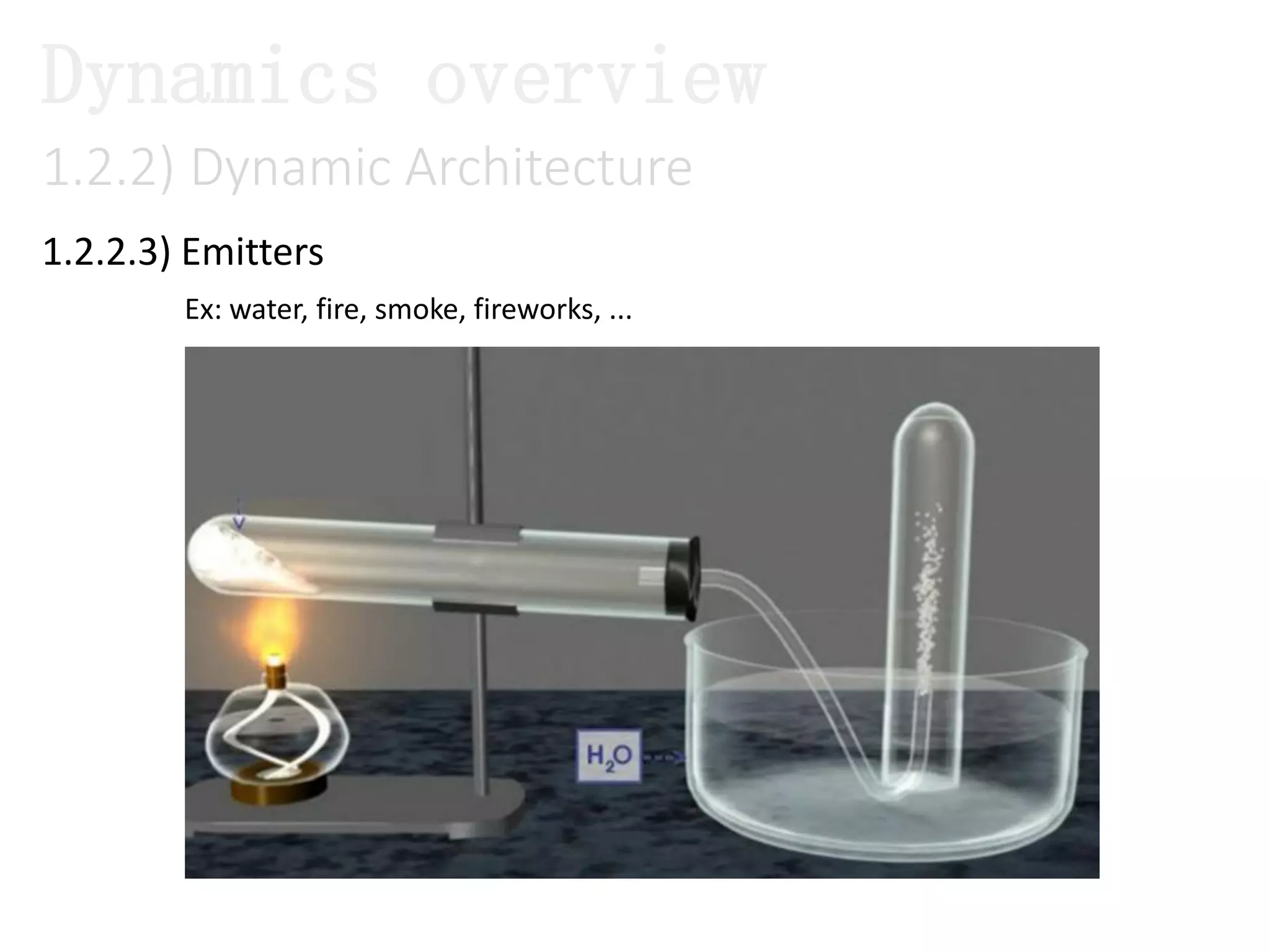
1.2.2.3) Emitters
1.2.2) Dynamic Architecture
Dynamics overview
Ex: water, fire, smoke, fireworks, ...
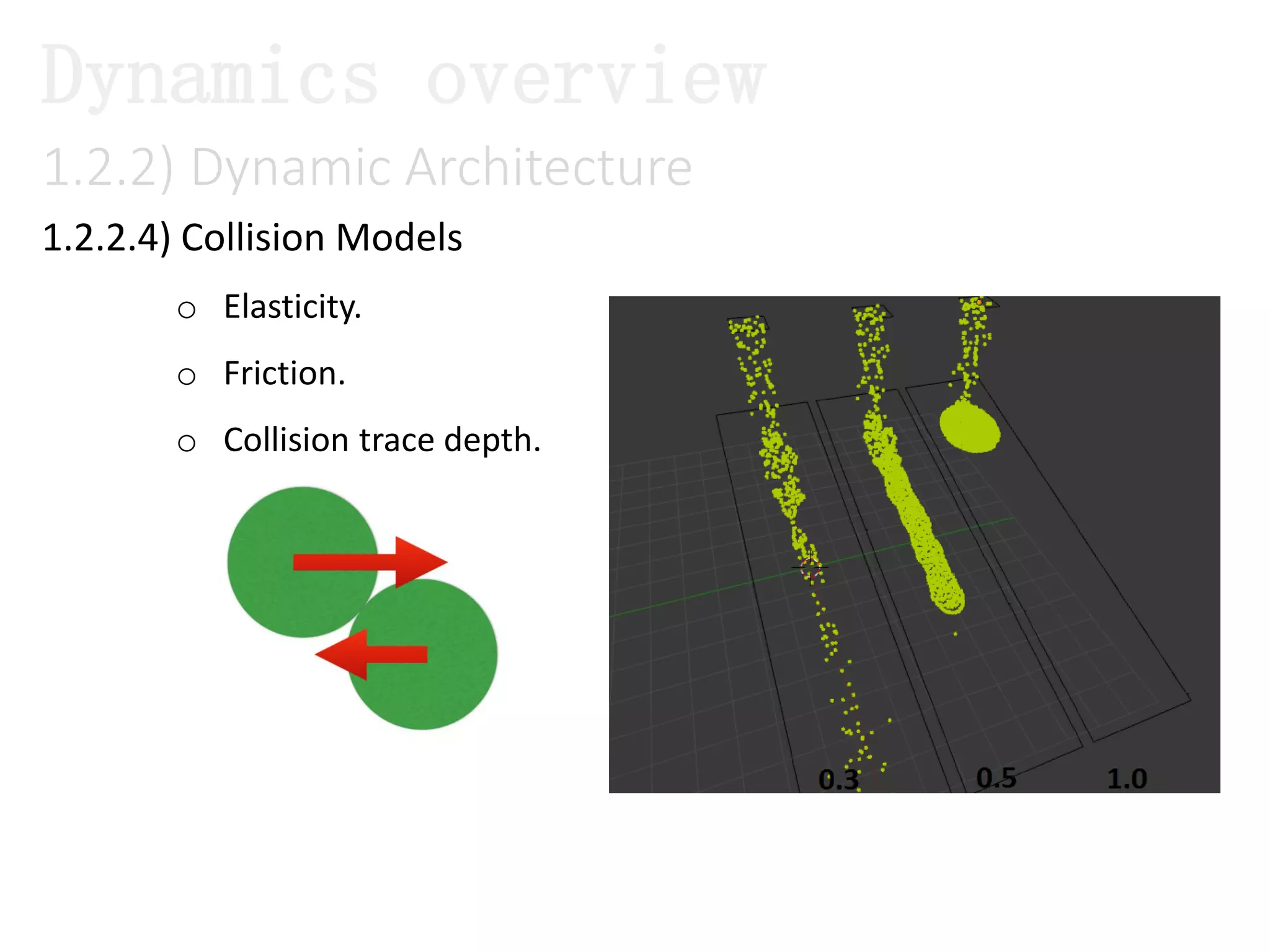
1.2.2.4) Collision Models
o Elasticity.
o Friction.
o Collision trace depth.
1.2.2) Dynamic Architecture
Dynamics overview
1.2.2) Dynamic Architecture
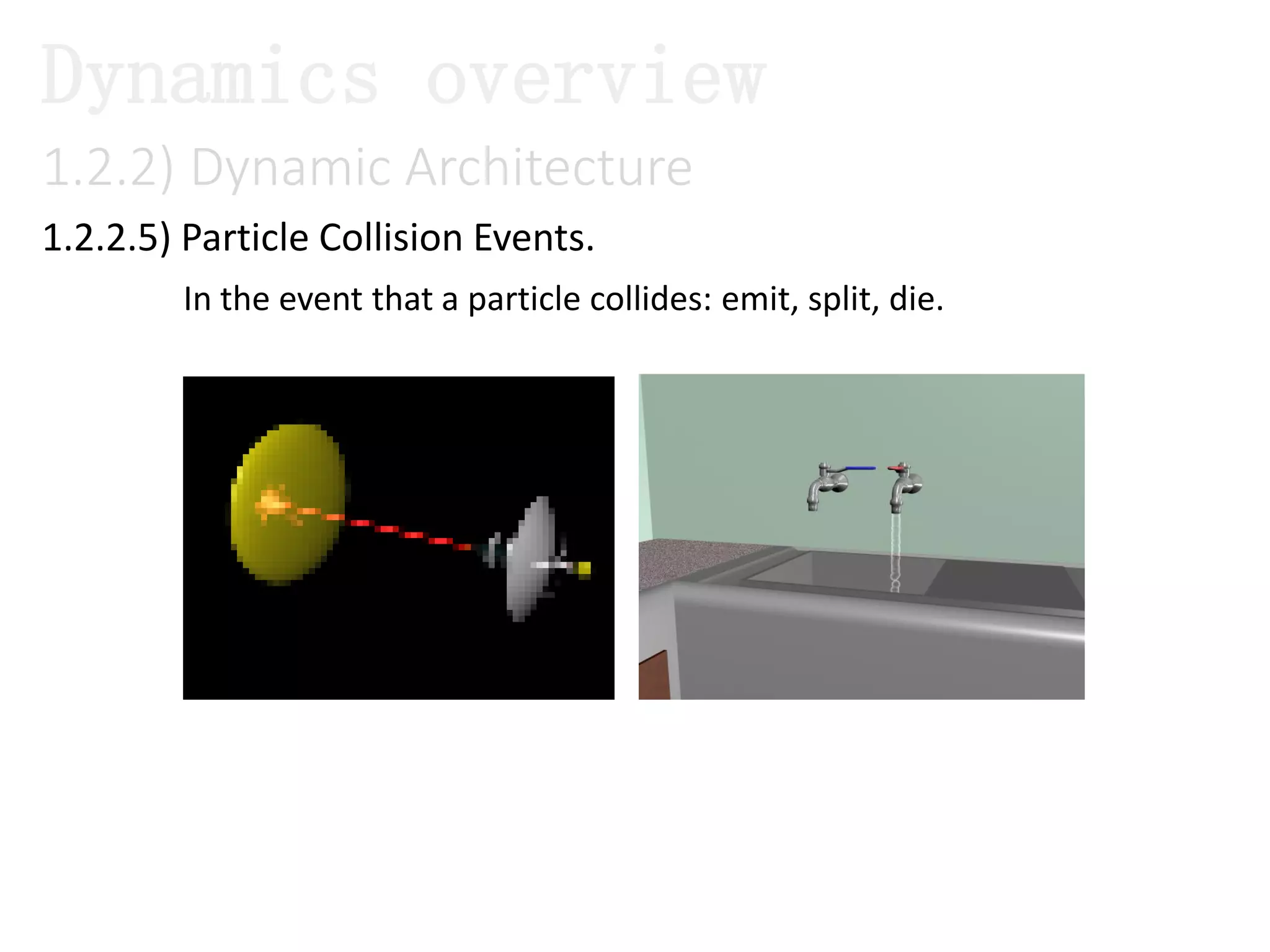
1.2.2.5) Particle Collision Events.
Dynamics overview
In the event that a particle collides: emit, split, die.
1.2.2) Dynamic Architecture
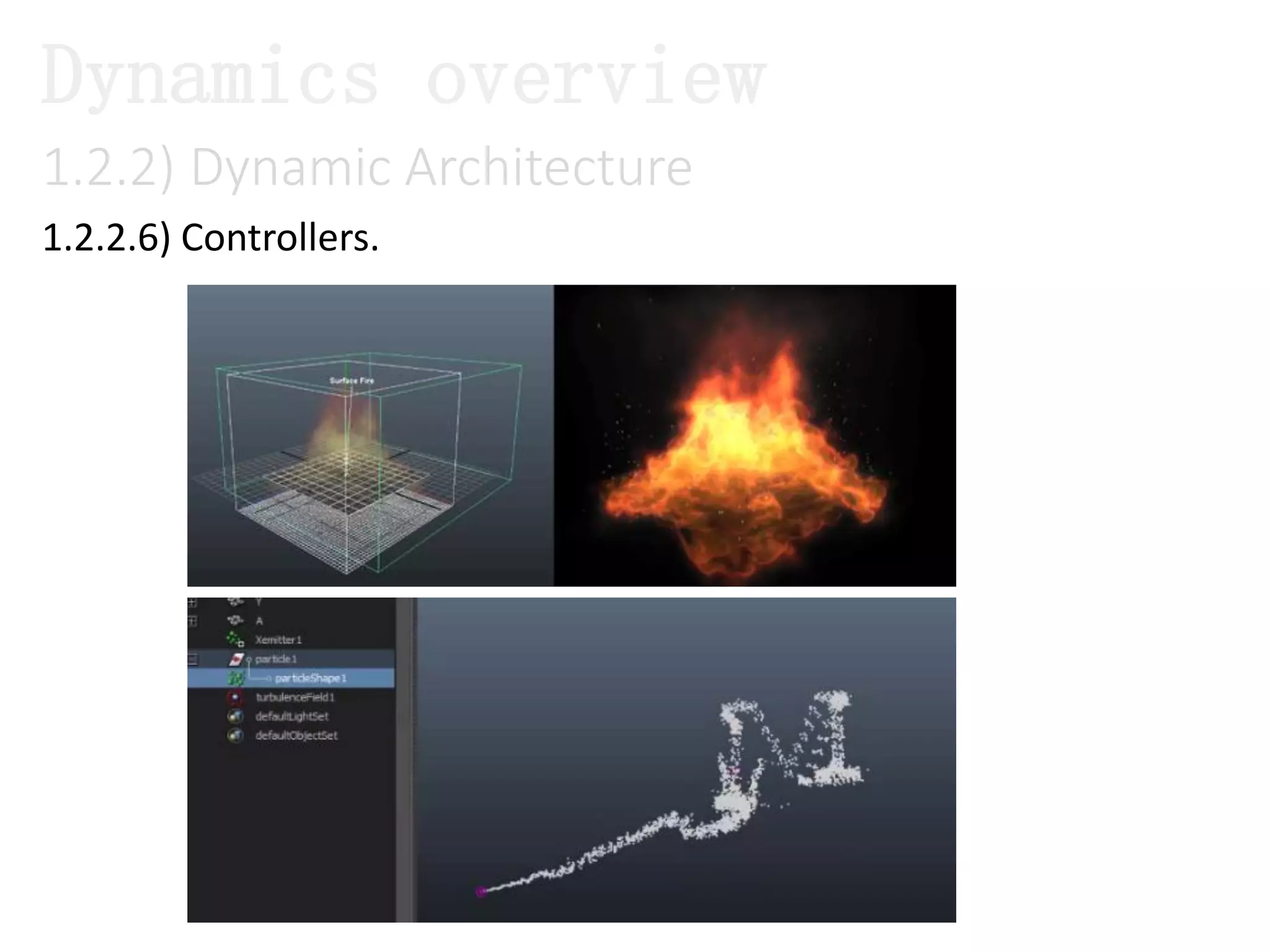
1.2.2.6) Controllers.
Dynamics overview
1.2.2) Dynamic Architecture
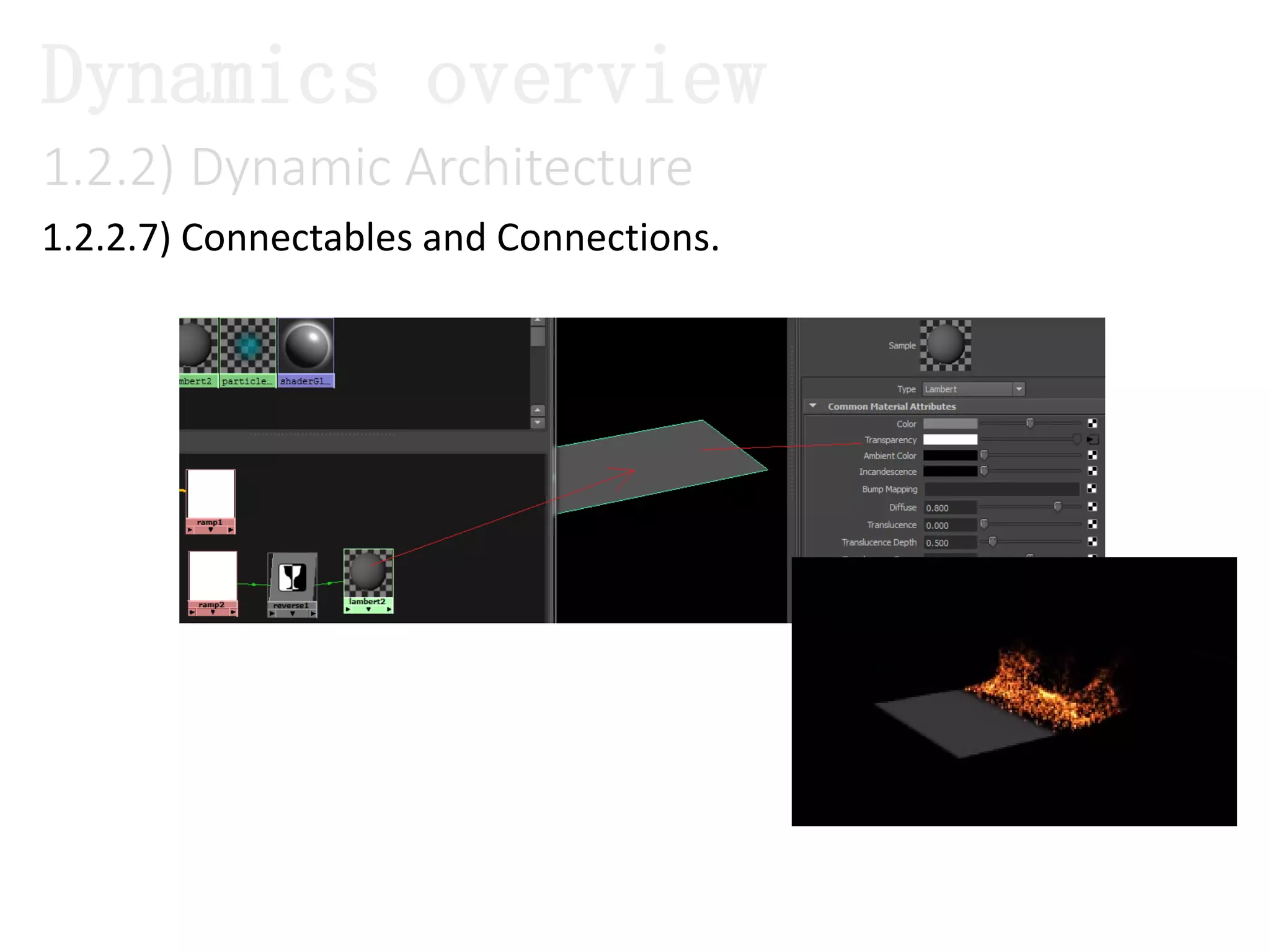
1.2.2.7) Connectables and Connections.
Dynamics overview
1.2.2) Dynamic Architecture
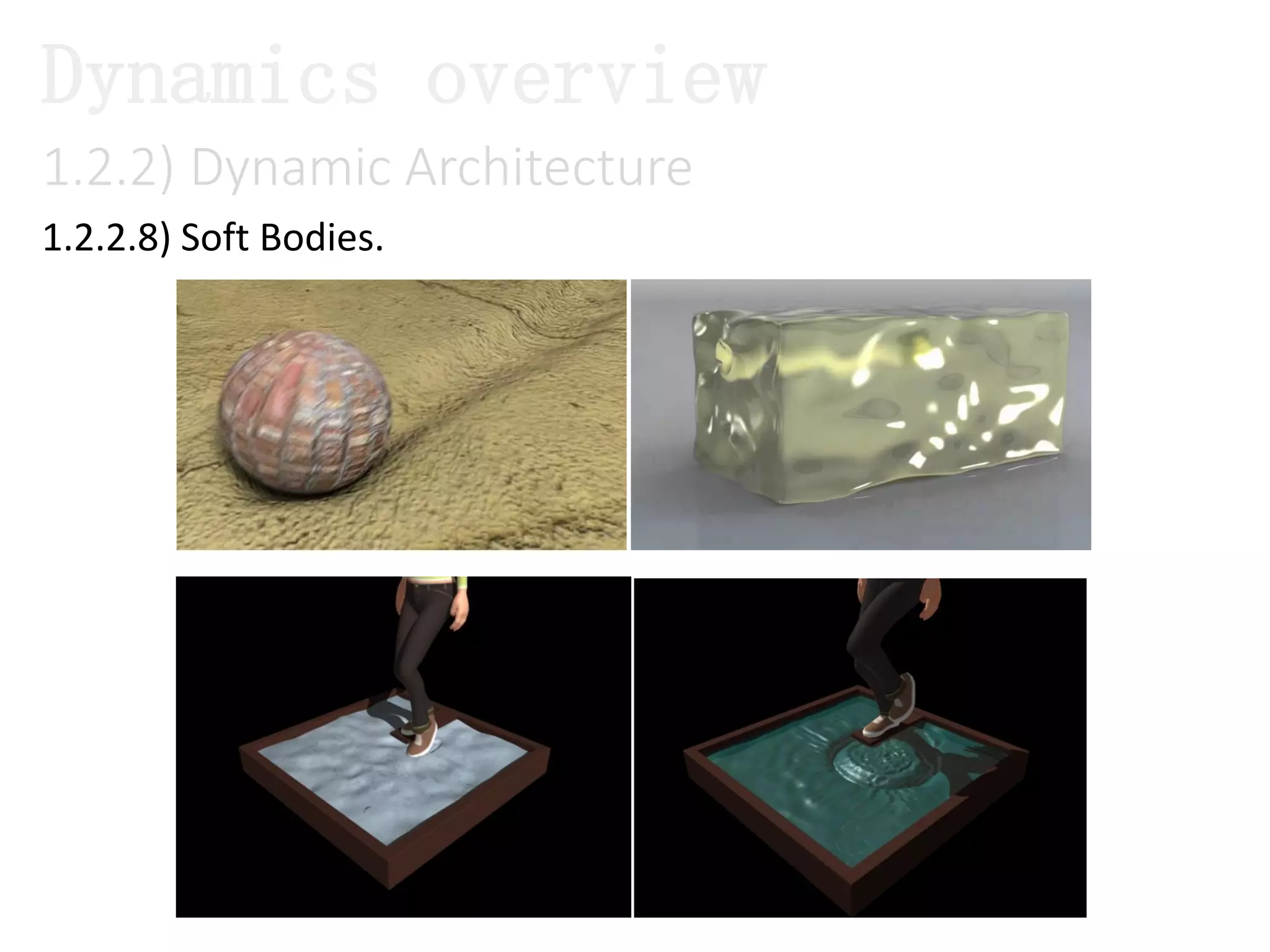
1.2.2.8) Soft Bodies.
Dynamics overview
1.2.2) Dynamic Architecture
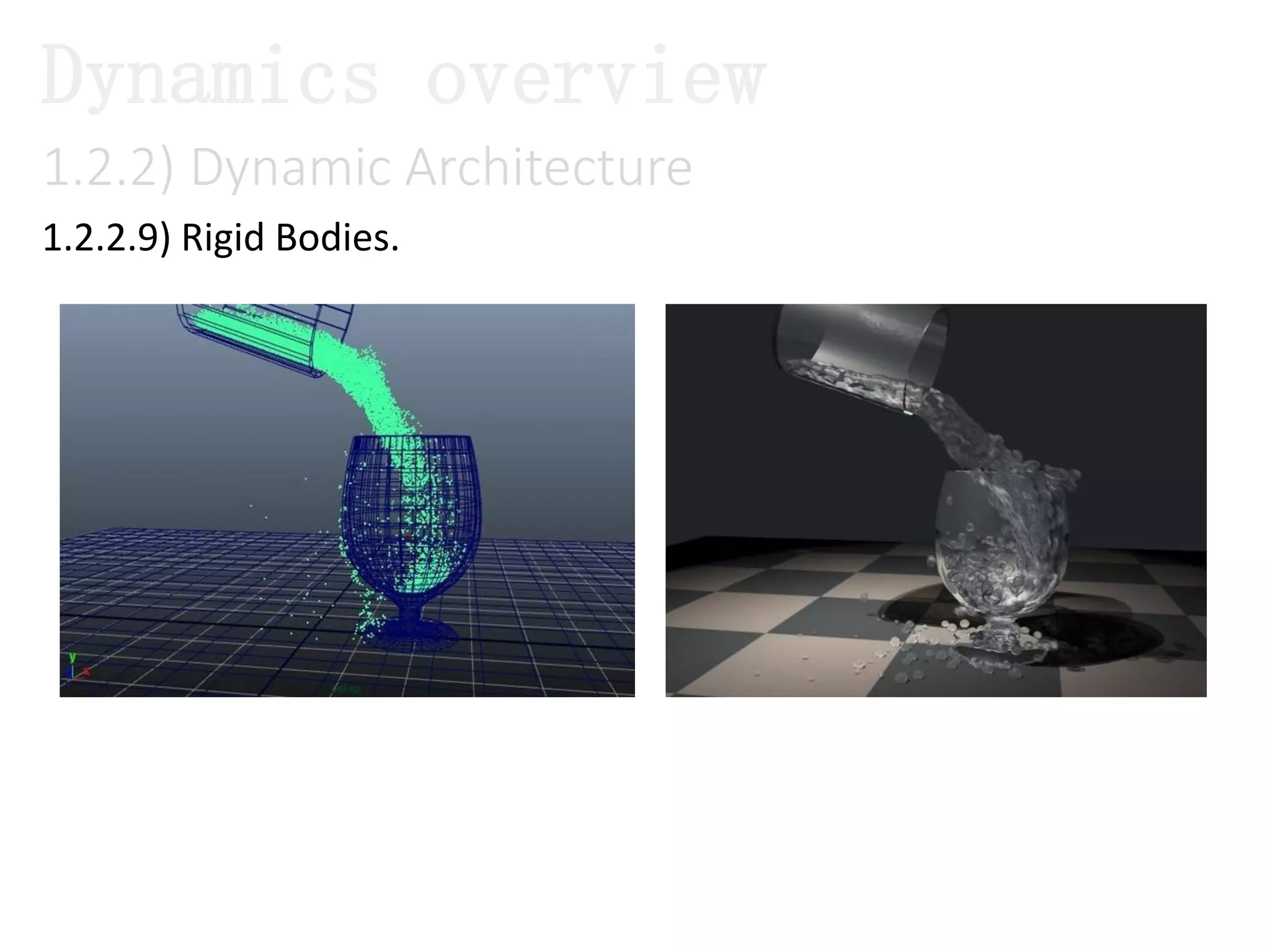
1.2.2.9) Rigid Bodies.
Dynamics overview
1.2.2) Dynamic Architecture
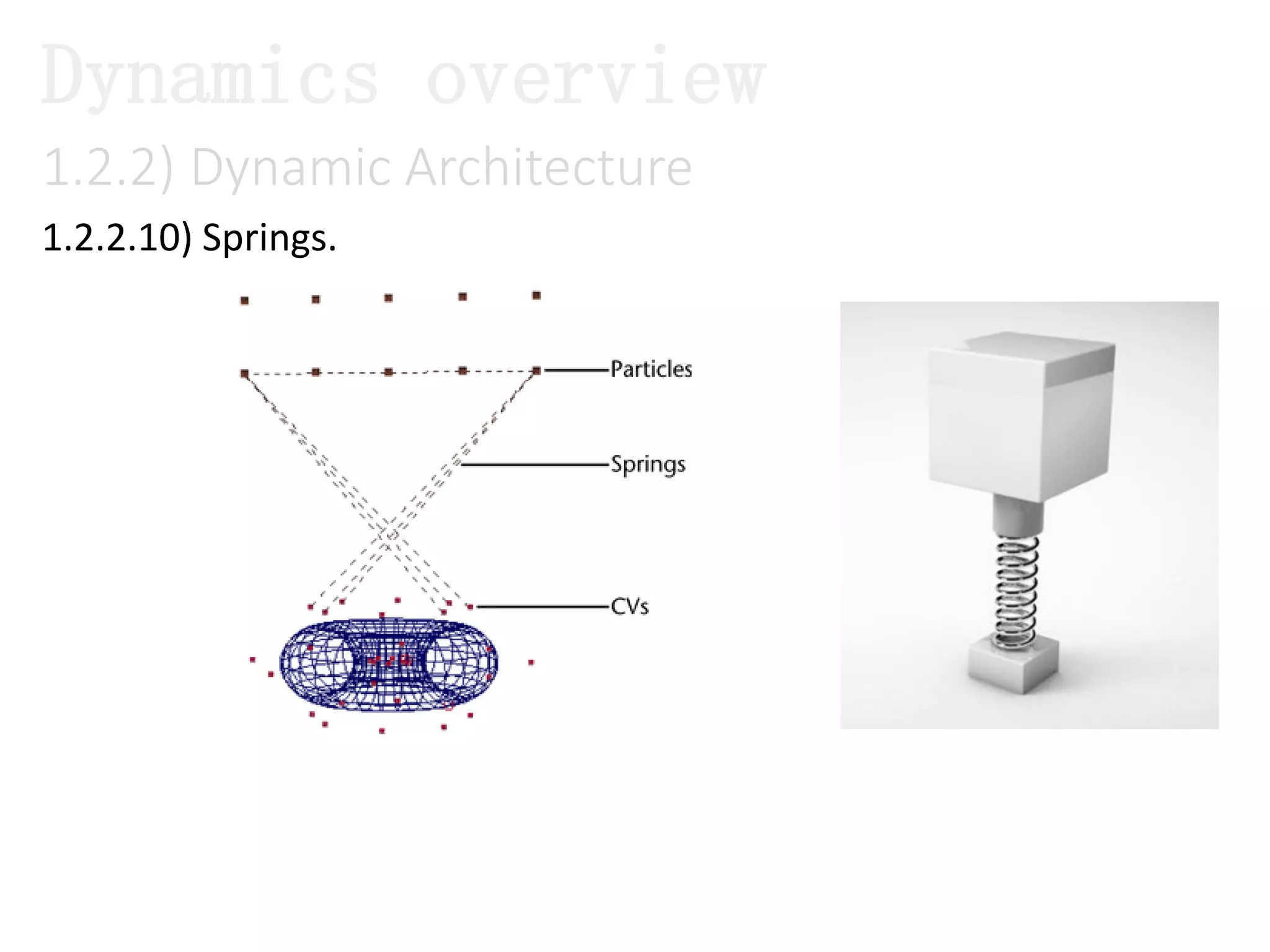
1.2.2.10) Springs.
Dynamics overview
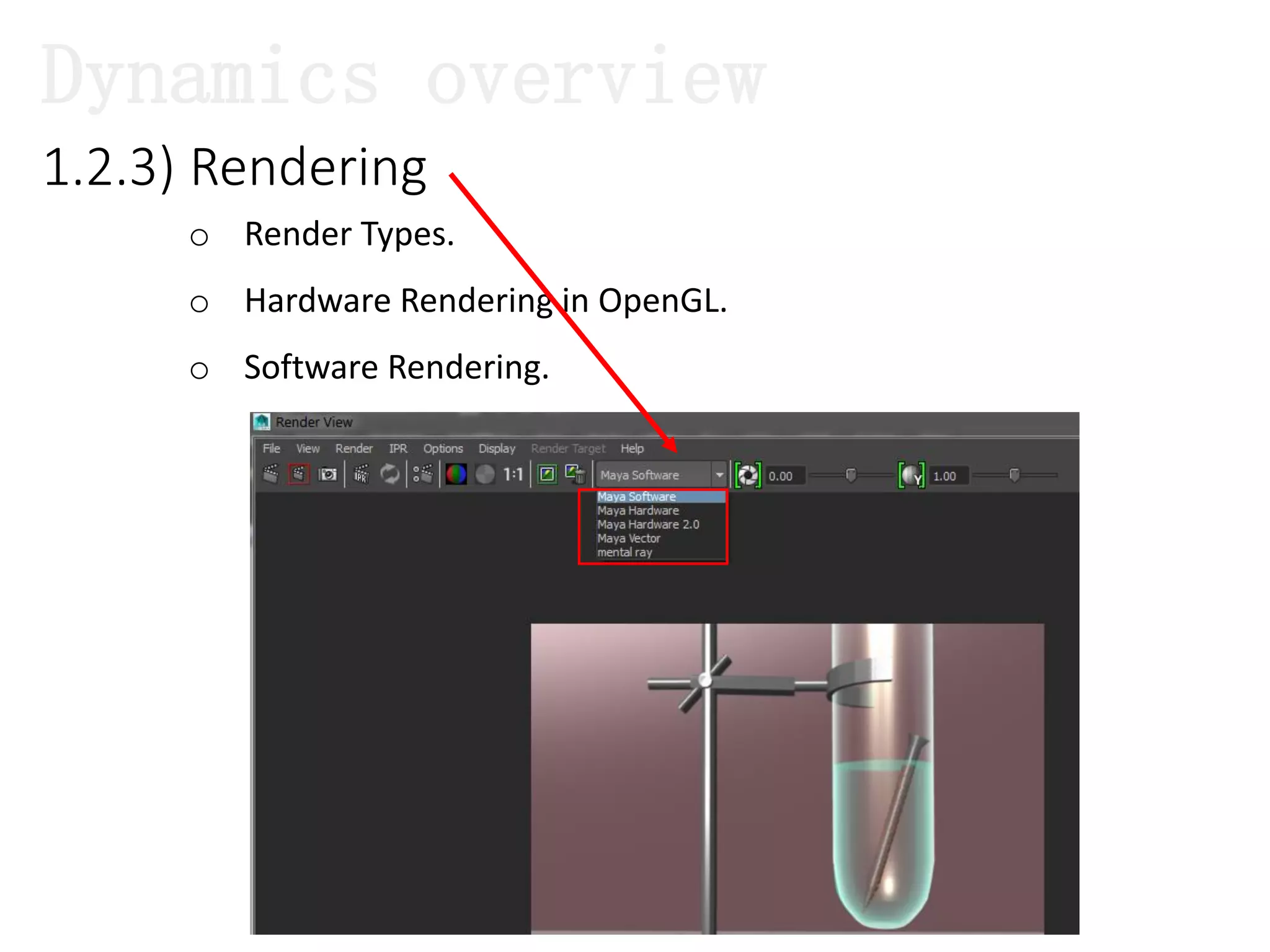
1.2.3) Rendering
o Render Types.
o Hardware Rendering in OpenGL.
o Software Rendering.
Dynamics overview
1.2.3) Rendering
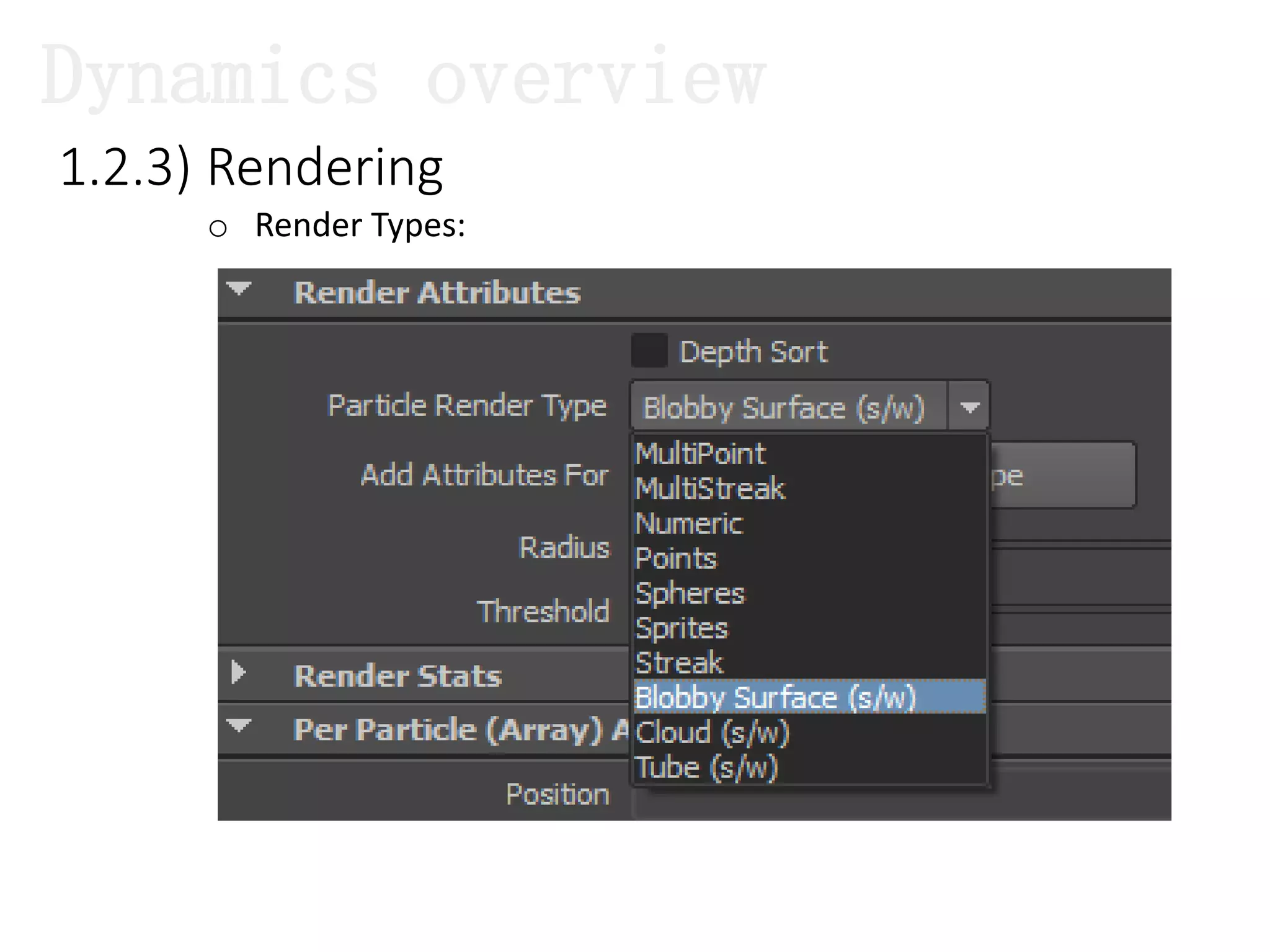
o Render Types:
Dynamics overview
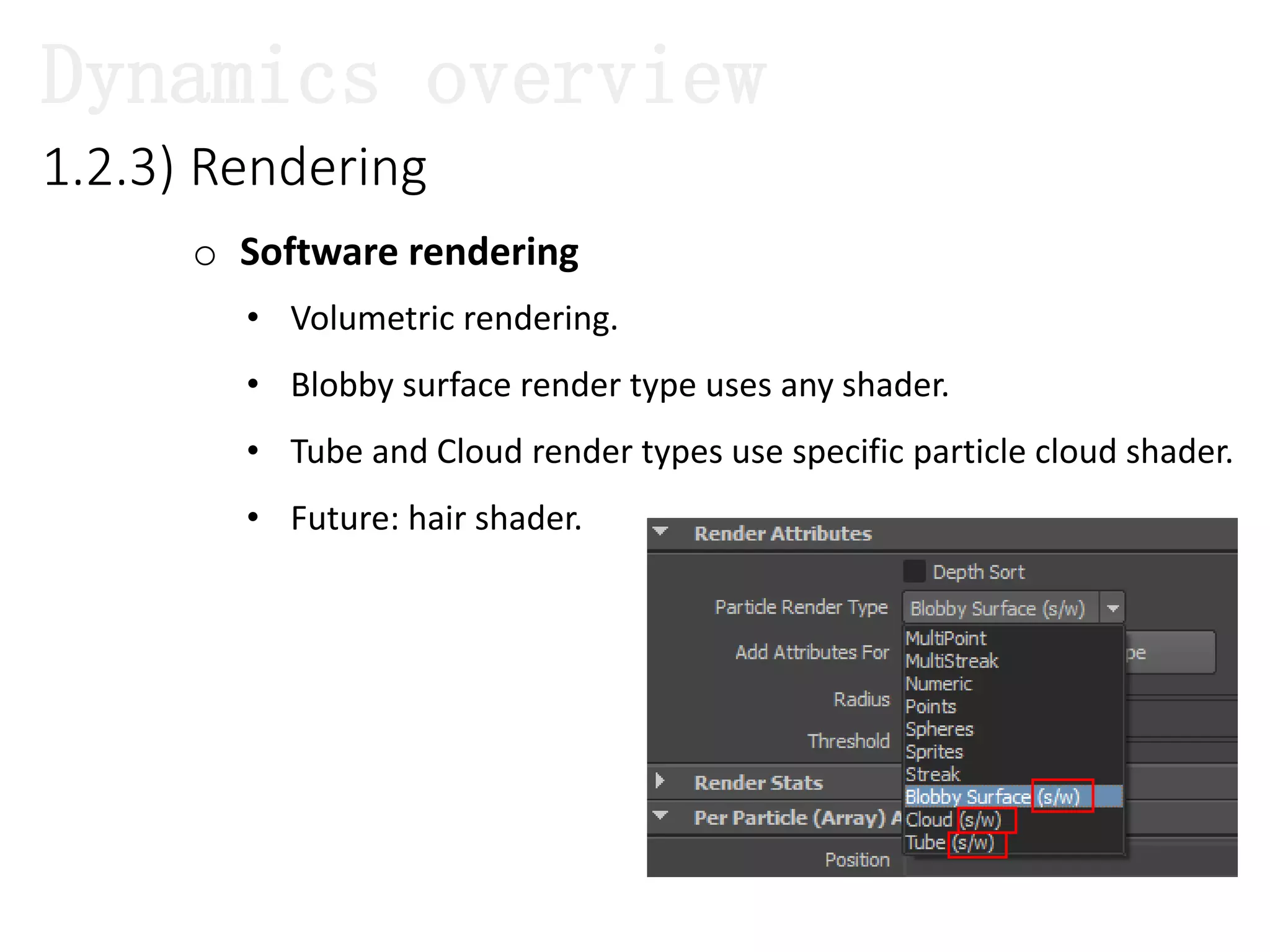
o Software rendering
1.2.3) Rendering
• Volumetric rendering.
• Blobby surface render type uses any shader.
• Tube and Cloud render types use specific particle cloud shader.
• Future: hair shader.
Dynamics overview
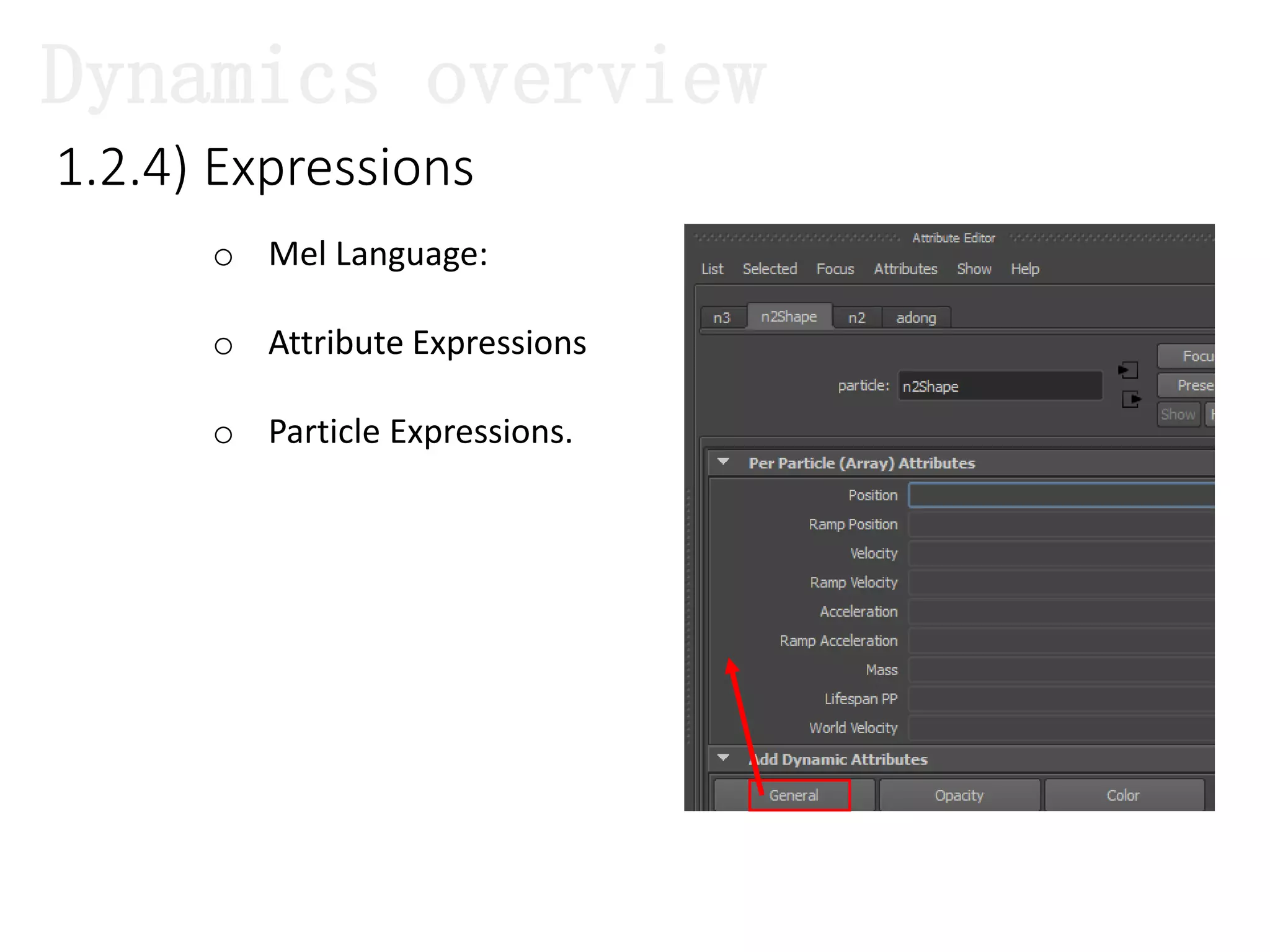
1.2.4) Expressions
o Mel Language:
o Attribute Expressions
o Particle Expressions.
Dynamics overview
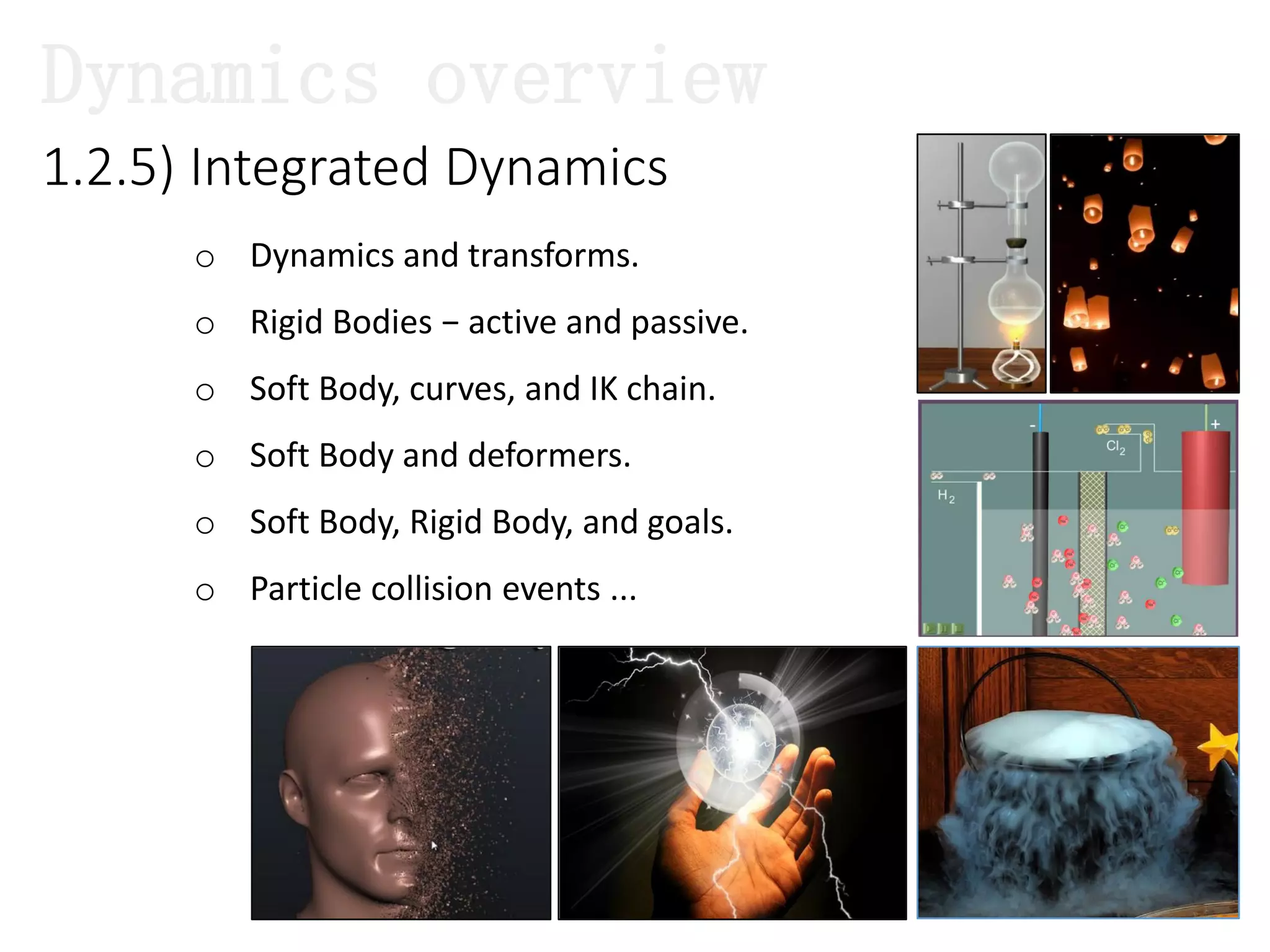
1.2.5) Integrated Dynamics
o Dynamics and transforms.
o Rigid Bodies − active and passive.
o Soft Body, curves, and IK chain.
o Soft Body and deformers.
o Soft Body, Rigid Body, and goals.
o Particle collision events ...
Dynamics overview
1) DYNAMICS OVERVIEW
Introduces Maya Dynamics
1.1) What we can do with Maya Dynamics ?
1.2) Architecture and Features.
1.3) What will we learn in this topic ?
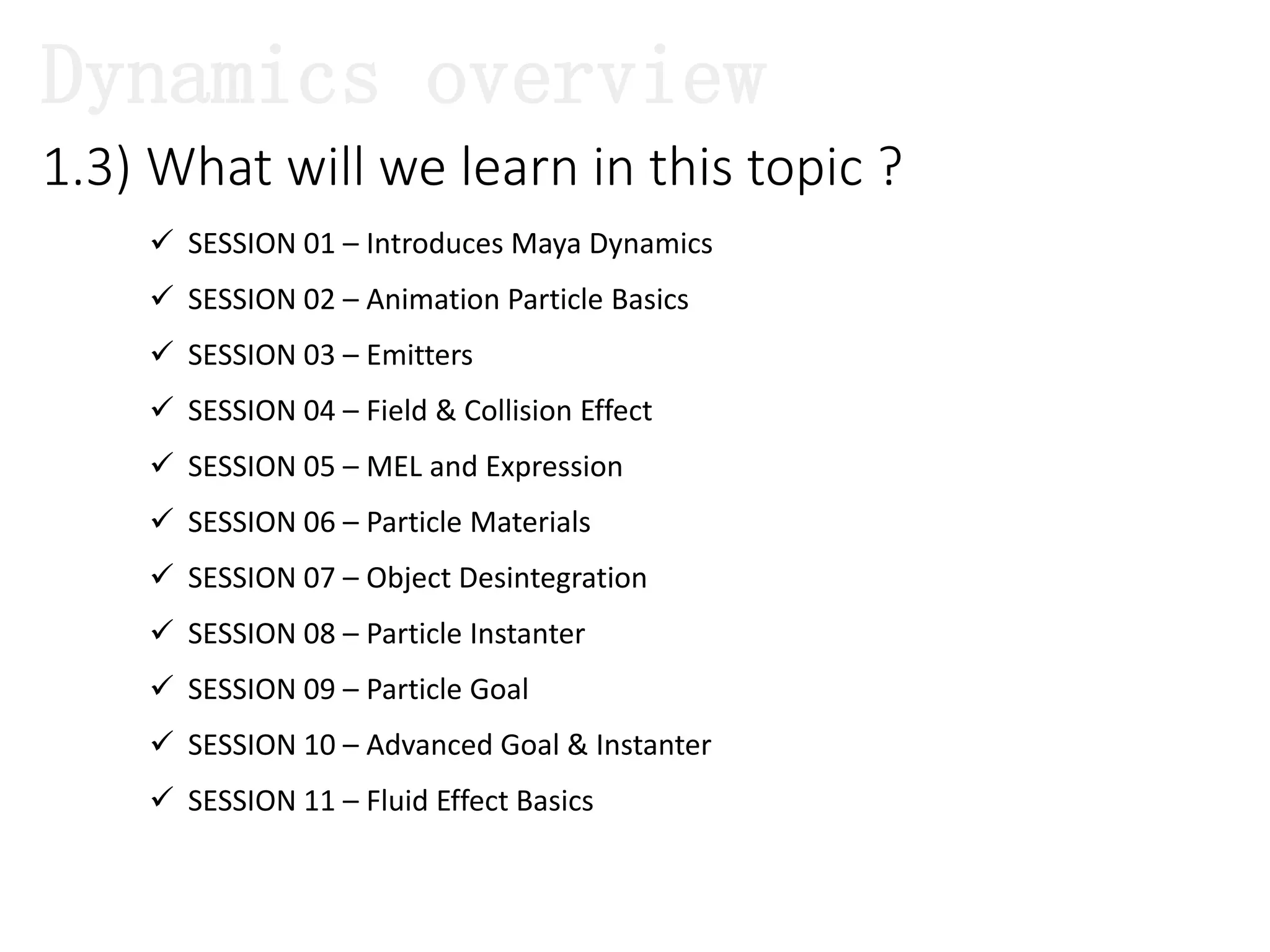
 SESSION 01 – Introduces Maya Dynamics
 SESSION 02 – Animation Particle Basics
 SESSION 03 – Emitters
 SESSION 04 – Field & Collision Effect
 SESSION 05 – MEL and Expression
 SESSION 06 – Particle Materials
 SESSION 07 – Object Desintegration
 SESSION 08 – Particle Instanter
 SESSION 09 – Particle Goal
 SESSION 10 – Advanced Goal & Instanter
 SESSION 11 – Fluid Effect Basics
1.3) What will we learn in this topic ?
Dynamics overview
2) GETTING STARTED WITH PARTICLE TOOL
Introduces Maya Dynamics
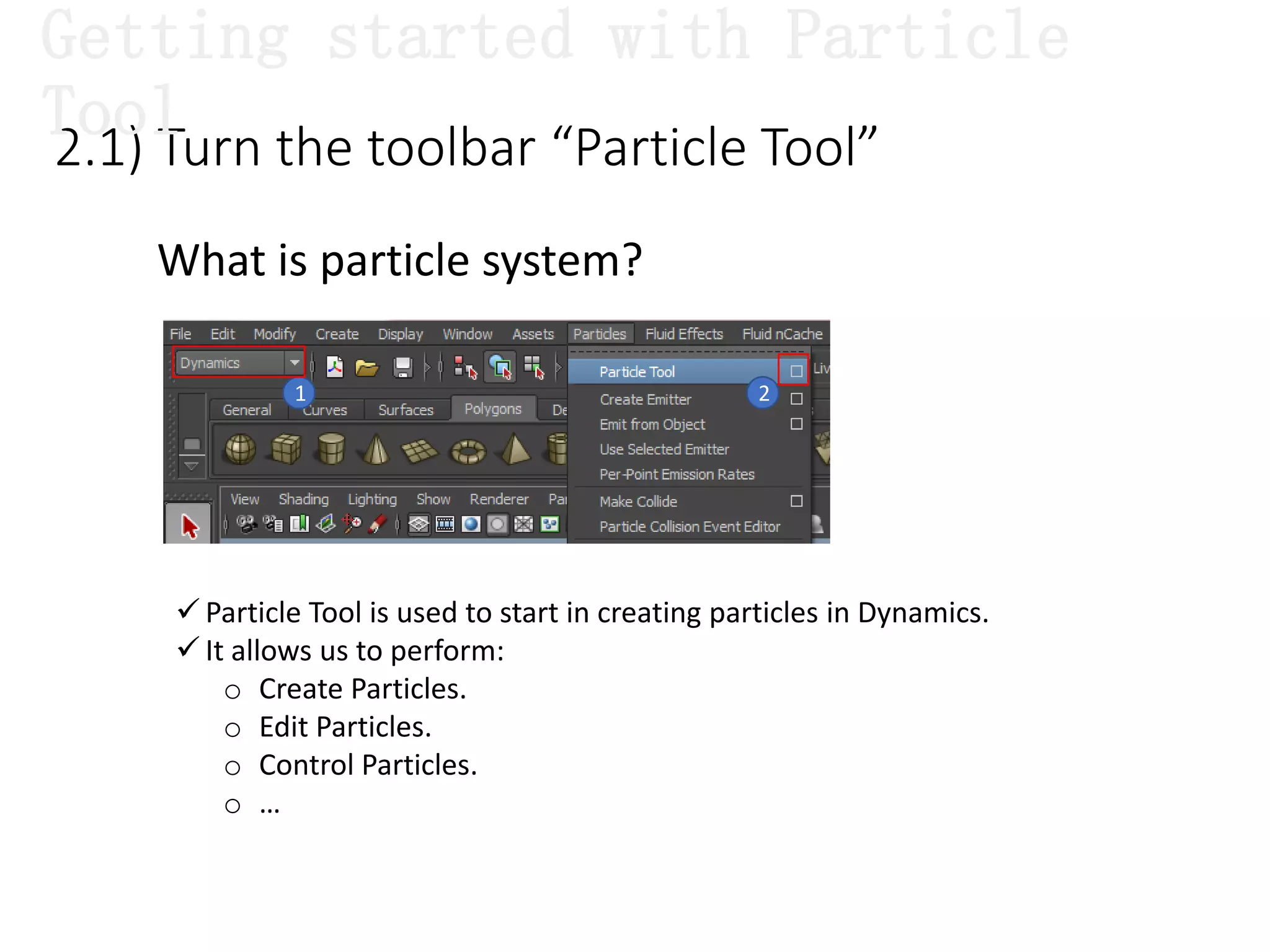
 Particle Tool is used to start in creating particles in Dynamics.
 It allows us to perform:
o Create Particles.
o Edit Particles.
o Control Particles.
o …
2.1) Turn the toolbar “Particle Tool”
1 2
What is particle system?
Getting started with Particle
Tool
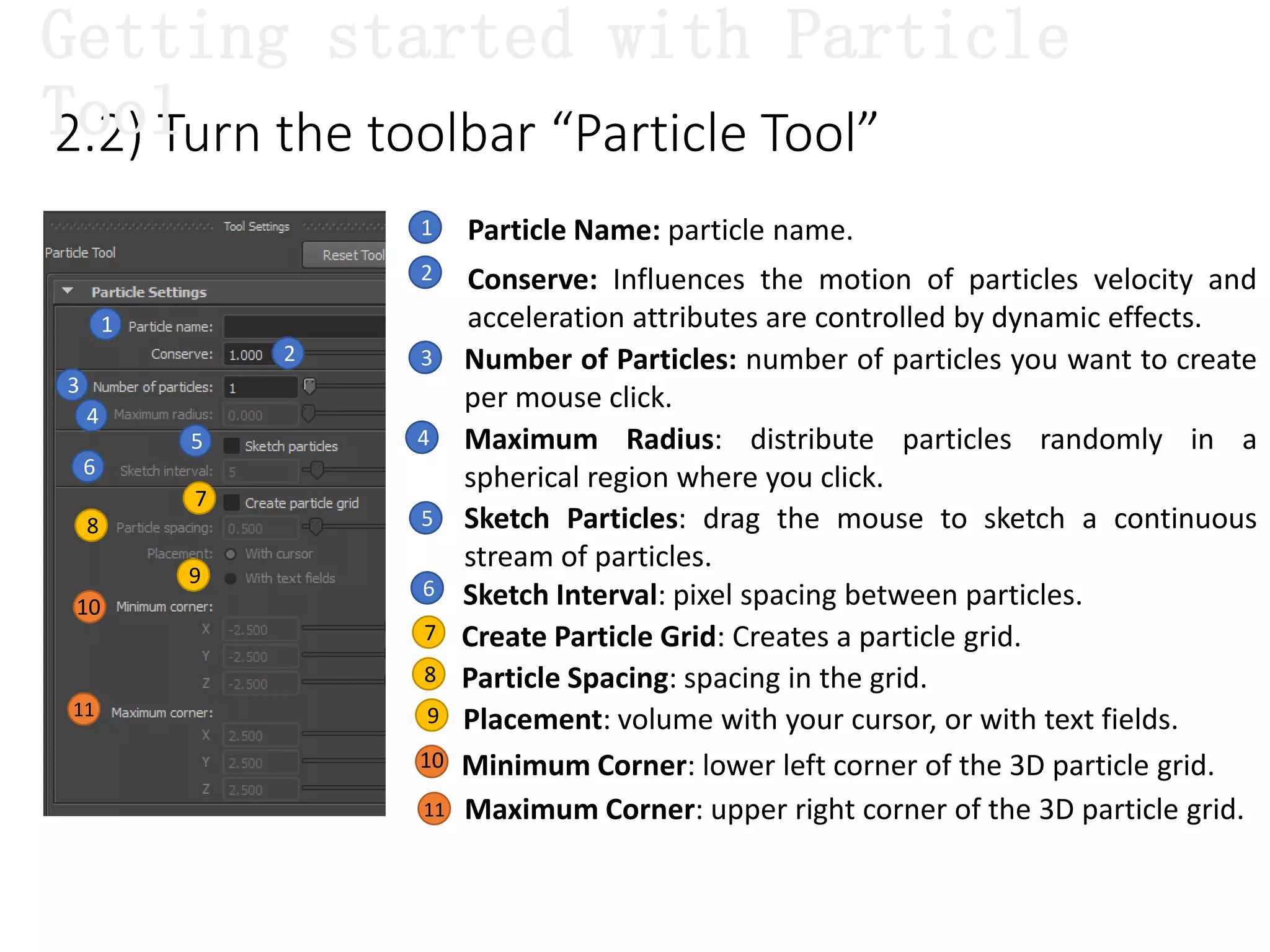
2.2) Turn the toolbar “Particle Tool”
1
1 Particle Name: particle name.
2 Conserve: Influences the motion of particles velocity and
acceleration attributes are controlled by dynamic effects.
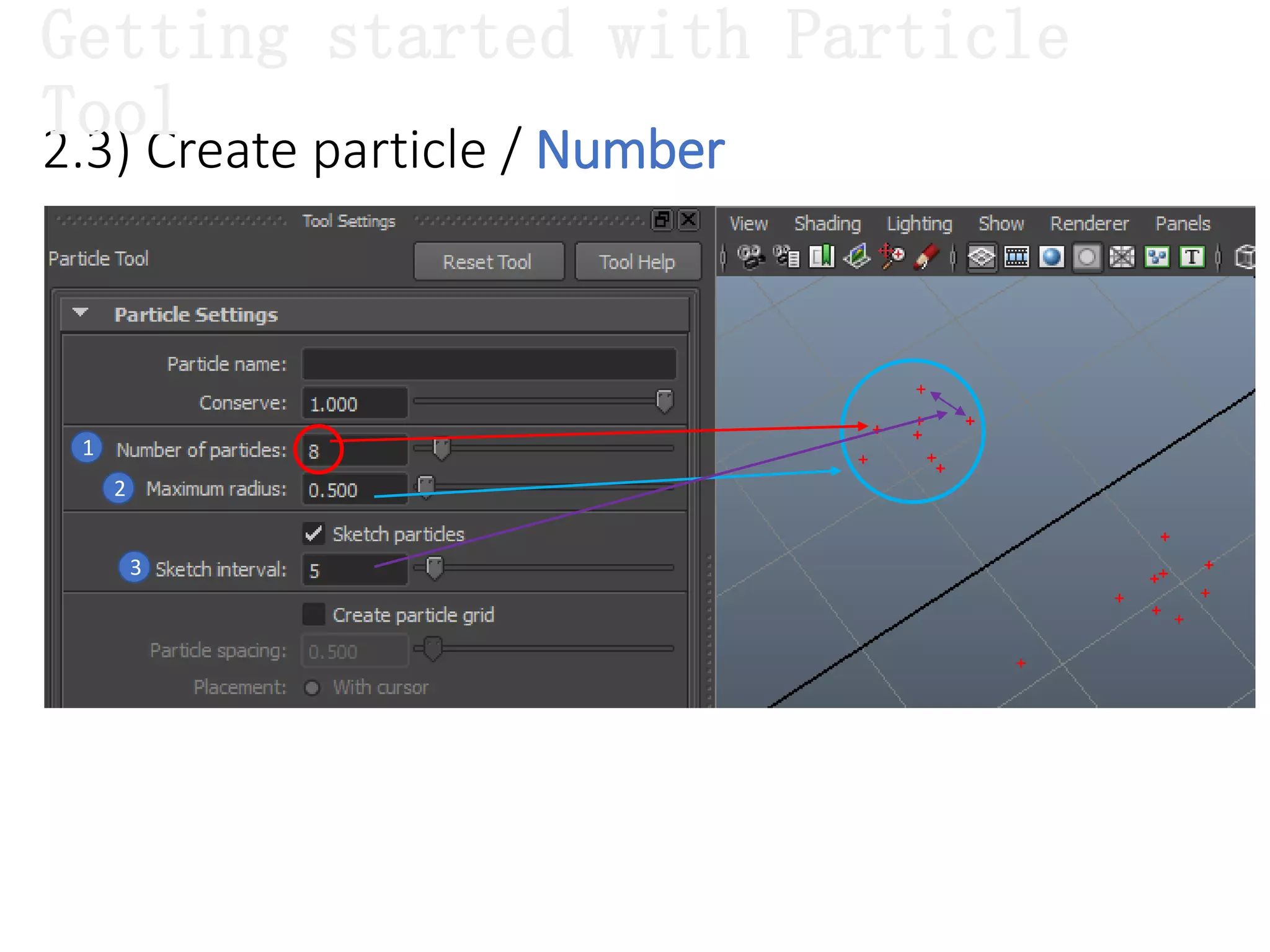
2 Number of Particles: number of particles you want to create
per mouse click.
3
Maximum Radius: distribute particles randomly in a
spherical region where you click.
4
3
4
5
6
5 Sketch Particles: drag the mouse to sketch a continuous
stream of particles.
7
8
9
11
10
Getting started with Particle
Tool
6
7
8
Sketch Interval: pixel spacing between particles.
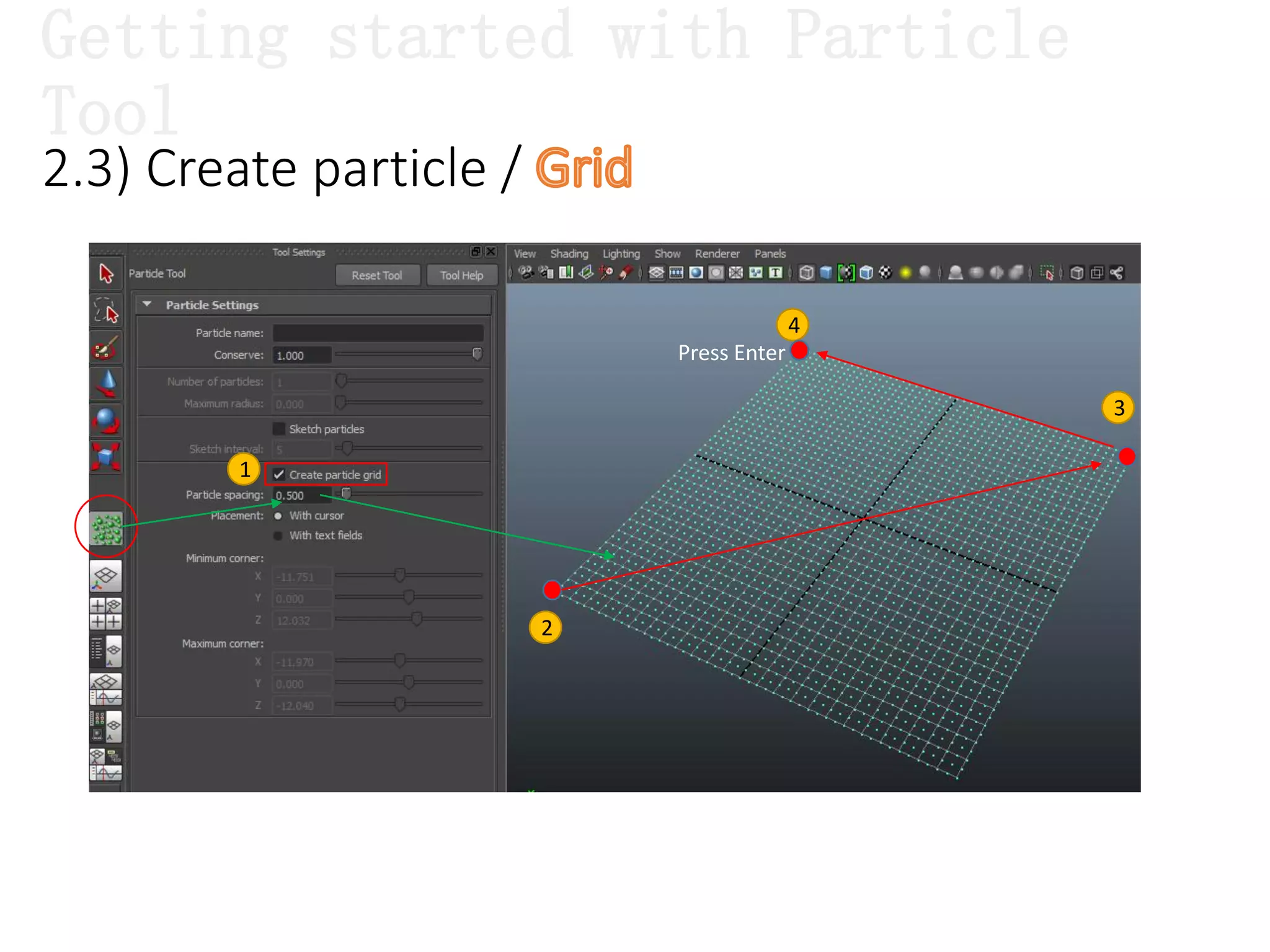
Create Particle Grid: Creates a particle grid.
9
Particle Spacing: spacing in the grid.
Placement: volume with your cursor, or with text fields.
Minimum Corner: lower left corner of the 3D particle grid.
Maximum Corner: upper right corner of the 3D particle grid.
10
11
2.3) Create particle / Number
1
2
3
Getting started with Particle
Tool
1
2
3
4
Press Enter
2.3) Create particle /
Getting started with Particle
Tool
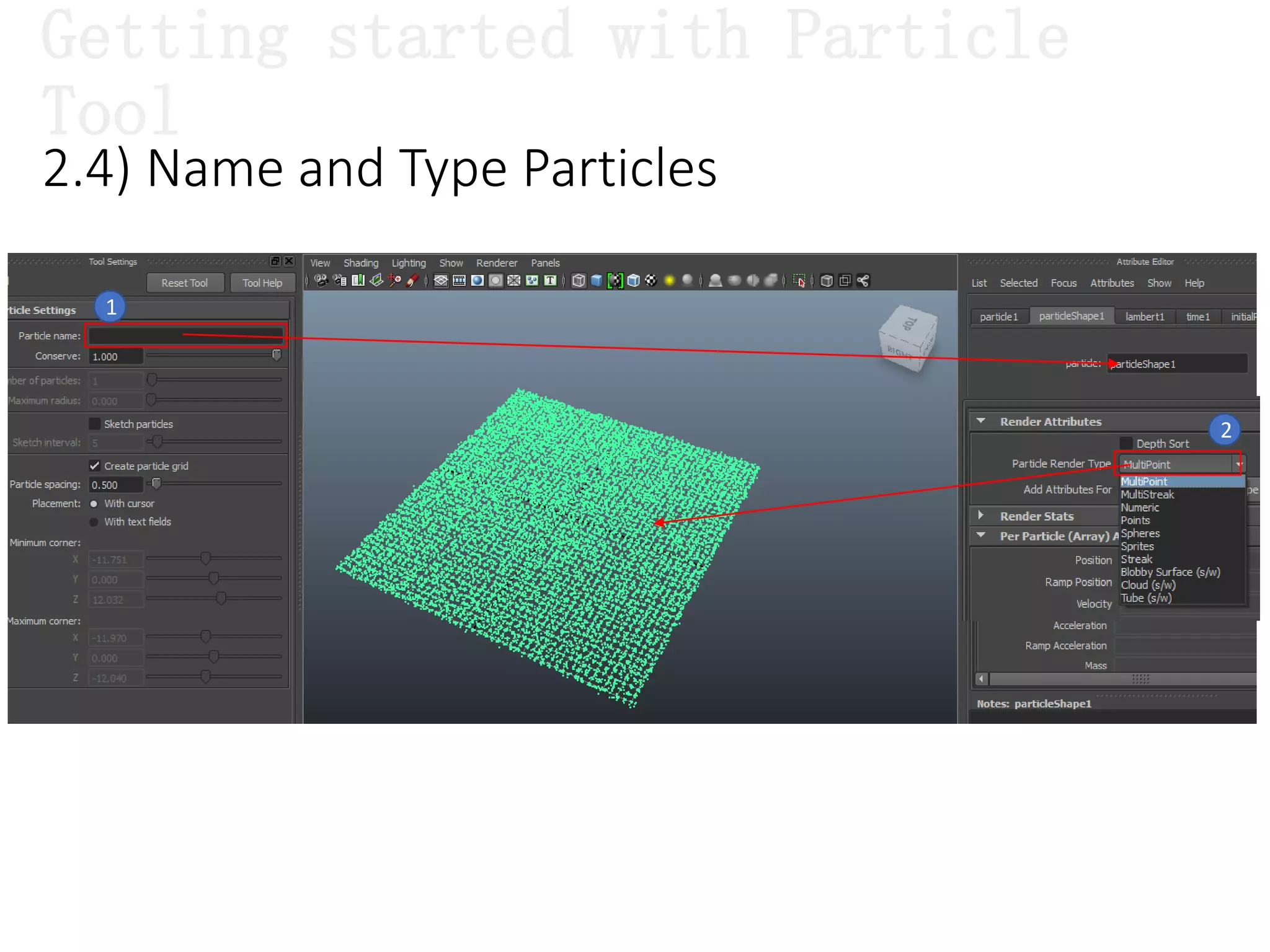
2.4) Name and Type Particles
1
2
Getting started with Particle
Tool
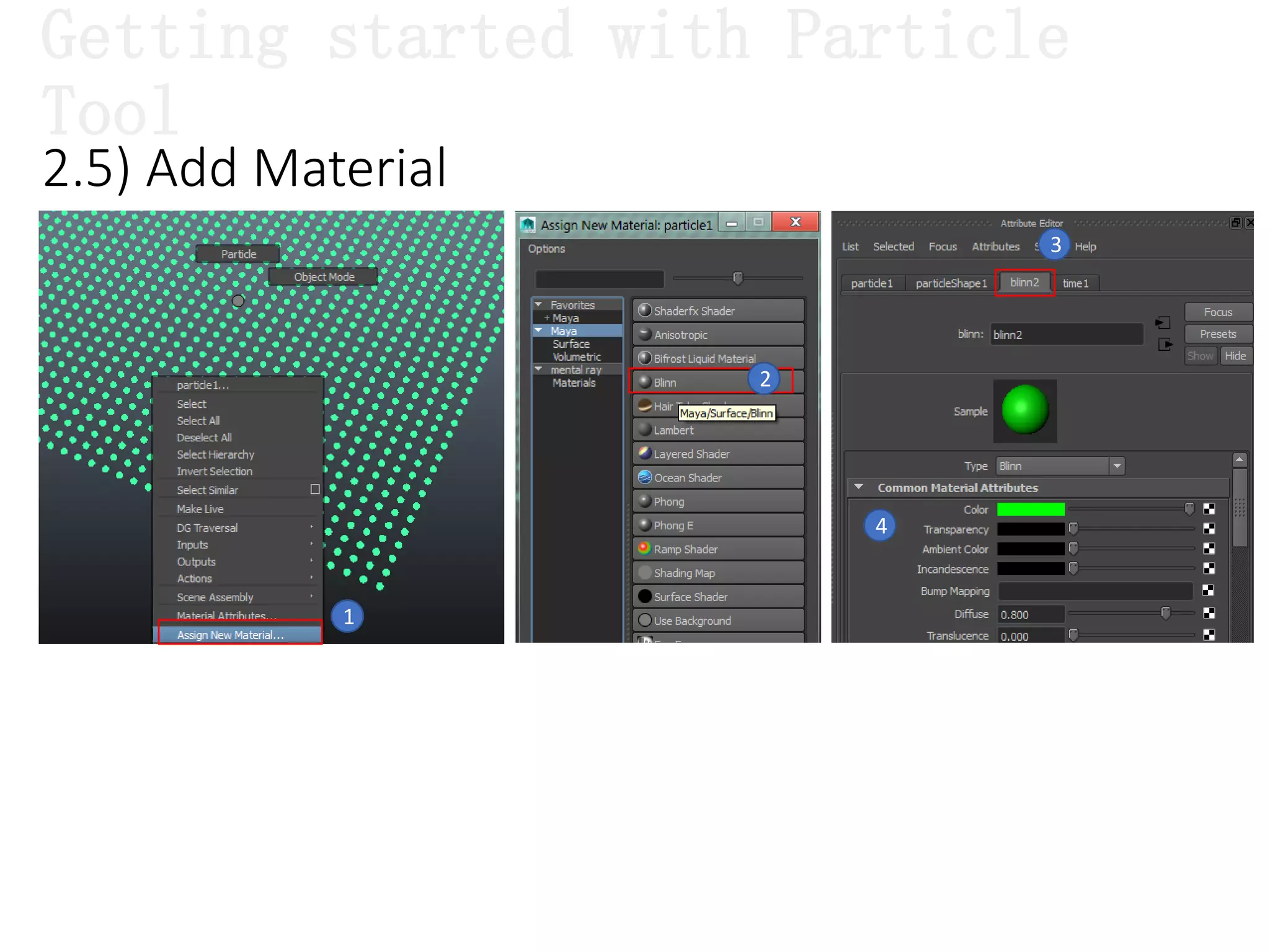
2.5) Add Material
1
2
3
4
Getting started with Particle
Tool
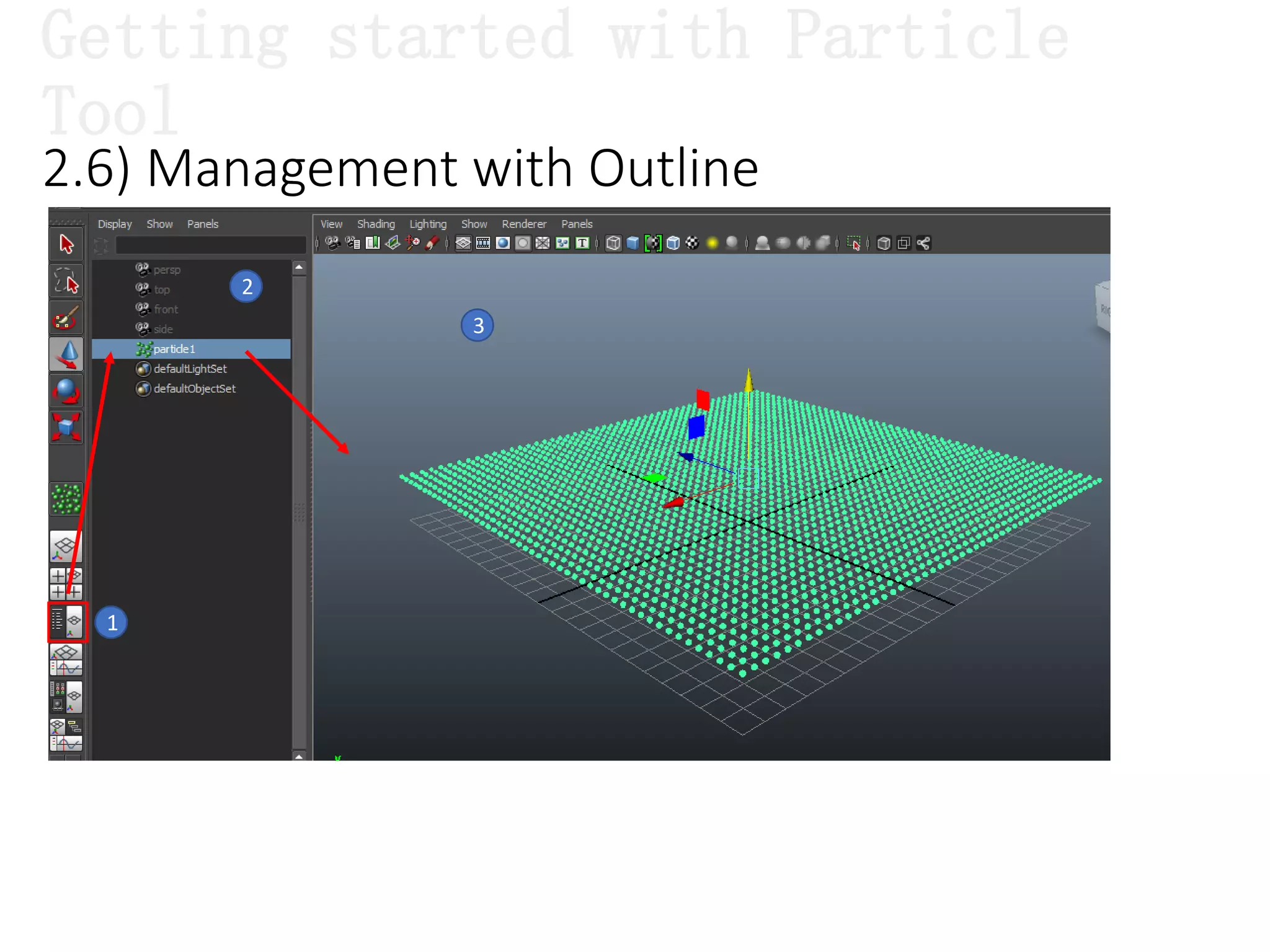
2.6) Management with Outline
1
2
3
Getting started with Particle
Tool
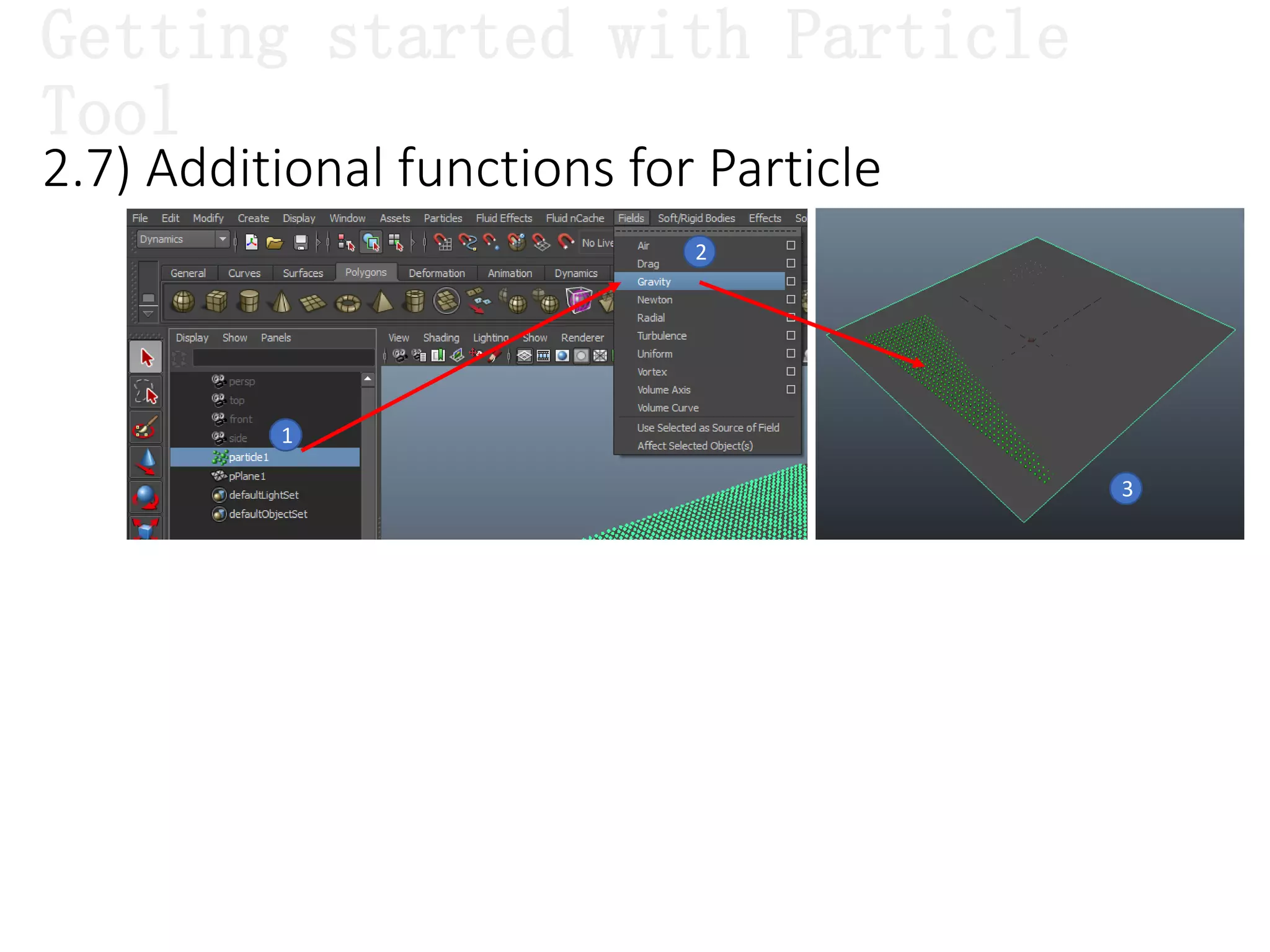
2.7) Additional functions for Particle
1
2
3
Getting started with Particle
Tool
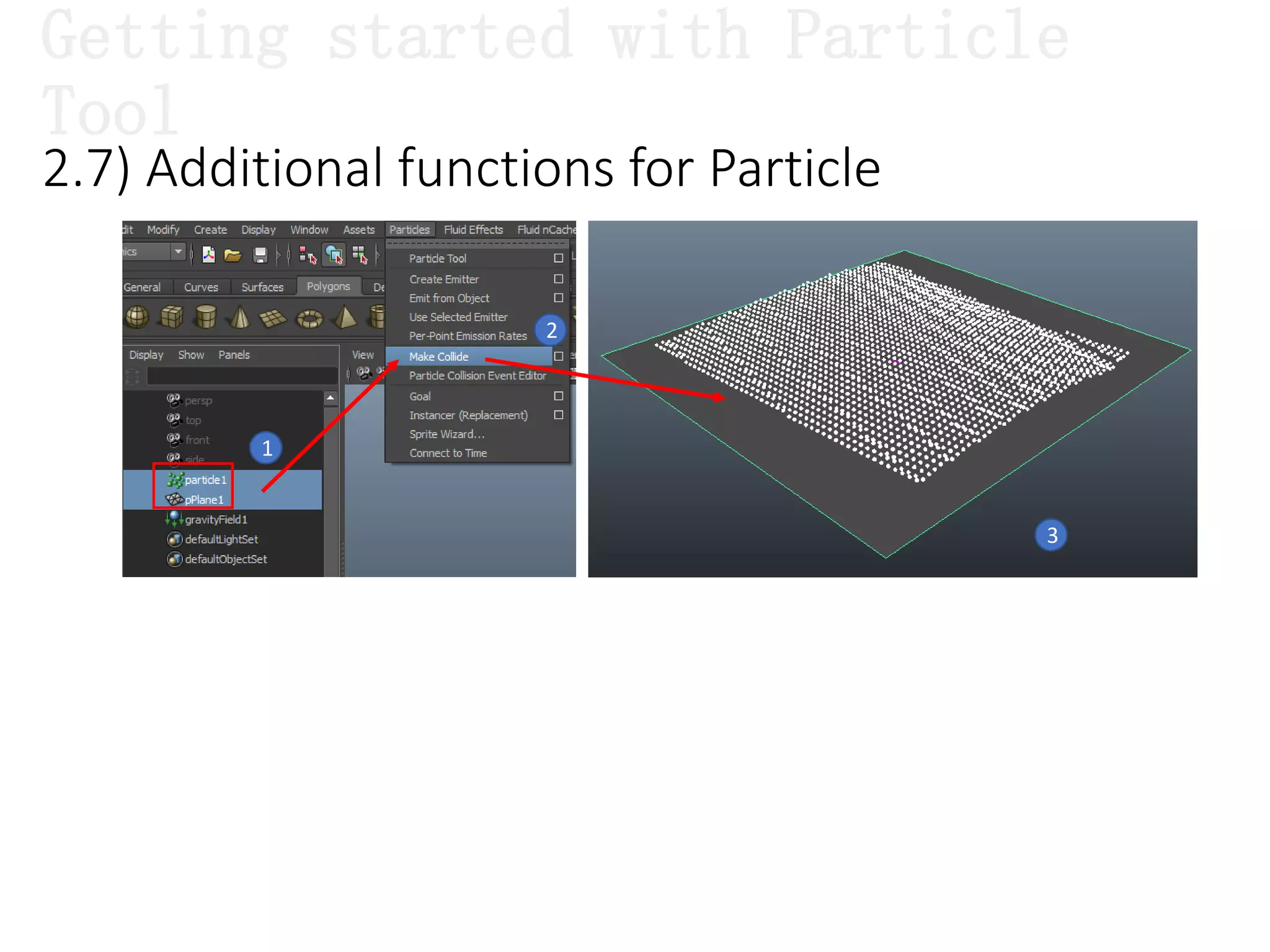
2.7) Additional functions for Particle
1
2
3
Getting started with Particle
Tool
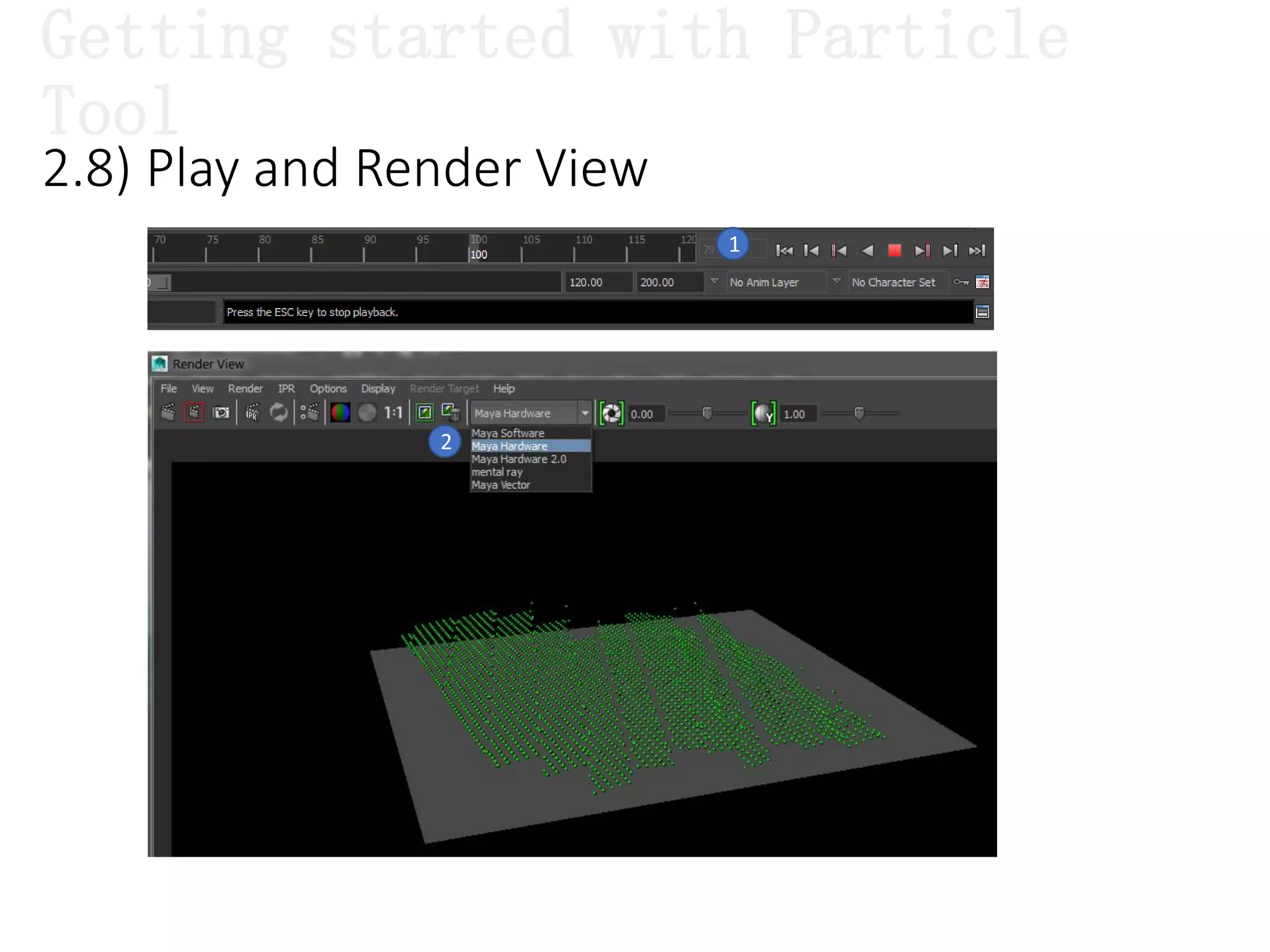
2.8) Play and Render View
1
2
Getting started with Particle
Tool
Thanks!

Session 01 – introduces maya dynamics

  • 1.
    Maya Dynamics Basics Lab1: Introduces Maya Dynamics Author: Khieu Van Bang Email: tribang.nd@gmail.com
  • 2.
    CONTENTS  Dynamics overview: What we can do with Maya Dynamics ?  Architecture and Features.  What will we learn in this topic ?  Getting started with Particle Tool:  Started creating Particle with Particle Tool.  Understanding Particle objects: creating, display attributes, setting render, render view, ...
  • 3.
  • 4.
    1) DYNAMICS OVERVIEW IntroducesMaya Dynamics 1.1) What we can do with Maya Dynamics ? 1.2) Architecture and Features. 1.3) What will we learn in this topic ?
  • 5.
    Dynamics overview  Isa branch of physics that describes how objects move. Dynamic animation uses rules of physics to simulate natural forces. You specify the actions you want the object to take, then let the software figure out how to animate the object.  Dynamic animation lets you create realistic motion that’s hard to achieve with traditional keyframe animation. For instance, you can make effects such as tumbling dice, waving flags, and exploding fireworks. What is Dynamic ?
  • 6.
    1.1) What wecan do with Maya Dynamics ? Create, color, and animate particles. Emitters: steam, fire, rain, … Soft bodies(bends, deforms) Gravity and other force fields Dynamics overview
  • 7.
    1.1) What wecan do with Maya Dynamics ? Dynamics overview Particle collisions(split, emit new particles, or disappear) Goals(make particles or soft bodies ) Springs: a deformable spring Rigid bodies (collisions between polygons or NURBS)
  • 8.
    1.1) What wecan do with Maya Dynamics ? Rigid body constraints ( restrict the motion of rigid bodies) Effects (smoke, fire, … ) Animating Particle caching (Store dynamic simulations either to disk ) Dynamics overview
  • 9.
    1.1) What wecan do with Maya Dynamics ? Relationship editor Render (software or hardware)Instance(advanced features ) Dynamics overview
  • 10.
    1) DYNAMICS OVERVIEW IntroducesMaya Dynamics 1.1) What we can do with Maya Dynamics ? 1.2) Architecture and Features. 1.3) What will we learn in this topic ?
  • 11.
    1.2.1) Maya Architecture Dynamicsoverview Nodes Attributes Connections Transforms & Shapes
  • 12.
    1.2.2) Dynamic Architecture Particles.  Fields.  Emitters.  Collision Models.  Particle Collision Events.  Controllers.  Connectables and Connections.  Soft Bodies.  Springs.  Rigid Bodies. Dynamics overview
  • 13.
    1.2.2.1) Particles 1.2.2) DynamicArchitecture Dynamics overview Previous experiments After experiments Ex: A simple virtual experiments.
  • 14.
    1.2.2.2) Fields 1.2.2) DynamicArchitecture Dynamics overview You can simulate the motion of natural forces with dynamic fields.
  • 15.
    1.2.2.3) Emitters 1.2.2) DynamicArchitecture Dynamics overview Ex: water, fire, smoke, fireworks, ...
  • 16.
    1.2.2.4) Collision Models oElasticity. o Friction. o Collision trace depth. 1.2.2) Dynamic Architecture Dynamics overview
  • 17.
    1.2.2) Dynamic Architecture 1.2.2.5)Particle Collision Events. Dynamics overview In the event that a particle collides: emit, split, die.
  • 18.
    1.2.2) Dynamic Architecture 1.2.2.6)Controllers. Dynamics overview
  • 19.
    1.2.2) Dynamic Architecture 1.2.2.7)Connectables and Connections. Dynamics overview
  • 20.
    1.2.2) Dynamic Architecture 1.2.2.8)Soft Bodies. Dynamics overview
  • 21.
    1.2.2) Dynamic Architecture 1.2.2.9)Rigid Bodies. Dynamics overview
  • 22.
    1.2.2) Dynamic Architecture 1.2.2.10)Springs. Dynamics overview
  • 23.
    1.2.3) Rendering o RenderTypes. o Hardware Rendering in OpenGL. o Software Rendering. Dynamics overview
  • 24.
    1.2.3) Rendering o RenderTypes: Dynamics overview
  • 25.
    o Software rendering 1.2.3)Rendering • Volumetric rendering. • Blobby surface render type uses any shader. • Tube and Cloud render types use specific particle cloud shader. • Future: hair shader. Dynamics overview
  • 26.
    1.2.4) Expressions o MelLanguage: o Attribute Expressions o Particle Expressions. Dynamics overview
  • 27.
    1.2.5) Integrated Dynamics oDynamics and transforms. o Rigid Bodies − active and passive. o Soft Body, curves, and IK chain. o Soft Body and deformers. o Soft Body, Rigid Body, and goals. o Particle collision events ... Dynamics overview
  • 28.
    1) DYNAMICS OVERVIEW IntroducesMaya Dynamics 1.1) What we can do with Maya Dynamics ? 1.2) Architecture and Features. 1.3) What will we learn in this topic ?
  • 29.
     SESSION 01– Introduces Maya Dynamics  SESSION 02 – Animation Particle Basics  SESSION 03 – Emitters  SESSION 04 – Field & Collision Effect  SESSION 05 – MEL and Expression  SESSION 06 – Particle Materials  SESSION 07 – Object Desintegration  SESSION 08 – Particle Instanter  SESSION 09 – Particle Goal  SESSION 10 – Advanced Goal & Instanter  SESSION 11 – Fluid Effect Basics 1.3) What will we learn in this topic ? Dynamics overview
  • 30.
    2) GETTING STARTEDWITH PARTICLE TOOL Introduces Maya Dynamics
  • 31.
     Particle Toolis used to start in creating particles in Dynamics.  It allows us to perform: o Create Particles. o Edit Particles. o Control Particles. o … 2.1) Turn the toolbar “Particle Tool” 1 2 What is particle system? Getting started with Particle Tool
  • 32.
    2.2) Turn thetoolbar “Particle Tool” 1 1 Particle Name: particle name. 2 Conserve: Influences the motion of particles velocity and acceleration attributes are controlled by dynamic effects. 2 Number of Particles: number of particles you want to create per mouse click. 3 Maximum Radius: distribute particles randomly in a spherical region where you click. 4 3 4 5 6 5 Sketch Particles: drag the mouse to sketch a continuous stream of particles. 7 8 9 11 10 Getting started with Particle Tool 6 7 8 Sketch Interval: pixel spacing between particles. Create Particle Grid: Creates a particle grid. 9 Particle Spacing: spacing in the grid. Placement: volume with your cursor, or with text fields. Minimum Corner: lower left corner of the 3D particle grid. Maximum Corner: upper right corner of the 3D particle grid. 10 11
  • 33.
    2.3) Create particle/ Number 1 2 3 Getting started with Particle Tool
  • 34.
    1 2 3 4 Press Enter 2.3) Createparticle / Getting started with Particle Tool
  • 35.
    2.4) Name andType Particles 1 2 Getting started with Particle Tool
  • 36.
    2.5) Add Material 1 2 3 4 Gettingstarted with Particle Tool
  • 37.
    2.6) Management withOutline 1 2 3 Getting started with Particle Tool
  • 38.
    2.7) Additional functionsfor Particle 1 2 3 Getting started with Particle Tool
  • 39.
    2.7) Additional functionsfor Particle 1 2 3 Getting started with Particle Tool
  • 40.
    2.8) Play andRender View 1 2 Getting started with Particle Tool
  • 41.