Maya Dynamics Basics
Lab 2: Animation Particle Basics
Author: Khieu Van Bang
Email: tribang.nd@gmail.com
CONTENTS
 Create and motion control Particles:
 Create particle in different environments.
 Parent an object to dynamic motion.
 Set key particle.
 Motion paths.
 Examples:
 Create a text effect.
 Creating a simple virtual experiments.
1) CREATE AND MOTION CONTROL PARTICLES
Animation Particle Basics
1) CREATE AND MOTION CONTROL PARTICLES
Animation Particle Basics
1.1) Create particle in different environments.
1.2) Parent an object to dynamic motion.
1.3) Set key particle.
1.4) Motion paths.
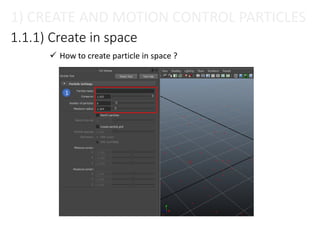
1.1.1) Create in space
1
1) CREATE AND MOTION CONTROL PARTICLES
 How to create particle in space ?
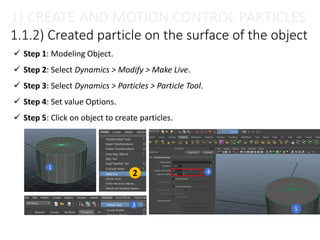
1.1.2) Created particle on the surface of the object
1
2
3
4
5
1) CREATE AND MOTION CONTROL PARTICLES
 Step 1: Modeling Object.
 Step 2: Select Dynamics > Modify > Make Live.
 Step 3: Select Dynamics > Particles > Particle Tool.
 Step 4: Set value Options.
 Step 5: Click on object to create particles.
6
7
8
9
10
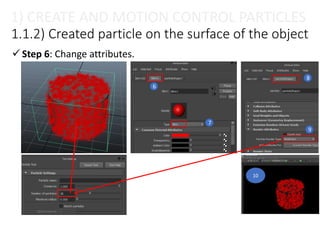
1.1.2) Created particle on the surface of the object
1) CREATE AND MOTION CONTROL PARTICLES
 Step 6: Change attributes.
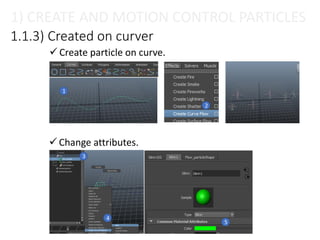
1.1.3) Created on curver
1
2
3
4
5
1) CREATE AND MOTION CONTROL PARTICLES
 Create particle on curve.
 Change attributes.
1.1.3) Created on curver
6
7
8
1) CREATE AND MOTION CONTROL PARTICLES
 Change attributes.
1) CREATE AND MOTION CONTROL PARTICLES
Animation Particle Basics
1.1) Create particle in different environments.
1.2) Parent an object to dynamic motion.
1.3) Set key particle.
1.4) Motion paths.
1.2.1) What is parent ?
 When child move, the parent will not move.
 When parent move, the child will move.
1
2
1) CREATE AND MOTION CONTROL PARTICLES
pCylnder 1
particle1
This is parent:
 pCylnder 1 is parent.
 Particle1 is children.
1.2.1) What is parent ?
1) CREATE AND MOTION CONTROL PARTICLES
spacecraft
smoke
Fireworks_1
Fireworks_2
Fireworks_3
Parent_live1
Parent_live1
Parent_live2
1.2.2) Create a parent
Step 1: Select the object
you want to create child.
Step 2: Select the object you
want to create parent.
Step 3: Press key “P”.
1
2
3
1) CREATE AND MOTION CONTROL PARTICLES
Animation Particle Basics
1.1) Create particle in different environments.
1.2) Parent an object to dynamic motion.
1.3) Set key particle.
1.4) Motion paths.
1.3.1) What is Set key ?
1 2
3
4
5 6
1) CREATE AND MOTION CONTROL PARTICLES
1.3.2) How to set key particles ?
 Step 1: Select particles or particles attributes.
 Step 2: Select first frame you want set key.
 Step 3: Press key “S” or right click then select “Key selected”.
 Step 4: Select last frame you want set key.
 Step 5: Press key “S” or right click then select “Key selected”.
1) CREATE AND MOTION CONTROL PARTICLES
First frame Last frame
1.3.2) Kinds set key
 Set keys object position (move, scale, rotate)
 Set Key object properties (Visible, Color, alpha, …)
1) CREATE AND MOTION CONTROL PARTICLES
1.3.2) Kinds set key
1) CREATE AND MOTION CONTROL PARTICLES
Examples:
Set Key color:
1.3.3) Edit set key
Copy-add-remove-edit the Set Key position?
Clear the Set Key points ?
1) CREATE AND MOTION CONTROL PARTICLES
1.3.4) Set Key with Graph editer
Open Window > Animation Editors > Graph Editor
Menu bar
Toolbar
Outliner
Graph view1 2
3 4
1) CREATE AND MOTION CONTROL PARTICLES
1.3.5) Examples
1 2
3
4
5 6
7
8
1) CREATE AND MOTION CONTROL PARTICLES
Animation Particle Basics
1.1) Create particle in different environments.
1.2) Parent an object to dynamic motion.
1.3) Set key particle.
1.4) Motion paths.
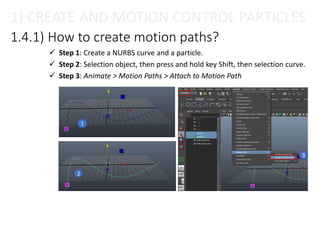
1.4.1) How to create motion paths?
1
2
3
 Step 1: Create a NURBS curve and a particle.
 Step 2: Selection object, then press and hold key Shift, then selection curve.
 Step 3: Animate > Motion Paths > Attach to Motion Path
1) CREATE AND MOTION CONTROL PARTICLES
1.4.1) How to create motion paths?
5
4
1) CREATE AND MOTION CONTROL PARTICLES
Edit attributes.
2) EXAMPLES
Animation Particle Basics
2) EXAMPLES
Animation Particle Basics
2.1) Create a text effect.
2.2) Creating a simple virtual experiments.
2) EXAMPLES
2.1) Create a text effect.
Using Make live Tool and Particle Tool.
2) EXAMPLES
Animation Particle Basics
2.1) Create a text effect.
2.2) Creating a simple virtual experiments.
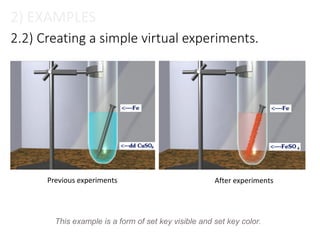
Previous experiments After experiments
2) EXAMPLES
2.2) Creating a simple virtual experiments.
This example is a form of set key visible and set key color.
Thanks!

Session 02 – animation particle basics

  • 1.
    Maya Dynamics Basics Lab2: Animation Particle Basics Author: Khieu Van Bang Email: tribang.nd@gmail.com
  • 2.
    CONTENTS  Create andmotion control Particles:  Create particle in different environments.  Parent an object to dynamic motion.  Set key particle.  Motion paths.  Examples:  Create a text effect.  Creating a simple virtual experiments.
  • 3.
    1) CREATE ANDMOTION CONTROL PARTICLES Animation Particle Basics
  • 4.
    1) CREATE ANDMOTION CONTROL PARTICLES Animation Particle Basics 1.1) Create particle in different environments. 1.2) Parent an object to dynamic motion. 1.3) Set key particle. 1.4) Motion paths.
  • 5.
    1.1.1) Create inspace 1 1) CREATE AND MOTION CONTROL PARTICLES  How to create particle in space ?
  • 6.
    1.1.2) Created particleon the surface of the object 1 2 3 4 5 1) CREATE AND MOTION CONTROL PARTICLES  Step 1: Modeling Object.  Step 2: Select Dynamics > Modify > Make Live.  Step 3: Select Dynamics > Particles > Particle Tool.  Step 4: Set value Options.  Step 5: Click on object to create particles.
  • 7.
    6 7 8 9 10 1.1.2) Created particleon the surface of the object 1) CREATE AND MOTION CONTROL PARTICLES  Step 6: Change attributes.
  • 8.
    1.1.3) Created oncurver 1 2 3 4 5 1) CREATE AND MOTION CONTROL PARTICLES  Create particle on curve.  Change attributes.
  • 9.
    1.1.3) Created oncurver 6 7 8 1) CREATE AND MOTION CONTROL PARTICLES  Change attributes.
  • 10.
    1) CREATE ANDMOTION CONTROL PARTICLES Animation Particle Basics 1.1) Create particle in different environments. 1.2) Parent an object to dynamic motion. 1.3) Set key particle. 1.4) Motion paths.
  • 11.
    1.2.1) What isparent ?  When child move, the parent will not move.  When parent move, the child will move. 1 2 1) CREATE AND MOTION CONTROL PARTICLES pCylnder 1 particle1 This is parent:  pCylnder 1 is parent.  Particle1 is children.
  • 12.
    1.2.1) What isparent ? 1) CREATE AND MOTION CONTROL PARTICLES spacecraft smoke Fireworks_1 Fireworks_2 Fireworks_3 Parent_live1 Parent_live1 Parent_live2
  • 13.
    1.2.2) Create aparent Step 1: Select the object you want to create child. Step 2: Select the object you want to create parent. Step 3: Press key “P”. 1 2 3 1) CREATE AND MOTION CONTROL PARTICLES
  • 14.
    1) CREATE ANDMOTION CONTROL PARTICLES Animation Particle Basics 1.1) Create particle in different environments. 1.2) Parent an object to dynamic motion. 1.3) Set key particle. 1.4) Motion paths.
  • 15.
    1.3.1) What isSet key ? 1 2 3 4 5 6 1) CREATE AND MOTION CONTROL PARTICLES
  • 16.
    1.3.2) How toset key particles ?  Step 1: Select particles or particles attributes.  Step 2: Select first frame you want set key.  Step 3: Press key “S” or right click then select “Key selected”.  Step 4: Select last frame you want set key.  Step 5: Press key “S” or right click then select “Key selected”. 1) CREATE AND MOTION CONTROL PARTICLES First frame Last frame
  • 17.
    1.3.2) Kinds setkey  Set keys object position (move, scale, rotate)  Set Key object properties (Visible, Color, alpha, …) 1) CREATE AND MOTION CONTROL PARTICLES
  • 18.
    1.3.2) Kinds setkey 1) CREATE AND MOTION CONTROL PARTICLES Examples: Set Key color:
  • 19.
    1.3.3) Edit setkey Copy-add-remove-edit the Set Key position? Clear the Set Key points ? 1) CREATE AND MOTION CONTROL PARTICLES
  • 20.
    1.3.4) Set Keywith Graph editer Open Window > Animation Editors > Graph Editor Menu bar Toolbar Outliner Graph view1 2 3 4 1) CREATE AND MOTION CONTROL PARTICLES
  • 21.
    1.3.5) Examples 1 2 3 4 56 7 8 1) CREATE AND MOTION CONTROL PARTICLES
  • 22.
    1) CREATE ANDMOTION CONTROL PARTICLES Animation Particle Basics 1.1) Create particle in different environments. 1.2) Parent an object to dynamic motion. 1.3) Set key particle. 1.4) Motion paths.
  • 23.
    1.4.1) How tocreate motion paths? 1 2 3  Step 1: Create a NURBS curve and a particle.  Step 2: Selection object, then press and hold key Shift, then selection curve.  Step 3: Animate > Motion Paths > Attach to Motion Path 1) CREATE AND MOTION CONTROL PARTICLES
  • 24.
    1.4.1) How tocreate motion paths? 5 4 1) CREATE AND MOTION CONTROL PARTICLES Edit attributes.
  • 25.
  • 26.
    2) EXAMPLES Animation ParticleBasics 2.1) Create a text effect. 2.2) Creating a simple virtual experiments.
  • 27.
    2) EXAMPLES 2.1) Createa text effect. Using Make live Tool and Particle Tool.
  • 28.
    2) EXAMPLES Animation ParticleBasics 2.1) Create a text effect. 2.2) Creating a simple virtual experiments.
  • 29.
    Previous experiments Afterexperiments 2) EXAMPLES 2.2) Creating a simple virtual experiments. This example is a form of set key visible and set key color.
  • 30.