OPERATING
SYSTEMS
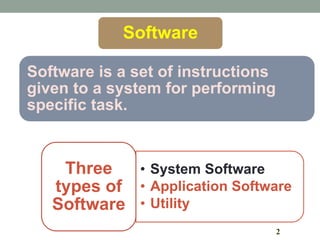
2
Software
Software is a set of instructions
given to a system for performing
specific task.
• System Software
• Application Software
• Utility
Three
types of
Software
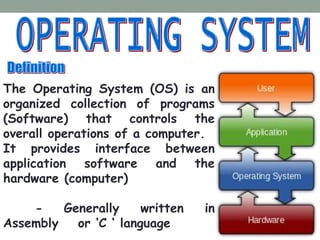
The Operating System (OS) is an
organized collection of programs
(Software) that controls the
overall operations of a computer.
It provides interface between
application software and the
hardware (computer)
- Generally written in
Assembly or ‘C ‘ language
4
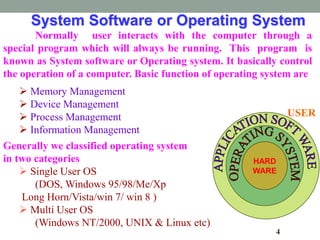
System Software or Operating System
Normally user interacts with the computer through a
special program which will always be running. This program is
known as System software or Operating system. It basically control
the operation of a computer. Basic function of operating system are
 Memory Management
 Device Management
 Process Management
 Information Management
Generally we classified operating system
in two categories
 Single User OS
(DOS, Windows 95/98/Me/Xp
Long Horn/Vista/win 7/ win 8 )
 Multi User OS
(Windows NT/2000, UNIX & Linux etc)
HARD
WARE
USER
What Does An Operating System Do?
Manage the computer resources
Interact with the user
Run applications
Operating System Services
 User interface
 Program execution
 File-system manipulation
 Communication
 Error detection
 Resource allocation
 Accounting
 Protection and security
Examples of computer operating
systems
Microsoft Windows (1- 8)
Apple MacOS
Ubuntu Linux
Google Android
iOS
Microsoft Corporation o s
Xenix (licensed version of Unix; licensed to SCO in 1987)
MSX-DOS (developed by MS Japan for the MSX 8-bit computer)
MS-DOS (developed jointly with IBM, versions 1.0–6.22)
Windows 1.0 (Windows 1 - Based on Visi On)
Windows 2.0 (Windows 2)
Windows 3.0 (Windows 3 - Is the first version of Windows to make substantial
commercial impact)
Windows 3.1x (Windows 3.1)
Windows 3.2 (Chinese-only release)
Windows for Workgroups 3.11
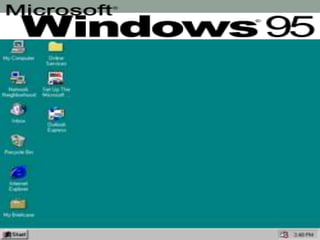
Windows 95 (Codename Chicago - Windows 4.0)
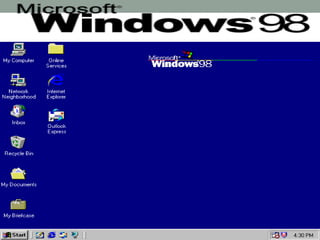
Windows 98 (Codename Memphis - Windows 4.1)
Windows Millennium Edition (Windows Me - Windows 4.9)
continue
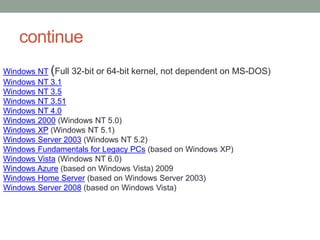
Windows NT (Full 32-bit or 64-bit kernel, not dependent on MS-DOS)
Windows NT 3.1
Windows NT 3.5
Windows NT 3.51
Windows NT 4.0
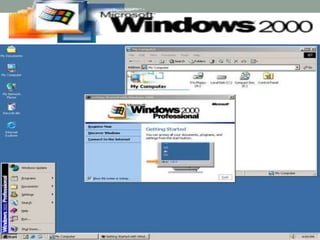
Windows 2000 (Windows NT 5.0)
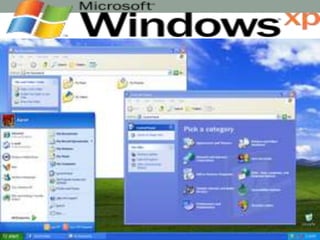
Windows XP (Windows NT 5.1)
Windows Server 2003 (Windows NT 5.2)
Windows Fundamentals for Legacy PCs (based on Windows XP)
Windows Vista (Windows NT 6.0)
Windows Azure (based on Windows Vista) 2009
Windows Home Server (based on Windows Server 2003)
Windows Server 2008 (based on Windows Vista)
continue
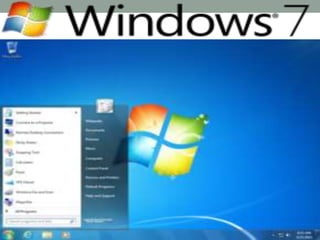
Windows 7 (Windows NT 6.1)
Windows Server 2008 R2 (based
on Windows 7)
Windows Home Server
2011 (based on Windows Server
2008 R2)
Windows Server 2012 (based on
Windows 8)
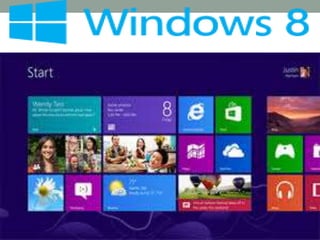
Windows 8 (Windows NT 6.2)
Windows 7 Starter
Windows 7 Home Basic
Windows 7 Home Premium
Windows 7 Professional
Windows 7 Enterprise
Windows 7 Ultimate
WINDOW 7 EDITION
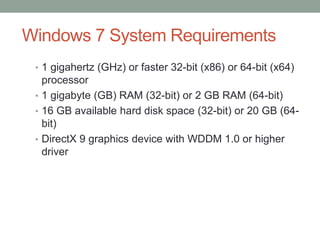
Windows 7 System Requirements
• 1 gigahertz (GHz) or faster 32-bit (x86) or 64-bit (x64)
processor
• 1 gigabyte (GB) RAM (32-bit) or 2 GB RAM (64-bit)
• 16 GB available hard disk space (32-bit) or 20 GB (64-
bit)
• DirectX 9 graphics device with WDDM 1.0 or higher
driver
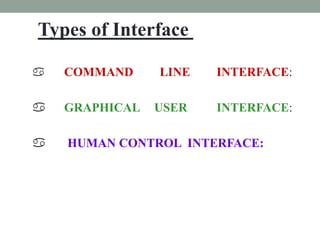
 COMMAND LINE INTERFACE:
 GRAPHICAL USER INTERFACE:
 HUMAN CONTROL INTERFACE:
Types of Interface
In GUIs, the computer screen is called the
desktop & we do all our jobs/work on the
desktop.
DESKTOP
What is Windows ?
The Computer desktop is divided into
workspace and each of these called
Windows. It runs each program or documents
in its own separate window (a box or frame
on the screen).
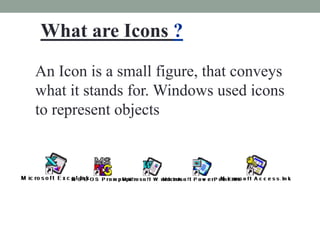
What are Icons ?
An Icon is a small figure, that conveys
what it stands for. Windows used icons
to represent objects
Desktop System Icons
Computer To browse all computer disk
drives & network drives
Recycle bin Retain all the deleted files in a
safe place for future retrieval, if
required.
The Task Bar
 By default, the “Taskbar” is located on
the bottom of the screen. The taskbar
is an information pad that gives on line
view of all application currently
executing under Windows.
 The Taskbar ensures quick switching
between application/windows. Each
button indicates specific information.
Notification area
Notification area shows programs
running in background from
Switch “ON” to switch “OFF” of
system i.e.
System Clock, Virus Scanner or
Program scheduler.
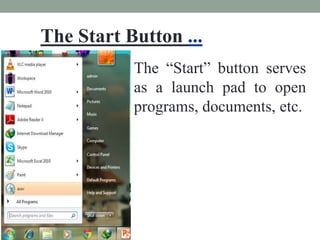
The Start Button ...
The “Start” button serves
as a launch pad to open
programs, documents, etc.
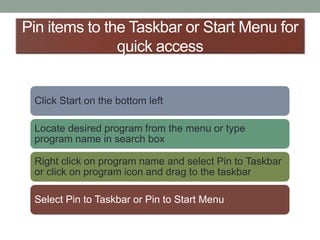
Pin items to the Taskbar or Start Menu for
quick access
Click Start on the bottom left
Locate desired program from the menu or type
program name in search box
Right click on program name and select Pin to Taskbar
or click on program icon and drag to the taskbar
Select Pin to Taskbar or Pin to Start Menu
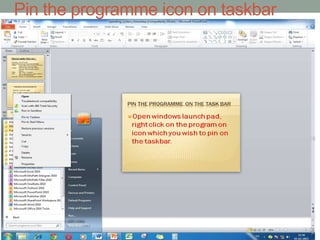
Pin the programme icon on taskbar
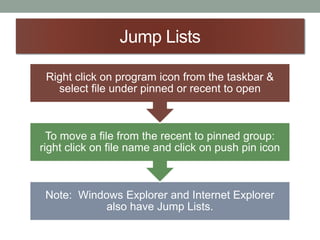
Jump Lists
Note: Windows Explorer and Internet Explorer
also have Jump Lists.
To move a file from the recent to pinned group:
right click on file name and click on push pin icon
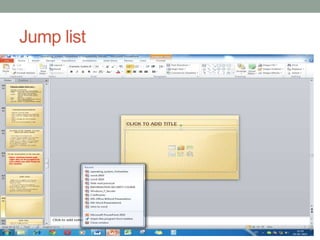
Right click on program icon from the taskbar &
select file under pinned or recent to open
Jump list
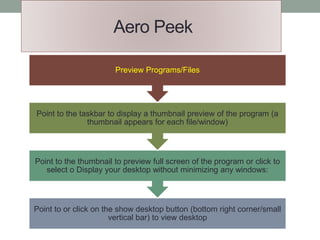
Aero Peek
Point to or click on the show desktop button (bottom right corner/small
vertical bar) to view desktop
Point to the thumbnail to preview full screen of the program or click to
select o Display your desktop without minimizing any windows:
Point to the taskbar to display a thumbnail preview of the program (a
thumbnail appears for each file/window)
Preview Programs/Files
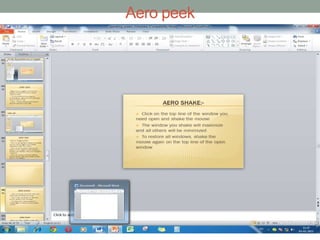
Aero peek
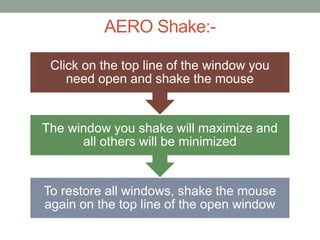
AERO Shake:-
To restore all windows, shake the mouse
again on the top line of the open window
The window you shake will maximize and
all others will be minimized
Click on the top line of the window you
need open and shake the mouse
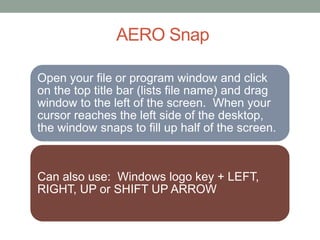
AERO Snap
Open your file or program window and click
on the top title bar (lists file name) and drag
window to the left of the screen. When your
cursor reaches the left side of the desktop,
the window snaps to fill up half of the screen.
Can also use: Windows logo key + LEFT,
RIGHT, UP or SHIFT UP ARROW
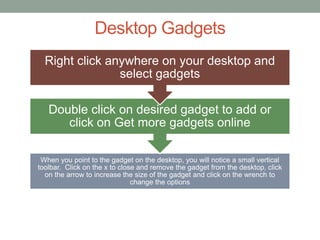
Desktop Gadgets
When you point to the gadget on the desktop, you will notice a small vertical
toolbar. Click on the x to close and remove the gadget from the desktop, click
on the arrow to increase the size of the gadget and click on the wrench to
change the options
Double click on desired gadget to add or
click on Get more gadgets online
Right click anywhere on your desktop and
select gadgets
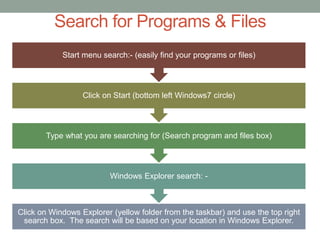
Search for Programs & Files
Click on Windows Explorer (yellow folder from the taskbar) and use the top right
search box. The search will be based on your location in Windows Explorer.
Windows Explorer search: -
Type what you are searching for (Search program and files box)
Click on Start (bottom left Windows7 circle)
Start menu search:- (easily find your programs or files)
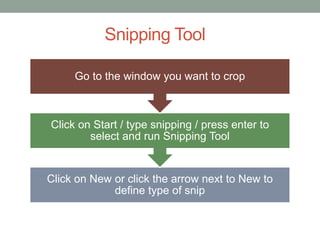
Snipping Tool
Click on New or click the arrow next to New to
define type of snip
Click on Start / type snipping / press enter to
select and run Snipping Tool
Go to the window you want to crop
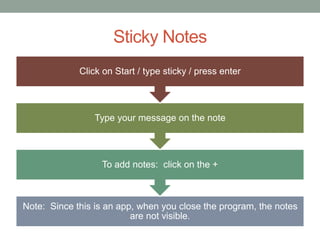
Sticky Notes
Note: Since this is an app, when you close the program, the notes
are not visible.
To add notes: click on the +
Type your message on the note
Click on Start / type sticky / press enter
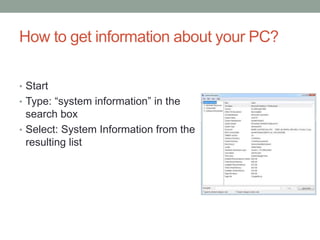
How to get information about your PC?
• Start
• Type: “system information” in the
search box
• Select: System Information from the
resulting list

Operating systems

  • 1.
  • 2.
    2 Software Software is aset of instructions given to a system for performing specific task. • System Software • Application Software • Utility Three types of Software
  • 3.
    The Operating System(OS) is an organized collection of programs (Software) that controls the overall operations of a computer. It provides interface between application software and the hardware (computer) - Generally written in Assembly or ‘C ‘ language
  • 4.
    4 System Software orOperating System Normally user interacts with the computer through a special program which will always be running. This program is known as System software or Operating system. It basically control the operation of a computer. Basic function of operating system are  Memory Management  Device Management  Process Management  Information Management Generally we classified operating system in two categories  Single User OS (DOS, Windows 95/98/Me/Xp Long Horn/Vista/win 7/ win 8 )  Multi User OS (Windows NT/2000, UNIX & Linux etc) HARD WARE USER
  • 5.
    What Does AnOperating System Do? Manage the computer resources Interact with the user Run applications
  • 6.
    Operating System Services User interface  Program execution  File-system manipulation  Communication  Error detection  Resource allocation  Accounting  Protection and security
  • 7.
    Examples of computeroperating systems Microsoft Windows (1- 8) Apple MacOS Ubuntu Linux Google Android iOS
  • 8.
    Microsoft Corporation os Xenix (licensed version of Unix; licensed to SCO in 1987) MSX-DOS (developed by MS Japan for the MSX 8-bit computer) MS-DOS (developed jointly with IBM, versions 1.0–6.22) Windows 1.0 (Windows 1 - Based on Visi On) Windows 2.0 (Windows 2) Windows 3.0 (Windows 3 - Is the first version of Windows to make substantial commercial impact) Windows 3.1x (Windows 3.1) Windows 3.2 (Chinese-only release) Windows for Workgroups 3.11 Windows 95 (Codename Chicago - Windows 4.0) Windows 98 (Codename Memphis - Windows 4.1) Windows Millennium Edition (Windows Me - Windows 4.9)
  • 9.
    continue Windows NT (Full32-bit or 64-bit kernel, not dependent on MS-DOS) Windows NT 3.1 Windows NT 3.5 Windows NT 3.51 Windows NT 4.0 Windows 2000 (Windows NT 5.0) Windows XP (Windows NT 5.1) Windows Server 2003 (Windows NT 5.2) Windows Fundamentals for Legacy PCs (based on Windows XP) Windows Vista (Windows NT 6.0) Windows Azure (based on Windows Vista) 2009 Windows Home Server (based on Windows Server 2003) Windows Server 2008 (based on Windows Vista)
  • 10.
    continue Windows 7 (WindowsNT 6.1) Windows Server 2008 R2 (based on Windows 7) Windows Home Server 2011 (based on Windows Server 2008 R2) Windows Server 2012 (based on Windows 8) Windows 8 (Windows NT 6.2)
  • 11.
    Windows 7 Starter Windows7 Home Basic Windows 7 Home Premium Windows 7 Professional Windows 7 Enterprise Windows 7 Ultimate WINDOW 7 EDITION
  • 17.
    Windows 7 SystemRequirements • 1 gigahertz (GHz) or faster 32-bit (x86) or 64-bit (x64) processor • 1 gigabyte (GB) RAM (32-bit) or 2 GB RAM (64-bit) • 16 GB available hard disk space (32-bit) or 20 GB (64- bit) • DirectX 9 graphics device with WDDM 1.0 or higher driver
  • 19.
     COMMAND LINEINTERFACE:  GRAPHICAL USER INTERFACE:  HUMAN CONTROL INTERFACE: Types of Interface
  • 20.
    In GUIs, thecomputer screen is called the desktop & we do all our jobs/work on the desktop. DESKTOP
  • 21.
    What is Windows? The Computer desktop is divided into workspace and each of these called Windows. It runs each program or documents in its own separate window (a box or frame on the screen).
  • 22.
    What are Icons? An Icon is a small figure, that conveys what it stands for. Windows used icons to represent objects
  • 23.
    Desktop System Icons ComputerTo browse all computer disk drives & network drives Recycle bin Retain all the deleted files in a safe place for future retrieval, if required.
  • 24.
    The Task Bar By default, the “Taskbar” is located on the bottom of the screen. The taskbar is an information pad that gives on line view of all application currently executing under Windows.  The Taskbar ensures quick switching between application/windows. Each button indicates specific information.
  • 25.
    Notification area Notification areashows programs running in background from Switch “ON” to switch “OFF” of system i.e. System Clock, Virus Scanner or Program scheduler.
  • 26.
    The Start Button... The “Start” button serves as a launch pad to open programs, documents, etc.
  • 27.
    Pin items tothe Taskbar or Start Menu for quick access Click Start on the bottom left Locate desired program from the menu or type program name in search box Right click on program name and select Pin to Taskbar or click on program icon and drag to the taskbar Select Pin to Taskbar or Pin to Start Menu
  • 28.
    Pin the programmeicon on taskbar
  • 29.
    Jump Lists Note: WindowsExplorer and Internet Explorer also have Jump Lists. To move a file from the recent to pinned group: right click on file name and click on push pin icon Right click on program icon from the taskbar & select file under pinned or recent to open
  • 30.
  • 31.
    Aero Peek Point toor click on the show desktop button (bottom right corner/small vertical bar) to view desktop Point to the thumbnail to preview full screen of the program or click to select o Display your desktop without minimizing any windows: Point to the taskbar to display a thumbnail preview of the program (a thumbnail appears for each file/window) Preview Programs/Files
  • 32.
  • 33.
    AERO Shake:- To restoreall windows, shake the mouse again on the top line of the open window The window you shake will maximize and all others will be minimized Click on the top line of the window you need open and shake the mouse
  • 34.
    AERO Snap Open yourfile or program window and click on the top title bar (lists file name) and drag window to the left of the screen. When your cursor reaches the left side of the desktop, the window snaps to fill up half of the screen. Can also use: Windows logo key + LEFT, RIGHT, UP or SHIFT UP ARROW
  • 35.
    Desktop Gadgets When youpoint to the gadget on the desktop, you will notice a small vertical toolbar. Click on the x to close and remove the gadget from the desktop, click on the arrow to increase the size of the gadget and click on the wrench to change the options Double click on desired gadget to add or click on Get more gadgets online Right click anywhere on your desktop and select gadgets
  • 36.
    Search for Programs& Files Click on Windows Explorer (yellow folder from the taskbar) and use the top right search box. The search will be based on your location in Windows Explorer. Windows Explorer search: - Type what you are searching for (Search program and files box) Click on Start (bottom left Windows7 circle) Start menu search:- (easily find your programs or files)
  • 37.
    Snipping Tool Click onNew or click the arrow next to New to define type of snip Click on Start / type snipping / press enter to select and run Snipping Tool Go to the window you want to crop
  • 38.
    Sticky Notes Note: Sincethis is an app, when you close the program, the notes are not visible. To add notes: click on the + Type your message on the note Click on Start / type sticky / press enter
  • 39.
    How to getinformation about your PC? • Start • Type: “system information” in the search box • Select: System Information from the resulting list