System Software and Operating
System
A overview of Software Tools
Software
• The software is a bunch of related programs.
• Software is lifeline of hardware
• Software can be engineered as Hardware
• Programmers make them as per requirement
• Software can be divided into two categories:
- System Software
- Application Software
1/23/2017
What is Operating System
OS is system software, which may be viewed as
collection of software consisting of procedures for
operating the computer.
It provides an environment for execution of
programs (application software).
It’s an interface between user & computer.
1/23/2017
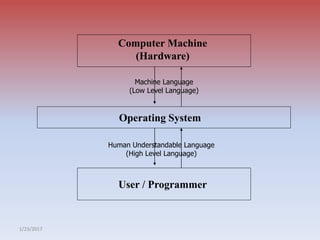
Computer Machine
(Hardware)
User / Programmer
Operating System
Human Understandable Language
(High Level Language)
Machine Language
(Low Level Language)
1/23/2017
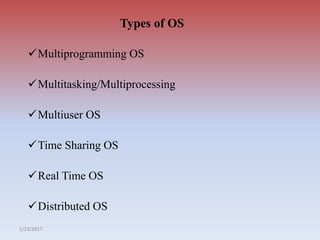
Types of OS
Multiprogramming OS
Multitasking/Multiprocessing
Multiuser OS
Time Sharing OS
Real Time OS
Distributed OS
1/23/2017
A Second Classification
This Classification is based on the type of interface
Operating System provides for the user to work in.
Character User Interface (CUI)
The User has to type the commands on the
command prompt to get the work completed.
Ex. DOS, UNIX.
Graphical User Interface (GUI)
The User need not type any commands. He/She
just point and clicks on the desired Icon to get the
work done.
Ex. Windows (9X, XP, NT, 2000), Linux.
1/23/2017
Functions of OS
File Management
Memory Management
Process Management
Device Management
Types of Processing
Serial Processing
The job is processed at the time when
it is submitted.
Batch Processing
The similar jobs are bunched together and
are kept for processing at an later time.
Windows 7: Introduction
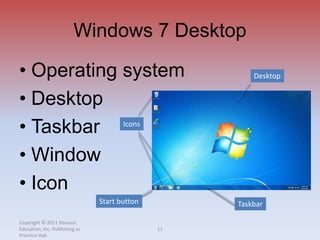
• The desktop is the screen that displays once you have turned on the
computer and responded to prompts for your user name and password.
This is your workspace. It is where you manage tasks on the computer
• The taskbar provides you with access to the software applications, enables
you to move between the applications, and gives you access to system
resources. It is a horizontal bar that appears at the bottom of the screen.
• A window is a space on the desktop representing a program, system
resource, or data. Multiple windows can be open at one time, Windows
can be moved around the desktop, minimized to take up less space, and
maximized to fill the desktop.
• Icons are small pictures that represent programs, files, folders, or other
things on the desktop. Objects with the same characteristics, like file
folders, have the same icon. Software icons are unique so that you can
quickly find the software application.
Windows 7 System Requirements
• 1 gigahertz (GHz) or faster 32-bit (x86) or
64-bit (x64) processor
• 1 gigabyte (GB) RAM (32-bit) or 2 GB RAM
(64-bit)
• 16 GB available hard disk space (32-bit) or
20 GB (64-bit)
• DirectX 9 graphics device with WDDM 1.0
or higher driver
Windows 7 Desktop
Copyright © 2011 Pearson
Education, Inc. Publishing as
Prentice Hall.
11
• Operating system
• Desktop
• Taskbar
• Window
• Icon
Desktop
Taskbar
Icons
Start button
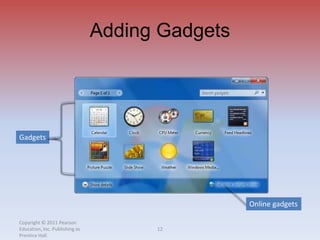
Adding Gadgets
Copyright © 2011 Pearson
Education, Inc. Publishing as
Prentice Hall.
12
Online gadgets
Gadgets
The Taskbar
Copyright © 2011 Pearson
Education, Inc. Publishing as
Prentice Hall.
13
Program icons
Excel
Word
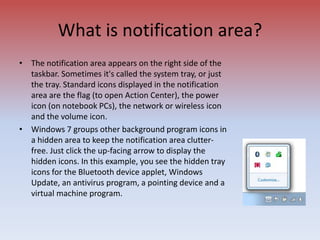
What is notification area?
• The notification area appears on the right side of the
taskbar. Sometimes it's called the system tray, or just
the tray. Standard icons displayed in the notification
area are the flag (to open Action Center), the power
icon (on notebook PCs), the network or wireless icon
and the volume icon.
• Windows 7 groups other background program icons in
a hidden area to keep the notification area clutter-
free. Just click the up-facing arrow to display the
hidden icons. In this example, you see the hidden tray
icons for the Bluetooth device applet, Windows
Update, an antivirus program, a pointing device and a
virtual machine program.
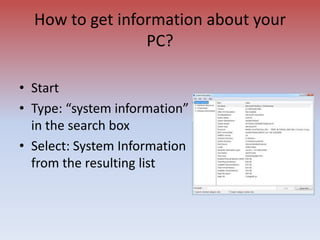
How to get information about your
PC?
• Start
• Type: “system information”
in the search box
• Select: System Information
from the resulting list
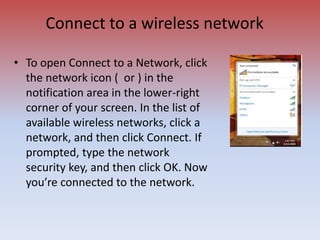
Connect to a wireless network
• To open Connect to a Network, click
the network icon ( or ) in the
notification area in the lower-right
corner of your screen. In the list of
available wireless networks, click a
network, and then click Connect. If
prompted, type the network
security key, and then click OK. Now
you’re connected to the network.
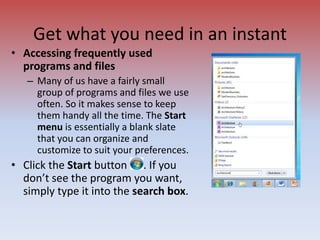
Get what you need in an instant
• Accessing frequently used
programs and files
– Many of us have a fairly small
group of programs and files we use
often. So it makes sense to keep
them handy all the time. The Start
menu is essentially a blank slate
that you can organize and
customize to suit your preferences.
• Click the Start button . If you
don’t see the program you want,
simply type it into the search box.
Get what you need in an instant
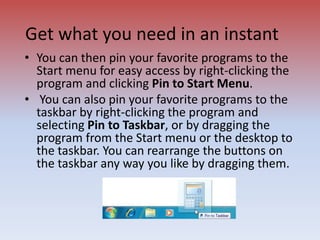
• You can then pin your favorite programs to the
Start menu for easy access by right-clicking the
program and clicking Pin to Start Menu.
• You can also pin your favorite programs to the
taskbar by right-clicking the program and
selecting Pin to Taskbar, or by dragging the
program from the Start menu or the desktop to
the taskbar. You can rearrange the buttons on
the taskbar any way you like by dragging them.
Jump Lists
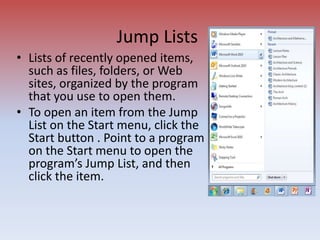
• Lists of recently opened items,
such as files, folders, or Web
sites, organized by the program
that you use to open them.
• To open an item from the Jump
List on the Start menu, click the
Start button . Point to a program
on the Start menu to open the
program’s Jump List, and then
click the item.
Jump List
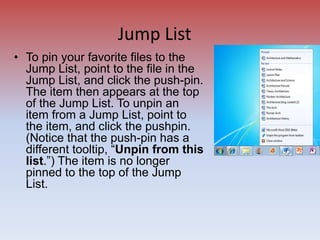
• To pin your favorite files to the
Jump List, point to the file in the
Jump List, and click the push-pin.
The item then appears at the top
of the Jump List. To unpin an
item from a Jump List, point to
the item, and click the pushpin.
(Notice that the push-pin has a
different tooltip, “Unpin from this
list.”) The item is no longer
pinned to the top of the Jump
List.
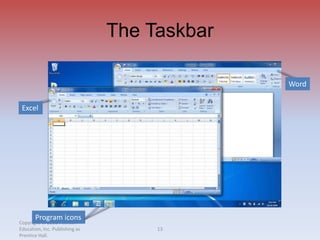
The taskbar
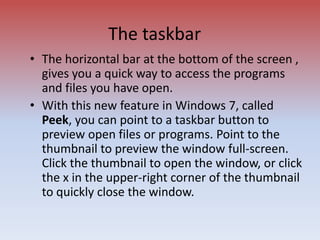
• The horizontal bar at the bottom of the screen ,
gives you a quick way to access the programs
and files you have open.
• With this new feature in Windows 7, called
Peek, you can point to a taskbar button to
preview open files or programs. Point to the
thumbnail to preview the window full-screen.
Click the thumbnail to open the window, or click
the x in the upper-right corner of the thumbnail
to quickly close the window.
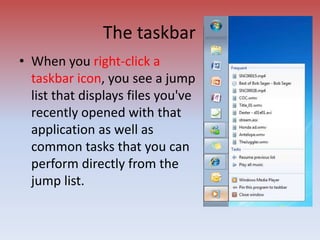
• When you right-click a
taskbar icon, you see a jump
list that displays files you've
recently opened with that
application as well as
common tasks that you can
perform directly from the
jump list.
The taskbar
Query Session
Its all about we discussed earlier ...
OR
Something punching you in Mind …
System software and operating system

  • 1.
    System Software andOperating System A overview of Software Tools
  • 2.
    Software • The softwareis a bunch of related programs. • Software is lifeline of hardware • Software can be engineered as Hardware • Programmers make them as per requirement • Software can be divided into two categories: - System Software - Application Software
  • 3.
    1/23/2017 What is OperatingSystem OS is system software, which may be viewed as collection of software consisting of procedures for operating the computer. It provides an environment for execution of programs (application software). It’s an interface between user & computer.
  • 4.
    1/23/2017 Computer Machine (Hardware) User /Programmer Operating System Human Understandable Language (High Level Language) Machine Language (Low Level Language)
  • 5.
    1/23/2017 Types of OS MultiprogrammingOS Multitasking/Multiprocessing Multiuser OS Time Sharing OS Real Time OS Distributed OS
  • 6.
    1/23/2017 A Second Classification ThisClassification is based on the type of interface Operating System provides for the user to work in. Character User Interface (CUI) The User has to type the commands on the command prompt to get the work completed. Ex. DOS, UNIX. Graphical User Interface (GUI) The User need not type any commands. He/She just point and clicks on the desired Icon to get the work done. Ex. Windows (9X, XP, NT, 2000), Linux.
  • 7.
    1/23/2017 Functions of OS FileManagement Memory Management Process Management Device Management
  • 8.
    Types of Processing SerialProcessing The job is processed at the time when it is submitted. Batch Processing The similar jobs are bunched together and are kept for processing at an later time.
  • 9.
    Windows 7: Introduction •The desktop is the screen that displays once you have turned on the computer and responded to prompts for your user name and password. This is your workspace. It is where you manage tasks on the computer • The taskbar provides you with access to the software applications, enables you to move between the applications, and gives you access to system resources. It is a horizontal bar that appears at the bottom of the screen. • A window is a space on the desktop representing a program, system resource, or data. Multiple windows can be open at one time, Windows can be moved around the desktop, minimized to take up less space, and maximized to fill the desktop. • Icons are small pictures that represent programs, files, folders, or other things on the desktop. Objects with the same characteristics, like file folders, have the same icon. Software icons are unique so that you can quickly find the software application.
  • 10.
    Windows 7 SystemRequirements • 1 gigahertz (GHz) or faster 32-bit (x86) or 64-bit (x64) processor • 1 gigabyte (GB) RAM (32-bit) or 2 GB RAM (64-bit) • 16 GB available hard disk space (32-bit) or 20 GB (64-bit) • DirectX 9 graphics device with WDDM 1.0 or higher driver
  • 11.
    Windows 7 Desktop Copyright© 2011 Pearson Education, Inc. Publishing as Prentice Hall. 11 • Operating system • Desktop • Taskbar • Window • Icon Desktop Taskbar Icons Start button
  • 12.
    Adding Gadgets Copyright ©2011 Pearson Education, Inc. Publishing as Prentice Hall. 12 Online gadgets Gadgets
  • 13.
    The Taskbar Copyright ©2011 Pearson Education, Inc. Publishing as Prentice Hall. 13 Program icons Excel Word
  • 14.
    What is notificationarea? • The notification area appears on the right side of the taskbar. Sometimes it's called the system tray, or just the tray. Standard icons displayed in the notification area are the flag (to open Action Center), the power icon (on notebook PCs), the network or wireless icon and the volume icon. • Windows 7 groups other background program icons in a hidden area to keep the notification area clutter- free. Just click the up-facing arrow to display the hidden icons. In this example, you see the hidden tray icons for the Bluetooth device applet, Windows Update, an antivirus program, a pointing device and a virtual machine program.
  • 15.
    How to getinformation about your PC? • Start • Type: “system information” in the search box • Select: System Information from the resulting list
  • 16.
    Connect to awireless network • To open Connect to a Network, click the network icon ( or ) in the notification area in the lower-right corner of your screen. In the list of available wireless networks, click a network, and then click Connect. If prompted, type the network security key, and then click OK. Now you’re connected to the network.
  • 17.
    Get what youneed in an instant • Accessing frequently used programs and files – Many of us have a fairly small group of programs and files we use often. So it makes sense to keep them handy all the time. The Start menu is essentially a blank slate that you can organize and customize to suit your preferences. • Click the Start button . If you don’t see the program you want, simply type it into the search box.
  • 18.
    Get what youneed in an instant • You can then pin your favorite programs to the Start menu for easy access by right-clicking the program and clicking Pin to Start Menu. • You can also pin your favorite programs to the taskbar by right-clicking the program and selecting Pin to Taskbar, or by dragging the program from the Start menu or the desktop to the taskbar. You can rearrange the buttons on the taskbar any way you like by dragging them.
  • 19.
    Jump Lists • Listsof recently opened items, such as files, folders, or Web sites, organized by the program that you use to open them. • To open an item from the Jump List on the Start menu, click the Start button . Point to a program on the Start menu to open the program’s Jump List, and then click the item.
  • 20.
    Jump List • Topin your favorite files to the Jump List, point to the file in the Jump List, and click the push-pin. The item then appears at the top of the Jump List. To unpin an item from a Jump List, point to the item, and click the pushpin. (Notice that the push-pin has a different tooltip, “Unpin from this list.”) The item is no longer pinned to the top of the Jump List.
  • 21.
    The taskbar • Thehorizontal bar at the bottom of the screen , gives you a quick way to access the programs and files you have open. • With this new feature in Windows 7, called Peek, you can point to a taskbar button to preview open files or programs. Point to the thumbnail to preview the window full-screen. Click the thumbnail to open the window, or click the x in the upper-right corner of the thumbnail to quickly close the window.
  • 22.
    • When youright-click a taskbar icon, you see a jump list that displays files you've recently opened with that application as well as common tasks that you can perform directly from the jump list. The taskbar
  • 23.
    Query Session Its allabout we discussed earlier ... OR Something punching you in Mind …