Exploring the Basics of Windows XP
Objectives Start Windows XP and tour the desktop Explore the Start menu Run software programs, switch between them, and close them Manipulate windows Identify and use the controls in menus, toolbars, and dialog boxes
Objectives Navigate your computer with Windows Explorer and My Computer Change the view of the items in your computer Get help when you need it Shut down Windows
Starting Windows XP Windows XP Starts when computer is turned on Elements of the desktop Icon Pointer Desktop Date/Time control Taskbar Start button Notification area
Starting Windows XP Figure 1-1 shows the Windows XP desktop
Starting Windows XP Windows XP desktop uses a graphical user interface Graphical user interface (GUI) Displays icons to represent items stored on the computer Icons: Pictures of familiar objects
The Windows XP Desktop Desktop Area that appears on the screen when Windows XP starts A workspace for projects and tools Uses default settings when the computer is first started Default settings: settings preset by the operating system Appearance can be changed by the user
Using a Pointing Device A pointing device Helps the user interact with objects on the computer screen Comes in many shapes and sizes Mouse Most common pointing device
Pointing Pointing device Used to move the mouse pointer over objects on the desktop Pointing Positioning the pointer over a specific part of the screen
Pointing ScreenTips Appear when the mouse pointer is positioned over certain objects Display the purpose or function of the object Figure 1-3 shows a ScreenTip
Clicking Clicking Pressing a mouse button and immediately releasing it Menu A list of options which can be used to perform tasks Submenus Start menu Appears when the Start button is clicked Provides access to programs, documents, etc.
Clicking Figure 1-6 shows the Start menu
Selecting Selecting a menu command Two possible ways of selecting objects in Windows XP Pointing to an object Pointing to and then clicking an object A selected object is highlighted
Selecting
Viewing the contents  of the Recycle Bin Click the desktop, and then point to the Recycle Bin icon.  After a few moments, a ScreenTip appears that describes the Recycle Bin Click the left mouse button twice quickly to double-click the Recycle Bin icon.  The Recycle Bin opens
Viewing the contents  of the Recycle Bin
Right-Clicking Right-clicking Clicking an object with the right button of the mouse Selects an object and opens its shortcut menu Shortcut menu: a list of options directly related to the object
Right-Clicking
Exploring the Start menu
Starting and Closing a Program Starting a program A program must be started before it can be used To start a program Click the Start button Locate and click the program’s name in the submenus An open or running program A program which has been started
Starting and Closing a Program
Starting and Closing a Program Program button Appears on the taskbar for each open program Click to switch between open programs Close button Located in the upper-right corner of the program window Click to close the program
Starting and Closing a Program
Running Multiple Programs Multitasking Ability to run multiple programs on Windows XP at the same time Allows the user to work on more than one project at a time The active program is the one you are currently using
Switching Between Programs Program buttons Located on the taskbar Offer the easiest way to switch between programs
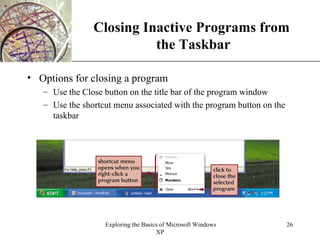
Closing Inactive Programs from  the Taskbar Options for closing a program Use the Close button on the title bar of the program window Use the shortcut menu associated with the program button on the taskbar
Anatomy of a Window A window A rectangular area of the screen that may contain A program Text Graphics Data
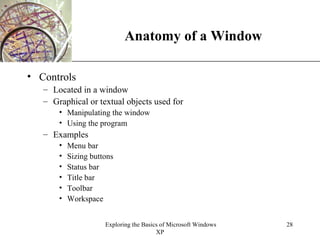
Anatomy of a Window Controls Located in a window Graphical or textual objects used for Manipulating the window Using the program Examples Menu bar Sizing buttons Status bar Title bar Toolbar Workspace
Anatomy of a Window
Manipulating a Window
Moving a Window To drag an object Click an object and then hold down the mouse button while moving the mouse To move a window Drag the window by its title bar
Changing the Size of a Window Options for changing a window’s size Sizing handle Located at the lower-right corner of the window Window borders Can be dragged left, right, up, or down
Changing the Size of a Window
Using Program Menus Menus Organize a program’s features and available functions Menu bar Typically located at the top of the program window Shows the names of the menus
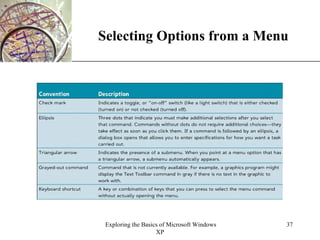
Selecting Options from a Menu Menu items or commands Choices for a menu Appear when a menu name is clicked Possible actions when clicked Immediately carry out an action Show submenus Ask the user for more information about the desired action
Selecting Options from a Menu
Using Toolbars Toolbars in the program window Provide one-click access to frequently used commands Have buttons grouped and organized by tasks To perform a command Select a toolbar button by clicking it
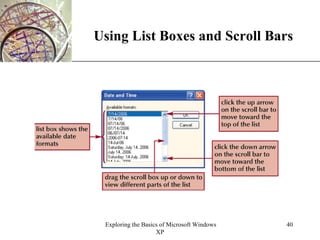
Using List Boxes and Scroll Bars List box Displays a list of available choices Usually includes Array buttons A scroll bar A scroll box
Using List Boxes and Scroll Bars
Using Dialog Box Controls Dialog box Opens when a menu command or item followed by an ellipsis is selected Allows the user to provide more information about how a program should carry out a task Groups different kinds of information in panes Panes: bordered rectangular areas
Using Dialog Box Controls
Exploring Your Computer
Changing the View Change the view by selecting an option from the View menu on the menu bar
Using Help Windows XP Help Provides on-screen information about programs Available by Clicking the Start button and selecting Help and Support from the Start menu Windows Help and Support Center window Provides access to Help files stored on the computer Help information stored on Microsoft’s Web site
Using Help
Using Help Windows XP Help and Support window Organizes information into pages Home page Index page Favorites page History page Support page Options page Search box Used to search for keywords contained in Help pages
Shutting Down Windows XP Turn Off Computer option Located on the Start menu Turns off the computer Log Off option Located on the Start menu Logs off Windows XP but leaves the computer on

Windows xp

  • 1.
    Exploring the Basicsof Windows XP
  • 2.
    Objectives Start WindowsXP and tour the desktop Explore the Start menu Run software programs, switch between them, and close them Manipulate windows Identify and use the controls in menus, toolbars, and dialog boxes
  • 3.
    Objectives Navigate yourcomputer with Windows Explorer and My Computer Change the view of the items in your computer Get help when you need it Shut down Windows
  • 4.
    Starting Windows XPWindows XP Starts when computer is turned on Elements of the desktop Icon Pointer Desktop Date/Time control Taskbar Start button Notification area
  • 5.
    Starting Windows XPFigure 1-1 shows the Windows XP desktop
  • 6.
    Starting Windows XPWindows XP desktop uses a graphical user interface Graphical user interface (GUI) Displays icons to represent items stored on the computer Icons: Pictures of familiar objects
  • 7.
    The Windows XPDesktop Desktop Area that appears on the screen when Windows XP starts A workspace for projects and tools Uses default settings when the computer is first started Default settings: settings preset by the operating system Appearance can be changed by the user
  • 8.
    Using a PointingDevice A pointing device Helps the user interact with objects on the computer screen Comes in many shapes and sizes Mouse Most common pointing device
  • 9.
    Pointing Pointing deviceUsed to move the mouse pointer over objects on the desktop Pointing Positioning the pointer over a specific part of the screen
  • 10.
    Pointing ScreenTips Appearwhen the mouse pointer is positioned over certain objects Display the purpose or function of the object Figure 1-3 shows a ScreenTip
  • 11.
    Clicking Clicking Pressinga mouse button and immediately releasing it Menu A list of options which can be used to perform tasks Submenus Start menu Appears when the Start button is clicked Provides access to programs, documents, etc.
  • 12.
    Clicking Figure 1-6shows the Start menu
  • 13.
    Selecting Selecting amenu command Two possible ways of selecting objects in Windows XP Pointing to an object Pointing to and then clicking an object A selected object is highlighted
  • 14.
  • 15.
    Viewing the contents of the Recycle Bin Click the desktop, and then point to the Recycle Bin icon. After a few moments, a ScreenTip appears that describes the Recycle Bin Click the left mouse button twice quickly to double-click the Recycle Bin icon. The Recycle Bin opens
  • 16.
    Viewing the contents of the Recycle Bin
  • 17.
    Right-Clicking Right-clicking Clickingan object with the right button of the mouse Selects an object and opens its shortcut menu Shortcut menu: a list of options directly related to the object
  • 18.
  • 19.
  • 20.
    Starting and Closinga Program Starting a program A program must be started before it can be used To start a program Click the Start button Locate and click the program’s name in the submenus An open or running program A program which has been started
  • 21.
  • 22.
    Starting and Closinga Program Program button Appears on the taskbar for each open program Click to switch between open programs Close button Located in the upper-right corner of the program window Click to close the program
  • 23.
  • 24.
    Running Multiple ProgramsMultitasking Ability to run multiple programs on Windows XP at the same time Allows the user to work on more than one project at a time The active program is the one you are currently using
  • 25.
    Switching Between ProgramsProgram buttons Located on the taskbar Offer the easiest way to switch between programs
  • 26.
    Closing Inactive Programsfrom the Taskbar Options for closing a program Use the Close button on the title bar of the program window Use the shortcut menu associated with the program button on the taskbar
  • 27.
    Anatomy of aWindow A window A rectangular area of the screen that may contain A program Text Graphics Data
  • 28.
    Anatomy of aWindow Controls Located in a window Graphical or textual objects used for Manipulating the window Using the program Examples Menu bar Sizing buttons Status bar Title bar Toolbar Workspace
  • 29.
  • 30.
  • 31.
    Moving a WindowTo drag an object Click an object and then hold down the mouse button while moving the mouse To move a window Drag the window by its title bar
  • 32.
    Changing the Sizeof a Window Options for changing a window’s size Sizing handle Located at the lower-right corner of the window Window borders Can be dragged left, right, up, or down
  • 33.
    Changing the Sizeof a Window
  • 34.
    Using Program MenusMenus Organize a program’s features and available functions Menu bar Typically located at the top of the program window Shows the names of the menus
  • 35.
    Selecting Options froma Menu Menu items or commands Choices for a menu Appear when a menu name is clicked Possible actions when clicked Immediately carry out an action Show submenus Ask the user for more information about the desired action
  • 36.
  • 37.
  • 38.
    Using Toolbars Toolbarsin the program window Provide one-click access to frequently used commands Have buttons grouped and organized by tasks To perform a command Select a toolbar button by clicking it
  • 39.
    Using List Boxesand Scroll Bars List box Displays a list of available choices Usually includes Array buttons A scroll bar A scroll box
  • 40.
    Using List Boxesand Scroll Bars
  • 41.
    Using Dialog BoxControls Dialog box Opens when a menu command or item followed by an ellipsis is selected Allows the user to provide more information about how a program should carry out a task Groups different kinds of information in panes Panes: bordered rectangular areas
  • 42.
  • 43.
  • 44.
    Changing the ViewChange the view by selecting an option from the View menu on the menu bar
  • 45.
    Using Help WindowsXP Help Provides on-screen information about programs Available by Clicking the Start button and selecting Help and Support from the Start menu Windows Help and Support Center window Provides access to Help files stored on the computer Help information stored on Microsoft’s Web site
  • 46.
  • 47.
    Using Help WindowsXP Help and Support window Organizes information into pages Home page Index page Favorites page History page Support page Options page Search box Used to search for keywords contained in Help pages
  • 48.
    Shutting Down WindowsXP Turn Off Computer option Located on the Start menu Turns off the computer Log Off option Located on the Start menu Logs off Windows XP but leaves the computer on