MICROSOFT WINDOWS
OPERATING SYSTEM
Objectives:
At the end of this lesson, you will be able to:
•Understand the used of XP and Windows 7 Operating
System.
•Operate the personal computer using XP and Windows
7 operating system.
• Change the setting and appearance of desktop of
Windows Environment.
• Distinguish the difference between window and dialog
boxes.
WINDOWS
 It is an easy to use program that allows
communicating with and controlling your computer
readily and customizing it to fit individual needs.
 It is an operating system that performs every
function necessary to enable you to communicate
with and use your computer.
 It is called 32-bit operating system because it used 32
bit addressing and other purposes which mean that
Operating System can address more than four
gigabytes or Random Access Memory (RAM) and
perform task faster than older operating system.
 It is an exceptional operating system that enables
you to perform tasks – such as opening programs,
copying files, editing documents and so on that help
you get your work done.
OPERATING SYSTEM
 It is the set of computer instruction called
“computer programs” that controls the
allocation of computer hardware, such as
memory, disk drives, printers and CD-ROM
and DVD drives and provides you with
capability of communications with the
computer.
Goals of Operating System
• To make the computer system
convenient to use.
• To use the computer hardware
in an efficient manner.
Purpose of Operating System
The purpose of an operating
system is to provide an
environment in which a user
may execute programs.
USER INTERFACE
 It is the combination of hardware and
software that you use to communicate with
and control your computer.
 It provides the means for dialogue between
you and your computer.
 The goal of an effective user interface is to be
user friendly meaning that the software can
be used easily by individuals with limited
training.
GRAPHICAL USER
INTERFACE (GUI)
 It is user interface that displays
graphics in addition to text
when it communicates with
the user.
WHAT IS AN APPLICATION?
 “Programs” specialized in certain jobs
such as
 Word processing for creating documents
 Spreadsheets for performing
calculations
 Graphics for drawing pictures
 Browser to surf Internet
 E.g. Ms Word, Excel, Internet Explorer,
PhotoShop, etc.
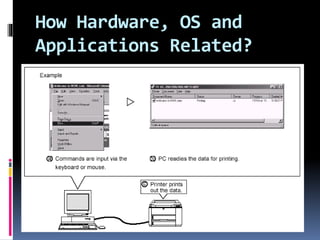
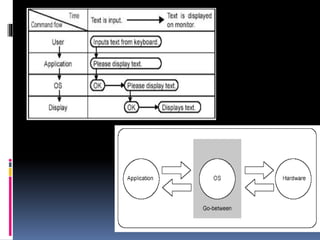
How Hardware, OS and
Applications Related?
What is Windows XP?
 It is an advanced operating system
that offers support for 32-bit
application software. Windows
provided a standard interface on drop
down menus screen windows and a
pointing device, such as mouse.
Windows 7 Overview
What is “Windows 7”?
Most Recent version of Microsoft Windows
Operating system.
Windows 7 was released to Manufacturing
on July 22,2009,and reached general retail
availability on October 22,2009.
Benefits of Windows 7
 Performance : Windows 7 starts, shuts down, and
resumes from Standby faster than earlier versions of
Windows.
 Reliability :Reliability improvements in Windows 7
include a Fault Tolerant Heap that resolves common
memory management issues.
 Application Compatibility :A key engineering goal for
Microsoft is that software that runs on Windows Vista
will run as well or better on Windows 7.
 Device Compatibility : As with software, Microsoft set an
engineering goal that devices that work with Windows Vista
will also work with Windows 7—and has greatly expanded
the list of devices and peripherals that are being tested for
compatibility.
 Security : Windows 7 delivers new capabilities to better
protect your security and privacy, and makes existing
security features such as User Account Control and
Windows Defender easier to use.
 Improved Battery Life : Improvements to power
management in Windows 7 will help extend the battery life
of your PC.
More benefits of Windows 7
1. Get quicker access to all of your stuff
2. Manage open windows more easily
3. Quickly find what you’re looking for
4. Share files and printers among multiple PCs
5. Stay entertained effortlessly
6. Easily create and share movies
7. Connect to networks easily
8. Do more and wait less
9. Don’t leave programs behind
10. Offers your PC better protection
User-Friendly GUI
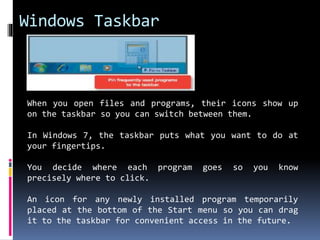
Windows Taskbar
When you open files and programs, their icons show up
on the taskbar so you can switch between them.
In Windows 7, the taskbar puts what you want to do at
your fingertips.
You decide where each program goes so you know
precisely where to click.
An icon for any newly installed program temporarily
placed at the bottom of the Start menu so you can drag
it to the taskbar for convenient access in the future.
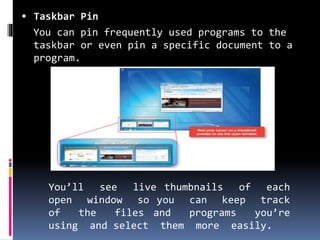
 Taskbar Pin
You can pin frequently used programs to the
taskbar or even pin a specific document to a
program.
You’ll see live thumbnails of each
open window so you can keep track
of the files and programs you’re
using and select them more easily.
Aero Peek
 View the Desktop temporarily without
minimizing all open windows or applications
Simply hover your cursor over the far-right side of the
taskbar and all your open windows will become transparent.
Taskbar Peek
 Peek at a specific window to see exactly where it is
by either using the live thumbnail previews or by
using Windows Flip (ALT + TAB) to quickly cycle
through running windows.
Pausing the cursor on a thumbnail will
bring the highlighted window into full size
view.
Jump Lists
 Provide quick access to common tasks
 Available from right-clicking any of the
icons on the taskbar or by dragging the icon
towards the center of the desktop.
 These dynamic lists automatically show you
files based on how often and how recently
you’ve done things
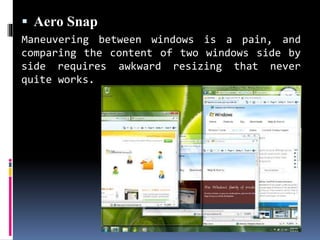
 Aero Snap
Maneuvering between windows is a pain, and
comparing the content of two windows side by
side requires awkward resizing that never
quite works.
Libraries
 Are a way to view files with common characteristics even
if those files are located in different places
 Makes it easier to view, organize, manage, and search for
files without the hassle of organizing the files into
specific folders.
Windows 7
automatically
creates
libraries for
items such as
documents,
music,
pictures, and
videos.
Searching from the
start Menu :
 The Search box in the Start
menu is a fast and easy
access point for all your
programs, data, and PC
settings.
 Just type a few letters in
the Search box, and you’ll
be presented with a list of
matching programs,
documents, pictures, music,
e-mail, and other files, all
arranged by category.
 Federated search :
Windows 7 supports searching for documents
beyond the user’s own PC, as well as a
preview of search results
 Sharing with HomeGroup
Home Groups let you easily link Windows 7 computers on
your home network to share pictures, music, videos,
documents and devices such as a printer.
Parental Control
Quickly set up your PC so it helps keep your kids safe.
You can keep them away from the wrong kind of games and
set limits for how much time they're on the PC
 Problem steps recorder
Automatically capture the steps you take on a computer,
including a text description of where you clicked and a
picture of the screen during each click.
Once you capture these steps, you can save them to a file
that can be used by a support professional or someone else
helping you with a computer problem.
 Windows 7 helps meet the needs of both end
users and IT professionals, to make the
things that people do today faster and
easier.
 Windows 7 focused on delivering greater
customer satisfaction in both big and small
ways.
CONCLUSION
WINDOWS ENVIRONMENT
Recycle
Bin
Recycle
Bin
Desktop
Icons
Start
Button Task Bar
My
Computer
 Desktop – It serves as the background on
which all other elements appear.
 Start Button – It displays a menu from
which you can choose to open application,
open documents, customize windows, find a
file etc..
 Task bar – It contains the start button,
any open application or window buttons
and the time.
 Icons – These are pictures that represent
programs, folder files, computer
information that will serve as shortcut
key.
 Tool tip – It displays or provides information about
the icons.
 Folders – it contains files, programs or other
folders on your computer.
 My Computer – It represents the contents of your
computer, including the hard drive, floppy disc,
CD-ROM, flash drive, applications, folders and
files.
 Recycle Bin – It is the place which deleted files
remain until you empty the trash. You retrieve
items such as files, programs, pictures and so on
from the recycle bin after you delete them.
HOW TO CHANGE THE WALLPAPER
OF YOUR DESKTOP
 Position the mouse pointer in an empty desktop
 Right-click the mouse
 The pop-up menu will appear
 Select Properties option
 Display dialog box will appear
 Choose desktop tab
 Choose the wall paper the you want in a list box
 Click apply button
 Click ok to close the display properties dialog
box
HOW TO PUT SCREEN SAVER USING
YOUR NAME IN YOUR COMPUTER
 Position the mouse pointer in an empty desktop
 Right-click the mouse
 The pop-up menu will appear
 Select Properties option
 Display dialog box will appear
 Choose screen saver tab
 Select 3D text from the drop down list box
 Click setting button
 Type your name ex. Carlos is a custom text box.
 Click ok button to close 3D text setting dialog box
 Set 1 minute for the wait label control
 Click apply button
 Clock ok button to close the display properties dialog box.
DIALOG BOXES
 It is a window that display a dialog
box request information about a
task you are performing to supply
or provide information you may
need.
PARTS OF DIALOG BOX
 1. FLIP CARD TABS - some dialog boxes
have some section, or “Flip cards”, that
can be accessed by clicking on this tab.
 TEXTBOX - You
can type text
or numbers
 COMMAND BUTTON
- it performs
command when
click.
CHECK BOX - Clicking on a
checkbox causes Check to
appear, meaning the options
have been chosen.
OPTION BUTTONS - only one can
be chosen at one time.
 DROP DOWN LIST BOX - Click on
the down arrow button at the
right of the list box to see a
list of options that is
otherwise tucked away to save
space on the screen.
THANK YOU

Microsoft windows operating concept

  • 1.
    MICROSOFT WINDOWS OPERATING SYSTEM Objectives: Atthe end of this lesson, you will be able to: •Understand the used of XP and Windows 7 Operating System. •Operate the personal computer using XP and Windows 7 operating system. • Change the setting and appearance of desktop of Windows Environment. • Distinguish the difference between window and dialog boxes.
  • 2.
    WINDOWS  It isan easy to use program that allows communicating with and controlling your computer readily and customizing it to fit individual needs.  It is an operating system that performs every function necessary to enable you to communicate with and use your computer.  It is called 32-bit operating system because it used 32 bit addressing and other purposes which mean that Operating System can address more than four gigabytes or Random Access Memory (RAM) and perform task faster than older operating system.  It is an exceptional operating system that enables you to perform tasks – such as opening programs, copying files, editing documents and so on that help you get your work done.
  • 3.
    OPERATING SYSTEM  Itis the set of computer instruction called “computer programs” that controls the allocation of computer hardware, such as memory, disk drives, printers and CD-ROM and DVD drives and provides you with capability of communications with the computer.
  • 4.
    Goals of OperatingSystem • To make the computer system convenient to use. • To use the computer hardware in an efficient manner.
  • 5.
    Purpose of OperatingSystem The purpose of an operating system is to provide an environment in which a user may execute programs.
  • 6.
    USER INTERFACE  Itis the combination of hardware and software that you use to communicate with and control your computer.  It provides the means for dialogue between you and your computer.  The goal of an effective user interface is to be user friendly meaning that the software can be used easily by individuals with limited training.
  • 7.
    GRAPHICAL USER INTERFACE (GUI) It is user interface that displays graphics in addition to text when it communicates with the user.
  • 8.
    WHAT IS ANAPPLICATION?  “Programs” specialized in certain jobs such as  Word processing for creating documents  Spreadsheets for performing calculations  Graphics for drawing pictures  Browser to surf Internet  E.g. Ms Word, Excel, Internet Explorer, PhotoShop, etc.
  • 9.
    How Hardware, OSand Applications Related?
  • 11.
    What is WindowsXP?  It is an advanced operating system that offers support for 32-bit application software. Windows provided a standard interface on drop down menus screen windows and a pointing device, such as mouse.
  • 12.
    Windows 7 Overview Whatis “Windows 7”? Most Recent version of Microsoft Windows Operating system. Windows 7 was released to Manufacturing on July 22,2009,and reached general retail availability on October 22,2009.
  • 13.
    Benefits of Windows7  Performance : Windows 7 starts, shuts down, and resumes from Standby faster than earlier versions of Windows.  Reliability :Reliability improvements in Windows 7 include a Fault Tolerant Heap that resolves common memory management issues.  Application Compatibility :A key engineering goal for Microsoft is that software that runs on Windows Vista will run as well or better on Windows 7.
  • 14.
     Device Compatibility: As with software, Microsoft set an engineering goal that devices that work with Windows Vista will also work with Windows 7—and has greatly expanded the list of devices and peripherals that are being tested for compatibility.  Security : Windows 7 delivers new capabilities to better protect your security and privacy, and makes existing security features such as User Account Control and Windows Defender easier to use.  Improved Battery Life : Improvements to power management in Windows 7 will help extend the battery life of your PC.
  • 15.
    More benefits ofWindows 7 1. Get quicker access to all of your stuff 2. Manage open windows more easily 3. Quickly find what you’re looking for 4. Share files and printers among multiple PCs 5. Stay entertained effortlessly 6. Easily create and share movies 7. Connect to networks easily 8. Do more and wait less 9. Don’t leave programs behind 10. Offers your PC better protection
  • 16.
  • 17.
    Windows Taskbar When youopen files and programs, their icons show up on the taskbar so you can switch between them. In Windows 7, the taskbar puts what you want to do at your fingertips. You decide where each program goes so you know precisely where to click. An icon for any newly installed program temporarily placed at the bottom of the Start menu so you can drag it to the taskbar for convenient access in the future.
  • 18.
     Taskbar Pin Youcan pin frequently used programs to the taskbar or even pin a specific document to a program. You’ll see live thumbnails of each open window so you can keep track of the files and programs you’re using and select them more easily.
  • 19.
    Aero Peek  Viewthe Desktop temporarily without minimizing all open windows or applications Simply hover your cursor over the far-right side of the taskbar and all your open windows will become transparent.
  • 20.
    Taskbar Peek  Peekat a specific window to see exactly where it is by either using the live thumbnail previews or by using Windows Flip (ALT + TAB) to quickly cycle through running windows. Pausing the cursor on a thumbnail will bring the highlighted window into full size view.
  • 21.
    Jump Lists  Providequick access to common tasks  Available from right-clicking any of the icons on the taskbar or by dragging the icon towards the center of the desktop.  These dynamic lists automatically show you files based on how often and how recently you’ve done things
  • 22.
     Aero Snap Maneuveringbetween windows is a pain, and comparing the content of two windows side by side requires awkward resizing that never quite works.
  • 23.
    Libraries  Are away to view files with common characteristics even if those files are located in different places  Makes it easier to view, organize, manage, and search for files without the hassle of organizing the files into specific folders. Windows 7 automatically creates libraries for items such as documents, music, pictures, and videos.
  • 24.
    Searching from the startMenu :  The Search box in the Start menu is a fast and easy access point for all your programs, data, and PC settings.  Just type a few letters in the Search box, and you’ll be presented with a list of matching programs, documents, pictures, music, e-mail, and other files, all arranged by category.
  • 25.
     Federated search: Windows 7 supports searching for documents beyond the user’s own PC, as well as a preview of search results
  • 26.
     Sharing withHomeGroup Home Groups let you easily link Windows 7 computers on your home network to share pictures, music, videos, documents and devices such as a printer.
  • 27.
    Parental Control Quickly setup your PC so it helps keep your kids safe. You can keep them away from the wrong kind of games and set limits for how much time they're on the PC
  • 28.
     Problem stepsrecorder Automatically capture the steps you take on a computer, including a text description of where you clicked and a picture of the screen during each click. Once you capture these steps, you can save them to a file that can be used by a support professional or someone else helping you with a computer problem.
  • 29.
     Windows 7helps meet the needs of both end users and IT professionals, to make the things that people do today faster and easier.  Windows 7 focused on delivering greater customer satisfaction in both big and small ways. CONCLUSION
  • 30.
  • 31.
     Desktop –It serves as the background on which all other elements appear.  Start Button – It displays a menu from which you can choose to open application, open documents, customize windows, find a file etc..  Task bar – It contains the start button, any open application or window buttons and the time.  Icons – These are pictures that represent programs, folder files, computer information that will serve as shortcut key.
  • 32.
     Tool tip– It displays or provides information about the icons.  Folders – it contains files, programs or other folders on your computer.  My Computer – It represents the contents of your computer, including the hard drive, floppy disc, CD-ROM, flash drive, applications, folders and files.  Recycle Bin – It is the place which deleted files remain until you empty the trash. You retrieve items such as files, programs, pictures and so on from the recycle bin after you delete them.
  • 33.
    HOW TO CHANGETHE WALLPAPER OF YOUR DESKTOP  Position the mouse pointer in an empty desktop  Right-click the mouse  The pop-up menu will appear  Select Properties option  Display dialog box will appear  Choose desktop tab  Choose the wall paper the you want in a list box  Click apply button  Click ok to close the display properties dialog box
  • 34.
    HOW TO PUTSCREEN SAVER USING YOUR NAME IN YOUR COMPUTER  Position the mouse pointer in an empty desktop  Right-click the mouse  The pop-up menu will appear  Select Properties option  Display dialog box will appear  Choose screen saver tab  Select 3D text from the drop down list box  Click setting button  Type your name ex. Carlos is a custom text box.  Click ok button to close 3D text setting dialog box  Set 1 minute for the wait label control  Click apply button  Clock ok button to close the display properties dialog box.
  • 35.
    DIALOG BOXES  Itis a window that display a dialog box request information about a task you are performing to supply or provide information you may need.
  • 36.
    PARTS OF DIALOGBOX  1. FLIP CARD TABS - some dialog boxes have some section, or “Flip cards”, that can be accessed by clicking on this tab.
  • 37.
     TEXTBOX -You can type text or numbers  COMMAND BUTTON - it performs command when click. CHECK BOX - Clicking on a checkbox causes Check to appear, meaning the options have been chosen. OPTION BUTTONS - only one can be chosen at one time.
  • 38.
     DROP DOWNLIST BOX - Click on the down arrow button at the right of the list box to see a list of options that is otherwise tucked away to save space on the screen.
  • 39.