Using Desktop
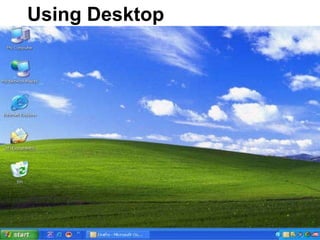
Once operating system loads a programme and screen you see is called the  desktop . Desktops vary from one operating system (OS) to another, even are different from version to version.  Whatever type of OS you use, it is very important to know how to use the desktop correctly, because it is the base for all computer operations.  Desktop brief Overview
Desktop brief Overview MS Windows and Macintosh are build with  Graphical User Interface  or  GUI.  which means that the OS uses graphics and pictures to access programs and other OS applications. Simply this graphic or picture  called  Wallpaper  .  Icons  are another important graphic feature of the desktop. Icons are small pictures that are linked to actual programs.  Double-clicking on the icon enable us to run the program.  Right-clicking on icon offers a menu of options, actions and properties. Certain icons are a permanent fixture on the desktop.  The user can put other icons on the desktop that will quickly access programs or files - like a shortcut. Icons can be moved around on the desktop by clicking and dragging them.
Desktop  Applications
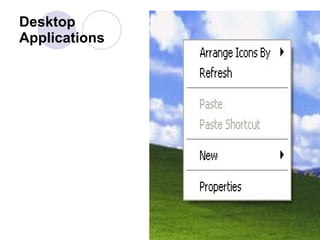
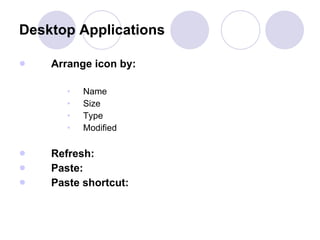
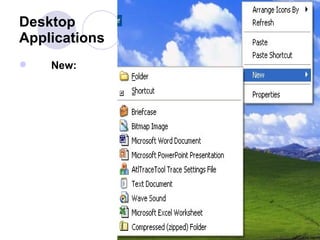
Arrange icon by:   Name Size Type Modified Refresh:   Paste:   Paste shortcut:   Desktop Applications
Desktop  Applications New:
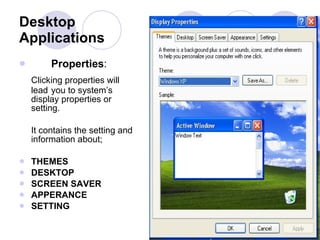
Properties : Clicking properties will  lead you to system’s display properties or setting.  It contains the setting and information about;  THEMES DESKTOP SCREEN SAVER APPERANCE SETTING Desktop Applications
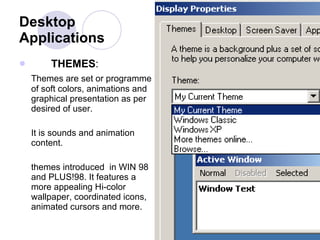
THEMES : Themes are set or programme of soft colors, animations and graphical presentation as per desired of user.  It is sounds and animation content.  themes introduced  in WIN 98 and PLUS!98. It features a more appealing Hi-color wallpaper, coordinated icons, animated cursors and more.  Desktop Applications
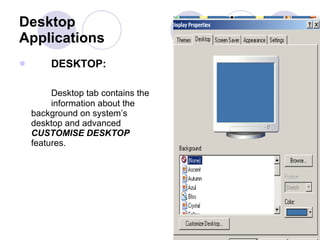
Desktop Applications DESKTOP:   Desktop tab contains the  information about the  background on system’s  desktop and advanced  CUSTOMISE DESKTOP   features.
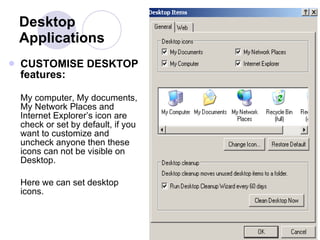
Desktop Applications CUSTOMISE DESKTOP features: My computer, My documents, My Network Places and Internet Explorer’s icon are check or set by default, if you want to customize and uncheck anyone then these icons can not be visible on Desktop.  Here we can set desktop icons.
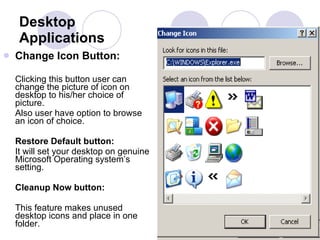
Desktop Applications Change Icon Button:  Clicking this button user can change the picture of icon on desktop to his/her choice of picture.  Also user have option to browse an icon of choice. Restore Default button: It will set your desktop on genuine Microsoft Operating system’s setting.  Cleanup Now button:  This feature makes unused desktop icons and place in one folder.
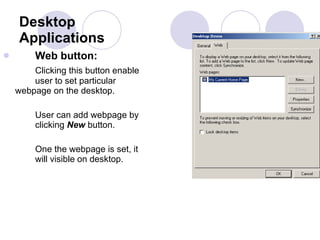
Desktop Applications Web button:    Clicking this button enable  user to set particular  webpage on the desktop.  User can add webpage by  clicking  New  button.  One the webpage is set, it  will visible on desktop.
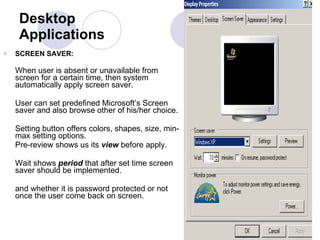
Desktop Applications SCREEN SAVER:  When user is absent or unavailable from screen for a certain time, then system automatically apply screen saver.  User can set predefined Microsoft’s Screen saver and also browse other of his/her choice.  Setting button offers colors, shapes, size, min-max setting options.  Pre-review shows us its  view  before apply. Wait shows  period  that after set time screen saver should be implemented.  and whether it is password protected or not once the user come back on screen.
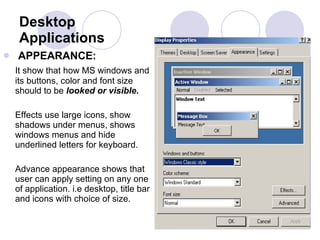
Desktop Applications APPEARANCE:   It show that how MS windows and its buttons, color and font size should to be  looked or visible.   Effects use large icons, show shadows under menus, shows windows menus and hide underlined letters for keyboard.  Advance appearance shows that user can apply setting on any one of application. i.e desktop, title bar and icons with choice of size.
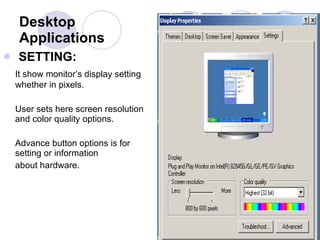
Desktop Applications SETTING:  It show monitor’s display setting whether in pixels.  User sets here screen resolution and color quality options.  Advance button options is for setting or information  about hardware.
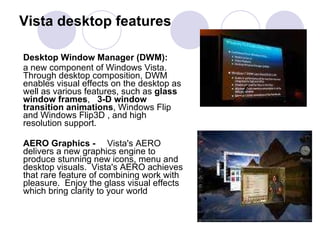
Vista desktop features Desktop Window Manager (DWM):   a new component of Windows Vista. Through desktop composition, DWM enables visual effects on the desktop as well as various features, such as  glass window frames ,  3-D window transition animations , Windows Flip and Windows Flip3D , and high resolution support.  AERO Graphics -  Vista's AERO delivers a new graphics engine to produce stunning new icons, menu and  desktop visuals.  Vista's AERO achieves that rare feature of combining work with pleasure.  Enjoy the glass visual effects which bring clarity to your world
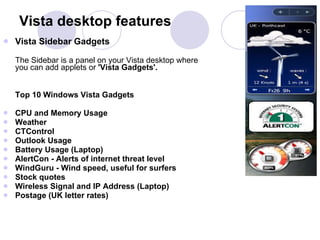
Vista Sidebar Gadgets  The Sidebar is a panel on your Vista desktop where you can add applets or  'Vista Gadgets'.  Top 10 Windows Vista Gadgets  CPU and Memory Usage  Weather  CTControl  Outlook Usage  Battery Usage (Laptop)  AlertCon - Alerts of internet threat level  WindGuru - Wind speed, useful for surfers  Stock quotes  Wireless Signal and IP Address (Laptop)  Postage (UK letter rates)   Vista desktop features
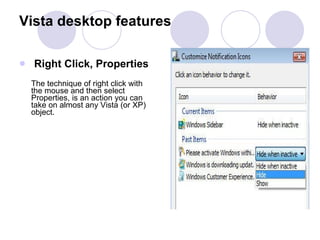
Right Click, Properties The technique of right click with the mouse and then select Properties, is an action you can take on almost any Vista (or XP) object.   Vista desktop features
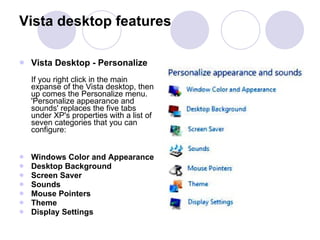
Vista Desktop - Personalize  If you right click in the main expanse of the Vista desktop, then up comes the Personalize menu.  'Personalize appearance and sounds' replaces the five tabs under XP's properties with a list of seven categories that you can configure: Windows Color and Appearance  Desktop Background  Screen Saver  Sounds  Mouse Pointers  Theme  Display Settings Vista desktop features
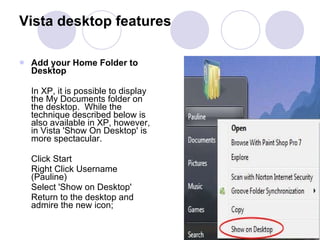
Add your Home Folder to Desktop  In XP, it is possible to display the My Documents folder on the desktop.  While the technique described below is also available in XP, however, in Vista 'Show On Desktop' is more spectacular. Click Start  Right Click Username (Pauline)  Select 'Show on Desktop'  Return to the desktop and admire the new icon; Vista desktop features
Desktop applications Typical computer programs and softwares used for Business, Education, Research, Multimedia, CD/DVD writing, Browsers, Word processors and Desktop publishing  (Adobe, Corel, Quark)  are desktop application.  In other words icons on desktop are basically desktop applications.

Desktop 03

  • 1.
  • 2.
    Once operating systemloads a programme and screen you see is called the desktop . Desktops vary from one operating system (OS) to another, even are different from version to version. Whatever type of OS you use, it is very important to know how to use the desktop correctly, because it is the base for all computer operations. Desktop brief Overview
  • 3.
    Desktop brief OverviewMS Windows and Macintosh are build with Graphical User Interface or GUI. which means that the OS uses graphics and pictures to access programs and other OS applications. Simply this graphic or picture called Wallpaper . Icons are another important graphic feature of the desktop. Icons are small pictures that are linked to actual programs. Double-clicking on the icon enable us to run the program. Right-clicking on icon offers a menu of options, actions and properties. Certain icons are a permanent fixture on the desktop. The user can put other icons on the desktop that will quickly access programs or files - like a shortcut. Icons can be moved around on the desktop by clicking and dragging them.
  • 4.
  • 5.
    Arrange icon by: Name Size Type Modified Refresh: Paste: Paste shortcut: Desktop Applications
  • 6.
  • 7.
    Properties : Clickingproperties will lead you to system’s display properties or setting. It contains the setting and information about; THEMES DESKTOP SCREEN SAVER APPERANCE SETTING Desktop Applications
  • 8.
    THEMES : Themesare set or programme of soft colors, animations and graphical presentation as per desired of user. It is sounds and animation content. themes introduced in WIN 98 and PLUS!98. It features a more appealing Hi-color wallpaper, coordinated icons, animated cursors and more. Desktop Applications
  • 9.
    Desktop Applications DESKTOP: Desktop tab contains the information about the background on system’s desktop and advanced CUSTOMISE DESKTOP features.
  • 10.
    Desktop Applications CUSTOMISEDESKTOP features: My computer, My documents, My Network Places and Internet Explorer’s icon are check or set by default, if you want to customize and uncheck anyone then these icons can not be visible on Desktop. Here we can set desktop icons.
  • 11.
    Desktop Applications ChangeIcon Button: Clicking this button user can change the picture of icon on desktop to his/her choice of picture. Also user have option to browse an icon of choice. Restore Default button: It will set your desktop on genuine Microsoft Operating system’s setting. Cleanup Now button: This feature makes unused desktop icons and place in one folder.
  • 12.
    Desktop Applications Webbutton: Clicking this button enable user to set particular webpage on the desktop. User can add webpage by clicking New button. One the webpage is set, it will visible on desktop.
  • 13.
    Desktop Applications SCREENSAVER: When user is absent or unavailable from screen for a certain time, then system automatically apply screen saver. User can set predefined Microsoft’s Screen saver and also browse other of his/her choice. Setting button offers colors, shapes, size, min-max setting options. Pre-review shows us its view before apply. Wait shows period that after set time screen saver should be implemented. and whether it is password protected or not once the user come back on screen.
  • 14.
    Desktop Applications APPEARANCE: It show that how MS windows and its buttons, color and font size should to be looked or visible. Effects use large icons, show shadows under menus, shows windows menus and hide underlined letters for keyboard. Advance appearance shows that user can apply setting on any one of application. i.e desktop, title bar and icons with choice of size.
  • 15.
    Desktop Applications SETTING: It show monitor’s display setting whether in pixels. User sets here screen resolution and color quality options. Advance button options is for setting or information about hardware.
  • 16.
    Vista desktop featuresDesktop Window Manager (DWM): a new component of Windows Vista. Through desktop composition, DWM enables visual effects on the desktop as well as various features, such as glass window frames , 3-D window transition animations , Windows Flip and Windows Flip3D , and high resolution support. AERO Graphics - Vista's AERO delivers a new graphics engine to produce stunning new icons, menu and  desktop visuals.  Vista's AERO achieves that rare feature of combining work with pleasure.  Enjoy the glass visual effects which bring clarity to your world
  • 17.
    Vista Sidebar Gadgets The Sidebar is a panel on your Vista desktop where you can add applets or 'Vista Gadgets'. Top 10 Windows Vista Gadgets CPU and Memory Usage Weather CTControl Outlook Usage Battery Usage (Laptop) AlertCon - Alerts of internet threat level WindGuru - Wind speed, useful for surfers Stock quotes Wireless Signal and IP Address (Laptop) Postage (UK letter rates) Vista desktop features
  • 18.
    Right Click, PropertiesThe technique of right click with the mouse and then select Properties, is an action you can take on almost any Vista (or XP) object.  Vista desktop features
  • 19.
    Vista Desktop -Personalize If you right click in the main expanse of the Vista desktop, then up comes the Personalize menu.  'Personalize appearance and sounds' replaces the five tabs under XP's properties with a list of seven categories that you can configure: Windows Color and Appearance Desktop Background Screen Saver Sounds Mouse Pointers Theme Display Settings Vista desktop features
  • 20.
    Add your HomeFolder to Desktop In XP, it is possible to display the My Documents folder on the desktop.  While the technique described below is also available in XP, however, in Vista 'Show On Desktop' is more spectacular. Click Start Right Click Username (Pauline) Select 'Show on Desktop' Return to the desktop and admire the new icon; Vista desktop features
  • 21.
    Desktop applications Typicalcomputer programs and softwares used for Business, Education, Research, Multimedia, CD/DVD writing, Browsers, Word processors and Desktop publishing (Adobe, Corel, Quark) are desktop application. In other words icons on desktop are basically desktop applications.