Microsoft ®  Windows ® 2008 Horizon Science Academy Dayton For 6 th  grades; Middle School By E. Sevilmis April 2008
Operating System controls all hardware and software, without it your computer wouldn’t make any sense.  Review
Hundreds of different Operating Systems Examples of OS are  Microsoft Windows Operating System  (like Windows 98, Windows 2000, Windows NT, Windows XP),  MS DOS ( Microsoft Disk Operating System) Operating System (OS)
Microsoft Windows Operating System Windows  Vista
Windows versions Windows Vista (coming 2006) Windows XP Home & Windows XP Professional (current) Windows 2000 Windows Me Windows 98 Windows 95 Windows NT
CHAPTER 1  Windows Terminology Filename   Plug & Play Multitasking Right mouse button Drag & Drop  Software Updates
1) Filenames Every file on a computer has a name. It is called as  filename   Filename on Windows can be up to  255  characters (letters & signs on the keyboard) long. A Filename can not contain these 8 characters     \ / : * ? < > |  and also reserved names such as  con
incorrect filenames? :games MyGames Fun.summer Homework*
2) Plug & Play Automatic recognition of new devices.  When you plug-in a mouse or keyboard or a camera into your computer, Windows O.S. will automatically recognize it and say “ Yes. This is a mouse! ” and “ This is a camera! ”.
Reference: www.sunrocket.com
 
3) Multitasking   Multitasking – doing more than one task at the same time. Windows Operating System is capable of running more than one operation or program at the same time. You can for example surf the web while listening to music through Winamp or Windows Media Player.  This is called multitasking.
This and that and others…all at the same time multitasking
4) Right Mouse Button This has a special meaning on Windows. It is used to display event specific or content sensitive menus
5) Drag & Drop This is the name for moving icons around.  For example if you left click on an icon located on the Desktop, without releasing mouse button  move your mouse to a different position (drag)  and  release that mouse button (drop icon),  the location of that icon will be changed. This is called Drag & Drop.
Drag & Drop While drag&dropping try using: CTRL  (copy) SHIFT + CTRL  (shortcut)
Quiz What is Microsoft Windows? How many different Windows Versions do you know How long can a filename be on Windows? What is Plug & Play? Explain What is Multitasking? Explain
6) Software Updates Windows can update itself automatically.  This is very important feature which lets you stay updated. Updates will remove  bugs  and holes through which your computer can be exploited or through where virus can infect your computer. Updates are also able to add new features to your system.
Configure your Windows Update Go to: START > CONTROL PANEL Automatic Download, don’t install Notify only ; no download, no install Turn Off
Review of learned terms Operating System Filename Plug & Play Multitasking Right mouse button Drag & Drop Software Updates
CHAPTER 2  Desktop
Icons Taskbar System Tray Desktop
Start Menu Located on the  taskbar  (bottom left corner of the screen). Start menu can differ from computer to computer, but below are the most important and common ones:
Start Menu All programs Recent Documents My Computer Control Panel Help & Support   Search Run Log Off & Shut Down
Start Menu All programs   - contains programs installed on your Windows  Recent Documents  – by default will contain 15 last accessed documents and files. You can change this number to 5, 10, 20 or whatever you want.
Start Menu (continued) My Computer  – contains H.D.D (Hard disk drive) files and folders. Control Panel  – enables you to change your system settings
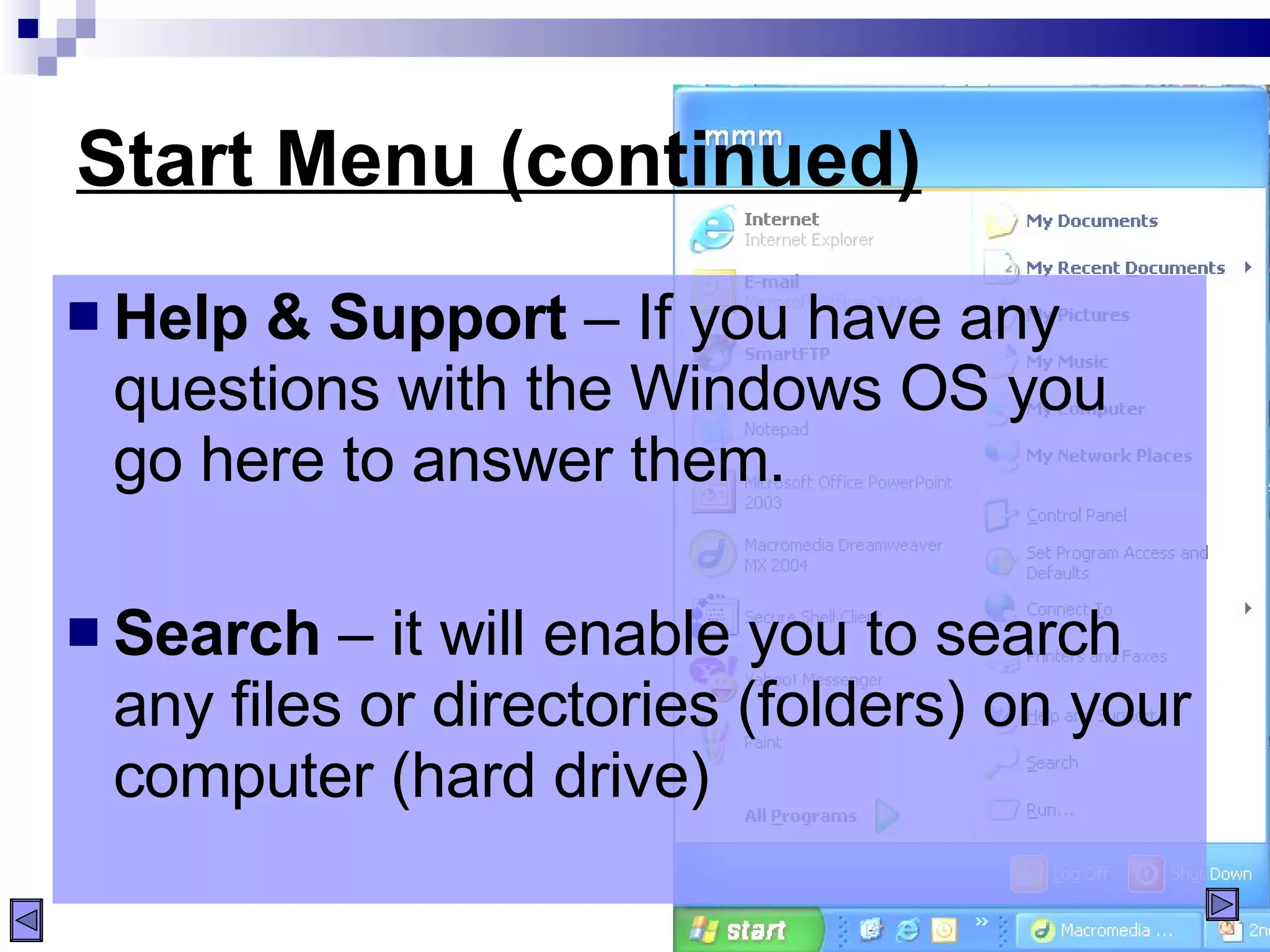
Start Menu (continued) Help & Support  – If you have any questions with the Windows OS you go here to answer them. Search  – it will enable you to search any files or directories (folders) on your computer (hard drive)
Start Menu (continued) Run  – It allows you to run programs manually (it can be accessed by this combination : Windows key + R) Log Off – enables you to log off from your windows account.
Start Menu (continued) Shut Down . Has 3 options: “Stand by”, “Turn Off”, “Restart”.
Start Menu (continued) Stand By  is a power saving option and it is like a sleep mode. While your computer is in Stand By mode, your programs are still running and your computer is like ‘sleeping’, but when you move the mouse or press anything on the keyboard your computer is going to ‘awake’ and leave the Stand By mode.  Turn Off  enables you to turn off your computer completely. It is like when you unplug your computer from the power socket. Restart   will restart the computer.
CHAPTER 3 GUI GUI = Graphical User Interface
Chapter 3: GUI Topics to cover Windows Menus Taskbar
1985 Reference: http://www.osdata.com/pict/Advertisement-from-1985.jpg
Windows 1.03 http://www.windows-nation.de/win10split.jpg
Windows 3.1 ; 1990-1994
Windows 3.1 Reference: http://www.oldos.org/images/nt31mm.gif
Windows 95
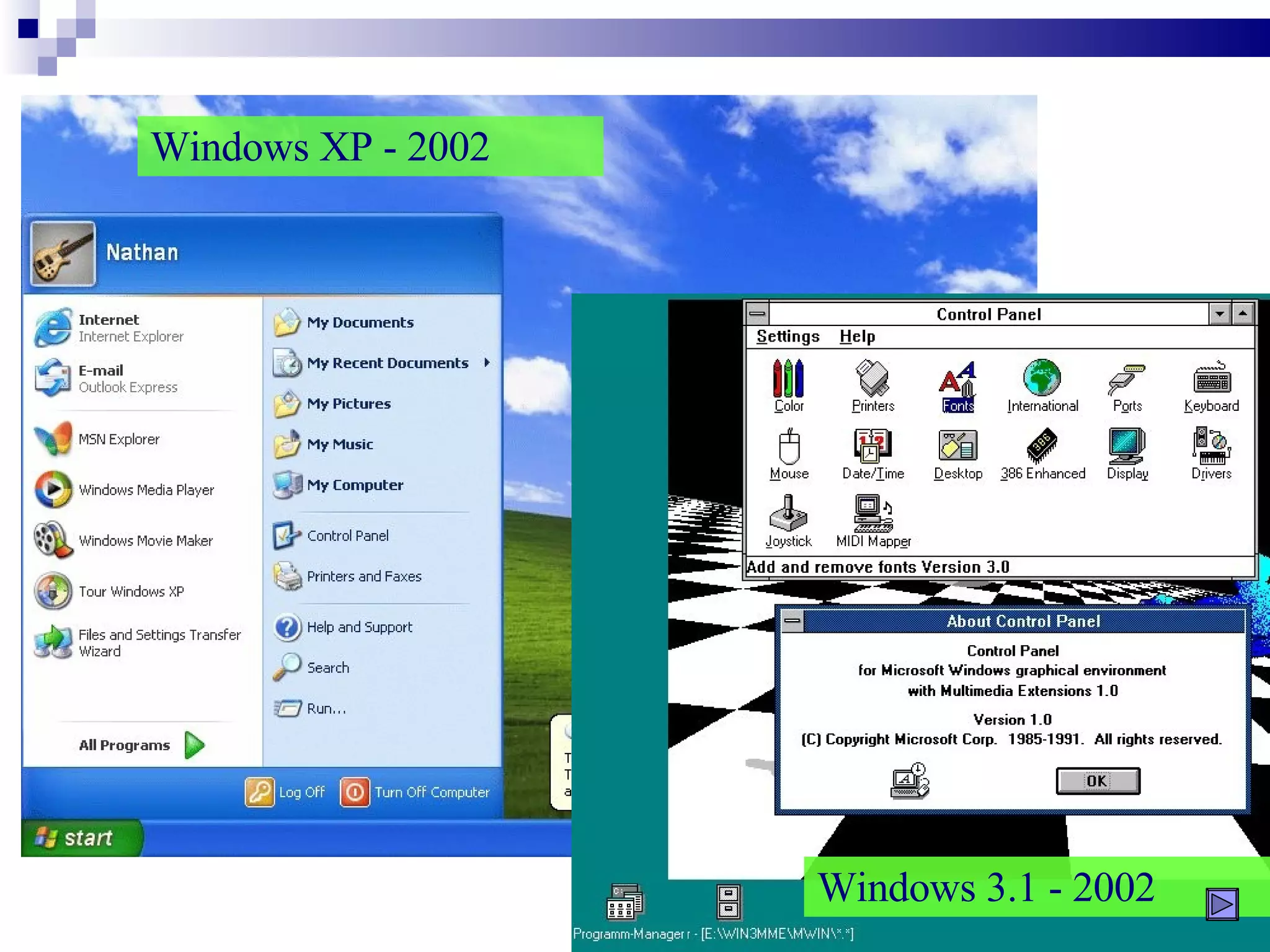
2002 12 years passed since Windows 3.1
Windows XP - 2002 Windows 3.1 - 2002
1) G.U.I.   Windows Windows are main components of Microsoft Windows Operating System and that is why we call it “Windows Operating System”.  Almost every program on Windows will open in a window. Below you can see general window structure on Windows System:
Titlebar Vertical Scroll bar MMC  buttons (From left to right)  1)  M inimize 2)  M aximize 3)  C lose Horizontal Scroll bar Status bar
MMC buttons  –  used to minimize, maximize or close a window Title bar  –  displays name of the application (or program) and name of the document (when available) Status bar  –  shows current status of the window. It can change as you move over menu items or when something else happens   (it depends on the program which you are using)
2) G.U.I     Menu Menus are generally located at the top of your programs.  Menus enable you to modify and view your current program’s settings and configuration.  Menus can change from program to program. Menu
Underlined Menu Letters
Underlined Menu Items ALT +  Underlined Letter     Shortcut for menu items
Dialog Box If when you click on a menu item a pop-up window appears on the screen, we call that pop-up window a  Dialog Box .
Dialog Box Notepad’s  Format  Font  Dialog Box.
3) G.U.I     Taskbar By default taskbar is located at the bottom of your Windows desktop. Taskbar displays currently running programs and open windows. A general taskbar consists of 4 main parts:
Taskbar System Tray Window Tabs Quick Launch Start Menu
4 Parts of a Taskbar Start Menu Window Tabs  (or Taskbar buttons)  – are currently running programs  System Tray  – displays time & date information and some icons for programs loaded in the memory. Quick Launch bar  (hidden by default) – contains shortcuts for some programs. You can also add/remove your own shortcuts here.
“ Quick Launch” is not the only toolbar that can be displayed on the taskbar.  If you  right-click taskbar ,  then point to “ Toolbars ” you will see other toolbars “ New Toolbar…”
Recycle Bin, My Computer, My Documents, My Pictures Windows Navigating between windows Control Panel Items--> Regional Settings, Mouse, Keyboard,etc.
Folders Folder Concept, Folder creation with different methods
CUT-COPY-PASTE File & Folder Cut-Copy-Paste Methods  (5 ways)

Windows XP

  • 1.
    Microsoft ® Windows ® 2008 Horizon Science Academy Dayton For 6 th grades; Middle School By E. Sevilmis April 2008
  • 2.
    Operating System controlsall hardware and software, without it your computer wouldn’t make any sense. Review
  • 3.
    Hundreds of differentOperating Systems Examples of OS are Microsoft Windows Operating System (like Windows 98, Windows 2000, Windows NT, Windows XP), MS DOS ( Microsoft Disk Operating System) Operating System (OS)
  • 4.
    Microsoft Windows OperatingSystem Windows Vista
  • 5.
    Windows versions WindowsVista (coming 2006) Windows XP Home & Windows XP Professional (current) Windows 2000 Windows Me Windows 98 Windows 95 Windows NT
  • 6.
    CHAPTER 1 Windows Terminology Filename Plug & Play Multitasking Right mouse button Drag & Drop Software Updates
  • 7.
    1) Filenames Everyfile on a computer has a name. It is called as filename Filename on Windows can be up to 255 characters (letters & signs on the keyboard) long. A Filename can not contain these 8 characters  \ / : * ? < > | and also reserved names such as con
  • 8.
    incorrect filenames? :gamesMyGames Fun.summer Homework*
  • 9.
    2) Plug &Play Automatic recognition of new devices. When you plug-in a mouse or keyboard or a camera into your computer, Windows O.S. will automatically recognize it and say “ Yes. This is a mouse! ” and “ This is a camera! ”.
  • 10.
  • 11.
  • 12.
    3) Multitasking Multitasking – doing more than one task at the same time. Windows Operating System is capable of running more than one operation or program at the same time. You can for example surf the web while listening to music through Winamp or Windows Media Player. This is called multitasking.
  • 13.
    This and thatand others…all at the same time multitasking
  • 14.
    4) Right MouseButton This has a special meaning on Windows. It is used to display event specific or content sensitive menus
  • 15.
    5) Drag &Drop This is the name for moving icons around. For example if you left click on an icon located on the Desktop, without releasing mouse button move your mouse to a different position (drag) and release that mouse button (drop icon), the location of that icon will be changed. This is called Drag & Drop.
  • 16.
    Drag & DropWhile drag&dropping try using: CTRL (copy) SHIFT + CTRL (shortcut)
  • 17.
    Quiz What isMicrosoft Windows? How many different Windows Versions do you know How long can a filename be on Windows? What is Plug & Play? Explain What is Multitasking? Explain
  • 18.
    6) Software UpdatesWindows can update itself automatically. This is very important feature which lets you stay updated. Updates will remove bugs and holes through which your computer can be exploited or through where virus can infect your computer. Updates are also able to add new features to your system.
  • 19.
    Configure your WindowsUpdate Go to: START > CONTROL PANEL Automatic Download, don’t install Notify only ; no download, no install Turn Off
  • 20.
    Review of learnedterms Operating System Filename Plug & Play Multitasking Right mouse button Drag & Drop Software Updates
  • 21.
    CHAPTER 2 Desktop
  • 22.
  • 23.
    Start Menu Locatedon the taskbar (bottom left corner of the screen). Start menu can differ from computer to computer, but below are the most important and common ones:
  • 24.
    Start Menu Allprograms Recent Documents My Computer Control Panel Help & Support Search Run Log Off & Shut Down
  • 25.
    Start Menu Allprograms - contains programs installed on your Windows Recent Documents – by default will contain 15 last accessed documents and files. You can change this number to 5, 10, 20 or whatever you want.
  • 26.
    Start Menu (continued)My Computer – contains H.D.D (Hard disk drive) files and folders. Control Panel – enables you to change your system settings
  • 27.
    Start Menu (continued)Help & Support – If you have any questions with the Windows OS you go here to answer them. Search – it will enable you to search any files or directories (folders) on your computer (hard drive)
  • 28.
    Start Menu (continued)Run – It allows you to run programs manually (it can be accessed by this combination : Windows key + R) Log Off – enables you to log off from your windows account.
  • 29.
    Start Menu (continued)Shut Down . Has 3 options: “Stand by”, “Turn Off”, “Restart”.
  • 30.
    Start Menu (continued)Stand By is a power saving option and it is like a sleep mode. While your computer is in Stand By mode, your programs are still running and your computer is like ‘sleeping’, but when you move the mouse or press anything on the keyboard your computer is going to ‘awake’ and leave the Stand By mode. Turn Off enables you to turn off your computer completely. It is like when you unplug your computer from the power socket. Restart will restart the computer.
  • 31.
    CHAPTER 3 GUIGUI = Graphical User Interface
  • 32.
    Chapter 3: GUITopics to cover Windows Menus Taskbar
  • 33.
  • 34.
  • 35.
    Windows 3.1 ;1990-1994
  • 36.
    Windows 3.1 Reference:http://www.oldos.org/images/nt31mm.gif
  • 37.
  • 38.
    2002 12 yearspassed since Windows 3.1
  • 39.
    Windows XP -2002 Windows 3.1 - 2002
  • 40.
    1) G.U.I.  Windows Windows are main components of Microsoft Windows Operating System and that is why we call it “Windows Operating System”. Almost every program on Windows will open in a window. Below you can see general window structure on Windows System:
  • 41.
    Titlebar Vertical Scrollbar MMC buttons (From left to right) 1) M inimize 2) M aximize 3) C lose Horizontal Scroll bar Status bar
  • 42.
    MMC buttons – used to minimize, maximize or close a window Title bar – displays name of the application (or program) and name of the document (when available) Status bar – shows current status of the window. It can change as you move over menu items or when something else happens (it depends on the program which you are using)
  • 43.
    2) G.U.I  Menu Menus are generally located at the top of your programs. Menus enable you to modify and view your current program’s settings and configuration. Menus can change from program to program. Menu
  • 44.
  • 45.
    Underlined Menu ItemsALT + Underlined Letter  Shortcut for menu items
  • 46.
    Dialog Box Ifwhen you click on a menu item a pop-up window appears on the screen, we call that pop-up window a Dialog Box .
  • 47.
    Dialog Box Notepad’s Format  Font Dialog Box.
  • 48.
    3) G.U.I  Taskbar By default taskbar is located at the bottom of your Windows desktop. Taskbar displays currently running programs and open windows. A general taskbar consists of 4 main parts:
  • 49.
    Taskbar System TrayWindow Tabs Quick Launch Start Menu
  • 50.
    4 Parts ofa Taskbar Start Menu Window Tabs (or Taskbar buttons) – are currently running programs System Tray – displays time & date information and some icons for programs loaded in the memory. Quick Launch bar (hidden by default) – contains shortcuts for some programs. You can also add/remove your own shortcuts here.
  • 51.
    “ Quick Launch”is not the only toolbar that can be displayed on the taskbar. If you right-click taskbar , then point to “ Toolbars ” you will see other toolbars “ New Toolbar…”
  • 52.
    Recycle Bin, MyComputer, My Documents, My Pictures Windows Navigating between windows Control Panel Items--> Regional Settings, Mouse, Keyboard,etc.
  • 53.
    Folders Folder Concept,Folder creation with different methods
  • 54.
    CUT-COPY-PASTE File &Folder Cut-Copy-Paste Methods (5 ways)