Welcome to
University Of
Dammam
Mohamed Sámi Pekhit
Computer Lecture
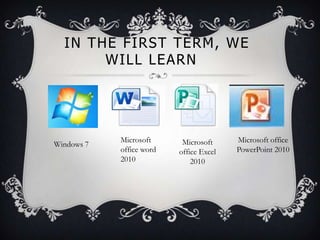
IN THE FIRST TERM, WE
WILL LEARN
Windows 7
Microsoft
office word
2010
Microsoft office
PowerPoint 2010
Microsoft
office Excel
2010
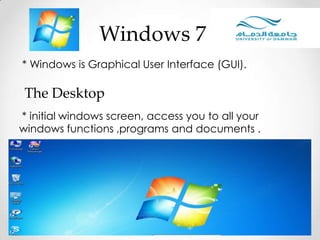
* Windows is Graphical User Interface (GUI).
Windows 7
* initial windows screen, access you to all your
windows functions ,programs and documents .
The Desktop
Windows 7
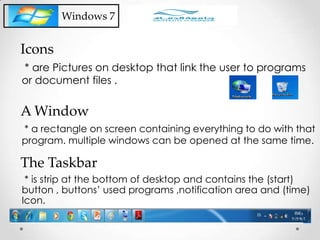
* are Pictures on desktop that link the user to programs
or document files .
Icons
* a rectangle on screen containing everything to do with that
program. multiple windows can be opened at the same time.
A Window
* is strip at the bottom of desktop and contains the (start)
button , buttons’ used programs ,notification area and (time)
Icon.
The Taskbar
* window that opens when you select some commends,
containing fields to select.
Dialog Box
Windows 7
*an area in dialog box, either containing information
about dialog box or for you to enter information.
Field
Is used to select items on Screen. (mouse , light pen
,…etc), to point any thing press one click , to active and
open any program perss two clicks.
The Pointing Device
Windows 7
How to start your computer and log on safely.
* Ensure that the computer components and screen
are plugged in and switched on at the wall.
* locate the power switch on your system unit and
turn in.
* wait while the computer powers up and runs
through itself tests.
if you are not connected to network ,to log onto your profile
,you will only select your name from those listed and will be
asked to enter you password .
If your computer is attached to a network , you must enter
your user name and password to access the network and
additional facilities.
After that windows will load landscape view “desktop”.
Windows 7
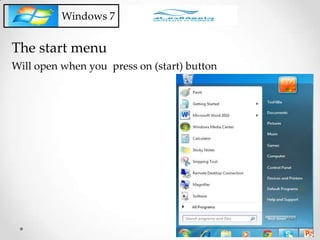
The start menu
Will open when you press on (start) button
(documents) store letters, reports, notes, other kides of
documents.
Windows 7
(Pictures) store digital photos, images and graphics files.
(music) store your music and other audio files.
(Games) access to games on your computer.
(Recent Items) A shortcut to recent files that you have viewed.
(Computer) access to disk drivers , camera and any hard-
ware connected to your computer.
(Network) open windows explorer, with your network
location displayed.
(connect to ) connect to the internet and other networks.
(control panel) open control panel window.
Windows 7
(Devices and printer ) to view and manager devices , printers.
(default programs) select which program will be used.
(Help and Support ) search for support and advice on any
windows topics.
(Run) one way to open afile, folder, program or web site.
(search programs and files) search programs and files.
(power options) available power options.
Windows 7
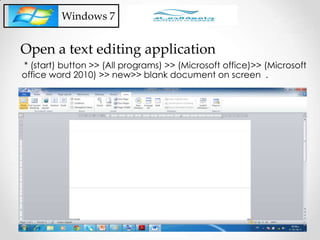
* (start) button >> (All programs) >> (Microsoft office)>> (Microsoft
office word 2010) >> new>> blank document on screen .
Open a text editing application
Windows 7
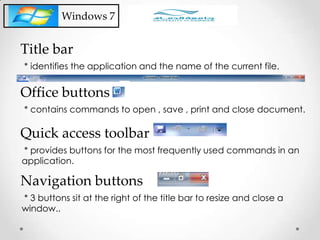
* identifies the application and the name of the current file.
Title bar
* contains commands to open , save , print and close document.
Office buttons
* provides buttons for the most frequently used commands in an
application.
Quick access toolbar
* 3 buttons sit at the right of the title bar to resize and close a
window..
Navigation buttons
Windows 7
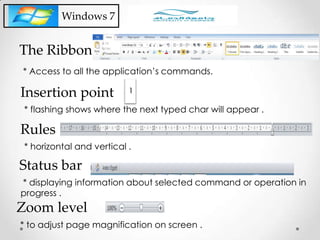
* flashing shows where the next typed char will appear .
Insertion point
* horizontal and vertical .
Rules
* displaying information about selected command or operation in
progress .
Status bar
* to adjust page magnification on screen .
Zoom level
* Access to all the application’s commands.
The Ribbon
Windows 7
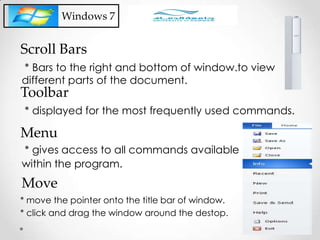
* Bars to the right and bottom of window.to view
different parts of the document.
Scroll Bars
* displayed for the most frequently used commands.
Toolbar
* gives access to all commands available
within the program.
Menu
* move the pointer onto the title bar of window.
* click and drag the window around the destop.
Move
Windows 7
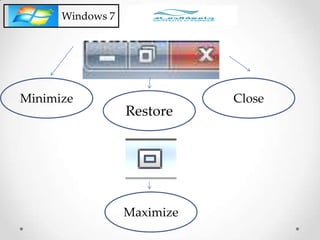
Minimize
Maximize
Restore
Close
Thank you
Mohamed Sámi Pekhit
Computer Lecture

Win7week1

  • 1.
    Welcome to University Of Dammam MohamedSámi Pekhit Computer Lecture
  • 2.
    IN THE FIRSTTERM, WE WILL LEARN Windows 7 Microsoft office word 2010 Microsoft office PowerPoint 2010 Microsoft office Excel 2010
  • 3.
    * Windows isGraphical User Interface (GUI). Windows 7 * initial windows screen, access you to all your windows functions ,programs and documents . The Desktop
  • 4.
    Windows 7 * arePictures on desktop that link the user to programs or document files . Icons * a rectangle on screen containing everything to do with that program. multiple windows can be opened at the same time. A Window * is strip at the bottom of desktop and contains the (start) button , buttons’ used programs ,notification area and (time) Icon. The Taskbar
  • 5.
    * window thatopens when you select some commends, containing fields to select. Dialog Box Windows 7 *an area in dialog box, either containing information about dialog box or for you to enter information. Field Is used to select items on Screen. (mouse , light pen ,…etc), to point any thing press one click , to active and open any program perss two clicks. The Pointing Device
  • 6.
    Windows 7 How tostart your computer and log on safely. * Ensure that the computer components and screen are plugged in and switched on at the wall. * locate the power switch on your system unit and turn in. * wait while the computer powers up and runs through itself tests. if you are not connected to network ,to log onto your profile ,you will only select your name from those listed and will be asked to enter you password . If your computer is attached to a network , you must enter your user name and password to access the network and additional facilities. After that windows will load landscape view “desktop”.
  • 7.
    Windows 7 The startmenu Will open when you press on (start) button
  • 8.
    (documents) store letters,reports, notes, other kides of documents. Windows 7 (Pictures) store digital photos, images and graphics files. (music) store your music and other audio files. (Games) access to games on your computer. (Recent Items) A shortcut to recent files that you have viewed. (Computer) access to disk drivers , camera and any hard- ware connected to your computer. (Network) open windows explorer, with your network location displayed. (connect to ) connect to the internet and other networks.
  • 9.
    (control panel) opencontrol panel window. Windows 7 (Devices and printer ) to view and manager devices , printers. (default programs) select which program will be used. (Help and Support ) search for support and advice on any windows topics. (Run) one way to open afile, folder, program or web site. (search programs and files) search programs and files. (power options) available power options.
  • 10.
    Windows 7 * (start)button >> (All programs) >> (Microsoft office)>> (Microsoft office word 2010) >> new>> blank document on screen . Open a text editing application
  • 11.
    Windows 7 * identifiesthe application and the name of the current file. Title bar * contains commands to open , save , print and close document. Office buttons * provides buttons for the most frequently used commands in an application. Quick access toolbar * 3 buttons sit at the right of the title bar to resize and close a window.. Navigation buttons
  • 12.
    Windows 7 * flashingshows where the next typed char will appear . Insertion point * horizontal and vertical . Rules * displaying information about selected command or operation in progress . Status bar * to adjust page magnification on screen . Zoom level * Access to all the application’s commands. The Ribbon
  • 13.
    Windows 7 * Barsto the right and bottom of window.to view different parts of the document. Scroll Bars * displayed for the most frequently used commands. Toolbar * gives access to all commands available within the program. Menu * move the pointer onto the title bar of window. * click and drag the window around the destop. Move
  • 14.
  • 15.
    Thank you Mohamed SámiPekhit Computer Lecture