OpenOffice®
                                                  Impress


            OpenOffice® Impress

             BankIslami Pakistan Limited
                  Training Program


| Ahsan Bham | Team Member, Employee Services
Learning Objectives                  OpenOffice®
                                                  Impress


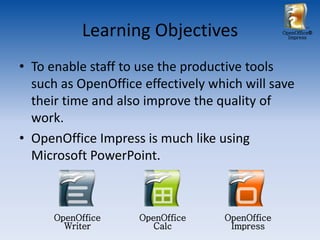
• To enable staff to use the productive tools
  such as OpenOffice effectively which will save
  their time and also improve the quality of
  work.
• OpenOffice Impress is much like using
  Microsoft PowerPoint.


      OpenOffice    OpenOffice     OpenOffice
        Writer         Calc         Impress
Module 1 – Getting Familiar!             OpenOffice®
                                               Impress


In this tutorial we will learn:
• have a introduction to Main Window
• have a introduction to Toolbars
• understand the uses of different Toolbars
• be able to navigate through Slides learn about
  the terms used in the File Menu
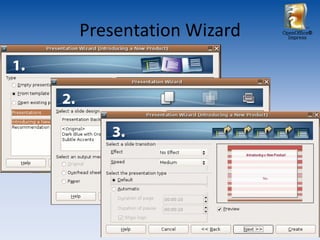
Presentation Wizard   OpenOffice®
                        Impress
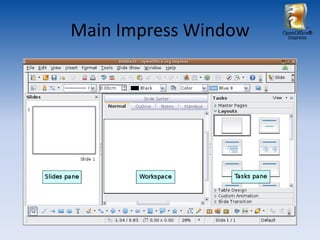
Main Impress Window   OpenOffice®
                        Impress
Displaying Impress Toolbars              OpenOffice®
                                                Impress


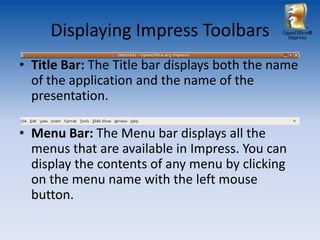
• Title Bar: The Title bar displays both the name
  of the application and the name of the
  presentation.

• Menu Bar: The Menu bar displays all the
  menus that are available in Impress. You can
  display the contents of any menu by clicking
  on the menu name with the left mouse
  button.
Displaying Impress Toolbars             OpenOffice®
                                               Impress


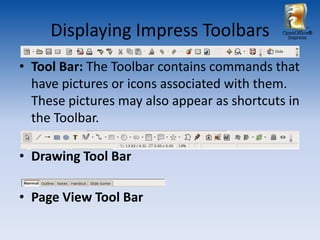
• Tool Bar: The Toolbar contains commands that
  have pictures or icons associated with them.
  These pictures may also appear as shortcuts in
  the Toolbar.

• Drawing Tool Bar

• Page View Tool Bar
Displaying Impress Toolbars   OpenOffice®
                                     Impress


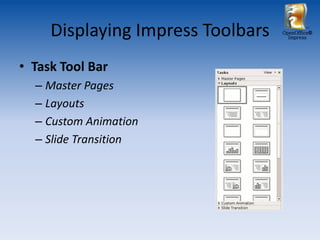
• Task Tool Bar
  – Master Pages
  – Layouts
  – Custom Animation
  – Slide Transition
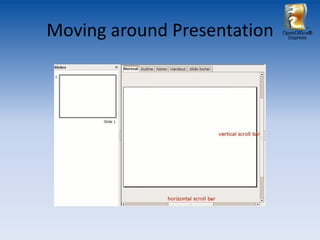
Moving around Presentation   OpenOffice®
                               Impress
Terms in the File Menu                             OpenOffice®
                                                     Impress


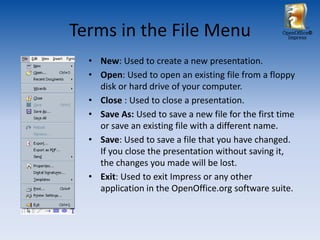
  • New: Used to create a new presentation.
  • Open: Used to open an existing file from a floppy
    disk or hard drive of your computer.
  • Close : Used to close a presentation.
  • Save As: Used to save a new file for the first time
    or save an existing file with a different name.
  • Save: Used to save a file that you have changed.
    If you close the presentation without saving it,
    the changes you made will be lost.
  • Exit: Used to exit Impress or any other
    application in the OpenOffice.org software suite.
Module 2 – Getting Started!      OpenOffice®
                                        Impress


In this tutorial we will learn:
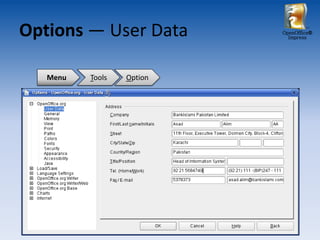
• update User Info in OpenOffice®
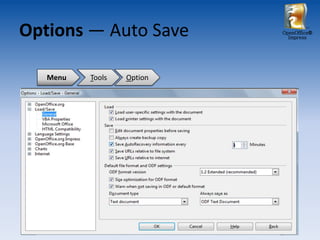
• activating Auto Save option
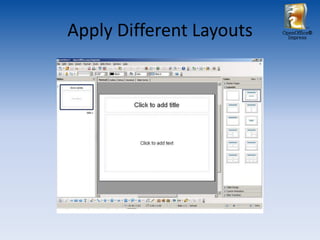
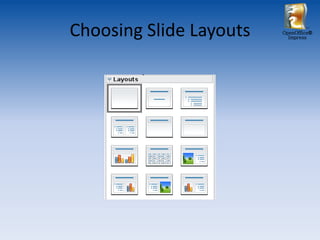
• learn about Slide Layouts
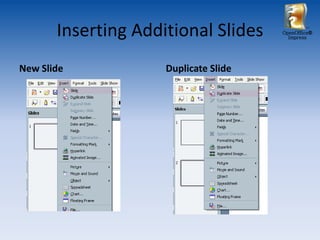
• inserting additional slides
• inserting text / modifying slides
Options ― User Data        OpenOffice®
                             Impress


   Menu   Tools   Option
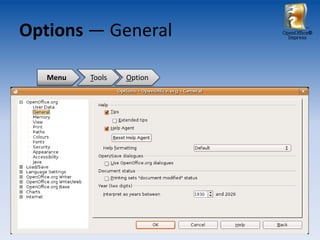
Options ― General          OpenOffice®
                             Impress


   Menu   Tools   Option
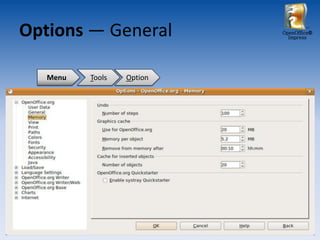
Options ― General          OpenOffice®
                             Impress


   Menu   Tools   Option
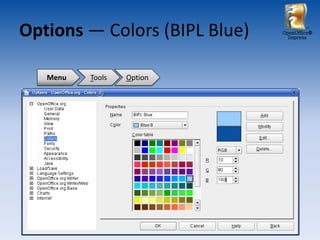
Options ― Colors (BIPL Blue)   OpenOffice®
                                 Impress


   Menu   Tools   Option
Options ― Auto Save        OpenOffice®
                             Impress


   Menu   Tools   Option
Inserting Additional Slides     OpenOffice®
                                         Impress


New Slide            Duplicate Slide
Apply Different Layouts   OpenOffice®
                            Impress
Choosing Slide Layouts   OpenOffice®
                           Impress
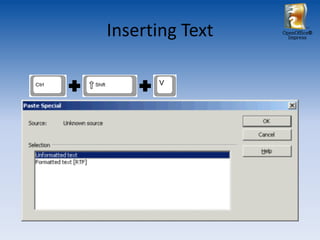
Inserting Text   OpenOffice®
                   Impress
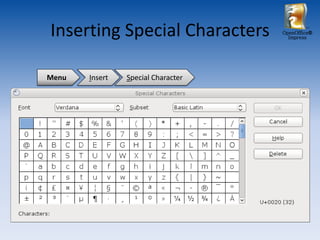
Inserting Special Characters        OpenOffice®
                                      Impress


Menu   Insert   Special Character
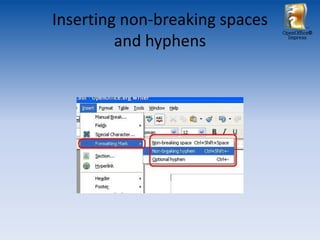
Inserting non-breaking spaces
                                OpenOffice®

         and hyphens              Impress
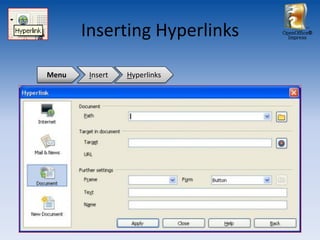
Inserting Hyperlinks   OpenOffice®
                                Impress


Menu    Insert   Hyperlinks
OpenOffice®
                                                            Impress


Exercise-1

MAKING A SIMPLE PRESENTATION

   • Apply Different Kinds of Layout Slides to your presentation
   • Add Text to a Title Placeholder
   • Add Text to a Text Placeholder
   • Add unformatted text, special character, and a hyperlink
Module 3 – Getting to Work!   OpenOffice®
                                    Impress


In this tutorial we will learn:
• Use Slides Workspace View
• Use Notes Workspace View
• Use Handout Workspace View
• Add Text in Outline View
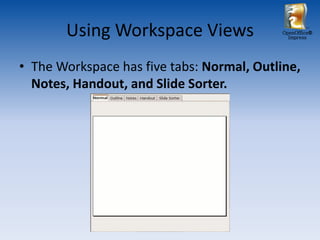
Using Workspace Views                OpenOffice®
                                              Impress


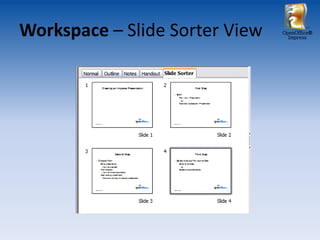
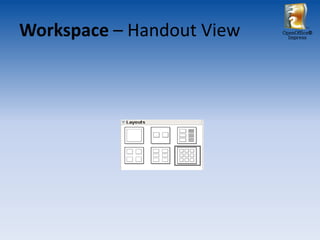
• The Workspace has five tabs: Normal, Outline,
  Notes, Handout, and Slide Sorter.
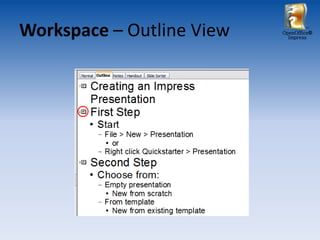
Workspace – Outline View   OpenOffice®
                             Impress
Workspace – Notes View   OpenOffice®
                           Impress
Workspace – Slide Sorter View   OpenOffice®
                                  Impress
Workspace – Handout View   OpenOffice®
                             Impress
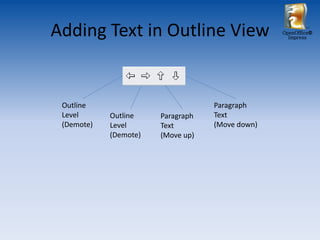
Adding Text in Outline View                      OpenOffice®
                                                   Impress


 Outline                           Paragraph
 Level      Outline    Paragraph   Text
 (Demote)   Level      Text        (Move down)
            (Demote)   (Move up)
OpenOffice®
                                       Impress


Exercise-2

ARRANGING YOUR PRESENTATION

   • Use different workspace views
   • Add Text in Outline View
Module 4 – Getting Better!               OpenOffice®
                                                 Impress


In this tutorial we will learn:
• Design a presentation
• Understand styles and elements of presentation
• Understand use of slide masters
• Create a Master View for your Presentation
• Modify a slide master
• Applying backgrounds on the slide master
• Modifying default text areas
• Adding fields in master slide
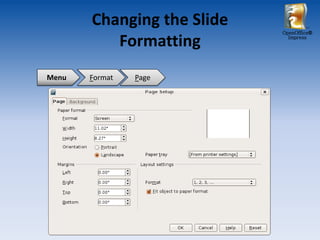
Changing the Slide
                            OpenOffice®

          Formatting          Impress


Menu   Format   Page
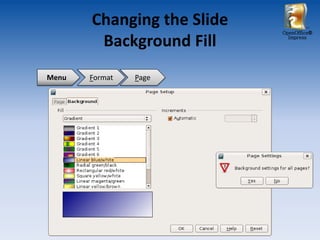
Changing the Slide
                            OpenOffice®

        Background Fill       Impress


Menu   Format   Page
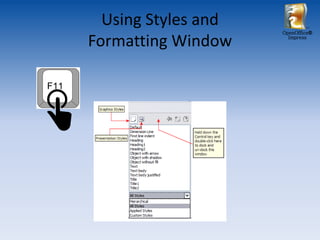
Using Styles and
                     OpenOffice®

Formatting Window      Impress
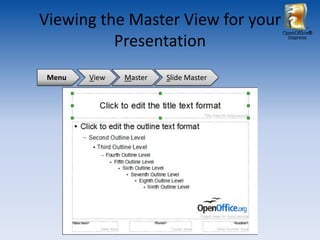
Viewing the Master View for your
                                       OpenOffice®

          Presentation                   Impress


 Menu   View   Master   Slide Master
Formatting Master Elements   OpenOffice®
                                   Impress


• Title Text / Body Text
• Fonts appearance / Alignment
• Inserting other objects
  – Header / Footer
  – Page Number
  – Title, etc.
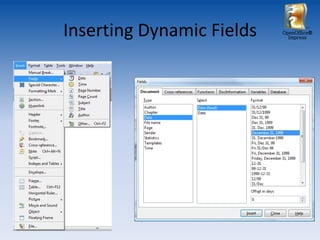
Inserting Dynamic Fields   OpenOffice®
                             Impress
Module 5 – Adding up!               OpenOffice®
                                              Impress


In this tutorial we will learn:
• Change Font Styles and Size
• Change Paragraph Alignment
• Use Indents and Spacing
• Learn About Bulleted and Numbered Lists
• Create a Bulleted List
• Format a Bulleted List
• Create and Format a Numbered List
• Use The Format Menu
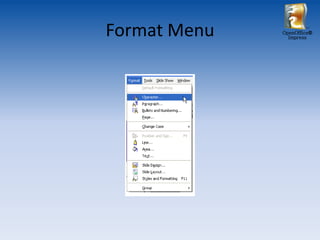
Format Menu   OpenOffice®
                Impress
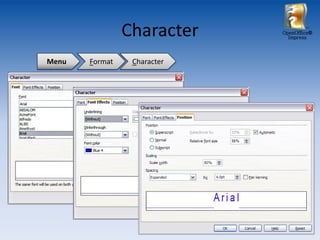
Character    OpenOffice®
                               Impress


Menu   Format    Character
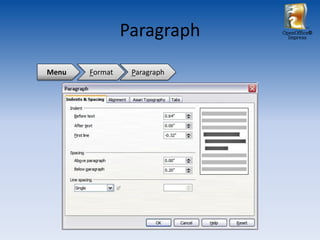
Paragraph    OpenOffice®
                               Impress


Menu   Format    Paragraph
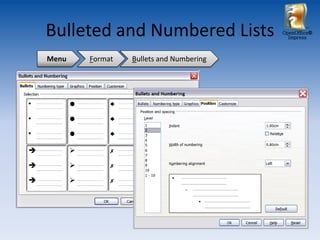
Bulleted and Numbered Lists             OpenOffice®
                                          Impress


Menu   Format   Bullets and Numbering
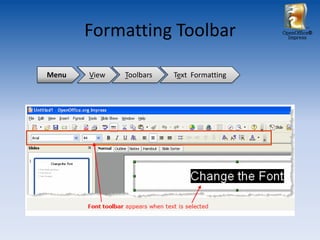
Formatting Toolbar                  OpenOffice®
                                             Impress


Menu   View   Toolbars   Text Formatting
OpenOffice®
                                                             Impress


Exercise-3

ARRANGING YOUR PRESENTATION

   • Use style and formatting to change elements setting
   • Make changes in Master slides
   • Add field in header and footers
   • Use Text Formatting Toolbar
Module 6 – Modfying!        OpenOffice®
                                       Impress


In this tutorial we will learn:
• Inserting a clipart from gallery
• Inserting an image from a file
• Formatting a picture
  – Moving
  – Resizing
  – Rotating
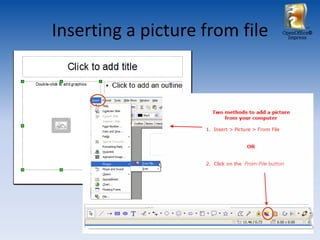
Inserting a picture from file   OpenOffice®
                                  Impress
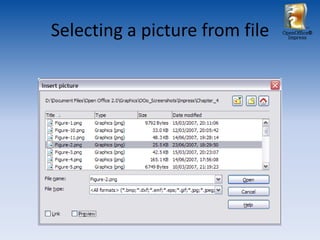
Selecting a picture from file   OpenOffice®
                                  Impress
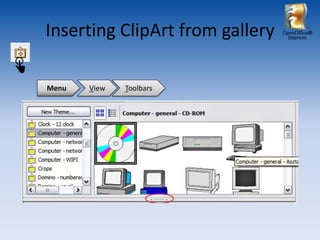
Inserting ClipArt from gallery   OpenOffice®
                                   Impress


Menu   View   Toolbars
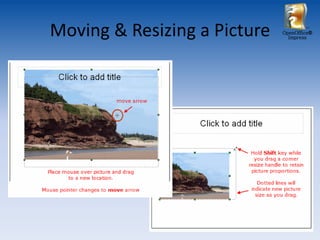
Moving & Resizing a Picture   OpenOffice®
                                Impress
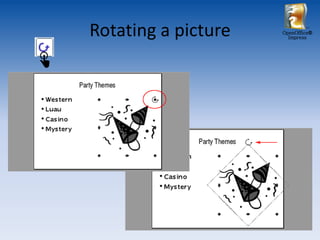
Rotating a picture   OpenOffice®
                       Impress
Module 7 – Adding up!                  OpenOffice®
                                                  Impress


In this tutorial we will learn:
• Inserting a Clip Art
• Inserting an Image from File
• Using the Art Gallery to Draw Objects
• Resizing and Moving Clip Art, Pictures, and
   Gallery Objects
• Cutting, Copying, and Pasting Images
• Inserting Charts
• Importing Charts from Spreadsheets
• Advanced Chart Operations
Drawing Toolbar                                                  OpenOffice®
                                                                                      Impress


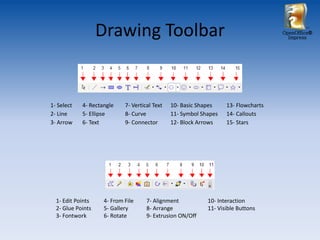
1- Select   4- Rectangle    7- Vertical Text   10- Basic Shapes    13- Flowcharts
2- Line     5- Ellipse      8- Curve           11- Symbol Shapes   14- Callouts
3- Arrow    6- Text         9- Connector       12- Block Arrows    15- Stars


  1- Edit Points    4- From File     7- Alignment           10- Interaction
  2- Glue Points    5- Gallery       8- Arrange             11- Visible Buttons
  3- Fontwork       6- Rotate        9- Extrusion ON/Off
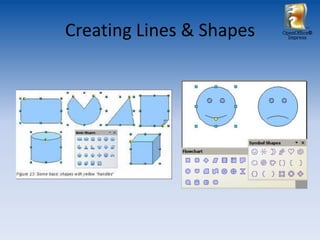
Creating Lines & Shapes   OpenOffice®
                            Impress
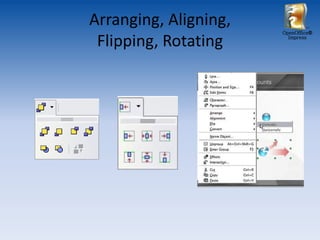
Arranging, Aligning,
                       OpenOffice®

 Flipping, Rotating      Impress
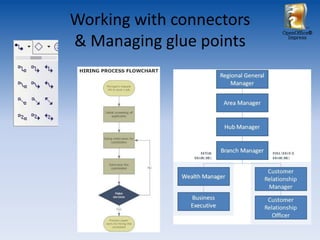
Working with connectors
                          OpenOffice®

& Managing glue points      Impress
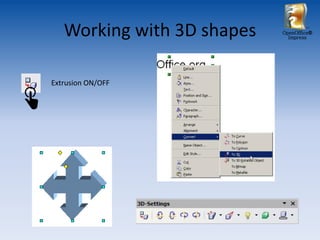
Working with 3D shapes   OpenOffice®
                              Impress


Extrusion ON/OFF
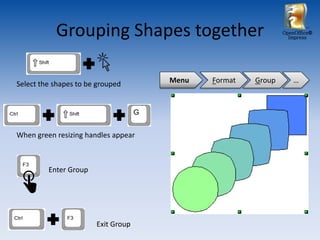
Grouping Shapes together                          OpenOffice®
                                                               Impress


Select the shapes to be grouped      Menu   Format   Group      …


When green resizing handles appear


         Enter Group


                       Exit Group
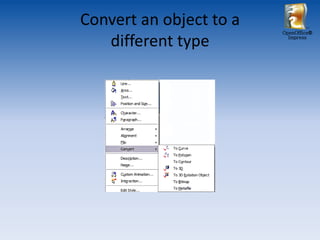
Convert an object to a
                         OpenOffice®

   different type          Impress
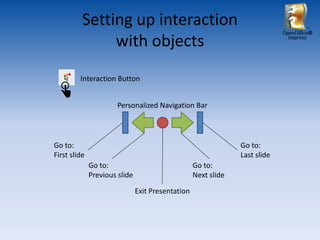
Setting up interaction
                                                                             OpenOffice®

               with objects                                                    Impress


         Interaction Button


                       Personalized Navigation Bar


Go to:                                                          Go to:
First slide                                                     Last slide
              Go to:                               Go to:
              Previous slide                       Next slide

                               Exit Presentation
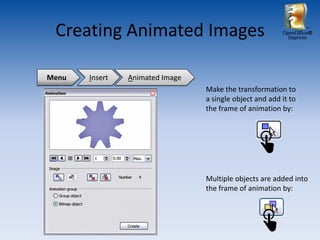
Creating Animated Images                                OpenOffice®
                                                           Impress


Menu   Insert   Animated Image
                                 Make the transformation to
                                 a single object and add it to
                                 the frame of animation by:


                                 Multiple objects are added into
                                 the frame of animation by:
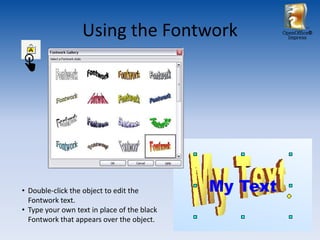
Using the Fontwork         OpenOffice®
                                               Impress


• Double-click the object to edit the
  Fontwork text.
• Type your own text in place of the black
  Fontwork that appears over the object.
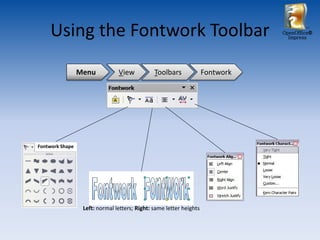
Using the Fontwork Toolbar                                                  OpenOffice®
                                                                                  Impress


                 Menu           View           Toolbars              Fontwork


Fontwork Shape


                  Left: normal letters; Right: same letter heights
OpenOffice®
                                                                      Impress


Exercise-4

ARRANGING YOUR PRESENTATION

   • Insert Clip Art from gallery     • Use fontwork and design
   • Insert Picture from file         • Group images
   • Insert Basic Shapes and modify   • Create Interaction Button
   • Use connectors and create a      • Create animated objects
     diagram
Module 8 – Styling it!       OpenOffice®
                                        Impress


In this tutorial we will learn:
• Add custom animation
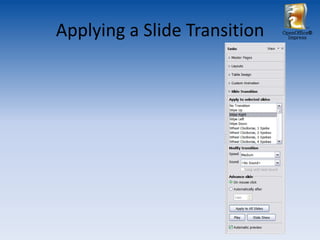
• Add slide transition
• Setting up a slideshow
• Setting navigation through slides
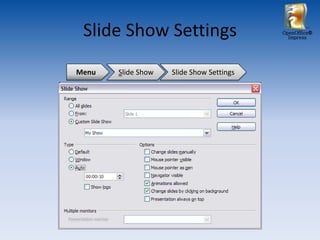
Slide Show Settings                      OpenOffice®
                                            Impress


Menu   Slide Show   Slide Show Settings
Applying a Slide Transition   OpenOffice®
                                Impress
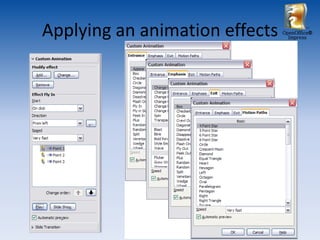
Applying an animation effects   OpenOffice®
                                  Impress
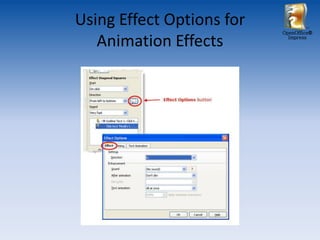
Using Effect Options for
                           OpenOffice®

   Animation Effects         Impress
Module 9 – Wrapping up!      OpenOffice®
                                     Impress


In this tutorial we will learn:
• Saving a PDF copy
• Printing a slideshow
• Printing brochure and handouts
• Setting Default Print Option
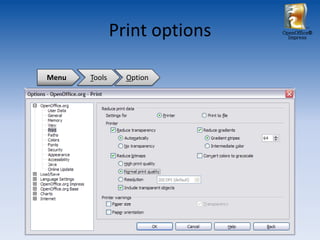
Print options   OpenOffice®
                                 Impress


Menu   Tools     Option
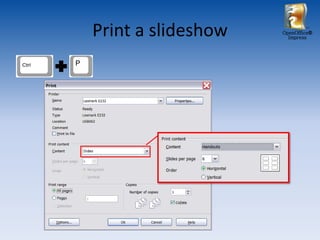
Print a slideshow   OpenOffice®
                      Impress
Finally!!                    OpenOffice®
                                                   Impress


•   What did you learn today?
•   How does your slides look?
•   Does your presentation have an impact?
•   Will you make an impression on others?
•   Anything you would like to improve or ask?
•   And most importantly, any suggestions?

              THANK YOU!
                  

Open Office - Impress Tutorial

  • 1.
    OpenOffice® Impress OpenOffice® Impress BankIslami Pakistan Limited Training Program | Ahsan Bham | Team Member, Employee Services
  • 2.
    Learning Objectives OpenOffice® Impress • To enable staff to use the productive tools such as OpenOffice effectively which will save their time and also improve the quality of work. • OpenOffice Impress is much like using Microsoft PowerPoint. OpenOffice OpenOffice OpenOffice Writer Calc Impress
  • 3.
    Module 1 –Getting Familiar! OpenOffice® Impress In this tutorial we will learn: • have a introduction to Main Window • have a introduction to Toolbars • understand the uses of different Toolbars • be able to navigate through Slides learn about the terms used in the File Menu
  • 4.
    Presentation Wizard OpenOffice® Impress
  • 5.
    Main Impress Window OpenOffice® Impress
  • 6.
    Displaying Impress Toolbars OpenOffice® Impress • Title Bar: The Title bar displays both the name of the application and the name of the presentation. • Menu Bar: The Menu bar displays all the menus that are available in Impress. You can display the contents of any menu by clicking on the menu name with the left mouse button.
  • 7.
    Displaying Impress Toolbars OpenOffice® Impress • Tool Bar: The Toolbar contains commands that have pictures or icons associated with them. These pictures may also appear as shortcuts in the Toolbar. • Drawing Tool Bar • Page View Tool Bar
  • 8.
    Displaying Impress Toolbars OpenOffice® Impress • Task Tool Bar – Master Pages – Layouts – Custom Animation – Slide Transition
  • 9.
    Moving around Presentation OpenOffice® Impress
  • 10.
    Terms in theFile Menu OpenOffice® Impress • New: Used to create a new presentation. • Open: Used to open an existing file from a floppy disk or hard drive of your computer. • Close : Used to close a presentation. • Save As: Used to save a new file for the first time or save an existing file with a different name. • Save: Used to save a file that you have changed. If you close the presentation without saving it, the changes you made will be lost. • Exit: Used to exit Impress or any other application in the OpenOffice.org software suite.
  • 11.
    Module 2 –Getting Started! OpenOffice® Impress In this tutorial we will learn: • update User Info in OpenOffice® • activating Auto Save option • learn about Slide Layouts • inserting additional slides • inserting text / modifying slides
  • 12.
    Options ― UserData OpenOffice® Impress Menu Tools Option
  • 13.
    Options ― General OpenOffice® Impress Menu Tools Option
  • 14.
    Options ― General OpenOffice® Impress Menu Tools Option
  • 15.
    Options ― Colors(BIPL Blue) OpenOffice® Impress Menu Tools Option
  • 16.
    Options ― AutoSave OpenOffice® Impress Menu Tools Option
  • 17.
    Inserting Additional Slides OpenOffice® Impress New Slide Duplicate Slide
  • 18.
    Apply Different Layouts OpenOffice® Impress
  • 19.
    Choosing Slide Layouts OpenOffice® Impress
  • 20.
    Inserting Text OpenOffice® Impress
  • 21.
    Inserting Special Characters OpenOffice® Impress Menu Insert Special Character
  • 22.
    Inserting non-breaking spaces OpenOffice® and hyphens Impress
  • 23.
    Inserting Hyperlinks OpenOffice® Impress Menu Insert Hyperlinks
  • 24.
    OpenOffice® Impress Exercise-1 MAKING A SIMPLE PRESENTATION • Apply Different Kinds of Layout Slides to your presentation • Add Text to a Title Placeholder • Add Text to a Text Placeholder • Add unformatted text, special character, and a hyperlink
  • 25.
    Module 3 –Getting to Work! OpenOffice® Impress In this tutorial we will learn: • Use Slides Workspace View • Use Notes Workspace View • Use Handout Workspace View • Add Text in Outline View
  • 26.
    Using Workspace Views OpenOffice® Impress • The Workspace has five tabs: Normal, Outline, Notes, Handout, and Slide Sorter.
  • 27.
    Workspace – OutlineView OpenOffice® Impress
  • 28.
    Workspace – NotesView OpenOffice® Impress
  • 29.
    Workspace – SlideSorter View OpenOffice® Impress
  • 30.
    Workspace – HandoutView OpenOffice® Impress
  • 31.
    Adding Text inOutline View OpenOffice® Impress Outline Paragraph Level Outline Paragraph Text (Demote) Level Text (Move down) (Demote) (Move up)
  • 32.
    OpenOffice® Impress Exercise-2 ARRANGING YOUR PRESENTATION • Use different workspace views • Add Text in Outline View
  • 33.
    Module 4 –Getting Better! OpenOffice® Impress In this tutorial we will learn: • Design a presentation • Understand styles and elements of presentation • Understand use of slide masters • Create a Master View for your Presentation • Modify a slide master • Applying backgrounds on the slide master • Modifying default text areas • Adding fields in master slide
  • 34.
    Changing the Slide OpenOffice® Formatting Impress Menu Format Page
  • 35.
    Changing the Slide OpenOffice® Background Fill Impress Menu Format Page
  • 36.
    Using Styles and OpenOffice® Formatting Window Impress
  • 37.
    Viewing the MasterView for your OpenOffice® Presentation Impress Menu View Master Slide Master
  • 38.
    Formatting Master Elements OpenOffice® Impress • Title Text / Body Text • Fonts appearance / Alignment • Inserting other objects – Header / Footer – Page Number – Title, etc.
  • 39.
    Inserting Dynamic Fields OpenOffice® Impress
  • 40.
    Module 5 –Adding up! OpenOffice® Impress In this tutorial we will learn: • Change Font Styles and Size • Change Paragraph Alignment • Use Indents and Spacing • Learn About Bulleted and Numbered Lists • Create a Bulleted List • Format a Bulleted List • Create and Format a Numbered List • Use The Format Menu
  • 41.
    Format Menu OpenOffice® Impress
  • 42.
    Character OpenOffice® Impress Menu Format Character
  • 43.
    Paragraph OpenOffice® Impress Menu Format Paragraph
  • 44.
    Bulleted and NumberedLists OpenOffice® Impress Menu Format Bullets and Numbering
  • 45.
    Formatting Toolbar OpenOffice® Impress Menu View Toolbars Text Formatting
  • 46.
    OpenOffice® Impress Exercise-3 ARRANGING YOUR PRESENTATION • Use style and formatting to change elements setting • Make changes in Master slides • Add field in header and footers • Use Text Formatting Toolbar
  • 47.
    Module 6 –Modfying! OpenOffice® Impress In this tutorial we will learn: • Inserting a clipart from gallery • Inserting an image from a file • Formatting a picture – Moving – Resizing – Rotating
  • 48.
    Inserting a picturefrom file OpenOffice® Impress
  • 49.
    Selecting a picturefrom file OpenOffice® Impress
  • 50.
    Inserting ClipArt fromgallery OpenOffice® Impress Menu View Toolbars
  • 51.
    Moving & Resizinga Picture OpenOffice® Impress
  • 52.
    Rotating a picture OpenOffice® Impress
  • 53.
    Module 7 –Adding up! OpenOffice® Impress In this tutorial we will learn: • Inserting a Clip Art • Inserting an Image from File • Using the Art Gallery to Draw Objects • Resizing and Moving Clip Art, Pictures, and Gallery Objects • Cutting, Copying, and Pasting Images • Inserting Charts • Importing Charts from Spreadsheets • Advanced Chart Operations
  • 54.
    Drawing Toolbar OpenOffice® Impress 1- Select 4- Rectangle 7- Vertical Text 10- Basic Shapes 13- Flowcharts 2- Line 5- Ellipse 8- Curve 11- Symbol Shapes 14- Callouts 3- Arrow 6- Text 9- Connector 12- Block Arrows 15- Stars 1- Edit Points 4- From File 7- Alignment 10- Interaction 2- Glue Points 5- Gallery 8- Arrange 11- Visible Buttons 3- Fontwork 6- Rotate 9- Extrusion ON/Off
  • 55.
    Creating Lines &Shapes OpenOffice® Impress
  • 56.
    Arranging, Aligning, OpenOffice® Flipping, Rotating Impress
  • 57.
    Working with connectors OpenOffice® & Managing glue points Impress
  • 58.
    Working with 3Dshapes OpenOffice® Impress Extrusion ON/OFF
  • 59.
    Grouping Shapes together OpenOffice® Impress Select the shapes to be grouped Menu Format Group … When green resizing handles appear Enter Group Exit Group
  • 60.
    Convert an objectto a OpenOffice® different type Impress
  • 61.
    Setting up interaction OpenOffice® with objects Impress Interaction Button Personalized Navigation Bar Go to: Go to: First slide Last slide Go to: Go to: Previous slide Next slide Exit Presentation
  • 62.
    Creating Animated Images OpenOffice® Impress Menu Insert Animated Image Make the transformation to a single object and add it to the frame of animation by: Multiple objects are added into the frame of animation by:
  • 63.
    Using the Fontwork OpenOffice® Impress • Double-click the object to edit the Fontwork text. • Type your own text in place of the black Fontwork that appears over the object.
  • 64.
    Using the FontworkToolbar OpenOffice® Impress Menu View Toolbars Fontwork Fontwork Shape Left: normal letters; Right: same letter heights
  • 65.
    OpenOffice® Impress Exercise-4 ARRANGING YOUR PRESENTATION • Insert Clip Art from gallery • Use fontwork and design • Insert Picture from file • Group images • Insert Basic Shapes and modify • Create Interaction Button • Use connectors and create a • Create animated objects diagram
  • 66.
    Module 8 –Styling it! OpenOffice® Impress In this tutorial we will learn: • Add custom animation • Add slide transition • Setting up a slideshow • Setting navigation through slides
  • 67.
    Slide Show Settings OpenOffice® Impress Menu Slide Show Slide Show Settings
  • 68.
    Applying a SlideTransition OpenOffice® Impress
  • 69.
    Applying an animationeffects OpenOffice® Impress
  • 70.
    Using Effect Optionsfor OpenOffice® Animation Effects Impress
  • 71.
    Module 9 –Wrapping up! OpenOffice® Impress In this tutorial we will learn: • Saving a PDF copy • Printing a slideshow • Printing brochure and handouts • Setting Default Print Option
  • 72.
    Print options OpenOffice® Impress Menu Tools Option
  • 73.
    Print a slideshow OpenOffice® Impress
  • 74.
    Finally!! OpenOffice® Impress • What did you learn today? • How does your slides look? • Does your presentation have an impact? • Will you make an impression on others? • Anything you would like to improve or ask? • And most importantly, any suggestions? THANK YOU! 