How To Use OpenOffice Impress OpenOffice Impress is a multimedia presentation tool. Impress is  LOADED  with features such as: 2D and 3D galleries, templates, drawing tools, animations, effects and several export features. Impress includes user friendly tools for developers as well as presenters.
What You Will Learn How to create a new presentation How to insert text How to insert images How to use Master Pages How to design tables How to use items from the gallery How to configure custom animations How to configure slide transitions and sounds How to save and export you presentation as Macromedia Flash, HTML or PDF.
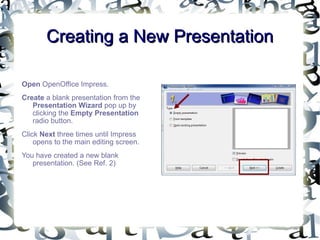
Creating a New Presentation Open  OpenOffice Impress.  Create  a blank presentation from the  Presentation Wizard  pop up by clicking the  Empty Presentation  radio button. Click  Next  three times until Impress opens to the main editing screen.  You have created a new blank presentation. (See Ref. 2)
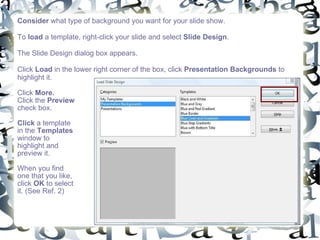
Consider  what type of background you want for your slide show.  To  load  a template, right-click your slide and select  Slide Design .  The Slide Design dialog box appears.  Click  Load  in the lower right corner of the box, click  Presentation Backgrounds  to highlight it.  Click  More.   Click the  Preview  check box.  Click  a template in the  Templates  window to highlight and preview it. When you find one that you like, click  OK  to select it. (See Ref. 2)
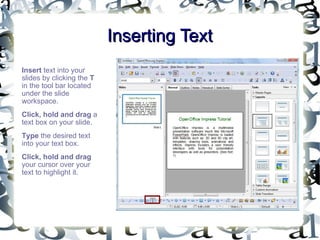
Inserting Text Insert  text into your slides by clicking the  T  in the tool bar located under the slide workspace.  Click, hold and drag  a text box on your slide.  Type  the desired text into your text box.  Click, hold and drag  your cursor over your text to highlight it.
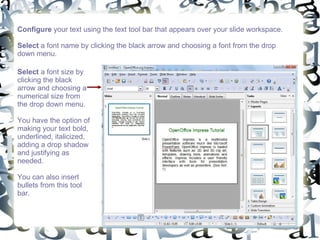
Configure  your text using the text tool bar that appears over your slide workspace. Select  a font name by clicking the black arrow and choosing a font from the drop down menu.  Select  a font size by clicking the black arrow and choosing a numerical size from the drop down menu.  You have the option of making your text bold, underlined, italicized, adding a drop shadow and justifying as needed.  You can also insert bullets from this tool bar.
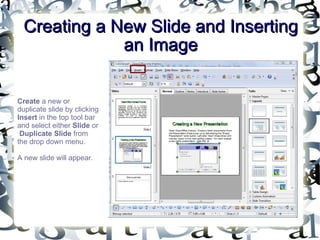
Creating a New Slide and Inserting an Image Create  a new or duplicate slide by clicking  Insert  in the top tool bar and select either  Slide  or  Duplicate Slide  from the drop down menu.  A new slide will appear.
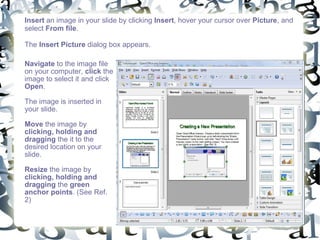
Insert  an image in your slide by clicking  Insert , hover your cursor over  Picture , and select  From file .  The  Insert Picture  dialog box appears.  Navigate  to the image file on your computer,  click  the image to select it and click  Open .  The image is inserted in your slide.  Move  the image by  clicking, holding and dragging  the it to the desired location on your slide.  Resize  the image by  clicking, holding and dragging  the  green anchor points . (See Ref. 2)
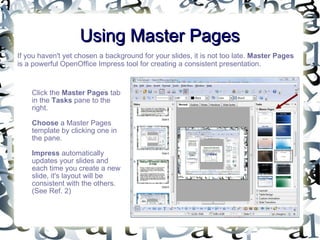
Using Master Pages If you haven't yet chosen a background for your slides, it is not too late.  Master Pages  is a powerful OpenOffice Impress tool for creating a consistent presentation. Click the  Master Pages  tab in the  Tasks  pane to the right.  Choose  a Master Pages template by clicking one in the pane.  Impress  automatically updates your slides and each time you create a new slide, it's layout will be consistent with the others. (See Ref. 2)
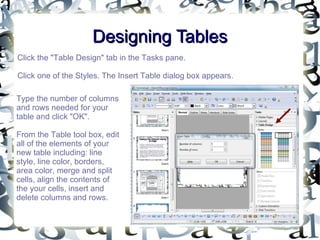
Designing Tables Click the "Table Design" tab in the Tasks pane.  Click one of the Styles. The Insert Table dialog box appears.  Type the number of columns and rows needed for your table and click "OK". From the Table tool box, edit all of the elements of your new table including: line style, line color, borders, area color, merge and split cells, align the contents of the your cells, insert and delete columns and rows.
Using Items from the Gallery Click  the  Gallery  icon in the tool bar under your slide workspace.  The  New Theme  pane appears above your slide workspace. OpenOffice Impress  has the following galleries built in to the New Theme pane: Backgrounds, Bullets, Homepage, Rulers and Sounds.  Preview  these galleries by clicking each one to highlight it.
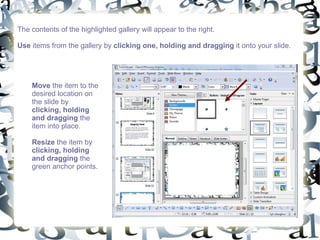
The contents of the highlighted gallery will appear to the right.  Use  items from the gallery by  clicking one, holding and dragging  it onto your slide.  Move  the item to the desired location on the slide by  clicking, holding and dragging  the item into place.  Resize  the item by  clicking, holding and dragging  the green anchor points.
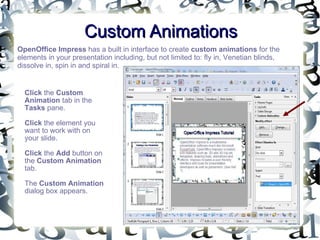
Custom Animations OpenOffice Impress  has a built in interface to create  custom animations  for the elements in your presentation including, but not limited to: fly in, Venetian blinds, dissolve in, spin in and spiral in.  Click  the  Custom Animation  tab in the  Tasks  pane.  Click  the element you want to work with on your slide.  Click  the  Add  button on the  Custom Animation  tab.  The  Custom Animation  dialog box appears.
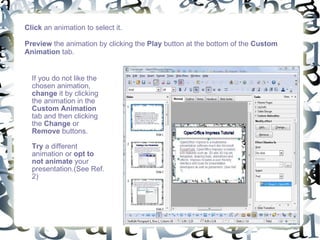
Click  an animation to select it.  Preview  the animation by clicking the  Play  button at the bottom of the  Custom Animation  tab. If you do not like the chosen animation,  change  it by clicking the animation in the  Custom Animation  tab and then clicking the  Change  or  Remove  buttons.  Try  a different animation or  opt to not animate  your presentation.(See Ref. 2)
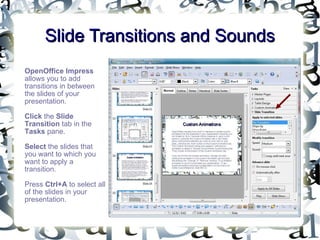
Slide Transitions and Sounds OpenOffice Impress  allows you to add transitions in between the slides of your presentation.  Click  the  Slide Transition  tab in the  Tasks  pane.  Select  the slides that you want to which you want to apply a transition.  Press  Ctrl+A  to select all of the slides in your presentation.
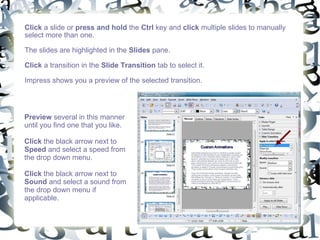
Click  a slide or  press and hold  the  Ctrl  key and  click  multiple slides to manually select more than one.  The slides are highlighted in the  Slides  pane. Click  a transition in the  Slide Transition  tab to select it.  Impress shows you a preview of the selected transition.  Preview  several in this manner until you find one that you like.  Click  the black arrow next to  Speed  and select a speed from the drop down menu. Click  the black arrow next to  Sound  and select a sound from the drop down menu if applicable.
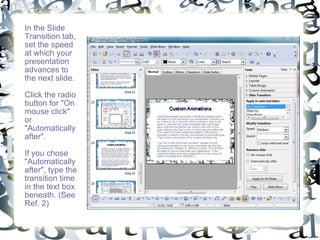
In the Slide Transition tab, set the speed at which your presentation advances to the next slide. Click the radio button for "On mouse click" or "Automatically after".  If you chose "Automatically after", type the transition time in the text box beneath. (See Ref. 2)
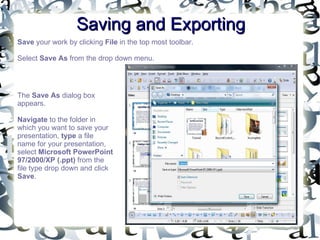
Saving and Exporting Save  your work by clicking  File  in the top most toolbar.  Select  Save As  from the drop down menu.  The  Save As  dialog box appears.  Navigate  to the folder in which you want to save your presentation,  type  a file name for your presentation, select  Microsoft PowerPoint 97/2000/XP (.ppt)  from the file type drop down and click  Save .
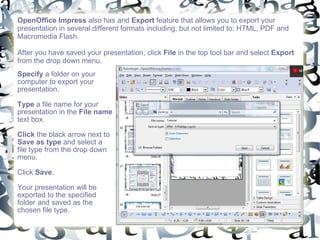
OpenOffice Impress  also has and  Export  feature that allows you to export your presentation in several different formats including, but not limited to: HTML, PDF and Macromedia Flash.  After you have saved your presentation, click  File  in the top tool bar and select  Export  from the drop down menu.  Specify  a folder on your computer to export your presentation.  Type  a file name for your presentation in the  File name  text box.  Click  the black arrow next to  Save as type  and select a file type from the drop down menu.  Click  Save .  Your presentation will be exported to the specified folder and saved as the chosen file type.
References http://www.openoffice.org/product/impress.html http://www.learnopenoffice.org/contents.htm About The Developer Ava Fails has worked professionally as a writer for 3 years although writing for her began long before her professional endeavors.  Her experience includes technical writing, blogging, creative writing and web content development.  In addition to writing, Ava also has a background in fine art and computer graphics. Her work with both graphics and writing has appeared on numerous websites on the Internet. August 2009

How To Use OpenOffice Impress

  • 1.
    How To UseOpenOffice Impress OpenOffice Impress is a multimedia presentation tool. Impress is LOADED with features such as: 2D and 3D galleries, templates, drawing tools, animations, effects and several export features. Impress includes user friendly tools for developers as well as presenters.
  • 2.
    What You WillLearn How to create a new presentation How to insert text How to insert images How to use Master Pages How to design tables How to use items from the gallery How to configure custom animations How to configure slide transitions and sounds How to save and export you presentation as Macromedia Flash, HTML or PDF.
  • 3.
    Creating a NewPresentation Open OpenOffice Impress. Create a blank presentation from the Presentation Wizard pop up by clicking the Empty Presentation radio button. Click Next three times until Impress opens to the main editing screen. You have created a new blank presentation. (See Ref. 2)
  • 4.
    Consider whattype of background you want for your slide show. To load a template, right-click your slide and select Slide Design . The Slide Design dialog box appears. Click Load in the lower right corner of the box, click Presentation Backgrounds to highlight it. Click More. Click the Preview check box. Click a template in the Templates window to highlight and preview it. When you find one that you like, click OK to select it. (See Ref. 2)
  • 5.
    Inserting Text Insert text into your slides by clicking the T in the tool bar located under the slide workspace. Click, hold and drag a text box on your slide. Type the desired text into your text box. Click, hold and drag your cursor over your text to highlight it.
  • 6.
    Configure yourtext using the text tool bar that appears over your slide workspace. Select a font name by clicking the black arrow and choosing a font from the drop down menu. Select a font size by clicking the black arrow and choosing a numerical size from the drop down menu. You have the option of making your text bold, underlined, italicized, adding a drop shadow and justifying as needed. You can also insert bullets from this tool bar.
  • 7.
    Creating a NewSlide and Inserting an Image Create a new or duplicate slide by clicking Insert in the top tool bar and select either Slide or Duplicate Slide from the drop down menu. A new slide will appear.
  • 8.
    Insert animage in your slide by clicking Insert , hover your cursor over Picture , and select From file . The Insert Picture dialog box appears. Navigate to the image file on your computer, click the image to select it and click Open . The image is inserted in your slide. Move the image by clicking, holding and dragging the it to the desired location on your slide. Resize the image by clicking, holding and dragging the green anchor points . (See Ref. 2)
  • 9.
    Using Master PagesIf you haven't yet chosen a background for your slides, it is not too late. Master Pages is a powerful OpenOffice Impress tool for creating a consistent presentation. Click the Master Pages tab in the Tasks pane to the right. Choose a Master Pages template by clicking one in the pane. Impress automatically updates your slides and each time you create a new slide, it's layout will be consistent with the others. (See Ref. 2)
  • 10.
    Designing Tables Clickthe "Table Design" tab in the Tasks pane. Click one of the Styles. The Insert Table dialog box appears. Type the number of columns and rows needed for your table and click "OK". From the Table tool box, edit all of the elements of your new table including: line style, line color, borders, area color, merge and split cells, align the contents of the your cells, insert and delete columns and rows.
  • 11.
    Using Items fromthe Gallery Click the Gallery icon in the tool bar under your slide workspace. The New Theme pane appears above your slide workspace. OpenOffice Impress has the following galleries built in to the New Theme pane: Backgrounds, Bullets, Homepage, Rulers and Sounds. Preview these galleries by clicking each one to highlight it.
  • 12.
    The contents ofthe highlighted gallery will appear to the right. Use items from the gallery by clicking one, holding and dragging it onto your slide. Move the item to the desired location on the slide by clicking, holding and dragging the item into place. Resize the item by clicking, holding and dragging the green anchor points.
  • 13.
    Custom Animations OpenOfficeImpress has a built in interface to create custom animations for the elements in your presentation including, but not limited to: fly in, Venetian blinds, dissolve in, spin in and spiral in. Click the Custom Animation tab in the Tasks pane. Click the element you want to work with on your slide. Click the Add button on the Custom Animation tab. The Custom Animation dialog box appears.
  • 14.
    Click ananimation to select it. Preview the animation by clicking the Play button at the bottom of the Custom Animation tab. If you do not like the chosen animation, change it by clicking the animation in the Custom Animation tab and then clicking the Change or Remove buttons. Try a different animation or opt to not animate your presentation.(See Ref. 2)
  • 15.
    Slide Transitions andSounds OpenOffice Impress allows you to add transitions in between the slides of your presentation. Click the Slide Transition tab in the Tasks pane. Select the slides that you want to which you want to apply a transition. Press Ctrl+A to select all of the slides in your presentation.
  • 16.
    Click aslide or press and hold the Ctrl key and click multiple slides to manually select more than one. The slides are highlighted in the Slides pane. Click a transition in the Slide Transition tab to select it. Impress shows you a preview of the selected transition. Preview several in this manner until you find one that you like. Click the black arrow next to Speed and select a speed from the drop down menu. Click the black arrow next to Sound and select a sound from the drop down menu if applicable.
  • 17.
    In the SlideTransition tab, set the speed at which your presentation advances to the next slide. Click the radio button for "On mouse click" or "Automatically after". If you chose "Automatically after", type the transition time in the text box beneath. (See Ref. 2)
  • 18.
    Saving and ExportingSave your work by clicking File in the top most toolbar. Select Save As from the drop down menu. The Save As dialog box appears. Navigate to the folder in which you want to save your presentation, type a file name for your presentation, select Microsoft PowerPoint 97/2000/XP (.ppt) from the file type drop down and click Save .
  • 19.
    OpenOffice Impress also has and Export feature that allows you to export your presentation in several different formats including, but not limited to: HTML, PDF and Macromedia Flash. After you have saved your presentation, click File in the top tool bar and select Export from the drop down menu. Specify a folder on your computer to export your presentation. Type a file name for your presentation in the File name text box. Click the black arrow next to Save as type and select a file type from the drop down menu. Click Save . Your presentation will be exported to the specified folder and saved as the chosen file type.
  • 20.
    References http://www.openoffice.org/product/impress.html http://www.learnopenoffice.org/contents.htmAbout The Developer Ava Fails has worked professionally as a writer for 3 years although writing for her began long before her professional endeavors. Her experience includes technical writing, blogging, creative writing and web content development. In addition to writing, Ava also has a background in fine art and computer graphics. Her work with both graphics and writing has appeared on numerous websites on the Internet. August 2009