


Postgraduate Institute of Science M.SC. in Science Education (2010/2011)
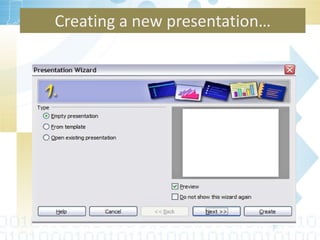
Creating a new presentation…
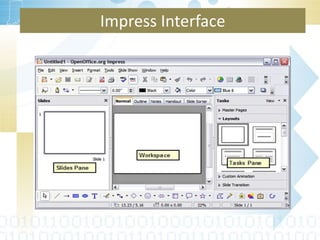
Impress Interface
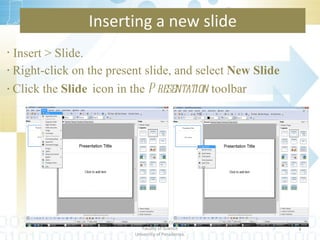
Inserting a new slide Insert > Slide. Right-click on the present slide, and select  New Slide Click the  Slide   icon in the  Presentation  toolbar Department of Statistics & Computer Science Faculty of Science University of Peradeniya.
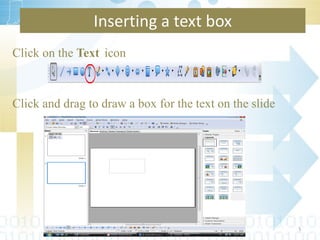
Inserting a text box Click on the  Text   icon Click and drag to draw a box for the text on the slide Department of Statistics & Computer Science Faculty of Science University of Peradeniya.
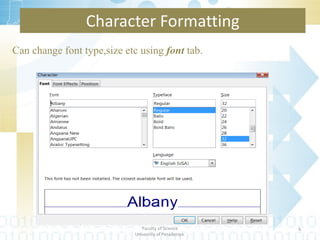
Can change font type,size etc using  font  tab. Character Formatting Department of Statistics & Computer Science Faculty of Science University of Peradeniya.
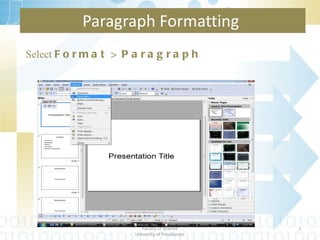
Select  Format > Paragraph Paragraph Formatting  Department of Statistics & Computer Science Faculty of Science University of Peradeniya.
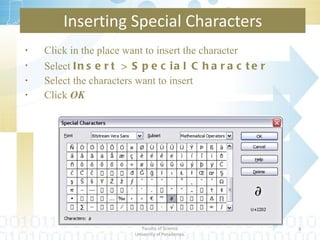
Click in the place want to insert the character Select  Insert > Special Character Select the characters want to insert Click  OK Inserting Special Characters Department of Statistics & Computer Science Faculty of Science University of Peradeniya.
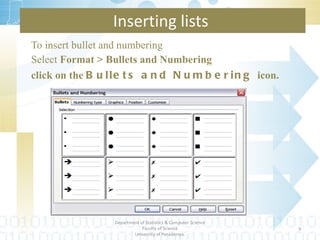
To insert bullet and numbering  Select  Format > Bullets and Numbering click on the  Bullets and Numbering  icon.  Inserting lists  Department of Statistics & Computer Science Faculty of Science University of Peradeniya.
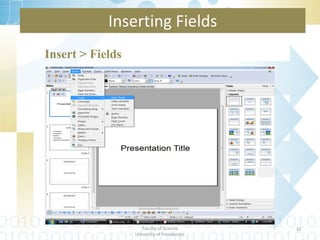
Insert > Fields  Inserting Fields Department of Statistics & Computer Science Faculty of Science University of Peradeniya.
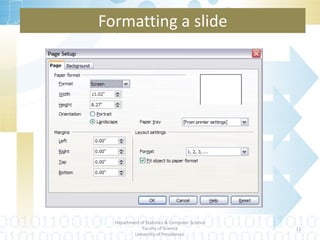
Formatting a slide Department of Statistics & Computer Science Faculty of Science University of Peradeniya.
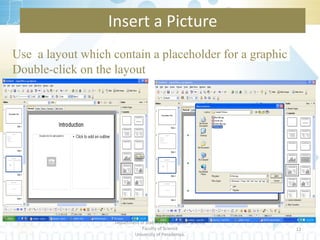
Insert a Picture Use  a layout which contain a placeholder for a graphic Double-click on the layout Department of Statistics & Computer Science Faculty of Science University of Peradeniya.
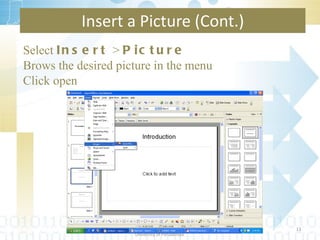
Select  Insert  >  Picture Brows the desired picture in the menu Click open Insert a Picture (Cont.) Department of Statistics & Computer Science Faculty of Science University of Peradeniya.
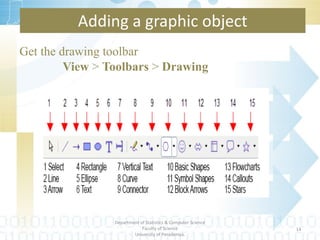
Get the drawing toolbar  View  >  Toolbars  >  Drawing Adding a graphic object Department of Statistics & Computer Science Faculty of Science University of Peradeniya.
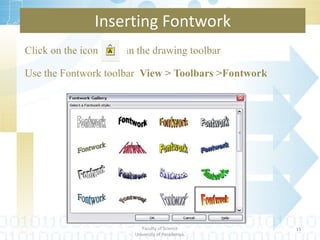
Click on the icon   i n the drawing toolbar Use the Fontwork toolbar  View > Toolbars >Fontwork Inserting Fontwork Department of Statistics & Computer Science Faculty of Science University of Peradeniya.
One slide can be designed including the things which are common to all the slides in the presentation. Date and time Slide numbers Heading styles Logo Author Slide Master Department of Statistics & Computer Science Faculty of Science University of Peradeniya.
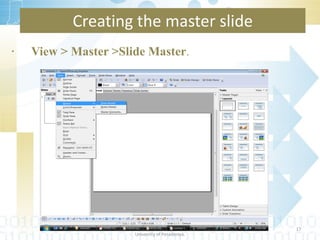
Creating the master slide View > Master >Slide Master . Department of Statistics & Computer Science Faculty of Science University of Peradeniya.
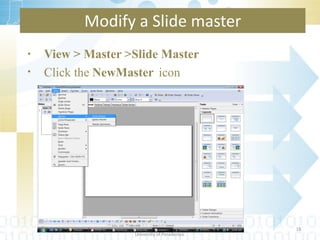
Modify a Slide master View > Master >Slide Master Click the  NewMaster   icon Department of Statistics & Computer Science Faculty of Science University of Peradeniya.
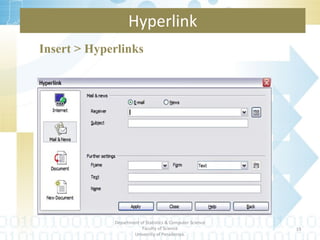
Hyperlink Insert > Hyperlinks  Department of Statistics & Computer Science Faculty of Science University of Peradeniya.
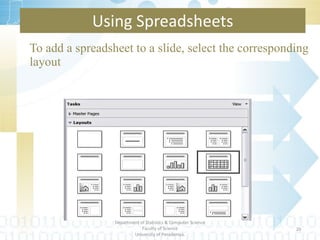
Using Spreadsheets To add a spreadsheet to a slide, select the corresponding layout Department of Statistics & Computer Science Faculty of Science University of Peradeniya.
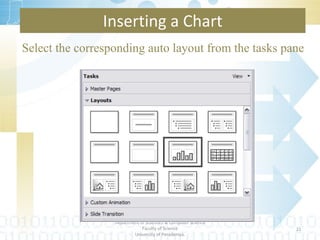
Select the corresponding auto layout from the tasks pane Inserting a Chart Department of Statistics & Computer Science Faculty of Science University of Peradeniya.
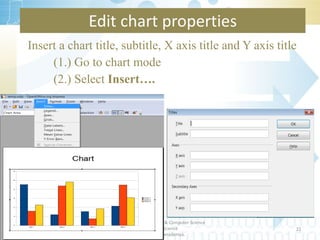
Edit chart properties Insert a chart title, subtitle, X axis title and Y axis title (1.) Go to chart mode (2.) Select  Insert…. Department of Statistics & Computer Science Faculty of Science University of Peradeniya.
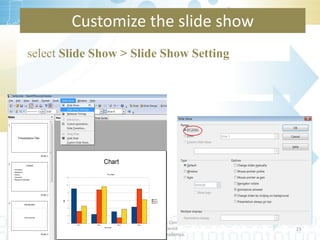
select  Slide Show > Slide Show Setting Customize the slide show Department of Statistics & Computer Science Faculty of Science University of Peradeniya.
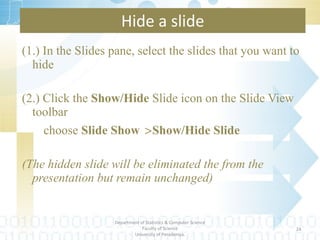
Hide a slide (1.) In the Slides pane, select the slides that you want to hide (2.) Click the  Show/Hide  Slide icon on the Slide View toolbar choose  Slide Show  > Show/Hide Slide (The hidden slide will be eliminated the from the presentation but remain unchanged) ‏ Department of Statistics & Computer Science Faculty of Science University of Peradeniya.
Rearrange the slides using the slide sorter Change the order of the slides Department of Statistics & Computer Science Faculty of Science University of Peradeniya.
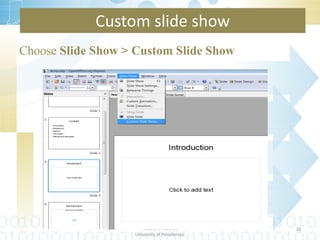
Choose  Slide Show > Custom Slide Show Custom slide show Department of Statistics & Computer Science Faculty of Science University of Peradeniya.
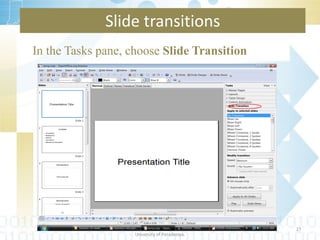
In the Tasks pane, choose  Slide Transition Slide transitions Department of Statistics & Computer Science Faculty of Science University of Peradeniya.
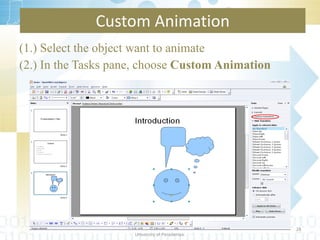
(1.) Select the object want to animate (2.) In the Tasks pane, choose  Custom Animation Custom Animation Department of Statistics & Computer Science Faculty of Science University of Peradeniya.
Interactions work as buttons which is used to switch to another slide. Interactions Department of Statistics & Computer Science Faculty of Science University of Peradeniya.
 

Introduction slides for Open Office Impress

  • 1.
    Postgraduate Institute ofScience M.SC. in Science Education (2010/2011)
  • 2.
    Creating a newpresentation…
  • 3.
  • 4.
    Inserting a newslide Insert > Slide. Right-click on the present slide, and select New Slide Click the Slide icon in the Presentation toolbar Department of Statistics & Computer Science Faculty of Science University of Peradeniya.
  • 5.
    Inserting a textbox Click on the Text icon Click and drag to draw a box for the text on the slide Department of Statistics & Computer Science Faculty of Science University of Peradeniya.
  • 6.
    Can change fonttype,size etc using font tab. Character Formatting Department of Statistics & Computer Science Faculty of Science University of Peradeniya.
  • 7.
    Select Format> Paragraph Paragraph Formatting Department of Statistics & Computer Science Faculty of Science University of Peradeniya.
  • 8.
    Click in theplace want to insert the character Select Insert > Special Character Select the characters want to insert Click OK Inserting Special Characters Department of Statistics & Computer Science Faculty of Science University of Peradeniya.
  • 9.
    To insert bulletand numbering Select Format > Bullets and Numbering click on the Bullets and Numbering icon. Inserting lists Department of Statistics & Computer Science Faculty of Science University of Peradeniya.
  • 10.
    Insert > Fields Inserting Fields Department of Statistics & Computer Science Faculty of Science University of Peradeniya.
  • 11.
    Formatting a slideDepartment of Statistics & Computer Science Faculty of Science University of Peradeniya.
  • 12.
    Insert a PictureUse a layout which contain a placeholder for a graphic Double-click on the layout Department of Statistics & Computer Science Faculty of Science University of Peradeniya.
  • 13.
    Select Insert > Picture Brows the desired picture in the menu Click open Insert a Picture (Cont.) Department of Statistics & Computer Science Faculty of Science University of Peradeniya.
  • 14.
    Get the drawingtoolbar View > Toolbars > Drawing Adding a graphic object Department of Statistics & Computer Science Faculty of Science University of Peradeniya.
  • 15.
    Click on theicon i n the drawing toolbar Use the Fontwork toolbar View > Toolbars >Fontwork Inserting Fontwork Department of Statistics & Computer Science Faculty of Science University of Peradeniya.
  • 16.
    One slide canbe designed including the things which are common to all the slides in the presentation. Date and time Slide numbers Heading styles Logo Author Slide Master Department of Statistics & Computer Science Faculty of Science University of Peradeniya.
  • 17.
    Creating the masterslide View > Master >Slide Master . Department of Statistics & Computer Science Faculty of Science University of Peradeniya.
  • 18.
    Modify a Slidemaster View > Master >Slide Master Click the NewMaster icon Department of Statistics & Computer Science Faculty of Science University of Peradeniya.
  • 19.
    Hyperlink Insert >Hyperlinks Department of Statistics & Computer Science Faculty of Science University of Peradeniya.
  • 20.
    Using Spreadsheets Toadd a spreadsheet to a slide, select the corresponding layout Department of Statistics & Computer Science Faculty of Science University of Peradeniya.
  • 21.
    Select the correspondingauto layout from the tasks pane Inserting a Chart Department of Statistics & Computer Science Faculty of Science University of Peradeniya.
  • 22.
    Edit chart propertiesInsert a chart title, subtitle, X axis title and Y axis title (1.) Go to chart mode (2.) Select Insert…. Department of Statistics & Computer Science Faculty of Science University of Peradeniya.
  • 23.
    select SlideShow > Slide Show Setting Customize the slide show Department of Statistics & Computer Science Faculty of Science University of Peradeniya.
  • 24.
    Hide a slide(1.) In the Slides pane, select the slides that you want to hide (2.) Click the Show/Hide Slide icon on the Slide View toolbar choose Slide Show > Show/Hide Slide (The hidden slide will be eliminated the from the presentation but remain unchanged) ‏ Department of Statistics & Computer Science Faculty of Science University of Peradeniya.
  • 25.
    Rearrange the slidesusing the slide sorter Change the order of the slides Department of Statistics & Computer Science Faculty of Science University of Peradeniya.
  • 26.
    Choose SlideShow > Custom Slide Show Custom slide show Department of Statistics & Computer Science Faculty of Science University of Peradeniya.
  • 27.
    In the Taskspane, choose Slide Transition Slide transitions Department of Statistics & Computer Science Faculty of Science University of Peradeniya.
  • 28.
    (1.) Select theobject want to animate (2.) In the Tasks pane, choose Custom Animation Custom Animation Department of Statistics & Computer Science Faculty of Science University of Peradeniya.
  • 29.
    Interactions work asbuttons which is used to switch to another slide. Interactions Department of Statistics & Computer Science Faculty of Science University of Peradeniya.
  • 30.