
Online CollaborationMILI 2009LeAnn Suchy, Metronetleann@metronet.lib.mn.us
Online collaboration?Web-based software designed to help people collaborate on a common taskOnline collaboration can make collaboration easier across rooms, buildings, states, countriesCollaboration can occur on documents, presentations, spreadsheets, etc.
NingsNings are online collaboration toolsYou’re part of our Ning so you know a little bit of what a Ning can doUsers can blog, chat, ask forum questions of each other, and, depending upon the level of access, collaborate on a much bigger level
MILI Ning
Ning for conferences
WikisWikis are collaboration toolsYou’ve seen a wiki – our MILI WikiWe do not have you collaborate in it, but we couldWikis have been used in classes, at conferences, for business purposes, etc.
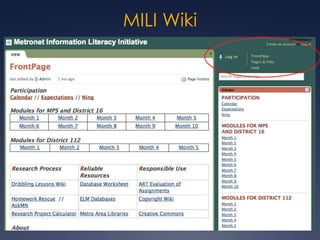
MILI Wiki
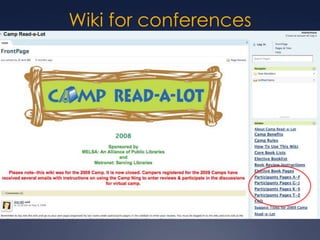
Wiki for conferences
MoodleMoodle is an online collaboration toolStudents can blog, respond to forum questions, upload documents, etc.We’ll explore Moodle in-person next week
Before we move on…Questions so far??
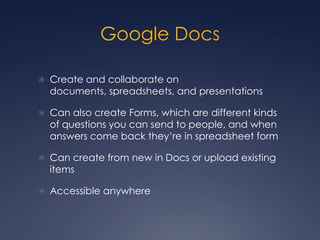
Google DocsCreate and collaborate on documents, spreadsheets, and presentationsCan also create Forms, which are different kinds of questions you can send to people, and when answers come back they’re in spreadsheet formCan create from new in Docs or upload existing itemsAccessible anywhere
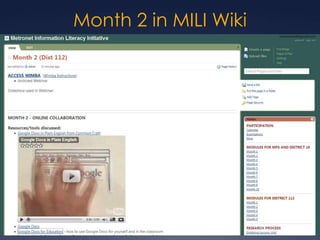
Month 2 in MILI Wiki
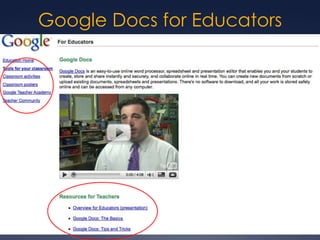
Google Docs for Educators
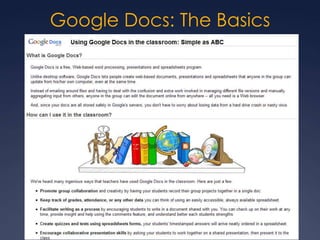
Google Docs: The Basics
Google Docs: Tips & Tricks
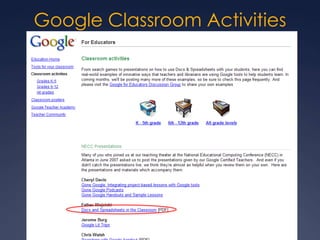
Google Classroom Activities
Sign up for Google DocsWe want you to sign up for Google DocsIf you created a Google Docs account in the past for Google Reader or Gmail you can use that same accountAfter the webinar go to Google Docs and log in
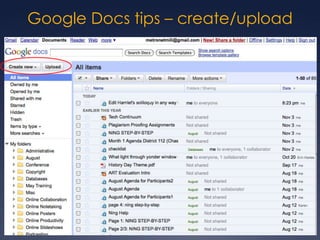
Google Docs tips – create/upload
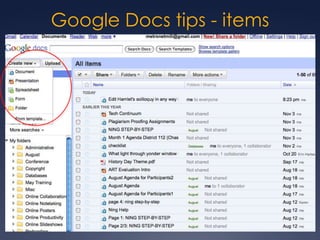
Google Docs tips - items
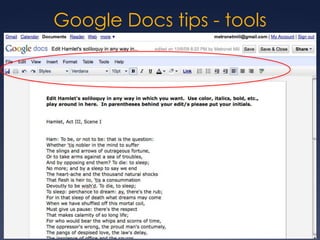
Google Docs tips - tools
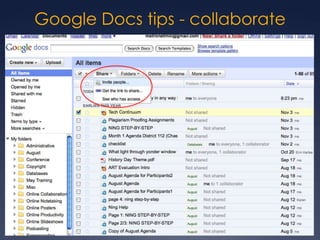
Google Docs tips - collaborate
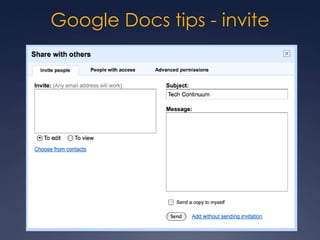
Google Docs tips - invite
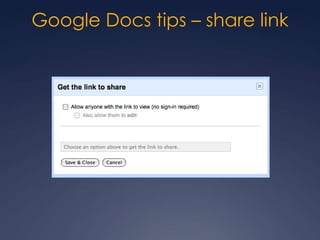
Google Docs tips – share link
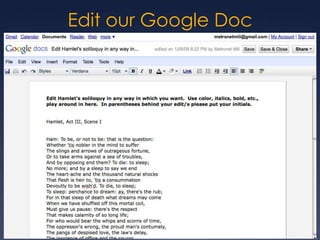
Edit our Google Doc
Between now and our meetingWe want you to use Google Docs to:Beat the Bard – edit our Hamlet Google DocUpload a document into Google Docs and check out some of the differencesUpload or create a document and invite others to collaborate on the document with youIf you’ve used Google Docs in the past, play around with something you haven’t done there, like Presentations, Forms, or Spreadsheets
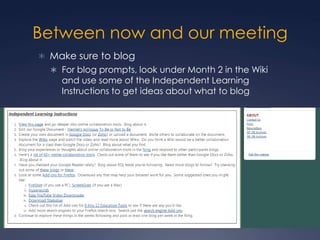
Between now and our meetingMake sure to blogFor blog prompts, look under Month 2 in the Wiki and use some of the Independent Learning Instructions to get ideas about what to blog
Questions?Ask now or you can always contact me:leann@metronet.lib.mn.us or 651-646-0475

Online Collaboration

  • 1.
    Online CollaborationMILI 2009LeAnnSuchy, Metronetleann@metronet.lib.mn.us
  • 2.
    Online collaboration?Web-based softwaredesigned to help people collaborate on a common taskOnline collaboration can make collaboration easier across rooms, buildings, states, countriesCollaboration can occur on documents, presentations, spreadsheets, etc.
  • 3.
    NingsNings are onlinecollaboration toolsYou’re part of our Ning so you know a little bit of what a Ning can doUsers can blog, chat, ask forum questions of each other, and, depending upon the level of access, collaborate on a much bigger level
  • 4.
  • 5.
  • 6.
    WikisWikis are collaborationtoolsYou’ve seen a wiki – our MILI WikiWe do not have you collaborate in it, but we couldWikis have been used in classes, at conferences, for business purposes, etc.
  • 7.
  • 8.
  • 9.
    MoodleMoodle is anonline collaboration toolStudents can blog, respond to forum questions, upload documents, etc.We’ll explore Moodle in-person next week
  • 10.
    Before we moveon…Questions so far??
  • 11.
    Google DocsCreate andcollaborate on documents, spreadsheets, and presentationsCan also create Forms, which are different kinds of questions you can send to people, and when answers come back they’re in spreadsheet formCan create from new in Docs or upload existing itemsAccessible anywhere
  • 12.
    Month 2 inMILI Wiki
  • 13.
  • 14.
  • 15.
  • 16.
  • 17.
    Sign up forGoogle DocsWe want you to sign up for Google DocsIf you created a Google Docs account in the past for Google Reader or Gmail you can use that same accountAfter the webinar go to Google Docs and log in
  • 18.
    Google Docs tips– create/upload
  • 19.
  • 20.
  • 21.
    Google Docs tips- collaborate
  • 22.
  • 23.
    Google Docs tips– share link
  • 24.
  • 25.
    Between now andour meetingWe want you to use Google Docs to:Beat the Bard – edit our Hamlet Google DocUpload a document into Google Docs and check out some of the differencesUpload or create a document and invite others to collaborate on the document with youIf you’ve used Google Docs in the past, play around with something you haven’t done there, like Presentations, Forms, or Spreadsheets
  • 26.
    Between now andour meetingMake sure to blogFor blog prompts, look under Month 2 in the Wiki and use some of the Independent Learning Instructions to get ideas about what to blog
  • 27.
    Questions?Ask now oryou can always contact me:leann@metronet.lib.mn.us or 651-646-0475