“      Docs From
        A Teacher Perspective”

Jeff Rothenberger, Program Administrator - Berks County IU #14
                    IU #13 Collaboration Day
                        October 13, 2010
                                                        1
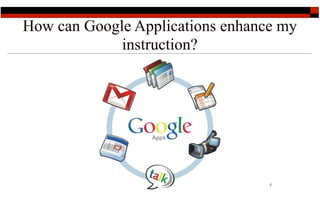
How can Google Applications enhance my
             instruction?


                                  2
Let’s take a look at some examples
    of problems teachers have
     integrating new tools into
                 there lessons:


                             3
What do you do if .......
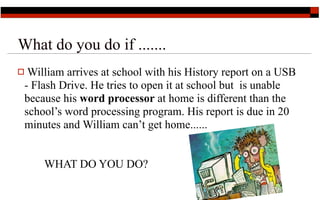
 William arrives at school with his History report on a USB
 - Flash Drive. He tries to open it at school but is unable
 because his word processor at home is different than the
 school’s word processing program. His report is due in 20
 minutes and William can’t get home......


     WHAT DO YOU DO?
                                                      4
What do you do if .....
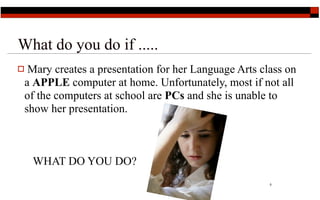
 Mary creates a presentation for her Language Arts class on
 a APPLE computer at home. Unfortunately, most if not all
 of the computers at school are PCs and she is unable to
 show her presentation.


    WHAT DO YOU DO?
                                                      5
What do you do if ....
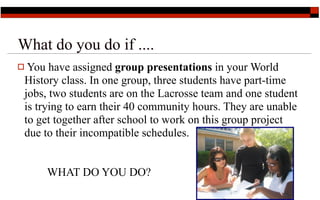
 You have assigned group presentations in your World
 History class. In one group, three students have part-time
 jobs, two students are on the Lacrosse team and one student
 is trying to earn their 40 community hours. They are unable
 to get together after school to work on this group project
 due to their incompatible schedules.


     WHAT DO YOU DO?
                                                     6
What do you do if ....
 You’re teaching a 12 grade Creative Writing class and your
 final assignment for the marking period is due tomorrow.
 One of your students comes to you and says that his
 computer hard drive crashed last night and he lost all his
 work. He’s not sure when he will be able to redo and submit
 the paper.


 WHAT DO YOU DO?
                                                     7
Challenges - - - - - -
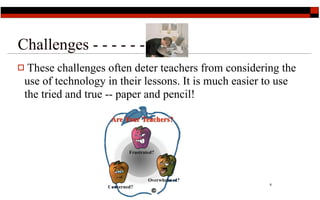
 These challenges often deter teachers from considering the
 use of technology in their lessons. It is much easier to use
 the tried and true -- paper and pencil!


                                                       8
SOLUTION!


            9
Versions of Google Docs


                          11
Versions of Google Docs
Public   - Anyone / Anytime.


                                11
Versions of Google Docs
Public   - Anyone / Anytime.
Business


                                11
Versions of Google Docs
Public   - Anyone / Anytime.
Business

Non-Profit   - Education

                                11
Versions of Google Docs
Public   - Anyone / Anytime.
Business

Non-Profit   - Education
Internet   Service Providers   11
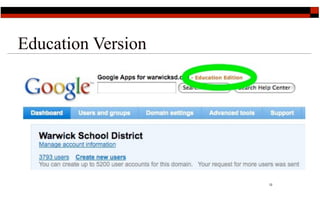
Education Version


                    12
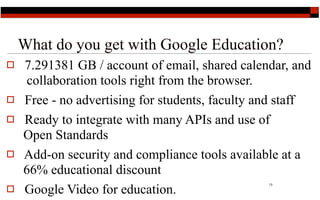
What do you get with Google Education?


                                   13
What do you get with Google Education?
   7.291381 GB / account of email, shared calendar, and
    collaboration tools right from the browser.


                                                13
What do you get with Google Education?
   7.291381 GB / account of email, shared calendar, and
    collaboration tools right from the browser.
   Free - no advertising for students, faculty and staff


                                                 13
What do you get with Google Education?
   7.291381 GB / account of email, shared calendar, and
    collaboration tools right from the browser.
   Free - no advertising for students, faculty and staff
   Ready to integrate with many APIs and use of
    Open Standards


                                                 13
What do you get with Google Education?
   7.291381 GB / account of email, shared calendar, and
     collaboration tools right from the browser.
   Free - no advertising for students, faculty and staff
   Ready to integrate with many APIs and use of
    Open Standards
   Add-on security and compliance tools available at a
    66% educational discount
                                                 13
What do you get with Google Education?
   7.291381 GB / account of email, shared calendar, and
     collaboration tools right from the browser.
   Free - no advertising for students, faculty and staff
   Ready to integrate with many APIs and use of
    Open Standards
   Add-on security and compliance tools available at a
    66% educational discount
    Google Video for education.
                                                 13


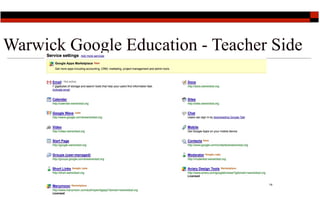
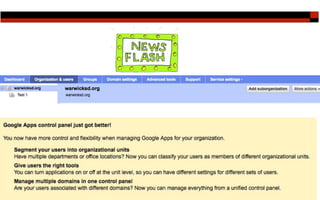
Warwick Google Education - Teacher Side


                                  14
15
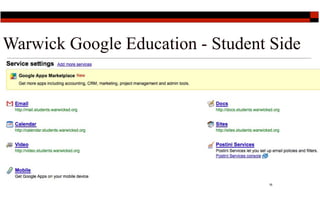
Warwick Google Education - Student Side


                                  16
What is a Google Doc?


                        17
What is a Google Doc?
Google
Docs
is
a
free,
Web‐based
word
processing,

 presentations
and
spreadsheets
program.


                                                      17
What is a Google Doc?
Google
Docs
is
a
free,
Web‐based
word
processing,

 presentations
and
spreadsheets
program.
Unlike
desktop
software,
Google
Docs
lets
people
create
web‐
 based
documents,
presentations
and
spreadsheets
that
anyone

 in
the
group
can
update
from
his/her
own
computer,
even
at

 the
same
time.


                                                      17
What is a Google Doc?
Google
Docs
is
a
free,
Web‐based
word
processing,

 presentations
and
spreadsheets
program.
Unlike
desktop
software,
Google
Docs
lets
people
create
web‐
 based
documents,
presentations
and
spreadsheets
that
anyone

 in
the
group
can
update
from
his/her
own
computer,
even
at

 the
same
time.
Instead
of
emailing
around
Ailes
and
having
to
deal
with
the

 confusion
and
extra
work
involved
in
managing
different
Aile

 versions
and
manually
aggregating
input
from
others,
anyone

 in
the
group
can
edit
the
document
online
from
anywhere
‐‐
all

                                                      17


 you
need
is
a
Web
browser
Teaching with Google Docs
 Leverage new tools - partially on desktop; partially on web
 Peer-to-peer learning

 Students share ideas; learning evolves
 Anytime / anywhere learning

 Students publish for authentic audiences
 Promotes sharing and collaboration
 Students edit, learn, share project assest

 Collaborate, work at different times, track edits by others
                                                      18

 and don’t have to meet in person
19
20
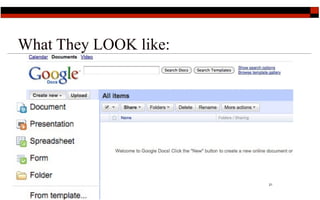
What They LOOK like:


                       21
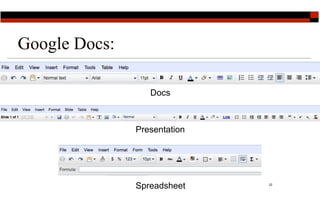
Google Docs:

                  Docs


               Presentation


               Spreadsheet    22
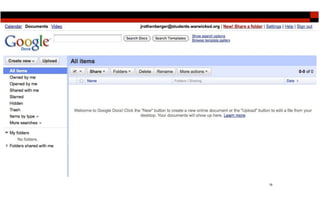
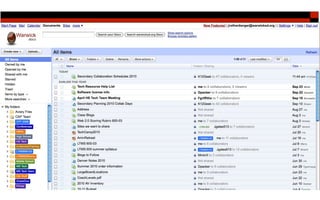
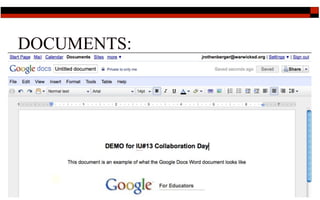
DOCUMENTS:


             23
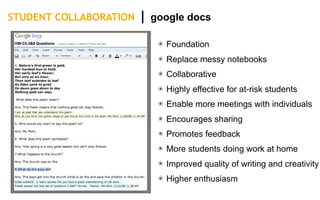
STUDENT COLLABORATION   |   google docs

                             ✴ Foundation
                             ✴ Replace messy notebooks
                             ✴ Collaborative
                             ✴ Highly effective for at-risk students
                             ✴ Enable more meetings with individuals
                             ✴ Encourages sharing
                             ✴ Promotes feedback
                             ✴ More students doing work at home
                             ✴ Improved quality of writing and creativity
                             ✴ Higher enthusiasm
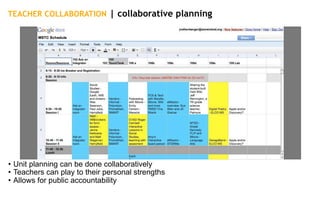
TEACHER COLLABORATION | collaborative planning


• Unit planning can be done collaboratively
• Teachers can play to their personal strengths
• Allows for public accountability
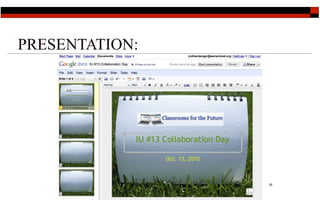
PRESENTATION:


                26
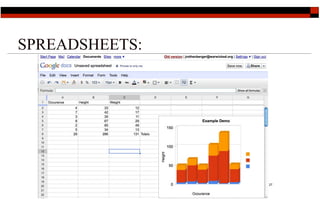
SPREADSHEETS:


                27
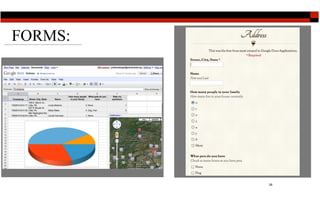
FORMS:


         28
HOW DO I USE THESE IN MY
CLASSROOM:


                           29
HOW DO I USE THESE IN MY
CLASSROOM:
 Group   collaboration: Students recored their group projects.


                                                         29
HOW DO I USE THESE IN MY
CLASSROOM:
 Group   collaboration: Students recored their group projects.
 Keep   track of data: Science - Math - L/A - Spreadsheets.


                                                         29
HOW DO I USE THESE IN MY
CLASSROOM:
 Group   collaboration: Students recored their group projects.
 Keep   track of data: Science - Math - L/A - Spreadsheets.
 Writing   Process: Student writing shared with you or others.


                                                         29
HOW DO I USE THESE IN MY
CLASSROOM:
 Group    collaboration: Students recored their group projects.
 Keep   track of data: Science - Math - L/A - Spreadsheets.
 Writing   Process: Student writing shared with you or others.
 Create   Quizzes - Tests - Surveys: Time stamped answers.


                                                          29
HOW DO I USE THESE IN MY
CLASSROOM:
 Group    collaboration: Students recored their group projects.
 Keep   track of data: Science - Math - L/A - Spreadsheets.
 Writing   Process: Student writing shared with you or others.
 Create   Quizzes - Tests - Surveys: Time stamped answers.
 Shared   Power Point Presentations: Shared presentations.

                                                          29
HOW DO I USE THESE IN MY
CLASSROOM:
 Group    collaboration: Students recored their group projects.
 Keep    track of data: Science - Math - L/A - Spreadsheets.
 Writing   Process: Student writing shared with you or others.
 Create   Quizzes - Tests - Surveys: Time stamped answers.
 Shared   Power Point Presentations: Shared presentations.
 Share   Lesson Plans: Collaborative planning.
                                                          29
HOW DO I USE THESE IN MY
CLASSROOM:
 Group    collaboration: Students recored their group projects.
 Keep    track of data: Science - Math - L/A - Spreadsheets.
 Writing   Process: Student writing shared with you or others.
 Create   Quizzes - Tests - Surveys: Time stamped answers.
 Shared   Power Point Presentations: Shared presentations.
 Share   Lesson Plans: Collaborative planning.
                                                          29

 Collaborate   with Colleagues: Share the workload or project.
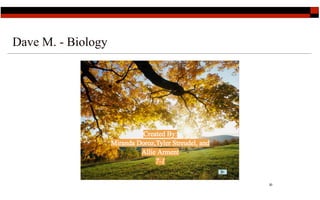
Dave M. - Biology


                    30
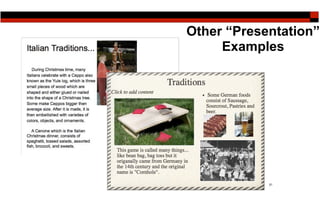
Other “Presentation”
     Examples


            31
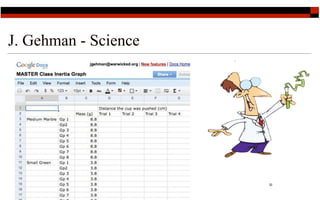
J. Gehman - Science


                      32
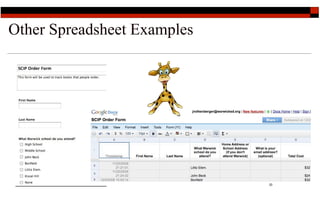
Other Spreadsheet Examples


                             33
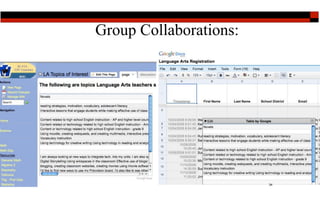
Group Collaborations:


                        34
Live Demo

            35
Thank you.
          Questions?

    Jeff Rothenberger - Program Administrator

Berks County Intermediate Unit #14 School District
                                                36

Google iu13

  • 1.
    Docs From A Teacher Perspective” Jeff Rothenberger, Program Administrator - Berks County IU #14 IU #13 Collaboration Day October 13, 2010 1
  • 2.
    How can GoogleApplications enhance my instruction? 2
  • 3.
    Let’s take alook at some examples of problems teachers have integrating new tools into there lessons: 3
  • 4.
    What do youdo if .......  William arrives at school with his History report on a USB - Flash Drive. He tries to open it at school but is unable because his word processor at home is different than the school’s word processing program. His report is due in 20 minutes and William can’t get home...... WHAT DO YOU DO? 4
  • 5.
    What do youdo if .....  Mary creates a presentation for her Language Arts class on a APPLE computer at home. Unfortunately, most if not all of the computers at school are PCs and she is unable to show her presentation. WHAT DO YOU DO? 5
  • 6.
    What do youdo if ....  You have assigned group presentations in your World History class. In one group, three students have part-time jobs, two students are on the Lacrosse team and one student is trying to earn their 40 community hours. They are unable to get together after school to work on this group project due to their incompatible schedules. WHAT DO YOU DO? 6
  • 7.
    What do youdo if ....  You’re teaching a 12 grade Creative Writing class and your final assignment for the marking period is due tomorrow. One of your students comes to you and says that his computer hard drive crashed last night and he lost all his work. He’s not sure when he will be able to redo and submit the paper. WHAT DO YOU DO? 7
  • 8.
    Challenges - -- - - -  These challenges often deter teachers from considering the use of technology in their lessons. It is much easier to use the tried and true -- paper and pencil! 8
  • 9.
  • 11.
  • 12.
    Versions of GoogleDocs Public - Anyone / Anytime. 11
  • 13.
    Versions of GoogleDocs Public - Anyone / Anytime. Business 11
  • 14.
    Versions of GoogleDocs Public - Anyone / Anytime. Business Non-Profit - Education 11
  • 15.
    Versions of GoogleDocs Public - Anyone / Anytime. Business Non-Profit - Education Internet Service Providers 11
  • 16.
  • 17.
    What do youget with Google Education? 13
  • 18.
    What do youget with Google Education?  7.291381 GB / account of email, shared calendar, and collaboration tools right from the browser. 13
  • 19.
    What do youget with Google Education?  7.291381 GB / account of email, shared calendar, and collaboration tools right from the browser.  Free - no advertising for students, faculty and staff 13
  • 20.
    What do youget with Google Education?  7.291381 GB / account of email, shared calendar, and collaboration tools right from the browser.  Free - no advertising for students, faculty and staff  Ready to integrate with many APIs and use of Open Standards 13
  • 21.
    What do youget with Google Education?  7.291381 GB / account of email, shared calendar, and collaboration tools right from the browser.  Free - no advertising for students, faculty and staff  Ready to integrate with many APIs and use of Open Standards  Add-on security and compliance tools available at a 66% educational discount 13
  • 22.
    What do youget with Google Education?  7.291381 GB / account of email, shared calendar, and collaboration tools right from the browser.  Free - no advertising for students, faculty and staff  Ready to integrate with many APIs and use of Open Standards  Add-on security and compliance tools available at a 66% educational discount Google Video for education. 13 
  • 23.
    Warwick Google Education- Teacher Side 14
  • 24.
  • 25.
    Warwick Google Education- Student Side 16
  • 26.
    What is aGoogle Doc? 17
  • 27.
    What is aGoogle Doc? Google
Docs
is
a
free,
Web‐based
word
processing,
 presentations
and
spreadsheets
program. 17
  • 28.
    What is aGoogle Doc? Google
Docs
is
a
free,
Web‐based
word
processing,
 presentations
and
spreadsheets
program. Unlike
desktop
software,
Google
Docs
lets
people
create
web‐ based
documents,
presentations
and
spreadsheets
that
anyone
 in
the
group
can
update
from
his/her
own
computer,
even
at
 the
same
time. 17
  • 29.
    What is aGoogle Doc? Google
Docs
is
a
free,
Web‐based
word
processing,
 presentations
and
spreadsheets
program. Unlike
desktop
software,
Google
Docs
lets
people
create
web‐ based
documents,
presentations
and
spreadsheets
that
anyone
 in
the
group
can
update
from
his/her
own
computer,
even
at
 the
same
time. Instead
of
emailing
around
Ailes
and
having
to
deal
with
the
 confusion
and
extra
work
involved
in
managing
different
Aile
 versions
and
manually
aggregating
input
from
others,
anyone
 in
the
group
can
edit
the
document
online
from
anywhere
‐‐
all
 17 you
need
is
a
Web
browser
  • 30.
    Teaching with GoogleDocs  Leverage new tools - partially on desktop; partially on web  Peer-to-peer learning  Students share ideas; learning evolves  Anytime / anywhere learning  Students publish for authentic audiences  Promotes sharing and collaboration  Students edit, learn, share project assest  Collaborate, work at different times, track edits by others 18 and don’t have to meet in person
  • 31.
  • 32.
  • 33.
  • 34.
    Google Docs: Docs Presentation Spreadsheet 22
  • 35.
  • 36.
    STUDENT COLLABORATION | google docs ✴ Foundation ✴ Replace messy notebooks ✴ Collaborative ✴ Highly effective for at-risk students ✴ Enable more meetings with individuals ✴ Encourages sharing ✴ Promotes feedback ✴ More students doing work at home ✴ Improved quality of writing and creativity ✴ Higher enthusiasm
  • 37.
    TEACHER COLLABORATION |collaborative planning • Unit planning can be done collaboratively • Teachers can play to their personal strengths • Allows for public accountability
  • 38.
  • 39.
  • 40.
  • 41.
    HOW DO IUSE THESE IN MY CLASSROOM: 29
  • 42.
    HOW DO IUSE THESE IN MY CLASSROOM: Group collaboration: Students recored their group projects. 29
  • 43.
    HOW DO IUSE THESE IN MY CLASSROOM: Group collaboration: Students recored their group projects. Keep track of data: Science - Math - L/A - Spreadsheets. 29
  • 44.
    HOW DO IUSE THESE IN MY CLASSROOM: Group collaboration: Students recored their group projects. Keep track of data: Science - Math - L/A - Spreadsheets. Writing Process: Student writing shared with you or others. 29
  • 45.
    HOW DO IUSE THESE IN MY CLASSROOM: Group collaboration: Students recored their group projects. Keep track of data: Science - Math - L/A - Spreadsheets. Writing Process: Student writing shared with you or others. Create Quizzes - Tests - Surveys: Time stamped answers. 29
  • 46.
    HOW DO IUSE THESE IN MY CLASSROOM: Group collaboration: Students recored their group projects. Keep track of data: Science - Math - L/A - Spreadsheets. Writing Process: Student writing shared with you or others. Create Quizzes - Tests - Surveys: Time stamped answers. Shared Power Point Presentations: Shared presentations. 29
  • 47.
    HOW DO IUSE THESE IN MY CLASSROOM: Group collaboration: Students recored their group projects. Keep track of data: Science - Math - L/A - Spreadsheets. Writing Process: Student writing shared with you or others. Create Quizzes - Tests - Surveys: Time stamped answers. Shared Power Point Presentations: Shared presentations. Share Lesson Plans: Collaborative planning. 29
  • 48.
    HOW DO IUSE THESE IN MY CLASSROOM: Group collaboration: Students recored their group projects. Keep track of data: Science - Math - L/A - Spreadsheets. Writing Process: Student writing shared with you or others. Create Quizzes - Tests - Surveys: Time stamped answers. Shared Power Point Presentations: Shared presentations. Share Lesson Plans: Collaborative planning. 29 Collaborate with Colleagues: Share the workload or project.
  • 49.
    Dave M. -Biology 30
  • 50.
  • 51.
    J. Gehman -Science 32
  • 52.
  • 53.
  • 54.
  • 55.
    Thank you. Questions? Jeff Rothenberger - Program Administrator Berks County Intermediate Unit #14 School District 36

Editor's Notes

  • #11 so, the details. google apps consists of: gmail, google calendar, google docs (with word processing, spreadsheets, and presentations), google sites, and google video.there are no ads for your students, faculty, and staff in any applications.users get ~7.5GB of mail storage space.and your administrators get support from google via both email and phone. and starting in 2 weeks...
  • #16 Make sure you have the Education Version. You can access this page as the administrator.
  • #17 API - application program interface a set of routines, protocols, and tools for building software applications. Google Video for education will be free to Education Edition customers until March 8th 2009. After March 8th, 2009, the cost of the video service will be $10 per user per year. The fee will apply to all uploaders and viewers using the service.
  • #18 API - application program interface a set of routines, protocols, and tools for building software applications. Google Video for education will be free to Education Edition customers until March 8th 2009. After March 8th, 2009, the cost of the video service will be $10 per user per year. The fee will apply to all uploaders and viewers using the service.
  • #19 API - application program interface a set of routines, protocols, and tools for building software applications. Google Video for education will be free to Education Edition customers until March 8th 2009. After March 8th, 2009, the cost of the video service will be $10 per user per year. The fee will apply to all uploaders and viewers using the service.
  • #20 API - application program interface a set of routines, protocols, and tools for building software applications. Google Video for education will be free to Education Edition customers until March 8th 2009. After March 8th, 2009, the cost of the video service will be $10 per user per year. The fee will apply to all uploaders and viewers using the service.
  • #21 API - application program interface a set of routines, protocols, and tools for building software applications. Google Video for education will be free to Education Edition customers until March 8th 2009. After March 8th, 2009, the cost of the video service will be $10 per user per year. The fee will apply to all uploaders and viewers using the service.
  • #25 Contrast Pro/Con Wiki Embed multimedia single doc with group of people Access to share see doc. Presentations - Spreadsheets - Forms
  • #26 Contrast Pro/Con Wiki Embed multimedia single doc with group of people Access to share see doc. Presentations - Spreadsheets - Forms
  • #27 Contrast Pro/Con Wiki Embed multimedia single doc with group of people Access to share see doc. Presentations - Spreadsheets - Forms
  • #32 Don’t forget to share about Revisions under Tools to track who does what.
  • #33 Don’t forget to share about Revisions under Tools to track who does what.
  • #46 Tech user already. Had been doing PowerPoint for years. Found a way to do what was working for him - “higher quality work, more student engagement and less time
  • #47 Nick DeRosa - Group working on “Social Problems” collaborate and and complete tasks faster than before.
  • #48 Students each did the lab and entered their groups data. Class shared the Master graph and were asked to graph the data and create a hypothesis of what the results showed them.
  • #49 Collect Data/Orders from SCIP project
  • #50 CFF Coaches used Google Forms for registration and then embedded one of the questions on a Wiki for public to view. Please note time stamp on the Spreadsheet. You can embed a variety of Gadgets on