Microsoft Excel 2010SparklinesBy: NooruddinSurani
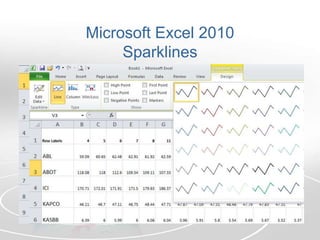
Microsoft Excel 2010Sparklines
Contents of the PresentationIntroductionSteps to Create Sparklines in Excel 2010Conclusion
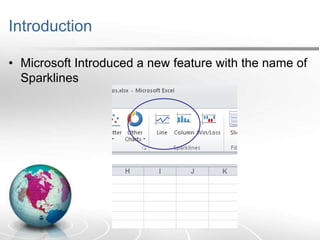
IntroductionMicrosoft Introduced a new feature with the name of Sparklines
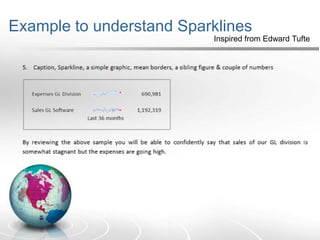
Introduction to SparklinesThis term was introduced by Edward Tufte, it is a small word sized graphics enable the reader to have information regarding properties of numbers which properties includes name, numeric value (representing the numeric properties of the name), dataline, acceptable ranges, images and colors & their accents also used as defined by the writer himself “data-intense, design-simple, word-sized graphics”.
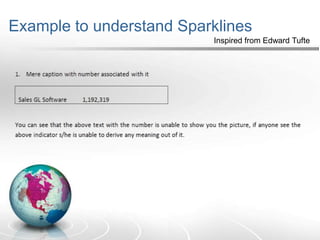
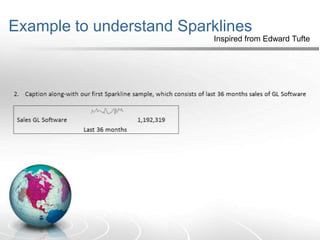
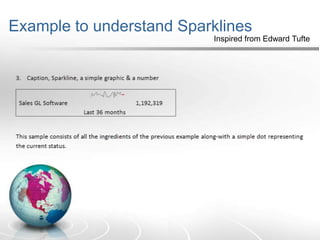
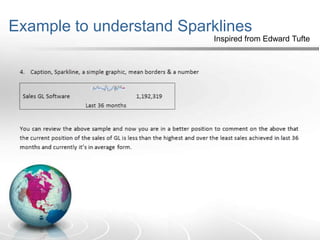
Example to understand SparklinesInspired from Edward Tufte
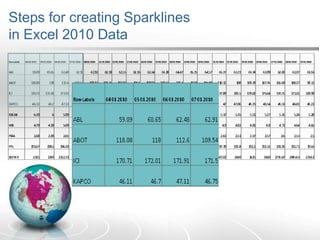
Steps for creating Sparklinesin Excel 2010 Data
Steps for creating Sparklinesin Excel 2010 DataAs you have seen in the last slideTicker for 9 companiesFor the month of January 2010
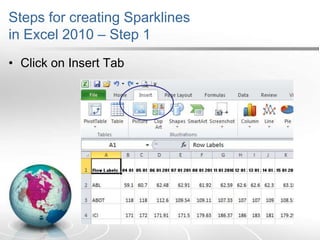
Steps for creating Sparklinesin Excel 2010 – Step 1Click on Insert Tab
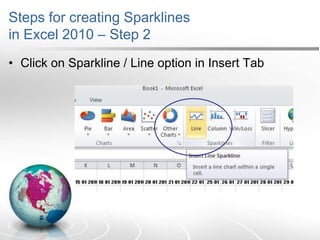
Steps for creating Sparklinesin Excel 2010 – Step 2Click on Sparkline / Line option in Insert Tab
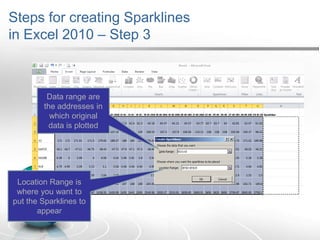
Steps for creating Sparklinesin Excel 2010 – Step 3Data range are the addresses in which original data is plottedLocation Range is where you want to put the Sparklines to appear
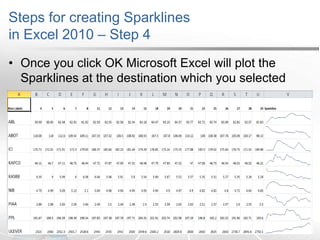
Steps for creating Sparklinesin Excel 2010 – Step 4Once you click OK Microsoft Excel will plot the Sparklines at the destination which you selected
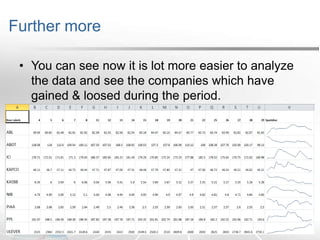
Further moreYou can see now it is lot more easier to analyze the data and see the companies which have gained & loosed during the period.
ConclusionPlease visits:www.exceladvise.comfor more

Microsoft Excel 2010 Sparklines