PowerPoint 2010


   Gerry Rowley 06 February 2012
Welcome and Introduction

• Welcome.

• The PowerPoint 2010 interface.

• You should be able to do all of the things that you

 used to do in previous versions.
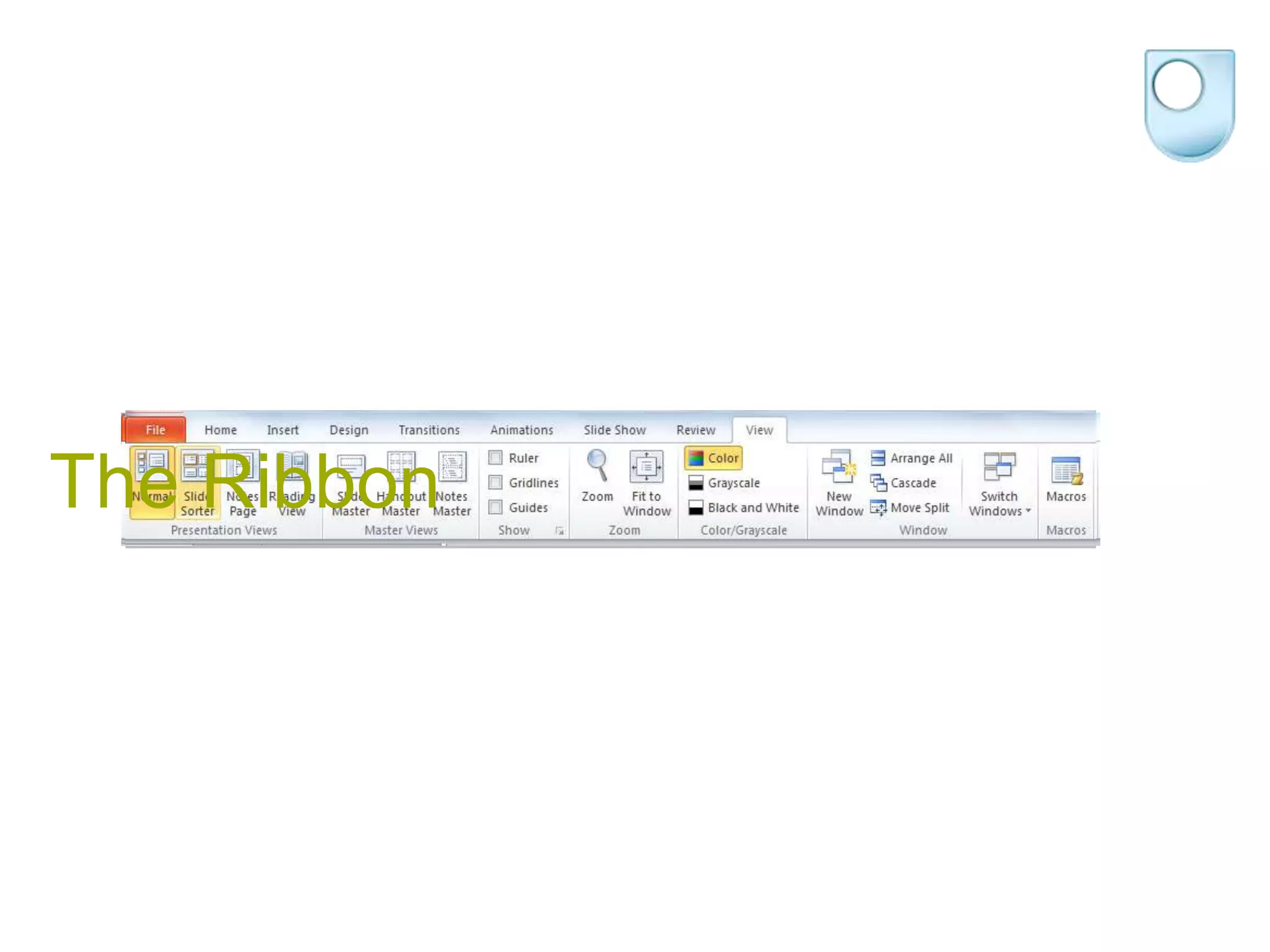
The Ribbon
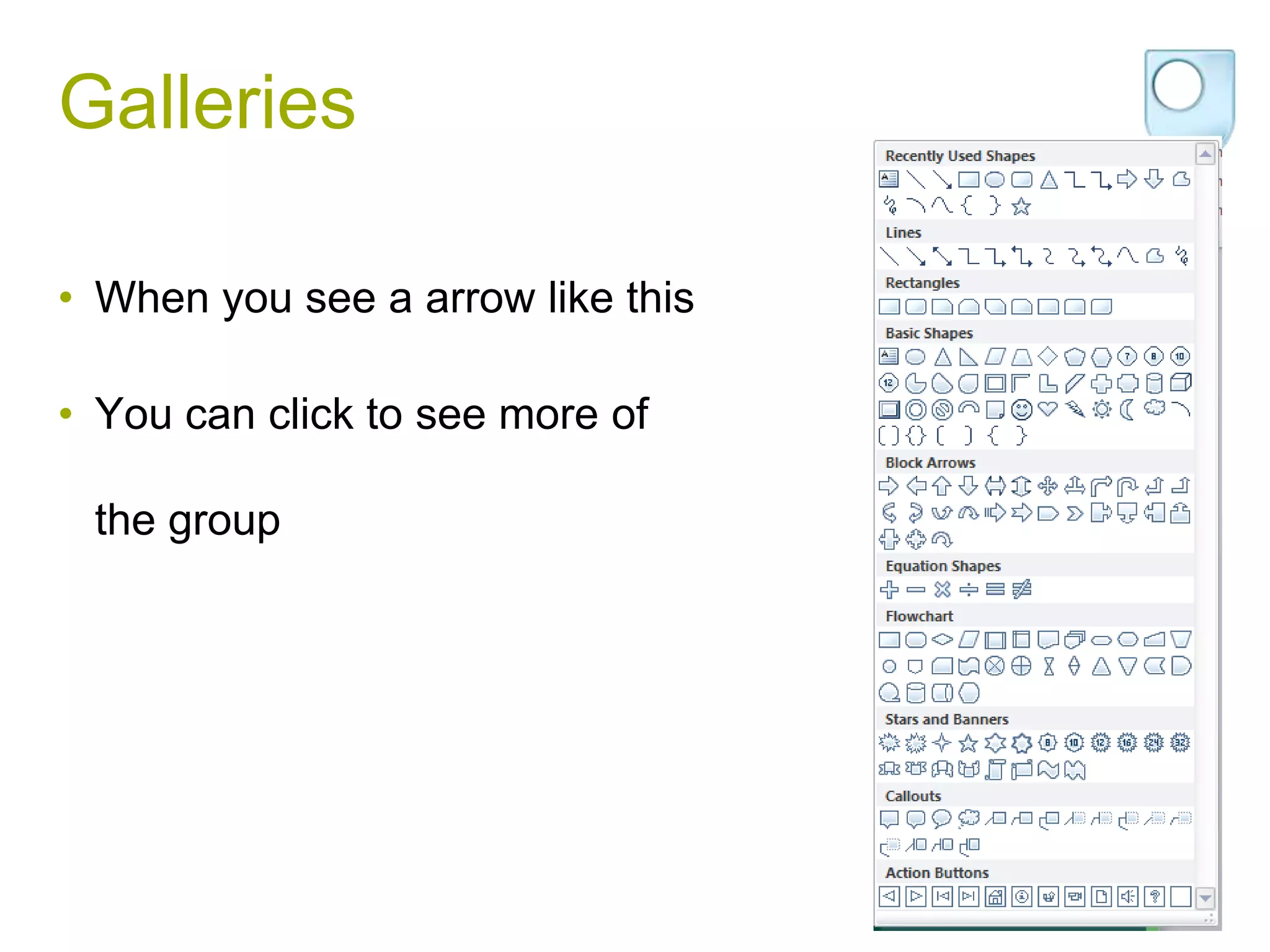
Galleries

• When you see a arrow like this

• You can click to see more of

 the group
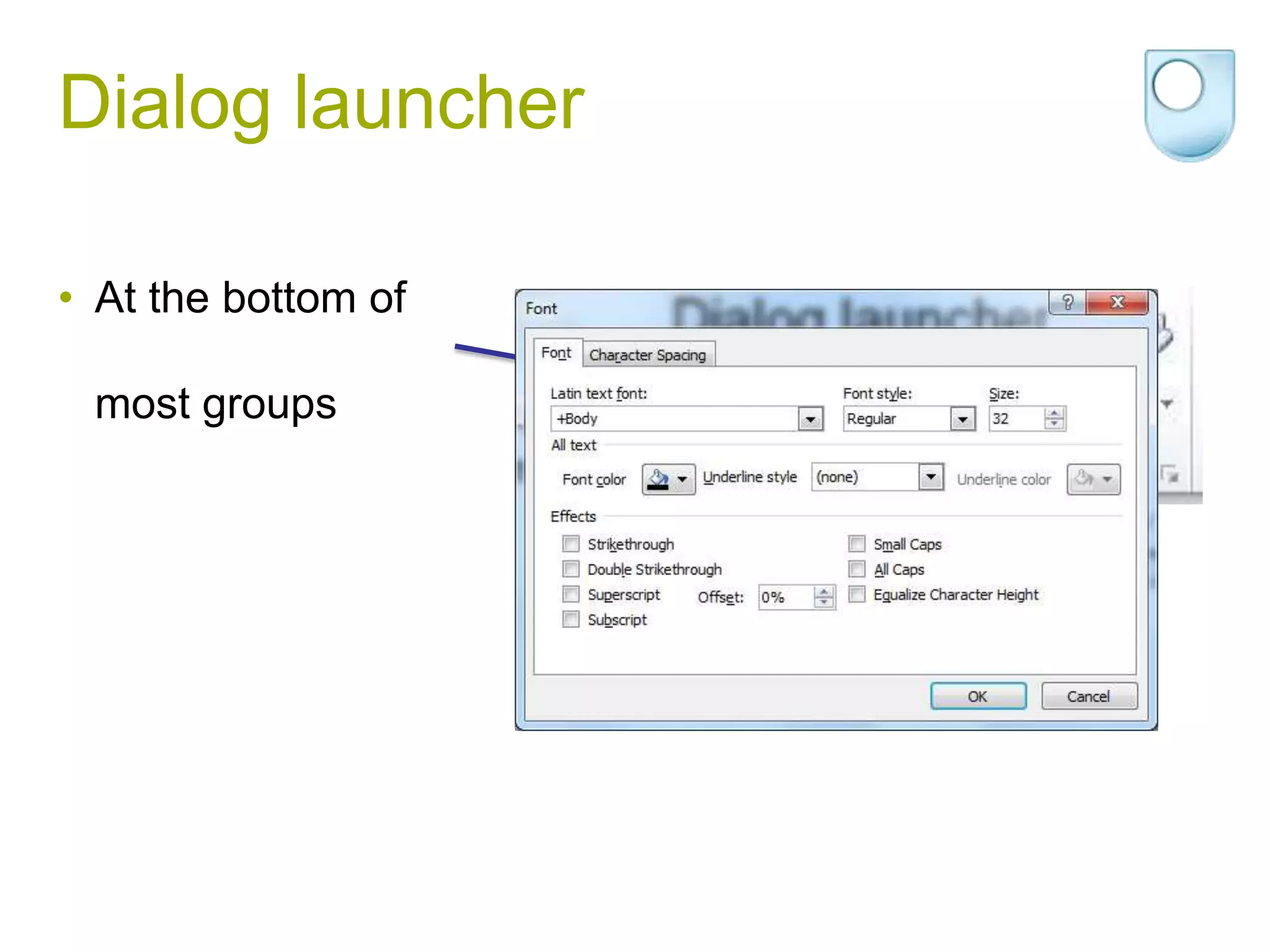
Dialog launcher

• At the bottom of

 most groups
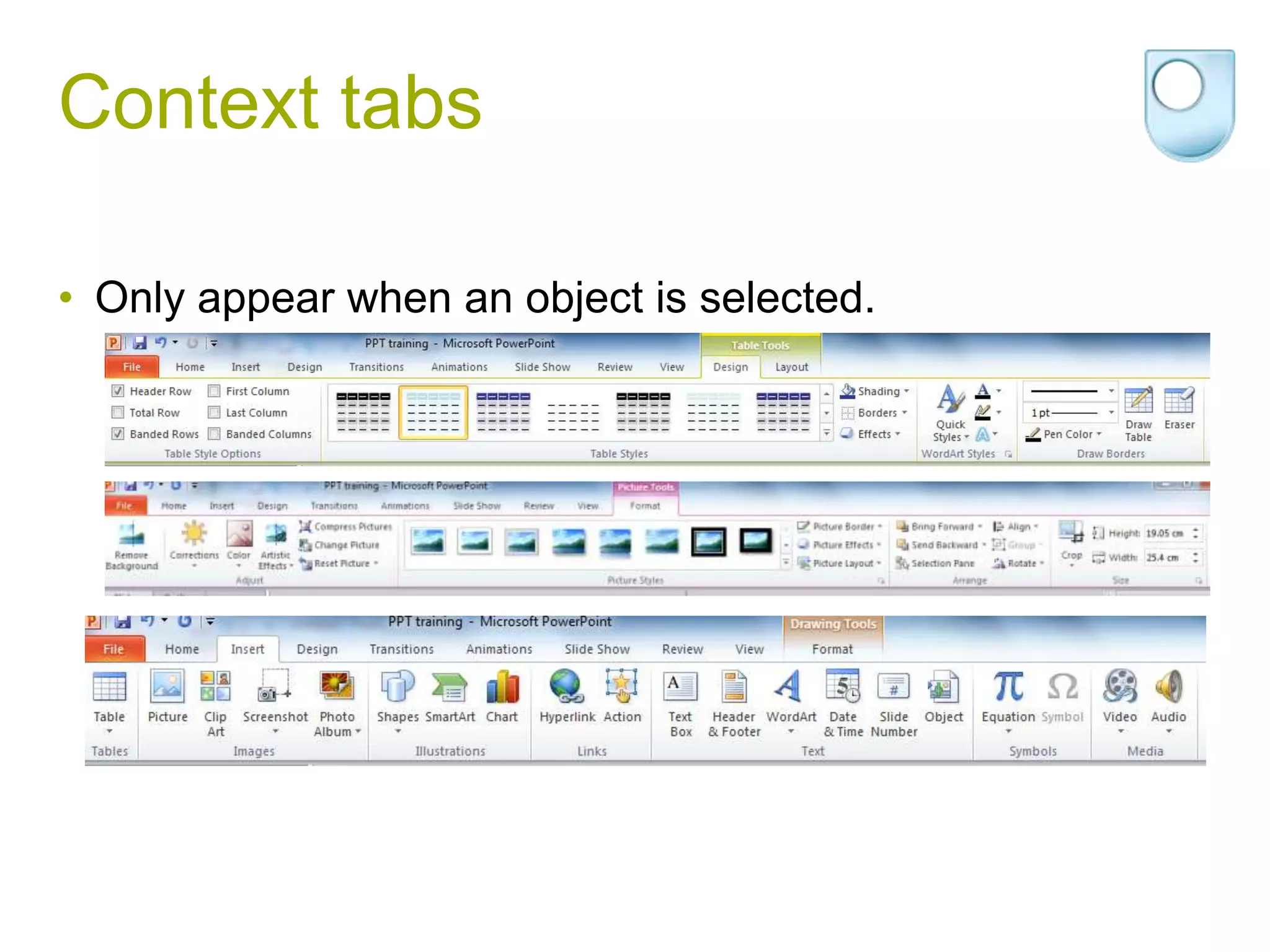
Context tabs

• Only appear when an object is selected.
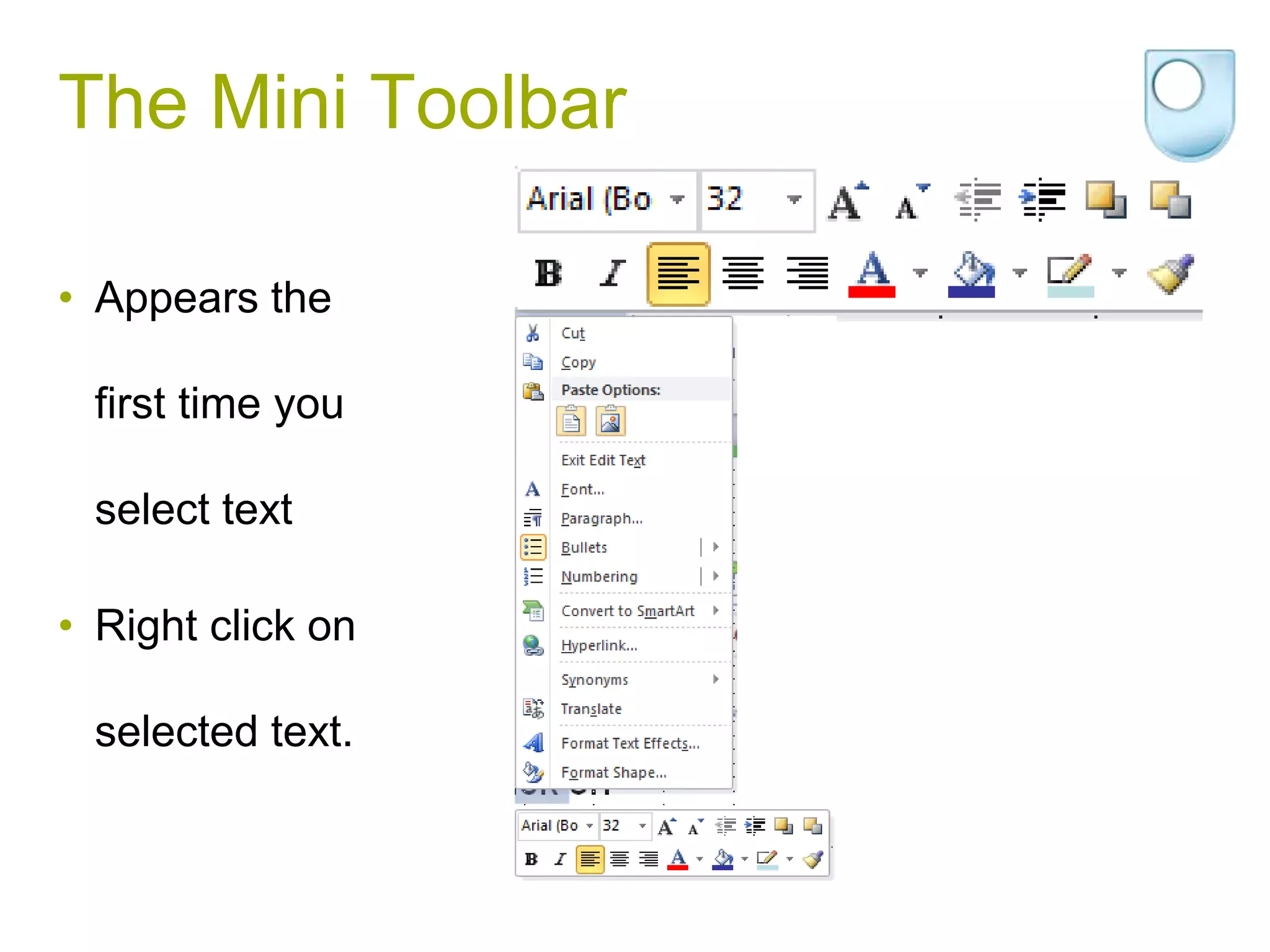
The Mini Toolbar

• Appears the

 first time you

 select text

• Right click on

 selected text.
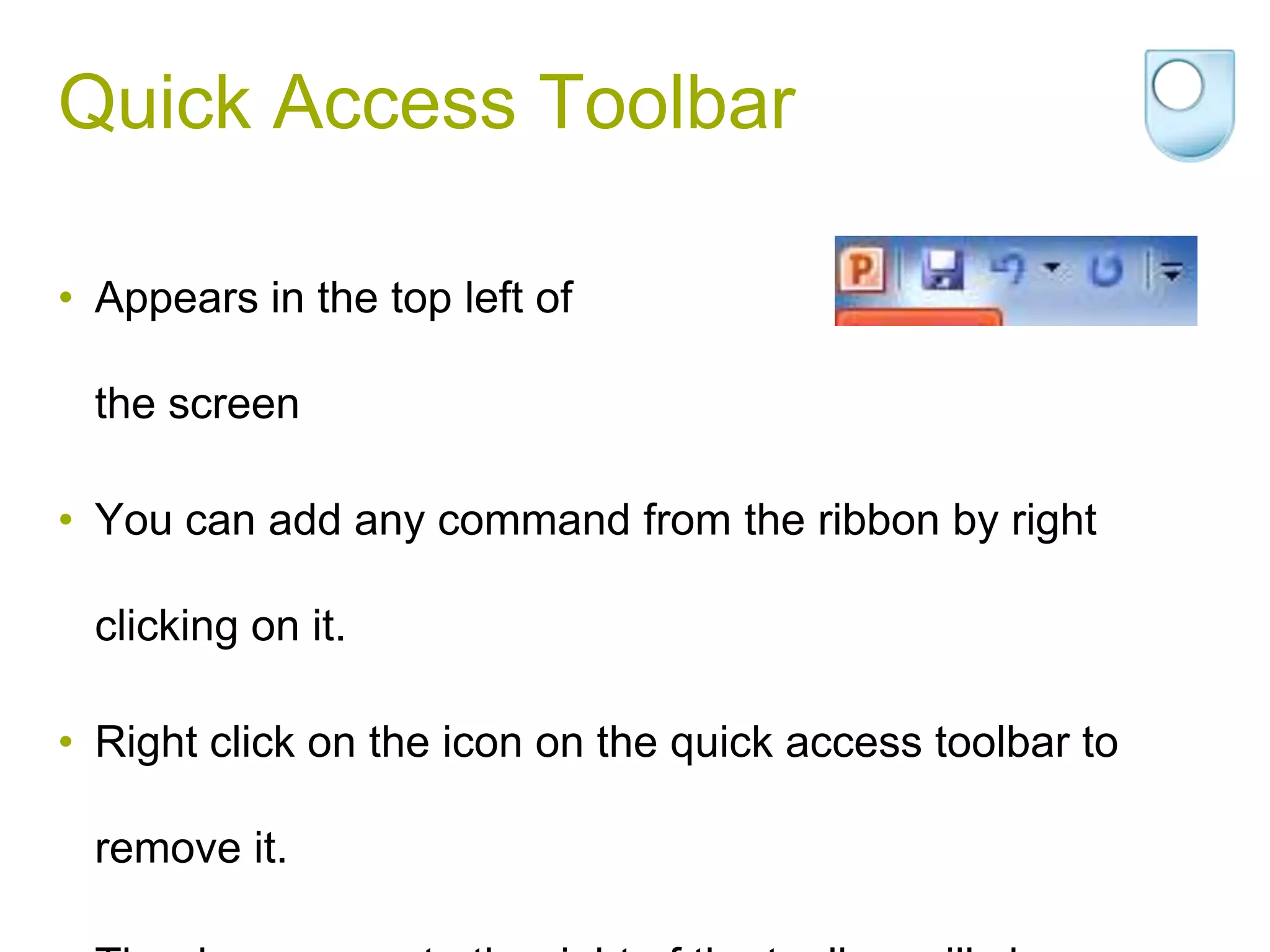
Quick Access Toolbar

• Appears in the top left of

  the screen

• You can add any command from the ribbon by right

  clicking on it.

• Right click on the icon on the quick access toolbar to

  remove it.
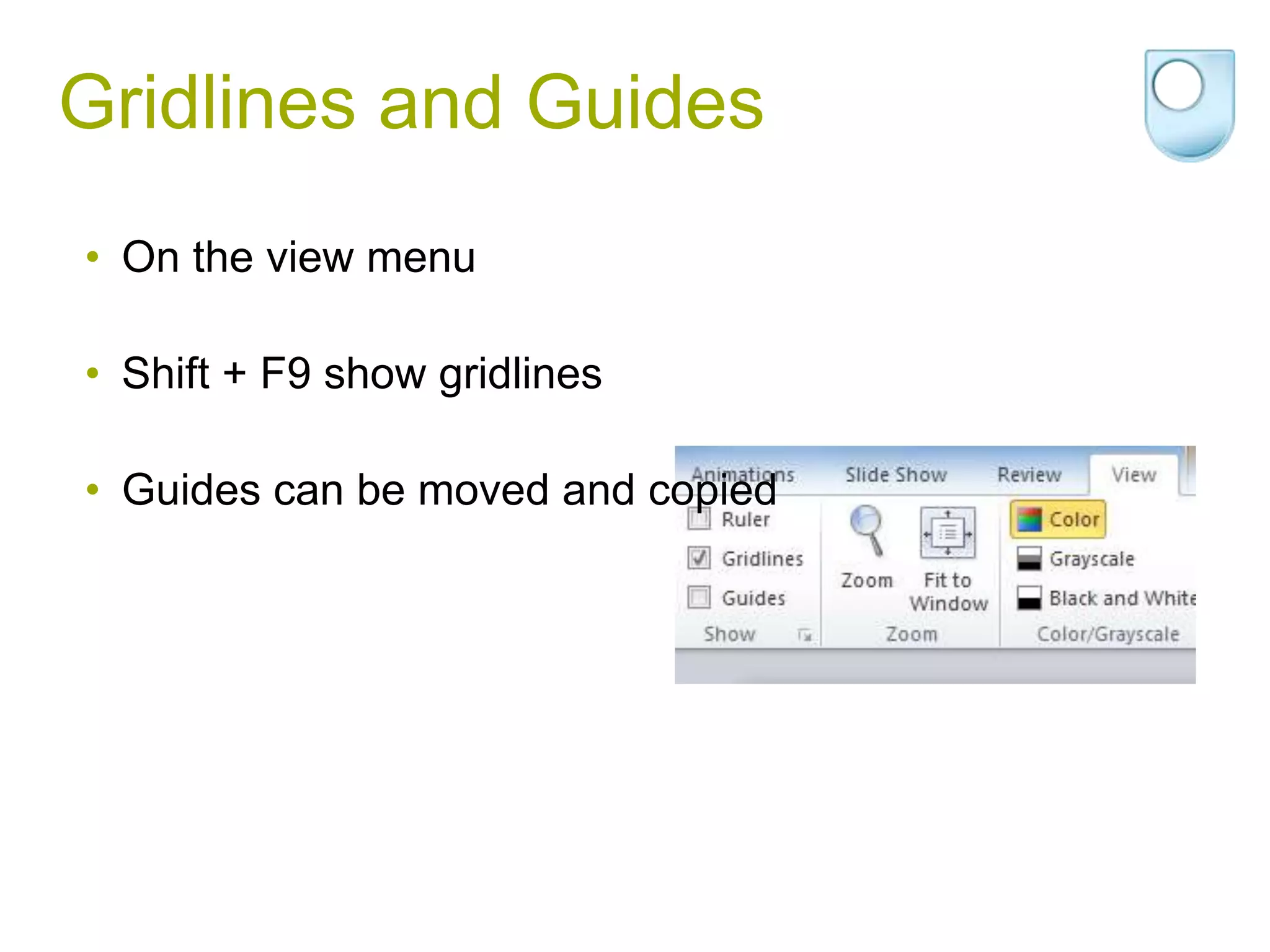
Gridlines and Guides
• On the view menu

• Shift + F9 show gridlines

• Guides can be moved and copied
Zooming

• Click on the command on the view toolbar.

• Use the slider on the bottom right of the screen.

• Use the mouse wheel while the CTRL key is pressed.

• There is a fit to window button on the view tab and the

 bottom right of the screen.
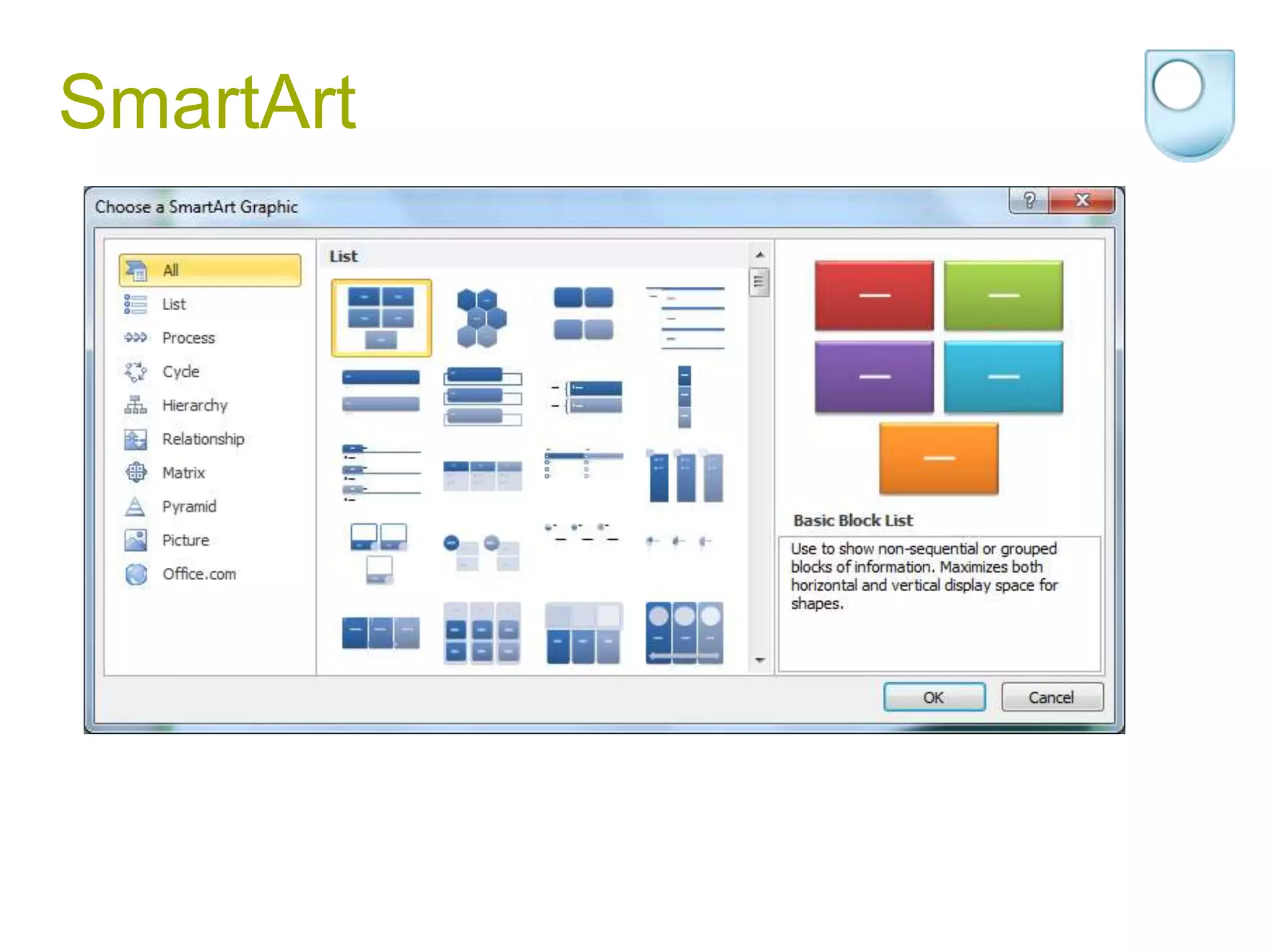
SmartArt
Laser Pointer

• Hold down the Ctrl button in Slideshow view.
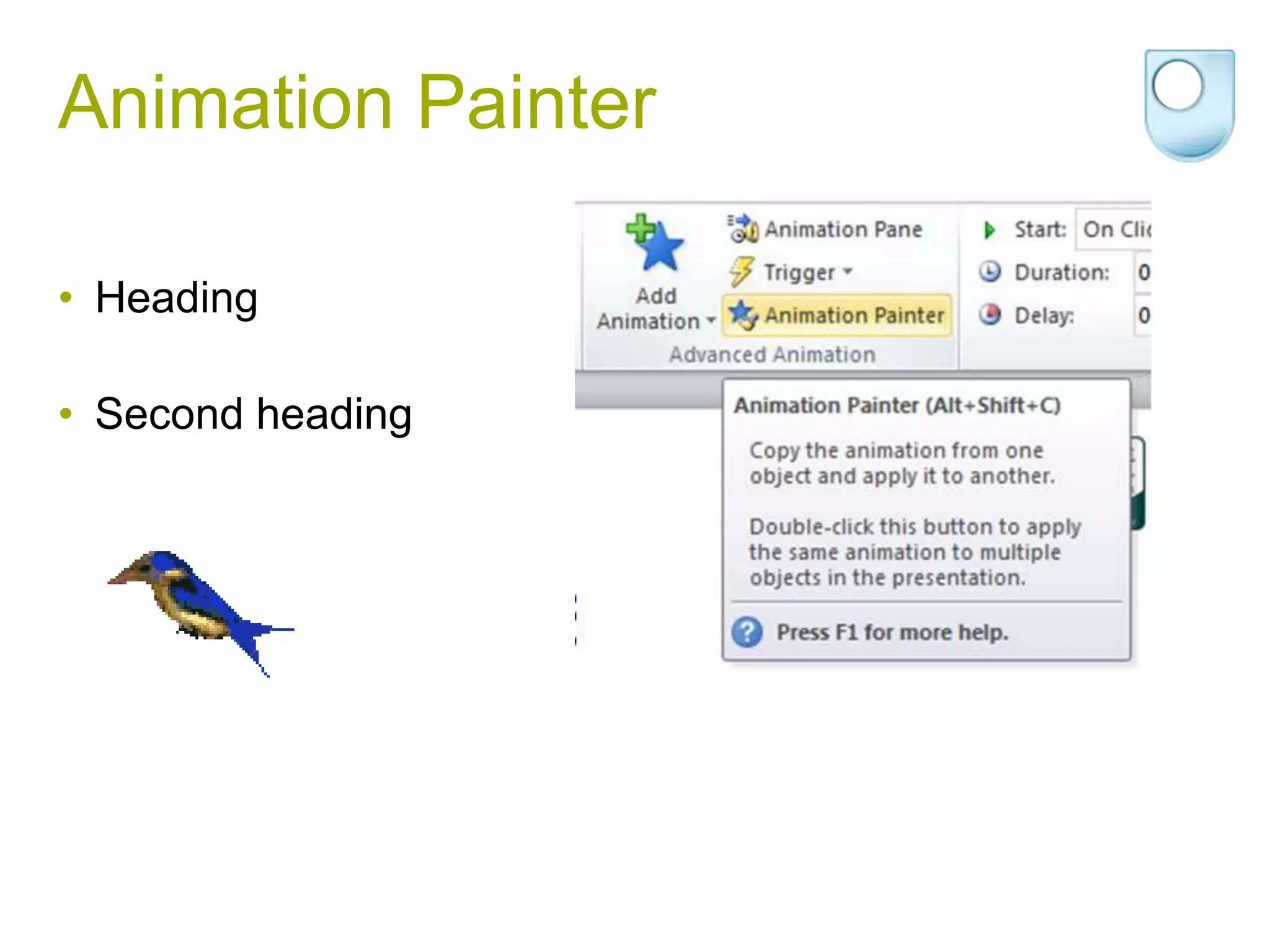
Animation Painter

• Heading

• Second heading
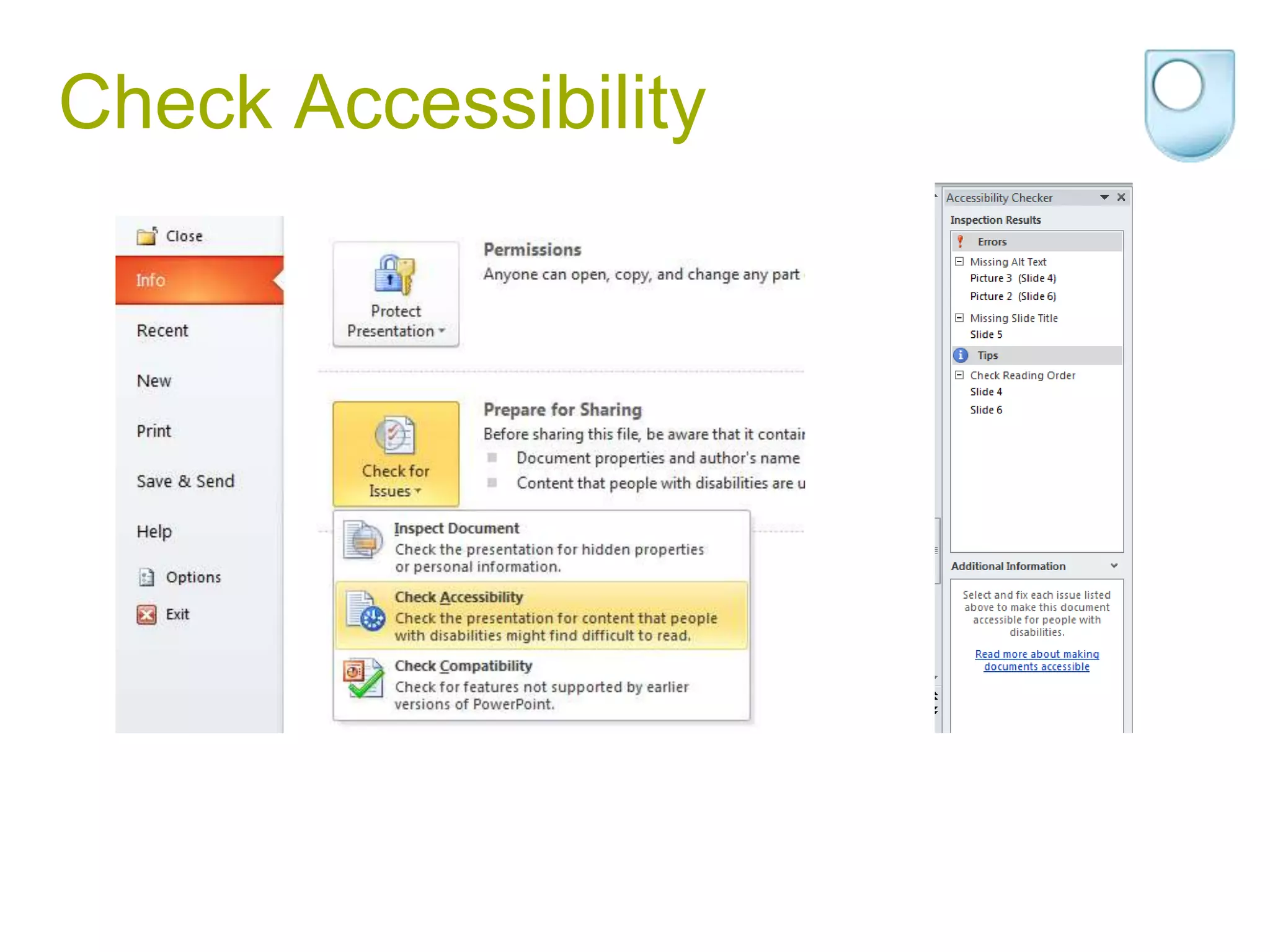
Check Accessibility
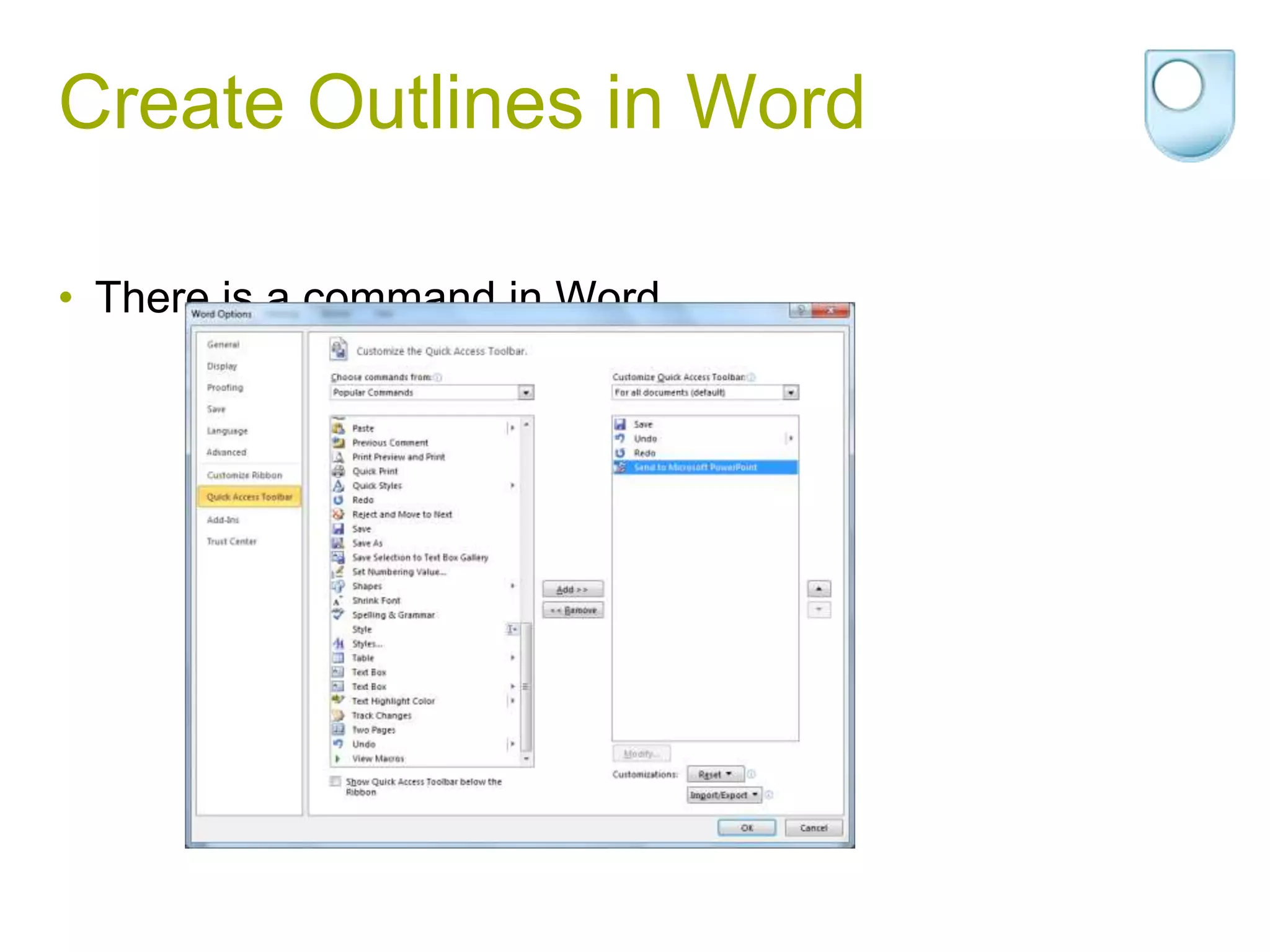
Create Outlines in Word

• There is a command in Word
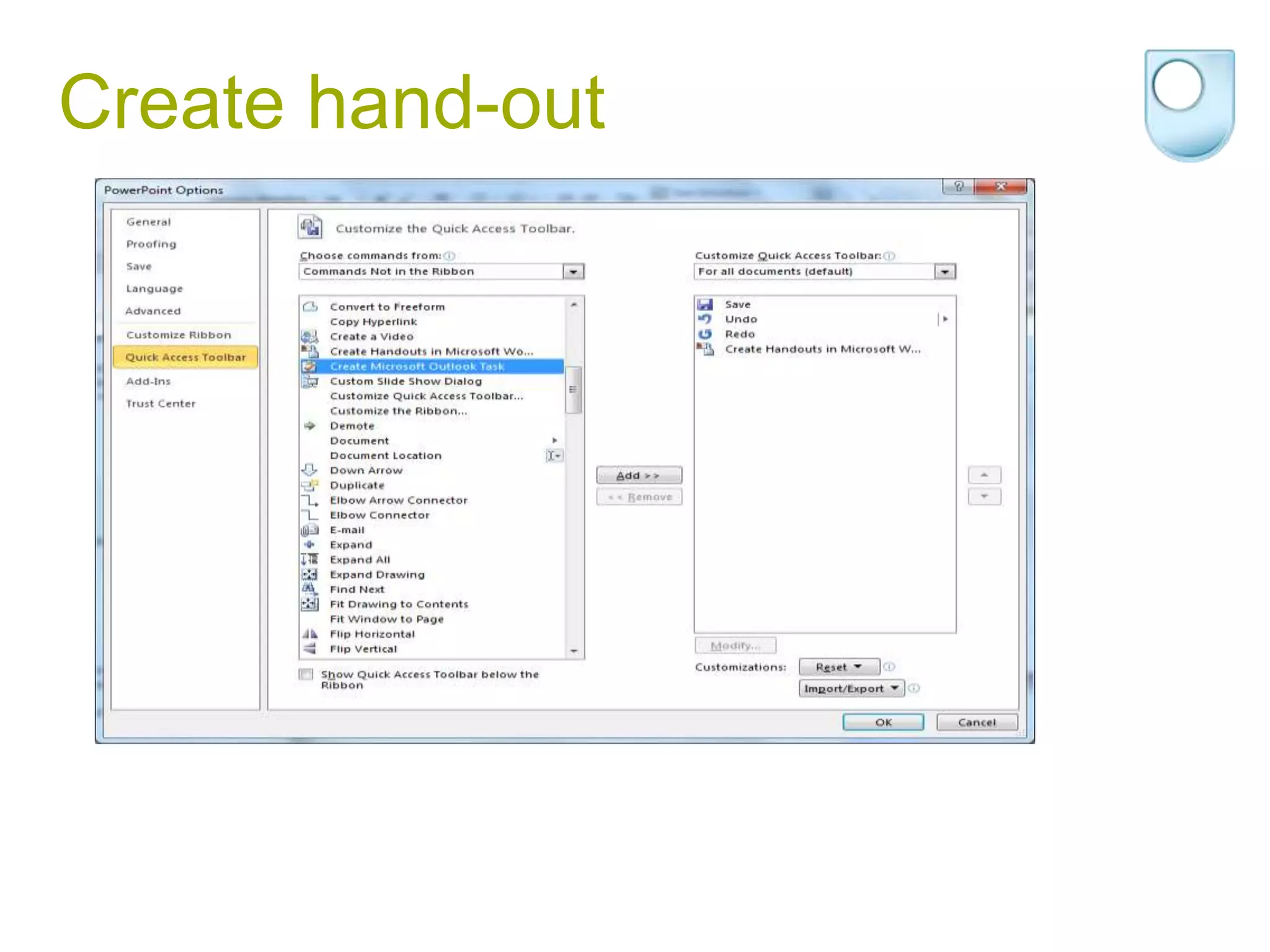
Create hand-out
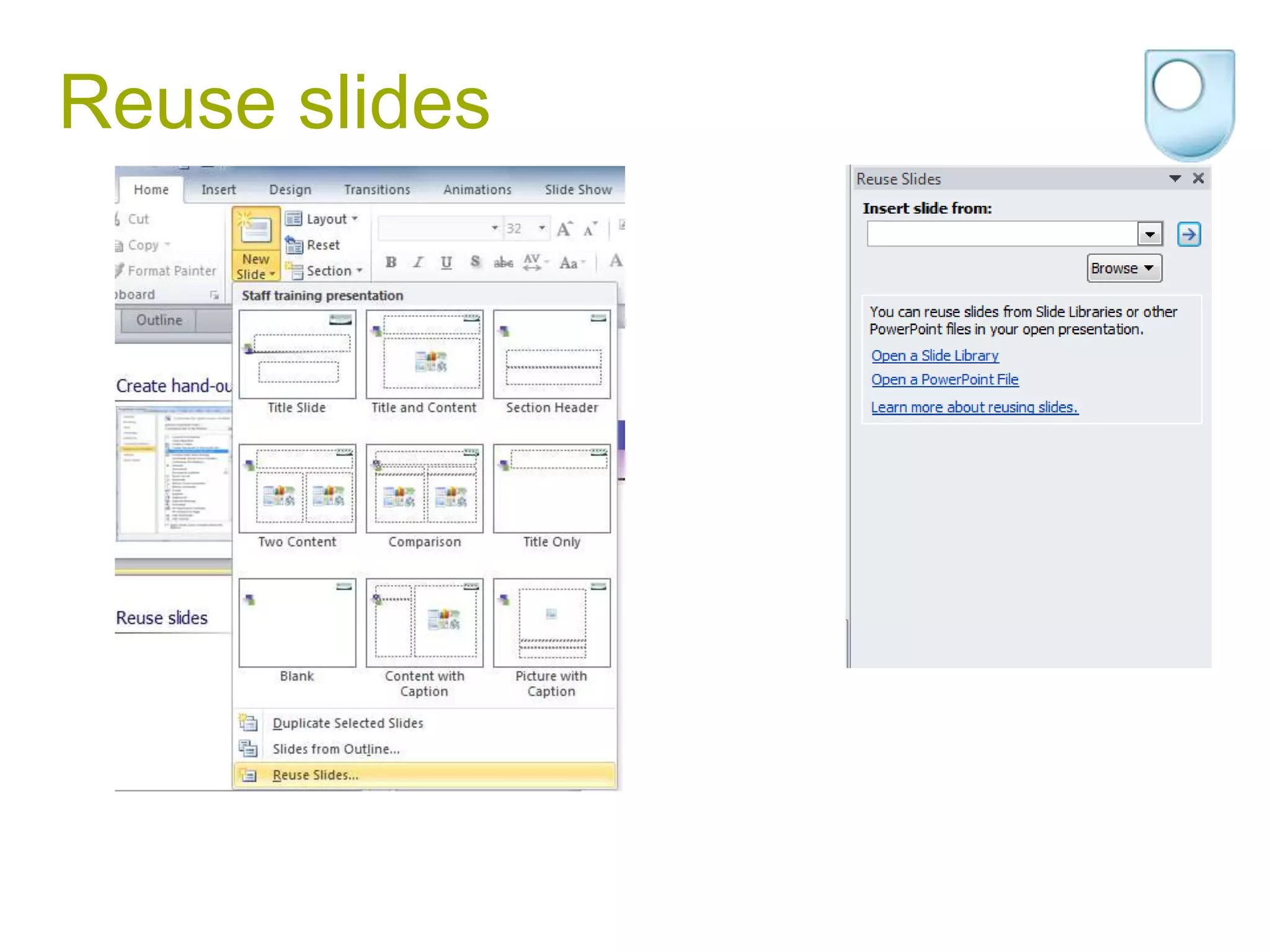
Reuse slides
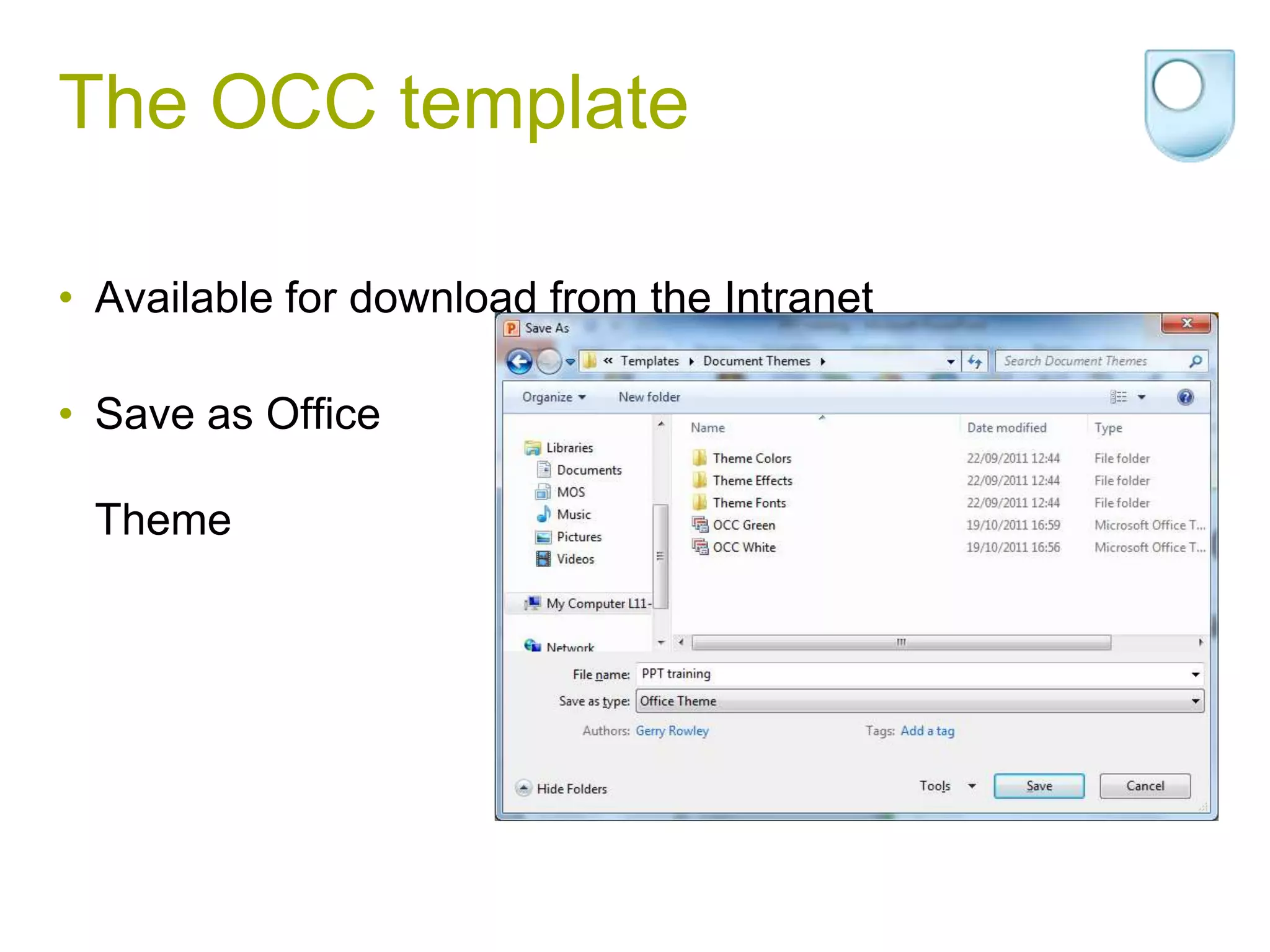
The OCC template

• Available for download from the Intranet

• Save as Office

 Theme
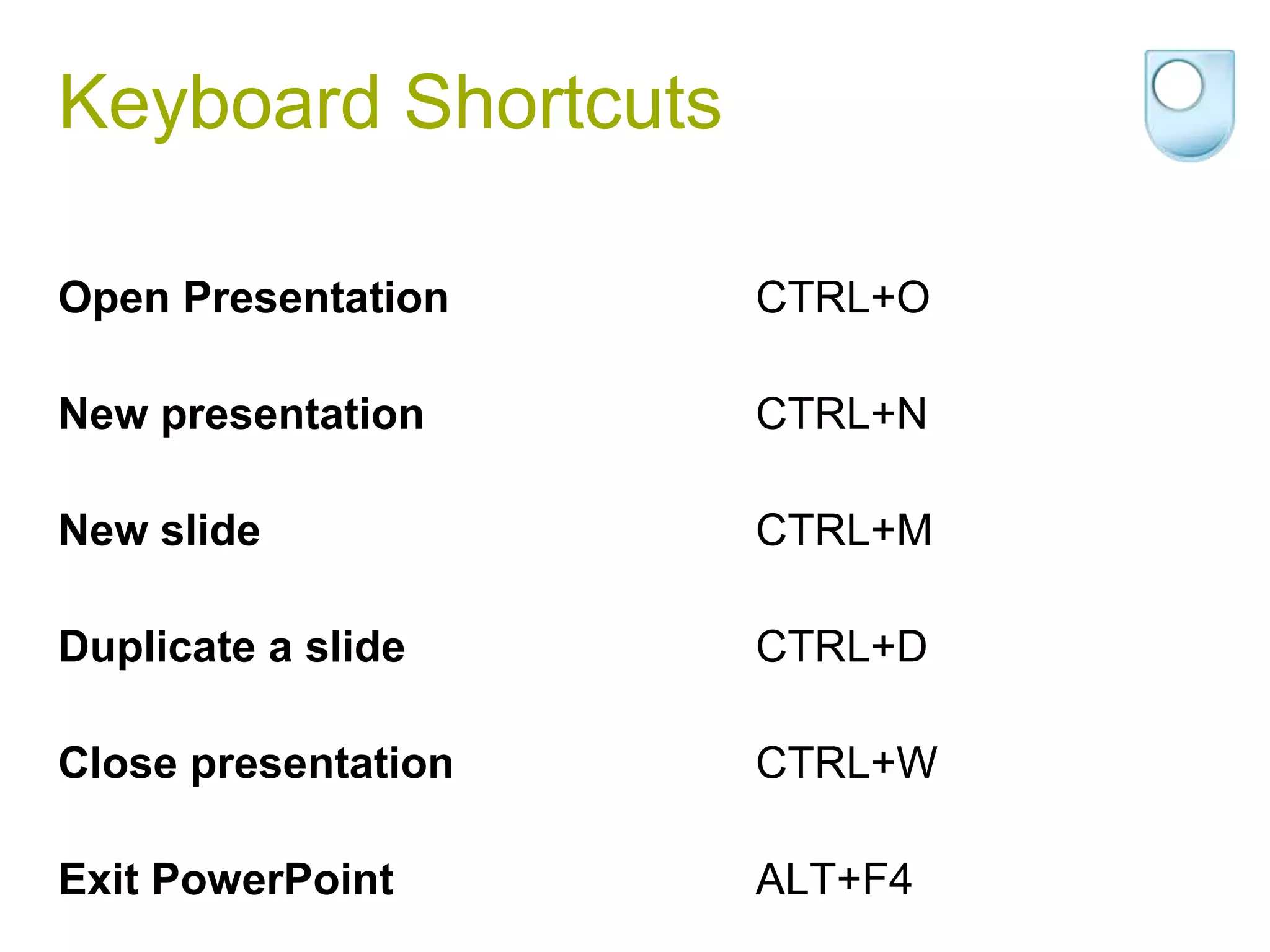
Keyboard Shortcuts

Open Presentation    CTRL+O

New presentation     CTRL+N

New slide            CTRL+M

Duplicate a slide    CTRL+D

Close presentation   CTRL+W

Exit PowerPoint      ALT+F4
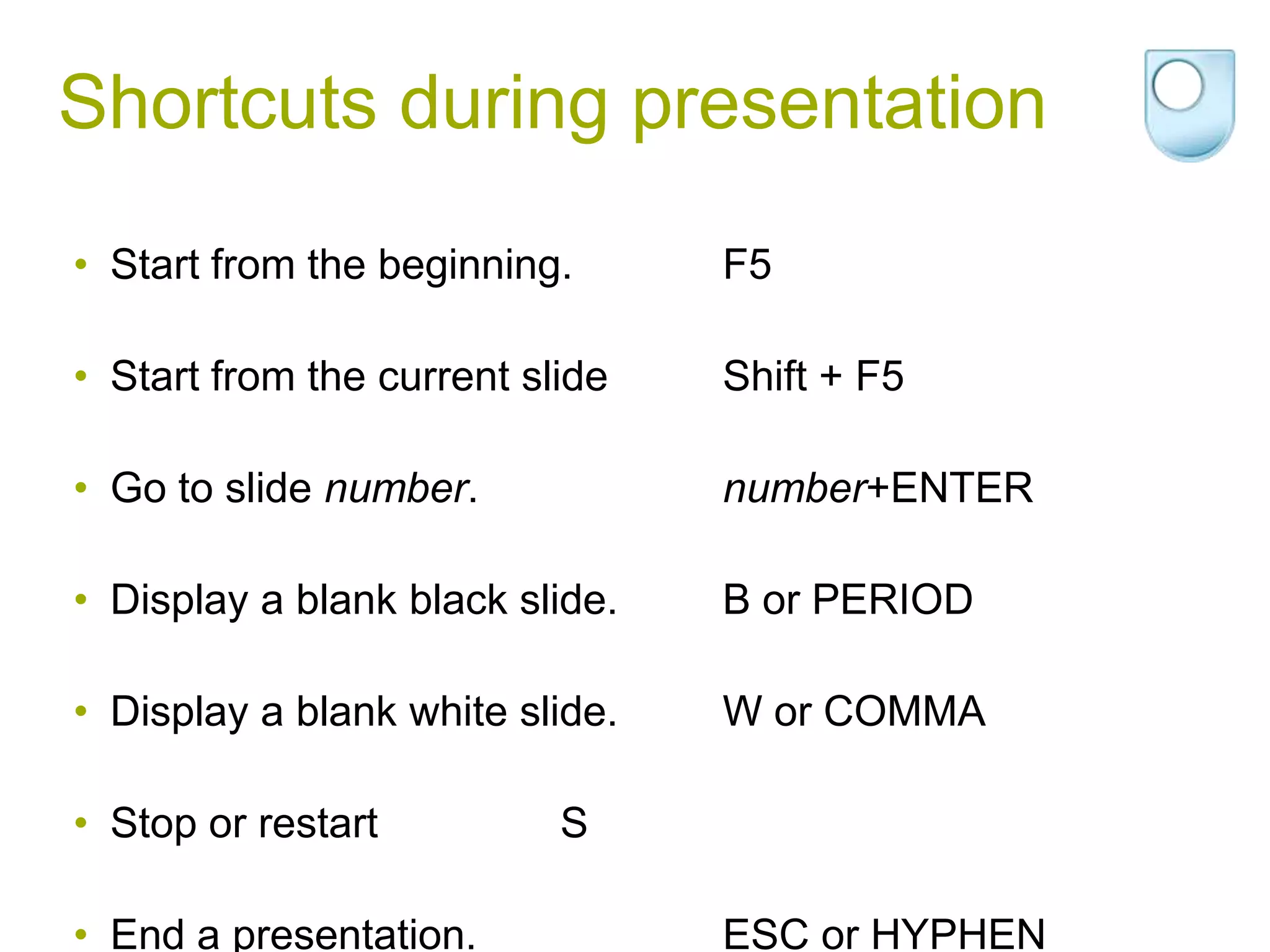
Shortcuts during presentation
• Start from the beginning.      F5

• Start from the current slide   Shift + F5

• Go to slide number.            number+ENTER

• Display a blank black slide.   B or PERIOD

• Display a blank white slide.   W or COMMA

• Stop or restart          S

• End a presentation.            ESC or HYPHEN
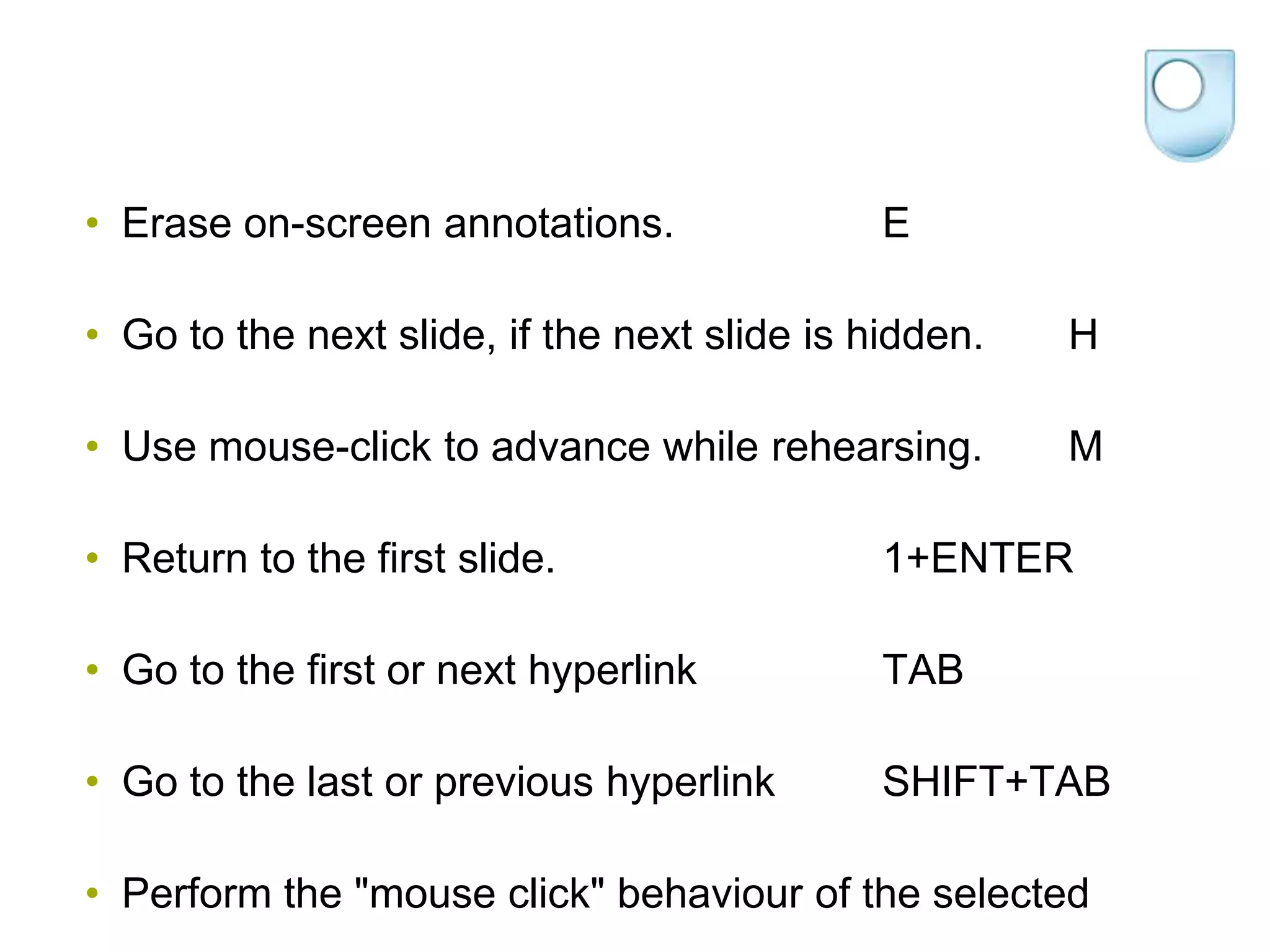
• Erase on-screen annotations.                E

• Go to the next slide, if the next slide is hidden.   H

• Use mouse-click to advance while rehearsing.         M

• Return to the first slide.                  1+ENTER

• Go to the first or next hyperlink           TAB

• Go to the last or previous hyperlink        SHIFT+TAB

• Perform the "mouse click" behaviour of the selected
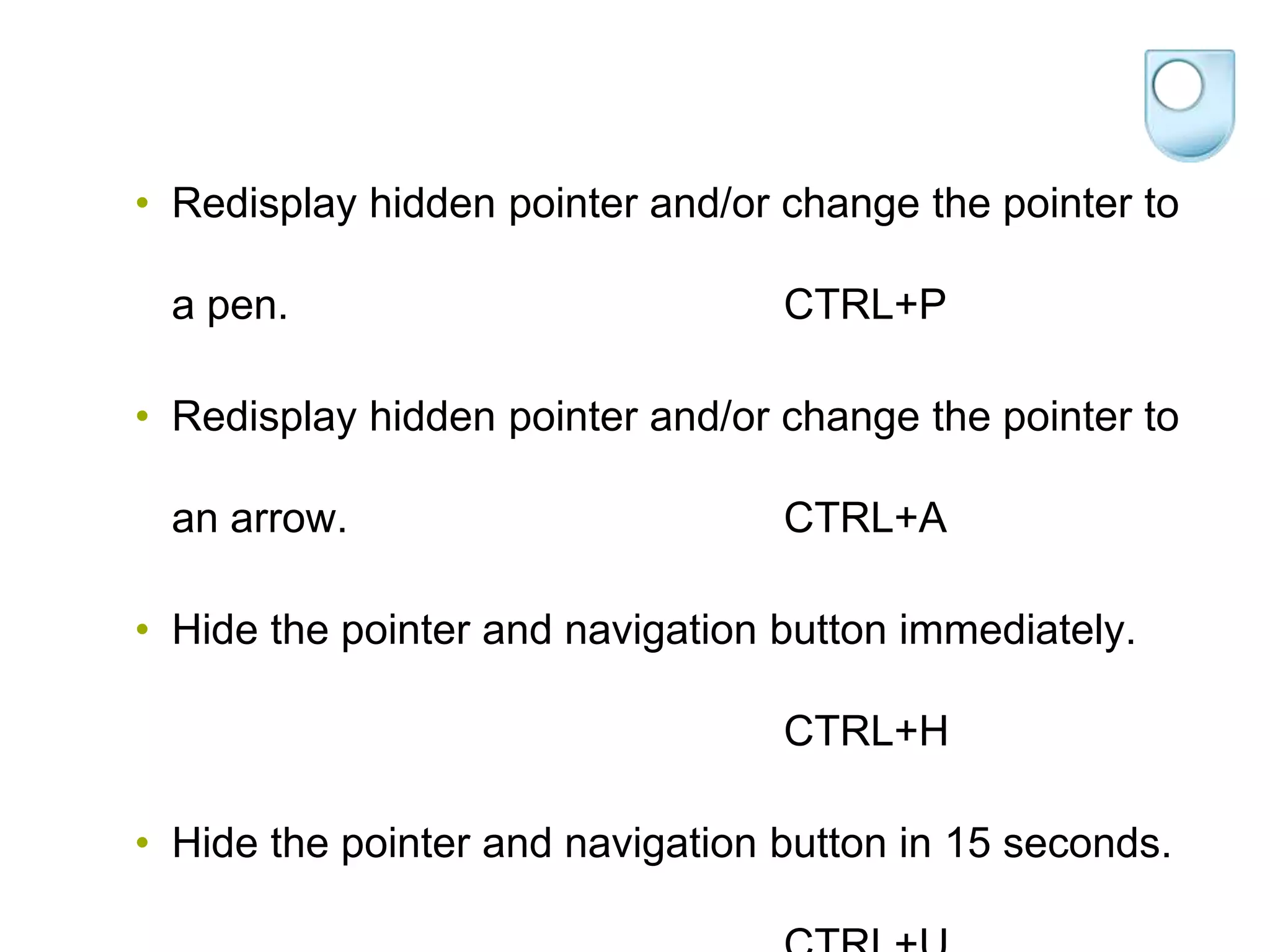
• Redisplay hidden pointer and/or change the pointer to

 a pen.                           CTRL+P

• Redisplay hidden pointer and/or change the pointer to

 an arrow.                        CTRL+A

• Hide the pointer and navigation button immediately.

                                  CTRL+H

• Hide the pointer and navigation button in 15 seconds.
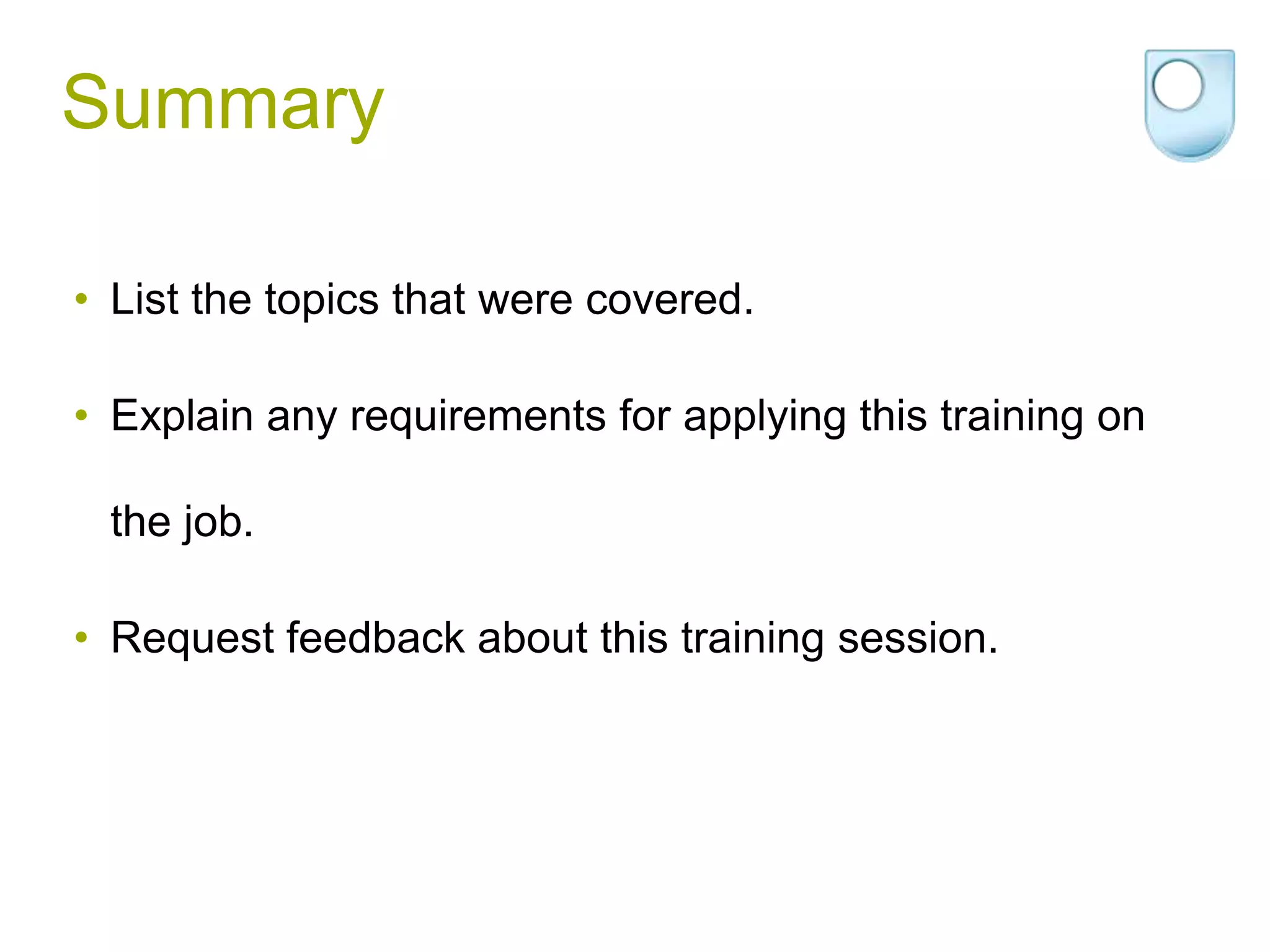
Summary

• List the topics that were covered.

• Explain any requirements for applying this training on

 the job.

• Request feedback about this training session.

PowerPoint 2010

  • 1.
    PowerPoint 2010 Gerry Rowley 06 February 2012
  • 2.
    Welcome and Introduction •Welcome. • The PowerPoint 2010 interface. • You should be able to do all of the things that you used to do in previous versions.
  • 3.
  • 4.
    Galleries • When yousee a arrow like this • You can click to see more of the group
  • 5.
    Dialog launcher • Atthe bottom of most groups
  • 6.
    Context tabs • Onlyappear when an object is selected.
  • 7.
    The Mini Toolbar •Appears the first time you select text • Right click on selected text.
  • 8.
    Quick Access Toolbar •Appears in the top left of the screen • You can add any command from the ribbon by right clicking on it. • Right click on the icon on the quick access toolbar to remove it.
  • 9.
    Gridlines and Guides •On the view menu • Shift + F9 show gridlines • Guides can be moved and copied
  • 10.
    Zooming • Click onthe command on the view toolbar. • Use the slider on the bottom right of the screen. • Use the mouse wheel while the CTRL key is pressed. • There is a fit to window button on the view tab and the bottom right of the screen.
  • 11.
  • 12.
    Laser Pointer • Holddown the Ctrl button in Slideshow view.
  • 13.
  • 14.
  • 15.
    Create Outlines inWord • There is a command in Word
  • 16.
  • 17.
  • 18.
    The OCC template •Available for download from the Intranet • Save as Office Theme
  • 19.
    Keyboard Shortcuts Open Presentation CTRL+O New presentation CTRL+N New slide CTRL+M Duplicate a slide CTRL+D Close presentation CTRL+W Exit PowerPoint ALT+F4
  • 20.
    Shortcuts during presentation •Start from the beginning. F5 • Start from the current slide Shift + F5 • Go to slide number. number+ENTER • Display a blank black slide. B or PERIOD • Display a blank white slide. W or COMMA • Stop or restart S • End a presentation. ESC or HYPHEN
  • 21.
    • Erase on-screenannotations. E • Go to the next slide, if the next slide is hidden. H • Use mouse-click to advance while rehearsing. M • Return to the first slide. 1+ENTER • Go to the first or next hyperlink TAB • Go to the last or previous hyperlink SHIFT+TAB • Perform the "mouse click" behaviour of the selected
  • 22.
    • Redisplay hiddenpointer and/or change the pointer to a pen. CTRL+P • Redisplay hidden pointer and/or change the pointer to an arrow. CTRL+A • Hide the pointer and navigation button immediately. CTRL+H • Hide the pointer and navigation button in 15 seconds.
  • 23.
    Summary • List thetopics that were covered. • Explain any requirements for applying this training on the job. • Request feedback about this training session.