Introduction to Excel
2007
St. Mary’s County Library
Tools
T l available f th online class
       il bl for the li    l
• Slides handout
• Excel 2007 Quick
  Reference card
    e e e ce ca d
• Checkbook exercise
• Link to St Mary s County
          St. Mary’s
  Library computer tutorials
  page
Skills needed
• Basic knowledge of
  toolbars
• Basic knowledge of file
   as c o edge o e
  menu
• Can use the mouse
• Opening and closing files
What does E cel do?
          Excel
• Excel performs calculations and
  analyzes and presents data. It
       l       d        t d t
  has tools for organizing, sorting,
  and retrieving data and can
  display the data in text or
  graphical formats like charts
  and graphs.
• Examples: Add and subtract
  numbers; statistics;
  percentages; keep track of
  dates and times; sort lists;
  create charts and graphs. Use
  for personal finance,
  timesheets, and more!
Skills you will learn
        o   ill
• What’s new in Excel 2007
• Vocabulary associated with Excel
• Entering data into spreadsheet
• Editing data
• Resizing columns
• Formatting cells
• Merging cells
  M     i     ll
• Autofill
• Basic formulas (adding,
  subtracting, multiplying)
• Copying and pasting
• How to get help in Excel
What’s ne in E cel 2007
       new Excel
•   Ribbon bar
•   Command tabs
•   Contextual tab
•   Dialog box launcher
•   Microsoft Office button
•   Quick access toolbar
•   New file formats (.xlsx)
                     ( xlsx)
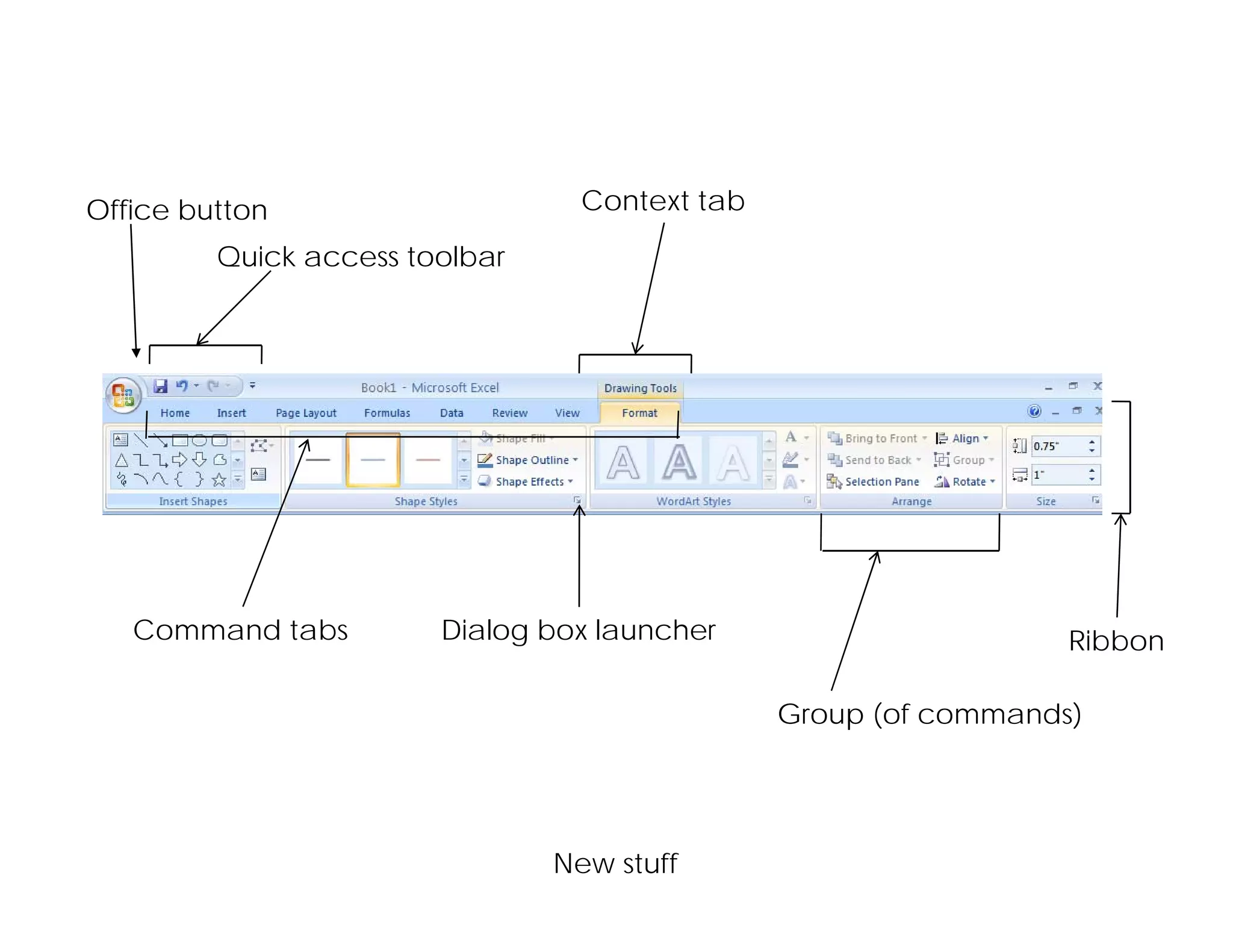
Office button                     Context tab

         Quick access toolbar


   Command tabs         Dialog box launcher                       Ribbon

                                                Group (of commands)


                                New stuff
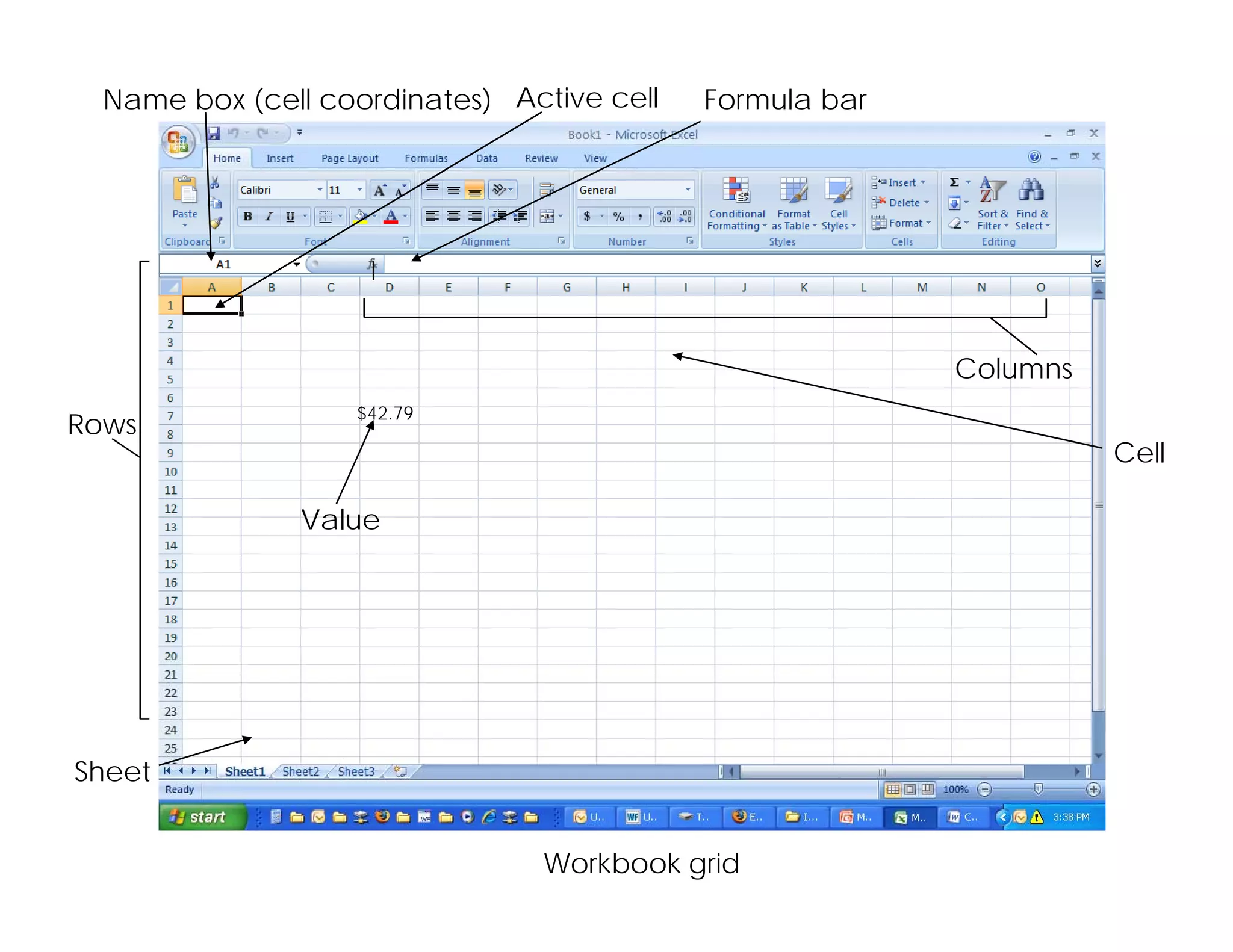
Name box (cell coordinates) Active cell   Formula bar


                                                          Columns
                   $42.79
                   $42 79
Rows
R
                                                                    Cell

               Value


Sheet


                                Workbook grid
Entering and editing data
•   Click in cell
•   Type numbers or text
•   Formula bar
•   Enter key
•   Arrow keys
•   Tab key
•   Select more than one cell
    with Ctrl key
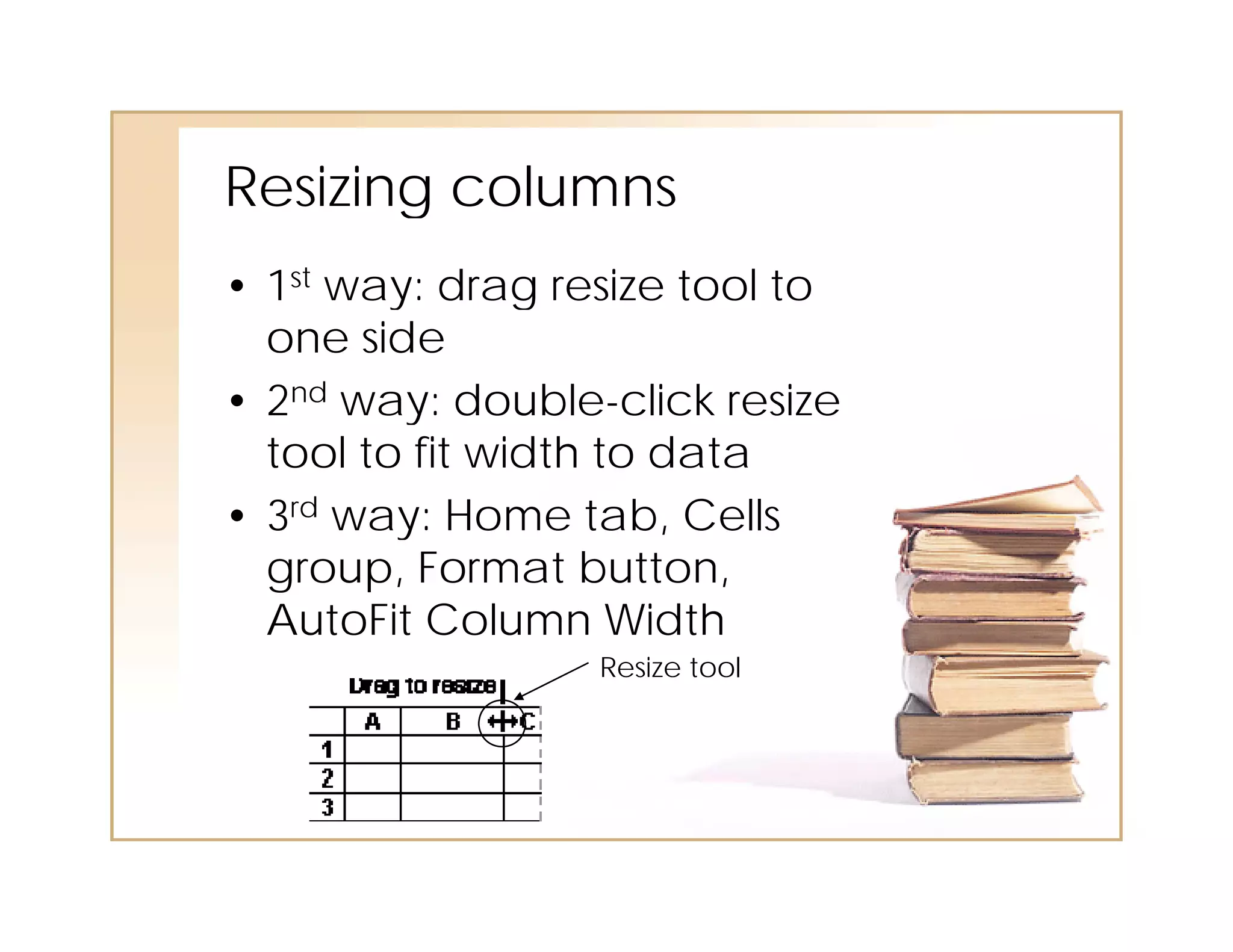
Resizing col mns
Resi ing columns
• 1st way: drag resize tool to
  one side
• 2nd way: double-click resize
        ay: doub e c c es e
  tool to fit width to data
• 3rd way: Home tab, Cells
         y
  group, Format button,
  AutoFit Column Width
                  Resize tool
Formatting cells
• Select cells by dragging,
  select rows, columns
• Use tools on Home tab
        oo s o   o e ab
• Font and size
• Bold and italic
• Justification
• Color
Number
N mber format and merging
• Select cells
• Right-click
• Format cells
• Number tab: choose
  category for special
  number or text format
• Alignment tab: text wrap,
     g   e     ab: e    ap,
  merge cells
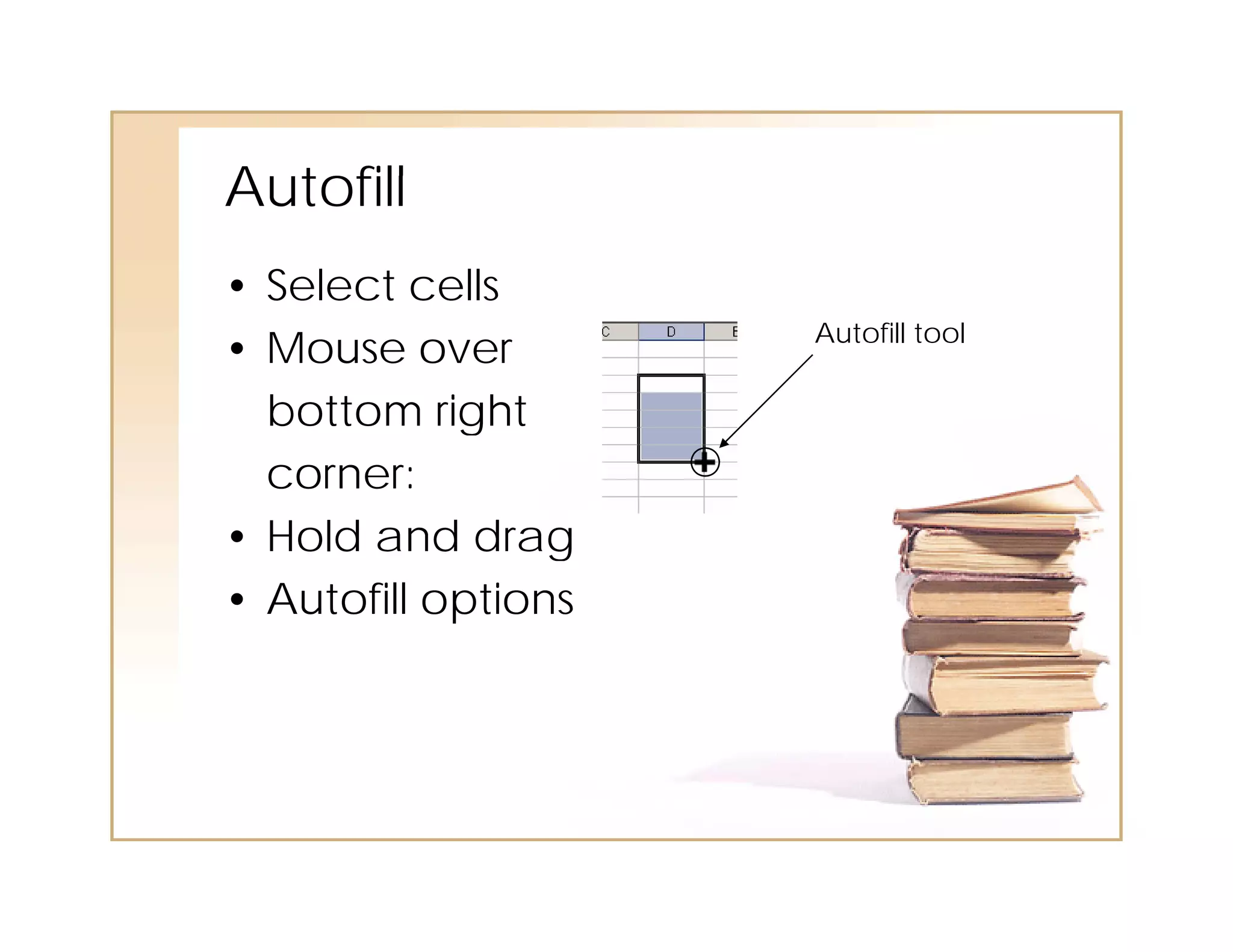
Autofill
A tofill
• Select cells
                     Autofill tool
• Mouse over
  bottom right
  corner:
• Hold and drag
• Autofill options
Basic formulas
      form las
•   Type = in cell
•   AutoSum
•   Other auto formulas
•   Subtract
•   Multiply
•   Divide
•   Formula bar formulas (fx)
Copying
Cop ing and pasting
• Select cells, rows, or
  columns with mouse
• Several ways: copy and
  Se e a ays:            a d
  paste in edit menu, copy
  and paste on toolbar, Ctrl-
  C and Ctrl-V
• Copy, then click in top left
  cell of where want to paste
     ll f h           tt     t
• Works for data and
  formulas
  f      l
How
Ho to get help
• In MANY programs (and all
  Microsoft programs), the F1
  key is the Help key
• Browse Help
• Search Help
• Library books/DVDs/CD-
  ROMs
• www.stmalib.org/learn.html
Congratulations!
Congrat lations!
This concludes the class
Introduction to Excel.

Please share any questions or
comments you may have!
           y      y

Introductionto excel2007

  • 1.
    Introduction to Excel 2007 St.Mary’s County Library
  • 2.
    Tools T l availablef th online class il bl for the li l • Slides handout • Excel 2007 Quick Reference card e e e ce ca d • Checkbook exercise • Link to St Mary s County St. Mary’s Library computer tutorials page
  • 3.
    Skills needed • Basicknowledge of toolbars • Basic knowledge of file as c o edge o e menu • Can use the mouse • Opening and closing files
  • 4.
    What does Ecel do? Excel • Excel performs calculations and analyzes and presents data. It l d t d t has tools for organizing, sorting, and retrieving data and can display the data in text or graphical formats like charts and graphs. • Examples: Add and subtract numbers; statistics; percentages; keep track of dates and times; sort lists; create charts and graphs. Use for personal finance, timesheets, and more!
  • 5.
    Skills you willlearn o ill • What’s new in Excel 2007 • Vocabulary associated with Excel • Entering data into spreadsheet • Editing data • Resizing columns • Formatting cells • Merging cells M i ll • Autofill • Basic formulas (adding, subtracting, multiplying) • Copying and pasting • How to get help in Excel
  • 6.
    What’s ne inE cel 2007 new Excel • Ribbon bar • Command tabs • Contextual tab • Dialog box launcher • Microsoft Office button • Quick access toolbar • New file formats (.xlsx) ( xlsx)
  • 7.
    Office button Context tab Quick access toolbar Command tabs Dialog box launcher Ribbon Group (of commands) New stuff
  • 8.
    Name box (cellcoordinates) Active cell Formula bar Columns $42.79 $42 79 Rows R Cell Value Sheet Workbook grid
  • 9.
    Entering and editingdata • Click in cell • Type numbers or text • Formula bar • Enter key • Arrow keys • Tab key • Select more than one cell with Ctrl key
  • 10.
    Resizing col mns Resiing columns • 1st way: drag resize tool to one side • 2nd way: double-click resize ay: doub e c c es e tool to fit width to data • 3rd way: Home tab, Cells y group, Format button, AutoFit Column Width Resize tool
  • 11.
    Formatting cells • Selectcells by dragging, select rows, columns • Use tools on Home tab oo s o o e ab • Font and size • Bold and italic • Justification • Color
  • 12.
    Number N mber formatand merging • Select cells • Right-click • Format cells • Number tab: choose category for special number or text format • Alignment tab: text wrap, g e ab: e ap, merge cells
  • 13.
    Autofill A tofill • Selectcells Autofill tool • Mouse over bottom right corner: • Hold and drag • Autofill options
  • 14.
    Basic formulas form las • Type = in cell • AutoSum • Other auto formulas • Subtract • Multiply • Divide • Formula bar formulas (fx)
  • 15.
    Copying Cop ing andpasting • Select cells, rows, or columns with mouse • Several ways: copy and Se e a ays: a d paste in edit menu, copy and paste on toolbar, Ctrl- C and Ctrl-V • Copy, then click in top left cell of where want to paste ll f h tt t • Works for data and formulas f l
  • 16.
    How Ho to gethelp • In MANY programs (and all Microsoft programs), the F1 key is the Help key • Browse Help • Search Help • Library books/DVDs/CD- ROMs • www.stmalib.org/learn.html
  • 17.
    Congratulations! Congrat lations! This concludesthe class Introduction to Excel. Please share any questions or comments you may have! y y