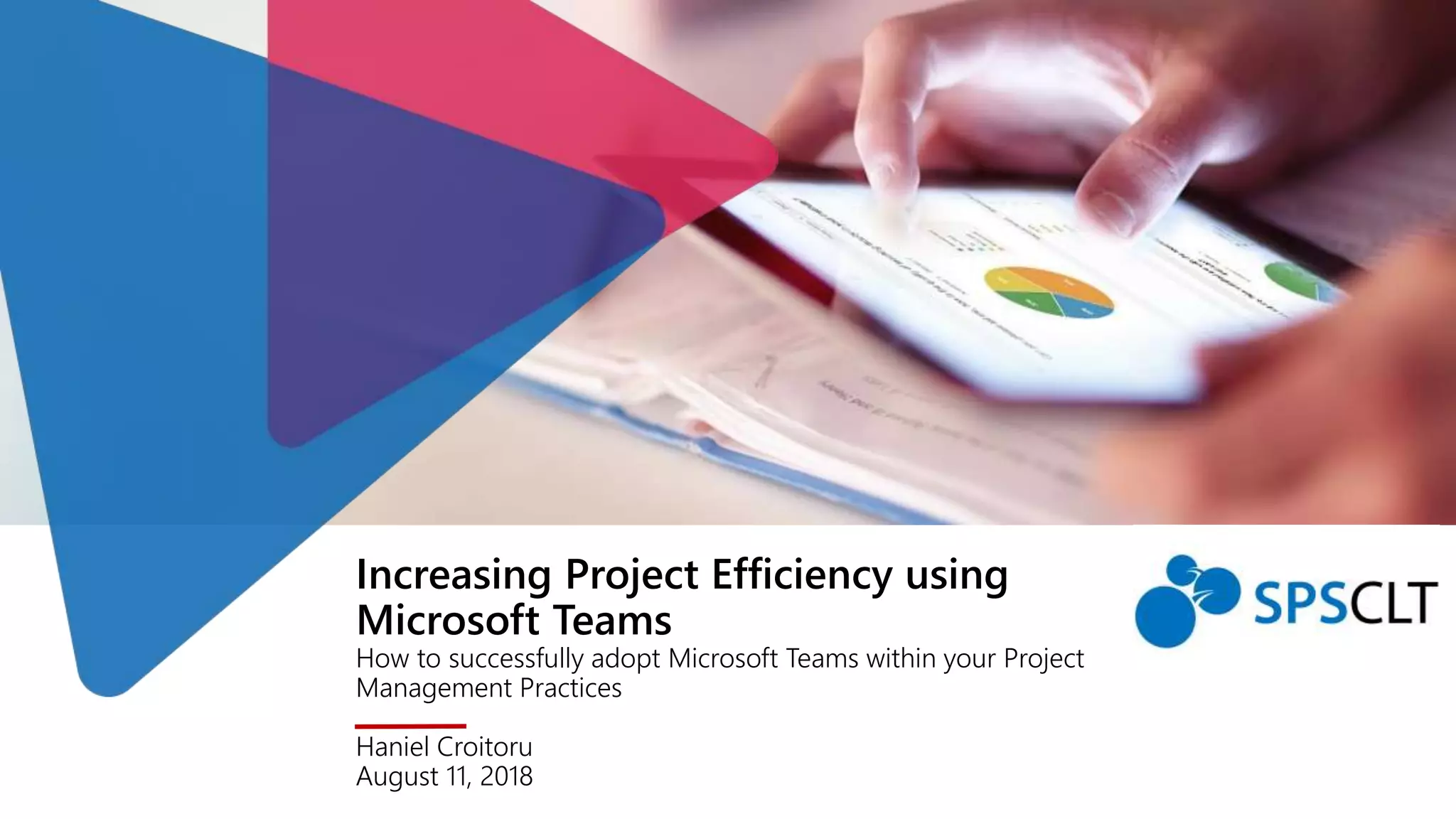
Increasing Project Efficiency using
Microsoft Teams
How to successfully adopt Microsoft Teams within your Project
Management Practices
Haniel Croitoru
August 11, 2018
Thank You!
Silver Level Sponsors
Platinum Level Sponsors
Gold Level Sponsors
Speaker Dinner Sponsor
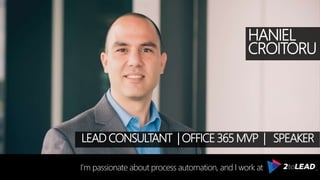
HANIEL
CROITORU
I’m passionate about process automation, and I work at .
LEAD CONSULTANT | OFFICE 365 MVP | SPEAKER
QR Codes for Speaker Survey - Session #1
PROJECT MANAGEMENT OVERVIEW
INTRODUCTION TO MICROSOFT TEAMS
SCENARIOS:
PROJECT COMMUNICATION
PROJECT COLLABORATION
PROJECT NOTIFICATIONS
LET’S TALK – OPEN Q&A
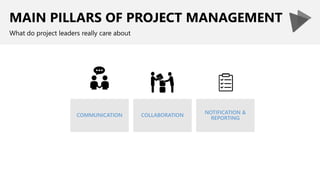
MAIN PILLARS OF PROJECT MANAGEMENT
What do project leaders really care about
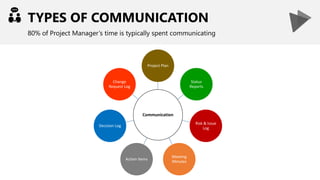
TYPES OF COMMUNICATION
80% of Project Manager’s time is typically spent communicating
Communication
Project Plan
Status
Reports
Risk & Issue
Log
Meeting
Minutes
Action Items
Decision Log
Change
Request Log
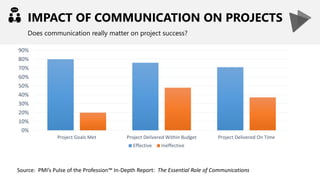
IMPACT OF COMMUNICATION ON PROJECTS
Does communication really matter on project success?
0%
10%
20%
30%
40%
50%
60%
70%
80%
90%
Project Goals Met Project Delivered Within Budget Project Delivered On Time
Effective Ineffective
Source: PMI’s Pulse of the Profession™ In-Depth Report: The Essential Role of Communications
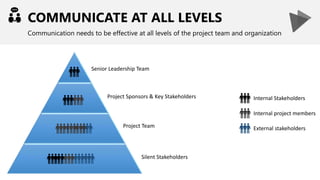
COMMUNICATE AT ALL LEVELS
Communication needs to be effective at all levels of the project team and organization
Internal project members
Internal Stakeholders
External stakeholders
Senior Leadership Team
Project Sponsors & Key Stakeholders
Project Team
Silent Stakeholders
WORK TOGETHER IN A SMART WAY
Working together requires a common base for content
Provide the right information
in the right format
to the right person
at the right time
COLLABORATION: REALITY CHECK
In many organizations, information is poorly managed today
•Document duplication
•Poor access control and audit trails
•Finding information is tedious
•Lack of consistency between
project sites
STAYING INFORMED
A Project Manager should always know what is happening
•Stay informed on tasks and deliverables
•Progress on development and testing
•Feedback from external people
PROJECT MANAGEMENT OVERVIEW
INTRODUCTION TO MICROSOFT TEAMS
SCENARIOS:
PROJECT COMMUNICATION
PROJECT COLLABORATION
PROJECT NOTIFICATIONS
LET’S TALK – OPEN Q&A
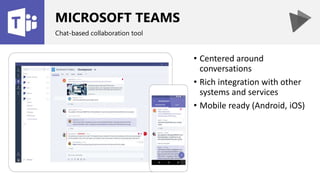
MICROSOFT TEAMS
Chat-based collaboration tool
• Centered around
conversations
• Rich integration with other
systems and services
• Mobile ready (Android, iOS)
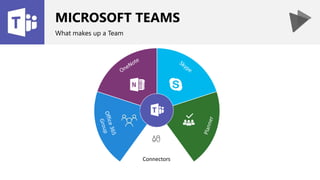
Connectors
MICROSOFT TEAMS
What makes up a Team
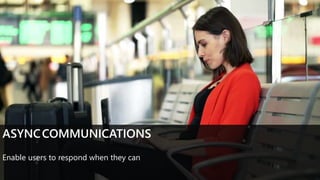
Enable users to respond when they can
ASYNCCOMMUNICATIONS
Enable users to respond when they can
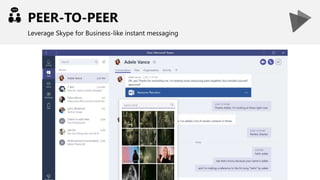
PEER-TO-PEER
Leverage Skype for Business-like instant messaging
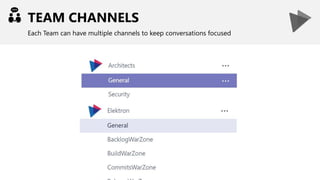
TEAM CHANNELS
Each Team can have multiple channels to keep conversations focused
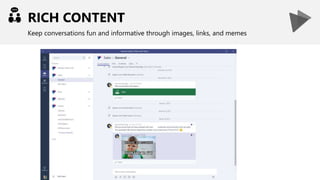
RICH CONTENT
Keep conversations fun and informative through images, links, and memes
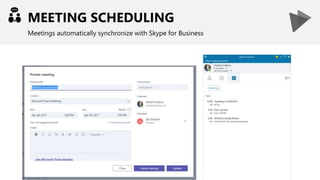
MEETING SCHEDULING
Meetings automatically synchronize with Skype for Business
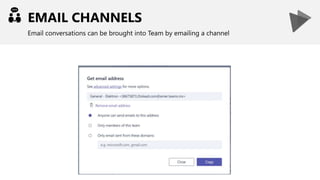
EMAIL CHANNELS
Email conversations can be brought into Team by emailing a channel
REAL-TIME COMMUNICATIONS
Leverage Skype for Business-like instant messaging
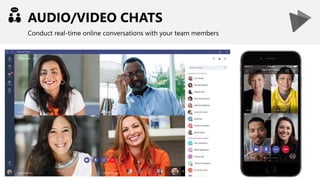
AUDIO/VIDEO CHATS
Conduct real-time online conversations with your team members
USER ACCESS
Provide access only to those who should have access to the Team
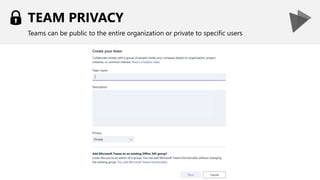
TEAM PRIVACY
Teams can be public to the entire organization or private to specific users
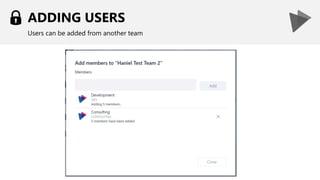
ADDING USERS
Users can be added from another team
INTEGRATIONS
Enrich your team’s by incorporating external information
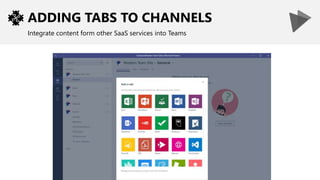
ADDING TABS TO CHANNELS
Integrate content form other SaaS services into Teams
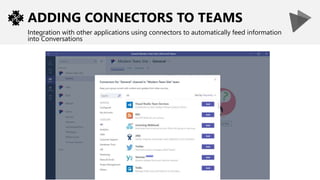
ADDING CONNECTORS TO TEAMS
Integration with other applications using connectors to automatically feed information
into Conversations
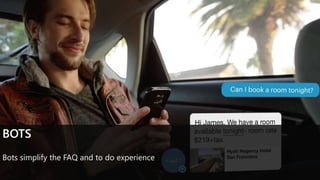
BOTS
Bots simplify the FAQ and to do experience
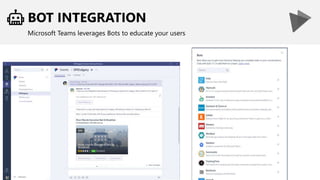
BOT INTEGRATION
Microsoft Teams leverages Bots to educate your users
PROJECT MANAGEMENT OVERVIEW
INTRODUCTION TO MICROSOFT TEAMS
SCENARIOS:
PROJECT COMMUNICATION
PROJECT COLLABORATION
PROJECT NOTIFICATIONS
LET’S TALK – OPEN Q&A
CONSOLIDATE CONVERSATIONS
Keep conversations in Teams. Email is so 2015!
•Leverage Teams and Channels for communication
•Depending on organization and project structure, channels may represent
different entities (departments, functional teams, etc.)
Considerations
• Content that may be relevant beyond a project
• Should it be in the project Team/Channel or functional one?
• Any conversations are easily searched by users from anywhere within Teams, while
respecting security
CIRCLE OF TRUST
Keeping conversations to a limited set of individuals
•Should users outside of your organization or project team be able to read
the conversations?
Considerations
• Today, once you grant access to a team, users can see the content on all the
channels
CIRCLE OF TRUST
Keeping conversations to a limited set of individuals
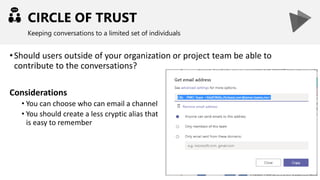
•Should users outside of your organization or project team be able to
contribute to the conversations?
Considerations
• You can choose who can email a channel
• You should create a less cryptic alias that
is easy to remember
BRING TEAMS CLOSER TOGETHER
Leverage video conferencing
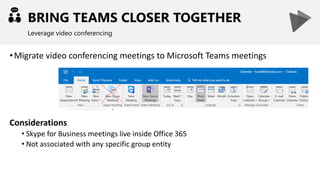
•Migrate video conferencing meetings to Microsoft Teams meetings
Considerations
• Skype for Business meetings live inside Office 365
• Not associated with any specific group entity
BRING TEAMS CLOSER TOGETHER
Leverage video conferencing
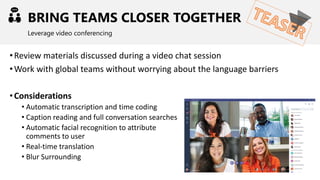
•Review materials discussed during a video chat session
•Work with global teams without worrying about the language barriers
•Considerations
• Automatic transcription and time coding
• Caption reading and full conversation searches
• Automatic facial recognition to attribute
comments to user
• Real-time translation
• Blur Surrounding
CONVERSATIONS ON THE GO
Participate in conversations anytime from anywhere
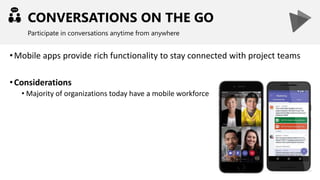
•Mobile apps provide rich functionality to stay connected with project teams
•Considerations
• Majority of organizations today have a mobile workforce
FEED THE CONVERSATIONS
Bring in additional information that is relevant to your project
•Incorporate additional content directly to the conversations using
connectors
•Considerations
• Users get to remain in one app rather than checking multiple locations
• Notifications are real-time
PROJECT MANAGEMENT OVERVIEW
INTRODUCTION TO MICROSOFT TEAMS
SCENARIOS:
PROJECT COMMUNICATION
PROJECT COLLABORATION
PROJECT NOTIFICATIONS
LET’S TALK – OPEN Q&A
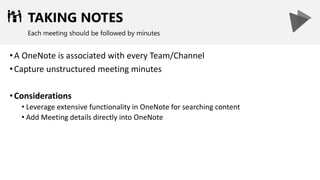
TAKING NOTES
Each meeting should be followed by minutes
•A OneNote is associated with every Team/Channel
•Capture unstructured meeting minutes
•Considerations
• Leverage extensive functionality in OneNote for searching content
• Add Meeting details directly into OneNote
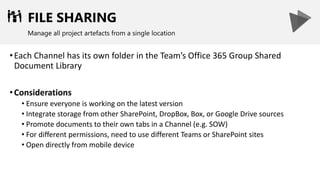
FILE SHARING
Manage all project artefacts from a single location
•Each Channel has its own folder in the Team’s Office 365 Group Shared
Document Library
•Considerations
• Ensure everyone is working on the latest version
• Integrate storage from other SharePoint, DropBox, Box, or Google Drive sources
• Promote documents to their own tabs in a Channel (e.g. SOW)
• For different permissions, need to use different Teams or SharePoint sites
• Open directly from mobile device
PROJECT MANAGEMENT OVERVIEW
INTRODUCTION TO MICROSOFT TEAMS
SCENARIOS:
PROJECT COMMUNICATION
PROJECT COLLABORATION
PROJECT NOTIFICATIONS
LET’S TALK – OPEN Q&A
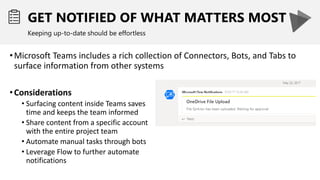
GET NOTIFIED OF WHAT MATTERS MOST
Keeping up-to-date should be effortless
•Microsoft Teams includes a rich collection of Connectors, Bots, and Tabs to
surface information from other systems
•Considerations
• Surfacing content inside Teams saves
time and keeps the team informed
• Share content from a specific account
with the entire project team
• Automate manual tasks through bots
• Leverage Flow to further automate
notifications
PROJECT MANAGEMENT OVERVIEW
INTRODUCTION TO MICROSOFT TEAMS
SCENARIOS:
PROJECT COMMUNICATION
PROJECT COLLABORATION
PROJECT NOTIFICATIONS
LET’S TALK – OPEN Q&A
REFERENCES
•Quick start - Microsoft Teams planning guide
• https://docs.microsoft.com/en-us/microsoftteams/quick-start-enable-
teams?utm_source=t.co&utm_medium=referral&WT.mc_id=docs-email
•Microsoft Teams documentation and practical guidance
• https://docs.microsoft.com/en-us/microsoftteams/microsoft-teams
•Microsoft Teams help center
• https://support.office.com/en-us/Teams
QR Codes for Speaker Survey - Session #1
SPEAKER SURVEY
• This year we are replacing the paper version of Speaker
Survey with Microsoft Forms.
• Scan the QR code for each session to access and submit
your survey.
• QR codes can be found in the program guide or on the
room sign located by the door.
• You will receive ONE raffle ticket for each session survey
you complete.
• The raffle ticket volunteer will validate your First and Last
name before providing your ticket(s)
• Drawing will be held this afternoon 4:00-4:30 pm.
• Must be present to win.
You can download and use the QR Reader app available for
both iOS and Android
We work hard, we party hard! 
SharePint!
4:30-6:00pm
Location Duckworth’s Grill and Taphouse
Uptown
PLEASEDRINKRESPONSIBLY.WEWILLBEHAPPYTO
CALLACABFORYOU
LEAD CONSULTANT | OFFICE 365 MVP | SPEAKER
Thank You!
Organizers, SponsorsandYouformaking
thispossible.
Let’s continue the conversation
linkedin.com/in/hanielcroitoru
@hcroitoru

Increasing Project Efficiency using Microsoft Teams

  • 1.
    Increasing Project Efficiencyusing Microsoft Teams How to successfully adopt Microsoft Teams within your Project Management Practices Haniel Croitoru August 11, 2018
  • 2.
    Thank You! Silver LevelSponsors Platinum Level Sponsors Gold Level Sponsors Speaker Dinner Sponsor
  • 3.
    HANIEL CROITORU I’m passionate aboutprocess automation, and I work at . LEAD CONSULTANT | OFFICE 365 MVP | SPEAKER
  • 4.
    QR Codes forSpeaker Survey - Session #1
  • 5.
    PROJECT MANAGEMENT OVERVIEW INTRODUCTIONTO MICROSOFT TEAMS SCENARIOS: PROJECT COMMUNICATION PROJECT COLLABORATION PROJECT NOTIFICATIONS LET’S TALK – OPEN Q&A
  • 6.
    MAIN PILLARS OFPROJECT MANAGEMENT What do project leaders really care about
  • 7.
    TYPES OF COMMUNICATION 80%of Project Manager’s time is typically spent communicating Communication Project Plan Status Reports Risk & Issue Log Meeting Minutes Action Items Decision Log Change Request Log
  • 8.
    IMPACT OF COMMUNICATIONON PROJECTS Does communication really matter on project success? 0% 10% 20% 30% 40% 50% 60% 70% 80% 90% Project Goals Met Project Delivered Within Budget Project Delivered On Time Effective Ineffective Source: PMI’s Pulse of the Profession™ In-Depth Report: The Essential Role of Communications
  • 9.
    COMMUNICATE AT ALLLEVELS Communication needs to be effective at all levels of the project team and organization Internal project members Internal Stakeholders External stakeholders Senior Leadership Team Project Sponsors & Key Stakeholders Project Team Silent Stakeholders
  • 10.
    WORK TOGETHER INA SMART WAY Working together requires a common base for content Provide the right information in the right format to the right person at the right time
  • 11.
    COLLABORATION: REALITY CHECK Inmany organizations, information is poorly managed today •Document duplication •Poor access control and audit trails •Finding information is tedious •Lack of consistency between project sites
  • 12.
    STAYING INFORMED A ProjectManager should always know what is happening •Stay informed on tasks and deliverables •Progress on development and testing •Feedback from external people
  • 13.
    PROJECT MANAGEMENT OVERVIEW INTRODUCTIONTO MICROSOFT TEAMS SCENARIOS: PROJECT COMMUNICATION PROJECT COLLABORATION PROJECT NOTIFICATIONS LET’S TALK – OPEN Q&A
  • 14.
    MICROSOFT TEAMS Chat-based collaborationtool • Centered around conversations • Rich integration with other systems and services • Mobile ready (Android, iOS)
  • 15.
  • 16.
    Enable users torespond when they can ASYNCCOMMUNICATIONS Enable users to respond when they can
  • 17.
    PEER-TO-PEER Leverage Skype forBusiness-like instant messaging
  • 18.
    TEAM CHANNELS Each Teamcan have multiple channels to keep conversations focused
  • 19.
    RICH CONTENT Keep conversationsfun and informative through images, links, and memes
  • 20.
    MEETING SCHEDULING Meetings automaticallysynchronize with Skype for Business
  • 21.
    EMAIL CHANNELS Email conversationscan be brought into Team by emailing a channel
  • 22.
    REAL-TIME COMMUNICATIONS Leverage Skypefor Business-like instant messaging
  • 23.
    AUDIO/VIDEO CHATS Conduct real-timeonline conversations with your team members
  • 24.
    USER ACCESS Provide accessonly to those who should have access to the Team
  • 25.
    TEAM PRIVACY Teams canbe public to the entire organization or private to specific users
  • 26.
    ADDING USERS Users canbe added from another team
  • 27.
    INTEGRATIONS Enrich your team’sby incorporating external information
  • 28.
    ADDING TABS TOCHANNELS Integrate content form other SaaS services into Teams
  • 29.
    ADDING CONNECTORS TOTEAMS Integration with other applications using connectors to automatically feed information into Conversations
  • 30.
    BOTS Bots simplify theFAQ and to do experience
  • 31.
    BOT INTEGRATION Microsoft Teamsleverages Bots to educate your users
  • 32.
    PROJECT MANAGEMENT OVERVIEW INTRODUCTIONTO MICROSOFT TEAMS SCENARIOS: PROJECT COMMUNICATION PROJECT COLLABORATION PROJECT NOTIFICATIONS LET’S TALK – OPEN Q&A
  • 33.
    CONSOLIDATE CONVERSATIONS Keep conversationsin Teams. Email is so 2015! •Leverage Teams and Channels for communication •Depending on organization and project structure, channels may represent different entities (departments, functional teams, etc.) Considerations • Content that may be relevant beyond a project • Should it be in the project Team/Channel or functional one? • Any conversations are easily searched by users from anywhere within Teams, while respecting security
  • 34.
    CIRCLE OF TRUST Keepingconversations to a limited set of individuals •Should users outside of your organization or project team be able to read the conversations? Considerations • Today, once you grant access to a team, users can see the content on all the channels
  • 35.
    CIRCLE OF TRUST Keepingconversations to a limited set of individuals •Should users outside of your organization or project team be able to contribute to the conversations? Considerations • You can choose who can email a channel • You should create a less cryptic alias that is easy to remember
  • 36.
    BRING TEAMS CLOSERTOGETHER Leverage video conferencing •Migrate video conferencing meetings to Microsoft Teams meetings Considerations • Skype for Business meetings live inside Office 365 • Not associated with any specific group entity
  • 37.
    BRING TEAMS CLOSERTOGETHER Leverage video conferencing •Review materials discussed during a video chat session •Work with global teams without worrying about the language barriers •Considerations • Automatic transcription and time coding • Caption reading and full conversation searches • Automatic facial recognition to attribute comments to user • Real-time translation • Blur Surrounding
  • 38.
    CONVERSATIONS ON THEGO Participate in conversations anytime from anywhere •Mobile apps provide rich functionality to stay connected with project teams •Considerations • Majority of organizations today have a mobile workforce
  • 39.
    FEED THE CONVERSATIONS Bringin additional information that is relevant to your project •Incorporate additional content directly to the conversations using connectors •Considerations • Users get to remain in one app rather than checking multiple locations • Notifications are real-time
  • 40.
    PROJECT MANAGEMENT OVERVIEW INTRODUCTIONTO MICROSOFT TEAMS SCENARIOS: PROJECT COMMUNICATION PROJECT COLLABORATION PROJECT NOTIFICATIONS LET’S TALK – OPEN Q&A
  • 41.
    TAKING NOTES Each meetingshould be followed by minutes •A OneNote is associated with every Team/Channel •Capture unstructured meeting minutes •Considerations • Leverage extensive functionality in OneNote for searching content • Add Meeting details directly into OneNote
  • 42.
    FILE SHARING Manage allproject artefacts from a single location •Each Channel has its own folder in the Team’s Office 365 Group Shared Document Library •Considerations • Ensure everyone is working on the latest version • Integrate storage from other SharePoint, DropBox, Box, or Google Drive sources • Promote documents to their own tabs in a Channel (e.g. SOW) • For different permissions, need to use different Teams or SharePoint sites • Open directly from mobile device
  • 43.
    PROJECT MANAGEMENT OVERVIEW INTRODUCTIONTO MICROSOFT TEAMS SCENARIOS: PROJECT COMMUNICATION PROJECT COLLABORATION PROJECT NOTIFICATIONS LET’S TALK – OPEN Q&A
  • 44.
    GET NOTIFIED OFWHAT MATTERS MOST Keeping up-to-date should be effortless •Microsoft Teams includes a rich collection of Connectors, Bots, and Tabs to surface information from other systems •Considerations • Surfacing content inside Teams saves time and keeps the team informed • Share content from a specific account with the entire project team • Automate manual tasks through bots • Leverage Flow to further automate notifications
  • 45.
    PROJECT MANAGEMENT OVERVIEW INTRODUCTIONTO MICROSOFT TEAMS SCENARIOS: PROJECT COMMUNICATION PROJECT COLLABORATION PROJECT NOTIFICATIONS LET’S TALK – OPEN Q&A
  • 46.
    REFERENCES •Quick start -Microsoft Teams planning guide • https://docs.microsoft.com/en-us/microsoftteams/quick-start-enable- teams?utm_source=t.co&utm_medium=referral&WT.mc_id=docs-email •Microsoft Teams documentation and practical guidance • https://docs.microsoft.com/en-us/microsoftteams/microsoft-teams •Microsoft Teams help center • https://support.office.com/en-us/Teams
  • 47.
    QR Codes forSpeaker Survey - Session #1
  • 48.
    SPEAKER SURVEY • Thisyear we are replacing the paper version of Speaker Survey with Microsoft Forms. • Scan the QR code for each session to access and submit your survey. • QR codes can be found in the program guide or on the room sign located by the door. • You will receive ONE raffle ticket for each session survey you complete. • The raffle ticket volunteer will validate your First and Last name before providing your ticket(s) • Drawing will be held this afternoon 4:00-4:30 pm. • Must be present to win. You can download and use the QR Reader app available for both iOS and Android
  • 49.
    We work hard,we party hard!  SharePint! 4:30-6:00pm Location Duckworth’s Grill and Taphouse Uptown PLEASEDRINKRESPONSIBLY.WEWILLBEHAPPYTO CALLACABFORYOU
  • 50.
    LEAD CONSULTANT |OFFICE 365 MVP | SPEAKER Thank You! Organizers, SponsorsandYouformaking thispossible. Let’s continue the conversation linkedin.com/in/hanielcroitoru @hcroitoru

Editor's Notes

  • #7 Communication and Collaboration involves people Notification & Reporting doesn’t and shouldn’t
  • #8 What varies in communication are the following: Medium Frequency Audience Triggers
  • #9 80% of projects delivered by organizations considered highly effective communicators meet their original goals, versus only 52 percent at their minimally effective counterparts. highly effective communicators are also more likely to deliver projects on time (71 percent versus 37 percent) and within budget (76 percent versus 48 percent).
  • #10 Good communication has to be open and easily accessible
  • #19 You can edit or delete your chat messages during the first 24 hours after they are posted. In the upper-right corner of the chat message, click or tap the More options icon (…), and then choose Edit or Delete.
  • #21 The Meetings icon on the app bar is currently enabled only for users whose mailbox is on Office 365 multi-tenant and a select few dedicated users whose mailbox location can be discovered using Exchange auto discovery.
  • #22 The group email conversation remains in Microsoft Outlook. In Microsoft Teams, Office 365 Group members can use chat to communicate in a separate service within Teams. Microsoft Teams team names appear in the Outlook global address book
  • #24 The group email conversation remains in Microsoft Outlook. In Microsoft Teams, Office 365 Group members can use chat to communicate in a separate service within Teams. Microsoft Teams team names appear in the Outlook global address book
  • #27 You can add email distribution lists and mail-enabled security groups as members of a team. But, if you later add more members to the distribution list or security group, those members are not automatically added to the team. You must add the new members separately or add the distribution list or security group to the team again. (If you add the distribution list again, deduplication makes sure members are added only once.) The team continues to function as-is. All data remains and all existing users can continue to use the team. If the removed user was the only owner of the team, an IT admin can retake control of the team by going through the Office 365 admin center and adding themselves or someone else as the team owner. The team recognizes that change. Any connectors added to the team by the removed user do stop working. Scheduled meetings continue to work because they're on the group calendar. Files and conversations are retained.
  • #28 For the full Microsoft Teams experience, every user should be enabled for Exchange Online, SharePoint Online, and Office 365 Group creation. Users' Exchange mailboxes can be hosted online or on-premises. Users hosted on Exchange Online or Exchange Dedicated vNext can use all the features of Microsoft Teams. They can create and join teams and channels, create and view meetings, modify user profile pictures, add and configure connectors, tabs, and bots, and they can chat and call. Bots, Connectors, Webhooks, API’s… the future of integration
  • #29 https://msdn.microsoft.com/en-us/microsoft-teams/tabs There are Microsoft Teams samples in our GitHub repositories for you to clone or download: 'Maps' tab sample. This is the simple example that is used in this documentation. Simple Todo List tab sample. This Node.js sample shows how easy it is to convert an existing web app into a tab.
  • #30 https://dev.office.com/microsoft-teams
  • #32 https://dev.office.com/microsoft-teams