XHTML 2MDST 3559:  DataestheticsProf. Alvarado02/03/2011
BusinessRegarding “Assignments”During the Basic Skills segment of the course, assignments will be given each Thursday to be due the following MondayExcept for Week 7, where the assignment will be handed out on Tuesday and due Thursday
ReviewDocuments have three layers: content, structure, and layout.Structure consists of elementsand relationshipsRelationships can be trees or networks.Markup languages describe this structure for computational useXML is a general markup language or “metalanguage.”HTML is a specific markup language. designed for created networked hypermedia documents.
How does HTML support trees? Networks?
Trees as nested document elements, e.g. P, TABLE, ULNetworks as hypertext elements, e.g. A, IMG
OverviewToday we ...Continue with our learning of HTMLEnhance jEdit with pluginsInstall an FTP client to upload imagesCreate pages on STUDIO1 accountsLearn basic CSS
jEditAdd plugins to your editorGo to “Plugins > Plugin Manager ...” to open dialog box.Select “Install” tab.Select the following:FTP InfoViewerPHPParserSidekickXMLXML IndenterCSS EditorPress the “Install” button.
Testing jEditUse jEdit to log in to your STUDIO1 accountSTUDIO1 is a server set up for this class	Address: studio1.shanti.virginia.eduDo this:Go go “File > Open” (or press Ctrl-O or use icon)Select “Plugins > FTP > Secure FTP Server” as the very topData to useRemote host: see aboveUser name: your UVA user idPassword: your blue unix passwordLeave the rest as is and press “OK”Click on the public_html and then “index.html”
Install an test FTP clientIf you do not have one, use FileZillaSee post on course site for URLOpen FileZillaGo to “File > Site Manager” and select “New Site”Call the site “STUDIO1”Set the following:Host: studio1.shanti.virginia.edu (same as before)Servertype: SFTPLogontype: NormalUser and password same as before
FTP ClientInspect items on left and right windowsThese are the file systems on your laptop and the server Become familiar with this structureAbout the terms “client” and “server”Client refers to software on the client machineServer refers to software on the server machineNetworked applications have client and server componentsWWW, MySQL, FTP, etc.“Remote” and “Local” are related terms
About AddressesThis FTP location ...sftp://studio1.shanti.virginia.edu/home/USERID/public_html... maps onto this web locationhttp://studio1.shanti.virginia.edu/~USERIDNote:Different protocol prefixes: http vssftpSame machine addresses: studio1 ...Different paths (but which map):/~rca2t  /home/rca2t/public_html
Exercise 1: Hello, WorldYou already have an index page in your site.The URL for the page is:http://studio1.shanti.virginia.edu/~userid/index.html is a the default page for your site; it does not need to be specifiedConvert this page into a standard HTML page with the following structure:htmlheadtitlebodyh1pGive it a title “Hello, World” and and use this as the H1 text
Exercise 2: Add a linkCreate a new page.In jEdit, press Ctrl-N and then save the file as “page2.html” or something.Save the file – using Ctrl-S – noting that it allows you to save your new file in the remote directory.Create a link (aka anchor) from index.html to page2.html
Exercise 3: Add an imageDownload an image from the internetUpload to your site using FTPIn index.html, create an image element (IMG) and use the uploaded filename as the source (SRC) attributeCreate a link from the image to the second page you created.
Exercise 4: Create a tableIn your second page, add a table element and use it to organize two imagesA table has the following structure:<table><tr><td>STUFF GOES HERE</td><td>STUFF GOES HERE</td></tr></table>
CSSAdding Style
CSS“Cascading Style Sheets”Allows you to add styles to HTMLEach level has its language ...Styles include:Font characteristicsLine characteristicsText block Background colors and imagesEtc.
<html>	<head>		<title>I’m an HTML document</title>	</head>	<body>		<h1>Here is the first header</h1>		<p>Here is some conent</p>	</body></html>Standard HTML Doc
<html>	<head>		<title>I’m an HTML document</title>	</head>	<body>		<h1>Here is the first header</h1>		<p>Here is some content:</p><h1><p>Some Text I want to emphasize.</p></h1>	</body></html>What not to do!
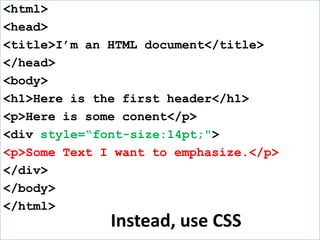
<html>	<head>		<title>I’m an HTML document</title>	</head>	<body>		<h1>Here is the first header</h1>		<p>Here is some conent</p>		<div style=“font-size:14pt;"><p>Some Text I want to emphasize.</p></div>	</body></html>Instead, use CSS
<html>	<head>		<title>I’m an HTML document</title><style type="text/css">		div {font-size:14pt;			font-weight:bold;		}		</style>	</head>	<body>		<h1>Here is the first header</h1>		<p>Here is some conent</p>		<div>	<p>Some Text I want to emphasize.</p></div>	</body></html>Better yet, put CSS here
<html>	<head>		<title>I’m an HTML document</title><style type="text/css">		.foo {font-size:14pt;			font-weight:bold;		}		</style>	</head>	<body>		<h1>Here is the first header</h1>		<p>Here is some conent</p>		<div class=“foo”><p>Some Text I want to emphasize.</p></div>	</body></html>with CSS in header using class attribute
<html>	<head>		<title>I’m an HTML document</title><link rel=“stylesheet” type=“text/css” href=“default.css” />	</head>	<body>		<h1>Here is the first header</h1>		<p>Here is some conent</p>		<div><p>Some Text I want to emphasize.</p></div>	</body></html>Even better: CSS in linked file
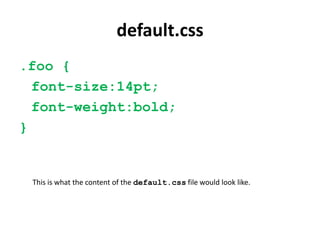
default.css.foo {	font-size:14pt;	font-weight:bold;}This is what the content of the default.css file would look like.
CSS Syntax: Selectors.foo {	font-size:14pt;	font-weight:bold;}The “selector” indicates what elements the styles apply to.  Can address element names, classes, and ID.
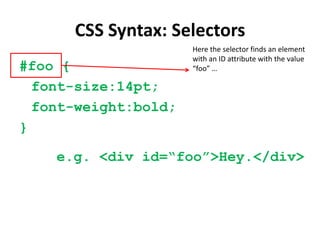
CSS Syntax: Selectors#foo {	font-size:14pt;	font-weight:bold;}Here the selector finds an element with an ID attribute with the value “foo” …e.g. <div id=“foo”>Hey.</div>
Example selectorsp			Any p element			p.foo	Any p element with a class of foo.foo	Any element with a class of foo#foo	The element with an id of foo
CSS Syntax: Declarations.foo {	font-size:14pt;	font-weight:bold;}The “declarations” specify properties and values to apply to the element.Form =property-name: value;
Example Directivesfont-family: Georgia, Garamond, serif;color: blue;color: #eeff99;background-color: gray;border: 1px solid black;padding: 5px;margin: 5px;
Basic IdeaA CSS file is just a series of “rules”A CSS rule has two parts	A selector to identify elements (tag name, class, id)One or more declarations of styleCSS rules have a simple syntaxSelectors followed by curly bracesKey/value pairs separated by colonsRules separated by semi-colons
Basic ideaYou can apply any number of rules to a documentRules may appear in attributes, headers, or external filesRules are “cascaded”Later ones inherit previous onesLater ones have precedence (can overwrite) earlier ones
Exercise 4: Adding StyleCreate a style element in the head of your first page<style type=“text/css”>body {	...}</style>Change the background color of your pageUse the CSS list in today’s materialsChange the font of your header
Exercise 5: Create a separate stylesheetCreate a new page in jEdit called “default.css”Cut and paste the contents of your STYLE element into your new css fileCreate a LINK element in the HEAD of each document and link to this stylesheet<link rel=“stylesheet” type=“text/css” href=“default.css” />Remove the STYLE elements from the HEAD of your page
Assignment (to be posted)Create a page collection in your STUDIO1 directory with the following items:Main page 		 main1.htmlTopic page 1 	 main1-topic1.htmlTopic page 2 	 main1-topic2.htmlFor each page, create a TITLE element and an H1 element, titling each page as your wish.In Topic page 1Embed two visualizationsWrite 250 words of contextIn Topic page 2Create a gallery of 4 images using a 2 x 2 tablesCreate a common style sheet for each page and define font and color styles for the following elements:BODY, H1, and PCreate a common menu in each page that links to the other pages

Mdst 3559-02-01-html

  • 1.
    XHTML 2MDST 3559: DataestheticsProf. Alvarado02/03/2011
  • 2.
    BusinessRegarding “Assignments”During theBasic Skills segment of the course, assignments will be given each Thursday to be due the following MondayExcept for Week 7, where the assignment will be handed out on Tuesday and due Thursday
  • 3.
    ReviewDocuments have threelayers: content, structure, and layout.Structure consists of elementsand relationshipsRelationships can be trees or networks.Markup languages describe this structure for computational useXML is a general markup language or “metalanguage.”HTML is a specific markup language. designed for created networked hypermedia documents.
  • 4.
    How does HTMLsupport trees? Networks?
  • 5.
    Trees as nesteddocument elements, e.g. P, TABLE, ULNetworks as hypertext elements, e.g. A, IMG
  • 6.
    OverviewToday we ...Continuewith our learning of HTMLEnhance jEdit with pluginsInstall an FTP client to upload imagesCreate pages on STUDIO1 accountsLearn basic CSS
  • 7.
    jEditAdd plugins toyour editorGo to “Plugins > Plugin Manager ...” to open dialog box.Select “Install” tab.Select the following:FTP InfoViewerPHPParserSidekickXMLXML IndenterCSS EditorPress the “Install” button.
  • 8.
    Testing jEditUse jEditto log in to your STUDIO1 accountSTUDIO1 is a server set up for this class Address: studio1.shanti.virginia.eduDo this:Go go “File > Open” (or press Ctrl-O or use icon)Select “Plugins > FTP > Secure FTP Server” as the very topData to useRemote host: see aboveUser name: your UVA user idPassword: your blue unix passwordLeave the rest as is and press “OK”Click on the public_html and then “index.html”
  • 9.
    Install an testFTP clientIf you do not have one, use FileZillaSee post on course site for URLOpen FileZillaGo to “File > Site Manager” and select “New Site”Call the site “STUDIO1”Set the following:Host: studio1.shanti.virginia.edu (same as before)Servertype: SFTPLogontype: NormalUser and password same as before
  • 10.
    FTP ClientInspect itemson left and right windowsThese are the file systems on your laptop and the server Become familiar with this structureAbout the terms “client” and “server”Client refers to software on the client machineServer refers to software on the server machineNetworked applications have client and server componentsWWW, MySQL, FTP, etc.“Remote” and “Local” are related terms
  • 11.
    About AddressesThis FTPlocation ...sftp://studio1.shanti.virginia.edu/home/USERID/public_html... maps onto this web locationhttp://studio1.shanti.virginia.edu/~USERIDNote:Different protocol prefixes: http vssftpSame machine addresses: studio1 ...Different paths (but which map):/~rca2t  /home/rca2t/public_html
  • 12.
    Exercise 1: Hello,WorldYou already have an index page in your site.The URL for the page is:http://studio1.shanti.virginia.edu/~userid/index.html is a the default page for your site; it does not need to be specifiedConvert this page into a standard HTML page with the following structure:htmlheadtitlebodyh1pGive it a title “Hello, World” and and use this as the H1 text
  • 13.
    Exercise 2: Adda linkCreate a new page.In jEdit, press Ctrl-N and then save the file as “page2.html” or something.Save the file – using Ctrl-S – noting that it allows you to save your new file in the remote directory.Create a link (aka anchor) from index.html to page2.html
  • 14.
    Exercise 3: Addan imageDownload an image from the internetUpload to your site using FTPIn index.html, create an image element (IMG) and use the uploaded filename as the source (SRC) attributeCreate a link from the image to the second page you created.
  • 15.
    Exercise 4: Createa tableIn your second page, add a table element and use it to organize two imagesA table has the following structure:<table><tr><td>STUFF GOES HERE</td><td>STUFF GOES HERE</td></tr></table>
  • 16.
  • 17.
    CSS“Cascading Style Sheets”Allowsyou to add styles to HTMLEach level has its language ...Styles include:Font characteristicsLine characteristicsText block Background colors and imagesEtc.
  • 18.
    <html> <head> <title>I’m an HTMLdocument</title> </head> <body> <h1>Here is the first header</h1> <p>Here is some conent</p> </body></html>Standard HTML Doc
  • 19.
    <html> <head> <title>I’m an HTMLdocument</title> </head> <body> <h1>Here is the first header</h1> <p>Here is some content:</p><h1><p>Some Text I want to emphasize.</p></h1> </body></html>What not to do!
  • 20.
    <html> <head> <title>I’m an HTMLdocument</title> </head> <body> <h1>Here is the first header</h1> <p>Here is some conent</p> <div style=“font-size:14pt;"><p>Some Text I want to emphasize.</p></div> </body></html>Instead, use CSS
  • 21.
    <html> <head> <title>I’m an HTMLdocument</title><style type="text/css"> div {font-size:14pt; font-weight:bold; } </style> </head> <body> <h1>Here is the first header</h1> <p>Here is some conent</p> <div> <p>Some Text I want to emphasize.</p></div> </body></html>Better yet, put CSS here
  • 22.
    <html> <head> <title>I’m an HTMLdocument</title><style type="text/css"> .foo {font-size:14pt; font-weight:bold; } </style> </head> <body> <h1>Here is the first header</h1> <p>Here is some conent</p> <div class=“foo”><p>Some Text I want to emphasize.</p></div> </body></html>with CSS in header using class attribute
  • 23.
    <html> <head> <title>I’m an HTMLdocument</title><link rel=“stylesheet” type=“text/css” href=“default.css” /> </head> <body> <h1>Here is the first header</h1> <p>Here is some conent</p> <div><p>Some Text I want to emphasize.</p></div> </body></html>Even better: CSS in linked file
  • 24.
    default.css.foo { font-size:14pt; font-weight:bold;}This iswhat the content of the default.css file would look like.
  • 25.
    CSS Syntax: Selectors.foo{ font-size:14pt; font-weight:bold;}The “selector” indicates what elements the styles apply to. Can address element names, classes, and ID.
  • 26.
    CSS Syntax: Selectors#foo{ font-size:14pt; font-weight:bold;}Here the selector finds an element with an ID attribute with the value “foo” …e.g. <div id=“foo”>Hey.</div>
  • 27.
    Example selectorsp Any pelement p.foo Any p element with a class of foo.foo Any element with a class of foo#foo The element with an id of foo
  • 28.
    CSS Syntax: Declarations.foo{ font-size:14pt; font-weight:bold;}The “declarations” specify properties and values to apply to the element.Form =property-name: value;
  • 29.
    Example Directivesfont-family: Georgia,Garamond, serif;color: blue;color: #eeff99;background-color: gray;border: 1px solid black;padding: 5px;margin: 5px;
  • 30.
    Basic IdeaA CSSfile is just a series of “rules”A CSS rule has two parts A selector to identify elements (tag name, class, id)One or more declarations of styleCSS rules have a simple syntaxSelectors followed by curly bracesKey/value pairs separated by colonsRules separated by semi-colons
  • 31.
    Basic ideaYou canapply any number of rules to a documentRules may appear in attributes, headers, or external filesRules are “cascaded”Later ones inherit previous onesLater ones have precedence (can overwrite) earlier ones
  • 32.
    Exercise 4: AddingStyleCreate a style element in the head of your first page<style type=“text/css”>body { ...}</style>Change the background color of your pageUse the CSS list in today’s materialsChange the font of your header
  • 33.
    Exercise 5: Createa separate stylesheetCreate a new page in jEdit called “default.css”Cut and paste the contents of your STYLE element into your new css fileCreate a LINK element in the HEAD of each document and link to this stylesheet<link rel=“stylesheet” type=“text/css” href=“default.css” />Remove the STYLE elements from the HEAD of your page
  • 34.
    Assignment (to beposted)Create a page collection in your STUDIO1 directory with the following items:Main page  main1.htmlTopic page 1  main1-topic1.htmlTopic page 2  main1-topic2.htmlFor each page, create a TITLE element and an H1 element, titling each page as your wish.In Topic page 1Embed two visualizationsWrite 250 words of contextIn Topic page 2Create a gallery of 4 images using a 2 x 2 tablesCreate a common style sheet for each page and define font and color styles for the following elements:BODY, H1, and PCreate a common menu in each page that links to the other pages