HTML Basics Ryan Dinwiddie UCC Spring 2010
HTML Short for  H yper T ext  M arkup  L anguage,  the  language used to create documents on the World Wide Web.  HTML was invented by Tim Berners-Lee while at CERN, the European Laboratory for Particle Physics in Geneva.
HTML HTML is a collection of styles (indicated by markup  tags ) that define the various  elements  of a World Wide Web document.  HTML document can be read and displayed by many different browsers running on different types of computers – platform independent!
HTML: What do you need? Editor  (Notepad) Browser to view results Place to put your web site (store the files that contain the HTML code, images, music, etc.), preferably on the internet URL for your page (domain name, or folder within a domain)     if your page is on the Internet (Links to your page!)
HTML A web page is best thought of as a set of visual  elements   (words, paragraphs, lists, tables, images, etc.) HTML defines the structure and layout of the elements on a web page with a variety of  tags. Each tag may have a set of  attributes  that modify the appearance or layout of the visual element  contained  by the tag.
HTML Tags Container Tags <Begin formatting>some text</End formatting> For example:  <B>some bold text</B>    <H1>some heading </H1> Empty Element Tags For example <HR> <BR> Comment Tag <!-- Hi, I'm a comment. --> Use them document complicated layouts!
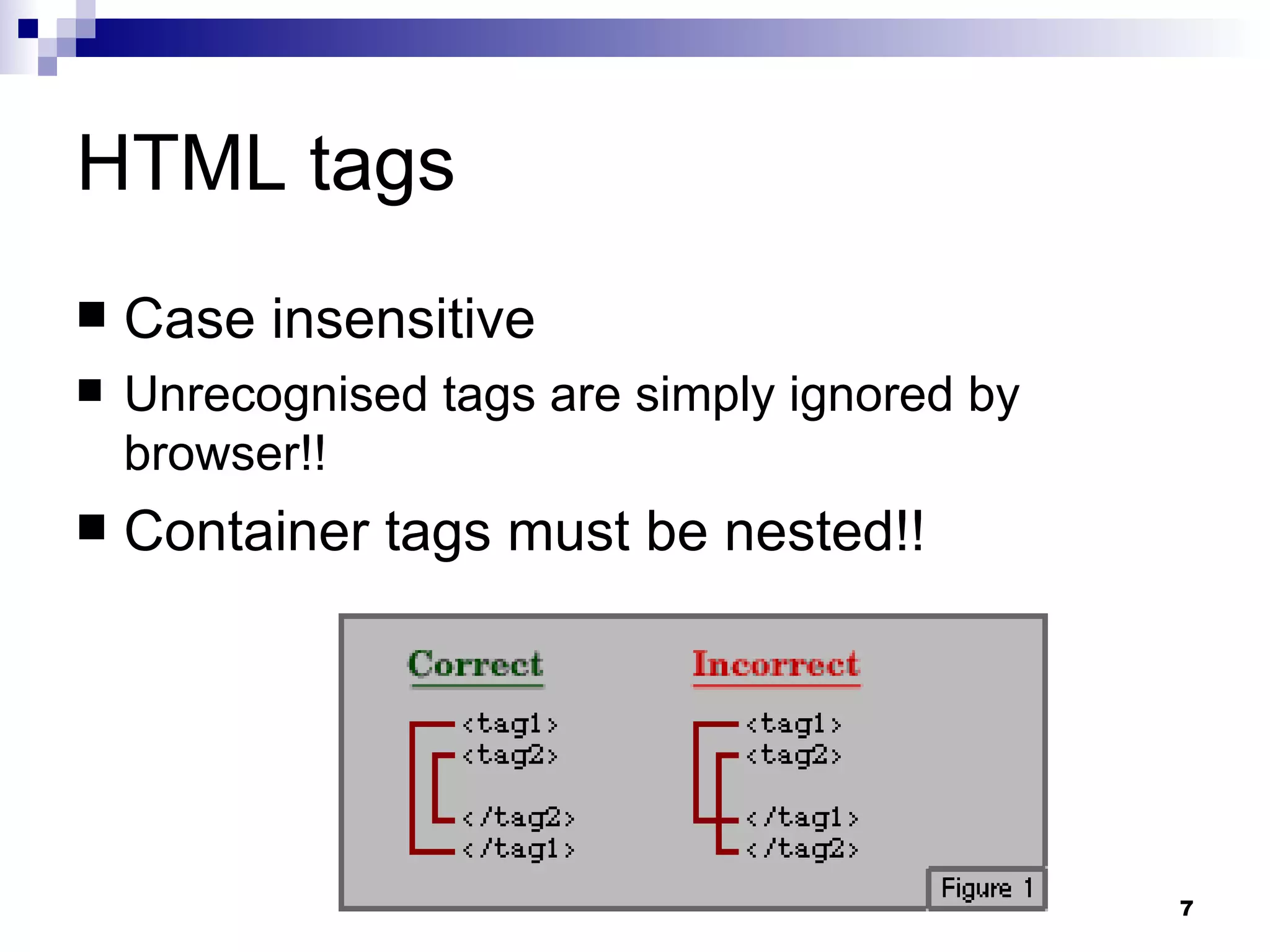
HTML tags Case insensitive Unrecognised  tags are simply ignored by browser!! Container tags must be nested!!
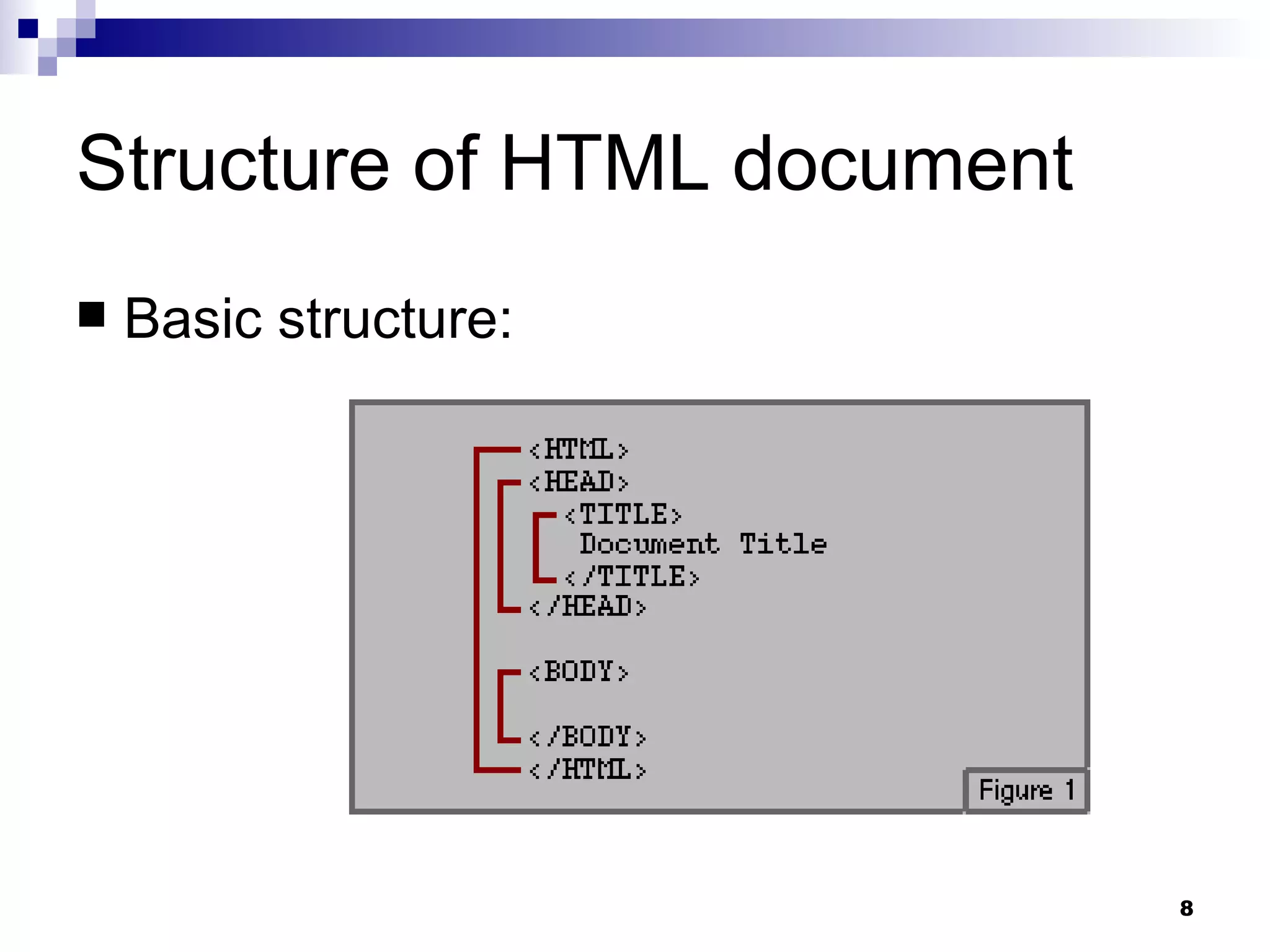
Structure of HTML document Basic structure:
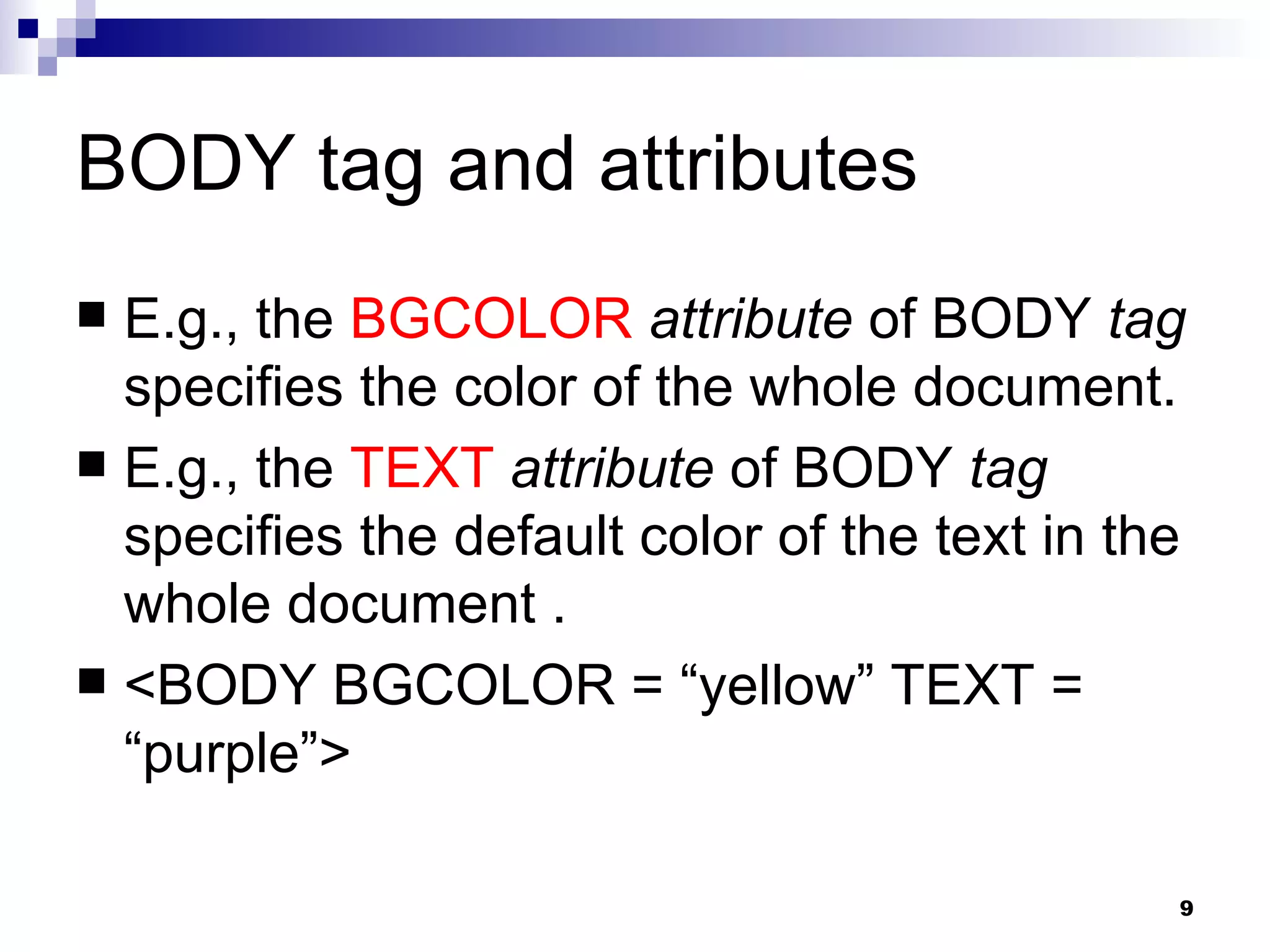
BODY tag and attributes E.g., the  BGCOLOR   attribute  of BODY  tag  specifies the color of the whole document.  E.g., the  TEXT   attribute  of BODY  tag  specifies the default color of the text in the whole document . <BODY BGCOLOR = “yellow” TEXT = “purple”>
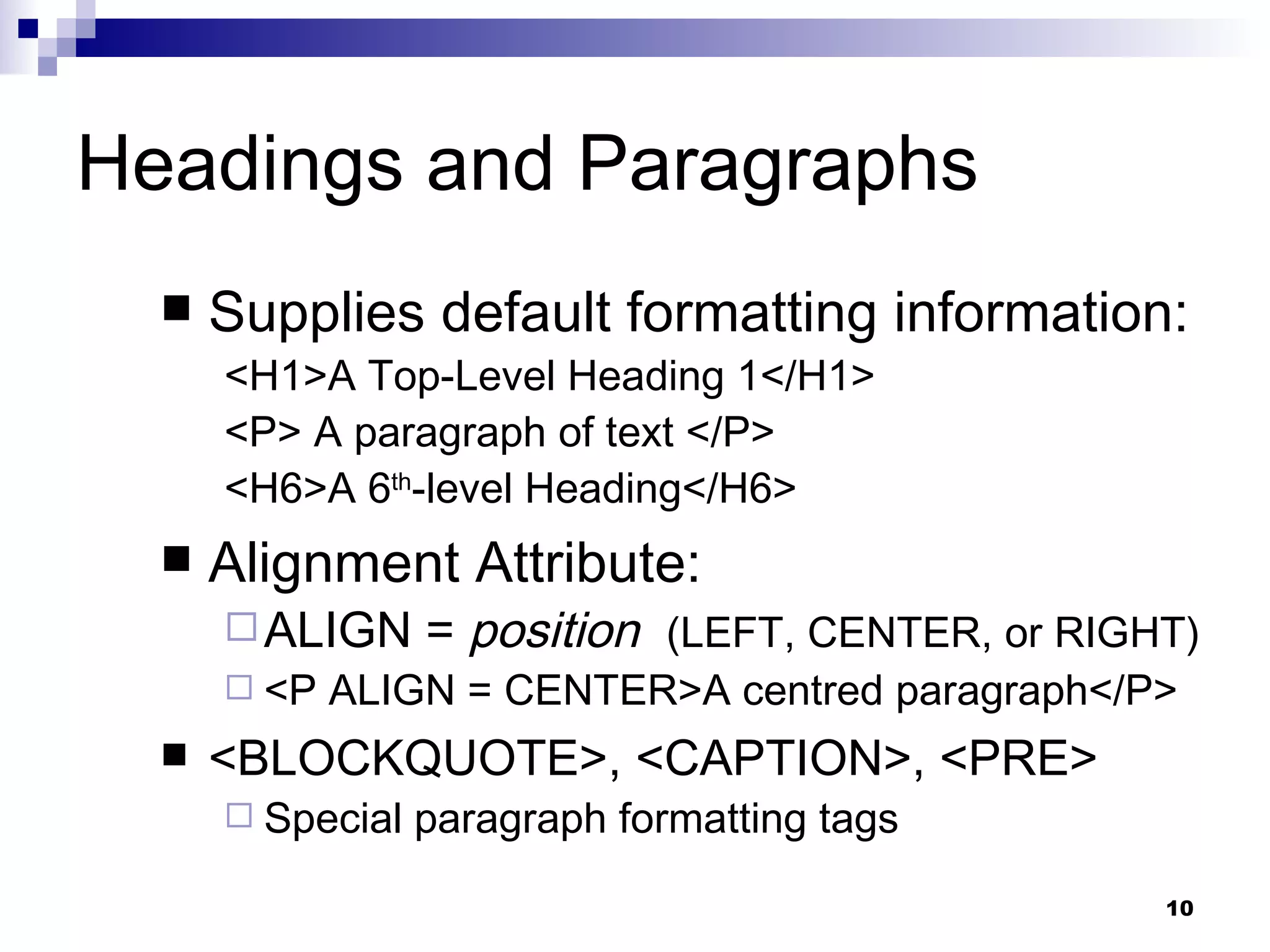
Headings and Paragraphs Supplies default formatting information: <H1>A Top-Level Heading 1</H1>  <P> A paragraph of text </P> <H6>A 6 th -level Heading</H6> Alignment Attribute: ALIGN =  position  (LEFT, CENTER, or RIGHT) <P ALIGN = CENTER>A  centred  paragraph</P> <BLOCKQUOTE>, <CAPTION>, <PRE> Special paragraph formatting tags
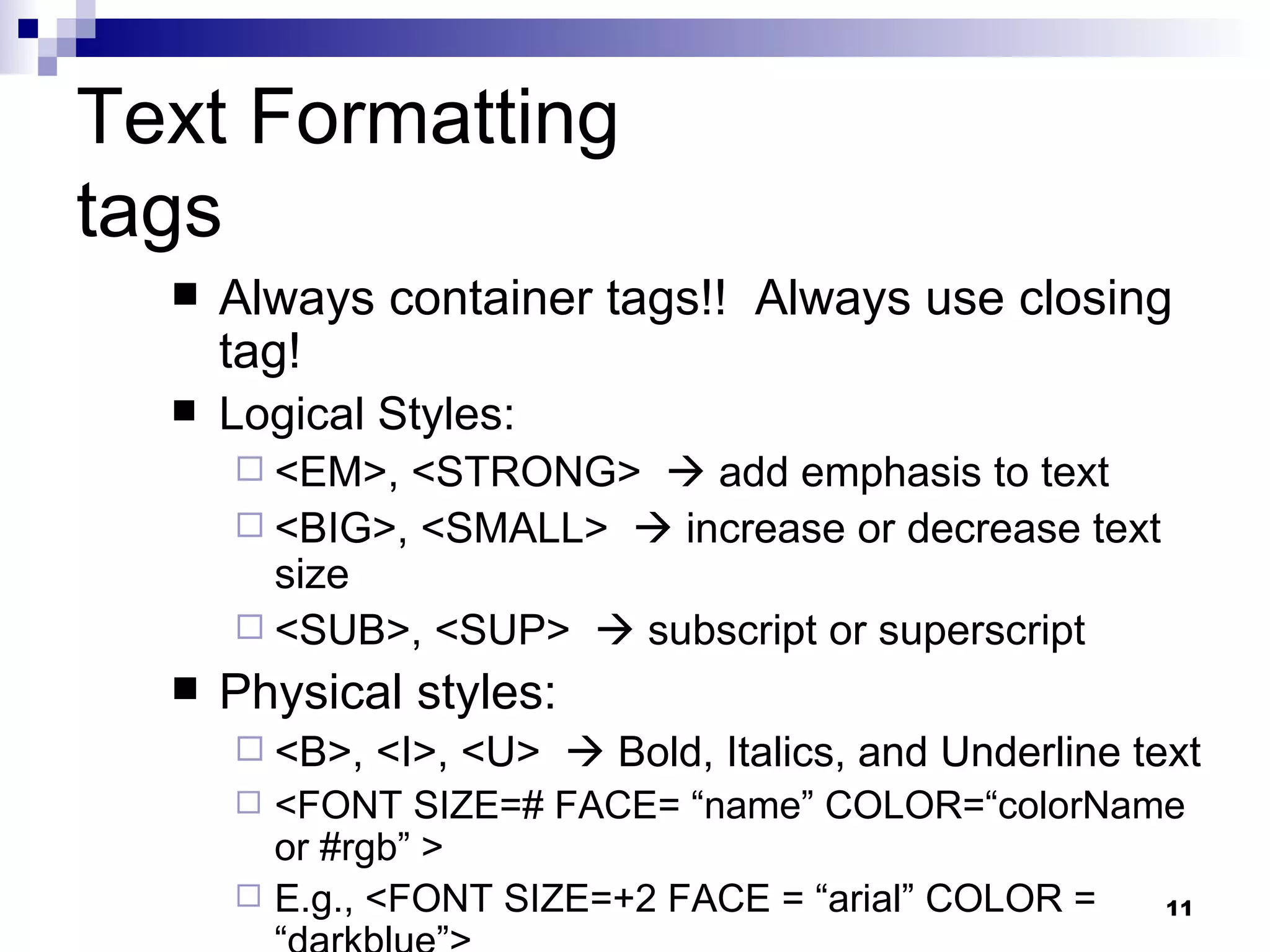
Text Formatting tags Always container tags!!  Always use closing tag! Logical Styles: <EM>, <STRONG>    add emphasis to text <BIG>, <SMALL>    increase or decrease text size <SUB>, <SUP>    subscript or superscript Physical styles: <B>, <I>, <U>    Bold, Italics, and Underline text <FONT SIZE=# FACE= “name” COLOR=“colorName or #rgb” > E.g., <FONT SIZE=+2 FACE = “arial” COLOR = “darkblue”>
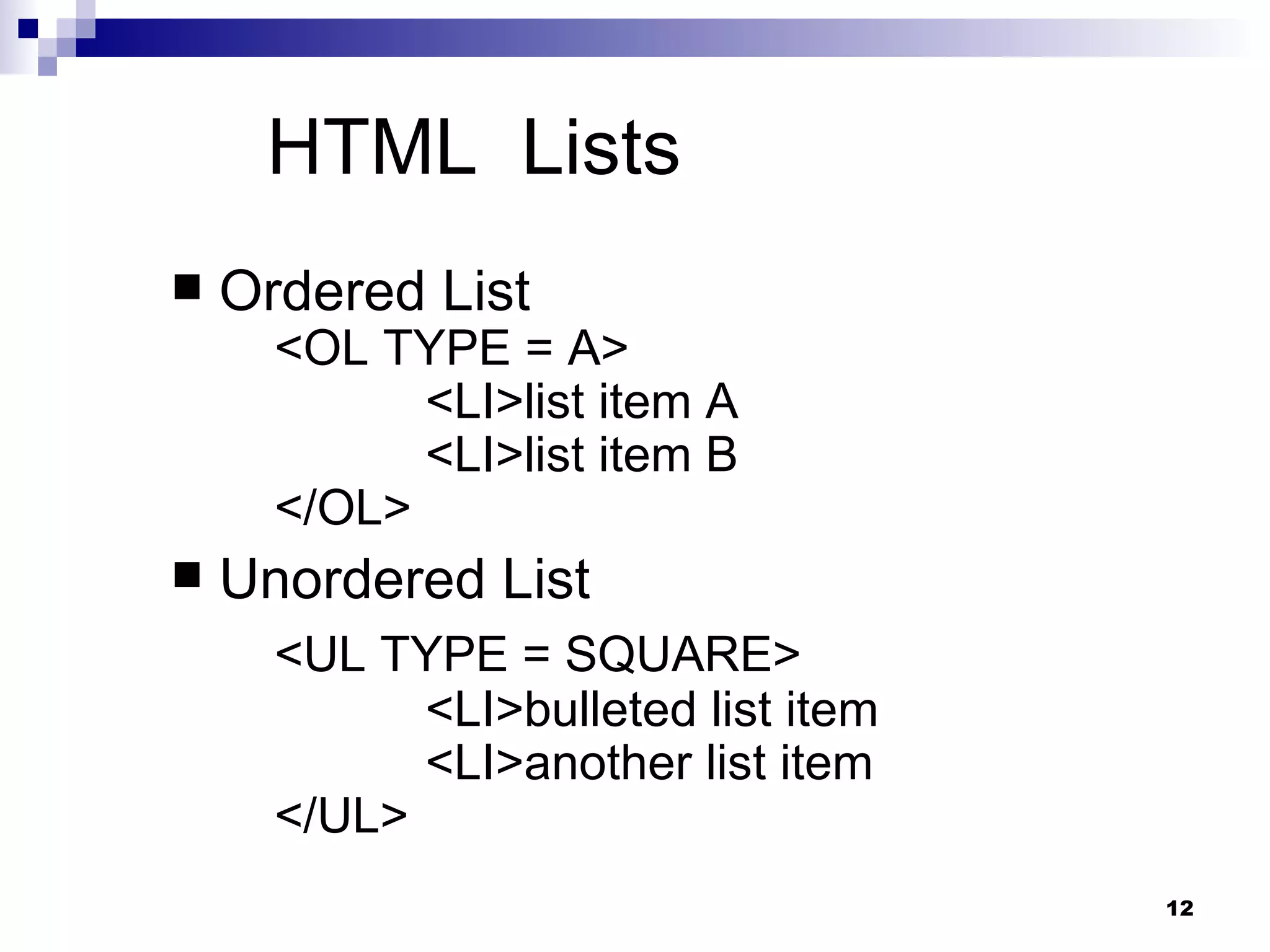
HTML  Lists Ordered List  <OL TYPE = A>  <LI>list item A <LI>list item B </OL> Unordered List <UL TYPE = SQUARE>  <LI>bulleted list item <LI>another list item </UL>
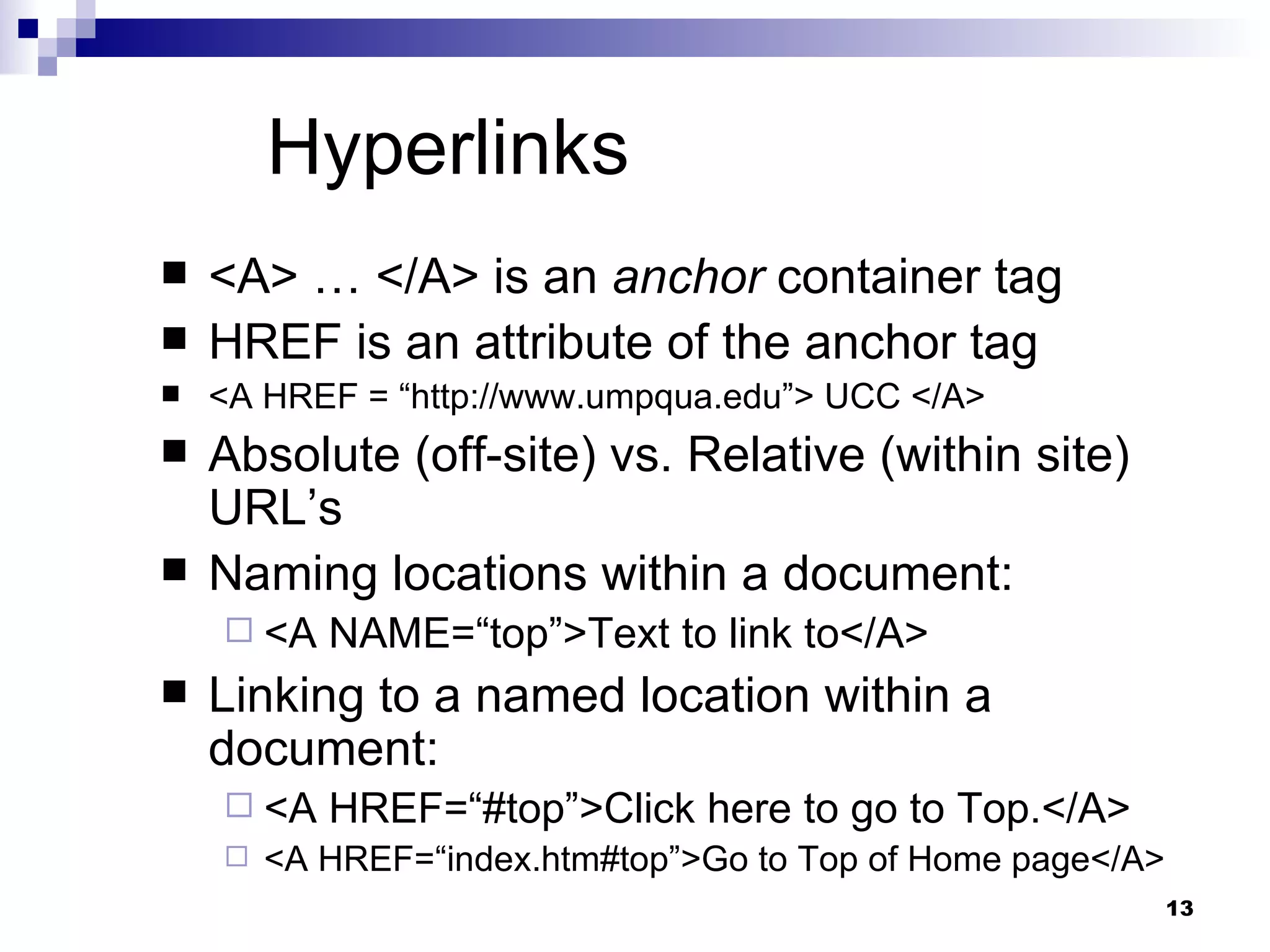
Hyperlinks <A> … </A> is an  anchor  container tag HREF is an attribute of the anchor tag <A HREF = “http://www.umpqua.edu”> UCC </A> Absolute (off-site) vs. Relative (within site) URL’s Naming locations within a document: <A NAME=“top”>Text to link to</A> Linking to a named location within a document: <A HREF=“#top”>Click here to go to Top.</A> <A HREF=“index.htm#top”>Go to Top of Home page</A>
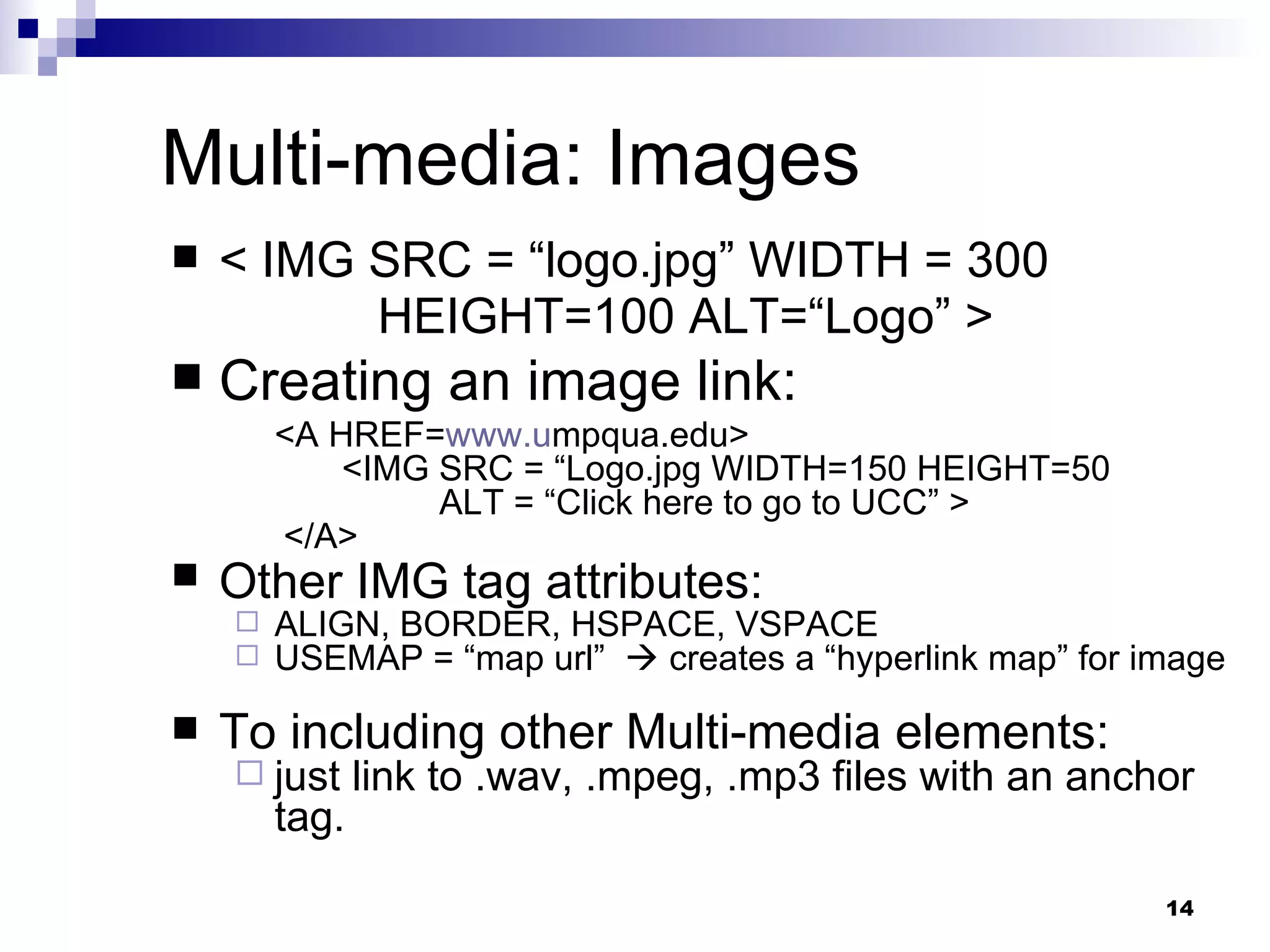
Multi-media: Images < IMG SRC = “logo.jpg” WIDTH = 300 HEIGHT=100 ALT=“Logo” > Creating an image link: <A HREF= www.u mpqua.edu>  <IMG SRC = “Logo.jpg WIDTH=150 HEIGHT=50 ALT = “Click here to go to UCC” >  </A> Other IMG tag attributes:   ALIGN, BORDER, HSPACE, VSPACE USEMAP = “map url”    creates a “hyperlink map” for image To including other Multi-media elements:  just link to .wav, .mpeg, .mp3 files with an anchor tag.
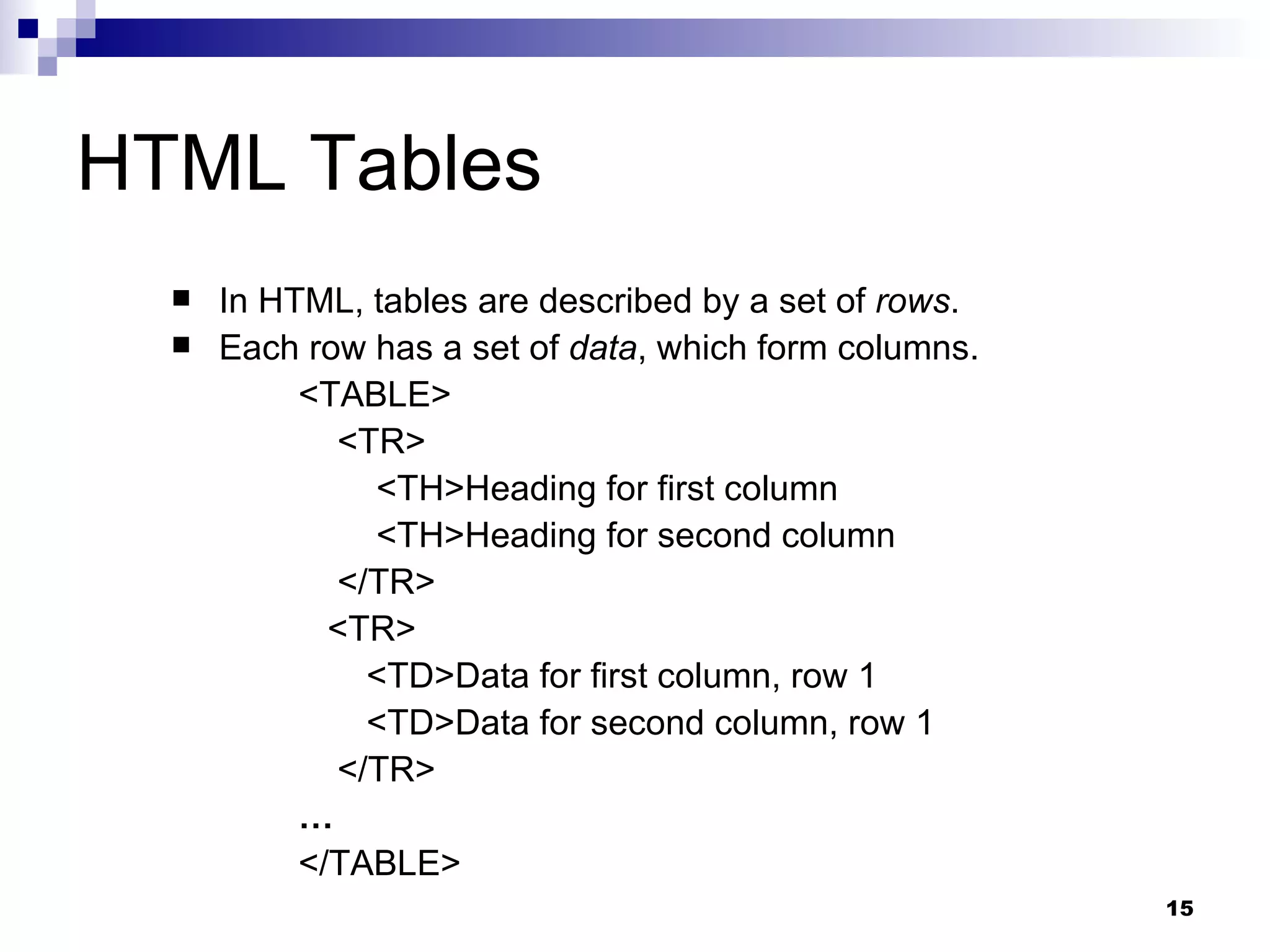
HTML Tables In HTML, tables are described by a set of  rows .  Each row has a set of  data , which form columns.  <TABLE> <TR> <TH>Heading for first column <TH>Heading for second column </TR> <TR> <TD>Data for first column, row 1 <TD>Data for second column, row 1 </TR>  … </TABLE>
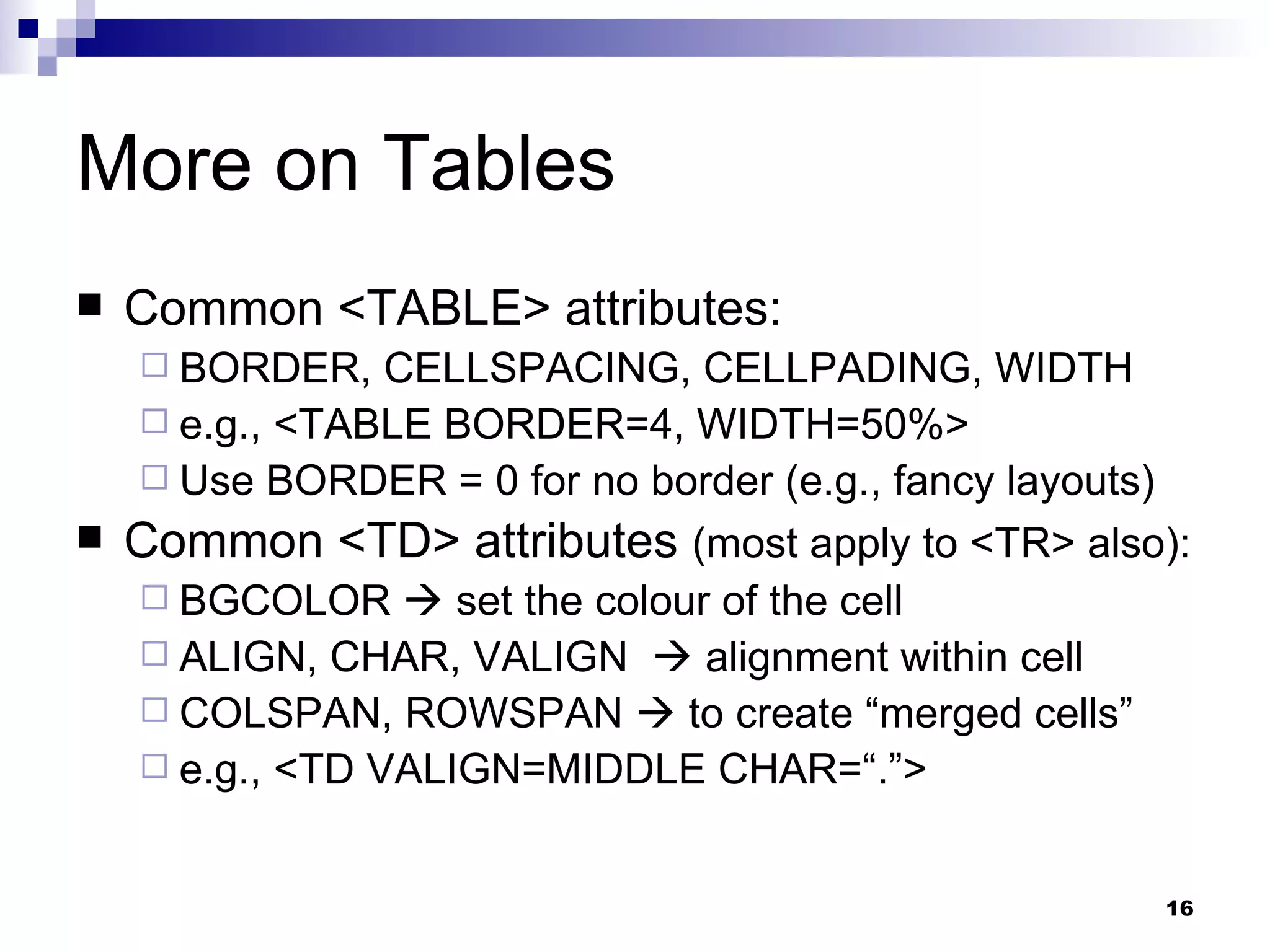
More on Tables Common <TABLE> attributes: BORDER, CELLSPACING, CELLPADING, WIDTH e.g., <TABLE BORDER=4, WIDTH=50%> Use BORDER = 0 for no border (e.g., fancy layouts) Common <TD> attributes  (most apply to <TR> also): BGCOLOR    set the colour of the cell ALIGN, CHAR, VALIGN    alignment within cell COLSPAN, ROWSPAN    to create “merged cells” e.g., <TD VALIGN=MIDDLE CHAR=“.”>
Using table to do complex layouts Since a <TD> element may contain text, images, lists, links, etc., tables are often used to create complex page layouts!  E.g. look at source for Joseph’s home page. Need to get good at using COLSPAN and ROWSPAN attributes.
Using table to do complex layouts Best to layout table on paper or using Word first, then jot down COLSPAN and ROWSPAN values for any “merged cells” – write down sequence of <TR> & <TD> tags required. Warning : if you don’t design complex tables first, you  will  get confused and frustrated – guaranteed!

Lecture 4

  • 1.
    HTML Basics RyanDinwiddie UCC Spring 2010
  • 2.
    HTML Short for H yper T ext M arkup L anguage, the language used to create documents on the World Wide Web. HTML was invented by Tim Berners-Lee while at CERN, the European Laboratory for Particle Physics in Geneva.
  • 3.
    HTML HTML isa collection of styles (indicated by markup tags ) that define the various elements of a World Wide Web document. HTML document can be read and displayed by many different browsers running on different types of computers – platform independent!
  • 4.
    HTML: What doyou need? Editor (Notepad) Browser to view results Place to put your web site (store the files that contain the HTML code, images, music, etc.), preferably on the internet URL for your page (domain name, or folder within a domain)  if your page is on the Internet (Links to your page!)
  • 5.
    HTML A webpage is best thought of as a set of visual elements (words, paragraphs, lists, tables, images, etc.) HTML defines the structure and layout of the elements on a web page with a variety of tags. Each tag may have a set of attributes that modify the appearance or layout of the visual element contained by the tag.
  • 6.
    HTML Tags ContainerTags <Begin formatting>some text</End formatting> For example: <B>some bold text</B> <H1>some heading </H1> Empty Element Tags For example <HR> <BR> Comment Tag <!-- Hi, I'm a comment. --> Use them document complicated layouts!
  • 7.
    HTML tags Caseinsensitive Unrecognised tags are simply ignored by browser!! Container tags must be nested!!
  • 8.
    Structure of HTMLdocument Basic structure:
  • 9.
    BODY tag andattributes E.g., the BGCOLOR attribute of BODY tag specifies the color of the whole document. E.g., the TEXT attribute of BODY tag specifies the default color of the text in the whole document . <BODY BGCOLOR = “yellow” TEXT = “purple”>
  • 10.
    Headings and ParagraphsSupplies default formatting information: <H1>A Top-Level Heading 1</H1> <P> A paragraph of text </P> <H6>A 6 th -level Heading</H6> Alignment Attribute: ALIGN = position (LEFT, CENTER, or RIGHT) <P ALIGN = CENTER>A centred paragraph</P> <BLOCKQUOTE>, <CAPTION>, <PRE> Special paragraph formatting tags
  • 11.
    Text Formatting tagsAlways container tags!! Always use closing tag! Logical Styles: <EM>, <STRONG>  add emphasis to text <BIG>, <SMALL>  increase or decrease text size <SUB>, <SUP>  subscript or superscript Physical styles: <B>, <I>, <U>  Bold, Italics, and Underline text <FONT SIZE=# FACE= “name” COLOR=“colorName or #rgb” > E.g., <FONT SIZE=+2 FACE = “arial” COLOR = “darkblue”>
  • 12.
    HTML ListsOrdered List <OL TYPE = A> <LI>list item A <LI>list item B </OL> Unordered List <UL TYPE = SQUARE> <LI>bulleted list item <LI>another list item </UL>
  • 13.
    Hyperlinks <A> …</A> is an anchor container tag HREF is an attribute of the anchor tag <A HREF = “http://www.umpqua.edu”> UCC </A> Absolute (off-site) vs. Relative (within site) URL’s Naming locations within a document: <A NAME=“top”>Text to link to</A> Linking to a named location within a document: <A HREF=“#top”>Click here to go to Top.</A> <A HREF=“index.htm#top”>Go to Top of Home page</A>
  • 14.
    Multi-media: Images <IMG SRC = “logo.jpg” WIDTH = 300 HEIGHT=100 ALT=“Logo” > Creating an image link: <A HREF= www.u mpqua.edu> <IMG SRC = “Logo.jpg WIDTH=150 HEIGHT=50 ALT = “Click here to go to UCC” > </A> Other IMG tag attributes: ALIGN, BORDER, HSPACE, VSPACE USEMAP = “map url”  creates a “hyperlink map” for image To including other Multi-media elements: just link to .wav, .mpeg, .mp3 files with an anchor tag.
  • 15.
    HTML Tables InHTML, tables are described by a set of rows . Each row has a set of data , which form columns. <TABLE> <TR> <TH>Heading for first column <TH>Heading for second column </TR> <TR> <TD>Data for first column, row 1 <TD>Data for second column, row 1 </TR> … </TABLE>
  • 16.
    More on TablesCommon <TABLE> attributes: BORDER, CELLSPACING, CELLPADING, WIDTH e.g., <TABLE BORDER=4, WIDTH=50%> Use BORDER = 0 for no border (e.g., fancy layouts) Common <TD> attributes (most apply to <TR> also): BGCOLOR  set the colour of the cell ALIGN, CHAR, VALIGN  alignment within cell COLSPAN, ROWSPAN  to create “merged cells” e.g., <TD VALIGN=MIDDLE CHAR=“.”>
  • 17.
    Using table todo complex layouts Since a <TD> element may contain text, images, lists, links, etc., tables are often used to create complex page layouts! E.g. look at source for Joseph’s home page. Need to get good at using COLSPAN and ROWSPAN attributes.
  • 18.
    Using table todo complex layouts Best to layout table on paper or using Word first, then jot down COLSPAN and ROWSPAN values for any “merged cells” – write down sequence of <TR> & <TD> tags required. Warning : if you don’t design complex tables first, you will get confused and frustrated – guaranteed!