Installing Windows Server 2008 R2
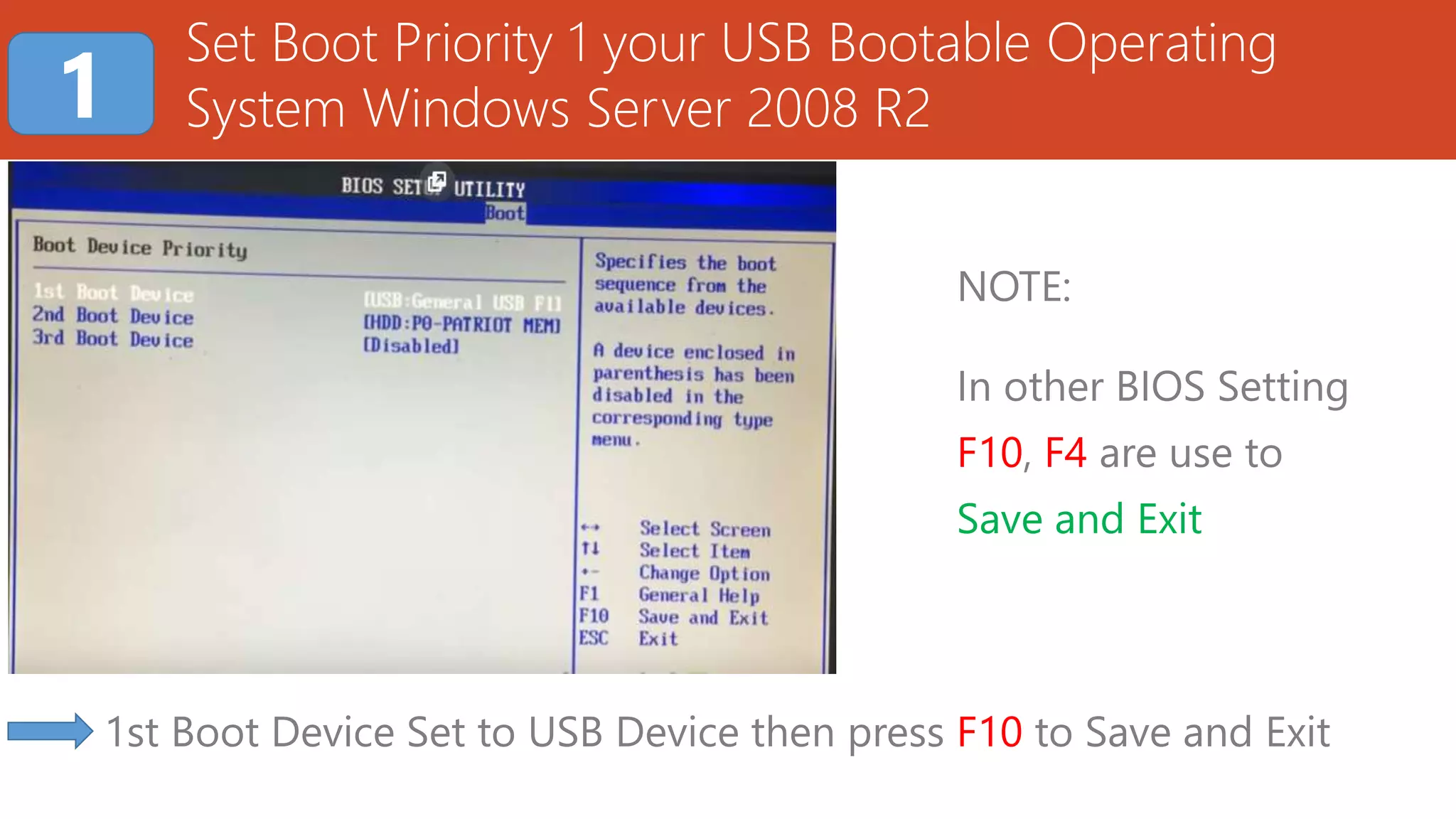
Set Boot Priority 1 your USB Bootable Operating
System Windows Server 2008 R2
1st Boot Device Set to USB Device then press F10 to Save and Exit
1
NOTE:
In other BIOS Setting
F10, F4 are use to
Save and Exit
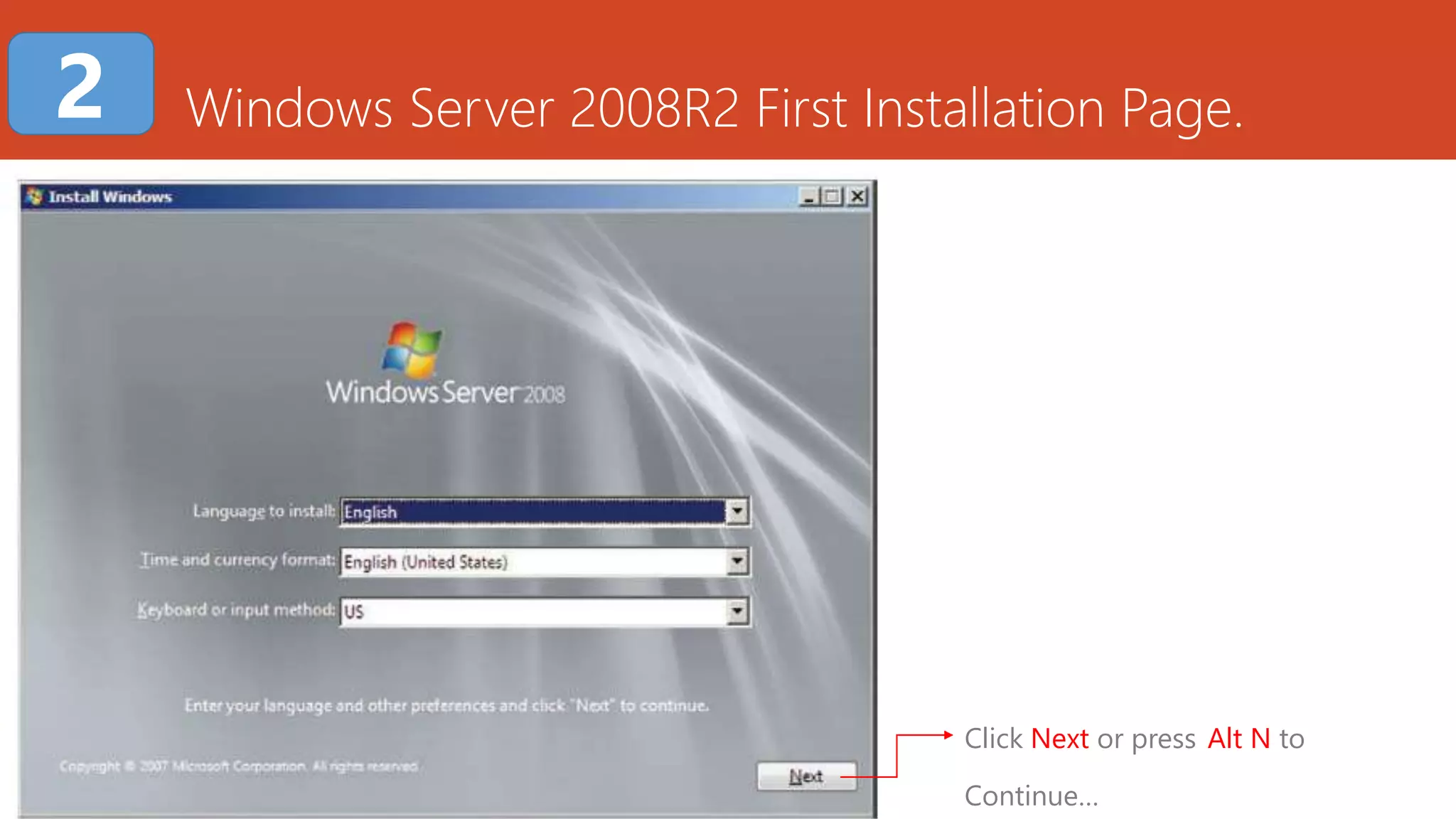
Windows Server 2008R2 First Installation Page.
Click Next or press Alt N to
Continue…
2
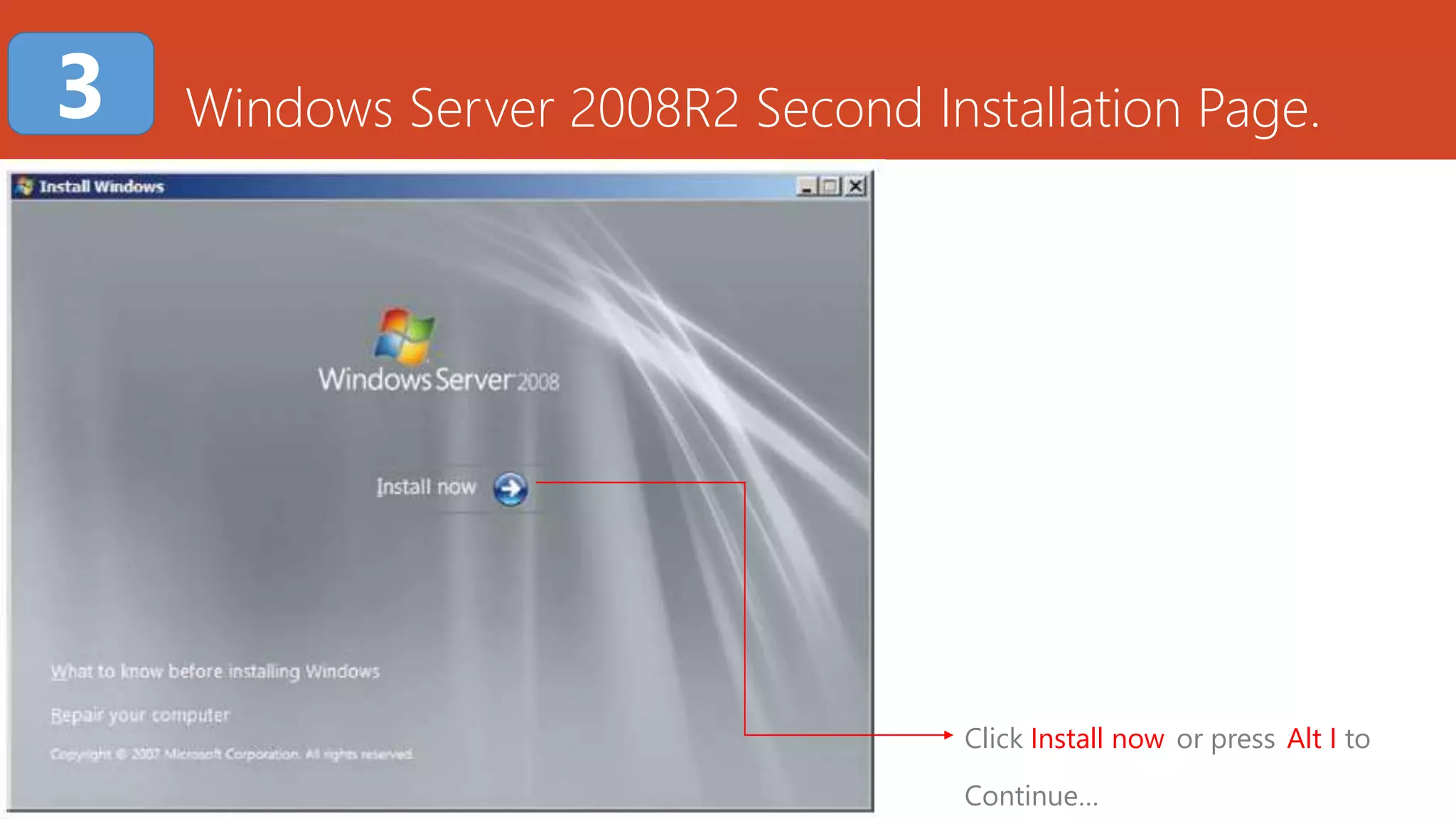
Windows Server 2008R2 Second Installation Page.
Click Install now or press Alt I to
Continue…
3
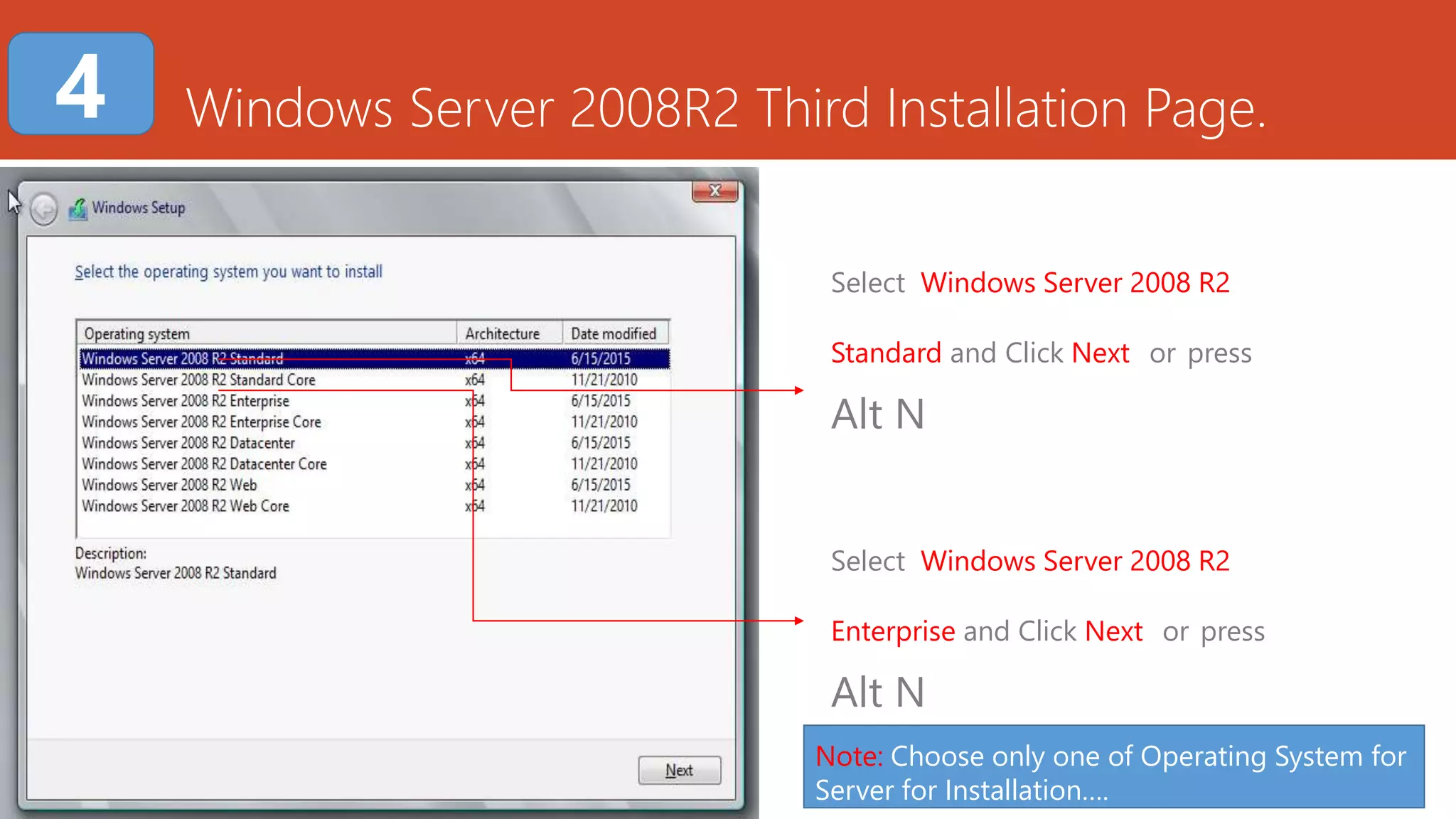
Windows Server 2008R2 Third Installation Page.
Select Windows Server 2008 R2
Standard and Click Next or press
Alt N
4
Select Windows Server 2008 R2
Enterprise and Click Next or press
Alt N
Note: Choose only one of Operating System for
Server for Installation….
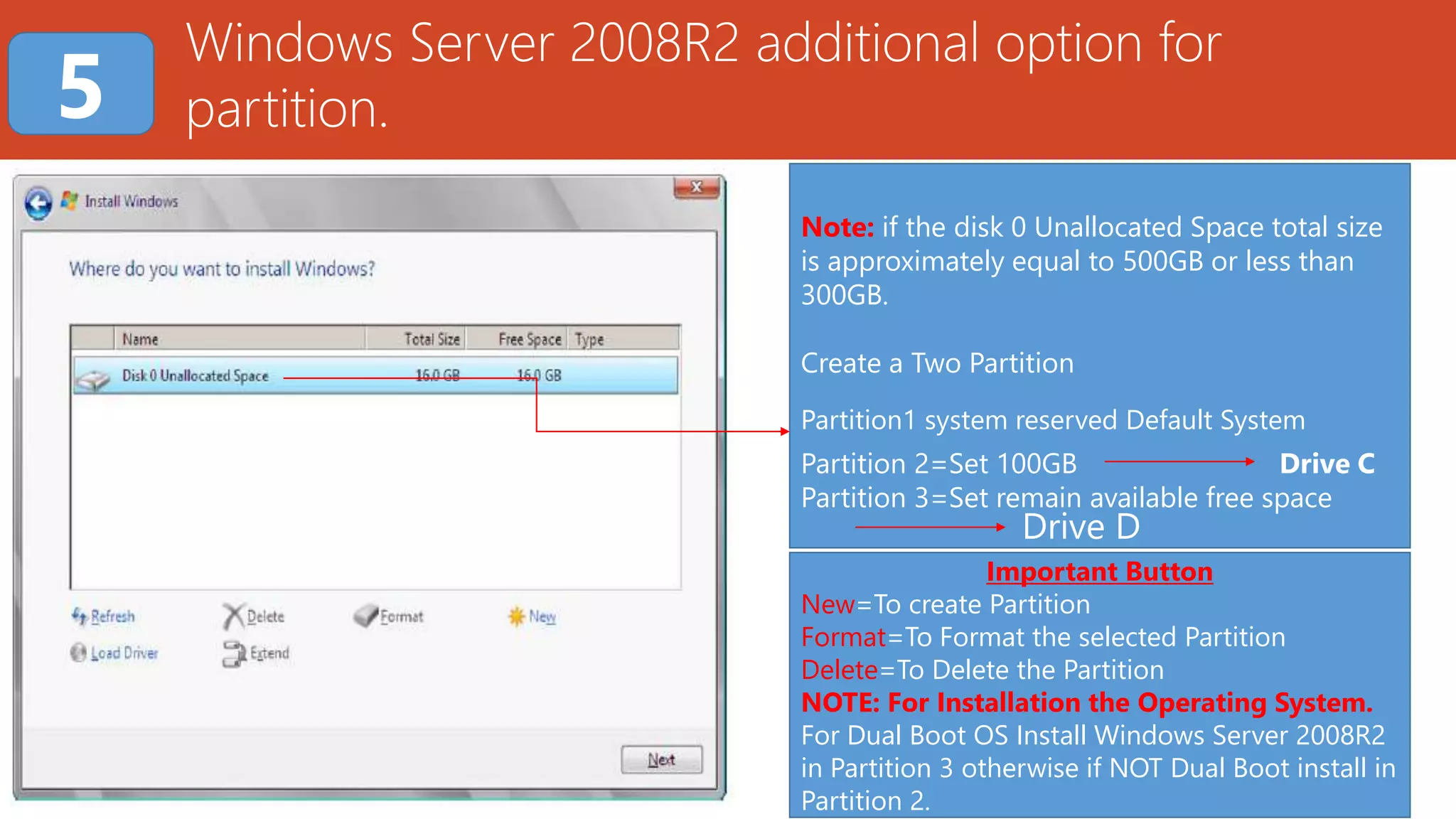
Note: if the disk 0 Unallocated Space total size
is approximately equal to 500GB or less than
300GB.
Create a Two Partition
Partition1 system reserved Default System
Partition 2=Set 100GB Drive C
Partition 3=Set remain available free space
Drive D
Windows Server 2008R2 additional option for
partition.5
Important Button
New=To create Partition
Format=To Format the selected Partition
Delete=To Delete the Partition
NOTE: For Installation the Operating System.
For Dual Boot OS Install Windows Server 2008R2
in Partition 3 otherwise if NOT Dual Boot install in
Partition 2.
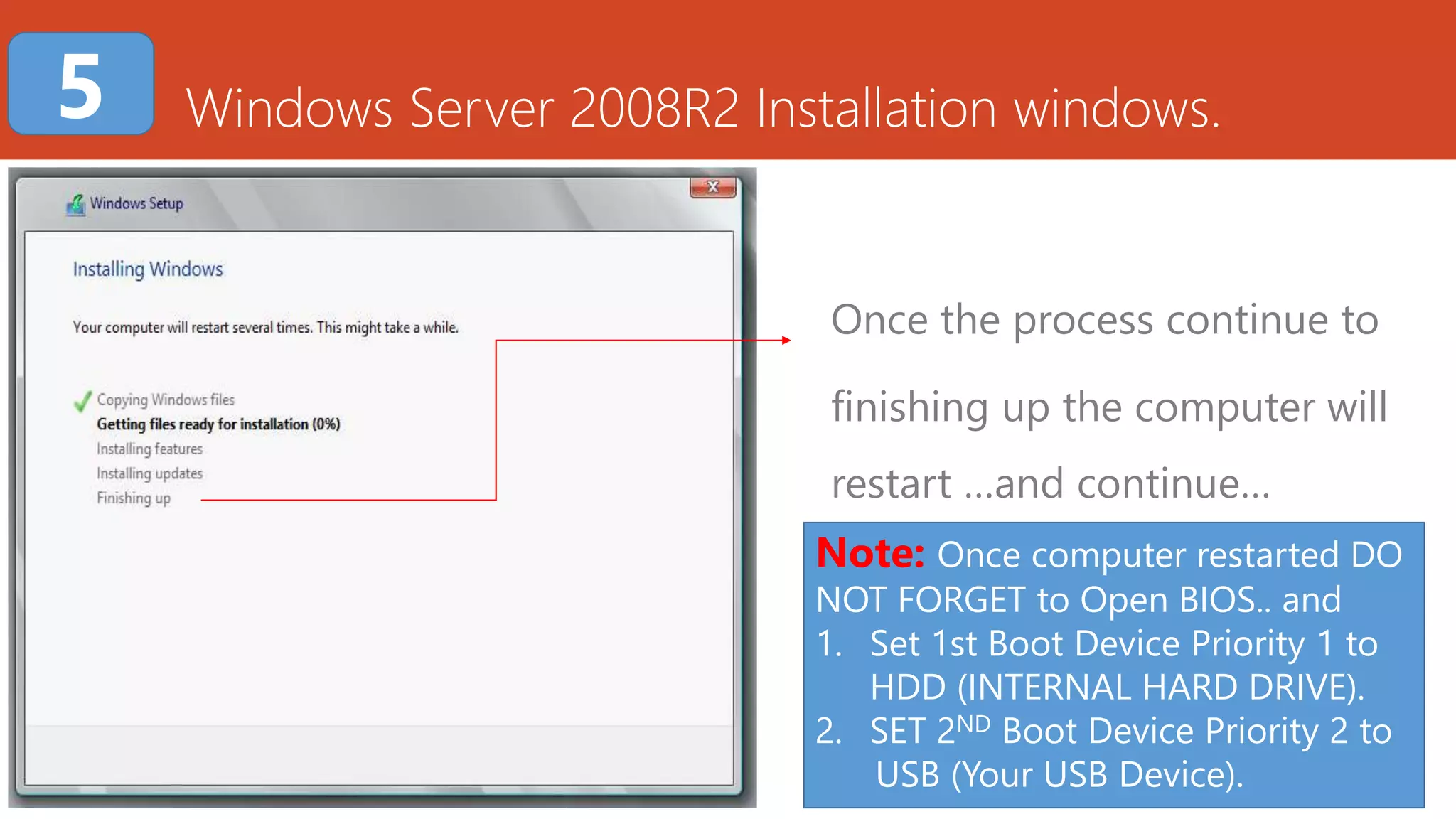
Windows Server 2008R2 Installation windows.
Once the process continue to
finishing up the computer will
restart …and continue…
5
Note: Once computer restarted DO
NOT FORGET to Open BIOS.. and
1. Set 1st Boot Device Priority 1 to
HDD (INTERNAL HARD DRIVE).
2. SET 2ND Boot Device Priority 2 to
USB (Your USB Device).
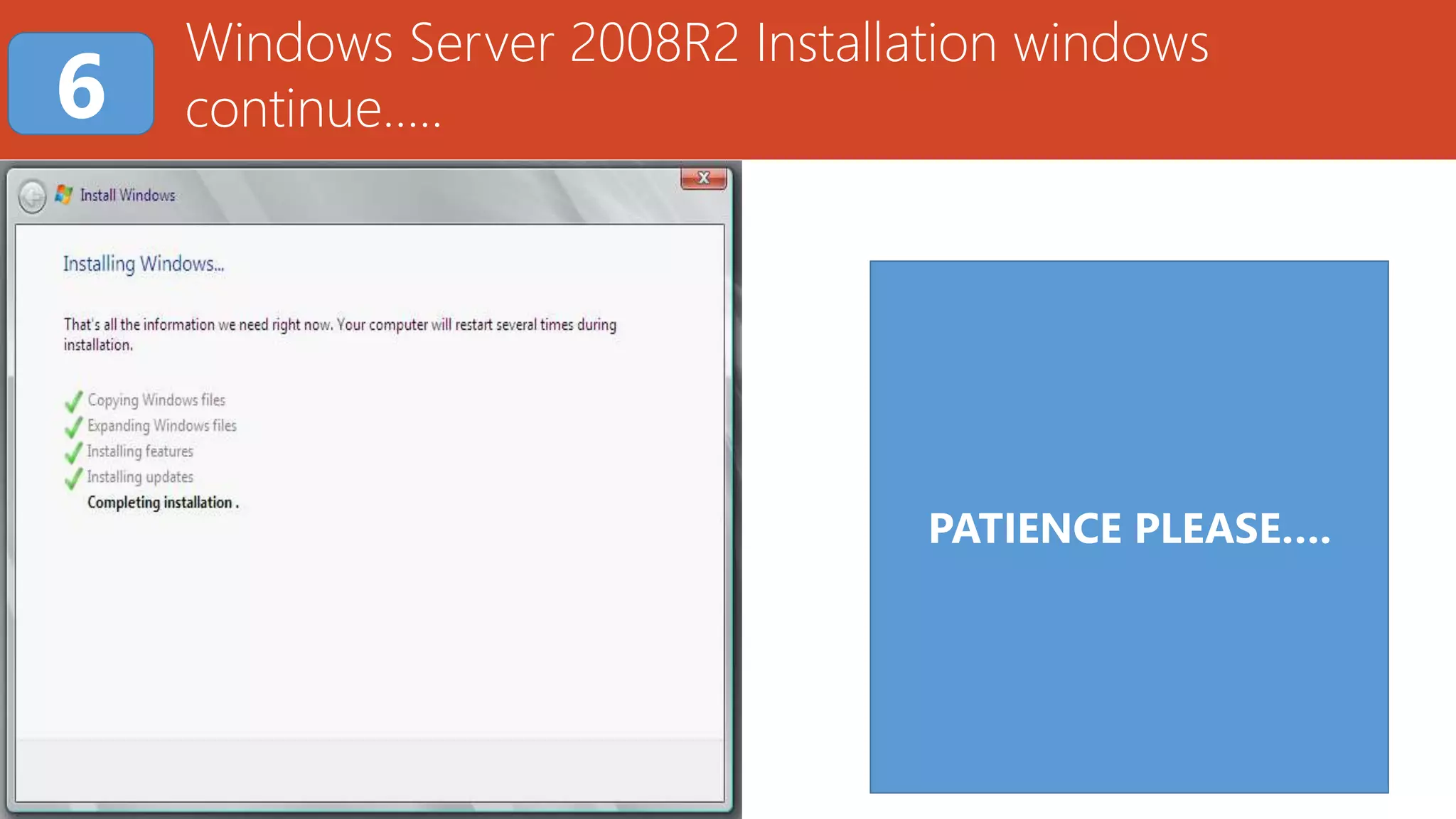
Windows Server 2008R2 Installation windows
continue…..6
PATIENCE PLEASE….
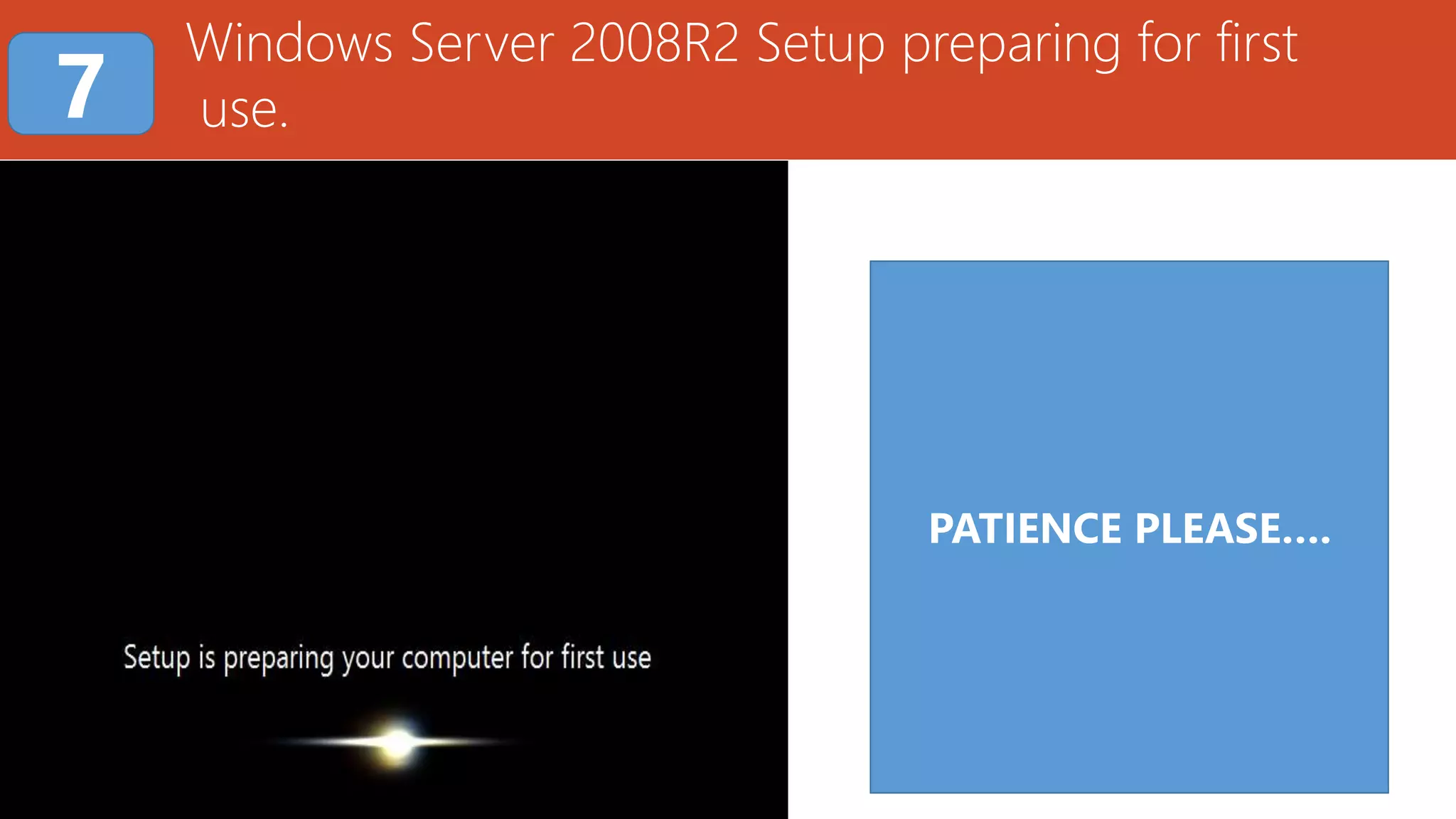
Windows Server 2008R2 Setup preparing for first
use.7
PATIENCE PLEASE….
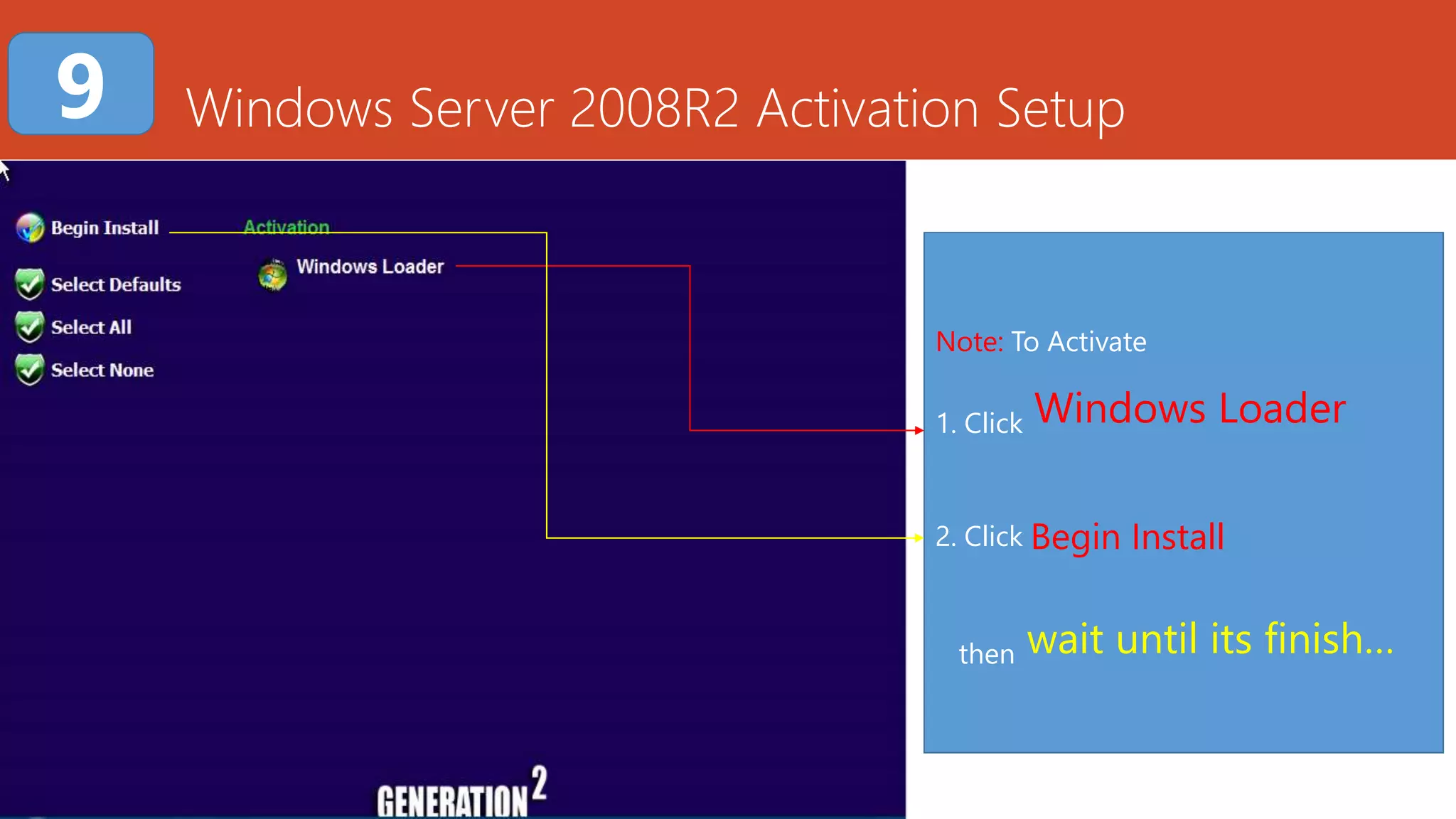
Windows Server 2008R2 Activation Setup9
Note: To Activate
1. Click Windows Loader
2. Click Begin Install
then wait until its finish…
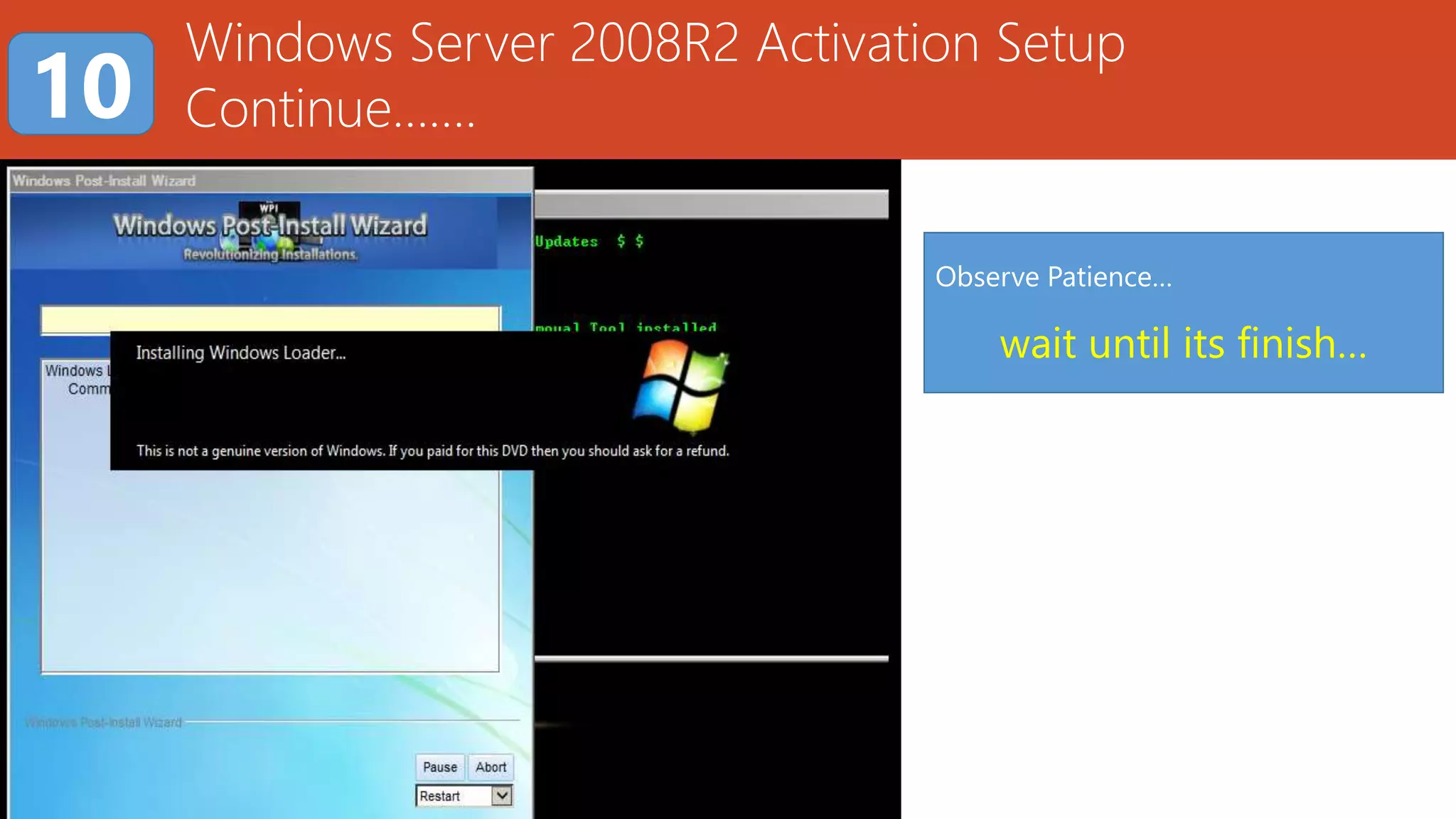
Windows Server 2008R2 Activation Setup
Continue…….10
Observe Patience…
wait until its finish…
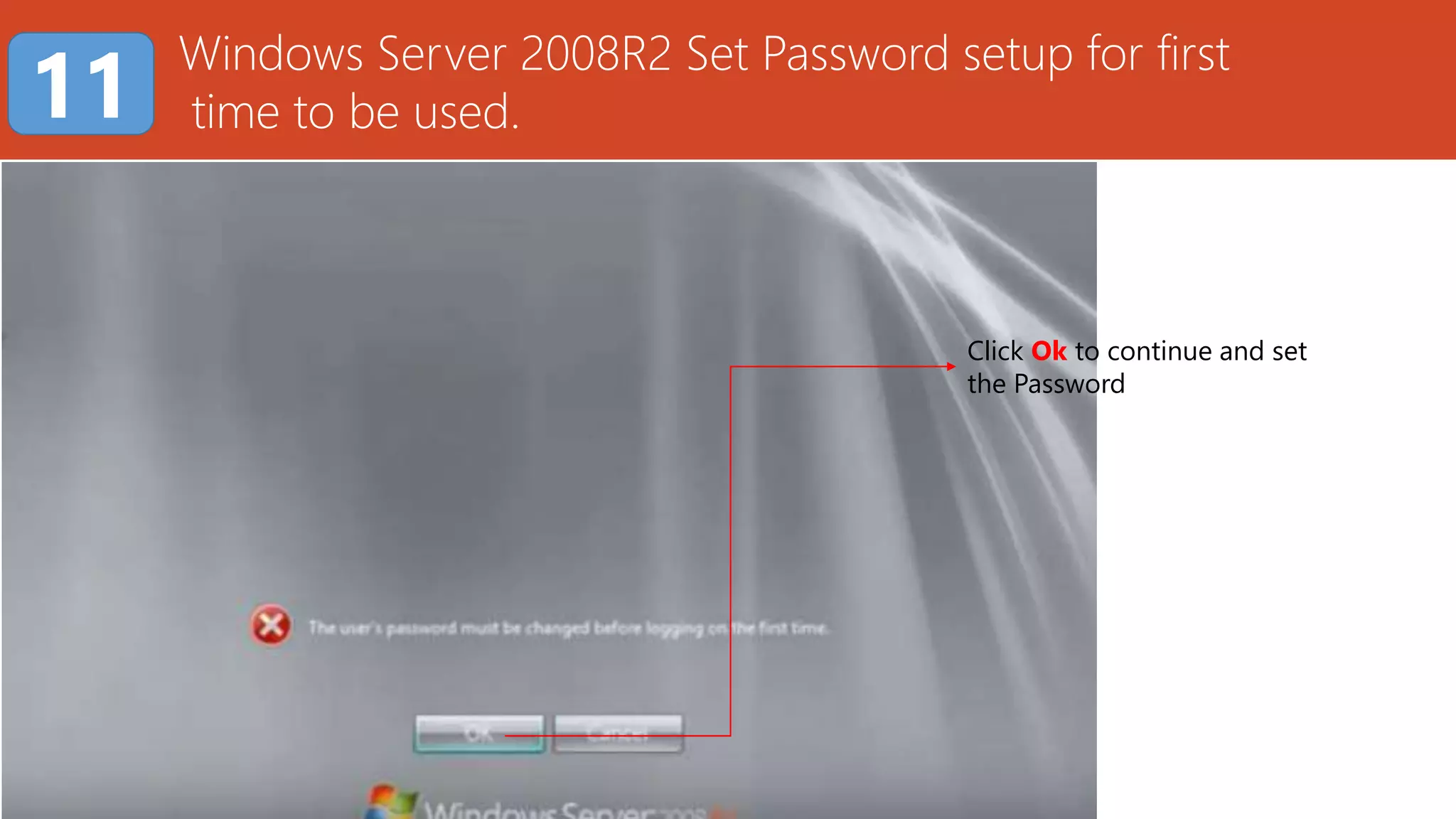
Windows Server 2008R2 Set Password setup for first
time to be used.11
Click Ok to continue and set
the Password
2
1
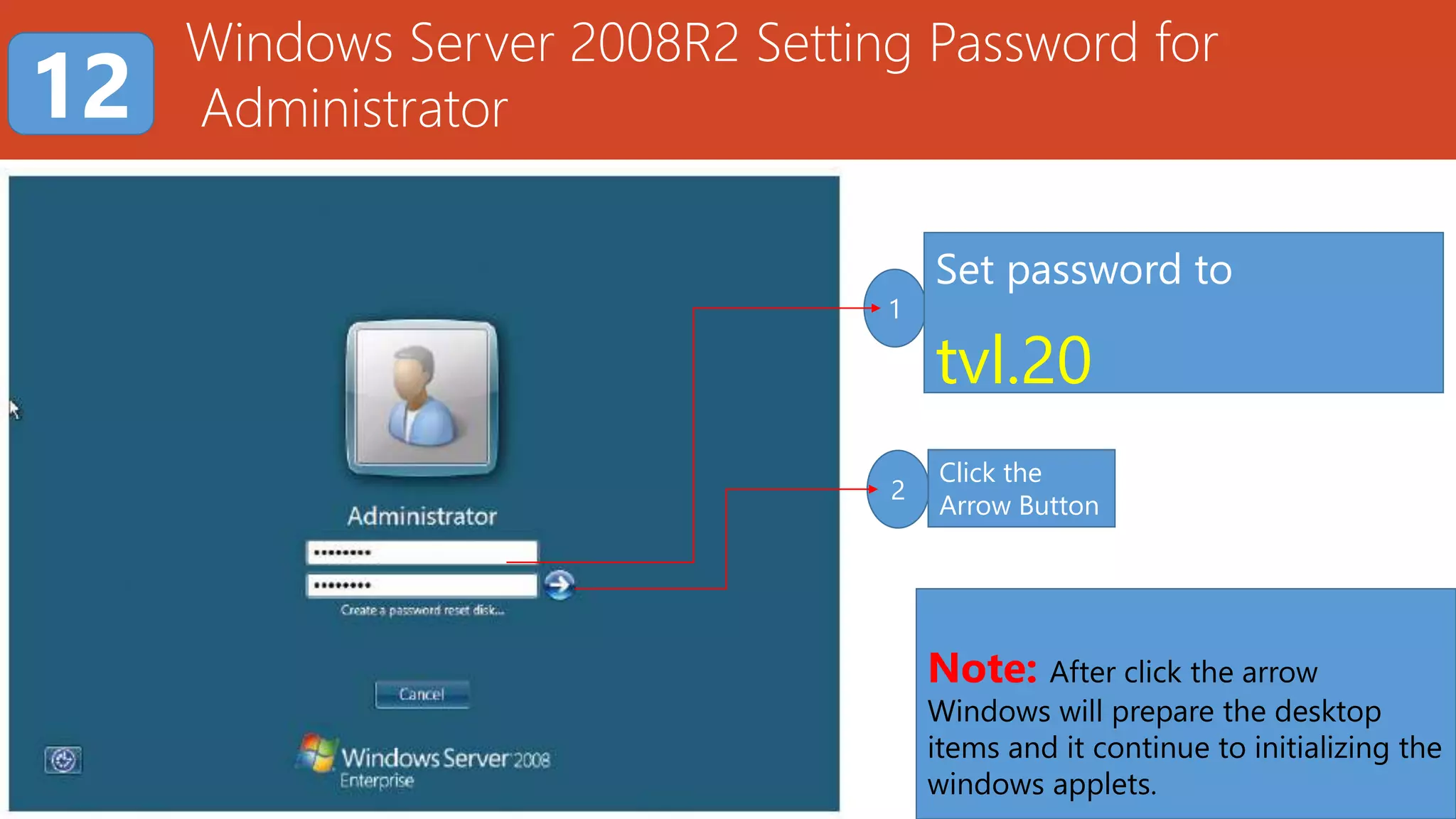
Windows Server 2008R2 Setting Password for
Administrator12
Set password to
tvl.20
Click the
Arrow Button
Note: After click the arrow
Windows will prepare the desktop
items and it continue to initializing the
windows applets.
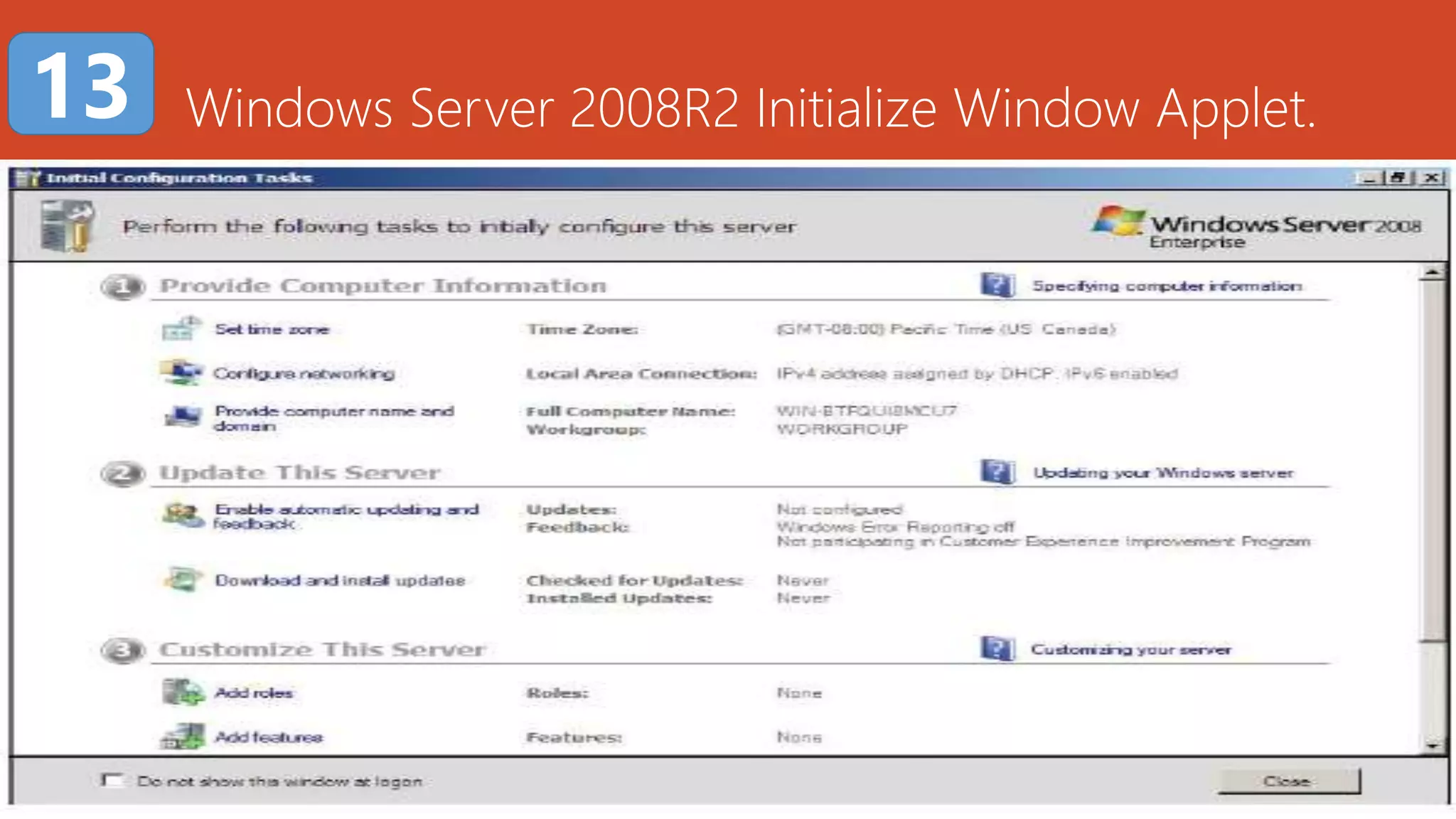
Windows Server 2008R2 Initialize Window Applet.13
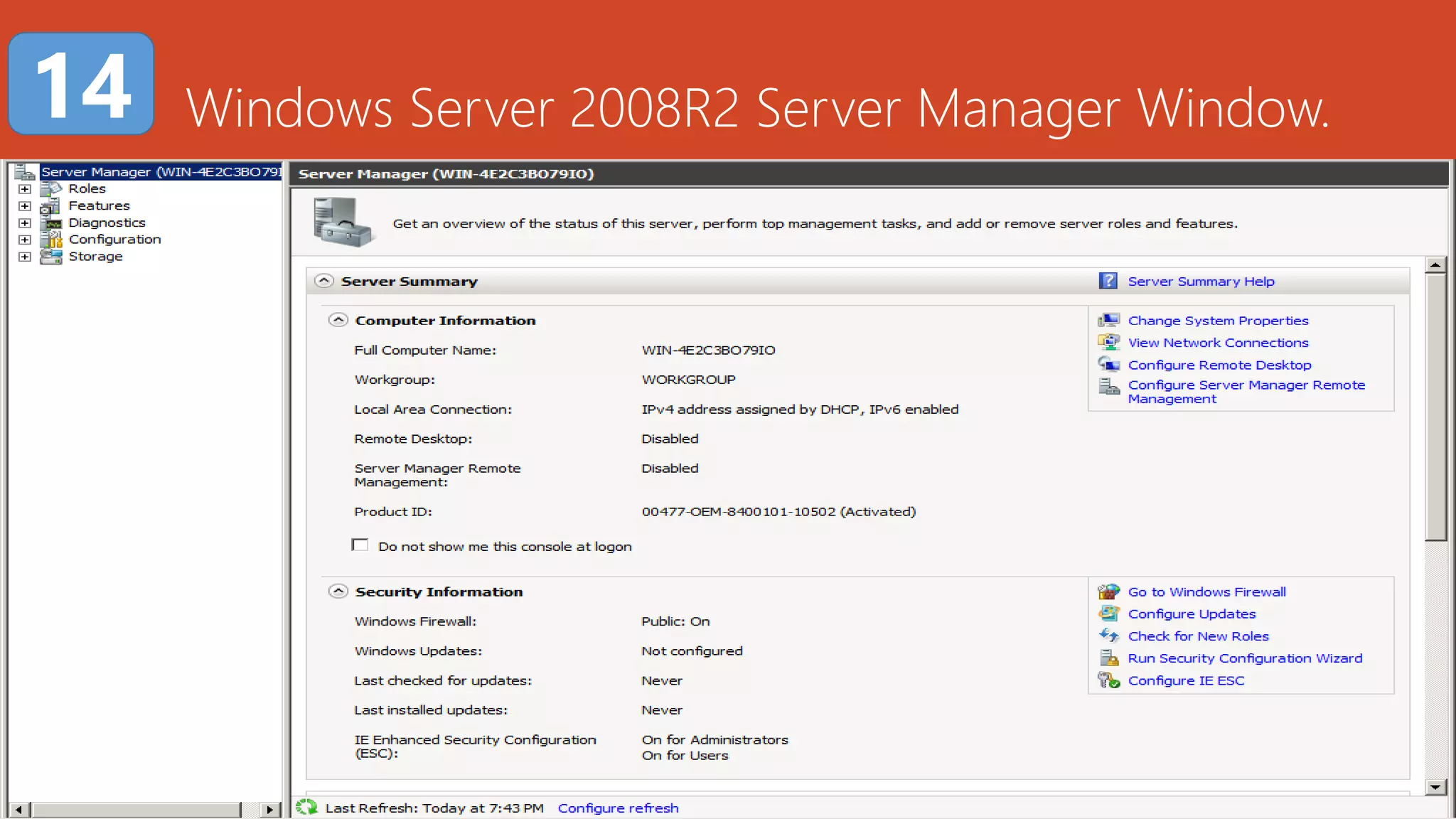
Windows Server 2008R2 Server Manager Window.14
Click the
Arrow Button
Installation of Windows Server 2008R2 is DONE!.
For those would like to install Windows Server
2008R2. You may repeat the steps again.
God luck! Installing……
Windows Server 2008R2.
GBSJR.
Computer System Servicing NC II
COC 1 – Installing Windows Server 2008R2
Find out more for the next tutorial by GBSJR

Installing windows server 2008 r2

  • 1.
  • 2.
    Set Boot Priority1 your USB Bootable Operating System Windows Server 2008 R2 1st Boot Device Set to USB Device then press F10 to Save and Exit 1 NOTE: In other BIOS Setting F10, F4 are use to Save and Exit
  • 3.
    Windows Server 2008R2First Installation Page. Click Next or press Alt N to Continue… 2
  • 4.
    Windows Server 2008R2Second Installation Page. Click Install now or press Alt I to Continue… 3
  • 5.
    Windows Server 2008R2Third Installation Page. Select Windows Server 2008 R2 Standard and Click Next or press Alt N 4 Select Windows Server 2008 R2 Enterprise and Click Next or press Alt N Note: Choose only one of Operating System for Server for Installation….
  • 6.
    Note: if thedisk 0 Unallocated Space total size is approximately equal to 500GB or less than 300GB. Create a Two Partition Partition1 system reserved Default System Partition 2=Set 100GB Drive C Partition 3=Set remain available free space Drive D Windows Server 2008R2 additional option for partition.5 Important Button New=To create Partition Format=To Format the selected Partition Delete=To Delete the Partition NOTE: For Installation the Operating System. For Dual Boot OS Install Windows Server 2008R2 in Partition 3 otherwise if NOT Dual Boot install in Partition 2.
  • 7.
    Windows Server 2008R2Installation windows. Once the process continue to finishing up the computer will restart …and continue… 5 Note: Once computer restarted DO NOT FORGET to Open BIOS.. and 1. Set 1st Boot Device Priority 1 to HDD (INTERNAL HARD DRIVE). 2. SET 2ND Boot Device Priority 2 to USB (Your USB Device).
  • 8.
    Windows Server 2008R2Installation windows continue…..6 PATIENCE PLEASE….
  • 9.
    Windows Server 2008R2Setup preparing for first use.7 PATIENCE PLEASE….
  • 10.
    Windows Server 2008R2Activation Setup9 Note: To Activate 1. Click Windows Loader 2. Click Begin Install then wait until its finish…
  • 11.
    Windows Server 2008R2Activation Setup Continue…….10 Observe Patience… wait until its finish…
  • 12.
    Windows Server 2008R2Set Password setup for first time to be used.11 Click Ok to continue and set the Password
  • 13.
    2 1 Windows Server 2008R2Setting Password for Administrator12 Set password to tvl.20 Click the Arrow Button Note: After click the arrow Windows will prepare the desktop items and it continue to initializing the windows applets.
  • 14.
    Windows Server 2008R2Initialize Window Applet.13
  • 15.
    Windows Server 2008R2Server Manager Window.14 Click the Arrow Button
  • 16.
    Installation of WindowsServer 2008R2 is DONE!. For those would like to install Windows Server 2008R2. You may repeat the steps again. God luck! Installing…… Windows Server 2008R2.
  • 17.
    GBSJR. Computer System ServicingNC II COC 1 – Installing Windows Server 2008R2 Find out more for the next tutorial by GBSJR

Editor's Notes

  • #18 In Slide Show mode, click the arrow to enter the PowerPoint Getting Started Center.