AOA, My name is Kanzul
Iman from CIT 3rd Year.
Preface:
• What is a Server
• Hardware Requirements
• Installation of Server 2008
• Why we use Server
What is a Server?
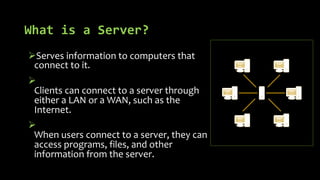
ØServes information to computers that
connect to it.
Ø
Clients can connect to a server through
either a LAN or a WAN, such as the
Internet.
Ø
When users connect to a server, they can
access programs, files, and other
information from the server.
Hardware Requirements:
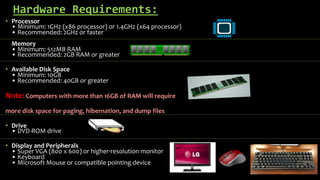
• Processor
• Minimum: 1GHz (x86 processor) or 1.4GHz (x64 processor)
• Recommended: 2GHz or faster
Memory
• Minimum: 512MB RAM
• Recommended: 2GB RAM or greater
• Available Disk Space
• Minimum: 10GB
• Recommended: 40GB or greater
Note: Computers with more than 16GB of RAM will require
more disk space for paging, hibernation, and dump files
• Drive
• DVD-ROM drive
• Display and Peripherals
• Super VGA (800 x 600) or higher-resolution monitor
• Keyboard
• Microsoft Mouse or compatible pointing device
Installation of Server 2008:
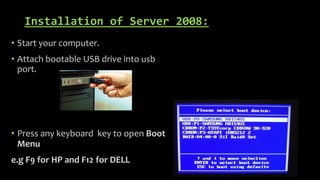
• Start your computer.
• Attach bootable USB drive into usb
port.
• Press any keyboard key to open Boot
Menu
e.g F9 for HP and F12 for DELL
Installation of Server 2008:
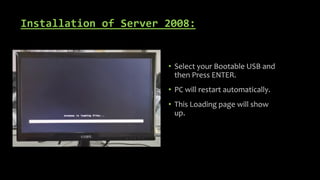
• Select your Bootable USB and
then Press ENTER.
• PC will restart automatically.
• This Loading page will show
up.
Installation of Server 2008:
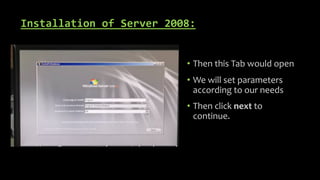
• Then this Tab would open
• We will set parameters
according to our needs
• Then click next to
continue.
Installation of Server 2008:
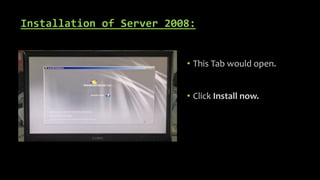
• This Tab would open.
• Click Install now.
Installation of Server 2008:
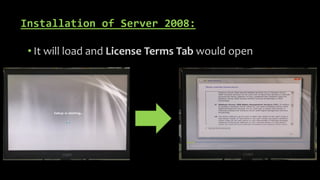
• It will load and License Terms Tab would open
Installation of Server 2008:
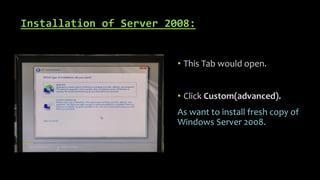
• This Tab would open.
• Click Custom(advanced).
As want to install fresh copy of
Windows Server 2008.
Installation of Server 2008:
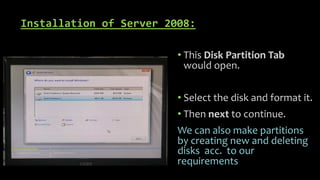
• This Disk Partition Tab
would open.
• Select the disk and format it.
• Then next to continue.
We can also make partitions
by creating new and deleting
disks acc. to our
requirements
Installation of Server 2008:
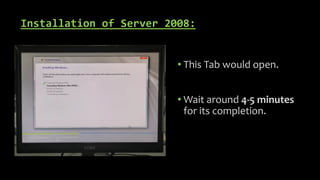
• This Tab would open.
• Wait around 4-5 minutes
for its completion.
Installation of Server 2008:
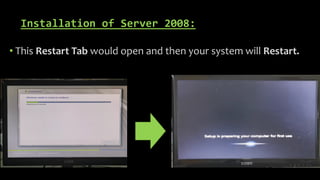
• This Restart Tab would open and then your system will Restart.
Installation of Server 2008:
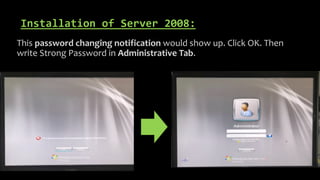
This password changing notification would show up. Click OK. Then
write Strong Password in Administrative Tab.
Installation of Server 2008:
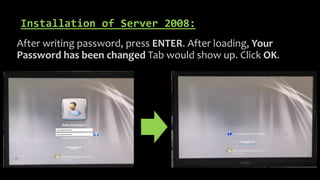
After writing password, press ENTER. After loading, Your
Password has been changed Tab would show up. Click OK.
Installation of Server 2008:
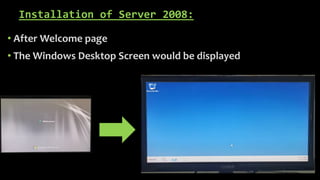
• After Welcome page
• The Windows Desktop Screen would be displayed
Why we use servers:
• Is to Control access to a Network.
• Send/Receive an E-mail.
• Manage Print jobs, or Host a Website.
• Main objective is to provide information to a group instead of an individual.
Security:
Servers protect the large data sets they store through a system of login IDs
and passwords. A server provides data only for those clients that have proper
access, blocking unauthorized requests.
THANK YOU!
THAT BRINGS THE
PRESENTATION TO AN END.
ANY QUESTIONS?

Server_2008.pdf

  • 1.
    AOA, My nameis Kanzul Iman from CIT 3rd Year.
  • 2.
    Preface: • What isa Server • Hardware Requirements • Installation of Server 2008 • Why we use Server
  • 3.
    What is aServer? ØServes information to computers that connect to it. Ø Clients can connect to a server through either a LAN or a WAN, such as the Internet. Ø When users connect to a server, they can access programs, files, and other information from the server.
  • 4.
    Hardware Requirements: • Processor •Minimum: 1GHz (x86 processor) or 1.4GHz (x64 processor) • Recommended: 2GHz or faster Memory • Minimum: 512MB RAM • Recommended: 2GB RAM or greater • Available Disk Space • Minimum: 10GB • Recommended: 40GB or greater Note: Computers with more than 16GB of RAM will require more disk space for paging, hibernation, and dump files • Drive • DVD-ROM drive • Display and Peripherals • Super VGA (800 x 600) or higher-resolution monitor • Keyboard • Microsoft Mouse or compatible pointing device
  • 5.
    Installation of Server2008: • Start your computer. • Attach bootable USB drive into usb port. • Press any keyboard key to open Boot Menu e.g F9 for HP and F12 for DELL
  • 6.
    Installation of Server2008: • Select your Bootable USB and then Press ENTER. • PC will restart automatically. • This Loading page will show up.
  • 7.
    Installation of Server2008: • Then this Tab would open • We will set parameters according to our needs • Then click next to continue.
  • 8.
    Installation of Server2008: • This Tab would open. • Click Install now.
  • 9.
    Installation of Server2008: • It will load and License Terms Tab would open
  • 10.
    Installation of Server2008: • This Tab would open. • Click Custom(advanced). As want to install fresh copy of Windows Server 2008.
  • 11.
    Installation of Server2008: • This Disk Partition Tab would open. • Select the disk and format it. • Then next to continue. We can also make partitions by creating new and deleting disks acc. to our requirements
  • 12.
    Installation of Server2008: • This Tab would open. • Wait around 4-5 minutes for its completion.
  • 13.
    Installation of Server2008: • This Restart Tab would open and then your system will Restart.
  • 14.
    Installation of Server2008: This password changing notification would show up. Click OK. Then write Strong Password in Administrative Tab.
  • 15.
    Installation of Server2008: After writing password, press ENTER. After loading, Your Password has been changed Tab would show up. Click OK.
  • 16.
    Installation of Server2008: • After Welcome page • The Windows Desktop Screen would be displayed
  • 17.
    Why we useservers: • Is to Control access to a Network. • Send/Receive an E-mail. • Manage Print jobs, or Host a Website. • Main objective is to provide information to a group instead of an individual. Security: Servers protect the large data sets they store through a system of login IDs and passwords. A server provides data only for those clients that have proper access, blocking unauthorized requests.
  • 18.
    THANK YOU! THAT BRINGSTHE PRESENTATION TO AN END. ANY QUESTIONS?