INFORMATION SHEET 1.2-3
Device Driver
A device is disabled without a driver.
Compare to real life scenario a device will not
perform its specific task without a device driver or a
software that acts as an activator to activate certain
device in order to perform its full functionality.
Introduction
After reading this INFORMATION SHEET, YOU MUST be able to:
Know the definition of device driver
Identify its function and purpose in conducting software installation.
Install drivers using different applicable methods
LEARNING OBJECTIVES
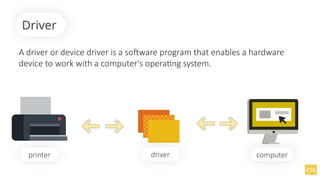
A driver or device driver is a software program that enables a hardware
device to work with a computer's operating system.
Driver
printer driver computer
Drivers may be required for internal components, such as video cards and optical
media drives, as well as external peripherals, such as printers and monitors.
But most modern hardware is "plug and play," meaning the devices will work without
requiring driver installation. However, even if a hardware device is recognized by the
operating system, installing the correct drivers may provide additional options and
functionality for the device.
Driver is the linker of a certain hardware to computer. A hardware without driver is
like a airplane without a pilot. It is still a machine but it does not act like a machine
itself.
How does it works?
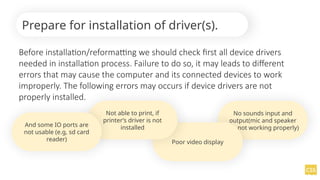
Before installation/reformatting we should check first all device drivers
needed in installation process. Failure to do so, it may leads to different
errors that may cause the computer and its connected devices to work
improperly. The following errors may occurs if device drivers are not
properly installed.
Prepare for installation of driver(s).
No sounds input and
output(mic and speaker
are not working properly)
Poor video display
Not able to print, if
printer’s driver is not
installed
And some IO ports are
not usable (e.g, sd card
reader)
Devices are not possible to work properly according to its specificity.
Example:
Scanner is not able to scan a document without the presence of its
required driver.
If add-on devices’ drivers are not installed
(input and output devices).
In choosing the correct drivers, you must to consider the following:
1. Check the specific required drivers for its equivalent devices.
E.g.
You lose your disc driver attached when you purchased your laptop.
You are trying to reformat a laptop. The first thing you need to do is to obtain its
hardware specification, get the specific brand name and code of your device. Search
the code in the internet and find its exact specification and download the drivers.
Choosing the right drivers
2. Create an all in one Driver
Downloading all drivers may require ample time and wide variety
resource. It may occupy large space on a disk. And also, there are
hundreds of different devices which may requires hundreds of different
drivers. As a technician we need to have all drivers in our hand which is
impossible to obtain. But using Driver Pack application which enable us
to possess most recent drivers for different kinds of devices. With this
driver we can install any drivers for any devices in any point of time.
Choosing the right drivers
1. Check the installation driver disc attached in a newly purchased
computer.
2. If you don’t have driver disc, try to identify the specificity of a
computer, including its brand name and code then search over the
internet the equivalent needed drivers.
3. If internet connection is not available, make it sure that you
prepared the all in one (AIO) DriverPack Solution app for you to install
the required drivers for installation.
Preparing driver for installation
1.2-3-driver-new.pptx school guide I.C.T

1.2-3-driver-new.pptx school guide I.C.T

  • 1.
  • 2.
    A device isdisabled without a driver. Compare to real life scenario a device will not perform its specific task without a device driver or a software that acts as an activator to activate certain device in order to perform its full functionality. Introduction
  • 3.
    After reading thisINFORMATION SHEET, YOU MUST be able to: Know the definition of device driver Identify its function and purpose in conducting software installation. Install drivers using different applicable methods LEARNING OBJECTIVES
  • 4.
    A driver ordevice driver is a software program that enables a hardware device to work with a computer's operating system. Driver printer driver computer
  • 5.
    Drivers may berequired for internal components, such as video cards and optical media drives, as well as external peripherals, such as printers and monitors. But most modern hardware is "plug and play," meaning the devices will work without requiring driver installation. However, even if a hardware device is recognized by the operating system, installing the correct drivers may provide additional options and functionality for the device. Driver is the linker of a certain hardware to computer. A hardware without driver is like a airplane without a pilot. It is still a machine but it does not act like a machine itself. How does it works?
  • 6.
    Before installation/reformatting weshould check first all device drivers needed in installation process. Failure to do so, it may leads to different errors that may cause the computer and its connected devices to work improperly. The following errors may occurs if device drivers are not properly installed. Prepare for installation of driver(s). No sounds input and output(mic and speaker are not working properly) Poor video display Not able to print, if printer’s driver is not installed And some IO ports are not usable (e.g, sd card reader)
  • 7.
    Devices are notpossible to work properly according to its specificity. Example: Scanner is not able to scan a document without the presence of its required driver. If add-on devices’ drivers are not installed (input and output devices).
  • 8.
    In choosing thecorrect drivers, you must to consider the following: 1. Check the specific required drivers for its equivalent devices. E.g. You lose your disc driver attached when you purchased your laptop. You are trying to reformat a laptop. The first thing you need to do is to obtain its hardware specification, get the specific brand name and code of your device. Search the code in the internet and find its exact specification and download the drivers. Choosing the right drivers
  • 9.
    2. Create anall in one Driver Downloading all drivers may require ample time and wide variety resource. It may occupy large space on a disk. And also, there are hundreds of different devices which may requires hundreds of different drivers. As a technician we need to have all drivers in our hand which is impossible to obtain. But using Driver Pack application which enable us to possess most recent drivers for different kinds of devices. With this driver we can install any drivers for any devices in any point of time. Choosing the right drivers
  • 10.
    1. Check theinstallation driver disc attached in a newly purchased computer. 2. If you don’t have driver disc, try to identify the specificity of a computer, including its brand name and code then search over the internet the equivalent needed drivers. 3. If internet connection is not available, make it sure that you prepared the all in one (AIO) DriverPack Solution app for you to install the required drivers for installation. Preparing driver for installation