COMPUTER APPLICATIONS
CLASS X (Code 165)
TOPIC:
UNIT 2: Link & List Tags
By
HIMANSHU PATHAK
Contents
• Introduction
• Image Tag
• Link Tag
• List Tags
– Ordered List
– Unordered List
– Description List
Image Tag: <img>
• HTML <img> tag is used to display image on the
web page.
• Images are not technically inserted into a web
page. images are linked to web pages.
• The <img> tag creates a holding space for the
referenced image.
• Syntax:
– <img src="" alt="" width="" height="">
Attributes of <img> Tag
• src: It is used to specify the path to the image.
• alt: The alt attribute defines an alternate text for
the image, if it can't be displayed.
• height: It is used to specify the height of the
image.
• width: It is used to specify the width of the
image.
• Note: To link an image to another document,
simply nest the <img> tag inside an <a> tag
HTML Link: Anchor tag <a>
• HTML links are hyperlinks.
• We can click on a link and jump to another
document/page.
• When we move the mouse over a link, the
mouse arrow will turn into a little hand.
• Note: A link does not have to be text. A link can
be an image or any other HTML element.
• An anchor <a> tag defines a hyperlink that links
one page to another page.
Cont…
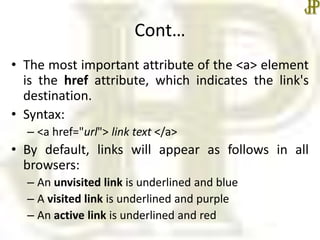
• The most important attribute of the <a> element
is the href attribute, which indicates the link's
destination.
• Syntax:
– <a href="url"> link text </a>
• By default, links will appear as follows in all
browsers:
– An unvisited link is underlined and blue
– A visited link is underlined and purple
– An active link is underlined and red
Cont…
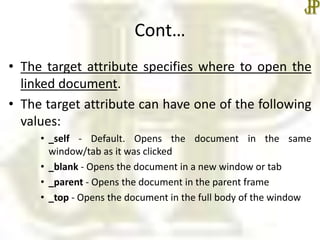
• The target attribute specifies where to open the
linked document.
• The target attribute can have one of the following
values:
• _self - Default. Opens the document in the same
window/tab as it was clicked
• _blank - Opens the document in a new window or tab
• _parent - Opens the document in the parent frame
• _top - Opens the document in the full body of the window
Cont…
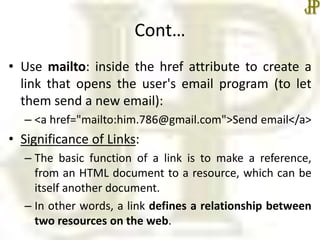
• Use mailto: inside the href attribute to create a
link that opens the user's email program (to let
them send a new email):
– <a href="mailto:him.786@gmail.com">Send email</a>
• Significance of Links:
– The basic function of a link is to make a reference,
from an HTML document to a resource, which can be
itself another document.
– In other words, a link defines a relationship between
two resources on the web.
HTML Lists
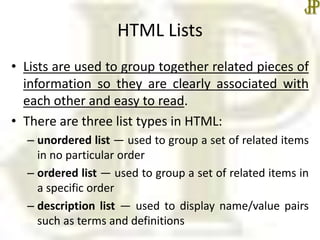
• Lists are used to group together related pieces of
information so they are clearly associated with
each other and easy to read.
• There are three list types in HTML:
– unordered list — used to group a set of related items
in no particular order
– ordered list — used to group a set of related items in
a specific order
– description list — used to display name/value pairs
such as terms and definitions
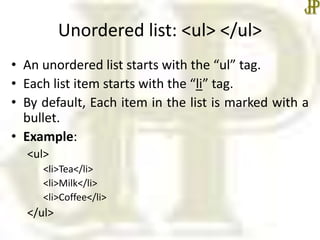
Unordered list: <ul> </ul>
• An unordered list starts with the “ul” tag.
• Each list item starts with the “li” tag.
• By default, Each item in the list is marked with a
bullet.
• Example:
<ul>
<li>Tea</li>
<li>Milk</li>
<li>Coffee</li>
</ul>
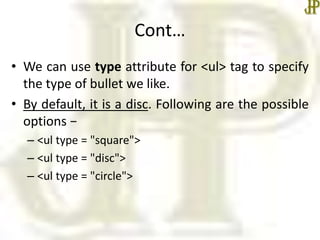
Cont…
• We can use type attribute for <ul> tag to specify
the type of bullet we like.
• By default, it is a disc. Following are the possible
options −
– <ul type = "square">
– <ul type = "disc">
– <ul type = "circle">
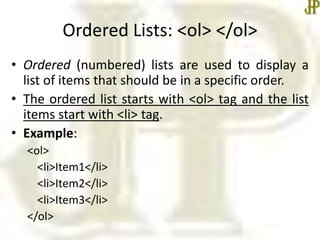
Ordered Lists: <ol> </ol>
• Ordered (numbered) lists are used to display a
list of items that should be in a specific order.
• The ordered list starts with <ol> tag and the list
items start with <li> tag.
• Example:
<ol>
<li>Item1</li>
<li>Item2</li>
<li>Item3</li>
</ol>
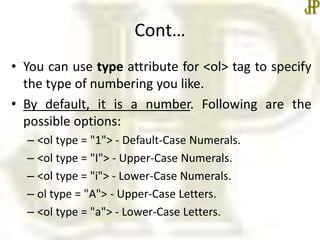
Cont…
• You can use type attribute for <ol> tag to specify
the type of numbering you like.
• By default, it is a number. Following are the
possible options:
– <ol type = "1"> - Default-Case Numerals.
– <ol type = "I"> - Upper-Case Numerals.
– <ol type = "i"> - Lower-Case Numerals.
– ol type = "A"> - Upper-Case Letters.
– <ol type = "a"> - Lower-Case Letters.
Cont…
• Other than “type” attribute, there are 2 more
important attributes in ordered list:
• reversed: It defines that the order will be
descending.
– Syntax: <ol reversed>
• start: It defines that from which number or
alphabet the order will start.
– Syntax: <ol start="5">
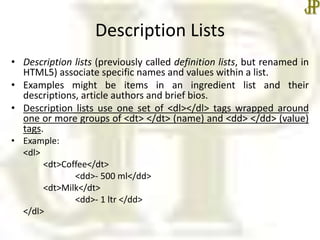
Description Lists
• Description lists (previously called definition lists, but renamed in
HTML5) associate specific names and values within a list.
• Examples might be items in an ingredient list and their
descriptions, article authors and brief bios.
• Description lists use one set of <dl></dl> tags wrapped around
one or more groups of <dt> </dt> (name) and <dd> </dd> (value)
tags.
• Example:
<dl>
<dt>Coffee</dt>
<dd>- 500 ml</dd>
<dt>Milk</dt>
<dd>- 1 ltr </dd>
</dl>
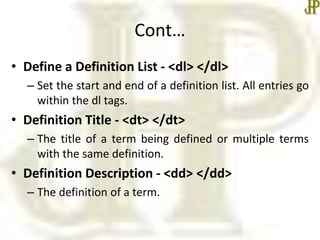
Cont…
• Define a Definition List - <dl> </dl>
– Set the start and end of a definition list. All entries go
within the dl tags.
• Definition Title - <dt> </dt>
– The title of a term being defined or multiple terms
with the same definition.
• Definition Description - <dd> </dd>
– The definition of a term.
Summary
• Image tags
• Link and List Tags
• In the next class, we will start Unit II – HTML
Tables in detail.
•Thanks

Html link and list tags

  • 1.
    COMPUTER APPLICATIONS CLASS X(Code 165) TOPIC: UNIT 2: Link & List Tags By HIMANSHU PATHAK
  • 2.
    Contents • Introduction • ImageTag • Link Tag • List Tags – Ordered List – Unordered List – Description List
  • 3.
    Image Tag: <img> •HTML <img> tag is used to display image on the web page. • Images are not technically inserted into a web page. images are linked to web pages. • The <img> tag creates a holding space for the referenced image. • Syntax: – <img src="" alt="" width="" height="">
  • 4.
    Attributes of <img>Tag • src: It is used to specify the path to the image. • alt: The alt attribute defines an alternate text for the image, if it can't be displayed. • height: It is used to specify the height of the image. • width: It is used to specify the width of the image. • Note: To link an image to another document, simply nest the <img> tag inside an <a> tag
  • 5.
    HTML Link: Anchortag <a> • HTML links are hyperlinks. • We can click on a link and jump to another document/page. • When we move the mouse over a link, the mouse arrow will turn into a little hand. • Note: A link does not have to be text. A link can be an image or any other HTML element. • An anchor <a> tag defines a hyperlink that links one page to another page.
  • 6.
    Cont… • The mostimportant attribute of the <a> element is the href attribute, which indicates the link's destination. • Syntax: – <a href="url"> link text </a> • By default, links will appear as follows in all browsers: – An unvisited link is underlined and blue – A visited link is underlined and purple – An active link is underlined and red
  • 7.
    Cont… • The targetattribute specifies where to open the linked document. • The target attribute can have one of the following values: • _self - Default. Opens the document in the same window/tab as it was clicked • _blank - Opens the document in a new window or tab • _parent - Opens the document in the parent frame • _top - Opens the document in the full body of the window
  • 8.
    Cont… • Use mailto:inside the href attribute to create a link that opens the user's email program (to let them send a new email): – <a href="mailto:him.786@gmail.com">Send email</a> • Significance of Links: – The basic function of a link is to make a reference, from an HTML document to a resource, which can be itself another document. – In other words, a link defines a relationship between two resources on the web.
  • 9.
    HTML Lists • Listsare used to group together related pieces of information so they are clearly associated with each other and easy to read. • There are three list types in HTML: – unordered list — used to group a set of related items in no particular order – ordered list — used to group a set of related items in a specific order – description list — used to display name/value pairs such as terms and definitions
  • 10.
    Unordered list: <ul></ul> • An unordered list starts with the “ul” tag. • Each list item starts with the “li” tag. • By default, Each item in the list is marked with a bullet. • Example: <ul> <li>Tea</li> <li>Milk</li> <li>Coffee</li> </ul>
  • 11.
    Cont… • We canuse type attribute for <ul> tag to specify the type of bullet we like. • By default, it is a disc. Following are the possible options − – <ul type = "square"> – <ul type = "disc"> – <ul type = "circle">
  • 12.
    Ordered Lists: <ol></ol> • Ordered (numbered) lists are used to display a list of items that should be in a specific order. • The ordered list starts with <ol> tag and the list items start with <li> tag. • Example: <ol> <li>Item1</li> <li>Item2</li> <li>Item3</li> </ol>
  • 13.
    Cont… • You canuse type attribute for <ol> tag to specify the type of numbering you like. • By default, it is a number. Following are the possible options: – <ol type = "1"> - Default-Case Numerals. – <ol type = "I"> - Upper-Case Numerals. – <ol type = "i"> - Lower-Case Numerals. – ol type = "A"> - Upper-Case Letters. – <ol type = "a"> - Lower-Case Letters.
  • 14.
    Cont… • Other than“type” attribute, there are 2 more important attributes in ordered list: • reversed: It defines that the order will be descending. – Syntax: <ol reversed> • start: It defines that from which number or alphabet the order will start. – Syntax: <ol start="5">
  • 15.
    Description Lists • Descriptionlists (previously called definition lists, but renamed in HTML5) associate specific names and values within a list. • Examples might be items in an ingredient list and their descriptions, article authors and brief bios. • Description lists use one set of <dl></dl> tags wrapped around one or more groups of <dt> </dt> (name) and <dd> </dd> (value) tags. • Example: <dl> <dt>Coffee</dt> <dd>- 500 ml</dd> <dt>Milk</dt> <dd>- 1 ltr </dd> </dl>
  • 16.
    Cont… • Define aDefinition List - <dl> </dl> – Set the start and end of a definition list. All entries go within the dl tags. • Definition Title - <dt> </dt> – The title of a term being defined or multiple terms with the same definition. • Definition Description - <dd> </dd> – The definition of a term.
  • 17.
    Summary • Image tags •Link and List Tags • In the next class, we will start Unit II – HTML Tables in detail. •Thanks