




What isWhat is HTMLHTML??
HTML is a language for describingHTML is a language for describing
web pages.web pages.
 HTML stands forHTML stands for HHyperyper TTextext MMarkuparkup
LLanguageanguage
 HTML is aHTML is a markup languagemarkup language
 A markup language is a set ofA markup language is a set of
markup tagsmarkup tags
 HTML usesHTML uses markup tagsmarkup tags to describeto describe
web pagesweb pages
HTML StructureHTML Structure
<Html><Html>
<Head><Head>
<Title>....................</Title><Title>....................</Title>
</Head></Head>
<Body><Body>
..................................................................................
..................................................................................
..................................................................................
................................................................................
</Body></Body>
</Html></Html>
ExampleExample
<html><html>
<head><head>
<title>My Title</title><title>My Title</title>
</head></head>
<body><body>
Visible text goes here...Visible text goes here...
</body></body>
</html></html>
HTML HeadingsHTML Headings
 Headings are important in HTMLHeadings are important in HTML
documents.documents.
 Headings are defined with the <h1> toHeadings are defined with the <h1> to
<h6> tags.<h6> tags.
 <h1> defines the largest heading. <h6><h1> defines the largest heading. <h6>
defines the smallest heading.defines the smallest heading.
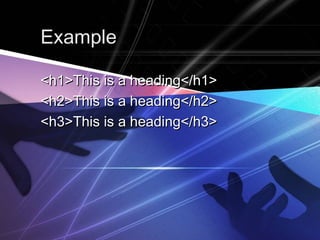
ExampleExample
<h1>This is a heading</h1><h1>This is a heading</h1>
<h2>This is a heading</h2><h2>This is a heading</h2>
<h3>This is a heading</h3><h3>This is a heading</h3>
Headings Are ImportantHeadings Are Important
 Use HTML headings for headingsUse HTML headings for headings
only. Don't use headings to make textonly. Don't use headings to make text
BIGBIG oror boldbold..
 Since users may skim your pages bySince users may skim your pages by
its headings, it is important to useits headings, it is important to use
headings to show the documentheadings to show the document
structure.structure.
 H1 headings should be used as mainH1 headings should be used as main
headings, followed by H2 headings,headings, followed by H2 headings,
then the less important H3 headings,then the less important H3 headings,
and so on.and so on.
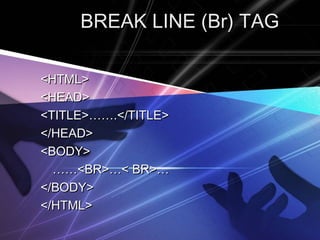
BREAK LINE (Br) TAGBREAK LINE (Br) TAG
<HTML><HTML>
<HEAD><HEAD>
<TITLE>…….</TITLE><TITLE>…….</TITLE>
</HEAD></HEAD>
<BODY><BODY>
…………<BR>…< BR>…<BR>…< BR>…
</BODY></BODY>
</HTML></HTML>
LISTLIST
Divide in to 3 typesDivide in to 3 types
 Unordered ListUnordered List
 Ordered ListOrdered List
 Definition List (Glossary List)Definition List (Glossary List)
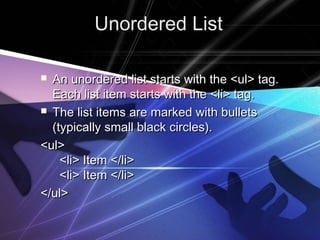
Unordered ListUnordered List
 An unordered list starts with the <ul> tag.An unordered list starts with the <ul> tag.
Each list item starts with the <li> tag.Each list item starts with the <li> tag.
 The list items are marked with bulletsThe list items are marked with bullets
(typically small black circles).(typically small black circles).
<ul><ul>
  <li> Item </li>  <li> Item </li>
  <li> Item </li>  <li> Item </li>
</ul></ul>
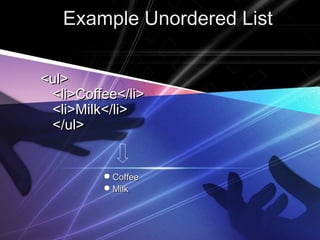
Example Unordered ListExample Unordered List
<ul><ul>
<li>Coffee</li><li>Coffee</li>
<li>Milk</li><li>Milk</li>
</ul></ul>
 CoffeeCoffee
 MilkMilk
Ordered ListOrdered List
 Ordered list starts with the <ol> tag.Ordered list starts with the <ol> tag.
Each list item starts with the <li> tag.Each list item starts with the <li> tag.
 The list items are marked withThe list items are marked with
numbers.numbers.
<ol><ol>
  <li> First item </li>  <li> First item </li>
  <li> Second item </li>  <li> Second item </li>
</ol></ol>
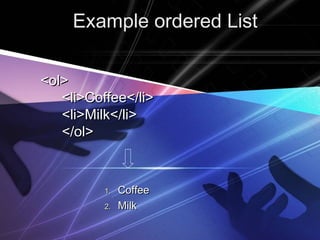
Example ordered ListExample ordered List
<ol><ol>
<li>Coffee</li><li>Coffee</li>
<li>Milk</li><li>Milk</li>
</ol></ol>
1.1. CoffeeCoffee
2.2. MilkMilk
Definition ListDefinition List
 A definition list is a list of items, with aA definition list is a list of items, with a
description of each item.description of each item.
 The <dl> tag defines a definition list.The <dl> tag defines a definition list.
<dl><dl>
  <dt> First term </dt>  <dt> First term </dt>
    <dd> Definition </dd>    <dd> Definition </dd>
  <dt> Next term </dt>  <dt> Next term </dt>
    <dd> Definition </dd>    <dd> Definition </dd>
</dl></dl>
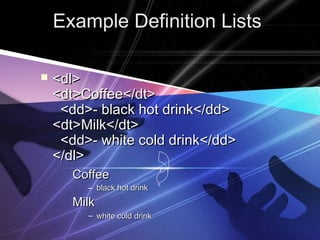
Example Definition ListsExample Definition Lists
 <dl><dl>
<dt>Coffee</dt><dt>Coffee</dt>
​​​ <dd>- black hot drink</dd>​​​ <dd>- black hot drink</dd>
<dt>Milk</dt><dt>Milk</dt>
<dd>- white cold drink</dd><dd>- white cold drink</dd>
</dl></dl>
CoffeeCoffee
– black hot drinkblack hot drink
MilkMilk
– white cold drinkwhite cold drink
Attribute Value of (UL)Attribute Value of (UL)
 DiscDisc
 CircleCircle
 SquareSquare
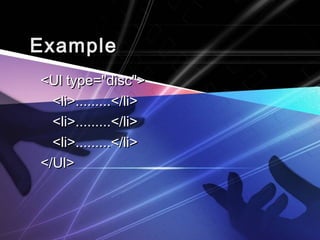
ExampleExample
<Ul type="disc"><Ul type="disc">
<li>.........</li><li>.........</li>
</Ul></Ul>
Attribute Value of (OL)Attribute Value of (OL)
 aa
 AA
 ii
 II
 11
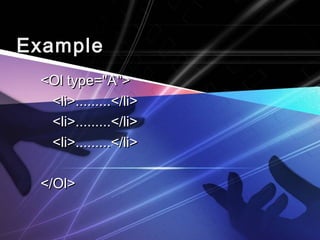
ExampleExample
<Ol type="A"><Ol type="A">
<li>.........</li><li>.........</li>
</Ol></Ol>
HTML StylesHTML Styles
 Styles was introduced with HTML 4,Styles was introduced with HTML 4,
as the new and preferred way to styleas the new and preferred way to style
HTML elements. With HTML styles,HTML elements. With HTML styles,
styles can be added to HTMLstyles can be added to HTML
elements directly by using the styleelements directly by using the style
attribute, or indirectly in separate styleattribute, or indirectly in separate style
sheets (CSS files).sheets (CSS files).
HTMLHTML Style Background ColorStyle Background Color
 The background-color property definesThe background-color property defines
the background color for an element:the background color for an element:
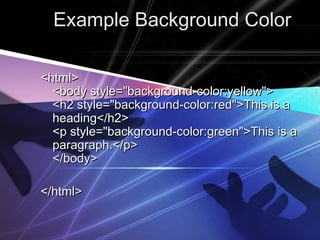
Example Background ColorExample Background Color
<html><html>
<body style="background-color:yellow"><body style="background-color:yellow">
<h2 style="background-color:red">This is a<h2 style="background-color:red">This is a
heading</h2>heading</h2>
<p style="background-color:green">This is a<p style="background-color:green">This is a
paragraph.</p>paragraph.</p>
</body></body>
</html></html>
HTML Style Font, Color andHTML Style Font, Color and
SizeSize
The font-family, color, and font-sizeThe font-family, color, and font-size
properties defines the font, color, andproperties defines the font, color, and
size of the text in an element:size of the text in an element:
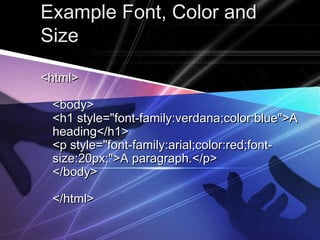
Example Font, Color andExample Font, Color and
SizeSize
<html><html>
<body><body>
<h1 style="font-family:verdana;color:blue">A<h1 style="font-family:verdana;color:blue">A
heading</h1>heading</h1>
<p style="font-family:arial;color:red;font-<p style="font-family:arial;color:red;font-
size:20px;">A paragraph.</p>size:20px;">A paragraph.</p>
</body></body>
</html></html>
ImageImage
 <IMG SRC=“imageName.extension”><IMG SRC=“imageName.extension”>
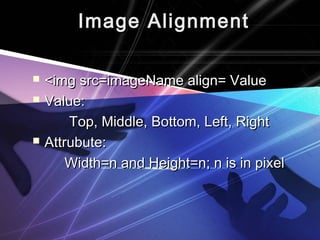
Image AlignmentImage Alignment
 <img src=imageName align= Value<img src=imageName align= Value
 Value:Value:
Top, Middle, Bottom, Left, RightTop, Middle, Bottom, Left, Right
 Attrubute:Attrubute:
Width=n and Height=n; n is in pixelWidth=n and Height=n; n is in pixel
ExampleExample
<img src=01.jpg align=right width=“100”<img src=01.jpg align=right width=“100”
height=“150”>height=“150”>
Image spacingImage spacing
 Hspace = xHspace = x
 Vspace = yVspace = y
 X and y is in pixelX and y is in pixel
ExampleExample
<img src=01.jpg align=left width=“100”<img src=01.jpg align=left width=“100”
heigh=“150” vspace=10 hspace=20heigh=“150” vspace=10 hspace=20
HTML Style Text AlignmentHTML Style Text Alignment
The text-align property specifies theThe text-align property specifies the
horizontal alignment of text in anhorizontal alignment of text in an
element:element:
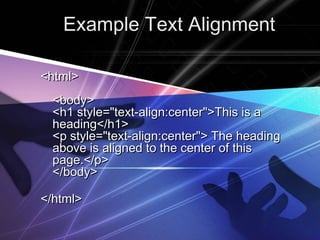
Example Text AlignmentExample Text Alignment
<html><html>
<body><body>
<h1 style="text-align:center">This is a<h1 style="text-align:center">This is a
heading</h1>heading</h1>
<p​ style="text-align:center"> The heading<p​ style="text-align:center"> The heading
above is aligned to the center of thisabove is aligned to the center of this
page.</p>page.</p>
</body></body>
</html></html>
TableTable
 Tables are defined with the <table> tag.Tables are defined with the <table> tag.
 A table is divided into rows (with the <tr>A table is divided into rows (with the <tr>
tag), and each row is divided into data cellstag), and each row is divided into data cells
(with the <td> tag). td stands for "table(with the <td> tag). td stands for "table
data," and holds the content of a data cell. Adata," and holds the content of a data cell. A
<td> tag can contain text, links, images,<td> tag can contain text, links, images,
lists, forms, other tables, etc.lists, forms, other tables, etc.
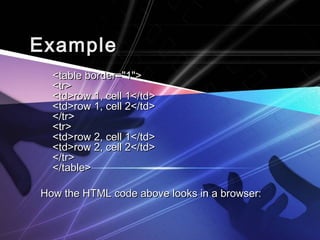
ExampleExample
<table border="1"><table border="1">
<tr><tr>
<td>row 1, cell 1</td><td>row 1, cell 1</td>
<td>row 1, cell 2</td><td>row 1, cell 2</td>
</tr></tr>
<tr><tr>
<td>row 2, cell 1</td><td>row 2, cell 1</td>
<td>row 2, cell 2</td><td>row 2, cell 2</td>
</tr></tr>
</table></table>
How the HTML code above looks in a browser:How the HTML code above looks in a browser:
MailtoMailto
 We can uses an Email to send mail toWe can uses an Email to send mail to
anyone by just clicking on the label foranyone by just clicking on the label for
link, immediately it’s going to show thelink, immediately it’s going to show the
program to send.program to send.
 Example :Example :
If you want sending mail to Mr Vibol justIf you want sending mail to Mr Vibol just
WritingWriting mailto:yoeung.vibol@gmail.commailto:yoeung.vibol@gmail.com
<a href=“<a href=“mailto:yoeung.vibol@gmail.commailto:yoeung.vibol@gmail.com”>click here to send mail</a>”>click here to send mail</a>
FormsForms
 HTML enables us to create forms.HTML enables us to create forms.
This is where our websites can becomeThis is where our websites can become
more than just a nice advertisingmore than just a nice advertising
brochure. Forms allow us to build morebrochure. Forms allow us to build more
dynamic websites that allow our usersdynamic websites that allow our users
to interact with it.to interact with it.
 An HTML form is made up of anyAn HTML form is made up of any
number ofnumber of form elementsform elements. These. These
elements enable the user to do thingselements enable the user to do things
such as enter information or make asuch as enter information or make a
selection from a preset options.selection from a preset options.
 In HTML, a form is defined using theIn HTML, a form is defined using the
<form></form> tags. The actual form<form></form> tags. The actual form
elements are defined between theseelements are defined between these
two tags. In HTML, a form is definedtwo tags. In HTML, a form is defined
using the <form></form> tags. Theusing the <form></form> tags. The
actual form elements are definedactual form elements are defined
between these two tags.between these two tags.
 A form can contain input elements likeA form can contain input elements like
text fields, checkboxes, radio-buttons,text fields, checkboxes, radio-buttons,
submit buttons and more. A form cansubmit buttons and more. A form can
also contain select lists, textarea,also contain select lists, textarea,
fieldset, legend, and label elements.fieldset, legend, and label elements.
TheThe InputInput TagTag
 This is the most commonly used tagThis is the most commonly used tag
within HTML forms. It allows you towithin HTML forms. It allows you to
specify various types of user inputspecify various types of user input
fields such as text, radio buttons,fields such as text, radio buttons,
checkboxes etc.checkboxes etc.
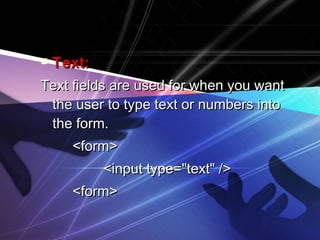
 Text:Text:
Text fields are used for when you wantText fields are used for when you want
the user to type text or numbers intothe user to type text or numbers into
the form.the form.
<form><form>
<input type="text" /><input type="text" />
<form><form>
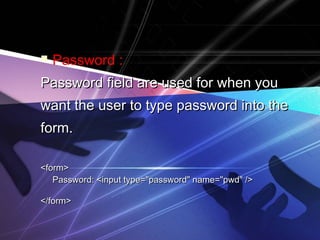
 Password :
Password field are used for when youPassword field are used for when you
want the user to type password into thewant the user to type password into the
form.form.
<form><form>
Password: <input type="password" name="pwd" />Password: <input type="password" name="pwd" />
</form></form>
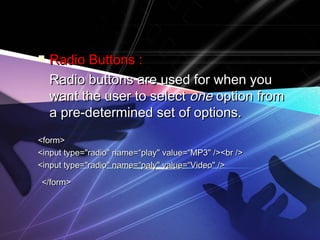
 Radio Buttons :Radio Buttons :
Radio buttons are used for when youRadio buttons are used for when you
want the user to selectwant the user to select oneone option fromoption from
a pre-determined set of options.a pre-determined set of options.
<form><form>
<input type="radio" name=“play" value=“MP3" /><br /><input type="radio" name=“play" value=“MP3" /><br />
<input type="radio" name=“paly" value=“Video" /><input type="radio" name=“paly" value=“Video" />
</form></form>
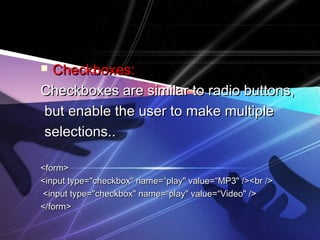
 Checkboxes:Checkboxes:
Checkboxes are similar to radio buttons,Checkboxes are similar to radio buttons,
but enable the user to make multiplebut enable the user to make multiple
selections..selections..
<form><form>
<input type="checkbox" name=“play" value=“MP3" /><br /><input type="checkbox" name=“play" value=“MP3" /><br />
<input type="checkbox" name=“play" value=“Video" /><input type="checkbox" name=“play" value=“Video" />
</form></form>
 Submit:Submit:
The submit button allows the user toThe submit button allows the user to
actually submit the form.actually submit the form.
<input type="submit" /><input type="submit" />
 Select Lists :Select Lists :
A select list is a dropdown list withA select list is a dropdown list with
options. This allows the user to selectoptions. This allows the user to select
one option from a list of pre-definedone option from a list of pre-defined
options.options.
 The select list is created using theThe select list is created using the
select in conjunction with the optionselect in conjunction with the option
tag.tag.
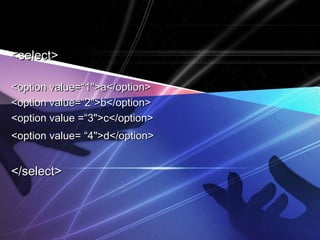
<select><select>
<option value=“1">a</option><option value=“1">a</option>
<option value=“2">b</option><option value=“2">b</option>
<option value =“3">c</option><option value =“3">c</option>
<option value= “4">d</option><option value= “4">d</option>
</select></select>
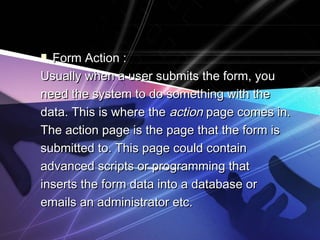
 Form Action :Form Action :
Usually when a user submits the form, youUsually when a user submits the form, you
need the system to do something with theneed the system to do something with the
data. This is where thedata. This is where the actionaction page comes in.page comes in.
The action page is the page that the form isThe action page is the page that the form is
submitted to. This page could containsubmitted to. This page could contain
advanced scripts or programming thatadvanced scripts or programming that
inserts the form data into a database orinserts the form data into a database or
emails an administrator etc.emails an administrator etc.
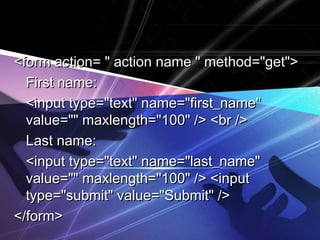
<form action= " action name " method="get"><form action= " action name " method="get">
First name:First name:
<input type="text" name="first_name"<input type="text" name="first_name"
value="" maxlength="100" /> <br />value="" maxlength="100" /> <br />
Last name:Last name:
<input type="text" name="last_name"<input type="text" name="last_name"
value="" maxlength="100" /> <inputvalue="" maxlength="100" /> <input
type="submit" value="Submit" />type="submit" value="Submit" />
</form></form>
Note:Note:You may have noticed the aboveYou may have noticed the above
example uses a method attribute.example uses a method attribute.
This attribute specifies the HTTPThis attribute specifies the HTTP
method to use when the form ismethod to use when the form is
submitted.submitted.
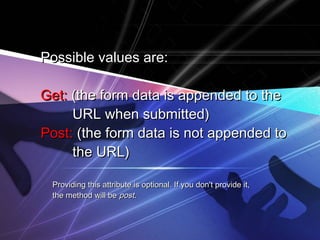
Possible values are:Possible values are:
Get:Get: (the form data is appended to the(the form data is appended to the
URL when submitted)URL when submitted)
Post:Post: (the form data is not appended to(the form data is not appended to
the URL)the URL)
Providing this attribute is optional. If you don't provide it,Providing this attribute is optional. If you don't provide it,
the method will bethe method will be postpost..
Multimedia
 The HTML <embed> tag is used forThe HTML <embed> tag is used for
embedding an external application orembedding an external application or
interactive content into an HTMLinteractive content into an HTML
document.document.
 Note that the <embed> element is anNote that the <embed> element is an
empty element (no closing tag isempty element (no closing tag is
used).used).
<embed src=“mysong.mp3" width="340"<embed src=“mysong.mp3" width="340"
height="140" autostart=true />height="140" autostart=true />
<audio autoplay loop><audio autoplay loop>
<source src="01.ogg"><source src="01.ogg">
<source src="01.mp3"><source src="01.mp3">
</audio></audio>
Using background:
<bgsound src=“mysong.mp3”/> work<bgsound src=“mysong.mp3”/> work
only IEonly IE
VideoVideo
<video width="320" height="240"<video width="320" height="240" autoplay>>
<source src="02.MP4" type="video/mp4"><source src="02.MP4" type="video/mp4">
<source src=“02" type="video/ogg"><source src=“02" type="video/ogg">
Your browser does not support the video tag.Your browser does not support the video tag.
</video></video>
MarqueeMarquee
 What is the marquee? Marquee is aWhat is the marquee? Marquee is a
HTML code to make an object canHTML code to make an object can
moving or walk. Marquee code is amoving or walk. Marquee code is a
popular code because many bloggerpopular code because many blogger
using this code at them blog's.using this code at them blog's.
Marquee effect can make by usingMarquee effect can make by using
<marquee>...</marquee> tag .<marquee>...</marquee> tag .
However marquee just work if viewedHowever marquee just work if viewed
atat Internet explorer.Internet explorer.
The attribute which almostThe attribute which almost
used is :used is :
 BGCOLOR="color" → to manageBGCOLOR="color" → to manage
background color of an object.background color of an object.
 DIRECTION="left/right/up/down“DIRECTION="left/right/up/down“
→→ to manage direction of the movingto manage direction of the moving
object .object .
 BEHAVIOR="scroll/slide/alternate“BEHAVIOR="scroll/slide/alternate“
→→ to manage behavior of the moving object .to manage behavior of the moving object .
Scroll → object moving scroll.Scroll → object moving scroll.
Slide → object moving 1 time and then stop.Slide → object moving 1 time and then stop.
Alternate → object moving from left to right andAlternate → object moving from left to right and
then return again.then return again.
 TITLE=“message" → The title orTITLE=“message" → The title or
message will emerge when themessage will emerge when the
computer mouse at the marqueecomputer mouse at the marquee
object.object.
 SCROLLMOUNT="number" → toSCROLLMOUNT="number" → to
manage the speed of marquee.manage the speed of marquee.
 SCROLLDELAY="number" → to manageSCROLLDELAY="number" → to manage
delay time, it's on second.delay time, it's on second.
 LOOP="number|-1|infinite" → to manageLOOP="number|-1|infinite" → to manage
sum of looping.sum of looping.
 WIDTH="number" → to manage width ofWIDTH="number" → to manage width of
marquee object, it's on pixel (px) ormarquee object, it's on pixel (px) or
persen (%).persen (%).
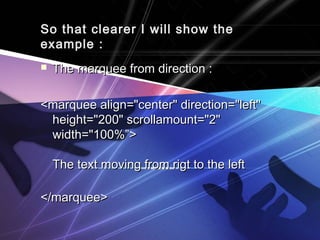
So that clearer I will show theSo that clearer I will show the
example :example :
 The marquee from direction :The marquee from direction :
<marquee align="center" direction="left"<marquee align="center" direction="left"
height="200" scrollamount="2"height="200" scrollamount="2"
width="100%”>width="100%”>
The text moving from rigt to the leftThe text moving from rigt to the left
</marquee></marquee>
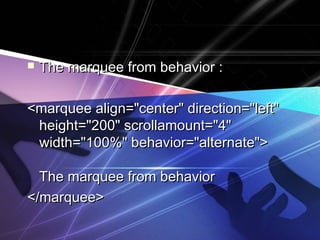
 The marquee from behavior :The marquee from behavior :
<marquee align="center" direction="left"<marquee align="center" direction="left"
height="200" scrollamount="4"height="200" scrollamount="4"
width="100%" behavior="alternate">width="100%" behavior="alternate">
The marquee from behaviorThe marquee from behavior
</marquee></marquee>
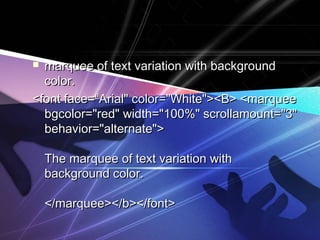
 marquee of text variation with backgroundmarquee of text variation with background
color.color.
<font face=“Arial" color="White"><B> <marquee<font face=“Arial" color="White"><B> <marquee
bgcolor="red" width="100%" scrollamount="3"bgcolor="red" width="100%" scrollamount="3"
behavior="alternate">behavior="alternate">
The marquee of text variation withThe marquee of text variation with
background color.background color.
</marquee></b></font></marquee></b></font>
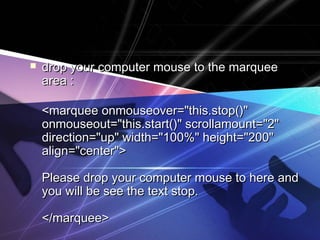
 drop your computer mouse to the marqueedrop your computer mouse to the marquee
area :area :
<marquee onmouseover="this.stop()"<marquee onmouseover="this.stop()"
onmouseout="this.start()" scrollamount="2"onmouseout="this.start()" scrollamount="2"
direction="up" width="100%" height="200"direction="up" width="100%" height="200"
align="center">align="center">
Please drop your computer mouse to here andPlease drop your computer mouse to here and
you will be see the text stop.you will be see the text stop.
</marquee></marquee>
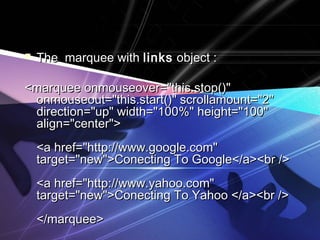
 The marquee withThe marquee with linkslinks object :object :
<marquee onmouseover="this.stop()"<marquee onmouseover="this.stop()"
onmouseout="this.start()" scrollamount="2"onmouseout="this.start()" scrollamount="2"
direction="up" width="100%" height="100"direction="up" width="100%" height="100"
align="center">align="center">
<a href="http://www.google.com"<a href="http://www.google.com"
target="new">Conecting To Google</a><br />target="new">Conecting To Google</a><br />
<a href="http://www.yahoo.com"<a href="http://www.yahoo.com"
target="new">Conecting To Yahoo </a><br />target="new">Conecting To Yahoo </a><br />
</marquee></marquee>
CSSCSS
 What is CSS?What is CSS?
 CSSCSS stands forstands for CCascadingascading SStyletyle SSheetsheets
 Styles defineStyles define how to displayhow to display HTML elementsHTML elements
 Styles were added to HTML 4.0Styles were added to HTML 4.0 to solve ato solve a
problemproblem
 External Style SheetsExternal Style Sheets can save a lot of workcan save a lot of work
 External Style Sheets are stored inExternal Style Sheets are stored in CSS filesCSS files
CSS Saves a Lot ofCSS Saves a Lot of
Work!Work!
 CSS defines HOW HTML elements are toCSS defines HOW HTML elements are to
be displayed.be displayed.
 Styles are normally saved in external .cssStyles are normally saved in external .css
files. External style sheets enable you tofiles. External style sheets enable you to
change the appearance and layout of allchange the appearance and layout of all
the pages in a Web site, just by editing onethe pages in a Web site, just by editing one
single file!single file!
CSS FontCSS Font
 CSS font properties define the fontCSS font properties define the font
family, boldness, size, and the style offamily, boldness, size, and the style of
a text.a text.
Font FamilyFont Family
 The font family of a text is set with theThe font family of a text is set with the
font-family property.font-family property.
 The font-family property should holdThe font-family property should hold
several font names as a "fallback"several font names as a "fallback"
system. If the browser does notsystem. If the browser does not
support the first font, it tries the nextsupport the first font, it tries the next
font.font.
 Start with the font you want, and endStart with the font you want, and end
with a generic family, to let thewith a generic family, to let the
browser pick a similar font in thebrowser pick a similar font in the
generic family, if no other fonts aregeneric family, if no other fonts are
available.available.
 NoteNote: If the name of a font family is: If the name of a font family is
more than one word, it must be inmore than one word, it must be in
quotation marks, like font-family:quotation marks, like font-family:
"Times New Roman"."Times New Roman".
 ExampleExample
PP
{{
font-family:"Times New Roman", Times,font-family:"Times New Roman", Times,
serif;serif;
}}
Font StyleFont Style
 The font-style property is mostly usedThe font-style property is mostly used
to specify italic text.to specify italic text.
 This property has three values:This property has three values:
normalnormal - The text is shown normally- The text is shown normally
italicitalic - The text is shown in italics- The text is shown in italics
obliqueoblique - The text is "leaning" (oblique- The text is "leaning" (oblique
is very similar to italic, but lessis very similar to italic, but less
supported)supported)
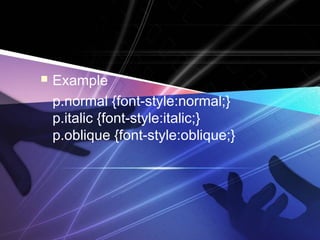
 Example
p.normal {font-style:normal;}
p.italic {font-style:italic;}
p.oblique {font-style:oblique;}
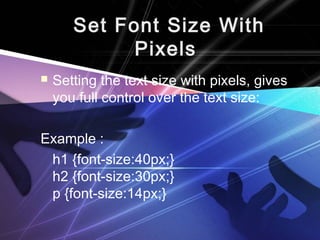
Set Font Size With
Pixels
 Setting the text size with pixels, gives
you full control over the text size:
Example :
h1 {font-size:40px;}
h2 {font-size:30px;}
p {font-size:14px;}
CSS Id and ClassCSS Id and Class
 The id and class SelectorsThe id and class Selectors
In addition to setting a style for a HTMLIn addition to setting a style for a HTML
element, CSS allows you to specify yourelement, CSS allows you to specify your
own selectors called "id" and "class".own selectors called "id" and "class".
The id SelectorThe id Selector
 The id selector is used to specify aThe id selector is used to specify a
style for a single, unique element.Thestyle for a single, unique element.The
id selector uses the id attribute of theid selector uses the id attribute of the
HTML element, and is defined with aHTML element, and is defined with a
"#"."#".
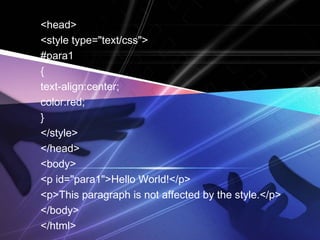
<head>
<style type="text/css">
#para1
{
text-align:center;
color:red;
}
</style>
</head>
<body>
<p id="para1">Hello World!</p>
<p>This paragraph is not affected by the style.</p>
</body>
</html>
The class SelectorThe class Selector
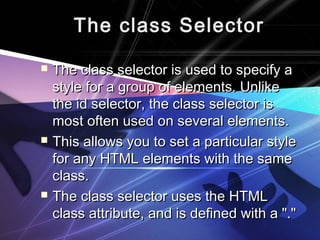
 The class selector is used to specify aThe class selector is used to specify a
style for a group of elements. Unlikestyle for a group of elements. Unlike
the id selector, the class selector isthe id selector, the class selector is
most often used on several elements.most often used on several elements.
 This allows you to set a particular styleThis allows you to set a particular style
for any HTML elements with the samefor any HTML elements with the same
class.class.
 The class selector uses the HTMLThe class selector uses the HTML
class attribute, and is defined with a "."class attribute, and is defined with a "."
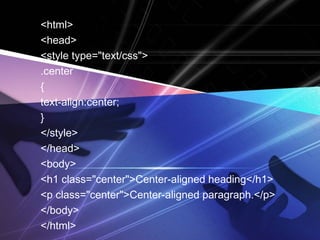
<html>
<head>
<style type="text/css">
.center
{
text-align:center;
}
</style>
</head>
<body>
<h1 class="center">Center-aligned heading</h1>
<p class="center">Center-aligned paragraph.</p>
</body>
</html>
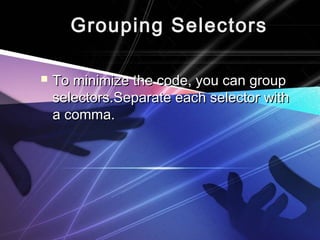
Grouping SelectorsGrouping Selectors
 To minimize the code, you can groupTo minimize the code, you can group
selectors.Separate each selector withselectors.Separate each selector with
a comma.a comma.
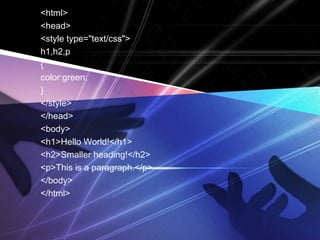
<html>
<head>
<style type="text/css">
h1,h2,p
{
color:green;
}
</style>
</head>
<body>
<h1>Hello World!</h1>
<h2>Smaller heading!</h2>
<p>This is a paragraph.</p>
</body>
</html>
Nesting SelectorsNesting Selectors
 It is possible to apply a style for aIt is possible to apply a style for a
selector within a selector.selector within a selector.
 In the example below, one style isIn the example below, one style is
specified for all p elements, and aspecified for all p elements, and a
separate style is specified for pseparate style is specified for p
elements nested within the "marked"elements nested within the "marked"
class:class:
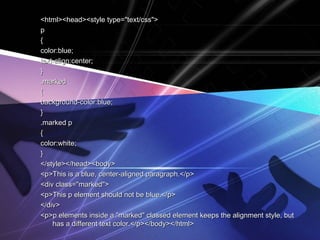
<html><head><style type="text/css"><html><head><style type="text/css">
pp
{{
color:blue;color:blue;
text-align:center;text-align:center;
}}
.marked.marked
{{
background-color:blue;background-color:blue;
}}
.marked p.marked p
{{
color:white;color:white;
}}
</style></head><body></style></head><body>
<p>This is a blue, center-aligned paragraph.</p><p>This is a blue, center-aligned paragraph.</p>
<div class="marked"><div class="marked">
<p>This p element should not be blue.</p><p>This p element should not be blue.</p>
</div></div>
<p>p elements inside a "marked" classed element keeps the alignment style, but<p>p elements inside a "marked" classed element keeps the alignment style, but
has a different text color.</p></body></html>has a different text color.</p></body></html>
HTML layout with DIV,
SPAN and CSS
 Although we can achieve pretty nice layouts
with HTML tables, tables weren't really
designed as a layout tool.
 The div element is a block level element
used for grouping HTML elements. Once
grouped, formatting can be applied to the
div element and everything contained within
it. While the div tag is a block-level element,
the HTML span element is used for
grouping elements at an inline level.
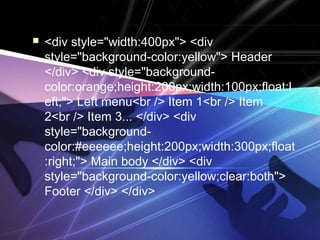
 <div style="width:400px"> <div
style="background-color:yellow"> Header
</div> <div style="background-
color:orange;height:200px;width:100px;float:l
eft;"> Left menu<br /> Item 1<br /> Item
2<br /> Item 3... </div> <div
style="background-
color:#eeeeee;height:200px;width:300px;float
:right;"> Main body </div> <div
style="background-color:yellow;clear:both">
Footer </div> </div>
 I'd recommend is that you place the
CSS into an external style sheet.
 One major benefit of using CSS is
that, if you place your CSS in a
separate location (i.e. an external style
sheet), your site becomes much easier
to maintain.
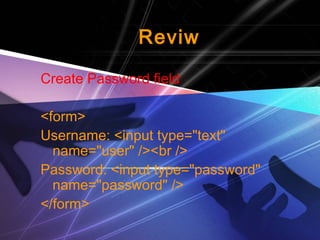
Reviw
Create Password field
<form>
Username: <input type="text"
name="user" /><br />
Password: <input type="password"
name="password" />
</form>
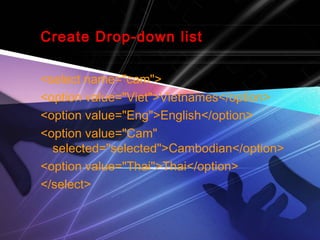
Create Drop-down list
<select name="cam">
<option value="Viet">Vietnames</option>
<option value="Eng">English</option>
<option value="Cam"
selected="selected">Cambodian</option>
<option value="Thai">Thai</option>
</select>
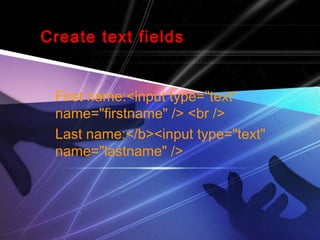
Create text fields
First name:<input type="text“
name="firstname" /> <br />
Last name:</b><input type="text"
name="lastname" />
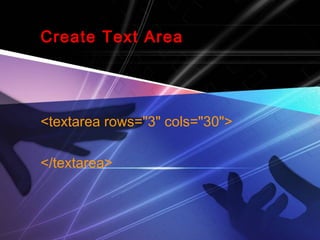
Create Text Area
<textarea rows="3" cols="30">
</textarea>
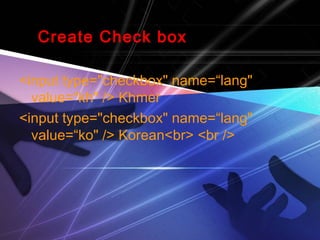
Create Check box
<input type="checkbox" name=“lang"
value=“kh" /> Khmer
<input type="checkbox" name=“lang"
value=“ko" /> Korean<br> <br />
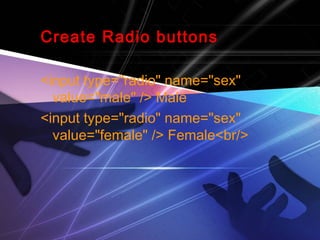
Create Radio buttons
<input type="radio" name="sex"
value="male" /> Male
<input type="radio" name="sex"
value="female" /> Female<br/>

HTML

  • 1.
    What isWhat isHTMLHTML?? HTML is a language for describingHTML is a language for describing web pages.web pages.
  • 2.
     HTML standsforHTML stands for HHyperyper TTextext MMarkuparkup LLanguageanguage  HTML is aHTML is a markup languagemarkup language  A markup language is a set ofA markup language is a set of markup tagsmarkup tags  HTML usesHTML uses markup tagsmarkup tags to describeto describe web pagesweb pages
  • 3.
  • 4.
  • 5.
    HTML HeadingsHTML Headings Headings are important in HTMLHeadings are important in HTML documents.documents.  Headings are defined with the <h1> toHeadings are defined with the <h1> to <h6> tags.<h6> tags.  <h1> defines the largest heading. <h6><h1> defines the largest heading. <h6> defines the smallest heading.defines the smallest heading.
  • 6.
    ExampleExample <h1>This is aheading</h1><h1>This is a heading</h1> <h2>This is a heading</h2><h2>This is a heading</h2> <h3>This is a heading</h3><h3>This is a heading</h3>
  • 7.
    Headings Are ImportantHeadingsAre Important  Use HTML headings for headingsUse HTML headings for headings only. Don't use headings to make textonly. Don't use headings to make text BIGBIG oror boldbold..  Since users may skim your pages bySince users may skim your pages by its headings, it is important to useits headings, it is important to use headings to show the documentheadings to show the document structure.structure.
  • 8.
     H1 headingsshould be used as mainH1 headings should be used as main headings, followed by H2 headings,headings, followed by H2 headings, then the less important H3 headings,then the less important H3 headings, and so on.and so on.
  • 9.
    BREAK LINE (Br)TAGBREAK LINE (Br) TAG <HTML><HTML> <HEAD><HEAD> <TITLE>…….</TITLE><TITLE>…….</TITLE> </HEAD></HEAD> <BODY><BODY> …………<BR>…< BR>…<BR>…< BR>… </BODY></BODY> </HTML></HTML>
  • 10.
    LISTLIST Divide in to3 typesDivide in to 3 types  Unordered ListUnordered List  Ordered ListOrdered List  Definition List (Glossary List)Definition List (Glossary List)
  • 11.
    Unordered ListUnordered List An unordered list starts with the <ul> tag.An unordered list starts with the <ul> tag. Each list item starts with the <li> tag.Each list item starts with the <li> tag.  The list items are marked with bulletsThe list items are marked with bullets (typically small black circles).(typically small black circles). <ul><ul>   <li> Item </li>  <li> Item </li>   <li> Item </li>  <li> Item </li> </ul></ul>
  • 12.
    Example Unordered ListExampleUnordered List <ul><ul> <li>Coffee</li><li>Coffee</li> <li>Milk</li><li>Milk</li> </ul></ul>  CoffeeCoffee  MilkMilk
  • 13.
    Ordered ListOrdered List Ordered list starts with the <ol> tag.Ordered list starts with the <ol> tag. Each list item starts with the <li> tag.Each list item starts with the <li> tag.  The list items are marked withThe list items are marked with numbers.numbers. <ol><ol>   <li> First item </li>  <li> First item </li>   <li> Second item </li>  <li> Second item </li> </ol></ol>
  • 14.
    Example ordered ListExampleordered List <ol><ol> <li>Coffee</li><li>Coffee</li> <li>Milk</li><li>Milk</li> </ol></ol> 1.1. CoffeeCoffee 2.2. MilkMilk
  • 15.
    Definition ListDefinition List A definition list is a list of items, with aA definition list is a list of items, with a description of each item.description of each item.  The <dl> tag defines a definition list.The <dl> tag defines a definition list. <dl><dl>   <dt> First term </dt>  <dt> First term </dt>     <dd> Definition </dd>    <dd> Definition </dd>   <dt> Next term </dt>  <dt> Next term </dt>     <dd> Definition </dd>    <dd> Definition </dd> </dl></dl>
  • 16.
    Example Definition ListsExampleDefinition Lists  <dl><dl> <dt>Coffee</dt><dt>Coffee</dt> ​​​ <dd>- black hot drink</dd>​​​ <dd>- black hot drink</dd> <dt>Milk</dt><dt>Milk</dt> <dd>- white cold drink</dd><dd>- white cold drink</dd> </dl></dl> CoffeeCoffee – black hot drinkblack hot drink MilkMilk – white cold drinkwhite cold drink
  • 17.
    Attribute Value of(UL)Attribute Value of (UL)  DiscDisc  CircleCircle  SquareSquare
  • 18.
  • 19.
    Attribute Value of(OL)Attribute Value of (OL)  aa  AA  ii  II  11
  • 20.
  • 21.
    HTML StylesHTML Styles Styles was introduced with HTML 4,Styles was introduced with HTML 4, as the new and preferred way to styleas the new and preferred way to style HTML elements. With HTML styles,HTML elements. With HTML styles, styles can be added to HTMLstyles can be added to HTML elements directly by using the styleelements directly by using the style attribute, or indirectly in separate styleattribute, or indirectly in separate style sheets (CSS files).sheets (CSS files).
  • 22.
    HTMLHTML Style BackgroundColorStyle Background Color  The background-color property definesThe background-color property defines the background color for an element:the background color for an element:
  • 23.
    Example Background ColorExampleBackground Color <html><html> <body style="background-color:yellow"><body style="background-color:yellow"> <h2 style="background-color:red">This is a<h2 style="background-color:red">This is a heading</h2>heading</h2> <p style="background-color:green">This is a<p style="background-color:green">This is a paragraph.</p>paragraph.</p> </body></body> </html></html>
  • 24.
    HTML Style Font,Color andHTML Style Font, Color and SizeSize The font-family, color, and font-sizeThe font-family, color, and font-size properties defines the font, color, andproperties defines the font, color, and size of the text in an element:size of the text in an element:
  • 25.
    Example Font, ColorandExample Font, Color and SizeSize <html><html> <body><body> <h1 style="font-family:verdana;color:blue">A<h1 style="font-family:verdana;color:blue">A heading</h1>heading</h1> <p style="font-family:arial;color:red;font-<p style="font-family:arial;color:red;font- size:20px;">A paragraph.</p>size:20px;">A paragraph.</p> </body></body> </html></html>
  • 26.
  • 27.
    Image AlignmentImage Alignment <img src=imageName align= Value<img src=imageName align= Value  Value:Value: Top, Middle, Bottom, Left, RightTop, Middle, Bottom, Left, Right  Attrubute:Attrubute: Width=n and Height=n; n is in pixelWidth=n and Height=n; n is in pixel
  • 28.
    ExampleExample <img src=01.jpg align=rightwidth=“100”<img src=01.jpg align=right width=“100” height=“150”>height=“150”>
  • 29.
    Image spacingImage spacing Hspace = xHspace = x  Vspace = yVspace = y  X and y is in pixelX and y is in pixel
  • 30.
    ExampleExample <img src=01.jpg align=leftwidth=“100”<img src=01.jpg align=left width=“100” heigh=“150” vspace=10 hspace=20heigh=“150” vspace=10 hspace=20
  • 31.
    HTML Style TextAlignmentHTML Style Text Alignment The text-align property specifies theThe text-align property specifies the horizontal alignment of text in anhorizontal alignment of text in an element:element:
  • 32.
    Example Text AlignmentExampleText Alignment <html><html> <body><body> <h1 style="text-align:center">This is a<h1 style="text-align:center">This is a heading</h1>heading</h1> <p​ style="text-align:center"> The heading<p​ style="text-align:center"> The heading above is aligned to the center of thisabove is aligned to the center of this page.</p>page.</p> </body></body> </html></html>
  • 33.
    TableTable  Tables aredefined with the <table> tag.Tables are defined with the <table> tag.  A table is divided into rows (with the <tr>A table is divided into rows (with the <tr> tag), and each row is divided into data cellstag), and each row is divided into data cells (with the <td> tag). td stands for "table(with the <td> tag). td stands for "table data," and holds the content of a data cell. Adata," and holds the content of a data cell. A <td> tag can contain text, links, images,<td> tag can contain text, links, images, lists, forms, other tables, etc.lists, forms, other tables, etc.
  • 34.
    ExampleExample <table border="1"><table border="1"> <tr><tr> <td>row1, cell 1</td><td>row 1, cell 1</td> <td>row 1, cell 2</td><td>row 1, cell 2</td> </tr></tr> <tr><tr> <td>row 2, cell 1</td><td>row 2, cell 1</td> <td>row 2, cell 2</td><td>row 2, cell 2</td> </tr></tr> </table></table> How the HTML code above looks in a browser:How the HTML code above looks in a browser:
  • 35.
    MailtoMailto  We canuses an Email to send mail toWe can uses an Email to send mail to anyone by just clicking on the label foranyone by just clicking on the label for link, immediately it’s going to show thelink, immediately it’s going to show the program to send.program to send.
  • 36.
     Example :Example: If you want sending mail to Mr Vibol justIf you want sending mail to Mr Vibol just WritingWriting mailto:yoeung.vibol@gmail.commailto:yoeung.vibol@gmail.com <a href=“<a href=“mailto:yoeung.vibol@gmail.commailto:yoeung.vibol@gmail.com”>click here to send mail</a>”>click here to send mail</a>
  • 37.
    FormsForms  HTML enablesus to create forms.HTML enables us to create forms. This is where our websites can becomeThis is where our websites can become more than just a nice advertisingmore than just a nice advertising brochure. Forms allow us to build morebrochure. Forms allow us to build more dynamic websites that allow our usersdynamic websites that allow our users to interact with it.to interact with it.
  • 38.
     An HTMLform is made up of anyAn HTML form is made up of any number ofnumber of form elementsform elements. These. These elements enable the user to do thingselements enable the user to do things such as enter information or make asuch as enter information or make a selection from a preset options.selection from a preset options.
  • 39.
     In HTML,a form is defined using theIn HTML, a form is defined using the <form></form> tags. The actual form<form></form> tags. The actual form elements are defined between theseelements are defined between these two tags. In HTML, a form is definedtwo tags. In HTML, a form is defined using the <form></form> tags. Theusing the <form></form> tags. The actual form elements are definedactual form elements are defined between these two tags.between these two tags.
  • 40.
     A formcan contain input elements likeA form can contain input elements like text fields, checkboxes, radio-buttons,text fields, checkboxes, radio-buttons, submit buttons and more. A form cansubmit buttons and more. A form can also contain select lists, textarea,also contain select lists, textarea, fieldset, legend, and label elements.fieldset, legend, and label elements.
  • 41.
    TheThe InputInput TagTag This is the most commonly used tagThis is the most commonly used tag within HTML forms. It allows you towithin HTML forms. It allows you to specify various types of user inputspecify various types of user input fields such as text, radio buttons,fields such as text, radio buttons, checkboxes etc.checkboxes etc.
  • 46.
     Text:Text: Text fieldsare used for when you wantText fields are used for when you want the user to type text or numbers intothe user to type text or numbers into the form.the form. <form><form> <input type="text" /><input type="text" /> <form><form>
  • 47.
     Password : Passwordfield are used for when youPassword field are used for when you want the user to type password into thewant the user to type password into the form.form. <form><form> Password: <input type="password" name="pwd" />Password: <input type="password" name="pwd" /> </form></form>
  • 48.
     Radio Buttons:Radio Buttons : Radio buttons are used for when youRadio buttons are used for when you want the user to selectwant the user to select oneone option fromoption from a pre-determined set of options.a pre-determined set of options. <form><form> <input type="radio" name=“play" value=“MP3" /><br /><input type="radio" name=“play" value=“MP3" /><br /> <input type="radio" name=“paly" value=“Video" /><input type="radio" name=“paly" value=“Video" /> </form></form>
  • 49.
     Checkboxes:Checkboxes: Checkboxes aresimilar to radio buttons,Checkboxes are similar to radio buttons, but enable the user to make multiplebut enable the user to make multiple selections..selections.. <form><form> <input type="checkbox" name=“play" value=“MP3" /><br /><input type="checkbox" name=“play" value=“MP3" /><br /> <input type="checkbox" name=“play" value=“Video" /><input type="checkbox" name=“play" value=“Video" /> </form></form>
  • 50.
     Submit:Submit: The submitbutton allows the user toThe submit button allows the user to actually submit the form.actually submit the form. <input type="submit" /><input type="submit" />
  • 51.
     Select Lists:Select Lists : A select list is a dropdown list withA select list is a dropdown list with options. This allows the user to selectoptions. This allows the user to select one option from a list of pre-definedone option from a list of pre-defined options.options.  The select list is created using theThe select list is created using the select in conjunction with the optionselect in conjunction with the option tag.tag.
  • 52.
    <select><select> <option value=“1">a</option><option value=“1">a</option> <optionvalue=“2">b</option><option value=“2">b</option> <option value =“3">c</option><option value =“3">c</option> <option value= “4">d</option><option value= “4">d</option> </select></select>
  • 53.
     Form Action:Form Action : Usually when a user submits the form, youUsually when a user submits the form, you need the system to do something with theneed the system to do something with the data. This is where thedata. This is where the actionaction page comes in.page comes in. The action page is the page that the form isThe action page is the page that the form is submitted to. This page could containsubmitted to. This page could contain advanced scripts or programming thatadvanced scripts or programming that inserts the form data into a database orinserts the form data into a database or emails an administrator etc.emails an administrator etc.
  • 54.
    <form action= "action name " method="get"><form action= " action name " method="get"> First name:First name: <input type="text" name="first_name"<input type="text" name="first_name" value="" maxlength="100" /> <br />value="" maxlength="100" /> <br /> Last name:Last name: <input type="text" name="last_name"<input type="text" name="last_name" value="" maxlength="100" /> <inputvalue="" maxlength="100" /> <input type="submit" value="Submit" />type="submit" value="Submit" /> </form></form>
  • 55.
    Note:Note:You may havenoticed the aboveYou may have noticed the above example uses a method attribute.example uses a method attribute. This attribute specifies the HTTPThis attribute specifies the HTTP method to use when the form ismethod to use when the form is submitted.submitted.
  • 56.
    Possible values are:Possiblevalues are: Get:Get: (the form data is appended to the(the form data is appended to the URL when submitted)URL when submitted) Post:Post: (the form data is not appended to(the form data is not appended to the URL)the URL) Providing this attribute is optional. If you don't provide it,Providing this attribute is optional. If you don't provide it, the method will bethe method will be postpost..
  • 57.
    Multimedia  The HTML<embed> tag is used forThe HTML <embed> tag is used for embedding an external application orembedding an external application or interactive content into an HTMLinteractive content into an HTML document.document.  Note that the <embed> element is anNote that the <embed> element is an empty element (no closing tag isempty element (no closing tag is used).used).
  • 58.
    <embed src=“mysong.mp3" width="340"<embedsrc=“mysong.mp3" width="340" height="140" autostart=true />height="140" autostart=true /> <audio autoplay loop><audio autoplay loop> <source src="01.ogg"><source src="01.ogg"> <source src="01.mp3"><source src="01.mp3"> </audio></audio> Using background: <bgsound src=“mysong.mp3”/> work<bgsound src=“mysong.mp3”/> work only IEonly IE
  • 59.
    VideoVideo <video width="320" height="240"<videowidth="320" height="240" autoplay>> <source src="02.MP4" type="video/mp4"><source src="02.MP4" type="video/mp4"> <source src=“02" type="video/ogg"><source src=“02" type="video/ogg"> Your browser does not support the video tag.Your browser does not support the video tag. </video></video>
  • 60.
    MarqueeMarquee  What isthe marquee? Marquee is aWhat is the marquee? Marquee is a HTML code to make an object canHTML code to make an object can moving or walk. Marquee code is amoving or walk. Marquee code is a popular code because many bloggerpopular code because many blogger using this code at them blog's.using this code at them blog's. Marquee effect can make by usingMarquee effect can make by using <marquee>...</marquee> tag .<marquee>...</marquee> tag . However marquee just work if viewedHowever marquee just work if viewed atat Internet explorer.Internet explorer.
  • 61.
    The attribute whichalmostThe attribute which almost used is :used is :  BGCOLOR="color" → to manageBGCOLOR="color" → to manage background color of an object.background color of an object.  DIRECTION="left/right/up/down“DIRECTION="left/right/up/down“ →→ to manage direction of the movingto manage direction of the moving object .object .
  • 62.
     BEHAVIOR="scroll/slide/alternate“BEHAVIOR="scroll/slide/alternate“ →→ tomanage behavior of the moving object .to manage behavior of the moving object . Scroll → object moving scroll.Scroll → object moving scroll. Slide → object moving 1 time and then stop.Slide → object moving 1 time and then stop. Alternate → object moving from left to right andAlternate → object moving from left to right and then return again.then return again.
  • 63.
     TITLE=“message" →The title orTITLE=“message" → The title or message will emerge when themessage will emerge when the computer mouse at the marqueecomputer mouse at the marquee object.object.  SCROLLMOUNT="number" → toSCROLLMOUNT="number" → to manage the speed of marquee.manage the speed of marquee.
  • 64.
     SCROLLDELAY="number" →to manageSCROLLDELAY="number" → to manage delay time, it's on second.delay time, it's on second.  LOOP="number|-1|infinite" → to manageLOOP="number|-1|infinite" → to manage sum of looping.sum of looping.  WIDTH="number" → to manage width ofWIDTH="number" → to manage width of marquee object, it's on pixel (px) ormarquee object, it's on pixel (px) or persen (%).persen (%).
  • 65.
    So that clearerI will show theSo that clearer I will show the example :example :  The marquee from direction :The marquee from direction : <marquee align="center" direction="left"<marquee align="center" direction="left" height="200" scrollamount="2"height="200" scrollamount="2" width="100%”>width="100%”> The text moving from rigt to the leftThe text moving from rigt to the left </marquee></marquee>
  • 66.
     The marqueefrom behavior :The marquee from behavior : <marquee align="center" direction="left"<marquee align="center" direction="left" height="200" scrollamount="4"height="200" scrollamount="4" width="100%" behavior="alternate">width="100%" behavior="alternate"> The marquee from behaviorThe marquee from behavior </marquee></marquee>
  • 67.
     marquee oftext variation with backgroundmarquee of text variation with background color.color. <font face=“Arial" color="White"><B> <marquee<font face=“Arial" color="White"><B> <marquee bgcolor="red" width="100%" scrollamount="3"bgcolor="red" width="100%" scrollamount="3" behavior="alternate">behavior="alternate"> The marquee of text variation withThe marquee of text variation with background color.background color. </marquee></b></font></marquee></b></font>
  • 68.
     drop yourcomputer mouse to the marqueedrop your computer mouse to the marquee area :area : <marquee onmouseover="this.stop()"<marquee onmouseover="this.stop()" onmouseout="this.start()" scrollamount="2"onmouseout="this.start()" scrollamount="2" direction="up" width="100%" height="200"direction="up" width="100%" height="200" align="center">align="center"> Please drop your computer mouse to here andPlease drop your computer mouse to here and you will be see the text stop.you will be see the text stop. </marquee></marquee>
  • 69.
     The marqueewithThe marquee with linkslinks object :object : <marquee onmouseover="this.stop()"<marquee onmouseover="this.stop()" onmouseout="this.start()" scrollamount="2"onmouseout="this.start()" scrollamount="2" direction="up" width="100%" height="100"direction="up" width="100%" height="100" align="center">align="center"> <a href="http://www.google.com"<a href="http://www.google.com" target="new">Conecting To Google</a><br />target="new">Conecting To Google</a><br /> <a href="http://www.yahoo.com"<a href="http://www.yahoo.com" target="new">Conecting To Yahoo </a><br />target="new">Conecting To Yahoo </a><br /> </marquee></marquee>
  • 70.
    CSSCSS  What isCSS?What is CSS?  CSSCSS stands forstands for CCascadingascading SStyletyle SSheetsheets  Styles defineStyles define how to displayhow to display HTML elementsHTML elements  Styles were added to HTML 4.0Styles were added to HTML 4.0 to solve ato solve a problemproblem  External Style SheetsExternal Style Sheets can save a lot of workcan save a lot of work  External Style Sheets are stored inExternal Style Sheets are stored in CSS filesCSS files
  • 71.
    CSS Saves aLot ofCSS Saves a Lot of Work!Work!  CSS defines HOW HTML elements are toCSS defines HOW HTML elements are to be displayed.be displayed.  Styles are normally saved in external .cssStyles are normally saved in external .css files. External style sheets enable you tofiles. External style sheets enable you to change the appearance and layout of allchange the appearance and layout of all the pages in a Web site, just by editing onethe pages in a Web site, just by editing one single file!single file!
  • 72.
    CSS FontCSS Font CSS font properties define the fontCSS font properties define the font family, boldness, size, and the style offamily, boldness, size, and the style of a text.a text.
  • 73.
    Font FamilyFont Family The font family of a text is set with theThe font family of a text is set with the font-family property.font-family property.  The font-family property should holdThe font-family property should hold several font names as a "fallback"several font names as a "fallback" system. If the browser does notsystem. If the browser does not support the first font, it tries the nextsupport the first font, it tries the next font.font.
  • 74.
     Start withthe font you want, and endStart with the font you want, and end with a generic family, to let thewith a generic family, to let the browser pick a similar font in thebrowser pick a similar font in the generic family, if no other fonts aregeneric family, if no other fonts are available.available.  NoteNote: If the name of a font family is: If the name of a font family is more than one word, it must be inmore than one word, it must be in quotation marks, like font-family:quotation marks, like font-family: "Times New Roman"."Times New Roman".
  • 75.
     ExampleExample PP {{ font-family:"Times NewRoman", Times,font-family:"Times New Roman", Times, serif;serif; }}
  • 76.
    Font StyleFont Style The font-style property is mostly usedThe font-style property is mostly used to specify italic text.to specify italic text.  This property has three values:This property has three values: normalnormal - The text is shown normally- The text is shown normally italicitalic - The text is shown in italics- The text is shown in italics obliqueoblique - The text is "leaning" (oblique- The text is "leaning" (oblique is very similar to italic, but lessis very similar to italic, but less supported)supported)
  • 77.
     Example p.normal {font-style:normal;} p.italic{font-style:italic;} p.oblique {font-style:oblique;}
  • 78.
    Set Font SizeWith Pixels  Setting the text size with pixels, gives you full control over the text size: Example : h1 {font-size:40px;} h2 {font-size:30px;} p {font-size:14px;}
  • 79.
    CSS Id andClassCSS Id and Class  The id and class SelectorsThe id and class Selectors In addition to setting a style for a HTMLIn addition to setting a style for a HTML element, CSS allows you to specify yourelement, CSS allows you to specify your own selectors called "id" and "class".own selectors called "id" and "class".
  • 80.
    The id SelectorTheid Selector  The id selector is used to specify aThe id selector is used to specify a style for a single, unique element.Thestyle for a single, unique element.The id selector uses the id attribute of theid selector uses the id attribute of the HTML element, and is defined with aHTML element, and is defined with a "#"."#".
  • 81.
    <head> <style type="text/css"> #para1 { text-align:center; color:red; } </style> </head> <body> <p id="para1">HelloWorld!</p> <p>This paragraph is not affected by the style.</p> </body> </html>
  • 82.
    The class SelectorTheclass Selector  The class selector is used to specify aThe class selector is used to specify a style for a group of elements. Unlikestyle for a group of elements. Unlike the id selector, the class selector isthe id selector, the class selector is most often used on several elements.most often used on several elements.  This allows you to set a particular styleThis allows you to set a particular style for any HTML elements with the samefor any HTML elements with the same class.class.  The class selector uses the HTMLThe class selector uses the HTML class attribute, and is defined with a "."class attribute, and is defined with a "."
  • 83.
  • 84.
    Grouping SelectorsGrouping Selectors To minimize the code, you can groupTo minimize the code, you can group selectors.Separate each selector withselectors.Separate each selector with a comma.a comma.
  • 85.
  • 86.
    Nesting SelectorsNesting Selectors It is possible to apply a style for aIt is possible to apply a style for a selector within a selector.selector within a selector.  In the example below, one style isIn the example below, one style is specified for all p elements, and aspecified for all p elements, and a separate style is specified for pseparate style is specified for p elements nested within the "marked"elements nested within the "marked" class:class:
  • 87.
    <html><head><style type="text/css"><html><head><style type="text/css"> pp {{ color:blue;color:blue; text-align:center;text-align:center; }} .marked.marked {{ background-color:blue;background-color:blue; }} .markedp.marked p {{ color:white;color:white; }} </style></head><body></style></head><body> <p>This is a blue, center-aligned paragraph.</p><p>This is a blue, center-aligned paragraph.</p> <div class="marked"><div class="marked"> <p>This p element should not be blue.</p><p>This p element should not be blue.</p> </div></div> <p>p elements inside a "marked" classed element keeps the alignment style, but<p>p elements inside a "marked" classed element keeps the alignment style, but has a different text color.</p></body></html>has a different text color.</p></body></html>
  • 88.
    HTML layout withDIV, SPAN and CSS  Although we can achieve pretty nice layouts with HTML tables, tables weren't really designed as a layout tool.  The div element is a block level element used for grouping HTML elements. Once grouped, formatting can be applied to the div element and everything contained within it. While the div tag is a block-level element, the HTML span element is used for grouping elements at an inline level.
  • 89.
     <div style="width:400px"><div style="background-color:yellow"> Header </div> <div style="background- color:orange;height:200px;width:100px;float:l eft;"> Left menu<br /> Item 1<br /> Item 2<br /> Item 3... </div> <div style="background- color:#eeeeee;height:200px;width:300px;float :right;"> Main body </div> <div style="background-color:yellow;clear:both"> Footer </div> </div>
  • 90.
     I'd recommendis that you place the CSS into an external style sheet.  One major benefit of using CSS is that, if you place your CSS in a separate location (i.e. an external style sheet), your site becomes much easier to maintain.
  • 91.
    Reviw Create Password field <form> Username:<input type="text" name="user" /><br /> Password: <input type="password" name="password" /> </form>
  • 92.
    Create Drop-down list <selectname="cam"> <option value="Viet">Vietnames</option> <option value="Eng">English</option> <option value="Cam" selected="selected">Cambodian</option> <option value="Thai">Thai</option> </select>
  • 93.
    Create text fields Firstname:<input type="text“ name="firstname" /> <br /> Last name:</b><input type="text" name="lastname" />
  • 94.
    Create Text Area <textarearows="3" cols="30"> </textarea>
  • 95.
    Create Check box <inputtype="checkbox" name=“lang" value=“kh" /> Khmer <input type="checkbox" name=“lang" value=“ko" /> Korean<br> <br />
  • 96.
    Create Radio buttons <inputtype="radio" name="sex" value="male" /> Male <input type="radio" name="sex" value="female" /> Female<br/>

Editor's Notes

  • #60 Movie use it for other browser like opera File formate MP4 -&amp;gt; video/mp4 WebM -&amp;gt; video/webm Ogg -&amp;gt; video/ogg MP3-&amp;gt;audio/mpeg Ogg -&amp;gt; audio/ogg Wav -&amp;gt; audio/wav