Web Programming and Design
    Introduction to HTML
          Dr. Abzetdin ADAMOV
      Chair of Computer Engineering Department
                 aadamov@qu.edu.az

         http://ce.qu.edu.az/~aadamov
What you need to have
• Running computer
• Text editor
     NotePad
     EmEditor
• Web Browser
  
      Chrome
  
      Internet Explorer
  
      Firefox
     Safari
• Somewhere to save your work
     Note: You don’t have to work online!
How to use the materials
•   Open text editor
•   Type/Edit your HTML
•   Hit ‘File → Save As’
•   Change ‘Save as Type’ option
       Make it read ‘Save as Type: All files’
•   If that is not an option, put the name in quotes
•   Save our test page as “test.html”
•   Point web browser to the file location
       Type something similar to D:/CODES/HTML/test.html
        in the browser bar
Tags
• Tags tell a browser (Chrome, Internet
  Explorer, Firefox, ect) how to interpret
  them and arrange information
• Tags start with ‘<‘ and end with ‘>’
• Normally tags come in pairs, and the
  closing tag starts with ‘</’
• Examples
     <b>This is bold</b> and this is
     <u>Underlined!</u>
Tags
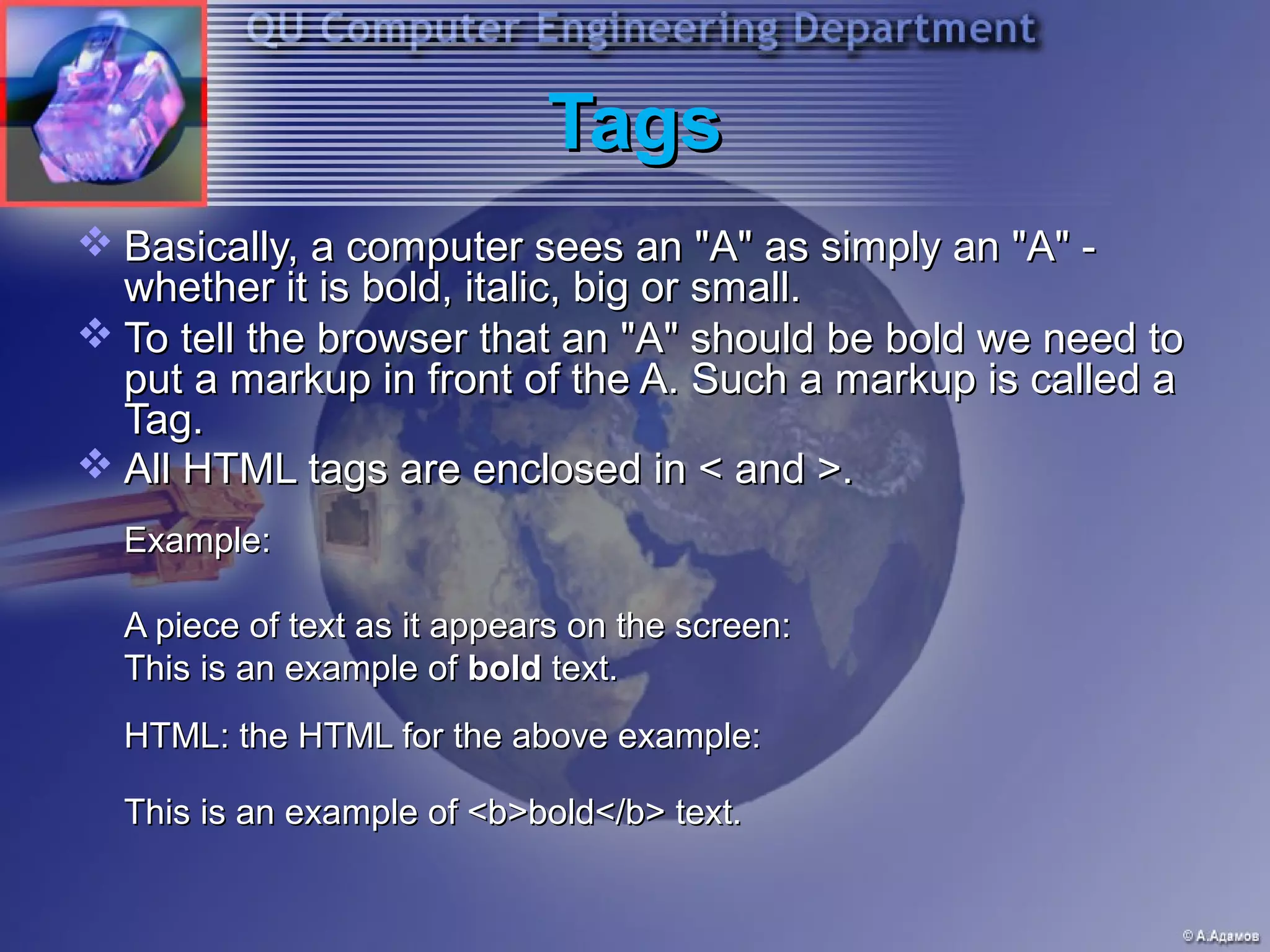
 Basically, a computer sees an "A" as simply an "A" -
  whether it is bold, italic, big or small.
 To tell the browser that an "A" should be bold we need to
  put a markup in front of the A. Such a markup is called a
  Tag.
 All HTML tags are enclosed in < and >.
  Example:

  A piece of text as it appears on the screen:
  This is an example of bold text.
  HTML: the HTML for the above example:

  This is an example of <b>bold</b> text.
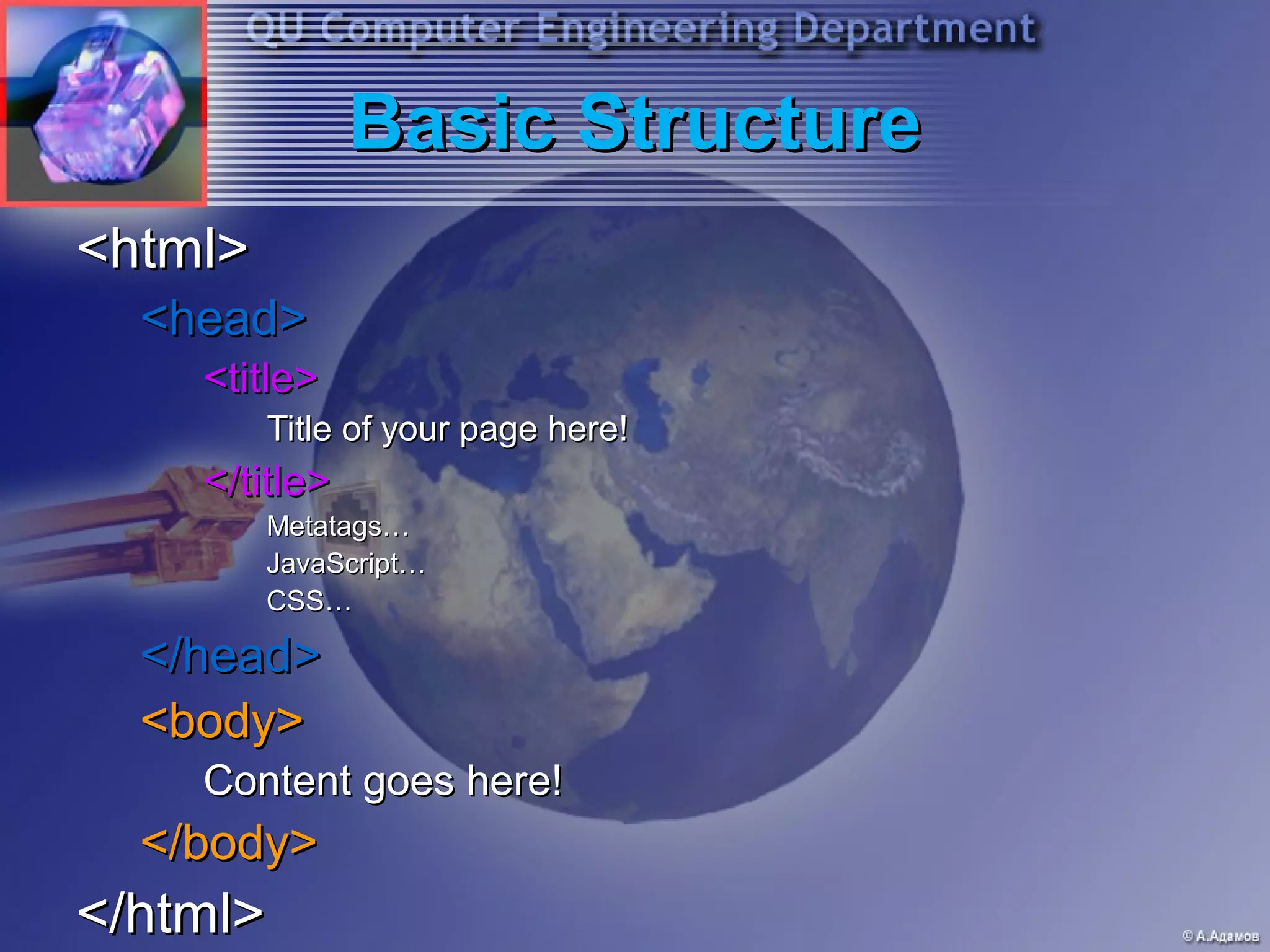
Basic Structure
<html>
  <head>
    <title>
         Title of your page here!
    </title>
         Metatags…
         JavaScript…
         CSS…

  </head>
  <body>
    Content goes here!
  </body>
</html>
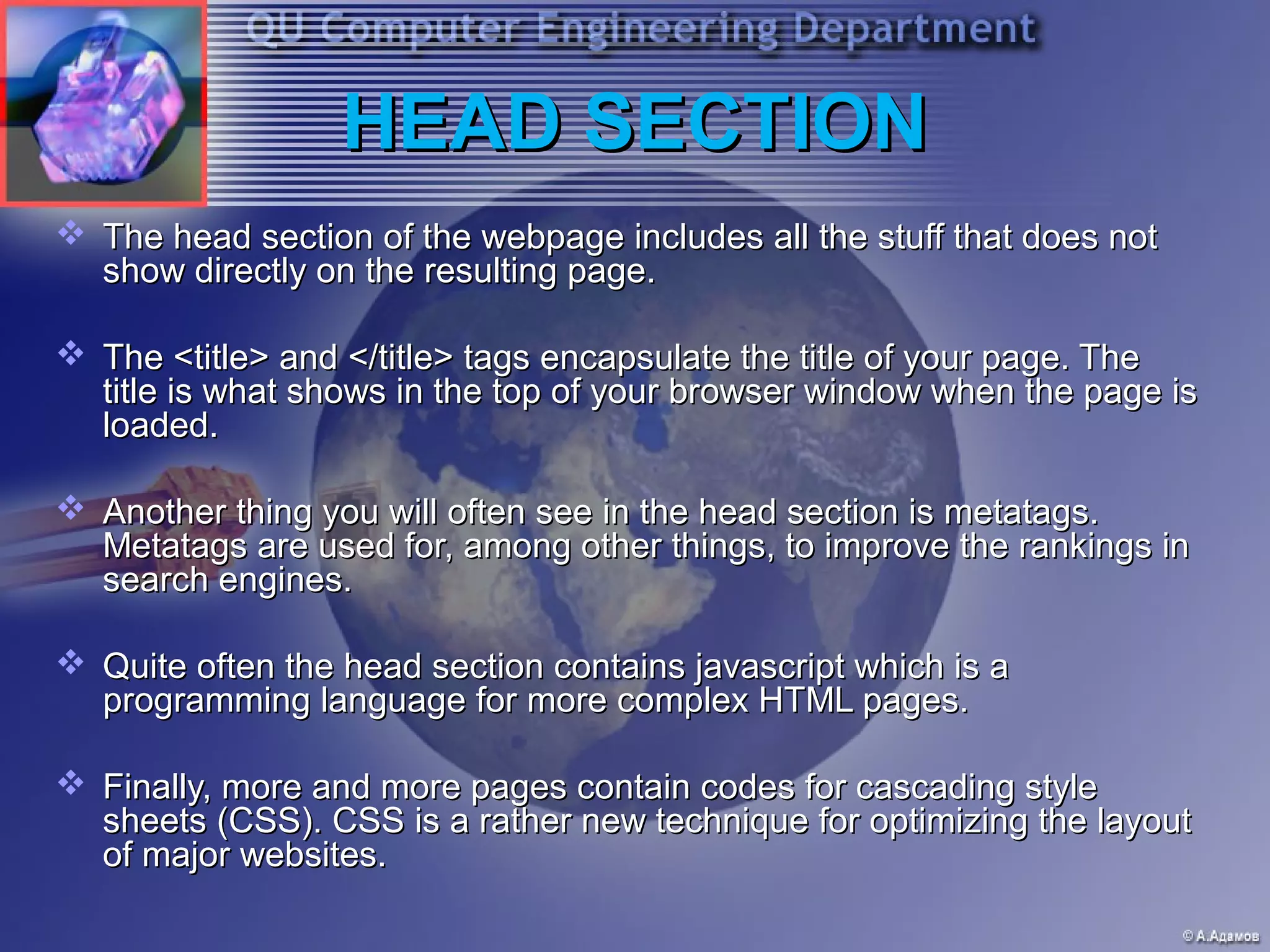
HEAD SECTION
 The head section of the webpage includes all the stuff that does not
  show directly on the resulting page.

 The <title> and </title> tags encapsulate the title of your page. The
  title is what shows in the top of your browser window when the page is
  loaded.

 Another thing you will often see in the head section is metatags.
  Metatags are used for, among other things, to improve the rankings in
  search engines.

 Quite often the head section contains javascript which is a
  programming language for more complex HTML pages.

 Finally, more and more pages contain codes for cascading style
  sheets (CSS). CSS is a rather new technique for optimizing the layout
  of major websites.
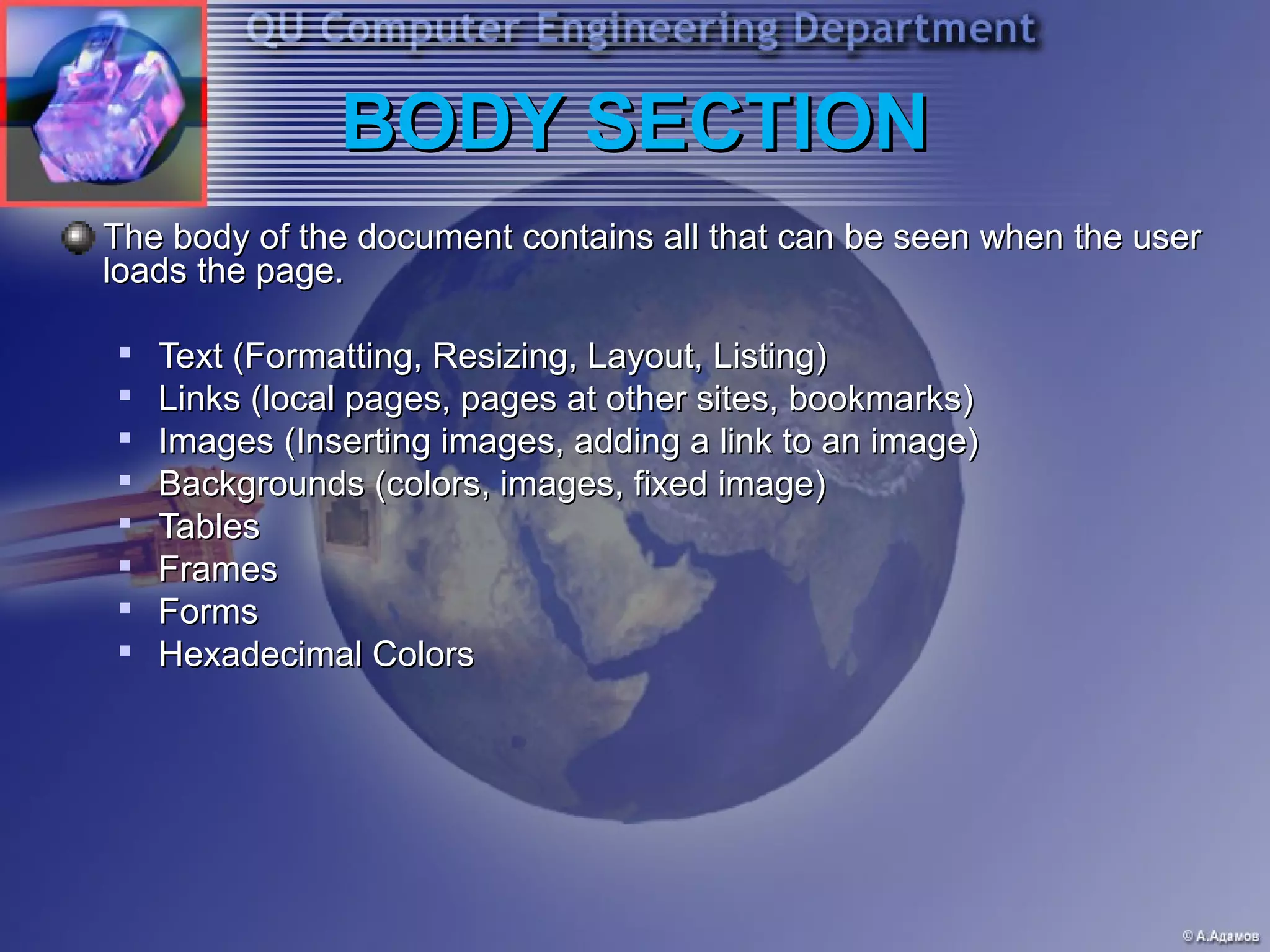
BODY SECTION
The body of the document contains all that can be seen when the user
loads the page.


    Text (Formatting, Resizing, Layout, Listing)
   Links (local pages, pages at other sites, bookmarks)

    Images (Inserting images, adding a link to an image)

    Backgrounds (colors, images, fixed image)

    Tables

    Frames
   Forms

    Hexadecimal Colors
First tags
• <b> and </b>
  •   bolds
• <i> and </i>
  •   italicizes
• <u> and </u>
  •   underlines
• <center> and </center>
  •   Puts in the center of the page, or ‘aligns
      center’
First tags
•   <strong> and </strong>
•   <big> and </big>
•   <em> and </em>
•   <small> and </small>
•   <del> and </del>
•   <strike> and </strike>
•   <pre> and </pre>
•   <code> and </code>
•   <blockquote> and </blockquote>
More basics
 <h1> and </h1>
     Headers preset to help define sections
     Six different choices down to <h6> and </h6>
 The <br /> and <nobr> tags
  
      Causes a line break
  
      Difference between <b>this is bold</b> and <b> This
      is bold <br /> and there is a line break</b>
  
      Why is there not a </br>?
  
      <nobr> tag is used to instruct the browser not to
      break into new line the specified text
 <p> and </p>
  
      Paragraph tag
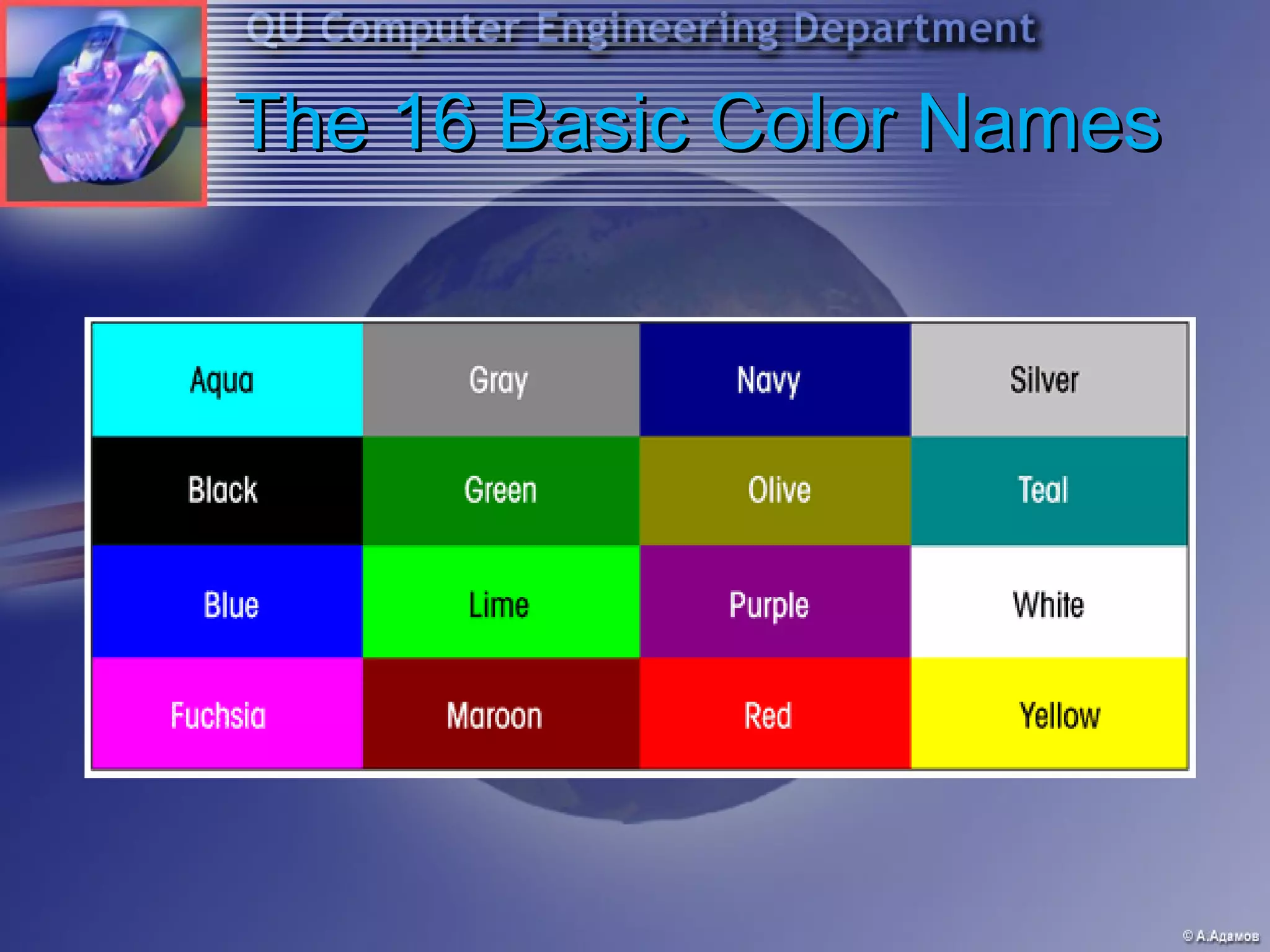
The 16 Basic Color Names
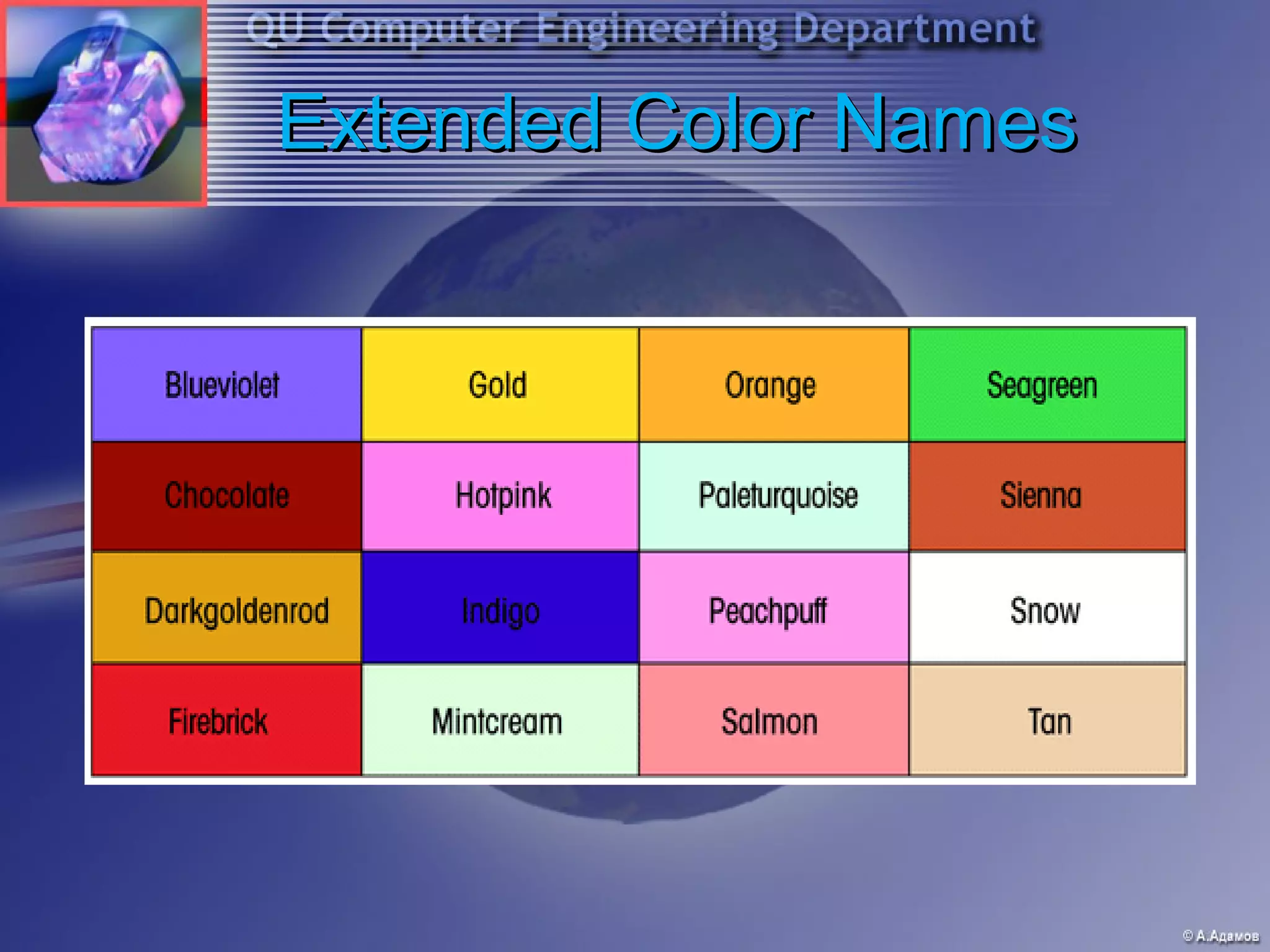
Extended Color Names
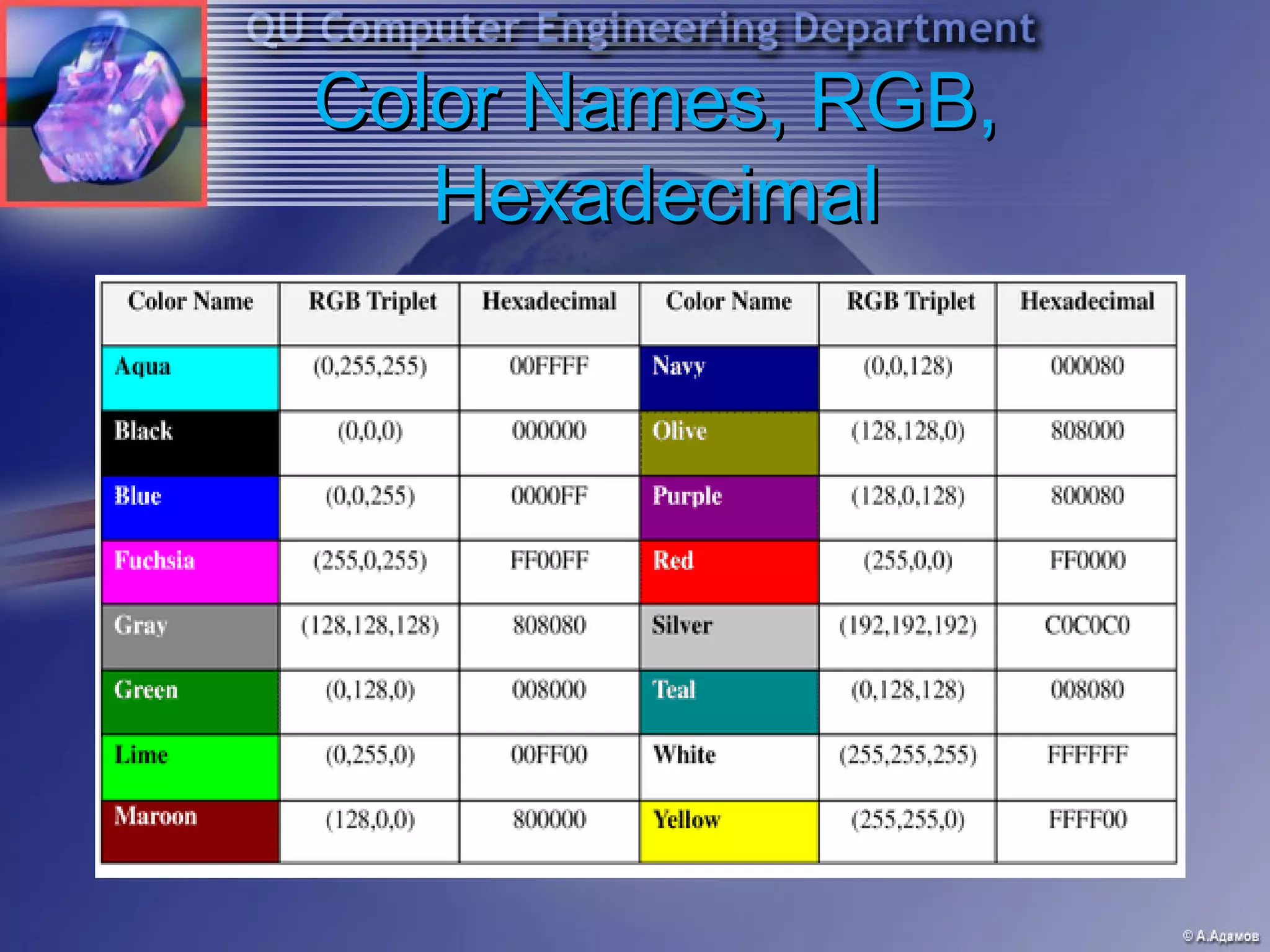
Color Names, RGB,
   Hexadecimal
Some useful Stuff
•   <pre> and </pre> - preformatted
•   <sub> and </sub> - sub script
•   <sup> and </sup> - superscript
•   How to put in symbols
       &nbsp; and others
       http://www.w3schools.com/tags/ref_entities.as
        p
Comments
• Start with <!-- and end with -->
• Comments are special tags
• You can type whatever you want in the
  middle
• Example
  
      <!-- This is where the music section of my
      page starts -->
The <hr /> tag
   Horizontal rule
   Use these sparingly!!
   Attributes
       Width
       Align
    
        Size
          Default of 2 (pixels tall)
    
        Noshade
          True or false
       Color
The <hr /> tag
   Horizontal rule
   Use these sparingly!!
   Attributes
       Width
       Align
    
        Size
          Default of 2 (pixels tall)
    
        Noshade
          True or false
       Color
Lists
 <ul> and </ul> stand for un-ordered list
     Aka this is a list with bullets
 <ol> and </ol> stand for ordered lists
  1. First Item
  2. Second
  3. Ect
 <li> and </li> stand for list item
     These are used inside the <ul></ul> and
      <ol></ol> tags
Unordered Lists
 <ul> and </ul> stand for ordered list
     “type” property specifies the leading symbol in
      front of each list item, possible values: circle,
      disk, square

  Example:
  <ul type=“squeare”>

   One
   Two
   Three
Ordered Lists
 <ol> and </ol> stand for ordered list
      “type” property specifies the leading symbol in
       front of each list item, possible values: 1, i, I,
       a, A
      “start” property specifies the starting value
      “value” property lets to interrupt standard
       sequence
  Example:
  <ul type=“A”>
  A.   One
  B.   Two
  C.   Three
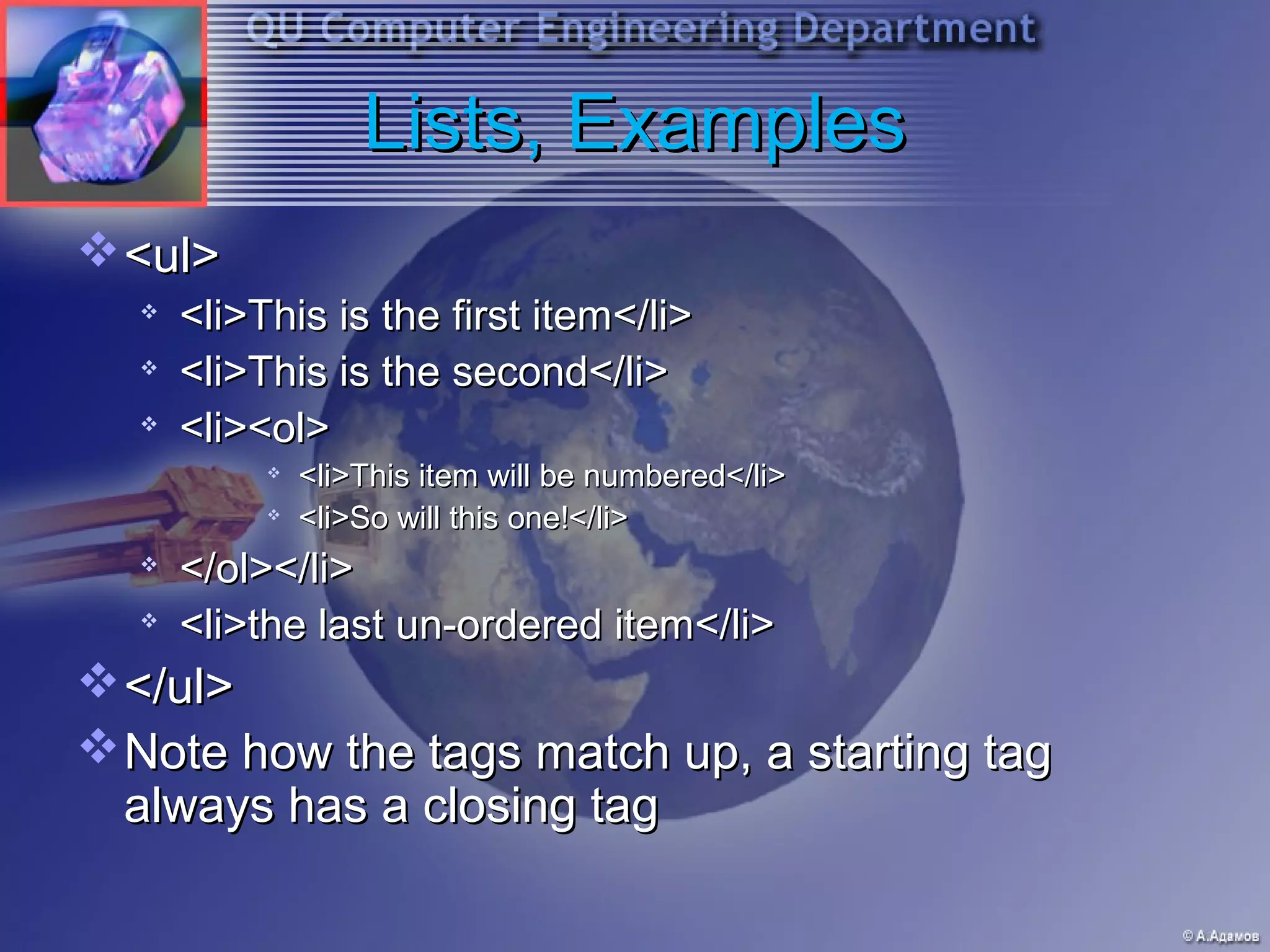
Lists, Examples
 <ul>
     <li>This is the first item</li>
     <li>This is the second</li>
     <li><ol>
              <li>This item will be numbered</li>
              <li>So will this one!</li>
  
      </ol></li>
  
      <li>the last un-ordered item</li>
 </ul>
 Note how the tags match up, a starting tag
  always has a closing tag
Adding images
   <img src=‘where is the image’ />
   Why is there no </img> ?
   What else can I do?
       Align the image (center it, ect)
    
        Resize the image (height and width)
    
        Use alt and title
         What is the difference?
         Alt is alternative text
         Title is the title of the image
       Add a border
       Define horizontal and vertical spaces
       Use image as a link or background image
Image Properties
 src – source of image file (path/name)
 align – image position related to other objects (left, right,
  top, bottom, middle, …)
 alt – alternative text will be shown in the case if image
  can’t be displayed
 title – descriptive text for the image
 border – define thickness of frame along the perimeter
  of image
 vspace – define the vertical space between image and
  other objects
 hspace – define the horizontal space between image
  and other objects
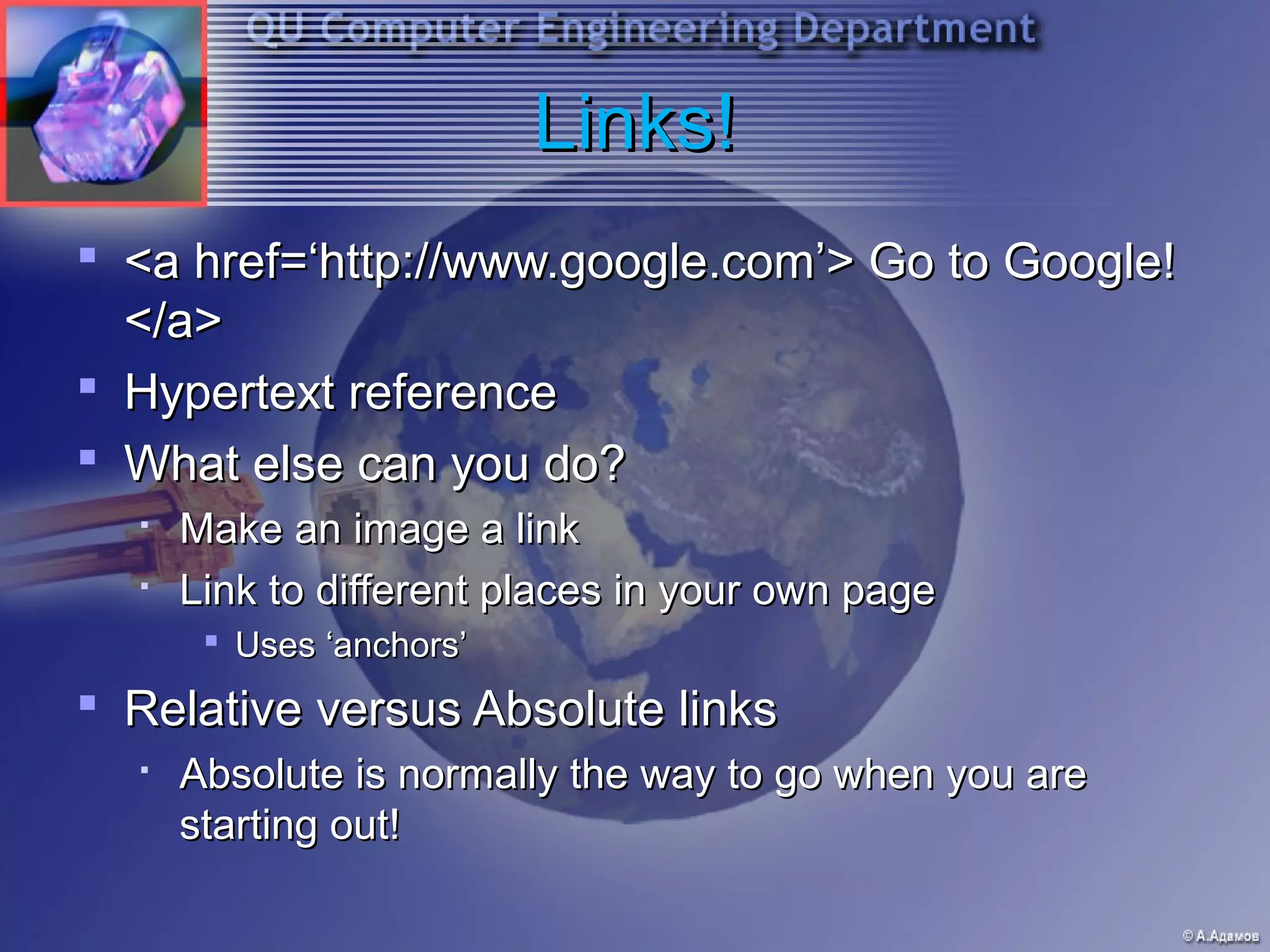
Links!
 <a href=‘http://www.google.com’> Go to Google!
  </a>
 Hypertext reference
 What else can you do?
     Make an image a link
  
      Link to different places in your own page
        Uses ‘anchors’
 Relative versus Absolute links
     Absolute is normally the way to go when you are
      starting out!
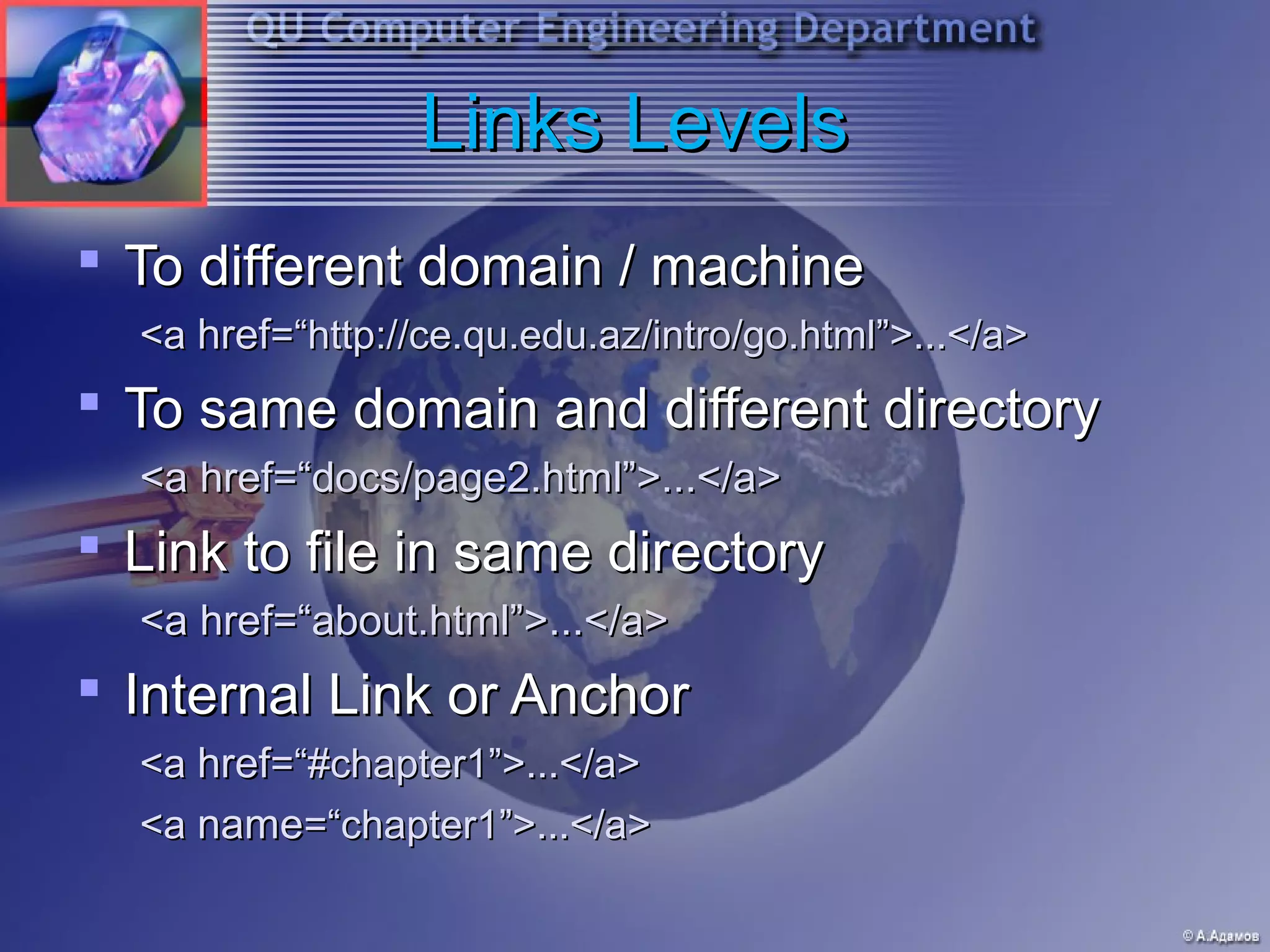
Links Levels
 To different domain / machine
  <a href=“http://ce.qu.edu.az/intro/go.html”>...</a>
 To same domain and different directory
  <a href=“docs/page2.html”>...</a>
 Link to file in same directory
  <a href=“about.html”>...</a>
 Internal Link or Anchor
  <a href=“#chapter1”>...</a>
  <a name=“chapter1”>...</a>
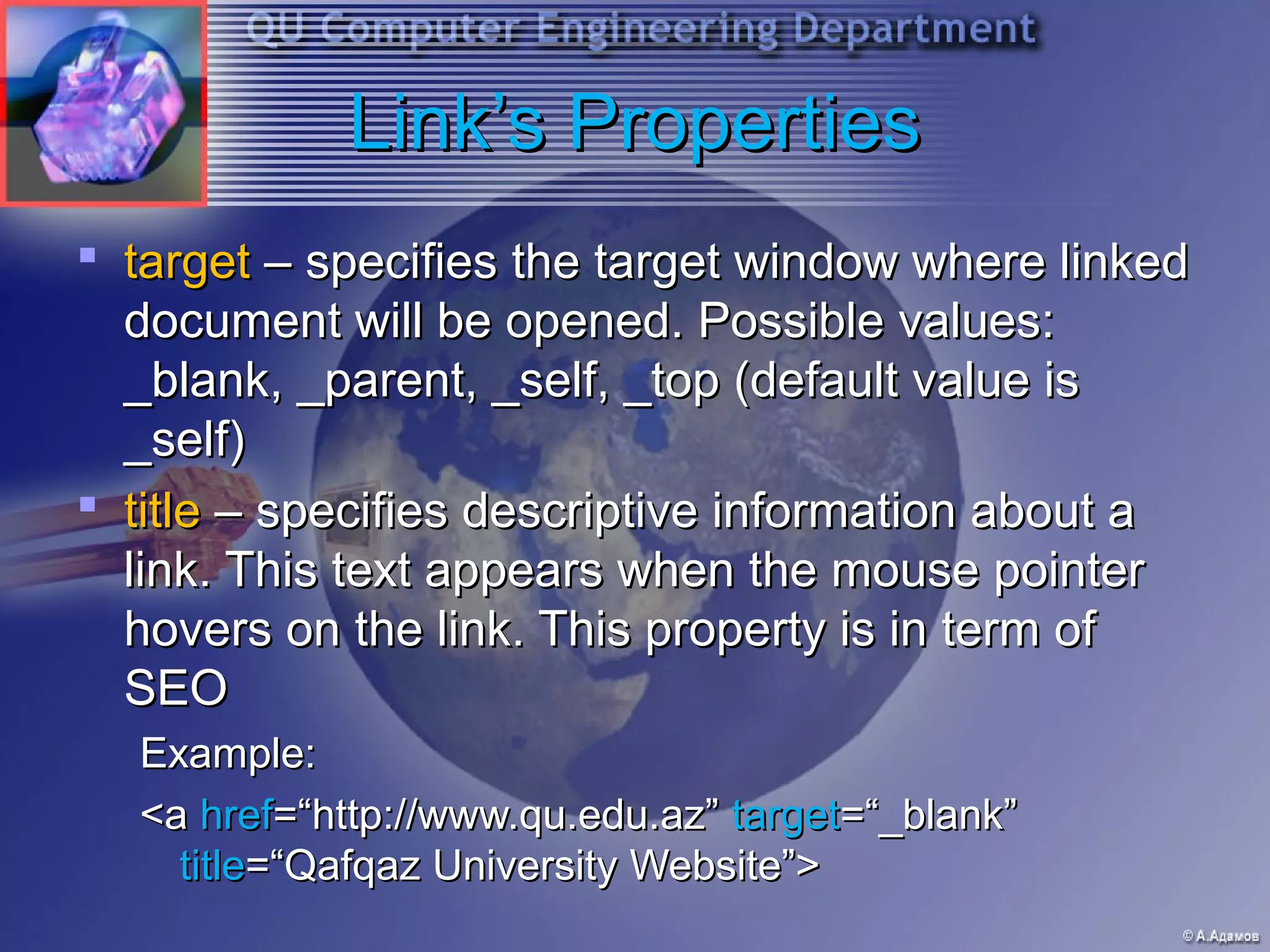
Link’s Properties
 target – specifies the target window where linked
  document will be opened. Possible values:
  _blank, _parent, _self, _top (default value is
  _self)
 title – specifies descriptive information about a
  link. This text appears when the mouse pointer
  hovers on the link. This property is in term of
  SEO
  Example:
  <a href=“http://www.qu.edu.az” target=“_blank”
    title=“Qafqaz University Website”>
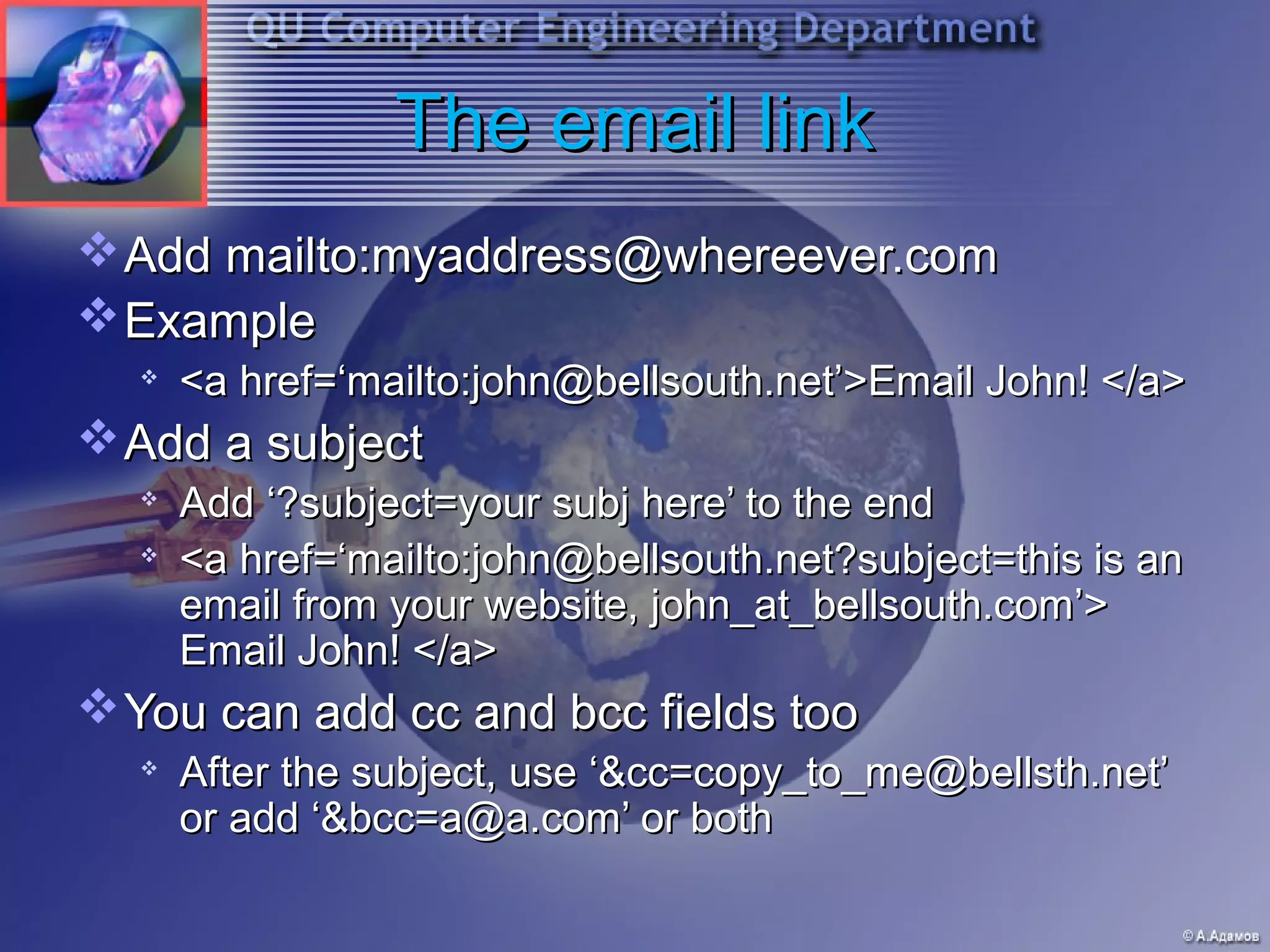
The email link
 Add mailto:myaddress@whereever.com
 Example
     <a href=‘mailto:john@bellsouth.net’>Email John! </a>
 Add a subject
  
      Add ‘?subject=your subj here’ to the end
  
      <a href=‘mailto:john@bellsouth.net?subject=this is an
      email from your website, john_at_bellsouth.com’>
      Email John! </a>
 You can add cc and bcc fields too
  
      After the subject, use ‘&cc=copy_to_me@bellsth.net’
      or add ‘&bcc=a@a.com’ or both
The BODY tag
 Attributes
  
      Bgcolor
     Text
     Link
       Alink
       Vlink
     Background
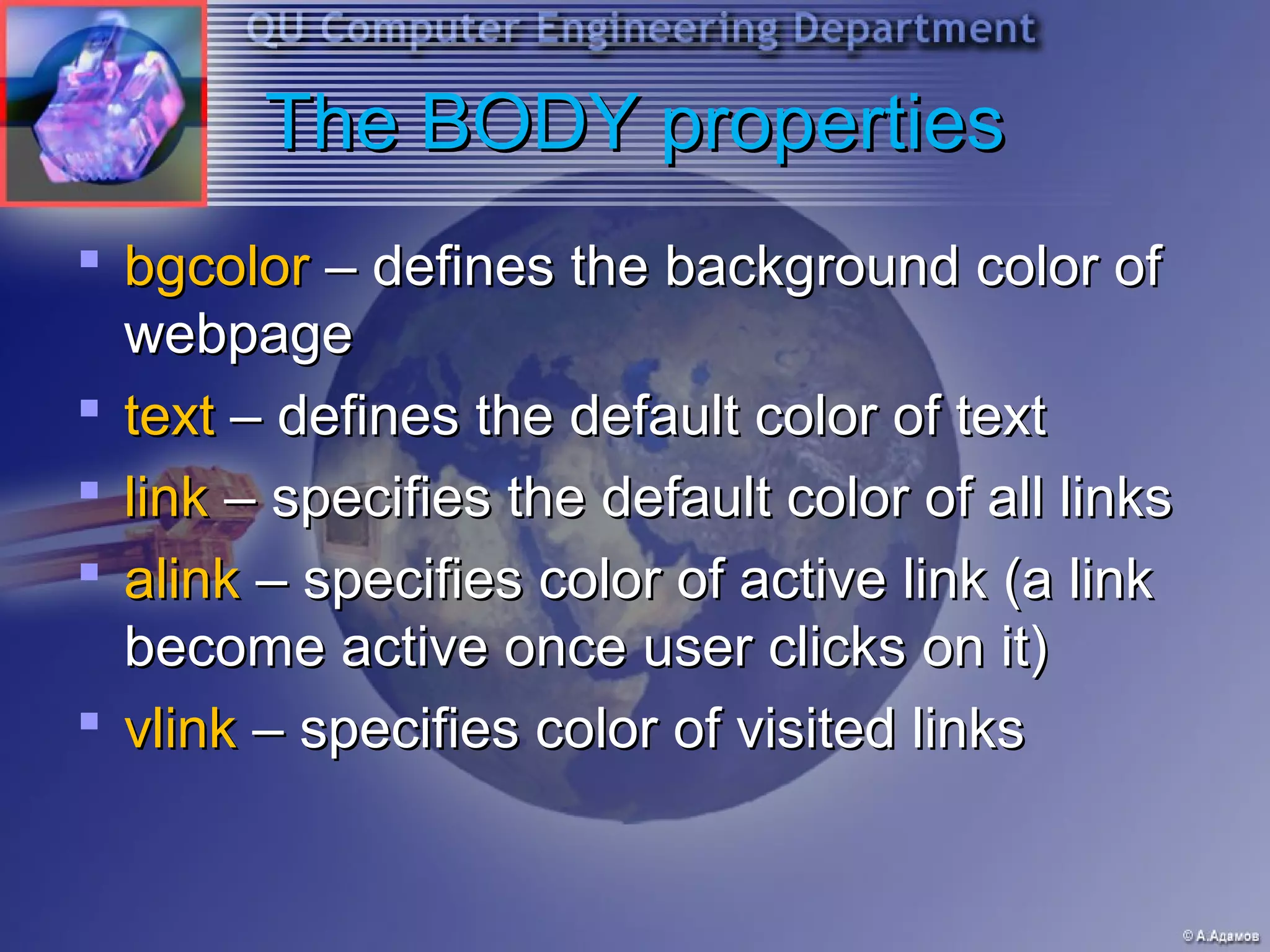
The BODY properties
 bgcolor – defines the background color of
  webpage
 text – defines the default color of text
 link – specifies the default color of all links
 alink – specifies color of active link (a link
  become active once user clicks on it)
 vlink – specifies color of visited links
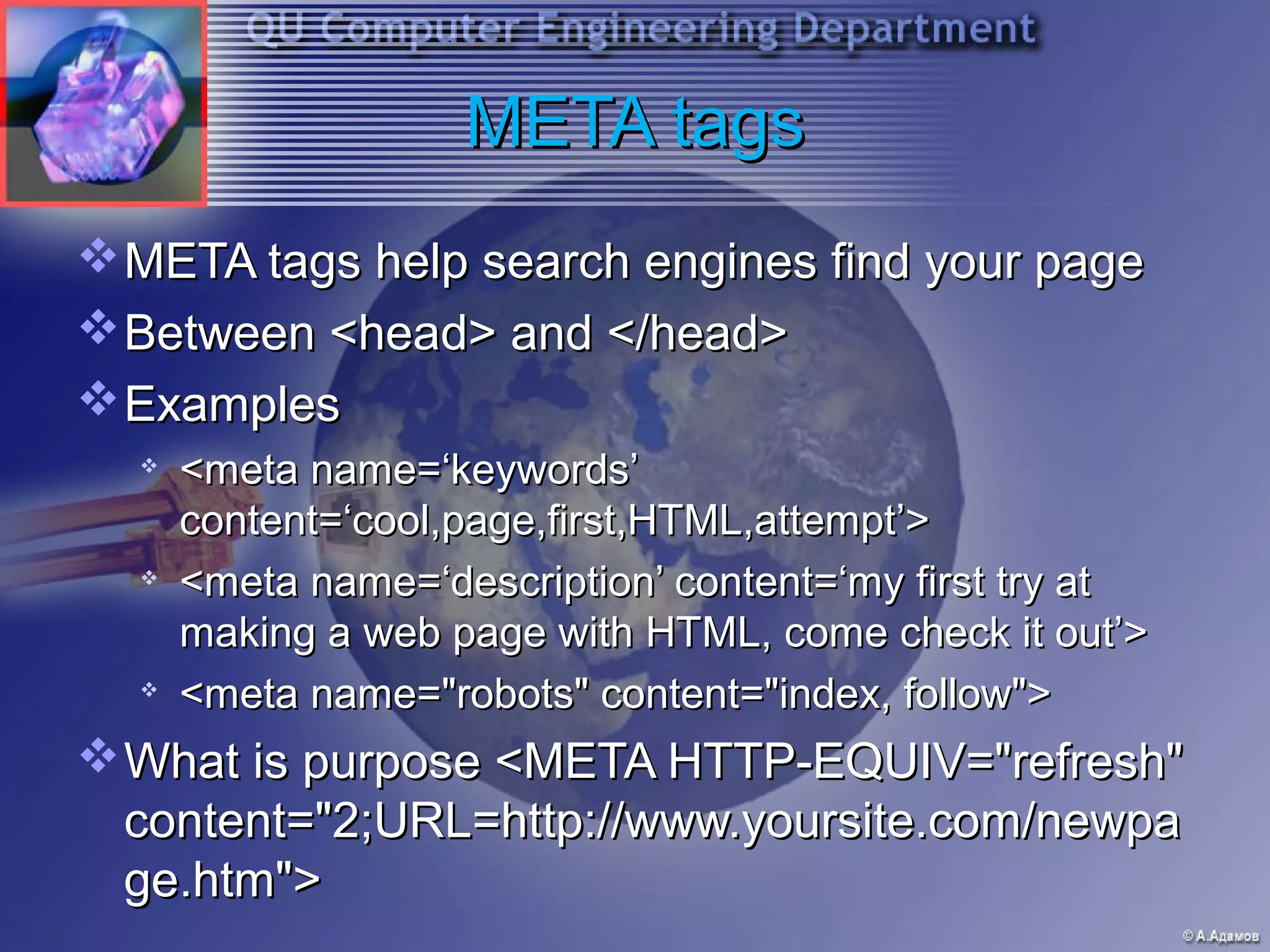
META tags
 META tags help search engines find your page
 Between <head> and </head>
 Examples
     <meta name=‘keywords’
      content=‘cool,page,first,HTML,attempt’>
     <meta name=‘description’ content=‘my first try at
      making a web page with HTML, come check it out’>
  
      <meta name="robots" content="index, follow">
 What is purpose <META HTTP-EQUIV="refresh"
  content="2;URL=http://www.yoursite.com/newpa
  ge.htm">
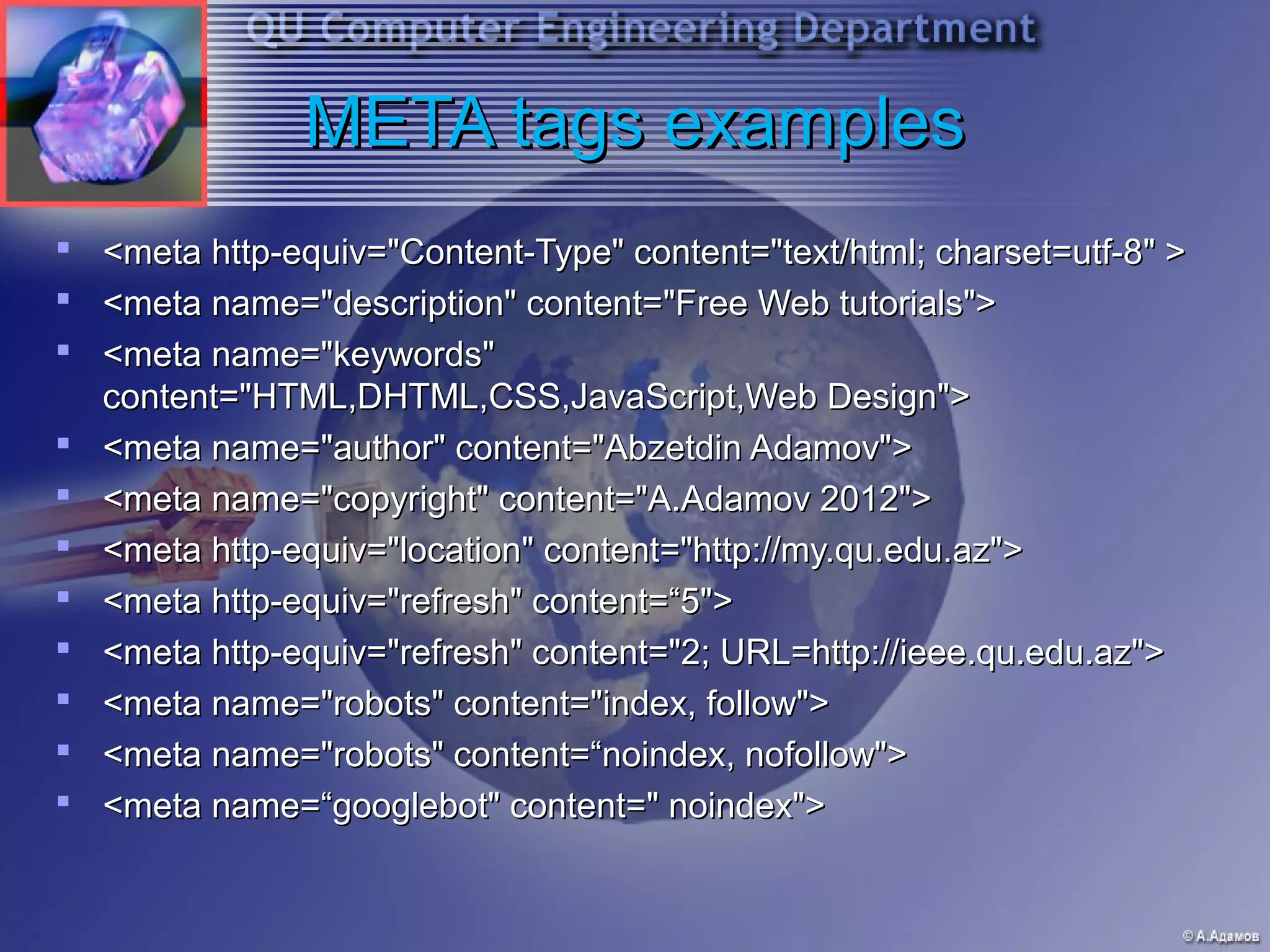
META tags examples
   <meta http-equiv="Content-Type" content="text/html; charset=utf-8" >
   <meta name="description" content="Free Web tutorials">
   <meta name="keywords"
    content="HTML,DHTML,CSS,JavaScript,Web Design">
   <meta name="author" content="Abzetdin Adamov">
   <meta name="copyright" content="A.Adamov 2012">
   <meta http-equiv="location" content="http://my.qu.edu.az">
   <meta http-equiv="refresh" content=“5">
   <meta http-equiv="refresh" content="2; URL=http://ieee.qu.edu.az">
   <meta name="robots" content="index, follow">
   <meta name="robots" content=“noindex, nofollow">
   <meta name=“googlebot" content=" noindex">
Tables
• Tables are created out three main parts, or
  tags
• The <table> and </table> tag tells the
  browser that you are creating a table
• The table row tags (<tr> and </tr>) create
  a single row
• The table division tags (<td> and </td>)
  create a single cell within a row
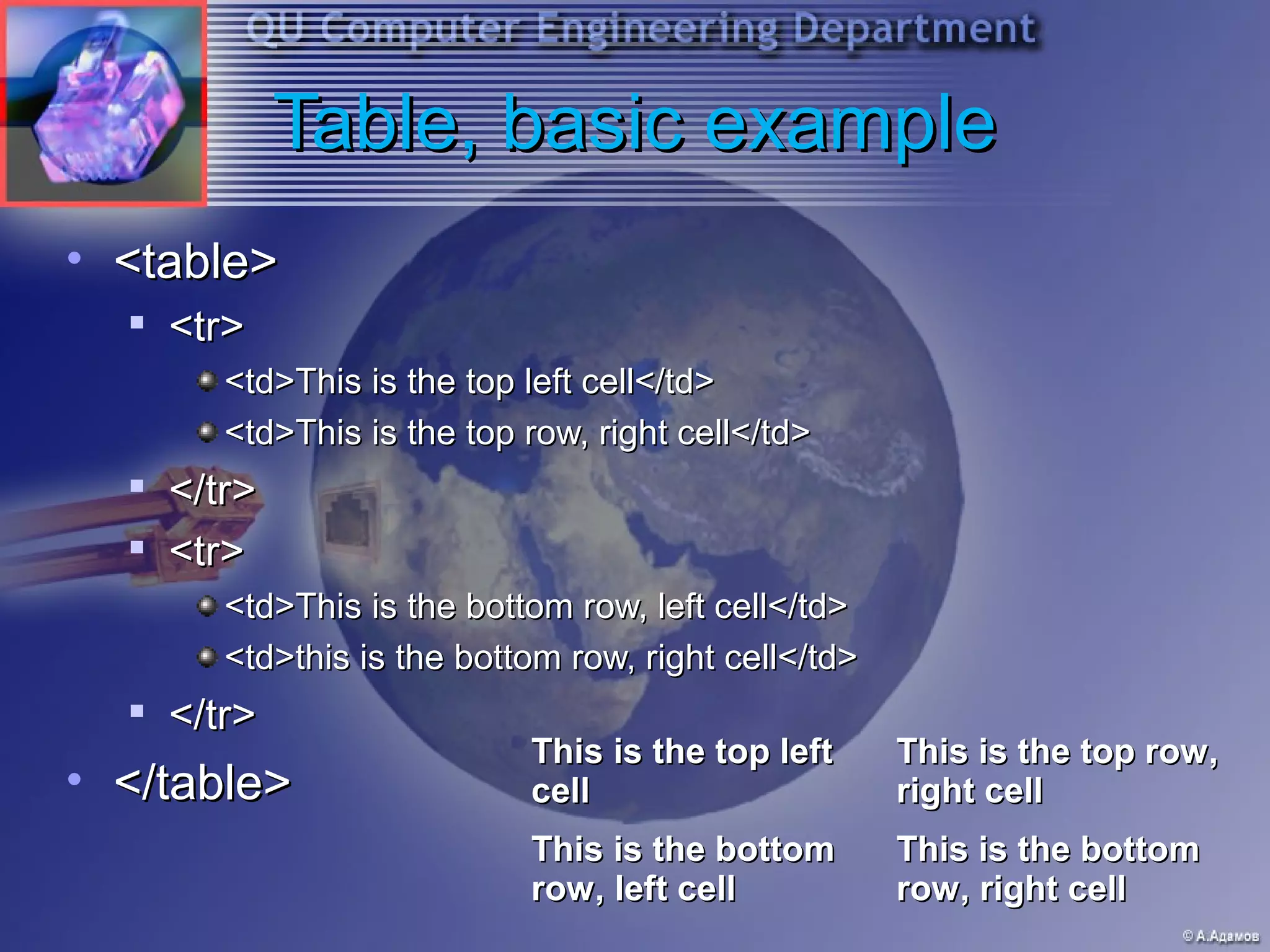
Table, basic example
• <table>
  
      <tr>
         <td>This is the top left cell</td>
         <td>This is the top row, right cell</td>
  
      </tr>
     <tr>
         <td>This is the bottom row, left cell</td>
         <td>this is the bottom row, right cell</td>
     </tr>
                             This is the top left      This is the top row,
• </table>                   cell                      right cell
                             This is the bottom        This is the bottom
                             row, left cell            row, right cell
So why the <table> ?
• The <table> tag allows us to give
  attributes to the table as a whole
• Border
• Cell Spacing
     The space in between one cell and another
• Cell Padding
     The space in between the edge of one cell
      and the actual content in that cell (normally
      text)
• Bgcolor
• Background
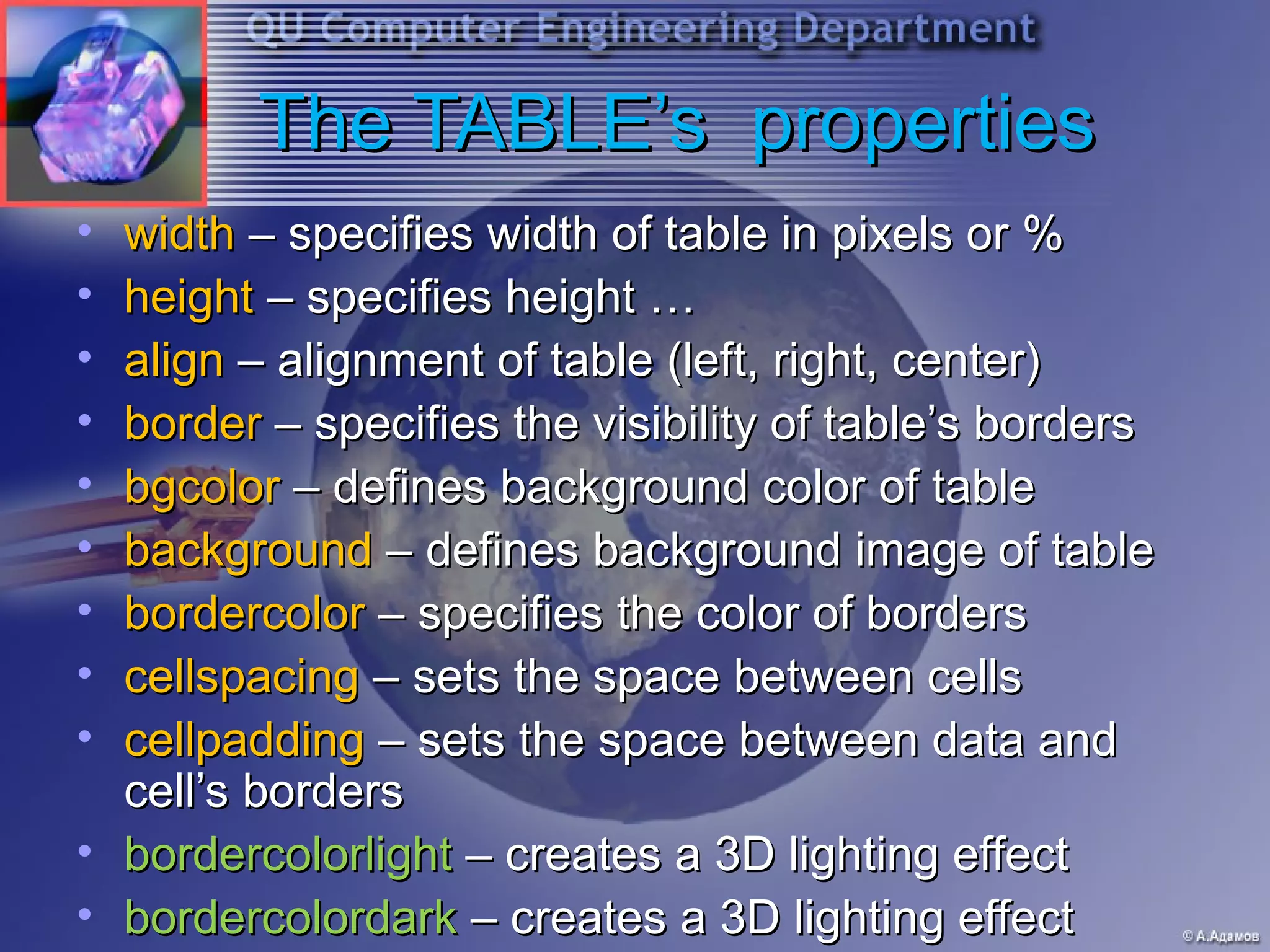
The TABLE’s properties
• width – specifies width of table in pixels or %
• height – specifies height …
• align – alignment of table (left, right, center)
• border – specifies the visibility of table’s borders
• bgcolor – defines background color of table
• background – defines background image of table
• bordercolor – specifies the color of borders
• cellspacing – sets the space between cells
• cellpadding – sets the space between data and
  cell’s borders
• bordercolorlight – creates a 3D lighting effect
• bordercolordark – creates a 3D lighting effect
Review
 Tags are the main parts of html
 Tags can be changed with attribute values
 <font color=“red”>hello</font>
   
       <font> is the opening tag
   
       Color is an attribute of the font tag
   
       </font> is the closing tag
 Most tags apply to a section of code, and need a
  closing/ending tag
 Some tags, like <br /> and <img /> do not
      The correct way to ‘close’ these tags is the /> ending
      Most of the time they will work without it
   
       99% of the time, <br /> and <br> will do the same thing
Adding sounds
 Link to the file
 Use the <embed /> tag
     Src
     Width, height
       Good values are 144 width and 60 height
  
      Autostart
       True or false
  
      Loop
       True or false
     Hidden
       True or false
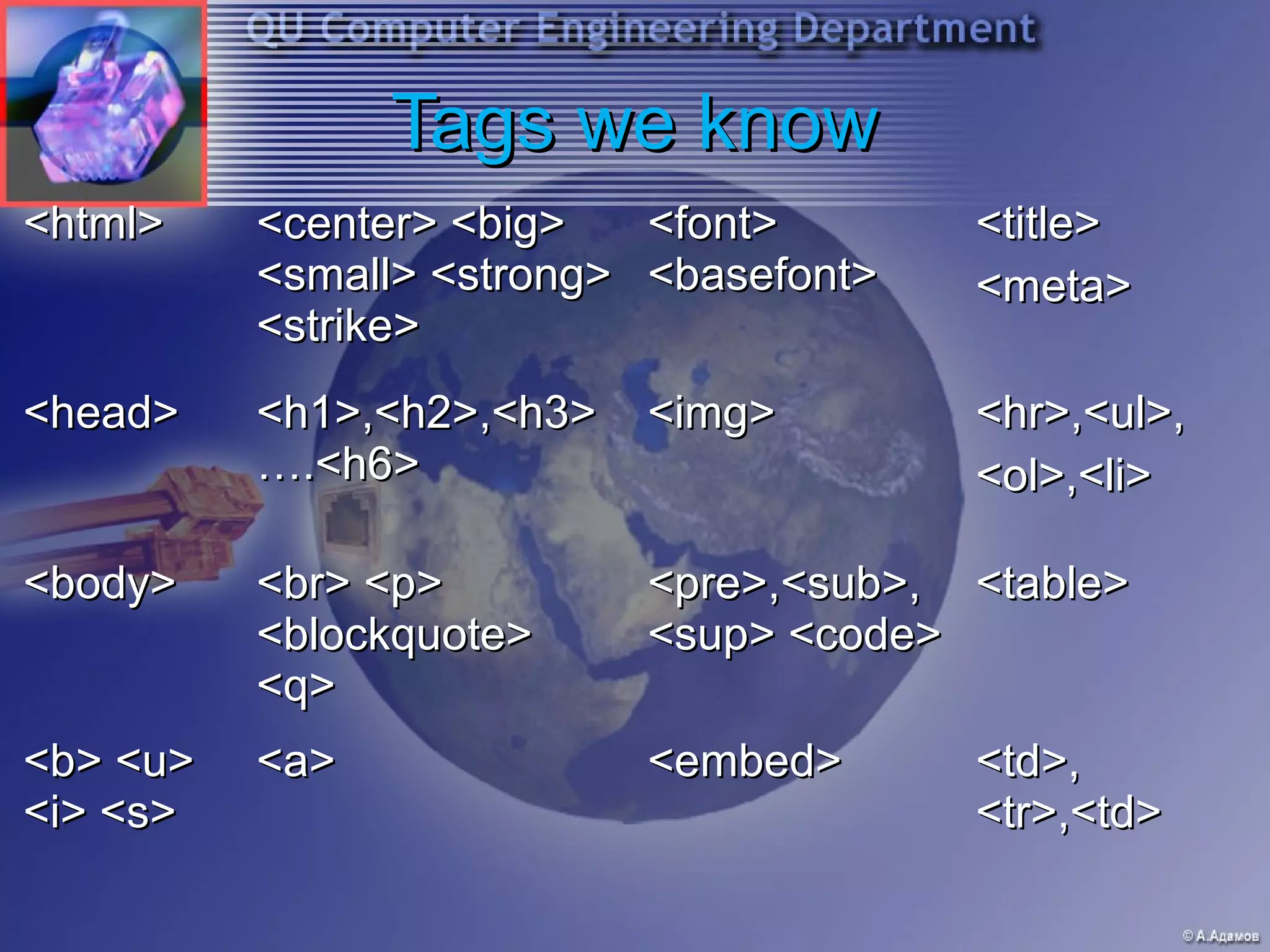
Tags we know
<html>    <center> <big>   <font>       <title>
          <small> <strong> <basefont>   <meta>
          <strike>
<head>    <h1>,<h2>,<h3>   <img>        <hr>,<ul>,
          ….<h6>                        <ol>,<li>

<body>    <br> <p>         <pre>,<sub>, <table>
          <blockquote>     <sup> <code>
          <q>
<b> <u>   <a>              <embed>      <td>,
<i> <s>                                 <tr>,<td>
Lets build a simple site
 If you haven’t already, create a folder to store
  your HTML
   
       I Recommend C:/HTML for now, its easy to remember
 Freely create three different pages
 Remember the basic HTML structure
 Don’t fret, I will walk you through all of this, so if
  you don’t know where to start its ok
 You will make mistakes, that’s ok too. Its part of
  learning
Final notes
 Good places to learn more
  
      http://www.w3schools.com/html/
     http://www.davesite.com/webstation/html/
 Don’t try to memorize every HTML tag you
  see
     All you need to know is what is possible
     You can look up the specific tag
  
      Aka, I would search ‘how do you create a
      table in HTML’ to find the specific tags
Want to know more
 A common way to layout the content on your
  page is to make a large table
  
      Check out http://www.w3schools.com/html/tryit.asp?
      filename=tryhtml_layout
 You might see the word ‘deprecated’ a lot when
  learning
  
      This means there is a ‘newer’ way to do the same
      thing
     This happens for a lot of reasons (simpler code,
      makes more sense, ect)
     Normally the old way will still work, so don’t stress to
      much, its not the end of your site and you don’t have
      to ‘update’
So what’s next?
 Style Sheets
  
      Why???
 See
  http://www.w3schools.com/html/html_whyuseht
  ml4.asp
 “The original HTML was never intended to
  contain tags for formatting a document…In
  HTML 4.0 all formatting can be removed from
  the HTML document and stored in a separate
  style sheet.”
 Hence, next weeks lesson is on CSS, or
  Cascading Style Sheets
QUESTIONS


http://ce.qu.edu.az/~aadamov

Introduction to HTML

  • 1.
    Web Programming andDesign Introduction to HTML Dr. Abzetdin ADAMOV Chair of Computer Engineering Department aadamov@qu.edu.az http://ce.qu.edu.az/~aadamov
  • 2.
    What you needto have • Running computer • Text editor  NotePad  EmEditor • Web Browser  Chrome  Internet Explorer  Firefox  Safari • Somewhere to save your work  Note: You don’t have to work online!
  • 3.
    How to usethe materials • Open text editor • Type/Edit your HTML • Hit ‘File → Save As’ • Change ‘Save as Type’ option  Make it read ‘Save as Type: All files’ • If that is not an option, put the name in quotes • Save our test page as “test.html” • Point web browser to the file location  Type something similar to D:/CODES/HTML/test.html in the browser bar
  • 4.
    Tags • Tags tella browser (Chrome, Internet Explorer, Firefox, ect) how to interpret them and arrange information • Tags start with ‘<‘ and end with ‘>’ • Normally tags come in pairs, and the closing tag starts with ‘</’ • Examples  <b>This is bold</b> and this is  <u>Underlined!</u>
  • 5.
    Tags  Basically, acomputer sees an "A" as simply an "A" - whether it is bold, italic, big or small.  To tell the browser that an "A" should be bold we need to put a markup in front of the A. Such a markup is called a Tag.  All HTML tags are enclosed in < and >. Example: A piece of text as it appears on the screen: This is an example of bold text. HTML: the HTML for the above example: This is an example of <b>bold</b> text.
  • 6.
    Basic Structure <html> <head> <title> Title of your page here! </title> Metatags… JavaScript… CSS… </head> <body> Content goes here! </body> </html>
  • 7.
    HEAD SECTION  Thehead section of the webpage includes all the stuff that does not show directly on the resulting page.  The <title> and </title> tags encapsulate the title of your page. The title is what shows in the top of your browser window when the page is loaded.  Another thing you will often see in the head section is metatags. Metatags are used for, among other things, to improve the rankings in search engines.  Quite often the head section contains javascript which is a programming language for more complex HTML pages.  Finally, more and more pages contain codes for cascading style sheets (CSS). CSS is a rather new technique for optimizing the layout of major websites.
  • 8.
    BODY SECTION The bodyof the document contains all that can be seen when the user loads the page.  Text (Formatting, Resizing, Layout, Listing)  Links (local pages, pages at other sites, bookmarks)  Images (Inserting images, adding a link to an image)  Backgrounds (colors, images, fixed image)  Tables  Frames  Forms  Hexadecimal Colors
  • 9.
    First tags • <b>and </b> • bolds • <i> and </i> • italicizes • <u> and </u> • underlines • <center> and </center> • Puts in the center of the page, or ‘aligns center’
  • 10.
    First tags • <strong> and </strong> • <big> and </big> • <em> and </em> • <small> and </small> • <del> and </del> • <strike> and </strike> • <pre> and </pre> • <code> and </code> • <blockquote> and </blockquote>
  • 11.
    More basics  <h1>and </h1>  Headers preset to help define sections  Six different choices down to <h6> and </h6>  The <br /> and <nobr> tags  Causes a line break  Difference between <b>this is bold</b> and <b> This is bold <br /> and there is a line break</b>  Why is there not a </br>?  <nobr> tag is used to instruct the browser not to break into new line the specified text  <p> and </p>  Paragraph tag
  • 12.
    The 16 BasicColor Names
  • 13.
  • 14.
    Color Names, RGB, Hexadecimal
  • 15.
    Some useful Stuff • <pre> and </pre> - preformatted • <sub> and </sub> - sub script • <sup> and </sup> - superscript • How to put in symbols  &nbsp; and others  http://www.w3schools.com/tags/ref_entities.as p
  • 16.
    Comments • Start with<!-- and end with --> • Comments are special tags • You can type whatever you want in the middle • Example  <!-- This is where the music section of my page starts -->
  • 17.
    The <hr />tag  Horizontal rule  Use these sparingly!!  Attributes  Width  Align  Size  Default of 2 (pixels tall)  Noshade  True or false  Color
  • 18.
    The <hr />tag  Horizontal rule  Use these sparingly!!  Attributes  Width  Align  Size  Default of 2 (pixels tall)  Noshade  True or false  Color
  • 19.
    Lists  <ul> and</ul> stand for un-ordered list  Aka this is a list with bullets  <ol> and </ol> stand for ordered lists 1. First Item 2. Second 3. Ect  <li> and </li> stand for list item  These are used inside the <ul></ul> and <ol></ol> tags
  • 20.
    Unordered Lists  <ul>and </ul> stand for ordered list  “type” property specifies the leading symbol in front of each list item, possible values: circle, disk, square Example: <ul type=“squeare”>  One  Two  Three
  • 21.
    Ordered Lists  <ol>and </ol> stand for ordered list  “type” property specifies the leading symbol in front of each list item, possible values: 1, i, I, a, A  “start” property specifies the starting value  “value” property lets to interrupt standard sequence Example: <ul type=“A”> A. One B. Two C. Three
  • 22.
    Lists, Examples  <ul>  <li>This is the first item</li>  <li>This is the second</li>  <li><ol>  <li>This item will be numbered</li>  <li>So will this one!</li>  </ol></li>  <li>the last un-ordered item</li>  </ul>  Note how the tags match up, a starting tag always has a closing tag
  • 23.
    Adding images  <img src=‘where is the image’ />  Why is there no </img> ?  What else can I do?  Align the image (center it, ect)  Resize the image (height and width)  Use alt and title What is the difference? Alt is alternative text Title is the title of the image  Add a border  Define horizontal and vertical spaces  Use image as a link or background image
  • 24.
    Image Properties  src– source of image file (path/name)  align – image position related to other objects (left, right, top, bottom, middle, …)  alt – alternative text will be shown in the case if image can’t be displayed  title – descriptive text for the image  border – define thickness of frame along the perimeter of image  vspace – define the vertical space between image and other objects  hspace – define the horizontal space between image and other objects
  • 25.
    Links!  <a href=‘http://www.google.com’>Go to Google! </a>  Hypertext reference  What else can you do?  Make an image a link  Link to different places in your own page  Uses ‘anchors’  Relative versus Absolute links  Absolute is normally the way to go when you are starting out!
  • 26.
    Links Levels  Todifferent domain / machine <a href=“http://ce.qu.edu.az/intro/go.html”>...</a>  To same domain and different directory <a href=“docs/page2.html”>...</a>  Link to file in same directory <a href=“about.html”>...</a>  Internal Link or Anchor <a href=“#chapter1”>...</a> <a name=“chapter1”>...</a>
  • 27.
    Link’s Properties  target– specifies the target window where linked document will be opened. Possible values: _blank, _parent, _self, _top (default value is _self)  title – specifies descriptive information about a link. This text appears when the mouse pointer hovers on the link. This property is in term of SEO Example: <a href=“http://www.qu.edu.az” target=“_blank” title=“Qafqaz University Website”>
  • 28.
    The email link Add mailto:myaddress@whereever.com  Example  <a href=‘mailto:john@bellsouth.net’>Email John! </a>  Add a subject  Add ‘?subject=your subj here’ to the end  <a href=‘mailto:john@bellsouth.net?subject=this is an email from your website, john_at_bellsouth.com’> Email John! </a>  You can add cc and bcc fields too  After the subject, use ‘&cc=copy_to_me@bellsth.net’ or add ‘&bcc=a@a.com’ or both
  • 29.
    The BODY tag Attributes  Bgcolor  Text  Link  Alink  Vlink  Background
  • 30.
    The BODY properties bgcolor – defines the background color of webpage  text – defines the default color of text  link – specifies the default color of all links  alink – specifies color of active link (a link become active once user clicks on it)  vlink – specifies color of visited links
  • 31.
    META tags  METAtags help search engines find your page  Between <head> and </head>  Examples  <meta name=‘keywords’ content=‘cool,page,first,HTML,attempt’>  <meta name=‘description’ content=‘my first try at making a web page with HTML, come check it out’>  <meta name="robots" content="index, follow">  What is purpose <META HTTP-EQUIV="refresh" content="2;URL=http://www.yoursite.com/newpa ge.htm">
  • 32.
    META tags examples  <meta http-equiv="Content-Type" content="text/html; charset=utf-8" >  <meta name="description" content="Free Web tutorials">  <meta name="keywords" content="HTML,DHTML,CSS,JavaScript,Web Design">  <meta name="author" content="Abzetdin Adamov">  <meta name="copyright" content="A.Adamov 2012">  <meta http-equiv="location" content="http://my.qu.edu.az">  <meta http-equiv="refresh" content=“5">  <meta http-equiv="refresh" content="2; URL=http://ieee.qu.edu.az">  <meta name="robots" content="index, follow">  <meta name="robots" content=“noindex, nofollow">  <meta name=“googlebot" content=" noindex">
  • 33.
    Tables • Tables arecreated out three main parts, or tags • The <table> and </table> tag tells the browser that you are creating a table • The table row tags (<tr> and </tr>) create a single row • The table division tags (<td> and </td>) create a single cell within a row
  • 34.
    Table, basic example •<table>  <tr> <td>This is the top left cell</td> <td>This is the top row, right cell</td>  </tr>  <tr> <td>This is the bottom row, left cell</td> <td>this is the bottom row, right cell</td>  </tr> This is the top left This is the top row, • </table> cell right cell This is the bottom This is the bottom row, left cell row, right cell
  • 35.
    So why the<table> ? • The <table> tag allows us to give attributes to the table as a whole • Border • Cell Spacing  The space in between one cell and another • Cell Padding  The space in between the edge of one cell and the actual content in that cell (normally text) • Bgcolor • Background
  • 36.
    The TABLE’s properties •width – specifies width of table in pixels or % • height – specifies height … • align – alignment of table (left, right, center) • border – specifies the visibility of table’s borders • bgcolor – defines background color of table • background – defines background image of table • bordercolor – specifies the color of borders • cellspacing – sets the space between cells • cellpadding – sets the space between data and cell’s borders • bordercolorlight – creates a 3D lighting effect • bordercolordark – creates a 3D lighting effect
  • 37.
    Review  Tags arethe main parts of html  Tags can be changed with attribute values  <font color=“red”>hello</font>  <font> is the opening tag  Color is an attribute of the font tag  </font> is the closing tag  Most tags apply to a section of code, and need a closing/ending tag  Some tags, like <br /> and <img /> do not  The correct way to ‘close’ these tags is the /> ending  Most of the time they will work without it  99% of the time, <br /> and <br> will do the same thing
  • 38.
    Adding sounds  Linkto the file  Use the <embed /> tag  Src  Width, height Good values are 144 width and 60 height  Autostart True or false  Loop True or false  Hidden True or false
  • 39.
    Tags we know <html> <center> <big> <font> <title> <small> <strong> <basefont> <meta> <strike> <head> <h1>,<h2>,<h3> <img> <hr>,<ul>, ….<h6> <ol>,<li> <body> <br> <p> <pre>,<sub>, <table> <blockquote> <sup> <code> <q> <b> <u> <a> <embed> <td>, <i> <s> <tr>,<td>
  • 40.
    Lets build asimple site  If you haven’t already, create a folder to store your HTML  I Recommend C:/HTML for now, its easy to remember  Freely create three different pages  Remember the basic HTML structure  Don’t fret, I will walk you through all of this, so if you don’t know where to start its ok  You will make mistakes, that’s ok too. Its part of learning
  • 41.
    Final notes  Goodplaces to learn more  http://www.w3schools.com/html/  http://www.davesite.com/webstation/html/  Don’t try to memorize every HTML tag you see  All you need to know is what is possible  You can look up the specific tag  Aka, I would search ‘how do you create a table in HTML’ to find the specific tags
  • 42.
    Want to knowmore  A common way to layout the content on your page is to make a large table  Check out http://www.w3schools.com/html/tryit.asp? filename=tryhtml_layout  You might see the word ‘deprecated’ a lot when learning  This means there is a ‘newer’ way to do the same thing  This happens for a lot of reasons (simpler code, makes more sense, ect)  Normally the old way will still work, so don’t stress to much, its not the end of your site and you don’t have to ‘update’
  • 43.
    So what’s next? Style Sheets  Why???  See http://www.w3schools.com/html/html_whyuseht ml4.asp  “The original HTML was never intended to contain tags for formatting a document…In HTML 4.0 all formatting can be removed from the HTML document and stored in a separate style sheet.”  Hence, next weeks lesson is on CSS, or Cascading Style Sheets
  • 44.