FORMATTING TAGS
Lakshmi.S, MCA.,M.Phil.,
Assistant Professor, Dept. of Computer
Science,
Sri Adi Chunchanagiri Women’s
College, Cumbum.
Dept. of Computer Science, Sri Adi Chunchanagiri Womens College, Cumbum.
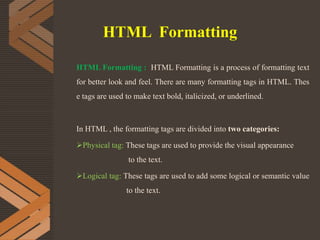
HTML Formatting : HTML Formatting is a process of formatting text
for better look and feel. There are many formatting tags in HTML. Thes
e tags are used to make text bold, italicized, or underlined.
In HTML , the formatting tags are divided into two categories:
Physical tag: These tags are used to provide the visual appearance
to the text.
Logical tag: These tags are used to add some logical or semantic value
to the text.
HTML Formatting
PHYSICAL TAGS
BOLD Tag: <b> : Contains text to be rendered in bold.
The HTML <b> element is a physical tag which display text in bold
font, without any logical importance. If you write anything within <b>............</b>
element, is shown in bold letters.
For Ex:
<html>
<head>
<title>Bold the Text </title>
</head>
<body>
<b>Sri Adi Chunchanagiri Women’s College,Cumbum.</b>
</body>
</html>
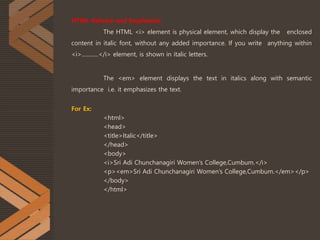
HTML Italicize and Emphasize:
The HTML <i> element is physical element, which display the enclosed
content in italic font, without any added importance. If you write anything within
<i>............</i> element, is shown in italic letters.
The <em> element displays the text in italics along with semantic
importance i.e. it emphasizes the text.
For Ex:
<html>
<head>
<title>Italic</title>
</head>
<body>
<i>Sri Adi Chunchanagiri Women’s College,Cumbum.</i>
<p><em>Sri Adi Chunchanagiri Women’s College,Cumbum.</em></p>
</body>
</html>
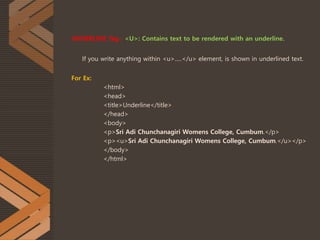
UNDERLINE Tag : <U>: Contains text to be rendered with an underline.
If you write anything within <u>.....</u> element, is shown in underlined text.
For Ex:
<html>
<head>
<title>Underline</title>
</head>
<body>
<p>Sri Adi Chunchanagiri Womens College, Cumbum.</p>
<p><u>Sri Adi Chunchanagiri Womens College, Cumbum.</u></p>
</body>
</html>
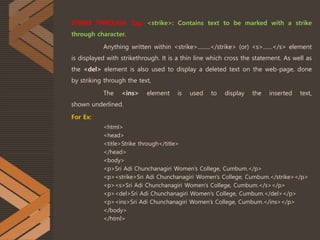
STRIKE THROUGH Tag: <strike>: Contains text to be marked with a strike
through character.
Anything written within <strike>.........</strike> (or) <s>……</s> element
is displayed with strikethrough. It is a thin line which cross the statement. As well as
the <del> element is also used to display a deleted text on the web-page, done
by striking through the text,
The <ins> element is used to display the inserted text,
shown underlined.
For Ex:
<html>
<head>
<title>Strike through</title>
</head>
<body>
<p>Sri Adi Chunchanagiri Women’s College, Cumbum.</p>
<p><strike>Sri Adi Chunchanagiri Women’s College, Cumbum.</strike></p>
<p><s>Sri Adi Chunchanagiri Women’s College, Cumbum.</s></p>
<p><del>Sri Adi Chunchanagiri Women’s College, Cumbum.</del></p>
<p><ins>Sri Adi Chunchanagiri Women’s College, Cumbum.</ins></p>
</body>
</html>
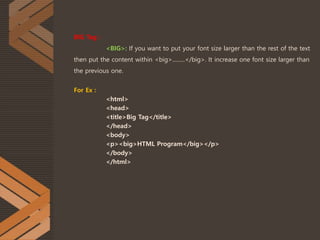
BIG Tag :
<BIG>: If you want to put your font size larger than the rest of the text
then put the content within <big>.........</big>. It increase one font size larger than
the previous one.
For Ex :
<html>
<head>
<title>Big Tag</title>
</head>
<body>
<p><big>HTML Program</big></p>
</body>
</html>
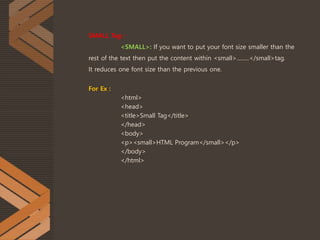
SMALL Tag :
<SMALL>: If you want to put your font size smaller than the
rest of the text then put the content within <small>.........</small>tag.
It reduces one font size than the previous one.
For Ex :
<html>
<head>
<title>Small Tag</title>
</head>
<body>
<p><small>HTML Program</small></p>
</body>
</html>
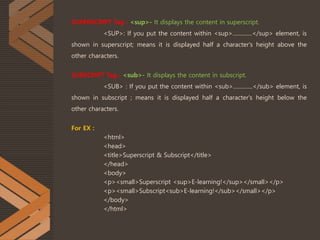
SUPERSCRIPT Tag : <sup>- It displays the content in superscript.
<SUP>: If you put the content within <sup>..............</sup> element, is
shown in superscript; means it is displayed half a character's height above the
other characters.
SUBSCRIPT Tag : <sub>- It displays the content in subscript.
<SUB> : If you put the content within <sub>..............</sub> element, is
shown in subscript ; means it is displayed half a character's height below the
other characters.
For EX :
<html>
<head>
<title>Superscript & Subscript</title>
</head>
<body>
<p><small>Superscript <sup>E-learning!</sup></small></p>
<p><small>Subscript<sub>E-learning!</sub></small></p>
</body>
</html>
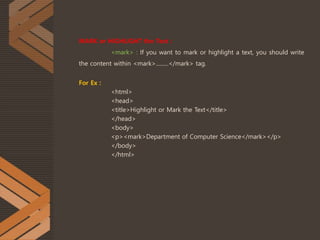
MARK or HIGHLIGHT the Text :
<mark> : If you want to mark or highlight a text, you should write
the content within <mark>.........</mark> tag.
For Ex :
<html>
<head>
<title>Highlight or Mark the Text</title>
</head>
<body>
<p><mark>Department of Computer Science</mark></p>
</body>
</html>
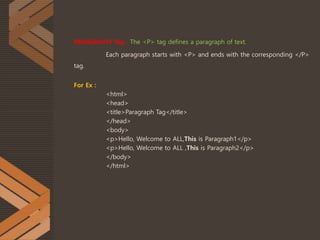
PARAGRAPH Tag : The <P> tag defines a paragraph of text.
Each paragraph starts with <P> and ends with the corresponding </P>
tag.
For Ex :
<html>
<head>
<title>Paragraph Tag</title>
</head>
<body>
<p>Hello, Welcome to ALL,This is Paragraph1</p>
<p>Hello, Welcome to ALL ,This is Paragraph2</p>
</body>
</html>
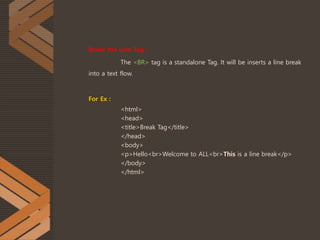
Break the Line Tag :
The <BR> tag is a standalone Tag. It will be inserts a line break
into a text flow.
For Ex :
<html>
<head>
<title>Break Tag</title>
</head>
<body>
<p>Hello<br>Welcome to ALL<br>This is a line break</p>
</body>
</html>
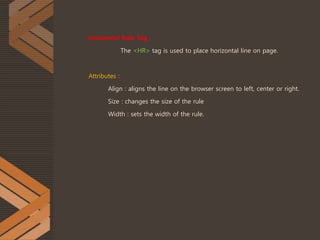
Horizontal Rule Tag :
The <HR> tag is used to place horizontal line on page.
Attributes :
Align : aligns the line on the browser screen to left, center or right.
Size : changes the size of the rule
Width : sets the width of the rule.
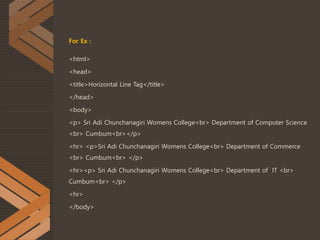
For Ex :
<html>
<head>
<title>Horizontal Line Tag</title>
</head>
<body>
<p> Sri Adi Chunchanagiri Womens College<br> Department of Computer Science
<br> Cumbum<br></p>
<hr> <p>Sri Adi Chunchanagiri Womens College<br> Department of Commerce
<br> Cumbum<br> </p>
<hr><p> Sri Adi Chunchanagiri Womens College<br> Department of IT <br>
Cumbum<br> </p>
<hr>
</body>
THANK YOU

Formatting tags

  • 1.
    FORMATTING TAGS Lakshmi.S, MCA.,M.Phil., AssistantProfessor, Dept. of Computer Science, Sri Adi Chunchanagiri Women’s College, Cumbum. Dept. of Computer Science, Sri Adi Chunchanagiri Womens College, Cumbum.
  • 2.
    HTML Formatting :HTML Formatting is a process of formatting text for better look and feel. There are many formatting tags in HTML. Thes e tags are used to make text bold, italicized, or underlined. In HTML , the formatting tags are divided into two categories: Physical tag: These tags are used to provide the visual appearance to the text. Logical tag: These tags are used to add some logical or semantic value to the text. HTML Formatting
  • 3.
    PHYSICAL TAGS BOLD Tag:<b> : Contains text to be rendered in bold. The HTML <b> element is a physical tag which display text in bold font, without any logical importance. If you write anything within <b>............</b> element, is shown in bold letters. For Ex: <html> <head> <title>Bold the Text </title> </head> <body> <b>Sri Adi Chunchanagiri Women’s College,Cumbum.</b> </body> </html>
  • 4.
    HTML Italicize andEmphasize: The HTML <i> element is physical element, which display the enclosed content in italic font, without any added importance. If you write anything within <i>............</i> element, is shown in italic letters. The <em> element displays the text in italics along with semantic importance i.e. it emphasizes the text. For Ex: <html> <head> <title>Italic</title> </head> <body> <i>Sri Adi Chunchanagiri Women’s College,Cumbum.</i> <p><em>Sri Adi Chunchanagiri Women’s College,Cumbum.</em></p> </body> </html>
  • 5.
    UNDERLINE Tag :<U>: Contains text to be rendered with an underline. If you write anything within <u>.....</u> element, is shown in underlined text. For Ex: <html> <head> <title>Underline</title> </head> <body> <p>Sri Adi Chunchanagiri Womens College, Cumbum.</p> <p><u>Sri Adi Chunchanagiri Womens College, Cumbum.</u></p> </body> </html>
  • 6.
    STRIKE THROUGH Tag:<strike>: Contains text to be marked with a strike through character. Anything written within <strike>.........</strike> (or) <s>……</s> element is displayed with strikethrough. It is a thin line which cross the statement. As well as the <del> element is also used to display a deleted text on the web-page, done by striking through the text, The <ins> element is used to display the inserted text, shown underlined. For Ex: <html> <head> <title>Strike through</title> </head> <body> <p>Sri Adi Chunchanagiri Women’s College, Cumbum.</p> <p><strike>Sri Adi Chunchanagiri Women’s College, Cumbum.</strike></p> <p><s>Sri Adi Chunchanagiri Women’s College, Cumbum.</s></p> <p><del>Sri Adi Chunchanagiri Women’s College, Cumbum.</del></p> <p><ins>Sri Adi Chunchanagiri Women’s College, Cumbum.</ins></p> </body> </html>
  • 7.
    BIG Tag : <BIG>:If you want to put your font size larger than the rest of the text then put the content within <big>.........</big>. It increase one font size larger than the previous one. For Ex : <html> <head> <title>Big Tag</title> </head> <body> <p><big>HTML Program</big></p> </body> </html>
  • 8.
    SMALL Tag : <SMALL>:If you want to put your font size smaller than the rest of the text then put the content within <small>.........</small>tag. It reduces one font size than the previous one. For Ex : <html> <head> <title>Small Tag</title> </head> <body> <p><small>HTML Program</small></p> </body> </html>
  • 9.
    SUPERSCRIPT Tag :<sup>- It displays the content in superscript. <SUP>: If you put the content within <sup>..............</sup> element, is shown in superscript; means it is displayed half a character's height above the other characters. SUBSCRIPT Tag : <sub>- It displays the content in subscript. <SUB> : If you put the content within <sub>..............</sub> element, is shown in subscript ; means it is displayed half a character's height below the other characters. For EX : <html> <head> <title>Superscript & Subscript</title> </head> <body> <p><small>Superscript <sup>E-learning!</sup></small></p> <p><small>Subscript<sub>E-learning!</sub></small></p> </body> </html>
  • 10.
    MARK or HIGHLIGHTthe Text : <mark> : If you want to mark or highlight a text, you should write the content within <mark>.........</mark> tag. For Ex : <html> <head> <title>Highlight or Mark the Text</title> </head> <body> <p><mark>Department of Computer Science</mark></p> </body> </html>
  • 11.
    PARAGRAPH Tag :The <P> tag defines a paragraph of text. Each paragraph starts with <P> and ends with the corresponding </P> tag. For Ex : <html> <head> <title>Paragraph Tag</title> </head> <body> <p>Hello, Welcome to ALL,This is Paragraph1</p> <p>Hello, Welcome to ALL ,This is Paragraph2</p> </body> </html>
  • 12.
    Break the LineTag : The <BR> tag is a standalone Tag. It will be inserts a line break into a text flow. For Ex : <html> <head> <title>Break Tag</title> </head> <body> <p>Hello<br>Welcome to ALL<br>This is a line break</p> </body> </html>
  • 13.
    Horizontal Rule Tag: The <HR> tag is used to place horizontal line on page. Attributes : Align : aligns the line on the browser screen to left, center or right. Size : changes the size of the rule Width : sets the width of the rule.
  • 14.
    For Ex : <html> <head> <title>HorizontalLine Tag</title> </head> <body> <p> Sri Adi Chunchanagiri Womens College<br> Department of Computer Science <br> Cumbum<br></p> <hr> <p>Sri Adi Chunchanagiri Womens College<br> Department of Commerce <br> Cumbum<br> </p> <hr><p> Sri Adi Chunchanagiri Womens College<br> Department of IT <br> Cumbum<br> </p> <hr> </body>
  • 15.