Overview
● Introduction tointernet
● Introduction to HTML
Formatting Tags
Anchor Tag
Image Tag
Lists
Table
Form
6.
Introduction to internet
●The Word “internet” is derived from two words :
○ Interconnection
○ Network
●Internet is a world wide system of computer networks, i.e.. a network of
networks, which allows the users to share information on those linked
computers.
7.
World Wide Web
●TheWorld Wide Web—usually called the Web for short.
● It is a collection of different websites you can access through the Internet.
● A website is made up of related text, images, and other resources.
8.
Basic Internet Terms
Website:
●Awebsite is a set of related (linked through hyper text links) web pages,
published by an organization or individual.
Web page:
●The world wide web consists of files, called pages or web pages, which
contain information and links to resources throughout the internet.
●A “web page” is an electronic document written in a computer language
called HTML.
9.
Web browser:
● Itis the basic software that is needed to find, retrieve, view and send
information over the internet.
Uniform Resource Locator:
●Each web page has a unique address called a uniform resource locator
(URL) that identifies its location on the internet.
The structure of this URL is
HTTP – Hyper text transfer protocol (it is a protocol)
WWW – World Wide Wed (Host computer name)
10.
● HTTP isa protocol which allows the fetching of resources, such as HTML
documents. It is the foundation of any data exchange on the Web and it is a
client-server protocol, which means requests are initiated by the recipient,
usually the Web browser.
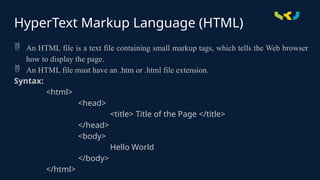
HyperText Markup Language(HTML)
An HTML file is a text file containing small markup tags, which tells the Web browser
how to display the page.
An HTML file must have an .htm or .html file extension.
Syntax:
<html>
<head>
<title> Title of the Page </title>
</head>
<body>
Hello World
</body>
</html>
13.
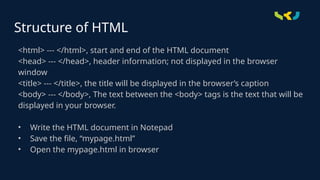
Structure of HTML
<html>--- </html>, start and end of the HTML document
<head> --- </head>, header information; not displayed in the browser
window
<title> --- </title>, the title will be displayed in the browser’s caption
<body> --- </body>, The text between the <body> tags is the text that will be
displayed in your browser.
• Write the HTML document in Notepad
• Save the file, “mypage.html”
• Open the mypage.html in browser
15.
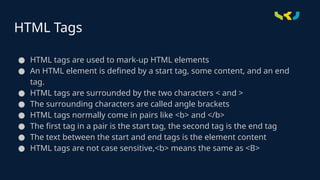
HTML Tags
● HTMLtags are used to mark-up HTML elements
● An HTML element is defined by a start tag, some content, and an end
tag.
● HTML tags are surrounded by the two characters < and >
● The surrounding characters are called angle brackets
● HTML tags normally come in pairs like <b> and </b>
● The first tag in a pair is the start tag, the second tag is the end tag
● The text between the start and end tags is the element content
● HTML tags are not case sensitive,<b> means the same as <B>
16.
HTML Tags
Attributes:
● AllHTML elements can have attributes
● Attributes provide additional information about elements
● Attributes are always specified in the start tag
● Attributes usually come in name/value pairs like: name="value“
● This tag defines the body element of your HTML page: <body>. With an
added bgcolor attribute, you can tell the browser that the background
color of your page should be red, like this:
<body bgcolor="red">
17.
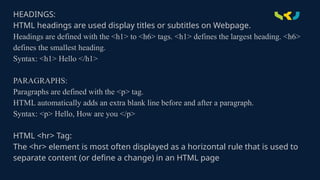
HEADINGS:
HTML headings areused display titles or subtitles on Webpage.
Headings are defined with the <h1> to <h6> tags. <h1> defines the largest heading. <h6>
defines the smallest heading.
Syntax: <h1> Hello </h1>
PARAGRAPHS:
Paragraphs are defined with the <p> tag.
HTML automatically adds an extra blank line before and after a paragraph.
Syntax: <p> Hello, How are you </p>
HTML <hr> Tag:
The <hr> element is most often displayed as a horizontal rule that is used to
separate content (or define a change) in an HTML page
18.
LINE BREAKS: The<br> tag is used when you want to end a line, but don't want to start
a new paragraph. The <br> tag forces a line break wherever you place it.
The <br> tag is an empty tag. It has no closing tag.
Syntax: <br>Good Morning <br> How are you
Comments in HTML:
The comment tag is used to insert a comment in the HTML source code.
Comments are used to explain the code, which can help you when you edit the source
code at a later date.
A comment will be ignored by the browser.
Syntax: <!-- This is the comment -->
19.
HTML Text FormattingTags
<b> : defines bold text
<i> : defines italic text
<em> : defines emphasized text, similar to italic
<small> : defines smaller text
<mark> : defines text that should be marked or highlighted
<del> : defines text that has been deleted from a document. Browser will
strike the text
<ins> : defines a text that has been inserted into a document. Browser will
underline the text.
20.
<sub> : definessubscript text, it appears half a character below the normal
line.
<sup> : defines superscript text, it appears half a character above the
normal line.
Marquee: The HTML <marquee> tag is used for scrolling piece of text or
image displayed either horizontally across or vertically down the web page
Syntax: <marquee direction=“up” height=40 bgcolor=“green”>
Attributes:
width
height
direction: left, right, up, down
behavior: scroll, slide and alternate
bgcolor
21.
Font:
●The HTML <font>tag is used to define the font size, color and face of text.
●The font tag is having three attributes called size, color, and face to
customize your fonts.
Syntax: <font color=“red” face=“calibri” size=“40”>
Attributes:
Color
Face
size
22.
● Images canimprove the design and the appearance of a web page.
● The HTML <img> tag is used to embed an image in a web page.
Syntax: <img src=“ filename/url” attributes list>
Attributes:
● src: Specify correct filename of the image, it is case sensitive
● alt: It is a mandatory attribute which specifies an alternative text for an
image, if the image cannot be displayed.
● Width & Height: It is used to set width and height of an image. Width and
height can be specified in terms of pixels or percentage.
● Border: It specifies the border for the image. Border thickness specified
in terms of pixels.
● Align: Image is aligned default to left, align attribute is used to align to
center or right.
HTML Images
23.
● HTML linksare hyperlinks.
● You can click on a link and jump to another document.
● HTML uses the <a> (anchor) tag to create a link to another document.
● The syntax of creating an anchor:
<a href="url">Text to be displayed</a>
● The most important attribute of the <a> element is the href attribute,
which indicates the link's destination.
● The Text to be displayed is the part that will be visible to the reader.
● Clicking on the link Text to be displayed , will send the reader to the
specified URL address.
HTML Links
24.
Attributes:
href : href,is the important attribute which indicates the link’s destination.
Target: specifies where to open the linked document.
blank: opens the document in new tab.
self: default, opens the document in the same window.
<a href= “https://www.google.com” target=“_blank”> Visit Google </a>
Absolute URL: a full web address (https://www.google.com)
Relative URL: A local link is specified with a relative URL.
Image as a link:
<a href="https://www.google.com">
<img src="D:SRU logo.jpg" alt="HTML tutorial" width="50" height="50">
</a>
HTML Links
25.
● A goodbackground can make a Web site look really great.
● The <body> tag has two attributes where you can specify backgrounds.
The background can be a color or an image.
1. Bgcolor
● The bgcolor attribute specifies a background-color for an HTML page.
<body bgcolor=“red">
2. Background
● The background attribute specifies a background-image for an HTML
page.
● The value of this attribute is the URL of the image you want to use.
<body background="images/dell.jpg">
HTML Backgrounds
HTML Lists
HTML listsallow web developers to group a set of related items in lists.
There are 3 types of lists:
Unordered list
Ordered list
Description list
All list must contain one or more list elements.
Example
An unordered HTML list:
● India
● Japan
● Germany
● Italy
An ordered HTML list:
1. First item
2. Second item
3. Third item
4. Fourth item
An description HTML
list:
WHO
World Health Organization
28.
Unordered HTML List
●An unordered list is a collection of related items that have no special
order and sequence.
● An unordered list starts with the <ul> tag.
● Each list item starts with the <li> tag.
● The list items will be marked with bullets (small black circles) by default:
Example:
<ul>
<li> Ganga </li>
<li> Yamuna </li>
<li> Saraswathi </li>
</ul>
Attribute:
Type: It isused to specify the type of bullet.
<ul type=“disc”> (Default)
<ul type=“square”>
<ul type=“circle”>
Nested list:
A nested list is a list that appears as list item in the list.
Syntax:
<ul>
<li> <ul>
<li>……. </li>
</ul>
</li>
</ul>
Ordered HTML List
●An ordered list used to specify a numbered list.
● An ordered list starts with the <ol> tag.
● Each list item starts with the <li> tag.
● The list items will be marked with numbers by default.
Example:
<ol>
<li> Book </li>
<li> Pencil </li>
<li> Pen </li>
</ol>
34.
Ordered HTML List
Attributes:
Type:It is used to specify the type of numbering
<ol type=“1”> Default case – Numerals
<ol type=“I”> Upper case – Numerals
<ol type=“i”> Lower case – Numerals
<ol type=“A”> Upper case – Letters
<ol type=“a”> Lower case – Letters
Start: It is used to specify the starting point of numbering.
<ol type=“1” start=“2”>
HTML Description Lists
●A description list is a list of terms, with a description of each term.
● The <dl> tag defines the description list.
● The <dt> tag defines the term.
● The <dd> tag is used to describe the term.
Example:
<dl>
<dt>Coffee</dt>
<dd>- black hot drink</dd>
<dt>Milk</dt>
<dd>- white cold drink</dd>
</dl>
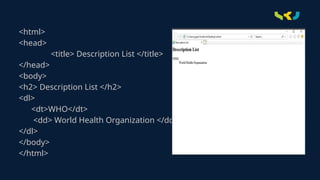
39.
<html>
<head>
<title> Description List</title>
</head>
<body>
<h2> Description List </h2>
<dl>
<dt>WHO</dt>
<dd> World Health Organization </dd>
</dl>
</body>
</html>
40.
HTML Table
● HTMLtable are used to arrange the data in rows and columns.
● <table> tag is used to create a table.
● <tr> is used to define a table row.
● <td> is used to define data/cell in a table – default regular and left
aligned.
● <th> is used to define the table heading – default bold and centered.
● <caption> element to define a table caption
Syntax:
<table>
<tr>
<td> ….. </td>
</tr>
41.
Attributes:
● align: tablealignment; right, left, center, justify.
● bgcolor: specifies background color of table.
● border: specifies border width in pixels.
● width: specifies width of the table.
● cellpadding: specifies the space between the cell border and their
content.
● cellspacing: specifies the space between the cells.
● colspan: used to merge 2 or more columns into single column.
● rowspan: used to merge 2 or more rows into single row.
● id : attribute to uniquely define one table
● Header informationin a table are defined with the <th> tag.
● All major browsers display the text in the <th> element as bold and
centered.
Example
How the HTML code
above looks in a
browser:
HTML Table Headers
Grouping Content
● The<div> and <span> elements allow you to group together several
elements to create sections or subsections of a page.
● The div tag is known as Division tag.
● The div tag is used in HTML to make divisions of content in the web
page like (text, images, header, footer, navigation bar, etc).
● Div tag has both open(<div>) and closing (</div>) tag and it is
mandatory to close the tag.
52.
<html>
<head>
<title> Division Tag
</title>
</head>
<body>
<divid="div1"> div tag
</div>
<div id="div2"> div tag
</div>
<div id="div3"> div tag
</div>
<div id="div4"> div tag
Example:
As we know Div tag is block-level tag in this example div tag contain entire
width. It will be displayed div tag each time on a new line, not on the same
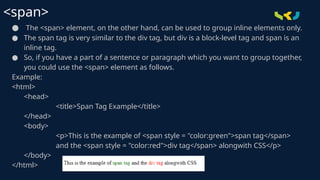
● The <span>element, on the other hand, can be used to group inline elements only.
● The span tag is very similar to the div tag, but div is a block-level tag and span is an
inline tag.
● So, if you have a part of a sentence or paragraph which you want to group together,
you could use the <span> element as follows.
Example:
<html>
<head>
<title>Span Tag Example</title>
</head>
<body>
<p>This is the example of <span style = "color:green">span tag</span>
and the <span style = "color:red">div tag</span> alongwith CSS</p>
</body>
</html>
<span>
56.
● Forms canbe used to collect information.
● HTML form on a web page allows a user to enter data that is sent to a
server for processing.
● Forms can resemble paper or database, web users fill out the forms using
checkboxes, radio buttons, or text fields etc..
● The HTML <form> tag is used to create an HTML form and it has following
syntax
Syntax :
<form action = "Script URL" method = "GET|POST">
form elements like input, textarea etc.
</form>
HTML Forms :
There are differenttypes of form controls that you can use to collect
data using HTML form −
● Text Input Controls
● Checkboxes Controls
● Radio Box Controls
● Select Box Controls
● File Select boxes
● Hidden Controls
● Clickable Buttons
● Submit and Reset Button
HTML Form Controls
60.
There are threetypes of text input used on forms −
● Single-line text input controls This control is used for items
−
that require only one line of user input, such as search boxes or
names. They are created using HTML <input> tag.
● Password input controls This is also a single-line text input but
−
it masks the character as soon as a user enters it. They are also
created using HTML <input> tag.
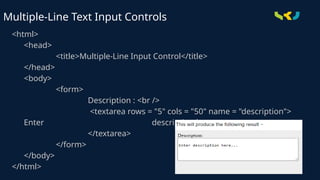
● Multi-line text input controls This is used when the user is
−
required to give details that may be longer than a single sentence.
Multi-line input controls are created using HTML <textarea> tag.
Text Input Controls
Checkbox Control
• Checkboxesare used when more than one option is required to be
selected.
• They are also created using HTML <input> tag but type attribute is
set to checkbox.
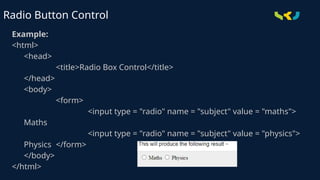
Radio Button Control
•Radio buttons are used when out of many options, just one option is
required to be selected.
• They are also created using HTML <input> tag but type attribute is set
to radio.
Select Box Control
•A select box, also called drop down box which provides option to list down
various options in the form of drop down list, from where a user can select
one or more options..
File Upload Box
•If you want to allow a user to upload a file to your web site, you will need to
use a file upload box, also known as a file select box.
• This is also created using the <input> element but type attribute is set to file.
Syntax:
<input type = "file" name = "fileupload" accept = "image/*" />
Button Controls
• Thereare various ways in HTML to create clickable buttons.
• You can also create a clickable button using <input> tag by setting its type
attribute to button.
• The type attribute can take the following values
77.
<html>
<head>
<title>File Upload Box</title>
</head>
<body>
<form>
<inputtype = "submit" name = "submit" value =
"Submit" />
<input type = "reset" name = "reset" value = "Reset" />
<input type = "button" name = "ok" value = "OK" />
<input type = "image" name = "imagebutton" src =
"srulogo.jpg" />
</form>
</body>
</html>
Button Controls : Example
78.
● Hidden formcontrols are used to hide data inside the page which later on can be
pushed to the server.
● This control hides inside the code and does not appear on the actual page.
● For example, following hidden form is being used to keep current page number.
● When a user will click next page then the value of hidden control will be sent to
the web server and there it will decide which page will be displayed next based on
the passed current page.
Syntax:
<input type = "hidden" name = "pagename" value = "10" />
Hidden Form Controls
79.
<html>
<head>
<title>Hidden Form Control</title>
</head>
<body>
<form>
<p>Thisis page 10</p>
<input type = "hidden" name = "pagename" value =
"10" />
<input type = "submit" name = "submit" value =
"Submit" /> <input type = "reset" name =
"reset" value = "Reset" />
</form>
</body>
</html>
Hidden Form Controls : Example
80.
● The <fieldset>element in HTML is used to group the related information of a
form.
● This element is used with <legend> element which provide caption for the
grouped elements.
HTML <fieldset> element:
<html>
<head>
<title>fieldset</title>
</head>
<body>
<form>
<fieldset>
<legend align="center">User Information:</legend>
<label for="name">Enter name</label><br>
<input type="text" id="name" name="name"><br>
<label for="pwd">Enter Password</label><br>
<input type="Password" id="pass" name="pass"><br>
<input type="submit" value="submit">
</fieldset>
</form>
</body>
</html>
81.
● <input type="button">
●<input type="checkbox">
● <input type="color">
● <input type="date">
● <input type="datetime-local">
● <input type="email">
● <input type="file">
● <input type="hidden">
● <input type="image">
● <input type="month">
● <input type="number">
HTML Input Types
● <input type="password">
● <input type="radio">
● <input type="range">
● <input type="reset">
● <input type="search">
● <input type="submit">
● <input type="tel">
● <input type="text">
● <input type="time">
● <input type="url">
● <input type="week">
● Here are the different input types you can use in HTML
What you
learnt inthis
session
Summary of the topic
1. Internet
2. HTML
Specific topics:
● HTML Tags
● Formatting Tags
● HTML Links
● HTML Images
● HTML Backgrounds
● HTML Lists
● HTML Table
● HTML Form