CHAPTER TWO
HTML
Hyper Text Markup Language
Compiled By: Seble N.
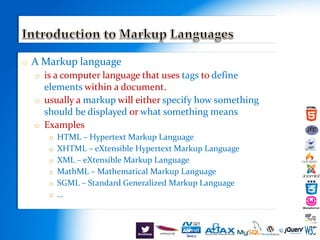
o A Markup language
o is a computer language that uses tags to define
elements within a document.
o usually a markup will either specify how something
should be displayed or what something means
o Examples
o HTML – Hypertext Markup Language
o XHTML – eXtensible Hypertext Markup Language
o XML – eXtensible Markup Language
o MathML – Mathematical Markup Language
o SGML – Standard Generalized Markup Language
o …
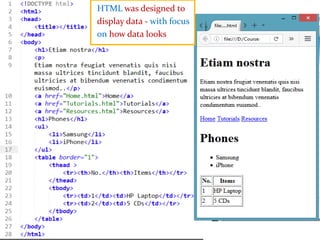
HTML was designed to
display data - with focus
on how data looks
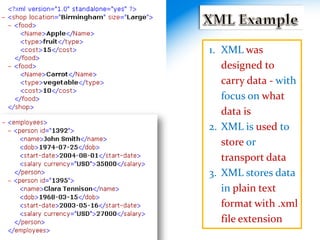
1. XML was
designed to
carry data - with
focus on what
data is
2. XML is used to
store or
transport data
3. XML stores data
in plain text
format with .xml
file extension
o HTML Document
o A text document containing a content marked up
by HTML markup tags
o Tags are instructions that are embedded directly into
the text of a document
o The tags tell the browser how to display the document
o Should have .htm or .html file name extension
o Can be created using a simple text editor
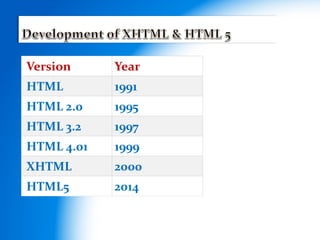
Version Year
HTML 1991
HTML 2.0 1995
HTML 3.2 1997
HTML 4.01 1999
XHTML 2000
HTML5 2014
 Tags are enclosed in < and >
 There are two types of tags
 Start tag format: <tag_name>
 End tag format: </tag_name> [ note the / after < ]
 Ex: <p> this is paragraph one </p>
 Some tags may not have end tags (a.k.a empty
tags)
 E.g. <br/>
 Not case sensitive
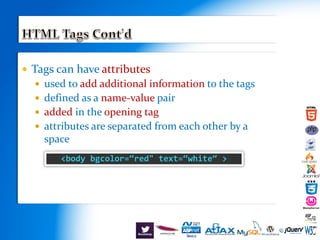
 Tags can have attributes
 used to add additional information to the tags
 defined as a name-value pair
 added in the opening tag
 attributes are separated from each other by a
space
<body bgcolor=“red" text=“white“ >
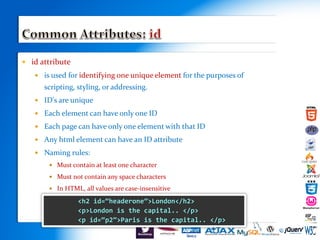
 id attribute
 is used for identifying one unique element for the purposes of
scripting, styling, or addressing.
 ID's are unique
 Each element can have only one ID
 Each page can have only one element with that ID
 Any html element can have an ID attribute
 Naming rules:
 Must contain at least one character
 Must not contain any space characters
 In HTML, all values are case-insensitive
 s
<h2 id=“headerone”>London</h2>
<p>London is the capital.. </p>
<p id=“p2”>Paris is the capital.. </p>
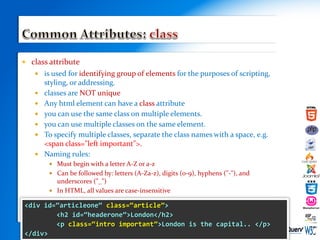
 class attribute
 is used for identifying group of elements for the purposes of scripting,
styling, or addressing.
 classes are NOT unique
 Any html element can have a class attribute
 you can use the same class on multiple elements.
 you can use multiple classes on the same element.
 To specify multiple classes, separate the class names with a space, e.g.
<span class="left important">.
 Naming rules:
 Must begin with a letter A-Z or a-z
 Can be followed by: letters (A-Za-z), digits (0-9), hyphens ("-"), and
underscores ("_")
 In HTML, all values are case-insensitive
 s<div id=“articleone“ class=“article”>
<h2 id=“headerone”>London</h2>
<p class=“intro important”>London is the capital.. </p>
</div>
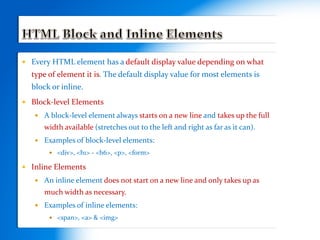
 Every HTML element has a default display value depending on what
type of element it is. The default display value for most elements is
block or inline.
 Block-level Elements
 A block-level element always starts on a new line and takes up the full
width available (stretches out to the left and right as far as it can).
 Examples of block-level elements:
 <div>, <h1> - <h6>, <p>, <form>
 Inline Elements
 An inline element does not start on a new line and only takes up as
much width as necessary.
 Examples of inline elements:
 <span>, <a> & <img>
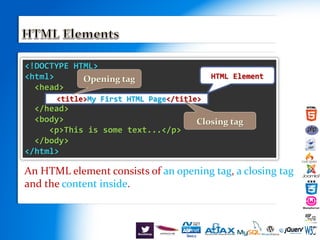
<!DOCTYPE HTML>
<html>
<head>
</head>
<body>
<p>This is some text...</p>
</body>
</html>
An HTML element consists of an opening tag, a closing tag
and the content inside.
<title>My First HTML Page</title>
Closing tag
Opening tag HTML Element
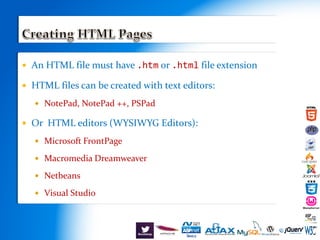
 An HTML file must have .htm or .html file extension
 HTML files can be created with text editors:
 NotePad, NotePad ++, PSPad
 Or HTML editors (WYSIWYG Editors):
 Microsoft FrontPage
 Macromedia Dreamweaver
 Netbeans
 Visual Studio
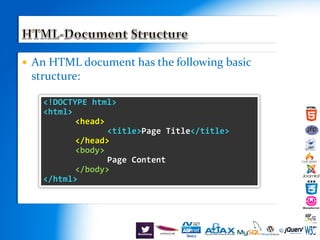
 An HTML document has the following basic
structure:
<!DOCTYPE html>
<html>
<head>
<title>Page Title</title>
</head>
<body>
Page Content
</body>
</html>
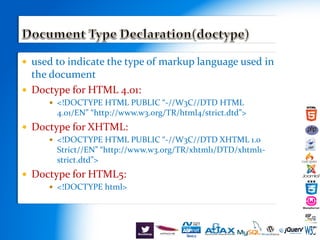
 used to indicate the type of markup language used in
the document
 Doctype for HTML 4.01:
 <!DOCTYPE HTML PUBLIC “-//W3C//DTD HTML
4.01/EN” “http://www.w3.org/TR/html4/strict.dtd”>
 Doctype for XHTML:
 <!DOCTYPE HTML PUBLIC “-//W3C//DTD XHTML 1.0
Strict//EN” “http://www.w3.org/TR/xhtml1/DTD/xhtml1-
strict.dtd”>
 Doctype for HTML5:
 <!DOCTYPE html>
 <html>
 Every other HTML tag and content of an HTML document should be
defined within the <html> &</html> tags
 <head>
 contains information which is not displayed in the browser display
area
 Can contain tags like
 <meta>
 <script>
 <style>
 <title>
 format: <head>…</head>
 <title>
 sets the title of the web page to be displayed in the browser’s title bar
 defined within the <head> tag
 format: <title>…</title>
 <body>
 contains the visible part of the web page
 displayed in the display area of the browser
 contains several other tags and content in it
 format: <body>…</body>
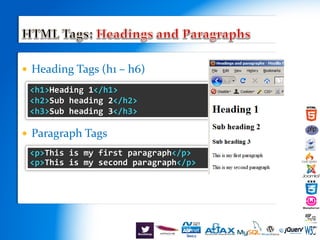
 Heading Tags (h1 – h6)
 Paragraph Tags
<h1>Heading 1</h1>
<h2>Sub heading 2</h2>
<h3>Sub heading 3</h3>
<p>This is my first paragraph</p>
<p>This is my second paragraph</p>
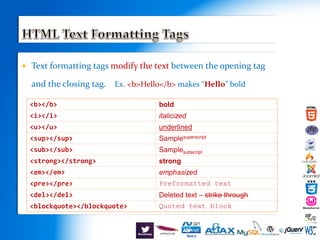
 Text formatting tags modify the text between the opening tag
and the closing tag. Ex. <b>Hello</b> makes “Hello” bold
<b></b> bold
<i></i> italicized
<u></u> underlined
<sup></sup> Samplesuperscript
<sub></sub> Samplesubscript
<strong></strong> strong
<em></em> emphasized
<pre></pre> Preformatted text
<del></del> Deleted text – strike through
<blockquote></blockquote> Quoted text block
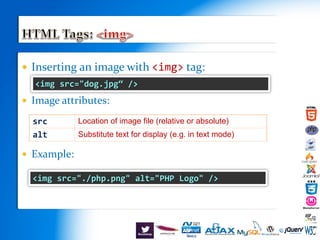
 Inserting an image with <img> tag:
 Image attributes:
 Example:
src Location of image file (relative or absolute)
alt Substitute text for display (e.g. in text mode)
<img src="./php.png" alt="PHP Logo" />
<img src="dog.jpg“ />
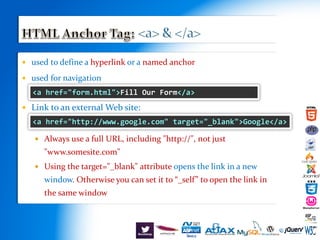
 used to define a hyperlink or a named anchor
 used for navigation
 Link to an external Web site:
 Always use a full URL, including "http://", not just
"www.somesite.com"
 Using the target="_blank" attribute opens the link in a new
window. Otherwise you can set it to “_self” to open the link in
the same window
<a href="form.html">Fill Our Form</a>
<a href="http://www.google.com" target="_blank">Google</a>
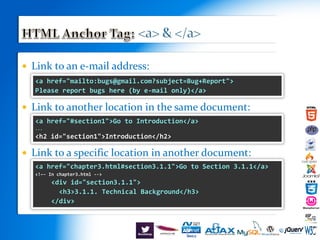
 Link to an e-mail address:
 Link to another location in the same document:
 Link to a specific location in another document:
<a href="mailto:bugs@gmail.com?subject=Bug+Report">
Please report bugs here (by e-mail only)</a>
<a href="#section1">Go to Introduction</a>
...
<h2 id="section1">Introduction</h2>
<a href="chapter3.html#section3.1.1">Go to Section 3.1.1</a>
<!–- In chapter3.html -->
<div id="section3.1.1">
<h3>3.1.1. Technical Background</h3>
</div>
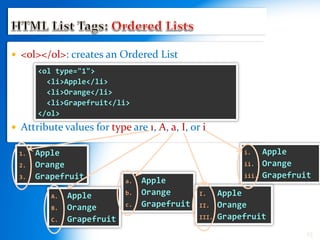
a. Apple
b. Orange
c. Grapefruit
 <ol></ol>: creates an Ordered List
 Attribute values for type are 1, A, a, I, or i
23
1. Apple
2. Orange
3. Grapefruit
A. Apple
B. Orange
C. Grapefruit
I. Apple
II. Orange
III. Grapefruit
i. Apple
ii. Orange
iii. Grapefruit
<ol type="1">
<li>Apple</li>
<li>Orange</li>
<li>Grapefruit</li>
</ol>
o Apple
o Orange
o Grapefruit
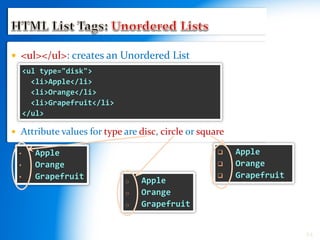
 <ul></ul>: creates an Unordered List
 Attribute values for type are disc, circle or square
24
• Apple
• Orange
• Grapefruit
 Apple
 Orange
 Grapefruit
<ul type="disk">
<li>Apple</li>
<li>Orange</li>
<li>Grapefruit</li>
</ul>
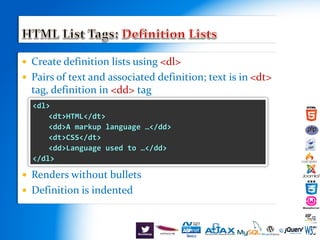
 Create definition lists using <dl>
 Pairs of text and associated definition; text is in <dt>
tag, definition in <dd> tag
 Renders without bullets
 Definition is indented
<dl>
<dt>HTML</dt>
<dd>A markup language …</dd>
<dt>CSS</dt>
<dd>Language used to …</dd>
</dl>
26
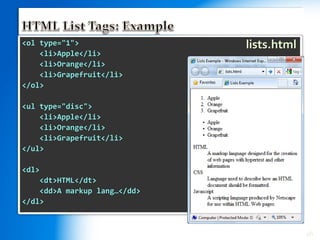
<ol type="1">
<li>Apple</li>
<li>Orange</li>
<li>Grapefruit</li>
</ol>
<ul type="disc">
<li>Apple</li>
<li>Orange</li>
<li>Grapefruit</li>
</ul>
<dl>
<dt>HTML</dt>
<dd>A markup lang…</dd>
</dl>
lists.html
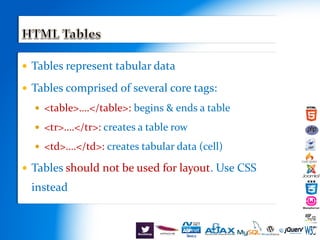
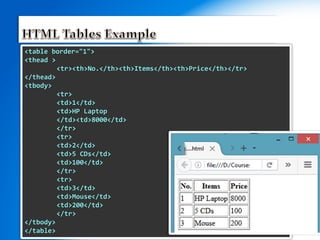
 Tables represent tabular data
 Tables comprised of several core tags:
 <table>….</table>: begins & ends a table
 <tr>….</tr>: creates a table row
 <td>….</td>: creates tabular data (cell)
 Tables should not be used for layout. Use CSS
instead
<table border="1">
<thead >
<tr><th>No.</th><th>Items</th><th>Price</th></tr>
</thead>
<tbody>
<tr>
<td>1</td>
<td>HP Laptop
</td><td>8000</td>
</tr>
<tr>
<td>2</td>
<td>5 CDs</td>
<td>100</td>
</tr>
<tr>
<td>3</td>
<td>Mouse</td>
<td>200</td>
</tr>
</tbody>
</table>
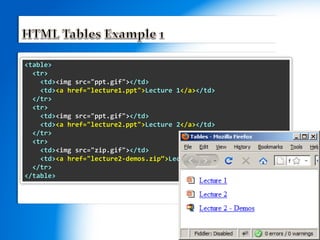
<table>
<tr>
<td><img src="ppt.gif"></td>
<td><a href="lecture1.ppt">Lecture 1</a></td>
</tr>
<tr>
<td><img src="ppt.gif"></td>
<td><a href="lecture2.ppt">Lecture 2</a></td>
</tr>
<tr>
<td><img src="zip.gif"></td>
<td><a href="lecture2-demos.zip“>Lecture 2 - Demos</a></td>
</tr>
</table>
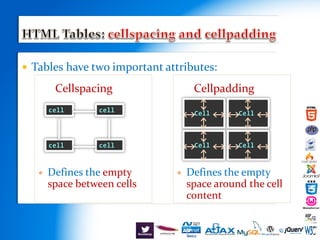
 Tables have two important attributes:
Cellspacing
 Defines the empty
space between cells
cell cell
cell cell
Cell Cell
Cell Cell
Cellpadding
 Defines the empty
space around the cell
content
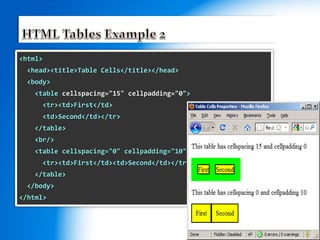
<html>
<head><title>Table Cells</title></head>
<body>
<table cellspacing="15" cellpadding="0">
<tr><td>First</td>
<td>Second</td></tr>
</table>
<br/>
<table cellspacing="0" cellpadding="10">
<tr><td>First</td><td>Second</td></tr>
</table>
</body>
</html>
 Tables have two another important attributes:
colspan
 Defines how many columns
the cell occupies
cell[1,1] cell[1,2]
cell[2,1]
colspan="1"colspan="1"
colspan="2"
rowspan
 Defines how many rows the
cell occupies
cell[1,1]
cell[2,1]
cell[1,2]
rowspan=“2"rowspan="1"
rowspan=“1"
<table cellspacing="0">
<tr>
<td>Cell[1,1]</td>
<td colspan="2">Cell[2,1]</td>
</tr>
<tr>
<td>Cell[1,2]</td>
<td rowspan="2">Cell[2,2]</td>
<td>Cell[3,2]</td>
</tr>
<tr>
<td>Cell[1,3]</td>
<td>Cell[2,3]</td>
</tr>
</table>
Cell[2,3]Cell[1,3]
Cell[3,2]
Cell[2,2]
Cell[1,2]
Cell[2,1]Cell[1,1]
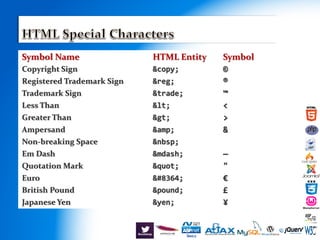
£&pound;British Pound
€&#8364;Euro
"&quot;Quotation Mark
¥&yen;Japanese Yen
—&mdash;Em Dash
&nbsp;Non-breaking Space
&&amp;Ampersand
>&gt;Greater Than
<&lt;Less Than
™&trade;Trademark Sign
®&reg;Registered Trademark Sign
©&copy;Copyright Sign
SymbolHTML EntitySymbol Name
<p>[&gt;&gt;&nbsp;&nbsp;Welcome
&nbsp;&nbsp;&lt;&lt;]</p>
<p>&#9658;I have following cards:
A&#9827;, K&#9830; and 9&#9829;.</p>
<p>&#9658;I prefer hard rock &#9835;
music &#9835;</p>
<p>&copy; 2006 by Svetlin Nakov &amp; his team</p>
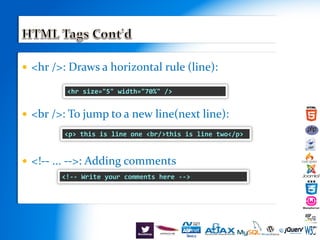
 <hr />: Draws a horizontal rule (line):
 <br />: To jump to a new line(next line):
 <!-- ... -->: Adding comments
<hr size="5" width="70%" />
<p> this is line one <br/>this is line two</p>
<!-- Write your comments here -->
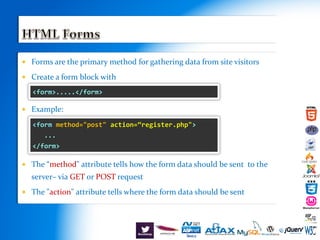
 Forms are the primary method for gathering data from site visitors
 Create a form block with
 Example:
 The “method" attribute tells how the form data should be sent to the
server– via GET or POST request
 The "action" attribute tells where the form data should be sent
<form>.....</form>
<form method="post" action=“register.php">
...
</form>
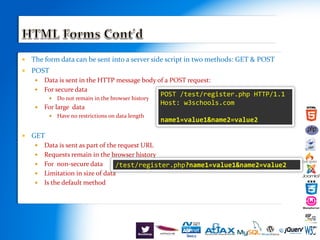
 The form data can be sent into a server side script in two methods: GET & POST
 POST
 Data is sent in the HTTP message body of a POST request:
 For secure data
 Do not remain in the browser history
 For large data
 Have no restrictions on data length
 GET
 Data is sent as part of the request URL
 Requests remain in the browser history
 For non-secure data
 Limitation in size of data
 Is the default method
/test/register.php?name1=value1&name2=value2
POST /test/register.php HTTP/1.1
Host: w3schools.com
name1=value1&name2=value2
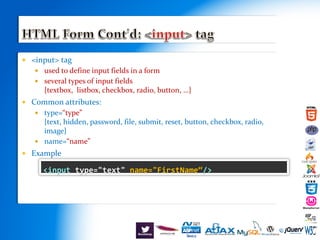
 <input> tag
 used to define input fields in a form
 several types of input fields
{textbox, listbox, checkbox, radio, button, …}
 Common attributes:
 type=“type”
{text, hidden, password, file, submit, reset, button, checkbox, radio,
image}
 name=“name”
 Example
S
<input type="text" name="FirstName“/>
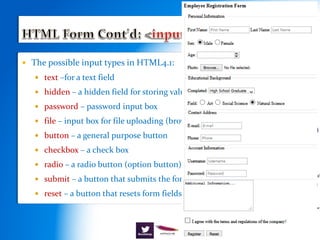
 The possible input types in HTML4.1:
 text –for a text field
 hidden – a hidden field for storing values
 password – password input box
 file – input box for file uploading (browse)
 button – a general purpose button
 checkbox – a check box
 radio – a radio button (option button)
 submit – a button that submits the form
 reset – a button that resets form fields to their original values
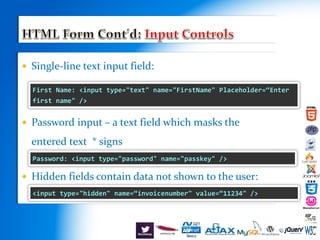
 Single-line text input field:
 Password input – a text field which masks the
entered text * signs
 Hidden fields contain data not shown to the user:
First Name: <input type="text" name="FirstName" Placeholder=“Enter
first name" />
<input type="hidden" name=“invoicenumber" value=“11234" />
Password: <input type="password" name="passkey" />
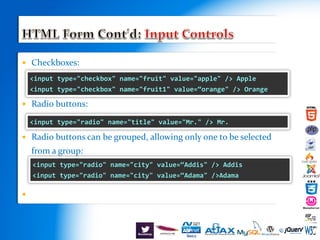
 Checkboxes:
 Radio buttons:
 Radio buttons can be grouped, allowing only one to be selected
from a group:
 d
<input type="checkbox" name="fruit" value="apple" /> Apple
<input type="checkbox" name="fruit1" value=“orange" /> Orange
<input type="radio" name="title" value="Mr." /> Mr.
<input type="radio" name="city" value=“Addis" /> Addis
<input type="radio" name="city" value=“Adama" />Adama
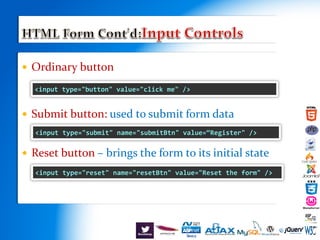
 Ordinary button
 Submit button: used to submit form data
 Reset button – brings the form to its initial state
<input type="submit" name="submitBtn" value=“Register" />
<input type="reset" name="resetBtn" value="Reset the form" />
<input type="button" value="click me" />
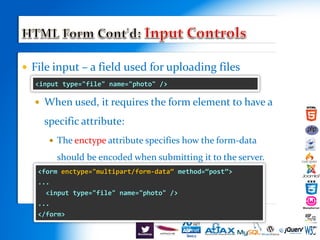
 File input – a field used for uploading files
 When used, it requires the form element to have a
specific attribute:
 The enctype attribute specifies how the form-data
should be encoded when submitting it to the server.
<input type="file" name="photo" />
<form enctype="multipart/form-data“ method=“post”>
...
<input type="file" name="photo" />
...
</form>
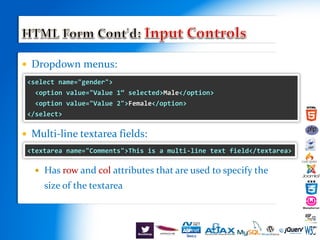
 Dropdown menus:
 Multi-line textarea fields:
 Has row and col attributes that are used to specify the
size of the textarea
<select name="gender">
<option value="Value 1“ selected>Male</option>
<option value="Value 2">Female</option>
</select>
<textarea name="Comments">This is a multi-line text field</textarea>
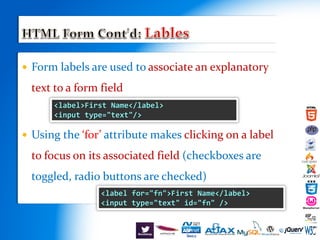
 Form labels are used to associate an explanatory
text to a form field
 Using the ‘for’ attribute makes clicking on a label
to focus on its associated field (checkboxes are
toggled, radio buttons are checked)
<label>First Name</label>
<input type="text"/>
<label for="fn">First Name</label>
<input type="text" id="fn" />
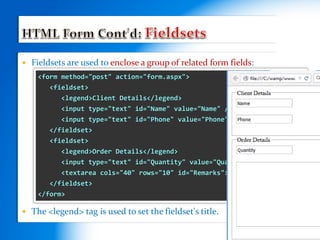
 Fieldsets are used to enclose a group of related form fields:
 The <legend> tag is used to set the fieldset's title.
<form method="post" action="form.aspx">
<fieldset>
<legend>Client Details</legend>
<input type="text" id="Name" value="Name" /><br><br>
<input type="text" id="Phone" value="Phone" /><br><br>
</fieldset>
<fieldset>
<legend>Order Details</legend>
<input type="text" id="Quantity" value="Quantity" /><br><br>
<textarea cols="40" rows="10" id="Remarks"></textarea><br><br>
</fieldset>
</form>
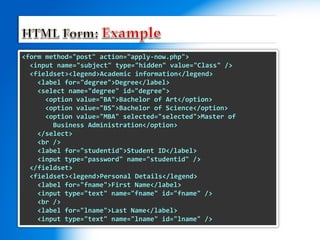
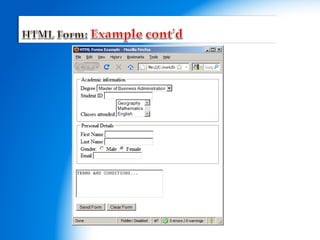
<form method="post" action="apply-now.php">
<input name="subject" type="hidden" value="Class" />
<fieldset><legend>Academic information</legend>
<label for="degree">Degree</label>
<select name="degree" id="degree">
<option value="BA">Bachelor of Art</option>
<option value="BS">Bachelor of Science</option>
<option value="MBA" selected="selected">Master of
Business Administration</option>
</select>
<br />
<label for="studentid">Student ID</label>
<input type="password" name="studentid" />
</fieldset>
<fieldset><legend>Personal Details</legend>
<label for="fname">First Name</label>
<input type="text" name="fname" id="fname" />
<br />
<label for="lname">Last Name</label>
<input type="text" name="lname" id="lname" />
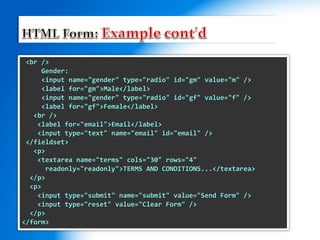
<br />
Gender:
<input name="gender" type="radio" id="gm" value="m" />
<label for="gm">Male</label>
<input name="gender" type="radio" id="gf" value="f" />
<label for="gf">Female</label>
<br />
<label for="email">Email</label>
<input type="text" name="email" id="email" />
</fieldset>
<p>
<textarea name="terms" cols="30" rows="4"
readonly="readonly">TERMS AND CONDITIONS...</textarea>
</p>
<p>
<input type="submit" name="submit" value="Send Form" />
<input type="reset" value="Clear Form" />
</p>
</form>
 search
 email
 url
 tel
 number
 range
 date
 month
 week
 time
 datetime
 datetime-local
 color
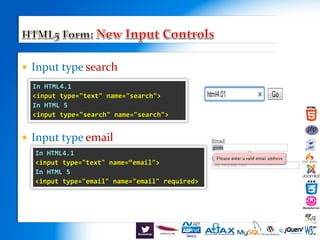
 Input type search
 Input type email
In HTML4.1
<input type="text" name="search">
In HTML 5
<input type="search" name="search">
In HTML4.1
<input type="text" name=“email">
In HTML 5
<input type="email" name="email" required>
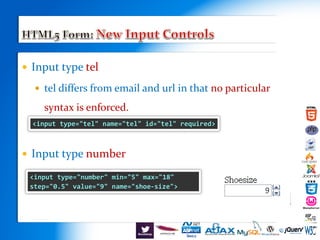
 Input type tel
 tel differs from email and url in that no particular
syntax is enforced.
 Input type number
<input type="tel" name="tel" id="tel" required>
<input type="number" min="5" max="18"
step="0.5" value="9" name="shoe-size">
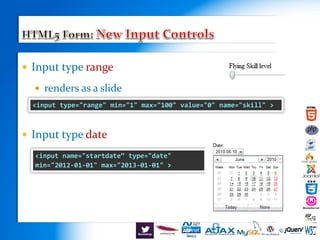
 Input type range
 renders as a slide
 Input type date
<input type="range" min="1" max="100" value="0" name="skill" >
<input name="startdate“ type="date"
min="2012-01-01" max="2013-01-01" >
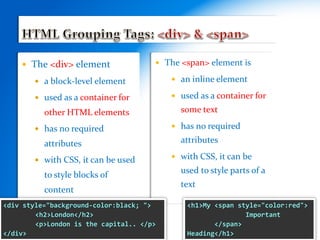
 The <div> element
 a block-level element
 used as a container for
other HTML elements
 has no required
attributes
 with CSS, it can be used
to style blocks of
content
 The <span> element is
 an inline element
 used as a container for
some text
 has no required
attributes
 with CSS, it can be
used to style parts of a
text
<h1>My <span style="color:red">
Important
</span>
Heading</h1>
<div style="background-color:black; ">
<h2>London</h2>
<p>London is the capital.. </p>
</div>
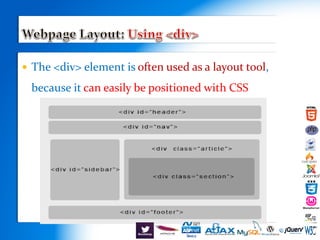
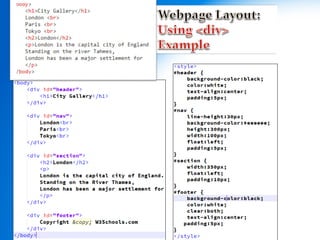
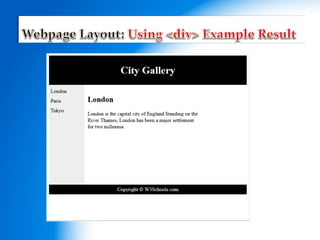
 The <div> element is often used as a layout tool,
because it can easily be positioned with CSS
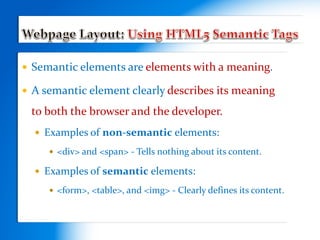
 Semantic elements are elements with a meaning.
 A semantic element clearly describes its meaning
to both the browser and the developer.
 Examples of non-semantic elements:
 <div> and <span> - Tells nothing about its content.
 Examples of semantic elements:
 <form>, <table>, and <img> - Clearly defines its content.
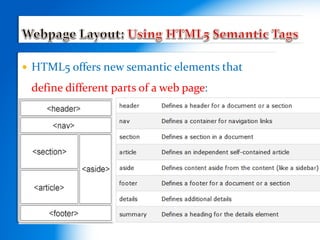
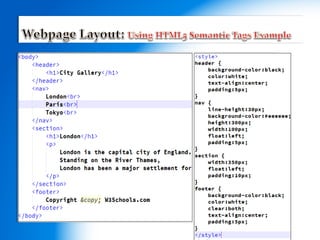
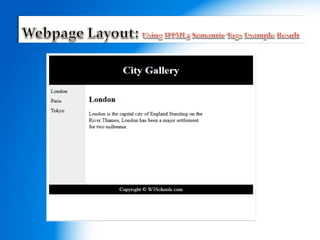
 HTML5 offers new semantic elements that
define different parts of a web page:
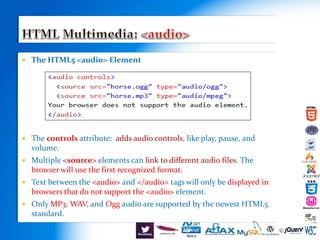
 The HTML5 <audio> Element
 The controls attribute: adds audio controls, like play, pause, and
volume.
 Multiple <source> elements can link to different audio files. The
browser will use the first recognized format.
 Text between the <audio> and </audio> tags will only be displayed in
browsers that do not support the <audio> element.
 Only MP3, WAV, and Ogg audio are supported by the newest HTML5
standard.
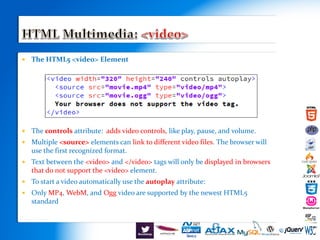
 The HTML5 <video> Element
 The controls attribute: adds video controls, like play, pause, and volume.
 Multiple <source> elements can link to different video files. The browser will
use the first recognized format.
 Text between the <video> and </video> tags will only be displayed in browsers
that do not support the <video> element.
 To start a video automatically use the autoplay attribute:
 Only MP4, WebM, and Ogg video are supported by the newest HTML5
standard.
 To display an HTML page correctly, a web browser must
know the character set (character encoding) to use
 Character Encodings
 ASCII was the first character encoding standard (also called
character set).
 ANSI (Windows-1252) was the original Windows character
set
 ISO-8859-1 was the default character set for HTML 4
 UTF-8 (Unicode) covers almost all of the characters and
symbols in the world.
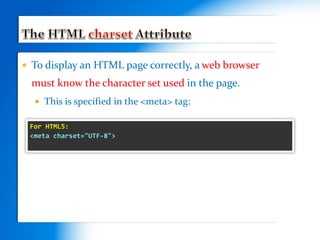
 To display an HTML page correctly, a web browser
must know the character set used in the page.
 This is specified in the <meta> tag:
s
For HTML5:
<meta charset="UTF-8">

Introduction to HTML

  • 1.
    CHAPTER TWO HTML Hyper TextMarkup Language Compiled By: Seble N.
  • 2.
    o A Markuplanguage o is a computer language that uses tags to define elements within a document. o usually a markup will either specify how something should be displayed or what something means o Examples o HTML – Hypertext Markup Language o XHTML – eXtensible Hypertext Markup Language o XML – eXtensible Markup Language o MathML – Mathematical Markup Language o SGML – Standard Generalized Markup Language o …
  • 3.
    HTML was designedto display data - with focus on how data looks
  • 4.
    1. XML was designedto carry data - with focus on what data is 2. XML is used to store or transport data 3. XML stores data in plain text format with .xml file extension
  • 5.
    o HTML Document oA text document containing a content marked up by HTML markup tags o Tags are instructions that are embedded directly into the text of a document o The tags tell the browser how to display the document o Should have .htm or .html file name extension o Can be created using a simple text editor
  • 6.
    Version Year HTML 1991 HTML2.0 1995 HTML 3.2 1997 HTML 4.01 1999 XHTML 2000 HTML5 2014
  • 7.
     Tags areenclosed in < and >  There are two types of tags  Start tag format: <tag_name>  End tag format: </tag_name> [ note the / after < ]  Ex: <p> this is paragraph one </p>  Some tags may not have end tags (a.k.a empty tags)  E.g. <br/>  Not case sensitive
  • 8.
     Tags canhave attributes  used to add additional information to the tags  defined as a name-value pair  added in the opening tag  attributes are separated from each other by a space <body bgcolor=“red" text=“white“ >
  • 9.
     id attribute is used for identifying one unique element for the purposes of scripting, styling, or addressing.  ID's are unique  Each element can have only one ID  Each page can have only one element with that ID  Any html element can have an ID attribute  Naming rules:  Must contain at least one character  Must not contain any space characters  In HTML, all values are case-insensitive  s <h2 id=“headerone”>London</h2> <p>London is the capital.. </p> <p id=“p2”>Paris is the capital.. </p>
  • 10.
     class attribute is used for identifying group of elements for the purposes of scripting, styling, or addressing.  classes are NOT unique  Any html element can have a class attribute  you can use the same class on multiple elements.  you can use multiple classes on the same element.  To specify multiple classes, separate the class names with a space, e.g. <span class="left important">.  Naming rules:  Must begin with a letter A-Z or a-z  Can be followed by: letters (A-Za-z), digits (0-9), hyphens ("-"), and underscores ("_")  In HTML, all values are case-insensitive  s<div id=“articleone“ class=“article”> <h2 id=“headerone”>London</h2> <p class=“intro important”>London is the capital.. </p> </div>
  • 11.
     Every HTMLelement has a default display value depending on what type of element it is. The default display value for most elements is block or inline.  Block-level Elements  A block-level element always starts on a new line and takes up the full width available (stretches out to the left and right as far as it can).  Examples of block-level elements:  <div>, <h1> - <h6>, <p>, <form>  Inline Elements  An inline element does not start on a new line and only takes up as much width as necessary.  Examples of inline elements:  <span>, <a> & <img>
  • 12.
    <!DOCTYPE HTML> <html> <head> </head> <body> <p>This issome text...</p> </body> </html> An HTML element consists of an opening tag, a closing tag and the content inside. <title>My First HTML Page</title> Closing tag Opening tag HTML Element
  • 13.
     An HTMLfile must have .htm or .html file extension  HTML files can be created with text editors:  NotePad, NotePad ++, PSPad  Or HTML editors (WYSIWYG Editors):  Microsoft FrontPage  Macromedia Dreamweaver  Netbeans  Visual Studio
  • 14.
     An HTMLdocument has the following basic structure: <!DOCTYPE html> <html> <head> <title>Page Title</title> </head> <body> Page Content </body> </html>
  • 15.
     used toindicate the type of markup language used in the document  Doctype for HTML 4.01:  <!DOCTYPE HTML PUBLIC “-//W3C//DTD HTML 4.01/EN” “http://www.w3.org/TR/html4/strict.dtd”>  Doctype for XHTML:  <!DOCTYPE HTML PUBLIC “-//W3C//DTD XHTML 1.0 Strict//EN” “http://www.w3.org/TR/xhtml1/DTD/xhtml1- strict.dtd”>  Doctype for HTML5:  <!DOCTYPE html>
  • 16.
     <html>  Everyother HTML tag and content of an HTML document should be defined within the <html> &</html> tags  <head>  contains information which is not displayed in the browser display area  Can contain tags like  <meta>  <script>  <style>  <title>  format: <head>…</head>  <title>  sets the title of the web page to be displayed in the browser’s title bar  defined within the <head> tag  format: <title>…</title>
  • 17.
     <body>  containsthe visible part of the web page  displayed in the display area of the browser  contains several other tags and content in it  format: <body>…</body>
  • 18.
     Heading Tags(h1 – h6)  Paragraph Tags <h1>Heading 1</h1> <h2>Sub heading 2</h2> <h3>Sub heading 3</h3> <p>This is my first paragraph</p> <p>This is my second paragraph</p>
  • 19.
     Text formattingtags modify the text between the opening tag and the closing tag. Ex. <b>Hello</b> makes “Hello” bold <b></b> bold <i></i> italicized <u></u> underlined <sup></sup> Samplesuperscript <sub></sub> Samplesubscript <strong></strong> strong <em></em> emphasized <pre></pre> Preformatted text <del></del> Deleted text – strike through <blockquote></blockquote> Quoted text block
  • 20.
     Inserting animage with <img> tag:  Image attributes:  Example: src Location of image file (relative or absolute) alt Substitute text for display (e.g. in text mode) <img src="./php.png" alt="PHP Logo" /> <img src="dog.jpg“ />
  • 21.
     used todefine a hyperlink or a named anchor  used for navigation  Link to an external Web site:  Always use a full URL, including "http://", not just "www.somesite.com"  Using the target="_blank" attribute opens the link in a new window. Otherwise you can set it to “_self” to open the link in the same window <a href="form.html">Fill Our Form</a> <a href="http://www.google.com" target="_blank">Google</a>
  • 22.
     Link toan e-mail address:  Link to another location in the same document:  Link to a specific location in another document: <a href="mailto:bugs@gmail.com?subject=Bug+Report"> Please report bugs here (by e-mail only)</a> <a href="#section1">Go to Introduction</a> ... <h2 id="section1">Introduction</h2> <a href="chapter3.html#section3.1.1">Go to Section 3.1.1</a> <!–- In chapter3.html --> <div id="section3.1.1"> <h3>3.1.1. Technical Background</h3> </div>
  • 23.
    a. Apple b. Orange c.Grapefruit  <ol></ol>: creates an Ordered List  Attribute values for type are 1, A, a, I, or i 23 1. Apple 2. Orange 3. Grapefruit A. Apple B. Orange C. Grapefruit I. Apple II. Orange III. Grapefruit i. Apple ii. Orange iii. Grapefruit <ol type="1"> <li>Apple</li> <li>Orange</li> <li>Grapefruit</li> </ol>
  • 24.
    o Apple o Orange oGrapefruit  <ul></ul>: creates an Unordered List  Attribute values for type are disc, circle or square 24 • Apple • Orange • Grapefruit  Apple  Orange  Grapefruit <ul type="disk"> <li>Apple</li> <li>Orange</li> <li>Grapefruit</li> </ul>
  • 25.
     Create definitionlists using <dl>  Pairs of text and associated definition; text is in <dt> tag, definition in <dd> tag  Renders without bullets  Definition is indented <dl> <dt>HTML</dt> <dd>A markup language …</dd> <dt>CSS</dt> <dd>Language used to …</dd> </dl>
  • 26.
  • 27.
     Tables representtabular data  Tables comprised of several core tags:  <table>….</table>: begins & ends a table  <tr>….</tr>: creates a table row  <td>….</td>: creates tabular data (cell)  Tables should not be used for layout. Use CSS instead
  • 28.
    <table border="1"> <thead > <tr><th>No.</th><th>Items</th><th>Price</th></tr> </thead> <tbody> <tr> <td>1</td> <td>HPLaptop </td><td>8000</td> </tr> <tr> <td>2</td> <td>5 CDs</td> <td>100</td> </tr> <tr> <td>3</td> <td>Mouse</td> <td>200</td> </tr> </tbody> </table>
  • 29.
    <table> <tr> <td><img src="ppt.gif"></td> <td><a href="lecture1.ppt">Lecture1</a></td> </tr> <tr> <td><img src="ppt.gif"></td> <td><a href="lecture2.ppt">Lecture 2</a></td> </tr> <tr> <td><img src="zip.gif"></td> <td><a href="lecture2-demos.zip“>Lecture 2 - Demos</a></td> </tr> </table>
  • 30.
     Tables havetwo important attributes: Cellspacing  Defines the empty space between cells cell cell cell cell Cell Cell Cell Cell Cellpadding  Defines the empty space around the cell content
  • 31.
    <html> <head><title>Table Cells</title></head> <body> <table cellspacing="15"cellpadding="0"> <tr><td>First</td> <td>Second</td></tr> </table> <br/> <table cellspacing="0" cellpadding="10"> <tr><td>First</td><td>Second</td></tr> </table> </body> </html>
  • 32.
     Tables havetwo another important attributes: colspan  Defines how many columns the cell occupies cell[1,1] cell[1,2] cell[2,1] colspan="1"colspan="1" colspan="2" rowspan  Defines how many rows the cell occupies cell[1,1] cell[2,1] cell[1,2] rowspan=“2"rowspan="1" rowspan=“1"
  • 33.
    <table cellspacing="0"> <tr> <td>Cell[1,1]</td> <td colspan="2">Cell[2,1]</td> </tr> <tr> <td>Cell[1,2]</td> <tdrowspan="2">Cell[2,2]</td> <td>Cell[3,2]</td> </tr> <tr> <td>Cell[1,3]</td> <td>Cell[2,3]</td> </tr> </table> Cell[2,3]Cell[1,3] Cell[3,2] Cell[2,2] Cell[1,2] Cell[2,1]Cell[1,1]
  • 34.
    £&pound;British Pound €&#8364;Euro "&quot;Quotation Mark ¥&yen;JapaneseYen —&mdash;Em Dash &nbsp;Non-breaking Space &&amp;Ampersand >&gt;Greater Than <&lt;Less Than ™&trade;Trademark Sign ®&reg;Registered Trademark Sign ©&copy;Copyright Sign SymbolHTML EntitySymbol Name
  • 35.
    <p>[&gt;&gt;&nbsp;&nbsp;Welcome &nbsp;&nbsp;&lt;&lt;]</p> <p>&#9658;I have followingcards: A&#9827;, K&#9830; and 9&#9829;.</p> <p>&#9658;I prefer hard rock &#9835; music &#9835;</p> <p>&copy; 2006 by Svetlin Nakov &amp; his team</p>
  • 36.
     <hr />:Draws a horizontal rule (line):  <br />: To jump to a new line(next line):  <!-- ... -->: Adding comments <hr size="5" width="70%" /> <p> this is line one <br/>this is line two</p> <!-- Write your comments here -->
  • 37.
     Forms arethe primary method for gathering data from site visitors  Create a form block with  Example:  The “method" attribute tells how the form data should be sent to the server– via GET or POST request  The "action" attribute tells where the form data should be sent <form>.....</form> <form method="post" action=“register.php"> ... </form>
  • 38.
     The formdata can be sent into a server side script in two methods: GET & POST  POST  Data is sent in the HTTP message body of a POST request:  For secure data  Do not remain in the browser history  For large data  Have no restrictions on data length  GET  Data is sent as part of the request URL  Requests remain in the browser history  For non-secure data  Limitation in size of data  Is the default method /test/register.php?name1=value1&name2=value2 POST /test/register.php HTTP/1.1 Host: w3schools.com name1=value1&name2=value2
  • 39.
     <input> tag used to define input fields in a form  several types of input fields {textbox, listbox, checkbox, radio, button, …}  Common attributes:  type=“type” {text, hidden, password, file, submit, reset, button, checkbox, radio, image}  name=“name”  Example S <input type="text" name="FirstName“/>
  • 40.
     The possibleinput types in HTML4.1:  text –for a text field  hidden – a hidden field for storing values  password – password input box  file – input box for file uploading (browse)  button – a general purpose button  checkbox – a check box  radio – a radio button (option button)  submit – a button that submits the form  reset – a button that resets form fields to their original values
  • 41.
     Single-line textinput field:  Password input – a text field which masks the entered text * signs  Hidden fields contain data not shown to the user: First Name: <input type="text" name="FirstName" Placeholder=“Enter first name" /> <input type="hidden" name=“invoicenumber" value=“11234" /> Password: <input type="password" name="passkey" />
  • 42.
     Checkboxes:  Radiobuttons:  Radio buttons can be grouped, allowing only one to be selected from a group:  d <input type="checkbox" name="fruit" value="apple" /> Apple <input type="checkbox" name="fruit1" value=“orange" /> Orange <input type="radio" name="title" value="Mr." /> Mr. <input type="radio" name="city" value=“Addis" /> Addis <input type="radio" name="city" value=“Adama" />Adama
  • 43.
     Ordinary button Submit button: used to submit form data  Reset button – brings the form to its initial state <input type="submit" name="submitBtn" value=“Register" /> <input type="reset" name="resetBtn" value="Reset the form" /> <input type="button" value="click me" />
  • 44.
     File input– a field used for uploading files  When used, it requires the form element to have a specific attribute:  The enctype attribute specifies how the form-data should be encoded when submitting it to the server. <input type="file" name="photo" /> <form enctype="multipart/form-data“ method=“post”> ... <input type="file" name="photo" /> ... </form>
  • 45.
     Dropdown menus: Multi-line textarea fields:  Has row and col attributes that are used to specify the size of the textarea <select name="gender"> <option value="Value 1“ selected>Male</option> <option value="Value 2">Female</option> </select> <textarea name="Comments">This is a multi-line text field</textarea>
  • 46.
     Form labelsare used to associate an explanatory text to a form field  Using the ‘for’ attribute makes clicking on a label to focus on its associated field (checkboxes are toggled, radio buttons are checked) <label>First Name</label> <input type="text"/> <label for="fn">First Name</label> <input type="text" id="fn" />
  • 47.
     Fieldsets areused to enclose a group of related form fields:  The <legend> tag is used to set the fieldset's title. <form method="post" action="form.aspx"> <fieldset> <legend>Client Details</legend> <input type="text" id="Name" value="Name" /><br><br> <input type="text" id="Phone" value="Phone" /><br><br> </fieldset> <fieldset> <legend>Order Details</legend> <input type="text" id="Quantity" value="Quantity" /><br><br> <textarea cols="40" rows="10" id="Remarks"></textarea><br><br> </fieldset> </form>
  • 48.
    <form method="post" action="apply-now.php"> <inputname="subject" type="hidden" value="Class" /> <fieldset><legend>Academic information</legend> <label for="degree">Degree</label> <select name="degree" id="degree"> <option value="BA">Bachelor of Art</option> <option value="BS">Bachelor of Science</option> <option value="MBA" selected="selected">Master of Business Administration</option> </select> <br /> <label for="studentid">Student ID</label> <input type="password" name="studentid" /> </fieldset> <fieldset><legend>Personal Details</legend> <label for="fname">First Name</label> <input type="text" name="fname" id="fname" /> <br /> <label for="lname">Last Name</label> <input type="text" name="lname" id="lname" />
  • 49.
    <br /> Gender: <input name="gender"type="radio" id="gm" value="m" /> <label for="gm">Male</label> <input name="gender" type="radio" id="gf" value="f" /> <label for="gf">Female</label> <br /> <label for="email">Email</label> <input type="text" name="email" id="email" /> </fieldset> <p> <textarea name="terms" cols="30" rows="4" readonly="readonly">TERMS AND CONDITIONS...</textarea> </p> <p> <input type="submit" name="submit" value="Send Form" /> <input type="reset" value="Clear Form" /> </p> </form>
  • 51.
     search  email url  tel  number  range  date  month  week  time  datetime  datetime-local  color
  • 52.
     Input typesearch  Input type email In HTML4.1 <input type="text" name="search"> In HTML 5 <input type="search" name="search"> In HTML4.1 <input type="text" name=“email"> In HTML 5 <input type="email" name="email" required>
  • 53.
     Input typetel  tel differs from email and url in that no particular syntax is enforced.  Input type number <input type="tel" name="tel" id="tel" required> <input type="number" min="5" max="18" step="0.5" value="9" name="shoe-size">
  • 54.
     Input typerange  renders as a slide  Input type date <input type="range" min="1" max="100" value="0" name="skill" > <input name="startdate“ type="date" min="2012-01-01" max="2013-01-01" >
  • 55.
     The <div>element  a block-level element  used as a container for other HTML elements  has no required attributes  with CSS, it can be used to style blocks of content  The <span> element is  an inline element  used as a container for some text  has no required attributes  with CSS, it can be used to style parts of a text <h1>My <span style="color:red"> Important </span> Heading</h1> <div style="background-color:black; "> <h2>London</h2> <p>London is the capital.. </p> </div>
  • 56.
     The <div>element is often used as a layout tool, because it can easily be positioned with CSS
  • 59.
     Semantic elementsare elements with a meaning.  A semantic element clearly describes its meaning to both the browser and the developer.  Examples of non-semantic elements:  <div> and <span> - Tells nothing about its content.  Examples of semantic elements:  <form>, <table>, and <img> - Clearly defines its content.
  • 60.
     HTML5 offersnew semantic elements that define different parts of a web page:
  • 63.
     The HTML5<audio> Element  The controls attribute: adds audio controls, like play, pause, and volume.  Multiple <source> elements can link to different audio files. The browser will use the first recognized format.  Text between the <audio> and </audio> tags will only be displayed in browsers that do not support the <audio> element.  Only MP3, WAV, and Ogg audio are supported by the newest HTML5 standard.
  • 64.
     The HTML5<video> Element  The controls attribute: adds video controls, like play, pause, and volume.  Multiple <source> elements can link to different video files. The browser will use the first recognized format.  Text between the <video> and </video> tags will only be displayed in browsers that do not support the <video> element.  To start a video automatically use the autoplay attribute:  Only MP4, WebM, and Ogg video are supported by the newest HTML5 standard.
  • 65.
     To displayan HTML page correctly, a web browser must know the character set (character encoding) to use  Character Encodings  ASCII was the first character encoding standard (also called character set).  ANSI (Windows-1252) was the original Windows character set  ISO-8859-1 was the default character set for HTML 4  UTF-8 (Unicode) covers almost all of the characters and symbols in the world.
  • 66.
     To displayan HTML page correctly, a web browser must know the character set used in the page.  This is specified in the <meta> tag: s For HTML5: <meta charset="UTF-8">