HP LaserJet
       IMAGING CORPORATION                                         P3015
                                                                   P3015
                                                  TECHNICAL INSTRUCTIONS

HPP3015TECH

  Technical Instructions           Supplies                                                            Tools                                                     1

  CORPORATE                     Conductive Grease                                                Wire Cutters
  LOS ANGELES, USA              High Temperature Grease (MOLYKOTE® 44 Light                      Small, Flat-blade Screwdriver
                                or MOLYKOTE® X56020)                                             Phillips Screwdriver
  US 1 800 394.9900
                                Cotton Swabs                                                     X-Acto Knife
  Int’l +1 818 837.8100
                                Lint-free Cloth
  FAX 1 800 394.9910                                                                             Drum Drive Axle Removal Tool (HP3015DATOOL)
                                Padding Powder
  Int’l +1 818 838.7047
                                Vacuum or Dry Compressed Air
  KANSAS CITY, USA              Drum
  US 1 913 871.1700             Toner
  FAX 1 913 888.0626
                                Wiper Blade
                                Chip
  NEW YORK, USA
  US 1 800 431.7884            PHOTO 1
  Int’l +1 631 588.7300                                                                                     Step 1
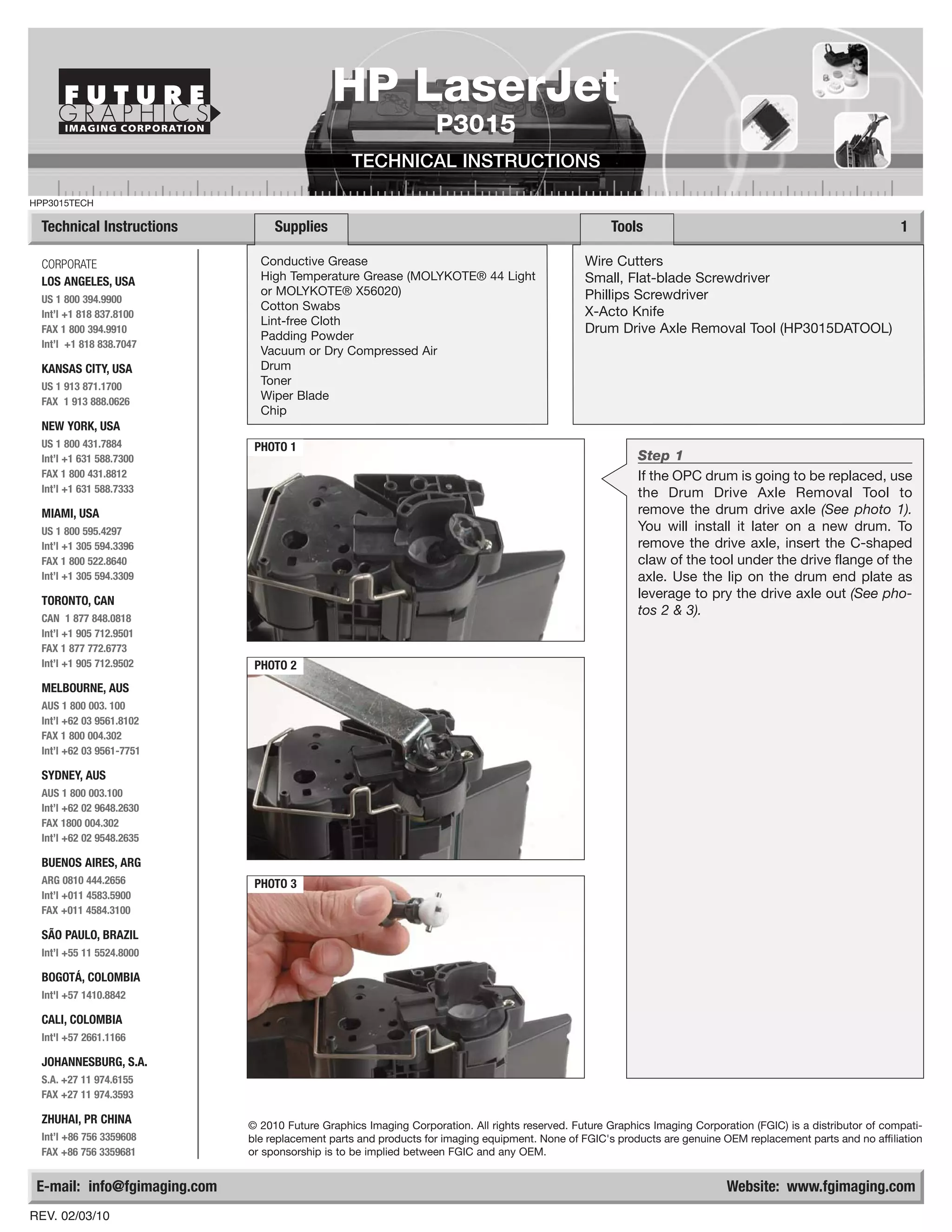
  FAX 1 800 431.8812                                                                                        If the OPC drum is going to be replaced, use
  Int’l +1 631 588.7333                                                                                     the Drum Drive Axle Removal Tool to
  MIAMI, USA                                                                                                remove the drum drive axle (See photo 1).
  US 1 800 595.4297                                                                                         You will install it later on a new drum. To
  Int’l +1 305 594.3396                                                                                     remove the drive axle, insert the C-shaped
  FAX 1 800 522.8640                                                                                        claw of the tool under the drive flange of the
  Int’l +1 305 594.3309                                                                                     axle. Use the lip on the drum end plate as
  TORONTO, CAN
                                                                                                            leverage to pry the drive axle out (See pho-
                                                                                                            tos 2 & 3).
  CAN 1 877 848.0818
  Int’l +1 905 712.9501
  FAX 1 877 772.6773
  Int’l +1 905 712.9502        PHOTO 2
  MELBOURNE, AUS
  AUS 1 800 003. 100
  Int’l +62 03 9561.8102
  FAX 1 800 004.302
  Int’l +62 03 9561-7751

  SYDNEY, AUS
  AUS 1 800 003.100
  Int’l +62 02 9648.2630
  FAX 1800 004.302
  Int’l +62 02 9548.2635

  BUENOS AIRES, ARG
  ARG 0810 444.2656            PHOTO 3
  Int’l +011 4583.5900
  FAX +011 4584.3100

  SÃO PAULO, BRAZIL
  Int’l +55 11 5524.8000

  BOGOTÁ, COLOMBIA
  Int'l +57 1410.8842

  CALI, COLOMBIA
  Int'l +57 2661.1166

  JOHANNESBURG, S.A.
  S.A. +27 11 974.6155
  FAX +27 11 974.3593

  ZHUHAI, PR CHINA            © 2010 Future Graphics Imaging Corporation. All rights reserved. Future Graphics Imaging Corporation (FGIC) is a distributor of compati-
  Int’l +86 756 3359608       ble replacement parts and products for imaging equipment. None of FGIC's products are genuine OEM replacement parts and no affiliation
  FAX +86 756 3359681         or sponsorship is to be implied between FGIC and any OEM.


 E-mail: info@fgimaging.com                                                                                                   Website: www.fgimaging.com
REV. 02/03/10
2                                                              HP LaserJet P3015 Technical Instructions

                                                      PHOTO 7
                                                                     Step 4
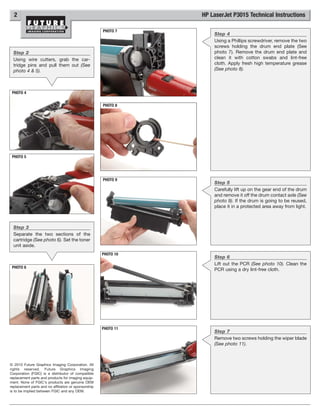
                                                                     Using a Phillips screwdriver, remove the two
                                                                     screws holding the drum end plate (See
  Step 2                                                             photo 7). Remove the drum end plate and
  Using wire cutters, grab the car-                                  clean it with cotton swabs and lint-free
  tridge pins and pull them out (See                                 cloth. Apply fresh high temperature grease
  photo 4 & 5).                                                      (See photo 8).


 PHOTO 4


                                                      PHOTO 8


 PHOTO 5


                                                      PHOTO 9
                                                                     Step 5
                                                                     Carefully lift up on the gear end of the drum
                                                                     and remove it off the drum contact axle (See
                                                                     photo 9). If the drum is going to be reused,
                                                                     place it in a protected area away from light.


  Step 3
  Separate the two sections of the
  cartridge (See photo 6). Set the toner
  unit aside.
                                                      PHOTO 10
                                                                     Step 6
                                                                     Lift out the PCR (See photo 10). Clean the
 PHOTO 6
                                                                     PCR using a dry lint-free cloth.


                                                      PHOTO 11
                                                                     Step 7
                                                                     Remove two screws holding the wiper blade
                                                                     (See photo 11).


© 2010 Future Graphics Imaging Corporation. All
rights reserved. Future Graphics Imaging
Corporation (FGIC) is a distributor of compatible
replacement parts and products for imaging equip-
ment. None of FGIC's products are genuine OEM
replacement parts and no affiliation or sponsorship
is to be implied between FGIC and any OEM.
HP LaserJet P3015 Technical Instructions                                                                                                3

PHOTO 12
                                            Step 8
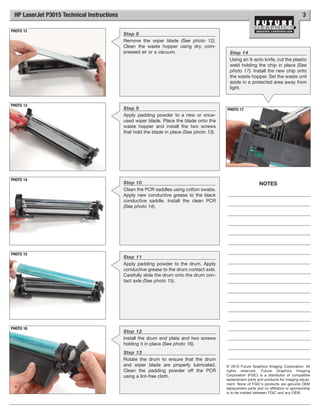
                                            Remove the wiper blade (See photo 12).
                                            Clean the waste hopper using dry, com-
                                            pressed air or a vacuum.                         Step 14
                                                                                             Using an X-acto knife, cut the plastic
                                                                                             weld holding the chip in place (See
                                                                                             photo 17). Install the new chip onto
                                                                                             the waste hopper. Set the waste unit
                                                                                             aside in a protected area away from
                                                                                             light.


PHOTO 13
                                            Step 9                                         PHOTO 17
                                            Apply padding powder to a new or once-
                                            used wiper blade. Place the blade onto the
                                            waste hopper and install the two screws
                                            that hold the blade in place (See photo 13).


PHOTO 14
                                            Step 10                                                            NOTES
                                            Clean the PCR saddles using cotton swabs.
                                            Apply new conductive grease to the black
                                            conductive saddle. Install the clean PCR
                                            (See photo 14).


PHOTO 15
                                            Step 11
                                            Apply padding powder to the drum. Apply
                                            conductive grease to the drum contact axle.
                                            Carefully slide the drum onto the drum con-
                                            tact axle (See photo 15).


PHOTO 16
                                            Step 12
                                            Install the drum end plate and two screws
                                            holding it in place (See photo 16).
                                            Step 13
                                            Rotate the drum to ensure that the drum
                                            and wiper blade are properly lubricated.       © 2010 Future Graphics Imaging Corporation. All
                                            Clean the padding powder off the PCR           rights reserved. Future Graphics Imaging
                                            using a lint-free cloth.                       Corporation (FGIC) is a distributor of compatible
                                                                                           replacement parts and products for imaging equip-
                                                                                           ment. None of FGIC's products are genuine OEM
                                                                                           replacement parts and no affiliation or sponsorship
                                                                                           is to be implied between FGIC and any OEM.
4                                                              HP LaserJet P3015 Technical Instructions

                                                      PHOTO 21
                                                                     Step 16
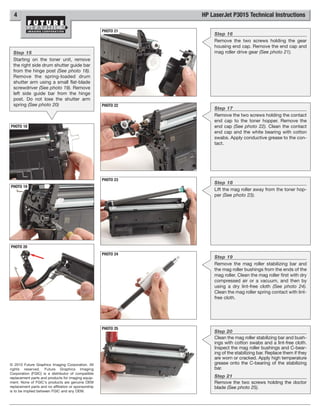
                                                                     Remove the two screws holding the gear
                                                                     housing end cap. Remove the end cap and
  Step 15                                                            mag roller drive gear (See photo 21).
  Starting on the toner unit, remove
  the right side drum shutter guide bar
  from the hinge post (See photo 18).
  Remove the spring-loaded drum
  shutter arm using a small flat-blade
  screwdriver (See photo 19). Remove
  left side guide bar from the hinge
  post. Do not lose the shutter arm
  spring (See photo 20)                               PHOTO 22
                                                                     Step 17
                                                                     Remove the two screws holding the contact
                                                                     end cap to the toner hopper. Remove the
PHOTO 18                                                             end cap (See photo 22). Clean the contact
                                                                     end cap and the white bearing with cotton
                                                                     swabs. Apply conductive grease to the con-
                                                                     tact.


                                                      PHOTO 23
                                                                     Step 18
PHOTO 19
                                                                     Lift the mag roller away from the toner hop-
                                                                     per (See photo 23).


PHOTO 20
                                                      PHOTO 24
                                                                     Step 19
                                                                     Remove the mag roller stabilizing bar and
                                                                     the mag roller bushings from the ends of the
                                                                     mag roller. Clean the mag roller first with dry
                                                                     compressed air or a vacuum, and then by
                                                                     using a dry lint-free cloth (See photo 24).
                                                                     Clean the mag roller spring contact with lint-
                                                                     free cloth.


                                                      PHOTO 25
                                                                     Step 20
                                                                     Clean the mag roller stabilizing bar and bush-
                                                                     ings with cotton swabs and a lint-free cloth.
                                                                     Inspect the mag roller bushings and C-bear-
                                                                     ing of the stabilizing bar. Replace them if they
                                                                     are worn or cracked. Apply high temperature
© 2010 Future Graphics Imaging Corporation. All                      grease onto the C-bearing of the stabilizing
rights reserved. Future Graphics Imaging                             bar.
Corporation (FGIC) is a distributor of compatible
replacement parts and products for imaging equip-                    Step 21
ment. None of FGIC's products are genuine OEM                        Remove the two screws holding the doctor
replacement parts and no affiliation or sponsorship                  blade (See photo 25).
is to be implied between FGIC and any OEM.
HP LaserJet P3015 Technical Instructions                                                                                                   5

PHOTO 26
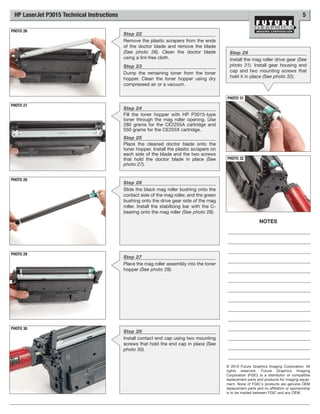
                                            Step 22
                                            Remove the plastic scrapers from the ends
                                            of the doctor blade and remove the blade
                                            (See photo 26). Clean the doctor blade              Step 29
                                            using a lint-free cloth.                            Install the mag roller drive gear (See
                                            Step 23                                             photo 31). Install gear housing end
                                            Dump the remaining toner from the toner             cap and two mounting screws that
                                            hopper. Clean the toner hopper using dry            hold it in place (See photo 32).
                                            compressed air or a vacuum.

                                                                                              PHOTO 31
PHOTO 27
                                            Step 24
                                            Fill the toner hopper with HP P3015-type
                                            toner through the mag roller opening. Use
                                            280 grams for the CE2255A cartridge and
                                            550 grams for the CE255X cartridge.
                                            Step 25
                                            Place the cleaned doctor blade onto the
                                            toner hopper. Install the plastic scrapers on
                                            each side of the blade and the two screws
                                            that hold the doctor blade in place (See          PHOTO 32
                                            photo 27).


PHOTO 28
                                            Step 26
                                            Slide the black mag roller bushing onto the
                                            contact side of the mag roller, and the green
                                            bushing onto the drive gear side of the mag
                                            roller. Install the stabilizing bar with the C-
                                            bearing onto the mag roller (See photo 28).

                                                                                                                  NOTES


PHOTO 29
                                            Step 27
                                            Place the mag roller assembly into the toner
                                            hopper (See photo 29).


PHOTO 30
                                            Step 28
                                            Install contact end cap using two mounting
                                            screws that hold the end cap in place (See
                                            photo 30).


                                                                                              © 2010 Future Graphics Imaging Corporation. All
                                                                                              rights reserved. Future Graphics Imaging
                                                                                              Corporation (FGIC) is a distributor of compatible
                                                                                              replacement parts and products for imaging equip-
                                                                                              ment. None of FGIC's products are genuine OEM
                                                                                              replacement parts and no affiliation or sponsorship
                                                                                              is to be implied between FGIC and any OEM.
6                                                                                                               HP LaserJet P3015 Technical Instructions

                                                      PHOTO 35
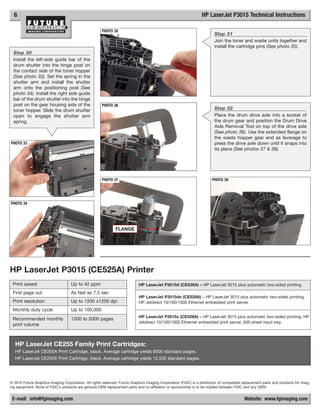
                                                                                                                         Step 31
                                                                                                                         Join the toner and waste units together and
                                                                                                                         install the cartridge pins (See photo 35).
  Step 30
  Install the left-side guide bar of the
  drum shutter into the hinge post on
  the contact side of the toner hopper
  (See photo 33). Set the spring in the
  shutter arm and install the shutter
  arm onto the positioning post (See
  photo 34). Install the right side guide
  bar of the drum shutter into the hinge
  post on the gear housing side of the                PHOTO 36
  toner hopper. Slide the drum shutter                                                                                   Step 32
  open to engage the shutter arm                                                                                         Place the drum drive axle into a socket of
  spring.                                                                                                                the drum gear and position the Drum Drive
                                                                                                                         Axle Removal Tool on top of the drive axle
                                                                                                                         (See photo 36). Use the extended flange on
                                                                                                                         the waste hopper gear end as leverage to
PHOTO 33                                                                                                                 press the drive axle down until it snaps into
                                                                                                                         its place (See photos 37 & 38).


                                                      PHOTO 37                                                          PHOTO 38


PHOTO 34


                                                              FLANGE


HP LaserJet P3015 (CE525A) Printer
 Print speed                        Up to 42 ppm                            HP LaserJet P3015d (CE526A) – HP LaserJet 3015 plus automatic two-sided printing.
 First page out                     As fast as 7.5 sec
                                                                            HP LaserJet P3015dn (CE528A) – HP LaserJet 3015 plus automatic two-sided printing,
 Print resolution                   Up to 1200 x1200 dpi                    HP Jetdirect 10/100/1000 Ethernet embedded print server.
 Monthly duty cycle                 Up to 100,000
                                                                            HP LaserJet P3015x (CE529A) – HP LaserJet 3015 plus automatic two-sided printing, HP
 Recommended monthly                1500 to 5000 pages
                                                                            Jetdirect 10/100/1000 Ethernet embedded print server, 500-sheet input tray.
 print volume


   HP LaserJet CE255 Family Print Cartridges:
   HP LaserJet CE255A Print Cartridge, black. Average cartridge yields 6000 standard pages.
   HP LaserJet CE255X Print Cartridge, black. Average cartridge yields 12,500 standard pages.


© 2010 Future Graphics Imaging Corporation. All rights reserved. Future Graphics Imaging Corporation (FGIC) is a distributor of compatible replacement parts and products for imag-
ing equipment. None of FGIC's products are genuine OEM replacement parts and no affiliation or sponsorship is to be implied between FGIC and any OEM.


 E-mail: info@fgimaging.com                                                                                                                Website: www.fgimaging.com

Manual Recarga HP P3015 | CE525.

  • 1.
    HP LaserJet IMAGING CORPORATION P3015 P3015 TECHNICAL INSTRUCTIONS HPP3015TECH Technical Instructions Supplies Tools 1 CORPORATE Conductive Grease Wire Cutters LOS ANGELES, USA High Temperature Grease (MOLYKOTE® 44 Light Small, Flat-blade Screwdriver or MOLYKOTE® X56020) Phillips Screwdriver US 1 800 394.9900 Cotton Swabs X-Acto Knife Int’l +1 818 837.8100 Lint-free Cloth FAX 1 800 394.9910 Drum Drive Axle Removal Tool (HP3015DATOOL) Padding Powder Int’l +1 818 838.7047 Vacuum or Dry Compressed Air KANSAS CITY, USA Drum US 1 913 871.1700 Toner FAX 1 913 888.0626 Wiper Blade Chip NEW YORK, USA US 1 800 431.7884 PHOTO 1 Int’l +1 631 588.7300 Step 1 FAX 1 800 431.8812 If the OPC drum is going to be replaced, use Int’l +1 631 588.7333 the Drum Drive Axle Removal Tool to MIAMI, USA remove the drum drive axle (See photo 1). US 1 800 595.4297 You will install it later on a new drum. To Int’l +1 305 594.3396 remove the drive axle, insert the C-shaped FAX 1 800 522.8640 claw of the tool under the drive flange of the Int’l +1 305 594.3309 axle. Use the lip on the drum end plate as TORONTO, CAN leverage to pry the drive axle out (See pho- tos 2 & 3). CAN 1 877 848.0818 Int’l +1 905 712.9501 FAX 1 877 772.6773 Int’l +1 905 712.9502 PHOTO 2 MELBOURNE, AUS AUS 1 800 003. 100 Int’l +62 03 9561.8102 FAX 1 800 004.302 Int’l +62 03 9561-7751 SYDNEY, AUS AUS 1 800 003.100 Int’l +62 02 9648.2630 FAX 1800 004.302 Int’l +62 02 9548.2635 BUENOS AIRES, ARG ARG 0810 444.2656 PHOTO 3 Int’l +011 4583.5900 FAX +011 4584.3100 SÃO PAULO, BRAZIL Int’l +55 11 5524.8000 BOGOTÁ, COLOMBIA Int'l +57 1410.8842 CALI, COLOMBIA Int'l +57 2661.1166 JOHANNESBURG, S.A. S.A. +27 11 974.6155 FAX +27 11 974.3593 ZHUHAI, PR CHINA © 2010 Future Graphics Imaging Corporation. All rights reserved. Future Graphics Imaging Corporation (FGIC) is a distributor of compati- Int’l +86 756 3359608 ble replacement parts and products for imaging equipment. None of FGIC's products are genuine OEM replacement parts and no affiliation FAX +86 756 3359681 or sponsorship is to be implied between FGIC and any OEM. E-mail: info@fgimaging.com Website: www.fgimaging.com REV. 02/03/10
  • 2.
    2 HP LaserJet P3015 Technical Instructions PHOTO 7 Step 4 Using a Phillips screwdriver, remove the two screws holding the drum end plate (See Step 2 photo 7). Remove the drum end plate and Using wire cutters, grab the car- clean it with cotton swabs and lint-free tridge pins and pull them out (See cloth. Apply fresh high temperature grease photo 4 & 5). (See photo 8). PHOTO 4 PHOTO 8 PHOTO 5 PHOTO 9 Step 5 Carefully lift up on the gear end of the drum and remove it off the drum contact axle (See photo 9). If the drum is going to be reused, place it in a protected area away from light. Step 3 Separate the two sections of the cartridge (See photo 6). Set the toner unit aside. PHOTO 10 Step 6 Lift out the PCR (See photo 10). Clean the PHOTO 6 PCR using a dry lint-free cloth. PHOTO 11 Step 7 Remove two screws holding the wiper blade (See photo 11). © 2010 Future Graphics Imaging Corporation. All rights reserved. Future Graphics Imaging Corporation (FGIC) is a distributor of compatible replacement parts and products for imaging equip- ment. None of FGIC's products are genuine OEM replacement parts and no affiliation or sponsorship is to be implied between FGIC and any OEM.
  • 3.
    HP LaserJet P3015Technical Instructions 3 PHOTO 12 Step 8 Remove the wiper blade (See photo 12). Clean the waste hopper using dry, com- pressed air or a vacuum. Step 14 Using an X-acto knife, cut the plastic weld holding the chip in place (See photo 17). Install the new chip onto the waste hopper. Set the waste unit aside in a protected area away from light. PHOTO 13 Step 9 PHOTO 17 Apply padding powder to a new or once- used wiper blade. Place the blade onto the waste hopper and install the two screws that hold the blade in place (See photo 13). PHOTO 14 Step 10 NOTES Clean the PCR saddles using cotton swabs. Apply new conductive grease to the black conductive saddle. Install the clean PCR (See photo 14). PHOTO 15 Step 11 Apply padding powder to the drum. Apply conductive grease to the drum contact axle. Carefully slide the drum onto the drum con- tact axle (See photo 15). PHOTO 16 Step 12 Install the drum end plate and two screws holding it in place (See photo 16). Step 13 Rotate the drum to ensure that the drum and wiper blade are properly lubricated. © 2010 Future Graphics Imaging Corporation. All Clean the padding powder off the PCR rights reserved. Future Graphics Imaging using a lint-free cloth. Corporation (FGIC) is a distributor of compatible replacement parts and products for imaging equip- ment. None of FGIC's products are genuine OEM replacement parts and no affiliation or sponsorship is to be implied between FGIC and any OEM.
  • 4.
    4 HP LaserJet P3015 Technical Instructions PHOTO 21 Step 16 Remove the two screws holding the gear housing end cap. Remove the end cap and Step 15 mag roller drive gear (See photo 21). Starting on the toner unit, remove the right side drum shutter guide bar from the hinge post (See photo 18). Remove the spring-loaded drum shutter arm using a small flat-blade screwdriver (See photo 19). Remove left side guide bar from the hinge post. Do not lose the shutter arm spring (See photo 20) PHOTO 22 Step 17 Remove the two screws holding the contact end cap to the toner hopper. Remove the PHOTO 18 end cap (See photo 22). Clean the contact end cap and the white bearing with cotton swabs. Apply conductive grease to the con- tact. PHOTO 23 Step 18 PHOTO 19 Lift the mag roller away from the toner hop- per (See photo 23). PHOTO 20 PHOTO 24 Step 19 Remove the mag roller stabilizing bar and the mag roller bushings from the ends of the mag roller. Clean the mag roller first with dry compressed air or a vacuum, and then by using a dry lint-free cloth (See photo 24). Clean the mag roller spring contact with lint- free cloth. PHOTO 25 Step 20 Clean the mag roller stabilizing bar and bush- ings with cotton swabs and a lint-free cloth. Inspect the mag roller bushings and C-bear- ing of the stabilizing bar. Replace them if they are worn or cracked. Apply high temperature © 2010 Future Graphics Imaging Corporation. All grease onto the C-bearing of the stabilizing rights reserved. Future Graphics Imaging bar. Corporation (FGIC) is a distributor of compatible replacement parts and products for imaging equip- Step 21 ment. None of FGIC's products are genuine OEM Remove the two screws holding the doctor replacement parts and no affiliation or sponsorship blade (See photo 25). is to be implied between FGIC and any OEM.
  • 5.
    HP LaserJet P3015Technical Instructions 5 PHOTO 26 Step 22 Remove the plastic scrapers from the ends of the doctor blade and remove the blade (See photo 26). Clean the doctor blade Step 29 using a lint-free cloth. Install the mag roller drive gear (See Step 23 photo 31). Install gear housing end Dump the remaining toner from the toner cap and two mounting screws that hopper. Clean the toner hopper using dry hold it in place (See photo 32). compressed air or a vacuum. PHOTO 31 PHOTO 27 Step 24 Fill the toner hopper with HP P3015-type toner through the mag roller opening. Use 280 grams for the CE2255A cartridge and 550 grams for the CE255X cartridge. Step 25 Place the cleaned doctor blade onto the toner hopper. Install the plastic scrapers on each side of the blade and the two screws that hold the doctor blade in place (See PHOTO 32 photo 27). PHOTO 28 Step 26 Slide the black mag roller bushing onto the contact side of the mag roller, and the green bushing onto the drive gear side of the mag roller. Install the stabilizing bar with the C- bearing onto the mag roller (See photo 28). NOTES PHOTO 29 Step 27 Place the mag roller assembly into the toner hopper (See photo 29). PHOTO 30 Step 28 Install contact end cap using two mounting screws that hold the end cap in place (See photo 30). © 2010 Future Graphics Imaging Corporation. All rights reserved. Future Graphics Imaging Corporation (FGIC) is a distributor of compatible replacement parts and products for imaging equip- ment. None of FGIC's products are genuine OEM replacement parts and no affiliation or sponsorship is to be implied between FGIC and any OEM.
  • 6.
    6 HP LaserJet P3015 Technical Instructions PHOTO 35 Step 31 Join the toner and waste units together and install the cartridge pins (See photo 35). Step 30 Install the left-side guide bar of the drum shutter into the hinge post on the contact side of the toner hopper (See photo 33). Set the spring in the shutter arm and install the shutter arm onto the positioning post (See photo 34). Install the right side guide bar of the drum shutter into the hinge post on the gear housing side of the PHOTO 36 toner hopper. Slide the drum shutter Step 32 open to engage the shutter arm Place the drum drive axle into a socket of spring. the drum gear and position the Drum Drive Axle Removal Tool on top of the drive axle (See photo 36). Use the extended flange on the waste hopper gear end as leverage to PHOTO 33 press the drive axle down until it snaps into its place (See photos 37 & 38). PHOTO 37 PHOTO 38 PHOTO 34 FLANGE HP LaserJet P3015 (CE525A) Printer Print speed Up to 42 ppm HP LaserJet P3015d (CE526A) – HP LaserJet 3015 plus automatic two-sided printing. First page out As fast as 7.5 sec HP LaserJet P3015dn (CE528A) – HP LaserJet 3015 plus automatic two-sided printing, Print resolution Up to 1200 x1200 dpi HP Jetdirect 10/100/1000 Ethernet embedded print server. Monthly duty cycle Up to 100,000 HP LaserJet P3015x (CE529A) – HP LaserJet 3015 plus automatic two-sided printing, HP Recommended monthly 1500 to 5000 pages Jetdirect 10/100/1000 Ethernet embedded print server, 500-sheet input tray. print volume HP LaserJet CE255 Family Print Cartridges: HP LaserJet CE255A Print Cartridge, black. Average cartridge yields 6000 standard pages. HP LaserJet CE255X Print Cartridge, black. Average cartridge yields 12,500 standard pages. © 2010 Future Graphics Imaging Corporation. All rights reserved. Future Graphics Imaging Corporation (FGIC) is a distributor of compatible replacement parts and products for imag- ing equipment. None of FGIC's products are genuine OEM replacement parts and no affiliation or sponsorship is to be implied between FGIC and any OEM. E-mail: info@fgimaging.com Website: www.fgimaging.com