HP2600TECH

  Technical Instructions                                              Supplies                                                                      Tools           1
                               Toner            Fill plug           Alcohol                    HP2600PINTOOL           Diagonal cutters           Dr. Blade cleaning
  CORPORATE                    Drum             Lint-Free Cloth     Contact grease             Toner hopper holding    Drill and 3/32 drill bit   fixture
  LOS ANGELES, USA             Wiper Blade      Cotton Swab         DRUMPOWDERCPT              fixture kit             Needle nose pliers         Deionized air-30 PSI
  US 1 800 394.9900            Chip             Anhydrous                                      Waste hopper            Phillips screwdriver       1/4-inch Nut driver
  Int’l +1 818 837.8100        Seal             Isopropyl                                      holding fixture kit     Flat screwdriver
  FAX 1 800 394.9910
  Int’l +1 818 838.7047

  ATLANTA, USA                 PHOTO 1
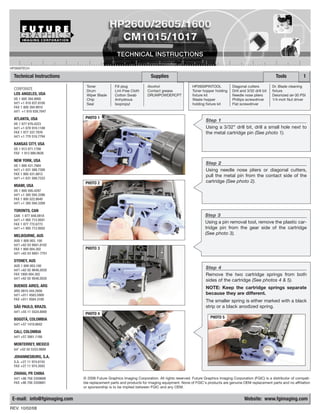
                                                                                                       Step 1
  US 1 877 676.4223
  Int’l +1 678 919.1189                                                                                Using a 3/32” drill bit, drill a small hole next to
  FAX 1 877 337.7976                                                                                   the metal cartridge pin (See photo 1).
  Int’l +1 770 516.7794

  KANSAS CITY, USA
  US 1 913 871.1700
  FAX 1 913 888.0626

  NEW YORK, USA
  US 1 800 431.7884
                                                                                                       Step 2
  Int’l +1 631 588.7300                                                                                Using needle nose pliers or diagonal cutters,
  FAX 1 800 431.8812
  Int’l +1 631 588.7333
                                                                                                       pull the metal pin from the contact side of the
                               PHOTO 2                                                                 cartridge (See photo 2).
  MIAMI, USA
  US 1 800 595.4297
  Int’l +1 305 594.3396
  FAX 1 800 522.8640
  Int’l +1 305 594.3309

  TORONTO, CAN
  CAN 1 877 848.0818                                                                                   Step 3
  Int’l +1 905 712.9501
  FAX 1 877 772.6773                                                                                   Using a pin removal tool, remove the plastic car-
  Int’l +1 905 712.9502                                                                                tridge pin from the gear side of the cartridge
  MELBOURNE, AUS
                                                                                                       (See photo 3).
  AUS 1 800 003. 100
  Int’l +62 03 9561.8102
  FAX 1 800 004.302            PHOTO 3
  Int’l +62 03 9561-7751

  SYDNEY, AUS
  AUS 1 800 003.100
  Int’l +62 02 9648.2630
                                                                                                       Step 4
  FAX 1800 004.302                                                                                     Remove the two cartridge springs from both
  Int’l +62 02 9548.2635
                                                                                                       sides of the cartridge (See photos 4 & 5).
  BUENOS AIRES, ARG                                                                                    NOTE: Keep the cartridge springs separate
  ARG 0810 444.2656
  Int’l +011 4583.5900                                                                                 because they are different.
  FAX +011 4584.3100                                                                                   The smaller spring is either marked with a black
  SÃO PAULO, BRAZIL                                                                                    strip or a black anodized spring.
  Int’l +55 11 5524.8000
                               PHOTO 4
  BOGOTÁ, COLOMBIA                                                                                        PHOTO 5
  Int'l +57 1410.8842

  CALI, COLOMBIA
  Int'l +57 2661.1166

  MONTERREY, MEXICO
  Int' +52 55 5333.9800

  JOHANNESBURG, S.A.
  S.A. +27 11 974.6155
  FAX +27 11 974.3593

  ZHUHAI, PR CHINA
  Int’l +86 756 3359608       © 2008 Future Graphics Imaging Corporation. All rights reserved. Future Graphics Imaging Corporation (FGIC) is a distributor of compati-
  FAX +86 756 3359681         ble replacement parts and products for imaging equipment. None of FGIC's products are genuine OEM replacement parts and no affiliation
                              or sponsorship is to be implied between FGIC and any OEM.


 E-mail: info@fgimaging.com                                                                                                    Website: www.fgimaging.com
REV. 10/02/08
2                                                              HP 2600/2605/1600/CM1015/1017 Technical Instructions

                                                      PHOTO 9
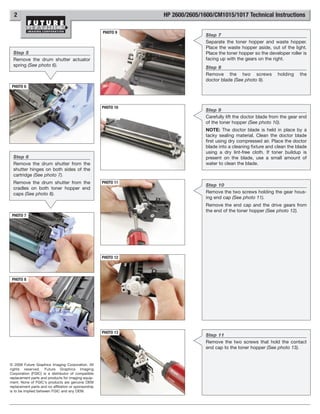
                                                                                Step 7
                                                                                Separate the toner hopper and waste hopper.
                                                                                Place the waste hopper aside, out of the light.
  Step 5                                                                        Place the toner hopper so the developer roller is
  Remove the drum shutter actuator                                              facing up with the gears on the right.
  spring (See photo 6).                                                         Step 8
                                                                                Remove the two screws             holding    the
                                                                                doctor blade (See photo 9).
 PHOTO 6


                                                      PHOTO 10
                                                                                Step 9
                                                                                Carefully lift the doctor blade from the gear end
                                                                                of the toner hopper (See photo 10).
                                                                                NOTE: The doctor blade is held in place by a
                                                                                tacky sealing material. Clean the doctor blade
                                                                                first using dry compressed air. Place the doctor
                                                                                blade into a cleaning fixture and clean the blade
                                                                                using a dry lint-free cloth. If toner buildup is
  Step 6                                                                        present on the blade, use a small amount of
  Remove the drum shutter from the                                              water to clean the blade.
  shutter hinges on both sides of the
  cartridge (See photo 7).
  Remove the drum shutter from the                    PHOTO 11
                                                                                Step 10
  cradles on both toner hopper end
  caps (See photo 8).                                                           Remove the two screws holding the gear hous-
                                                                                ing end cap (See photo 11).
                                                                                Remove the end cap and the drive gears from
                                                                                the end of the toner hopper (See photo 12).
 PHOTO 7


                                                      PHOTO 12


 PHOTO 8


                                                      PHOTO 13
                                                                                Step 11
                                                                                Remove the two screws that hold the contact
                                                                                end cap to the toner hopper (See photo 13).


© 2008 Future Graphics Imaging Corporation. All
rights reserved. Future Graphics Imaging
Corporation (FGIC) is a distributor of compatible
replacement parts and products for imaging equip-
ment. None of FGIC's products are genuine OEM
replacement parts and no affiliation or sponsorship
is to be implied between FGIC and any OEM.
HP 2600/2605/1600/CM1015/1017 Technical Instructions                                                                                   3

PHOTO 14
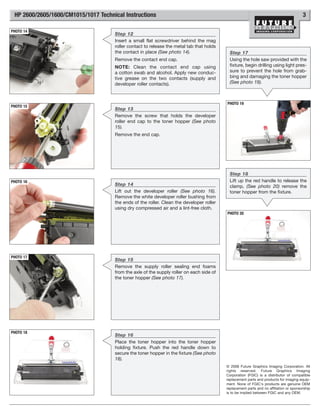
                                     Step 12
                                     Insert a small flat screwdriver behind the mag
                                     roller contact to release the metal tab that holds
                                     the contact in place (See photo 14).                   Step 17
                                     Remove the contact end cap.                            Using the hole saw provided with the
                                     NOTE: Clean the contact end cap using                  fixture, begin drilling using light pres-
                                     a cotton swab and alcohol. Apply new conduc-           sure to prevent the hole from grab-
                                     tive grease on the two contacts (supply and            bing and damaging the toner hopper
                                     developer roller contacts).                            (See photo 19).


                                                                                          PHOTO 19
PHOTO 15
                                     Step 13
                                     Remove the screw that holds the developer
                                     roller end cap to the toner hopper (See photo
                                     15).
                                     Remove the end cap.


                                                                                            Step 18
PHOTO 16                                                                                    Lift up the red handle to release the
                                     Step 14                                                clamp, (See photo 20) remove the
                                     Lift out the developer roller (See photo 16).          toner hopper from the fixture.
                                     Remove the white developer roller bushing from
                                     the ends of the roller. Clean the developer roller
                                     using dry compressed air and a lint-free cloth.
                                                                                          PHOTO 20


PHOTO 17
                                     Step 15
                                     Remove the supply roller sealing end foams
                                     from the axle of the supply roller on each side of
                                     the toner hopper (See photo 17).


PHOTO 18
                                     Step 16
                                     Place the toner hopper into the toner hopper
                                     holding fixture. Push the red handle down to
                                     secure the toner hopper in the fixture (See photo
                                     18).
                                                                                          © 2008 Future Graphics Imaging Corporation. All
                                                                                          rights reserved. Future Graphics Imaging
                                                                                          Corporation (FGIC) is a distributor of compatible
                                                                                          replacement parts and products for imaging equip-
                                                                                          ment. None of FGIC's products are genuine OEM
                                                                                          replacement parts and no affiliation or sponsorship
                                                                                          is to be implied between FGIC and any OEM.
4                                                              HP 2600/2605/1600/CM1015/1017 Technical Instructions

                                                      PHOTO 23
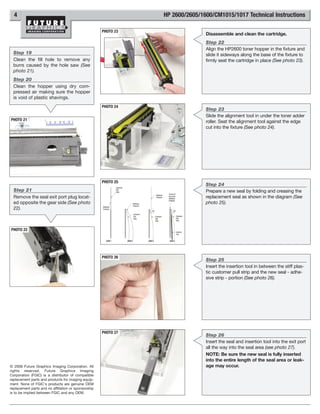
                                                                                Disassemble and clean the cartridge.
                                                                                Step 22
                                                                                Align the HP2600 toner hopper in the fixture and
  Step 19                                                                       slide it sideways along the base of the fixture to
  Clean the fill hole to remove any                                             firmly seat the cartridge in place (See photo 23).
  burrs caused by the hole saw (See
  photo 21).
  Step 20
  Clean the hopper using dry com-
  pressed air making sure the hopper
  is void of plastic shavings.
                                                      PHOTO 24
                                                                                Step 23
                                                                                Slide the alignment tool in under the toner adder
PHOTO 21                                                                        roller. Seat the alignment tool against the edge
                                                                                cut into the fixture (See photo 24).


                                                      PHOTO 25
                                                                                Step 24
  Step 21                                                                       Prepare a new seal by folding and creasing the
  Remove the seal exit port plug locat-                                         replacement seal as shown in the diagram (See
  ed opposite the gear side (See photo                                          photo 25).
  22).


PHOTO 22


                                                      PHOTO 26
                                                                                Step 25
                                                                                Insert the insertion tool in between the stiff plas-
                                                                                tic customer pull strip and the new seal - adhe-
                                                                                sive strip - portion (See photo 26).


                                                      PHOTO 27
                                                                                Step 26
                                                                                Insert the seal and insertion tool into the exit port
                                                                                all the way into the seal area (see photo 27).
                                                                                NOTE: Be sure the new seal is fully inserted
                                                                                into the entire length of the seal area or leak-
© 2008 Future Graphics Imaging Corporation. All                                 age may occur.
rights reserved. Future Graphics Imaging
Corporation (FGIC) is a distributor of compatible
replacement parts and products for imaging equip-
ment. None of FGIC's products are genuine OEM
replacement parts and no affiliation or sponsorship
is to be implied between FGIC and any OEM.
HP 2600/2605/1600/CM1015/1017 Technical Instructions                                                                                    5

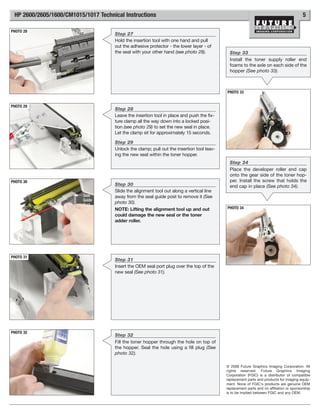
PHOTO 28
                                     Step 27
                                     Hold the insertion tool with one hand and pull
                                     out the adhesive protector - the lower layer - of
                                     the seal with your other hand (see photo 28).           Step 33
                                                                                             Install the toner supply roller end
                                                                                             foams to the axle on each side of the
                                                                                             hopper (See photo 33).


                                                                                           PHOTO 33


PHOTO 29
                                     Step 28
                                     Leave the insertion tool in place and push the fix-
                                     ture clamp all the way down into a locked posi-
                                     tion (see photo 29) to set the new seal in place.
                                     Let the clamp sit for approximately 15 seconds.

                                     Step 29
                                     Unlock the clamp; pull out the insertion tool leav-
                                     ing the new seal within the toner hopper.
                                                                                             Step 34
                                                                                             Place the developer roller end cap
                                                                                             onto the gear side of the toner hop-
PHOTO 30                                                                                     per. Install the screw that holds the
                                     Step 30                                                 end cap in place (See photo 34).
                                     Slide the alignment tool out along a vertical line
                          Seal       away from the seal guide post to remove it (See
                          Guide
                          Post
                                     photo 30).
                                     NOTE: Lifting the alignment tool up and out           PHOTO 34
                                     could damage the new seal or the toner
                                     adder roller.


PHOTO 31
                                     Step 31
                                     Insert the OEM seal port plug over the top of the
                                     new seal (See photo 31).


PHOTO 32
                                     Step 32
                                     Fill the toner hopper through the hole on top of
                                     the hopper. Seal the hole using a fill plug (See
                                     photo 32).

                                                                                           © 2008 Future Graphics Imaging Corporation. All
                                                                                           rights reserved. Future Graphics Imaging
                                                                                           Corporation (FGIC) is a distributor of compatible
                                                                                           replacement parts and products for imaging equip-
                                                                                           ment. None of FGIC's products are genuine OEM
                                                                                           replacement parts and no affiliation or sponsorship
                                                                                           is to be implied between FGIC and any OEM.
6                                                                                        HP 2600/2605/1600/CM1015/1017 Technical Instructions

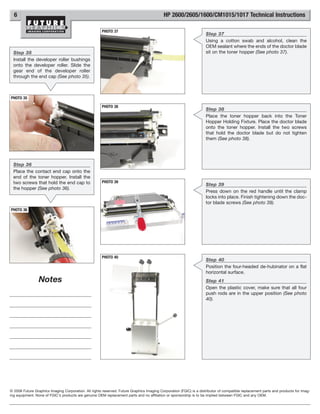
                                                      PHOTO 37
                                                                                                                    Step 37
                                                                                                                    Using a cotton swab and alcohol, clean the
                                                                                                                    OEM sealant where the ends of the doctor blade
  Step 35                                                                                                           sit on the toner hopper (See photo 37).
  Install the developer roller bushings
  onto the developer roller. Slide the
  gear end of the developer roller
  through the end cap (See photo 35).


PHOTO 35

                                                      PHOTO 38
                                                                                                                    Step 38
                                                                                                                    Place the toner hopper back into the Toner
                                                                                                                    Hopper Holding Fixture. Place the doctor blade
                                                                                                                    onto the toner hopper. Install the two screws
                                                                                                                    that hold the doctor blade but do not tighten
                                                                                                                    them (See photo 38).


  Step 36
  Place the contact end cap onto the
  end of the toner hopper. Install the
  two screws that hold the end cap to                 PHOTO 39
                                                                                                                    Step 39
  the hopper (See photo 36).
                                                                                                                    Press down on the red handle until the clamp
                                                                                                                    locks into place. Finish tightening down the doc-
                                                                                                                    tor blade screws (See photo 39).
PHOTO 36


                                                      PHOTO 40
                                                                                                                    Step 40
                                                                                                                    Position the four-headed de-hubinator on a flat
                                                                                                                    horizontal surface.
                 Notes                                                                                              Step 41
                                                                                                                    Open the plastic cover, make sure that all four
                                                                                                                    push rods are in the upper position (See photo
                                                                                                                    40).


© 2008 Future Graphics Imaging Corporation. All rights reserved. Future Graphics Imaging Corporation (FGIC) is a distributor of compatible replacement parts and products for imag-
ing equipment. None of FGIC's products are genuine OEM replacement parts and no affiliation or sponsorship is to be implied between FGIC and any OEM.
HP 2600/2605/1600/CM1015/1017 Technical Instructions                                                                                                              7

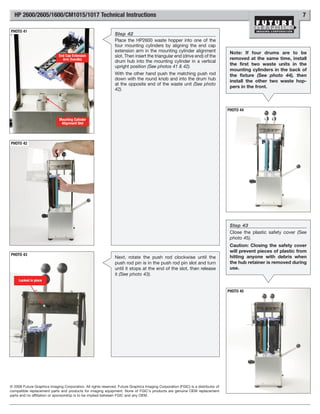
PHOTO 41
                                                               Step 42
                                                               Place the HP2600 waste hopper into one of the
                                                               four mounting cylinders by aligning the end cap
                                                               extension arm in the mounting cylinder alignment                    Note: If four drums are to be
                             End Cap Extension                 slot. Then insert the triangular end (drive end) of the
                               Arm (handle)                                                                                        removed at the same time, install
                                                               drum hub into the mounting cylinder in a vertical
                                                                                                                                   the first two waste units in the
                                                               upright position (See photos 41 & 42).
                                                                                                                                   mounting cylinders in the back of
                                                               With the other hand push the matching push rod                      the fixture (See photo 44), then
                                                               down with the round knob and into the drum hub                      install the other two waste hop-
                                                               at the opposite end of the waste unit (See photo
                                                                                                                                   pers in the front.
                                                               42).


                                                                                                                                  PHOTO 44

                             Mounting Cylinder
                              Alignment Slot


PHOTO 42


                                                                                                                                   Step 43
                                                                                                                                   Close the plastic safety cover (See
                                                                                                                                   photo 45).
                                                                                                                                   Caution: Closing the safety cover
                                                                                                                                   will prevent pieces of plastic from
PHOTO 43
                                                               Next, rotate the push rod clockwise until the                       hitting anyone with debris when
                                                               push rod pin is in the push rod pin slot and turn                   the hub retainer is removed during
                                                               until it stops at the end of the slot, then release                 use.
                                                               it (See photo 43).
     Locked in place

                                                                                                                                  PHOTO 45


© 2008 Future Graphics Imaging Corporation. All rights reserved. Future Graphics Imaging Corporation (FGIC) is a distributor of
compatible replacement parts and products for imaging equipment. None of FGIC's products are genuine OEM replacement
parts and no affiliation or sponsorship is to be implied between FGIC and any OEM.
8                                                              HP 2600/2605/1600/CM1015/1017 Technical Instructions

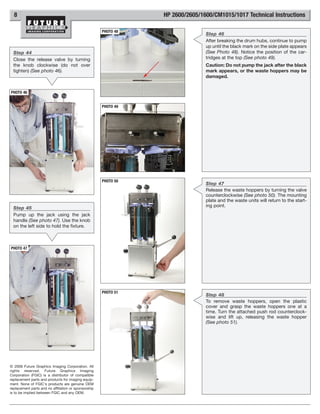
                                                      PHOTO 48
                                                                                Step 46
                                                                                After breaking the drum hubs, continue to pump
                                                                                up until the black mark on the side plate appears
  Step 44                                                                       (See Photo 48). Notice the position of the car-
  Close the release valve by turning                                            tridges at the top (See photo 49).
  the knob clockwise (do not over                                               Caution: Do not pump the jack after the black
  tighten) (See photo 46).                                                      mark appears, or the waste hoppers may be
                                                                                damaged.


PHOTO 46


                                                      PHOTO 49


                                                      PHOTO 50
                                                                                Step 47
                                                                                Release the waste hoppers by turning the valve
                                                                                counterclockwise (See photo 50). The mounting
                                                                                plate and the waste units will return to the start-
  Step 45                                                                       ing point.
  Pump up the jack using the jack
  handle (See photo 47). Use the knob
  on the left side to hold the fixture.


PHOTO 47


                                                      PHOTO 51
                                                                                Step 48
                                                                                To remove waste hoppers, open the plastic
                                                                                cover and grasp the waste hoppers one at a
                                                                                time. Turn the attached push rod counterclock-
                                                                                wise and lift up, releasing the waste hopper
                                                                                (See photo 51).


© 2008 Future Graphics Imaging Corporation. All
rights reserved. Future Graphics Imaging
Corporation (FGIC) is a distributor of compatible
replacement parts and products for imaging equip-
ment. None of FGIC's products are genuine OEM
replacement parts and no affiliation or sponsorship
is to be implied between FGIC and any OEM.
HP 2600/2605/1600/CM1015/1017 Technical Instructions                                                                                 9

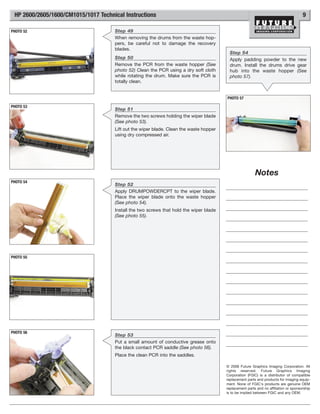
PHOTO 52                             Step 49
                                     When removing the drums from the waste hop-
                                     pers, be careful not to damage the recovery
                                     blades.
                                                                                          Step 54
                                     Step 50                                              Apply padding powder to the new
                                     Remove the PCR from the waste hopper (See            drum. Install the drums drive gear
                                     photo 52) Clean the PCR using a dry soft cloth       hub into the waste hopper (See
                                     while rotating the drum. Make sure the PCR is        photo 57).
                                     totally clean.


                                                                                        PHOTO 57

PHOTO 53
                                     Step 51
                                     Remove the two screws holding the wiper blade
                                     (See photo 53).
                                     Lift out the wiper blade. Clean the waste hopper
                                     using dry compressed air.


                                                                                                         Notes
PHOTO 54
                                     Step 52
                                     Apply DRUMPOWDERCPT to the wiper blade.
                                     Place the wiper blade onto the waste hopper
                                     (See photo 54).
                                     Install the two screws that hold the wiper blade
                                     (See photo 55).


PHOTO 55


PHOTO 56
                                     Step 53
                                     Put a small amount of conductive grease onto
                                     the black contact PCR saddle (See photo 56).
                                     Place the clean PCR into the saddles.

                                                                                        © 2008 Future Graphics Imaging Corporation. All
                                                                                        rights reserved. Future Graphics Imaging
                                                                                        Corporation (FGIC) is a distributor of compatible
                                                                                        replacement parts and products for imaging equip-
                                                                                        ment. None of FGIC's products are genuine OEM
                                                                                        replacement parts and no affiliation or sponsorship
                                                                                        is to be implied between FGIC and any OEM.
10                                                              HP 2600/2605/1600/CM1015/1017 Technical Instructions

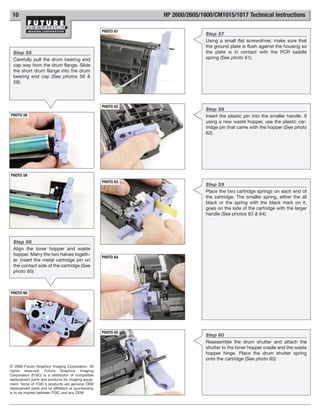
                                                      PHOTO 61
                                                                                Step 57
                                                                                Using a small flat screwdriver, make sure that
                                                                                the ground plate is flush against the housing so
  Step 55                                                                       the plate is in contact with the PCR saddle
  Carefully pull the drum bearing end                                           spring (See photo 61).
  cap way from the drum flange. Slide
  the short drum flange into the drum
  bearing end cap (See photos 58 &
  59).


                                                      PHOTO 62
                                                                                Step 58
PHOTO 58                                                                        Insert the plastic pin into the smaller handle. If
                                                                                using a new waste hopper, use the plastic car-
                                                                                tridge pin that came with the hopper (See photo
                                                                                62).


PHOTO 59
                                                      PHOTO 63
                                                                                Step 59
                                                                                Place the two cartridge springs on each end of
                                                                                the cartridge. The smaller spring, either the all
                                                                                black or the spring with the black mark on it,
                                                                                goes on the side of the cartridge with the larger
                                                                                handle (See photos 63 & 64).


  Step 56
  Align the toner hopper and waste
  hopper. Marry the two halves togeth-
                                                      PHOTO 64
  er. Insert the metal cartridge pin on
  the contact side of the cartridge (See
  photo 60).


PHOTO 60


                                                      PHOTO 65
                                                                                Step 60
                                                                                Reassemble the drum shutter and attach the
                                                                                shutter to the toner hopper cradle and the waste
                                                                                hopper hinge. Place the drum shutter spring
                                                                                onto the cartridge (See photo 65).
© 2008 Future Graphics Imaging Corporation. All
rights reserved. Future Graphics Imaging
Corporation (FGIC) is a distributor of compatible
replacement parts and products for imaging equip-
ment. None of FGIC's products are genuine OEM
replacement parts and no affiliation or sponsorship
is to be implied between FGIC and any OEM.
HP 2600/2605/1600/CM1015/1017 Technical Instructions                                                                                                                       11

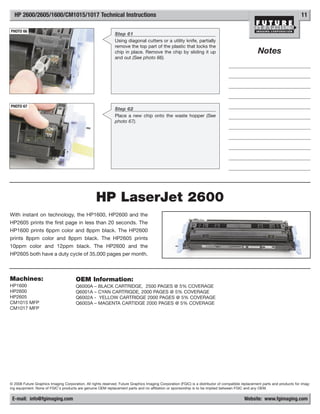
PHOTO 66
                                                              Step 61
                                                              Using diagonal cutters or a utility knife, partially
                                                              remove the top part of the plastic that locks the
                                                              chip in place. Remove the chip by sliding it up                                      Notes
                                                              and out (See photo 66).


PHOTO 67
                                                              Step 62
                                                              Place a new chip onto the waste hopper (See
                                                              photo 67).


                                                   HP LaserJet 2600
With instant on technology, the HP1600, HP2600 and the
HP2605 prints the first page in less than 20 seconds. The
HP1600 prints 6ppm color and 8ppm black. The HP2600
prints 8ppm color and 8ppm black. The HP2605 prints
10ppm color and 12ppm black. The HP2600 and the
HP2605 both have a duty cycle of 35,000 pages per month.


Machines:                              OEM Information:
HP1600                                 Q6000A     –   BLACK CARTRIDGE, 2500 PAGES @ 5% COVERAGE
HP2600                                 Q6001A     –   CYAN CARTRIGDE, 2000 PAGES @ 5% COVERAGE
HP2605                                 Q6002A     -   YELLOW CARTRIDGE 2000 PAGES @ 5% COVERAGE
CM1015 MFP                             Q6003A     –   MAGENTA CARTIDGE 2000 PAGES @ 5% COVERAGE
CM1017 MFP


© 2008 Future Graphics Imaging Corporation. All rights reserved. Future Graphics Imaging Corporation (FGIC) is a distributor of compatible replacement parts and products for imag-
ing equipment. None of FGIC's products are genuine OEM replacement parts and no affiliation or sponsorship is to be implied between FGIC and any OEM.

 E-mail: info@fgimaging.com                                                                                                                Website: www.fgimaging.com

Hp 2600 1600 2605

  • 1.
    HP2600TECH TechnicalInstructions Supplies Tools 1 Toner Fill plug Alcohol HP2600PINTOOL Diagonal cutters Dr. Blade cleaning CORPORATE Drum Lint-Free Cloth Contact grease Toner hopper holding Drill and 3/32 drill bit fixture LOS ANGELES, USA Wiper Blade Cotton Swab DRUMPOWDERCPT fixture kit Needle nose pliers Deionized air-30 PSI US 1 800 394.9900 Chip Anhydrous Waste hopper Phillips screwdriver 1/4-inch Nut driver Int’l +1 818 837.8100 Seal Isopropyl holding fixture kit Flat screwdriver FAX 1 800 394.9910 Int’l +1 818 838.7047 ATLANTA, USA PHOTO 1 Step 1 US 1 877 676.4223 Int’l +1 678 919.1189 Using a 3/32” drill bit, drill a small hole next to FAX 1 877 337.7976 the metal cartridge pin (See photo 1). Int’l +1 770 516.7794 KANSAS CITY, USA US 1 913 871.1700 FAX 1 913 888.0626 NEW YORK, USA US 1 800 431.7884 Step 2 Int’l +1 631 588.7300 Using needle nose pliers or diagonal cutters, FAX 1 800 431.8812 Int’l +1 631 588.7333 pull the metal pin from the contact side of the PHOTO 2 cartridge (See photo 2). MIAMI, USA US 1 800 595.4297 Int’l +1 305 594.3396 FAX 1 800 522.8640 Int’l +1 305 594.3309 TORONTO, CAN CAN 1 877 848.0818 Step 3 Int’l +1 905 712.9501 FAX 1 877 772.6773 Using a pin removal tool, remove the plastic car- Int’l +1 905 712.9502 tridge pin from the gear side of the cartridge MELBOURNE, AUS (See photo 3). AUS 1 800 003. 100 Int’l +62 03 9561.8102 FAX 1 800 004.302 PHOTO 3 Int’l +62 03 9561-7751 SYDNEY, AUS AUS 1 800 003.100 Int’l +62 02 9648.2630 Step 4 FAX 1800 004.302 Remove the two cartridge springs from both Int’l +62 02 9548.2635 sides of the cartridge (See photos 4 & 5). BUENOS AIRES, ARG NOTE: Keep the cartridge springs separate ARG 0810 444.2656 Int’l +011 4583.5900 because they are different. FAX +011 4584.3100 The smaller spring is either marked with a black SÃO PAULO, BRAZIL strip or a black anodized spring. Int’l +55 11 5524.8000 PHOTO 4 BOGOTÁ, COLOMBIA PHOTO 5 Int'l +57 1410.8842 CALI, COLOMBIA Int'l +57 2661.1166 MONTERREY, MEXICO Int' +52 55 5333.9800 JOHANNESBURG, S.A. S.A. +27 11 974.6155 FAX +27 11 974.3593 ZHUHAI, PR CHINA Int’l +86 756 3359608 © 2008 Future Graphics Imaging Corporation. All rights reserved. Future Graphics Imaging Corporation (FGIC) is a distributor of compati- FAX +86 756 3359681 ble replacement parts and products for imaging equipment. None of FGIC's products are genuine OEM replacement parts and no affiliation or sponsorship is to be implied between FGIC and any OEM. E-mail: info@fgimaging.com Website: www.fgimaging.com REV. 10/02/08
  • 2.
    2 HP 2600/2605/1600/CM1015/1017 Technical Instructions PHOTO 9 Step 7 Separate the toner hopper and waste hopper. Place the waste hopper aside, out of the light. Step 5 Place the toner hopper so the developer roller is Remove the drum shutter actuator facing up with the gears on the right. spring (See photo 6). Step 8 Remove the two screws holding the doctor blade (See photo 9). PHOTO 6 PHOTO 10 Step 9 Carefully lift the doctor blade from the gear end of the toner hopper (See photo 10). NOTE: The doctor blade is held in place by a tacky sealing material. Clean the doctor blade first using dry compressed air. Place the doctor blade into a cleaning fixture and clean the blade using a dry lint-free cloth. If toner buildup is Step 6 present on the blade, use a small amount of Remove the drum shutter from the water to clean the blade. shutter hinges on both sides of the cartridge (See photo 7). Remove the drum shutter from the PHOTO 11 Step 10 cradles on both toner hopper end caps (See photo 8). Remove the two screws holding the gear hous- ing end cap (See photo 11). Remove the end cap and the drive gears from the end of the toner hopper (See photo 12). PHOTO 7 PHOTO 12 PHOTO 8 PHOTO 13 Step 11 Remove the two screws that hold the contact end cap to the toner hopper (See photo 13). © 2008 Future Graphics Imaging Corporation. All rights reserved. Future Graphics Imaging Corporation (FGIC) is a distributor of compatible replacement parts and products for imaging equip- ment. None of FGIC's products are genuine OEM replacement parts and no affiliation or sponsorship is to be implied between FGIC and any OEM.
  • 3.
    HP 2600/2605/1600/CM1015/1017 TechnicalInstructions 3 PHOTO 14 Step 12 Insert a small flat screwdriver behind the mag roller contact to release the metal tab that holds the contact in place (See photo 14). Step 17 Remove the contact end cap. Using the hole saw provided with the NOTE: Clean the contact end cap using fixture, begin drilling using light pres- a cotton swab and alcohol. Apply new conduc- sure to prevent the hole from grab- tive grease on the two contacts (supply and bing and damaging the toner hopper developer roller contacts). (See photo 19). PHOTO 19 PHOTO 15 Step 13 Remove the screw that holds the developer roller end cap to the toner hopper (See photo 15). Remove the end cap. Step 18 PHOTO 16 Lift up the red handle to release the Step 14 clamp, (See photo 20) remove the Lift out the developer roller (See photo 16). toner hopper from the fixture. Remove the white developer roller bushing from the ends of the roller. Clean the developer roller using dry compressed air and a lint-free cloth. PHOTO 20 PHOTO 17 Step 15 Remove the supply roller sealing end foams from the axle of the supply roller on each side of the toner hopper (See photo 17). PHOTO 18 Step 16 Place the toner hopper into the toner hopper holding fixture. Push the red handle down to secure the toner hopper in the fixture (See photo 18). © 2008 Future Graphics Imaging Corporation. All rights reserved. Future Graphics Imaging Corporation (FGIC) is a distributor of compatible replacement parts and products for imaging equip- ment. None of FGIC's products are genuine OEM replacement parts and no affiliation or sponsorship is to be implied between FGIC and any OEM.
  • 4.
    4 HP 2600/2605/1600/CM1015/1017 Technical Instructions PHOTO 23 Disassemble and clean the cartridge. Step 22 Align the HP2600 toner hopper in the fixture and Step 19 slide it sideways along the base of the fixture to Clean the fill hole to remove any firmly seat the cartridge in place (See photo 23). burrs caused by the hole saw (See photo 21). Step 20 Clean the hopper using dry com- pressed air making sure the hopper is void of plastic shavings. PHOTO 24 Step 23 Slide the alignment tool in under the toner adder PHOTO 21 roller. Seat the alignment tool against the edge cut into the fixture (See photo 24). PHOTO 25 Step 24 Step 21 Prepare a new seal by folding and creasing the Remove the seal exit port plug locat- replacement seal as shown in the diagram (See ed opposite the gear side (See photo photo 25). 22). PHOTO 22 PHOTO 26 Step 25 Insert the insertion tool in between the stiff plas- tic customer pull strip and the new seal - adhe- sive strip - portion (See photo 26). PHOTO 27 Step 26 Insert the seal and insertion tool into the exit port all the way into the seal area (see photo 27). NOTE: Be sure the new seal is fully inserted into the entire length of the seal area or leak- © 2008 Future Graphics Imaging Corporation. All age may occur. rights reserved. Future Graphics Imaging Corporation (FGIC) is a distributor of compatible replacement parts and products for imaging equip- ment. None of FGIC's products are genuine OEM replacement parts and no affiliation or sponsorship is to be implied between FGIC and any OEM.
  • 5.
    HP 2600/2605/1600/CM1015/1017 TechnicalInstructions 5 PHOTO 28 Step 27 Hold the insertion tool with one hand and pull out the adhesive protector - the lower layer - of the seal with your other hand (see photo 28). Step 33 Install the toner supply roller end foams to the axle on each side of the hopper (See photo 33). PHOTO 33 PHOTO 29 Step 28 Leave the insertion tool in place and push the fix- ture clamp all the way down into a locked posi- tion (see photo 29) to set the new seal in place. Let the clamp sit for approximately 15 seconds. Step 29 Unlock the clamp; pull out the insertion tool leav- ing the new seal within the toner hopper. Step 34 Place the developer roller end cap onto the gear side of the toner hop- PHOTO 30 per. Install the screw that holds the Step 30 end cap in place (See photo 34). Slide the alignment tool out along a vertical line Seal away from the seal guide post to remove it (See Guide Post photo 30). NOTE: Lifting the alignment tool up and out PHOTO 34 could damage the new seal or the toner adder roller. PHOTO 31 Step 31 Insert the OEM seal port plug over the top of the new seal (See photo 31). PHOTO 32 Step 32 Fill the toner hopper through the hole on top of the hopper. Seal the hole using a fill plug (See photo 32). © 2008 Future Graphics Imaging Corporation. All rights reserved. Future Graphics Imaging Corporation (FGIC) is a distributor of compatible replacement parts and products for imaging equip- ment. None of FGIC's products are genuine OEM replacement parts and no affiliation or sponsorship is to be implied between FGIC and any OEM.
  • 6.
    6 HP 2600/2605/1600/CM1015/1017 Technical Instructions PHOTO 37 Step 37 Using a cotton swab and alcohol, clean the OEM sealant where the ends of the doctor blade Step 35 sit on the toner hopper (See photo 37). Install the developer roller bushings onto the developer roller. Slide the gear end of the developer roller through the end cap (See photo 35). PHOTO 35 PHOTO 38 Step 38 Place the toner hopper back into the Toner Hopper Holding Fixture. Place the doctor blade onto the toner hopper. Install the two screws that hold the doctor blade but do not tighten them (See photo 38). Step 36 Place the contact end cap onto the end of the toner hopper. Install the two screws that hold the end cap to PHOTO 39 Step 39 the hopper (See photo 36). Press down on the red handle until the clamp locks into place. Finish tightening down the doc- tor blade screws (See photo 39). PHOTO 36 PHOTO 40 Step 40 Position the four-headed de-hubinator on a flat horizontal surface. Notes Step 41 Open the plastic cover, make sure that all four push rods are in the upper position (See photo 40). © 2008 Future Graphics Imaging Corporation. All rights reserved. Future Graphics Imaging Corporation (FGIC) is a distributor of compatible replacement parts and products for imag- ing equipment. None of FGIC's products are genuine OEM replacement parts and no affiliation or sponsorship is to be implied between FGIC and any OEM.
  • 7.
    HP 2600/2605/1600/CM1015/1017 TechnicalInstructions 7 PHOTO 41 Step 42 Place the HP2600 waste hopper into one of the four mounting cylinders by aligning the end cap extension arm in the mounting cylinder alignment Note: If four drums are to be End Cap Extension slot. Then insert the triangular end (drive end) of the Arm (handle) removed at the same time, install drum hub into the mounting cylinder in a vertical the first two waste units in the upright position (See photos 41 & 42). mounting cylinders in the back of With the other hand push the matching push rod the fixture (See photo 44), then down with the round knob and into the drum hub install the other two waste hop- at the opposite end of the waste unit (See photo pers in the front. 42). PHOTO 44 Mounting Cylinder Alignment Slot PHOTO 42 Step 43 Close the plastic safety cover (See photo 45). Caution: Closing the safety cover will prevent pieces of plastic from PHOTO 43 Next, rotate the push rod clockwise until the hitting anyone with debris when push rod pin is in the push rod pin slot and turn the hub retainer is removed during until it stops at the end of the slot, then release use. it (See photo 43). Locked in place PHOTO 45 © 2008 Future Graphics Imaging Corporation. All rights reserved. Future Graphics Imaging Corporation (FGIC) is a distributor of compatible replacement parts and products for imaging equipment. None of FGIC's products are genuine OEM replacement parts and no affiliation or sponsorship is to be implied between FGIC and any OEM.
  • 8.
    8 HP 2600/2605/1600/CM1015/1017 Technical Instructions PHOTO 48 Step 46 After breaking the drum hubs, continue to pump up until the black mark on the side plate appears Step 44 (See Photo 48). Notice the position of the car- Close the release valve by turning tridges at the top (See photo 49). the knob clockwise (do not over Caution: Do not pump the jack after the black tighten) (See photo 46). mark appears, or the waste hoppers may be damaged. PHOTO 46 PHOTO 49 PHOTO 50 Step 47 Release the waste hoppers by turning the valve counterclockwise (See photo 50). The mounting plate and the waste units will return to the start- Step 45 ing point. Pump up the jack using the jack handle (See photo 47). Use the knob on the left side to hold the fixture. PHOTO 47 PHOTO 51 Step 48 To remove waste hoppers, open the plastic cover and grasp the waste hoppers one at a time. Turn the attached push rod counterclock- wise and lift up, releasing the waste hopper (See photo 51). © 2008 Future Graphics Imaging Corporation. All rights reserved. Future Graphics Imaging Corporation (FGIC) is a distributor of compatible replacement parts and products for imaging equip- ment. None of FGIC's products are genuine OEM replacement parts and no affiliation or sponsorship is to be implied between FGIC and any OEM.
  • 9.
    HP 2600/2605/1600/CM1015/1017 TechnicalInstructions 9 PHOTO 52 Step 49 When removing the drums from the waste hop- pers, be careful not to damage the recovery blades. Step 54 Step 50 Apply padding powder to the new Remove the PCR from the waste hopper (See drum. Install the drums drive gear photo 52) Clean the PCR using a dry soft cloth hub into the waste hopper (See while rotating the drum. Make sure the PCR is photo 57). totally clean. PHOTO 57 PHOTO 53 Step 51 Remove the two screws holding the wiper blade (See photo 53). Lift out the wiper blade. Clean the waste hopper using dry compressed air. Notes PHOTO 54 Step 52 Apply DRUMPOWDERCPT to the wiper blade. Place the wiper blade onto the waste hopper (See photo 54). Install the two screws that hold the wiper blade (See photo 55). PHOTO 55 PHOTO 56 Step 53 Put a small amount of conductive grease onto the black contact PCR saddle (See photo 56). Place the clean PCR into the saddles. © 2008 Future Graphics Imaging Corporation. All rights reserved. Future Graphics Imaging Corporation (FGIC) is a distributor of compatible replacement parts and products for imaging equip- ment. None of FGIC's products are genuine OEM replacement parts and no affiliation or sponsorship is to be implied between FGIC and any OEM.
  • 10.
    10 HP 2600/2605/1600/CM1015/1017 Technical Instructions PHOTO 61 Step 57 Using a small flat screwdriver, make sure that the ground plate is flush against the housing so Step 55 the plate is in contact with the PCR saddle Carefully pull the drum bearing end spring (See photo 61). cap way from the drum flange. Slide the short drum flange into the drum bearing end cap (See photos 58 & 59). PHOTO 62 Step 58 PHOTO 58 Insert the plastic pin into the smaller handle. If using a new waste hopper, use the plastic car- tridge pin that came with the hopper (See photo 62). PHOTO 59 PHOTO 63 Step 59 Place the two cartridge springs on each end of the cartridge. The smaller spring, either the all black or the spring with the black mark on it, goes on the side of the cartridge with the larger handle (See photos 63 & 64). Step 56 Align the toner hopper and waste hopper. Marry the two halves togeth- PHOTO 64 er. Insert the metal cartridge pin on the contact side of the cartridge (See photo 60). PHOTO 60 PHOTO 65 Step 60 Reassemble the drum shutter and attach the shutter to the toner hopper cradle and the waste hopper hinge. Place the drum shutter spring onto the cartridge (See photo 65). © 2008 Future Graphics Imaging Corporation. All rights reserved. Future Graphics Imaging Corporation (FGIC) is a distributor of compatible replacement parts and products for imaging equip- ment. None of FGIC's products are genuine OEM replacement parts and no affiliation or sponsorship is to be implied between FGIC and any OEM.
  • 11.
    HP 2600/2605/1600/CM1015/1017 TechnicalInstructions 11 PHOTO 66 Step 61 Using diagonal cutters or a utility knife, partially remove the top part of the plastic that locks the chip in place. Remove the chip by sliding it up Notes and out (See photo 66). PHOTO 67 Step 62 Place a new chip onto the waste hopper (See photo 67). HP LaserJet 2600 With instant on technology, the HP1600, HP2600 and the HP2605 prints the first page in less than 20 seconds. The HP1600 prints 6ppm color and 8ppm black. The HP2600 prints 8ppm color and 8ppm black. The HP2605 prints 10ppm color and 12ppm black. The HP2600 and the HP2605 both have a duty cycle of 35,000 pages per month. Machines: OEM Information: HP1600 Q6000A – BLACK CARTRIDGE, 2500 PAGES @ 5% COVERAGE HP2600 Q6001A – CYAN CARTRIGDE, 2000 PAGES @ 5% COVERAGE HP2605 Q6002A - YELLOW CARTRIDGE 2000 PAGES @ 5% COVERAGE CM1015 MFP Q6003A – MAGENTA CARTIDGE 2000 PAGES @ 5% COVERAGE CM1017 MFP © 2008 Future Graphics Imaging Corporation. All rights reserved. Future Graphics Imaging Corporation (FGIC) is a distributor of compatible replacement parts and products for imag- ing equipment. None of FGIC's products are genuine OEM replacement parts and no affiliation or sponsorship is to be implied between FGIC and any OEM. E-mail: info@fgimaging.com Website: www.fgimaging.com